

PLAYDECK can play almost any clip in real time. That is convenient — and it can tax the system: CPU-only codecs (ProRes, DNxHD, HAP, MXF), a different resolution or frame rate than the playlist, iPhone rotation that lives only in metadata, squeezed pixels, or odd audio. If CPU hits the limit, you usually hear it first as audio stutter.
For a general overview of best possible Video Codecs for Playout, please see this article.
In this article:
→ Using Transcode Clip
→ When you actually need it
→ AUTO vs optional checkboxes
→ After the run
→ What files are decoded on CPU
→ What GPUs are recommended?
Using Transcode Clip
Transcode Clip writes a new file that is already in shape for your playlist (playout-ready). Right-click one or more clips → Transcode Clip.
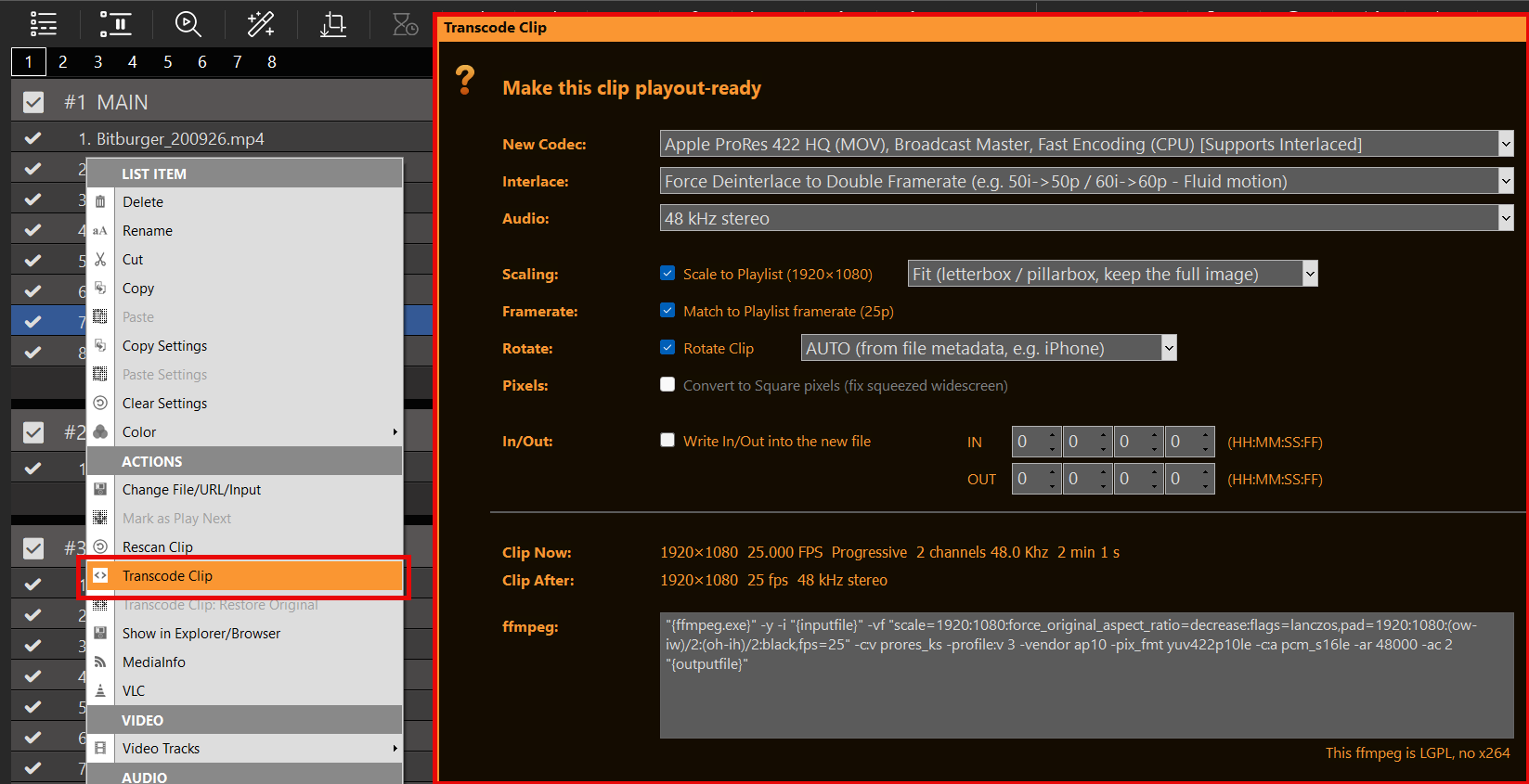
Leave the top lists on AUTO if you are in a hurry. Tick the checkboxes below only if you need scale, FPS, rotation, square pixels or a baked-in cut — details in the next section.
The ffmpeg line at the bottom follows your options. You can edit it; a broken command is on the operator. PLAYDECK ships an LGPL ffmpeg (no x264). Hardware H.264 (NVENC/QSV) and software OpenH264 are fine. libx264 will fail.
Need the original file back? Right-click → Transcode Clip: Restore Original.
When you actually need it
- Stutter / high CPU — ProRes, DNxHD, HAP, MXF: they decode on CPU in PLAYDECK. Transcode to a GPU codec (leave Codec on AUTO).
- Yellow mismatch icons — clip size or FPS ≠ playlist. Tick Scale and/or Match framerate.
- iPhone / sideways — tick Rotate, leave AUTO (or set 90° if AUTO does nothing).
- Tiny web / YouTube files — Scale to playlist. YouTube clips can be transcoded in the same dialog (download + encode).
- Show starts in 10 minutes — AUTO only, OK. No checkboxes required.
- Trim without re-encode — pick Lossless (stream copy) and tick Write In/Out into the new file. Same container and codecs, all audio tracks, keyframe-accurate In/Out.
AUTO vs optional checkboxes
The dialog is split on purpose so you do not have to fear the wrong setting.
Top = AUTO. Codec, Interlace and Audio are always on. The first item in each list is AUTO. That is the safe default: PLAYDECK picks a GPU encoder if it can (NVENC, QSV, otherwise AV1), keeps progressive files progressive, and for interlaced sources deinterlaces at the same frame rate (e.g. 50i → 50p). For audio it copies the original soundtrack when the new file format allows it (MP4: AAC/MP3, MOV: PCM/AAC, MKV: most codecs). If copy would break the file, it writes 48 kHz stereo instead (AAC, or PCM for ProRes/DNxHD).
You can still override: pick a specific codec (including Lossless (stream copy)), force keep interlaced, force double-framerate deinterlace (e.g. 50i → 100p), force same-framerate deinterlace, force Copy original audio, or force 48 kHz stereo. You do not have to.
Bottom = optional. Scale, Framerate, Pixels, Rotate and In/Out are off until you tick them. Unticked means: leave the picture/time as it is, only the AUTO encode runs.
- Scale to Playlist — enable the size change. Next to it: Fit (full image, black bars), Fill (crop to fill the frame), Stretch (distort to exact playlist size).
- Match to Playlist framerate — write a constant playlist FPS. Use this for variable or “weird” rates (iPhone, web) so duration and audio stay in sync.
- Convert to Square pixels — only active if the file is not 1:1. Old squeezed HD (e.g. 1440×1080 that should look 16:9). PLAYDECK and VLC can show that differently; the tick writes normal pixels.
- Rotate Clip — tick to rotate. The dropdown is AUTO (from file metadata, typical iPhone) or 90° / 180°. Unticked = no rotation. PLAYDECK’s engine ignores rotation metadata; VLC often does not.
- Write In/Out into the new file — tick to bake the cut into a shorter file. Unticked = In/Out stay live in the playlist.
Leave every checkbox off if the only problem is CPU/GPU codec. Tick only the line that matches the clip you actually have.
After the run
The new file is saved next to the old one with _transcoded in the name, swapped into the playlist, and re-scanned. Multi-select: one pass; with Bake on, each clip uses its own In/Out.
If ffmpeg rejects the command (typo in the memo), PLAYDECK shows the error text. ESC cancels.
Playlist undo: Restore Project Backup if you need an older project state — that is separate from Restore Original on the clip.
What files are decoded on CPU
PLAYDECK can play these, but not via the GPU on Windows. That is when Transcode Clip (Codec AUTO) is worth it.
ProRes
High-quality codec from Apple / Mac. Apple never released a GPU decoder for Windows, so PLAYDECK decodes ProRes on the CPU. If you need an alpha channel, HAP-A is the better Windows choice.
HAP and variants (HAP-A)
Alpha channel, lower CPU load than ProRes — still CPU, not GPU.
DNxHD, MXF
Same: no GPU decode in PLAYDECK.
What GPUs are recommended?
See Your PLAYDECK PC Build / Hardware.