

This article will show how to use a BREAK BLOCK to create Ad Breaks that interrupt your regular Playout, and will return after.
You can also start a Break Block from an incoming SCTE-35 or SCTE-104 marker — see Start Ad Breaks from Incoming SCTE.
In this article:
→ Using Break Blocks as Ad Breaks
→ Ingest → ads → return (checklist)
→ Schedule Break Block
→ Using Action Buttons for Ad Breaks
→ Fill a timed Break from a folder
→ Attach Overlays to the Break Block
→ Attach SCTE Marker to the Break Block
Using Break Blocks as Ad Breaks
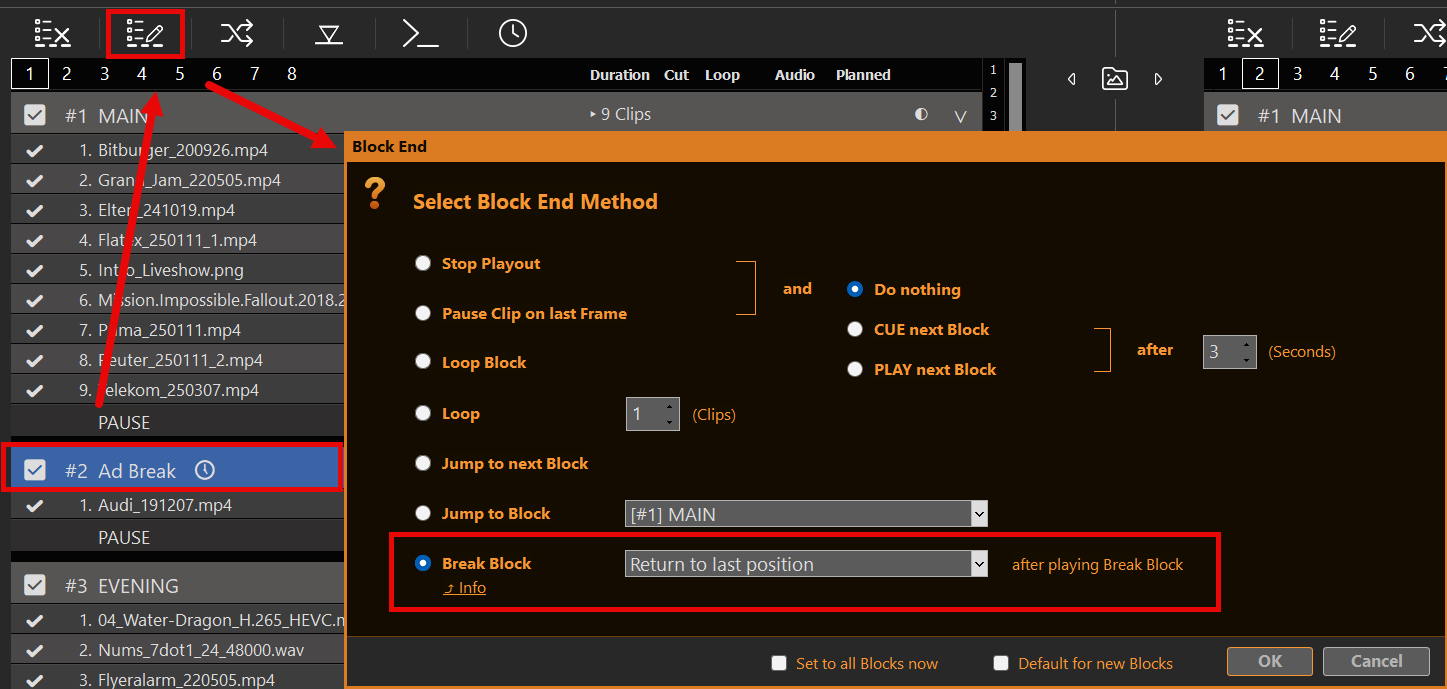
This is fairly simple: You create a new Content Block in your Playlist with one difference: The Block ends as BREAK BLOCK (instead of STOP or PAUSE). For this we select the Block and click on the BLOCK END Icon (or Double-Click the Block end). Then we select BREAK BLOCK.
The dropdown next to Break Block (after playing Break Block) chooses where Playout continues when the ads are done:
- Return to last position
- Return to clip from beginning
- Continue with next clip
There is no start-timing option on Block End. When a scheduled Break should wait for the current clip (instead of hard-cutting at the clock), set that on the Schedule dialog — see Schedule Break Block below.
This BREAK BLOCK behaves like this: Once it reaches its end, it will return to the clip and position (or other), which was playing BEFORE entering the BREAK BLOCK from OUTSIDE. Meaning: You can jump from anywhere to anywhere in the BREAK BLOCK, and it will remember where to return to.
Ingest → ads → return (checklist)
Typical path: live ingest → outbound stream → Ad Break → return to live.
- Permanent Stream Input for the live feed
Configure the URL under Settings → Inputs → Stream Input (URL on). In the playlist, cut to that Input via LIVE INPUT — not a Playlist Stream clip (STREAM icon / drag-dropped URL). A Playlist Stream clip stops when you leave it (SRT listener drops; Return is often black until reconnect). Details: Stream Inputs. - Block End = Break
On the ads block: Block End → Break Block, then set the return dropdown (after playing Break Block: last position / from beginning / next clip). That makes the interruption a returnable Ad Break, not a normal Stop/Pause block. Optional soft start for schedules: Schedule → Always Auto-play → Wait for current Clip to finish. - Optional: timed random spots (+ folder sync)
In the Break block, open Clip Shuffle / Sync: e.g. Shuffle time up to your break length for a random take that fits; enable Sync clips if spots come from a folder. Details: Fill a timed Break from a folder below / Playout Rules. - Enable SCTE where the signal carries it
- Outbound MPEG-TS (UDP / SRT / DVB / TS record): Parameter →
embed_scte35='true'. Without it, markers never leave on that output. - SDI Input (incoming SCTE-104 / triggers): VANC Data → Closed Captions and SCTE-104.
- SDI = SCTE-104, streams = SCTE-35 — no automatic conversion. See Closed Captions & SCTE — Overview.
- Outbound MPEG-TS (UDP / SRT / DVB / TS record): Parameter →
Same checklist for Schedule, Action, or SCTE-triggered Breaks.
Schedule Break Block
You can schedule the Break Block like any other Block Type by selecting the Block and clicking the SCHEDULE Icon:
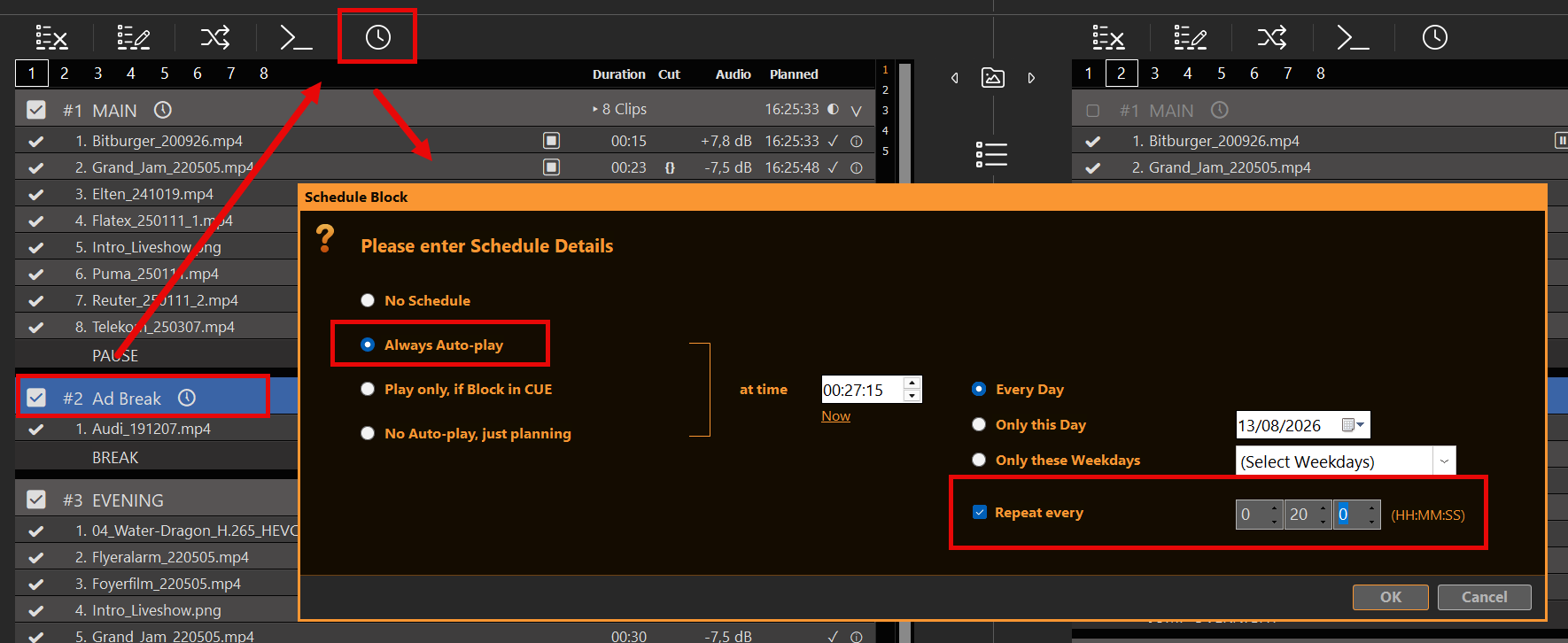
In this example we start our Break Interruption every day at 11:00 o’clock and will repeat this every 2 and half hours for the remaining of the day. There will be no Ad Breaks between 0:00 and 11:30.
A scheduled Ad Break will NEVER fire on its own: If nothing is playing, there is nothing to interrupt and return back to. Consequentially a scheduled Ad Break will NEVER fire within another Ad Break. This also presents opportunity: You can program repeating Ad Breaks with collisions on purpose and have the first one get priority and ignore the other one.
With Cut into Break now enabled, the Break starts at the scheduled time. With it disabled, PLAYDECK waits for the current clip to end. Live or endless clips never reach a clip end, so a Break with that option off will not start while they are playing. Stop, CUE, or playing a different clip cancels a waiting Break. Pause keeps it.
Using Action Buttons for Ad Breaks
Instead of scheduled Break Blocks, you can also use Action Buttons. For this simply click an empty Action Button and select to play the related Ad Block:
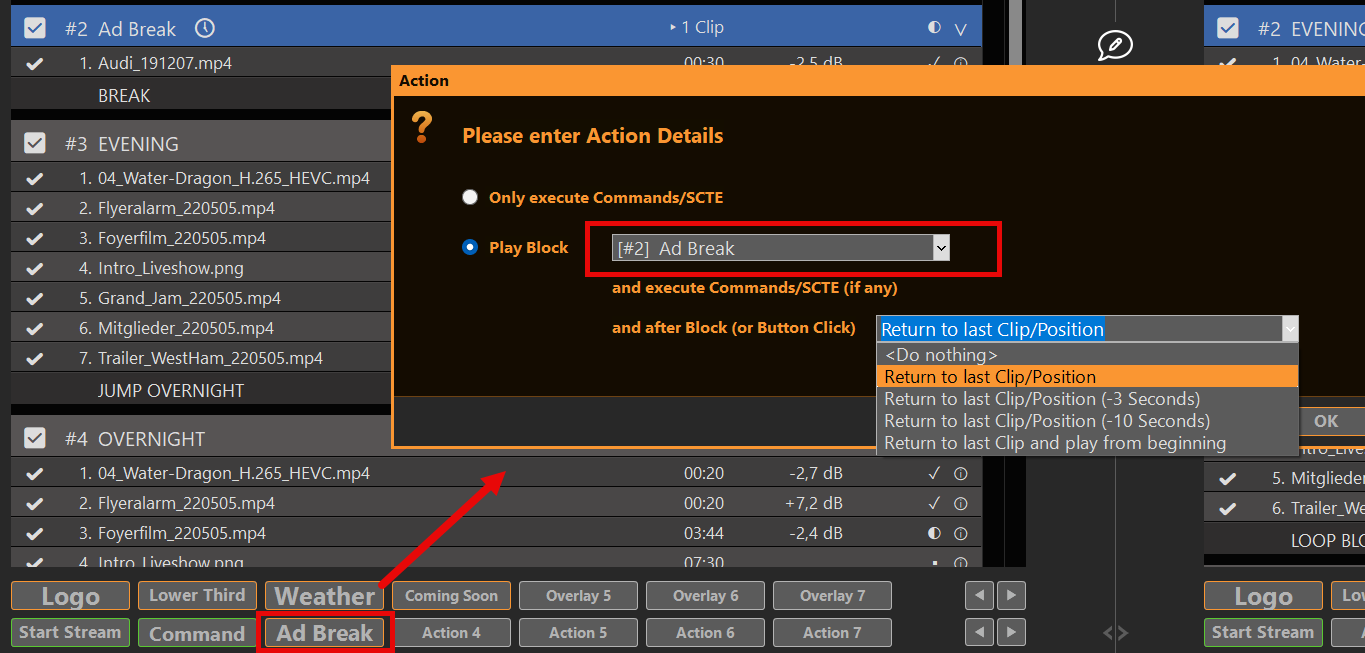
After Block the Action can use its own return method:
- Do nothing — uses the Break Block End (When Break ends)
- Return to last Clip/Position
- Return to last Clip/Position (−3 Seconds)
- Return to last Clip/Position (−10 Seconds)
- Return to last Clip and play from beginning
Continue with next clip exists only on the Block End, not on the Action. If you select Do nothing, the Block End will be used, like in our example above. If you select any other Option, the Return method of the Action will be used over the Block End method. This gives new options:
- You could use both return methods, depending if the Break Block starts via scheduling or via Action Button
- If started via Action Button, you can leave the Break Block EARLY and still return
The second option is perfect for looping Break Blocks, as you return to the previous playout if you click the Action Button a second time.
To fill the Break from a folder and only play what fits in the Break length, see Fill a timed Break from a folder below.
Fill a timed Break from a folder
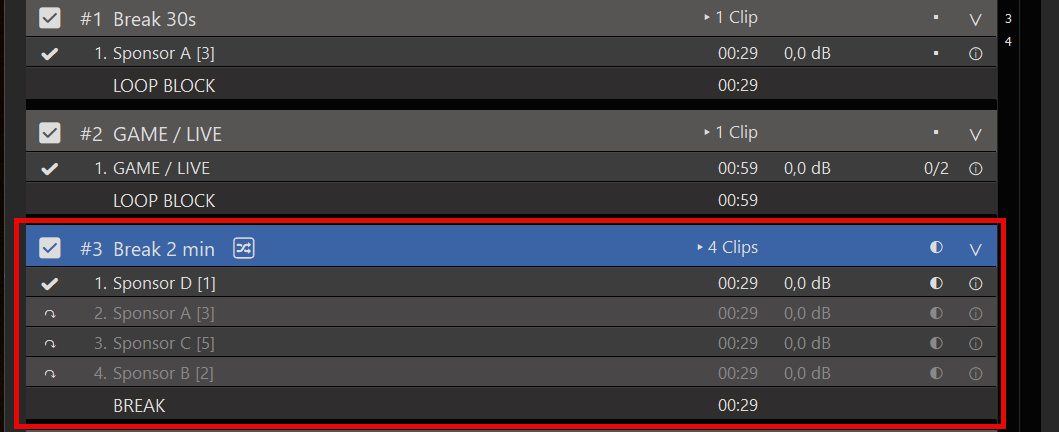
A Break Block can hold a pool of commercials — fixed files in the playlist, or a folder that stays in sync.
Recipe: ~2 minute Break from a folder
- Make the Block a Break Block (Block End → Break Block). Set When Break ends (return to last position, from beginning, or next clip) as usual.
- Open Clip Shuffle / Sync on that Block:
- Check Sync clips and set the folder (Filter optional — extensions and/or filename patterns).
- You can use Sync alone (No Shuffle) if you only want the folder mirrored.
- For a timed fill: set Shuffle time → up to
00:02:00(or your Break length).
- Each time the Break is entered (Schedule or Action), PLAYDECK deals a take: only as many clips as fit in that time. Leftovers stay gray (↷) for this Break. Returning from the Break does not deal a new take on the return target.
Alternatives
- Shuffle only N (e.g. 1) — one new spot per Break entry; the rest stay gray until the next deal.
- Shuffle all Clips — full random order of the synced pool (every active clip in the take).
Folder Sync runs in the background only while the Break Block is not Current and not Next (cooldown ~10s, ~30s when clips were added). Details: Playout Rules — Clip Shuffle / Sync.
Limit how often each spot plays
On a spot, open Playout Rules (pause icon) → Limit Playout, e.g.:
- Max playouts (per Day) = 5
- optional weekdays, primetime, campaign dates
Automation never picks a gray or limited spot. You can still fire one by hand.
Important with Folder Sync: new files from the folder become new clips. Existing Limit settings are not copied onto them. Before you rely on Sync:
- Set Limit Playout on one clip (e.g. Max 5 per day).
- Check Default for new clips in that dialog and OK.
- From then on, every newly added clip — including Folder Sync — gets those defaults.
Full guide: Playout Rules.
Attach Overlays to the Break Block
Oftentimes you want overlays to start with the Break content. Attach them to the Break clip (Clip start → Clip end) or drive them with commands — see Automate Overlay Lower Third with Clips.
Variable SCTE break + countdown slate: if the Break is started by an incoming SCTE OUT that carries a duration, use HTML placeholders {scteduration} / {sctedurationsec} (and optional {sctereceivedunix} / {sctestartunix}) in the overlay. Details: Start Ad Breaks from Incoming SCTE.
You can also show {eventlastid} in Text/HTML if you need the last splice ID on-air. Quick check: Text Overlay with {scteduration} before building HTML.
Attach SCTE Marker to the Break Block
Attach SCTE (two directions)
There are two useful SCTE workflows around Break Blocks:
A) Signal the break to your stream / broadcast chain (outbound)
Open Block Commands on the Break:
– Block Start — SCTE Out (optional {scteduration} / {scteduration10} when duration came from an incoming cue)
– Block Exit — SCTE In with {eventlastid} — fires on natural end and early return
– Block End — only when the last clip reaches its last frame (legacy “fully played” cleanup)
More Infos on SCTE 35 and SCTE 104.
B) Start the Break from an incoming SCTE cue (inbound)
If another system already fires the OUT marker, open Edit SCTE Trigger on the Break Block, match the incoming text, and choose how long the Break should run (Wait for IN, duration from the OUT packet, fixed time, or until Block end).
Step-by-step: Start Ad Breaks from Incoming SCTE