

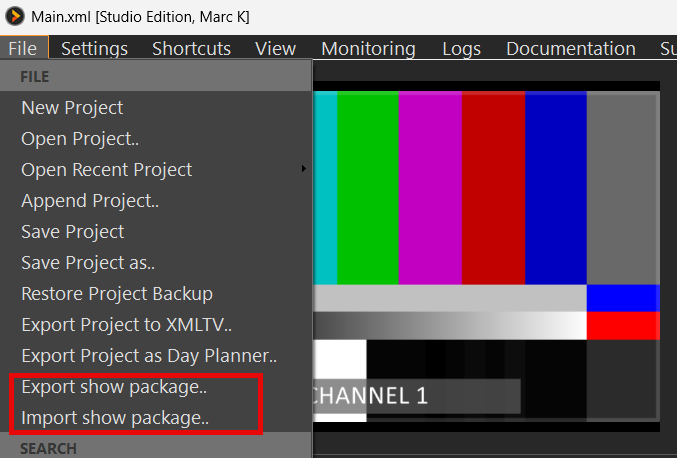
Export show package puts your current show into one .7z file: project, media, and the background settings that belong with it. Typical use: prep on a laptop, copy the package to a stick, Import show package on the show PC — without relying on the same drive letters or shared storage.
Export
BBuild and save your project as usual, then:
- File → Export show package…
- Choose where to save the .7z. The suggested name is your project name plus _pack (for example MyShow_pack.7z).
- Confirm overwrite if that file already exists.
PLAYDECK collects the media, writes a copy of your project XML under its original name, and builds the archive. Large shows take a moment; there is no “done” popup when the export succeeds. Missing media files are reported and skipped.
Import
On the show PC (or any machine that should run the show):
- File → Import show package…
- Select the .7z.
- Choose the destination folder.
- When asked, confirm whether to load the project now.
PLAYDECK extracts the files into the destination folder. Paths inside the project XML stay as they were when exported. If you load the project, PLAYDECK checks for missing media next to the XML and under the last Locate folder you used. You can Locate a media root if anything is still missing. Channel background settings from the package are applied when you load. Again, no success popup.
Confirm dialog
Confirm dialog (only if the exported settings file is present — a hand-made .7z without it skips this and only extracts):
When the package contains a project XML → Apply channel backgrounds (and related settings) now and load this project?
Yes: load the project, then overwrite channel backgrounds (and related exported settings) on this PC.
If the package has no project XML → Apply channel backgrounds (and related settings) now?
Yes: overwrite channel backgrounds (and related exported settings) only.
What is included
- Playlist file clips and overlay media (graphics, video overlays, text/crawler sources, HTML templates)
- Your project XML with the same filename you exported from
- Channel backgrounds — exported and, on import + load, written over your current channel background settings (type, color, file, keep-audio). Defaults for stream / audio-only clips are updated the same way when they were part of the export.
- Input device background files are copied into the package only; import does not change your input background settings
Website / YouTube entries and live sources stay as references — they are not downloaded into the package.