

PLAYDECK already gives you two comfortable remotes: Bitfocus Companion if you have a Stream Deck or an ATEM, and the built-in Web Remote if you just want a browser on the same Wi‑Fi.
Custom Remote is the third path. You paste one HTML file, PLAYDECK serves it on this PC, and your phone opens it with a QR code. ChatGPT, Gemini or Claude only rewrite that file. PLAYDECK never talks to the AI, and you never install a chatbot inside the playout machine.
This is for the job Web Remote is not shaped for: a floor manager who only needs three huge buttons, a producer who wants remaining time the size of a truck, a show that needs one extra command the stock UI does not show. You describe the job in plain language. The AI returns HTML. You paste it back.
Do not edit files inside the PLAYDECK program folder. Updates overwrite them. Custom Remote is the fork that survives an update.
In this article:
→ What you get
→ Use the Sample (start here)
→ Let AI change it
→ Commands and live status
→ Using Web Remote as a base
→ If something does not work
What you get
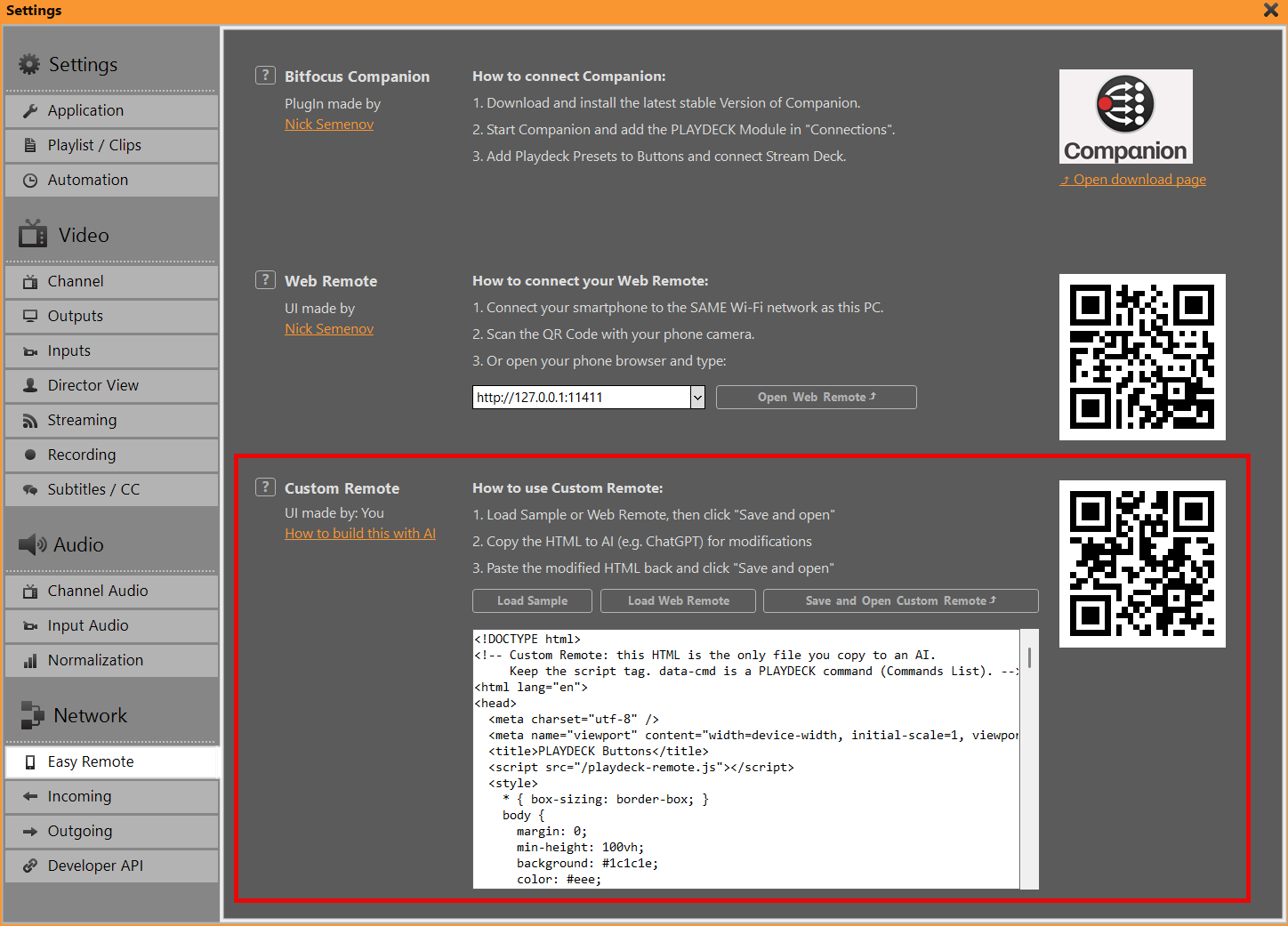
Settings → Remote Control → Custom Remote.
PLAYDECK stores your HTML and serves it at a stable address:
http://YOUR-PC:11411/custom
The URL does not change when you paste a new layout. The QR next to the box encodes that same address. Phone and PLAYDECK PC must be on the same Wi‑Fi. If the page stays empty, allow TCP port 11411 in the firewall (the same port Companion and Web Remote already use).
There is always only one Custom Remote. One box, one file, one QR. That is on purpose. You are not building a website host. You are building the remote for this show.
The built-in Web Remote stays at / (the root of port 11411). Companion stays Companion. Overlays and Director View stay their own templates. Custom Remote does not replace them.
Use the Sample (start here)
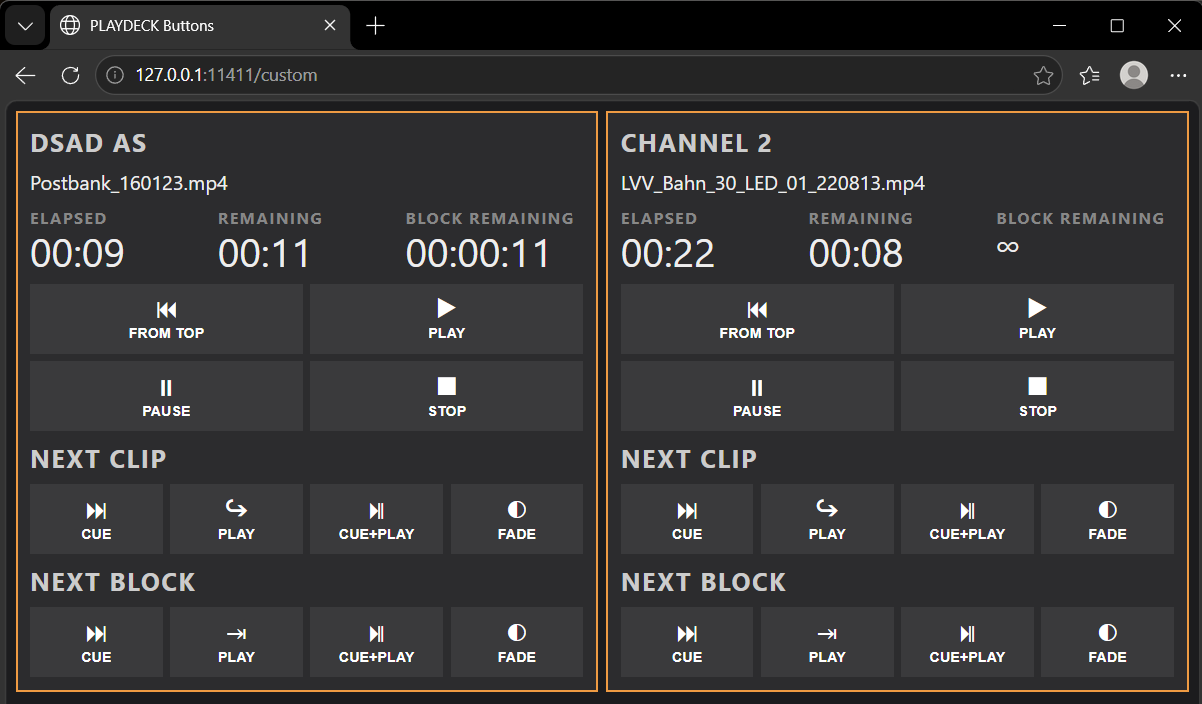
If you have never done this, do not start from an empty page and do not start from Web Remote. Start from the Sample. It is a phone-first button board: two channels, fat transport keys, next clip / next block in the same modes Companion uses (Cue, Play, Cue+Play, Fade). It shows clip name, elapsed, remaining, and block remaining. Infinite clips and blocks show ∞ (sometimes ∞ plus a loop time). That is the same text PLAYDECK shows in the progress bar. We do not invent a fake countdown.
- Settings → Remote Control → Custom Remote.
- Click Load Sample.
- Click Save and Open Custom Remote.
- Scan the QR with your phone camera, or open the address in the phone browser.
You should be able to cue, play, pause, stop, jump from the top of the playlist, and walk clip by clip / block by block — without reading a command list first.
That Sample is also the file you hand to the AI. It already contains the only technical contract that matters: one script tag, and PLAYDECK commands written on the buttons.
Let AI change it
Copy everything in the HTML box. Paste it into ChatGPT (or Gemini / Claude). Say what the remote is for, not which JavaScript library to use.
Keep this in every prompt:
Keep the line <script src="/playdeck-remote.js"></script>. Do not open your own WebSocket. Do not rewrite playdeck-remote.js. data-cmd is a PLAYDECK command from the Commands List. data-bind shows live status.
Then add the job, for example:
Floor manager, Channel 1 only
Make this a floor-manager iPad. Channel 1 only. Remaining time huge. Three buttons: PLAY, PAUSE, PLAY NEXT CLIP. Dark background, no gold borders, large tap targets.
Restyle, keep the buttons
Keep all existing buttons and commands. Change only colors, spacing and type so it looks like a broadcast panel. Playing channel should stay obvious.
Add one extra action
Keep the Sample as it is. Add a button under Channel 1 that sends startoverlay|1|1. Label it OVERLAY 1.
Paste the HTML the AI returns back into the box → Save and Open → reload the phone. If the AI dropped the script tag, PLAYDECK puts it back when you save. If the AI invented button names like fromtop or next instead of real commands, those keys will do nothing — put the Commands List command back on data-cmd.
You can paste into the box with Ctrl+V. There is no separate Paste button. Load Sample / Load Web Remote replace the box and save. Typing in the box without Save and Open does not update the phone.
Commands and live status
The helper script /playdeck-remote.js only talks WebSocket. You do not copy that file to the AI. You do not rewrite it. The HTML is the only file in the conversation.
A button is a PLAYDECK command, the same family Companion’s Custom Command uses:
<button data-cmd="play|1">PLAY</button>
<button data-cmd="cueandplay|1|1|1">FROM TOP</button>
<button data-cmd="playnext|1">PLAY NEXT CLIP</button>
<button data-cmd="cuenextblock|1">CUE NEXT BLOCK</button>
Live text is data-bind plus data-channel:
<div data-bind="channelName" data-channel="1"></div>
<div data-bind="clipName" data-channel="1"></div>
<div data-bind="elapsed" data-channel="1"></div>
<div data-bind="remain" data-channel="1"></div>
<div data-bind="blockRemain" data-channel="1"></div>
<div data-bind="blockName" data-channel="1"></div>
Elapsed and remaining are clip time. Block remaining is the block. Infinite shows ∞.
The full command list is in PLAYDECK: Main Menu → Documentation. If you can send it from Companion as a custom command, you can put it on data-cmd.
If a page needs logic the attributes cannot do (a spot counter, a rundown table), that extra JavaScript belongs in the same HTML file. Use PlaydeckRemote.send('play|1') and PlaydeckRemote.onStatus(...). Still one file, still no second WebSocket.
Using Web Remote as a base
The Sample is the path that works well with AI: few buttons, little code.
Sometimes you really want Nick’s Web Remote — the clip list, progress bars, channel tabs — but orange instead of grey, or a bigger clock, or hidden tabs. Then:
- Custom Remote → Load Web Remote → Save and Open.
- You now have a copy of the built-in Web Remote under
/custom. The original Web Remote at/is unchanged. - Copy that HTML to the AI with a strict rule:
This page is PLAYDECK Web Remote. Change CSS and labels only. Do not rewrite the JavaScript that builds the playlist, progress bars, or channel tabs. Keep <script src="/playdeck-remote.js"></script>.
If the AI “simplifies” that JavaScript, the clip list usually dies. Load Web Remote again and retry with a smaller ask (colors only).
Never tell people to edit webremote.html on disk and keep a backup for the next reinstall. That is what Custom Remote is for.
If something does not work
Blank phone page. Same Wi‑Fi as the PLAYDECK PC? TCP 11411 allowed? Try Save and Open on the PC first. The address is http://IP:11411/custom — not https, not another port.
Buttons do nothing. The script tag must stay. data-cmd must be a real command (play|1, not play). Reload after Save and Open.
Times stuck or list stale. Reload the phone. For a Web Remote copy, wait a few seconds — that page refreshes playlist data on a short interval.
∞ instead of a clock. The clip or block has infinite duration (live, loop, clock). PLAYDECK shows the same.
I wanted to change the normal Web Remote. You did: Load Web Remote is that page, served as Custom Remote. Leave / for everyone who still wants the stock UI.
Companion / Stream Deck. Keep using Companion for hardware. Custom Remote is HTML on a phone or tablet, not a replacement for the module.