

The Backup System links a second PLAYDECK PC to your main playout machine (MAIN). That second PC (the Backup) keeps the same project as MAIN and can take over if MAIN fails.
Typical use: a spare machine that stays ready while MAIN runs the show. On the Backup PC you can run Lite, Plus, Studio, or a dedicated Backup Edition. After Validate, that PC copies MAIN’s edition features. A dedicated Backup Edition is optional; it adds the offline grace timer (see below).
In this article:
→ Requirements
→ Setup
→ Modes & project sync
→ Hold & recovery
→ Watermark & MAIN offline
→ License & deactivate
→ Tips
Requirements
| Role | License |
|---|---|
| MAIN | Lite, Plus, or Studio (shop, dongle, or offline). A Trial MAIN is fine if it is Trial Lite, Trial Plus, or Trial Studio. |
| Backup PC | Lite, Plus, Studio, or Backup Edition (paid or Trial Lite / Plus / Studio). |
Any of those editions can Validate and start a Backup session. After Validate, Backup copies MAIN’s edition features (channels, tools, limits).
MAIN must not be:
- in Edit Mode
- a Backup Edition license
- already a Backup Client (validated to another MAIN) — Validate will refuse that target
- an PLAYDECK build older than 4.3b7 (update both MAIN and BACKUP to use the same version)
Both PCs should use the same PLAYDECK version (or Backup newer than MAIN), and they must reach each other on the network. To try Backup System in Trial: use Trial Lite, Plus, or Studio on the Backup PC, then Validate against MAIN.
Setup
On MAIN
- Install and run PLAYDECK with your normal license.
- Activate Lite, Plus, Studio, or Backup Edition — or pick Lite / Plus / Studio in License → Change Trial Edition.
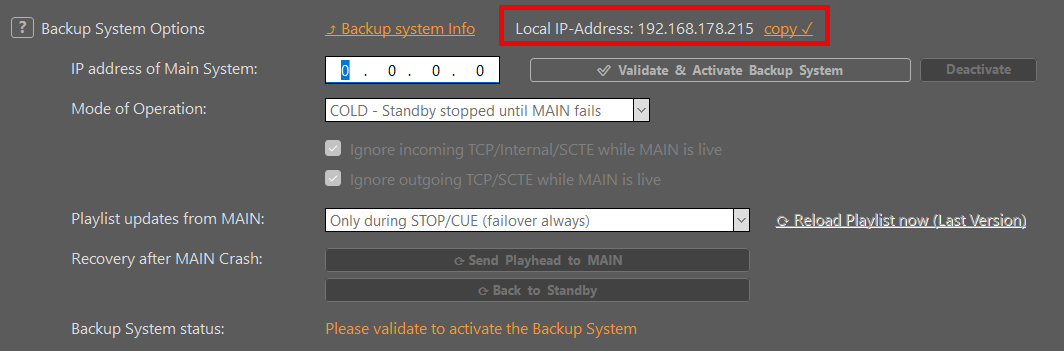
- Note MAIN’s IP address — from the Settings on MAIN.
You do not enable a special “Backup server” mode. With PLAYDECK running and the port open, MAIN is ready.
On the Backup PC
- Install PLAYDECK (same version as MAIN, or newer).
- Activate Backup Edition, or pick Backup Edition in License → Change Trial Edition.
- Open Application Settings → Backup System.
- Enter the IP address of Main System.
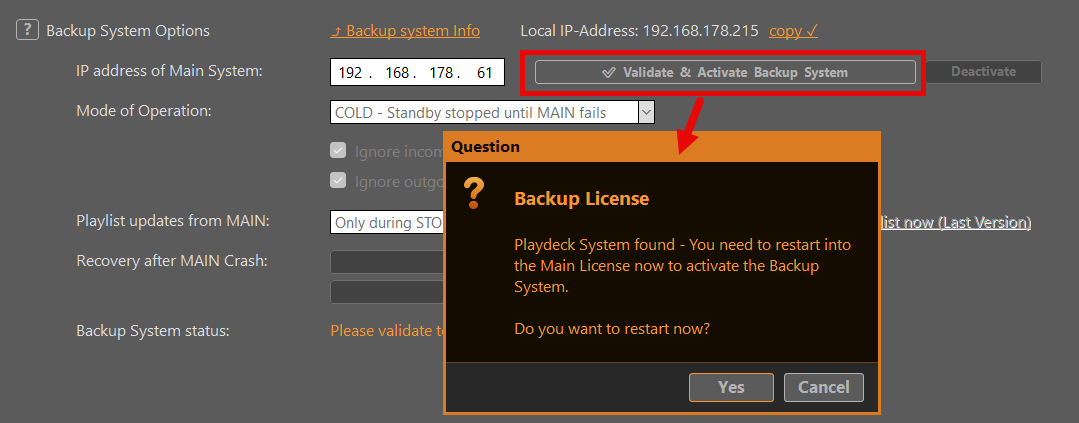
- Click Validate. PLAYDECK checks MAIN first. If the target is invalid (wrong IP, Backup Edition, another Backup Client, …), you get a message and the Backup session stays inactive.
- Confirm the restart when asked. Only after you confirm does Backup become active. After restart, Backup copies MAIN’s edition features (channels, tools, limits of Lite / Plus / Studio on MAIN).
- Choose how Backup should run (next section).
You can check the link in the window title or About — for example Backup COPY PLUS if MAIN is Plus.
Modes & project sync
Operation modes
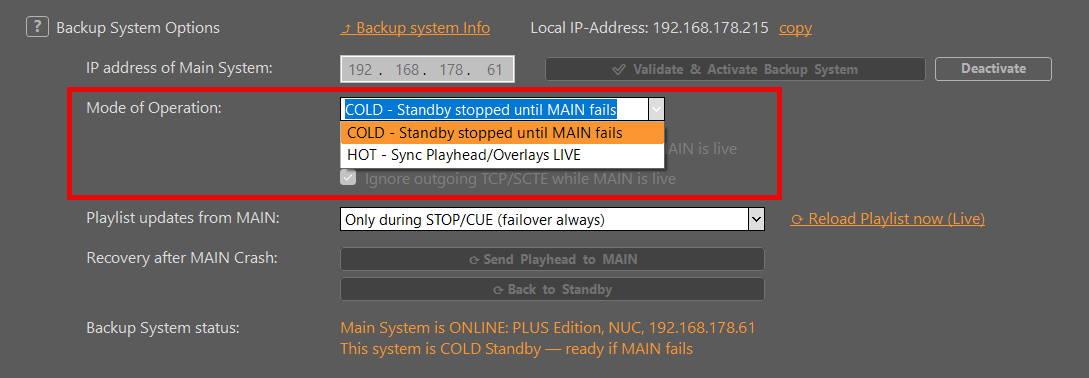
After Validate you choose how Backup behaves while MAIN is online. In Application Settings → Backup System the mode control shows:
- COLD – Standby stopped until MAIN fails (default)
- HOT – Sync Playhead/Overlays LIVE
COLD – Standby stopped until MAIN fails (default) Low load. Good for a spare PC that stays on all the time. The project can stay synced from MAIN; playout stays stopped while MAIN is online. If MAIN goes offline, Backup can take over automatically (Takeover).
HOT – Sync Playhead/Overlays LIVE While MAIN is online and Backup is following, Backup matches playhead and overlays about once per second — useful when the spare must stay on the same cue. Optional checkboxes can Ignore incoming TCP/Internal/SCTE while MAIN is live and Ignore outgoing TCP/SCTE while MAIN is live, so Backup does not fight MAIN for control or send commands twice.
Project sync
During a Backup session, MAIN owns the playlist:
- Open / New / Save for project files are disabled on the Backup PC. The live playlist always comes from MAIN’s sealed mirror — not from Autosave.
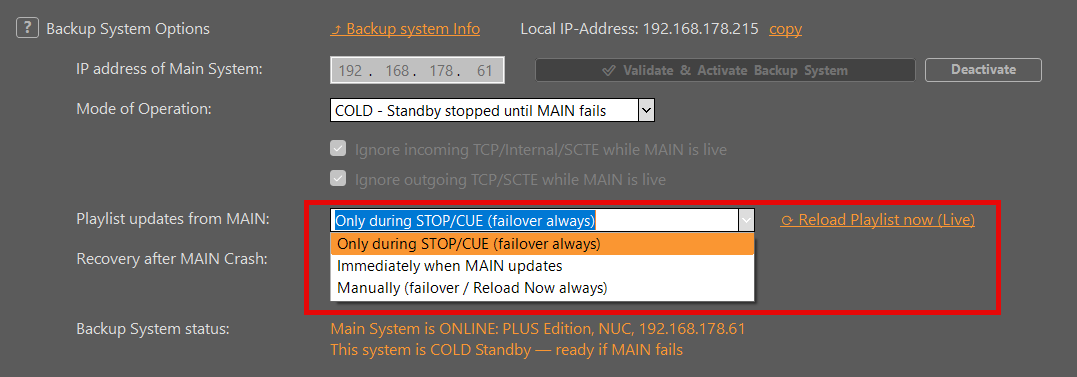
- MAIN’s project is copied to a local mirror on Backup. When that mirror is applied depends on Reload:
| Option | When MAIN’s project is applied on Backup |
|---|---|
| Only during STOP/CUE (failover always) (default) | When playout is stopped or cued (failover still always applies). |
| Immediately when MAIN updates | As soon as MAIN’s project changes. |
| Manually | Only when you use the reload text link (failover still always applies). |
Manual reload text link (next to the reload options):
- MAIN online: Reload Playlist now (Live)
- MAIN offline: Reload Playlist now (Last Version) — applies the last sealed mirror already on this PC
Settings close first, then the reload runs.
Hold & recovery
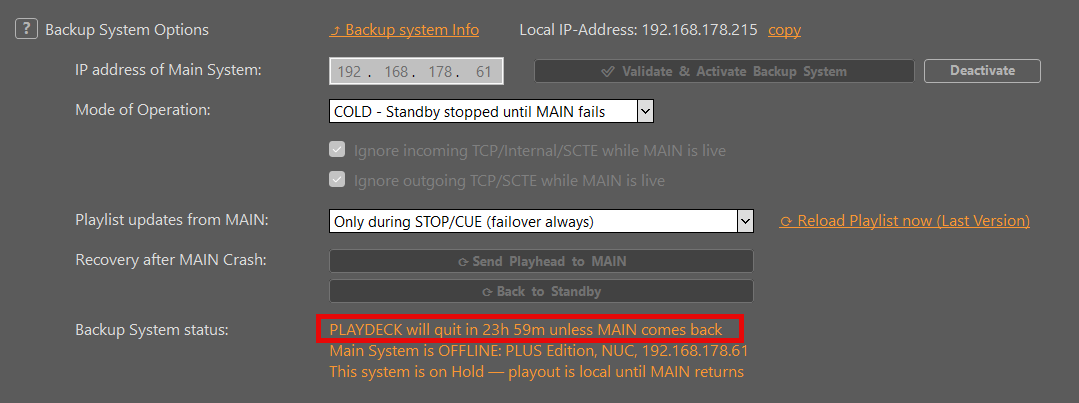
After an outage or takeover, Backup does not snap back to MAIN by itself. That avoids a sudden black or a jump while you are still on air on the Backup PC. PLAYDECK enters Hold: playout on Backup stays local until you choose to return.
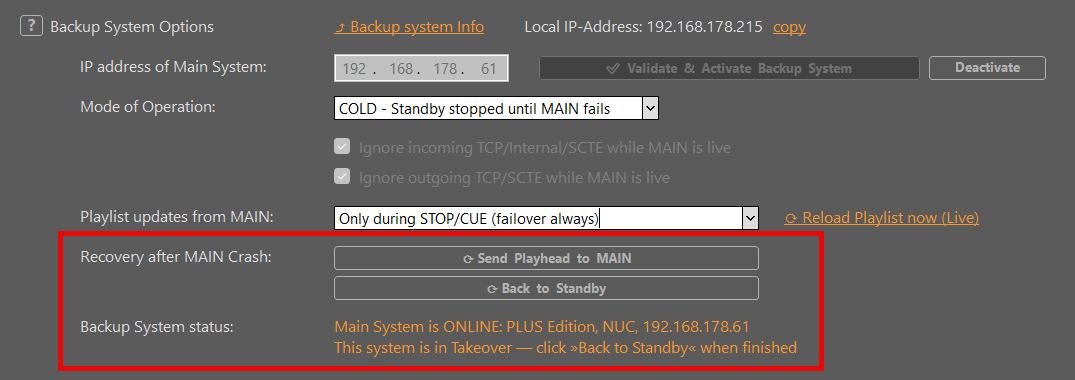
When Hold is active and MAIN is online again, the recovery controls light up in Application Settings → Backup System:
- Send Playhead to MAIN — pushes the current Backup playhead to MAIN (useful before you hand control back, e.g. after an ATEM switch)
- Back to Follow MAIN (HOT) — clears Hold and resumes live follow
- Back to Standby (COLD) — clears Hold, stops playout on Backup, returns to standby
Settings close first, then the action runs.
HOT — MAIN drops Backup stays on the last known playout and enters Hold. Status explains that playout is local until MAIN returns. When MAIN is back, status asks you to click Back to Follow MAIN. Follow does not resume automatically.
COLD — MAIN drops Backup can take over (Takeover) and enters Hold. When MAIN is back, playout does not stop by itself. Click Back to Standby when you are finished on Backup.
Hold is remembered across a PLAYDECK restart on the Backup PC, so a reboot mid-show does not suddenly re-follow MAIN or auto-apply a pending project sync until you clear Hold.
Status text under Backup System status and the short banner on the main window (for example Following MAIN, MAIN online, Backup standby, MAIN offline) show which of these states you are in.
Watermark & MAIN offline
Watermark
| Situation | Watermark on Backup |
|---|---|
| Trial on Backup PC (any edition) | Yes (Trial) |
| Paid Backup Edition, not validated yet | Yes — until Validate succeeds |
| Paid Lite / Plus / Studio on Backup PC | No extra watermark from Backup System |
| Paid license, validated to a paid MAIN | No (unless this PC is still Trial) |
| Validated to a Trial MAIN | Features follow MAIN’s edition; watermark stays if this PC is still Trial |
When MAIN is offline
Backup is allowed to cover outages. If this PC runs a dedicated Backup Edition, PLAYDECK limits how long it may stay online without MAIN:
- If MAIN stays offline for 24 hours, PLAYDECK shows a warning and grants another 24 hours.
- If MAIN is still offline after that, PLAYDECK closes.
If this PC runs Lite, Plus, or Studio, that timer does not apply — you keep your own license; the Backup session simply stops following MAIN until MAIN is back (or you Deactivate).
When MAIN is online again, the offline countdown resets (Backup Edition only). Keeping Backup validated with MAIN reachable (especially in standby / COLD) is the normal long-running setup.
License & deactivate
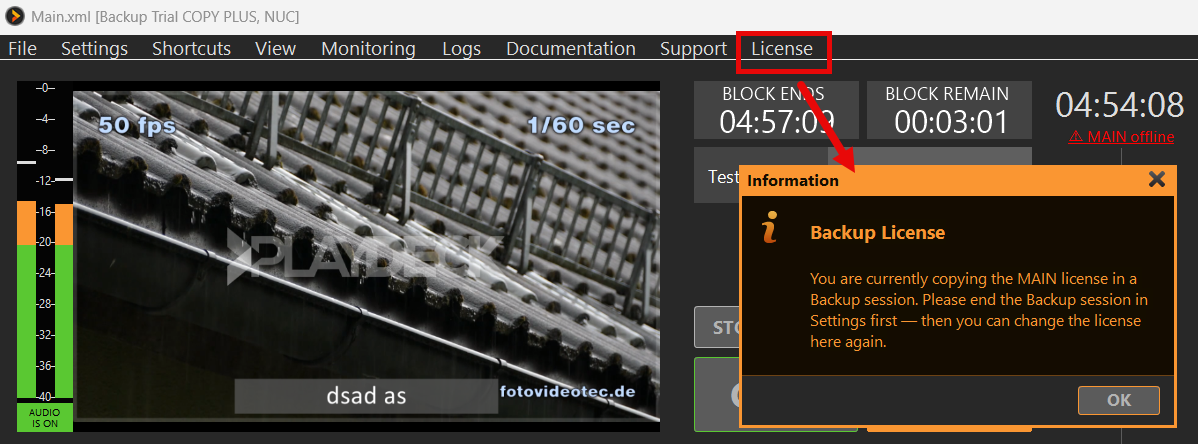
While a Backup session is active, License Manager shows a short message: end the Backup session in Settings first (Deactivate + restart), then change licenses. That avoids mixing a copied MAIN license with a local checkout.
To end the session: Application Settings → Backup System → Deactivate. Follow and copied MAIN features stop after restart. MAIN IP and your mode / reload choices stay saved.
If the Backup license expires or you switch to a different dongle (for example Plus instead of Backup), PLAYDECK clears a leftover Backup session automatically on the next start.
Tips
- Point both PCs at the same media paths (or shared storage), or Backup opens a playlist with missing files. Use Locate once to pick a media root — PLAYDECK remembers it and searches it again on the next sync. On Backup you can Snooze until Restart on the Missing Files dialog to silence that popup for this session. Use Reload Playlist now (Live) when MAIN is online and you need a fresh copy, or Reload Playlist now (Last Version) when MAIN is offline.
- To copy a show (project + media) onto a stick without LAN: File → Export show package… on the prep PC, then File → Import show package… on the show PC. Missing media is resolved with Locate, not by rewriting paths in the XML. On a Backup session without Open/Save, Import still extracts files; the live playlist stays under MAIN sync. More information: Import / Export Show Package.
- Firewall: TCP 11411 from Backup → MAIN.
- Two machines that must playout independently at the same time still need two full licenses. Backup System is for follow + failover.
- To try the flow in Trial: License → Change Trial Edition → Lite, Plus, or Studio, then Validate (watermark stays).