

Welcome to the PLAYDECK Playlist Automation and Program Flow guide. While PLAYDECK serves as an excellent manual clip player for live operators, it also features a highly advanced automation engine for continuous broadcasting and structured event schedules. This guide will show you how to transition from basic manual playout to sophisticated automation—allowing you to control precise playback down to the exact second, keep your timeline perfectly readable, and build self-running, smart playlist logic.
In this article:
→ Fulfilling Factual Timelines (Time-of-Day Scheduling)
→ The Smart “Planned” Column: Predictive vs. Real Playout
→ Structuring Program Flow (Block End Methods & Auto-Shuffle)
→ Advanced Playout Control: Marker Cues & Command Actions
→ Automated Advertising: Managing Scheduled Break Blocks
→ Visual Organization & Operator Prompts (Colors, Notes & Pauses)
→ Broadcasting Exports & EPG Integration (Day Planner & XMLTV)
→ Enterprise Automation: Custom Playout Logic via PLAYDECK API
Fulfilling Factual Timelines (Time-of-Day Scheduling)
Many broadcasting environments, corporate events, and digital signage installations require strict compliance with real-world clock times. PLAYDECK solves this through individual block schedules.
- The Concept: Instead of scheduling single clips, you organize your media into Playback Blocks and apply an absolute time constraint to the entire block.
- The Setup:
- Select your target Playback Block in the timeline.
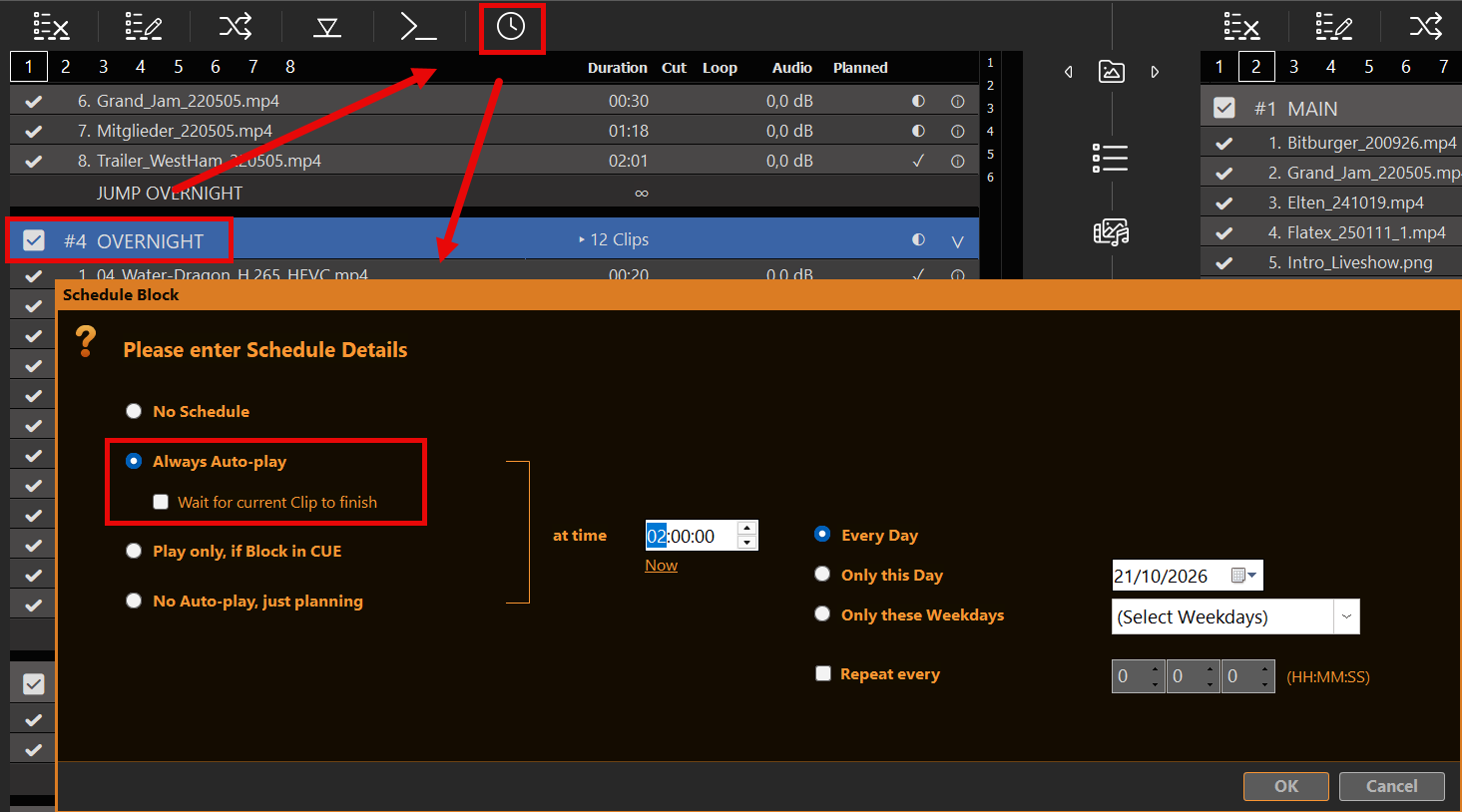
- Click the Clock Icon on the block header toolbar.
- Enter your target start time down to the exact second (e.g.,
11:02:48 AM). - Choose Always Auto-play when the block should fire from the clock.
- Wait for current Clip to finish: Under Always Auto-play you can check this option. Off (default): PLAYDECK hard-cuts into the scheduled block at the clock time. On: the current clip is allowed to finish first — the scheduled block plays as next, it does not cut. Works for any Always Auto-play block (not only Break Blocks). Live or endless clips never end, so with Wait on the schedule will not start while they play. Stop, CUE, or starting a different clip cancels a waiting schedule; Pause keeps it.
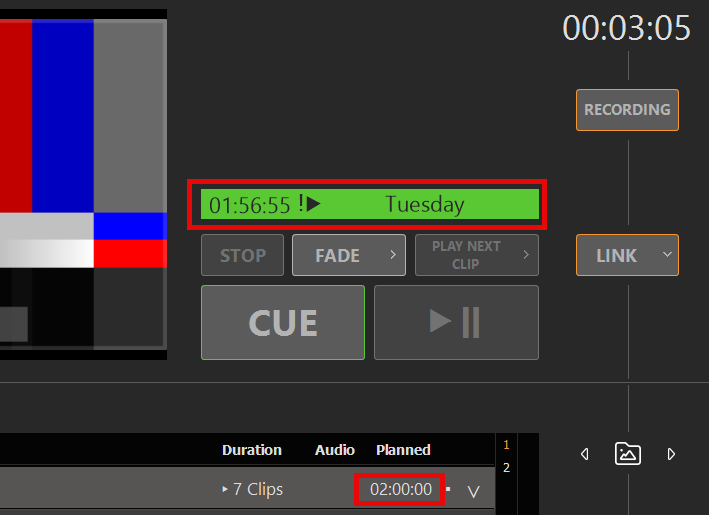
- Auto-Trigger Engine: Once Always Auto-play is set, PLAYDECK continuously checks the system clock. The moment the scheduled time arrives, the block fires (immediately or after the current clip, depending on Wait). A live countdown to the next upcoming scheduled block is shown next to the Preview window.
The Smart “Planned” Column: Predictive vs. Real Playout
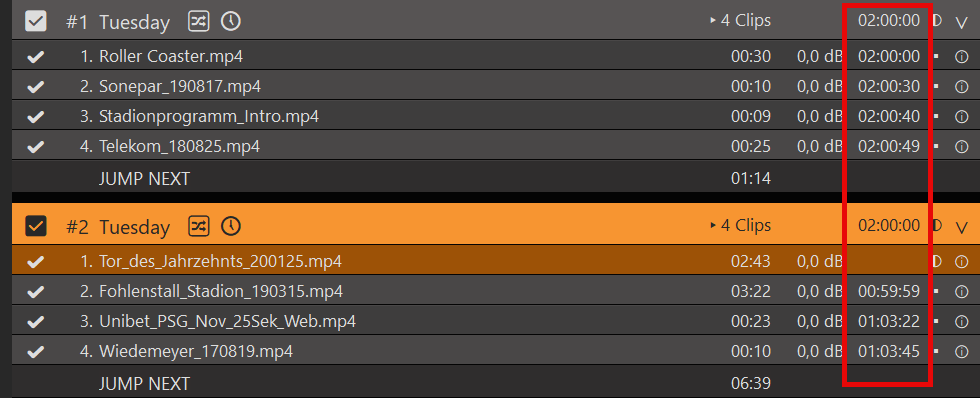
One of PLAYDECK’s most powerful features is its real-time mathematical timeline engine, visible in the Planned column of your playlist view.
- Predictive Calculation: The moment you assign a schedule to a block, PLAYDECK instantly calculates the exact airtime for every single clip within that block. This engine is highly intelligent: it automatically factors in custom clip trims (In/Out points), loop configurations, and transition durations. You will see exactly when Clip #5 will go on air before the block even starts. Planned times and block duration only include clips that can play in this take. Inactive clips and gray clips (Shuffle leftover or Limit Playout) are omitted.
- Dynamic Reality Update: The moment the block goes LIVE, the “Planned” column instantly adapts. If a live event ran long and your block started 45 seconds later than scheduled, the column dynamically stops showing the theoretical schedule. Instead, it instantly updates to reflect the actual, real-world execution times for all remaining clips based on the current playout reality.
Structuring Program Flow (Block End Methods & Auto-Shuffle)
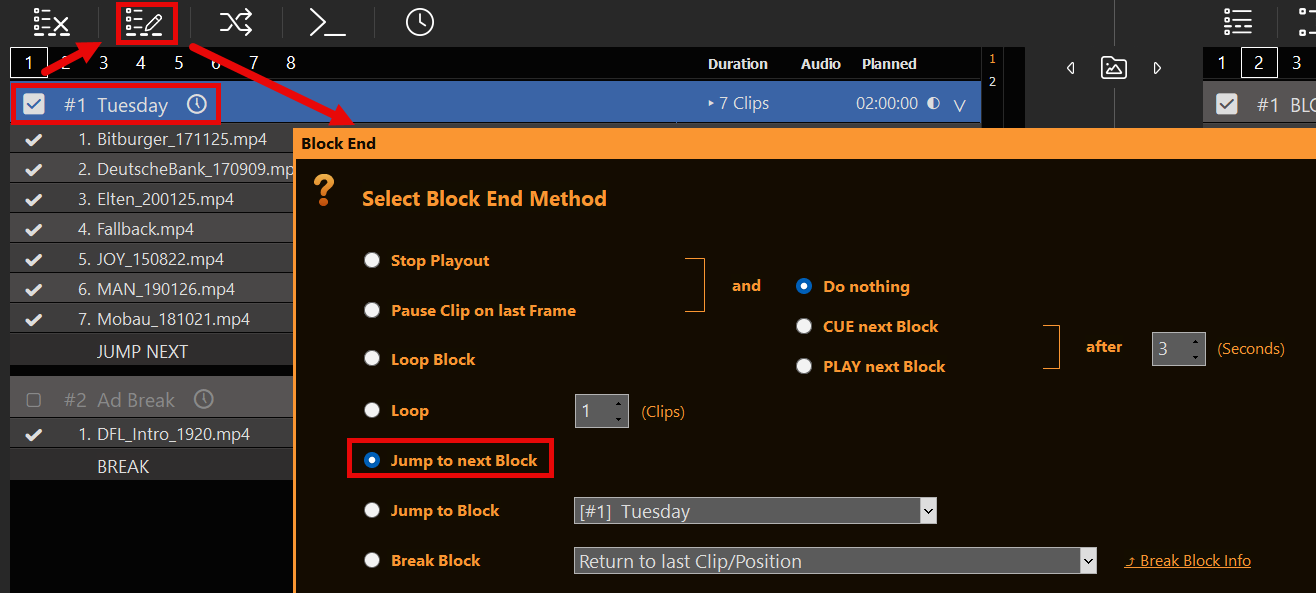
Automation is not just about when a block starts, but how PLAYDECK behaves after a block finishes playing. By opening the Block End behavior settings (the list icon on the block header), you define the automatic transition logic between different program segments.
- Jump to next Block & PLAY next Block: This is the standard linear broadcasting rule. Once the current block finishes its last take clip, PLAYDECK automatically skips to the next block in the list and immediately triggers playback. You can even define a custom delay in seconds before the next block fires off.
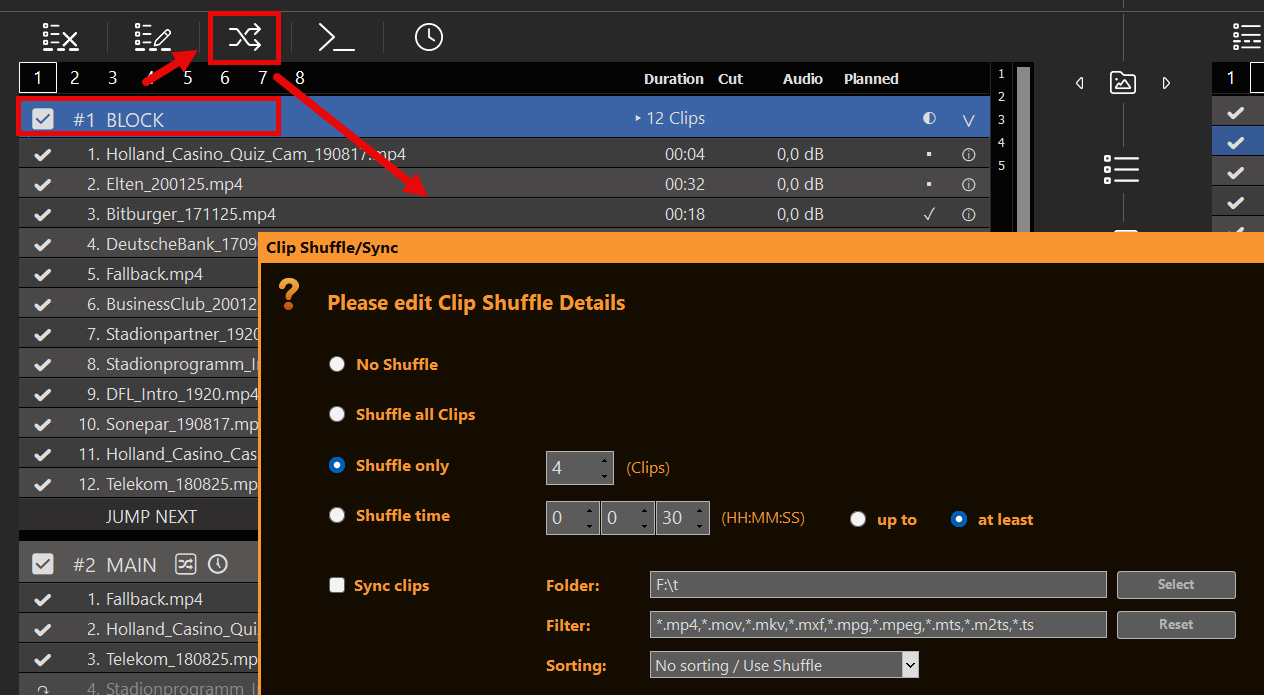
- Loop Block & Clip Shuffle: The block repeats until a manual command or a scheduled block overrides it. Open Clip Shuffle / Sync on the Block to shuffle all clips, only N clips, or fill a time budget (Shuffle time). Optional Sync clips alone (No Shuffle) or together with Shuffle keeps the block matched to a folder while the Block is idle (not Current/Next; cooldown ~10s / ~30s when clips were added). PLAYDECK deals a take on block header CUE/PLAY/Fade, when the Block becomes Next, or when a Schedule / Break enters that Block — not when you CUE a clip inside the Block. Leftover clips stay gray (↷). Loop Block + Shuffle: each loop cycle deals a new take when the next lap starts (playhead stays on the clip that just started; the rest reshuffles). Loop Clips keeps the same take. Details: Playout Rules.
Advanced Playout Control: Marker Cues & Command Actions
For advanced show control and complex broadcasting logic, PLAYDECK provides internal triggers that extend far beyond standard linear video playback.
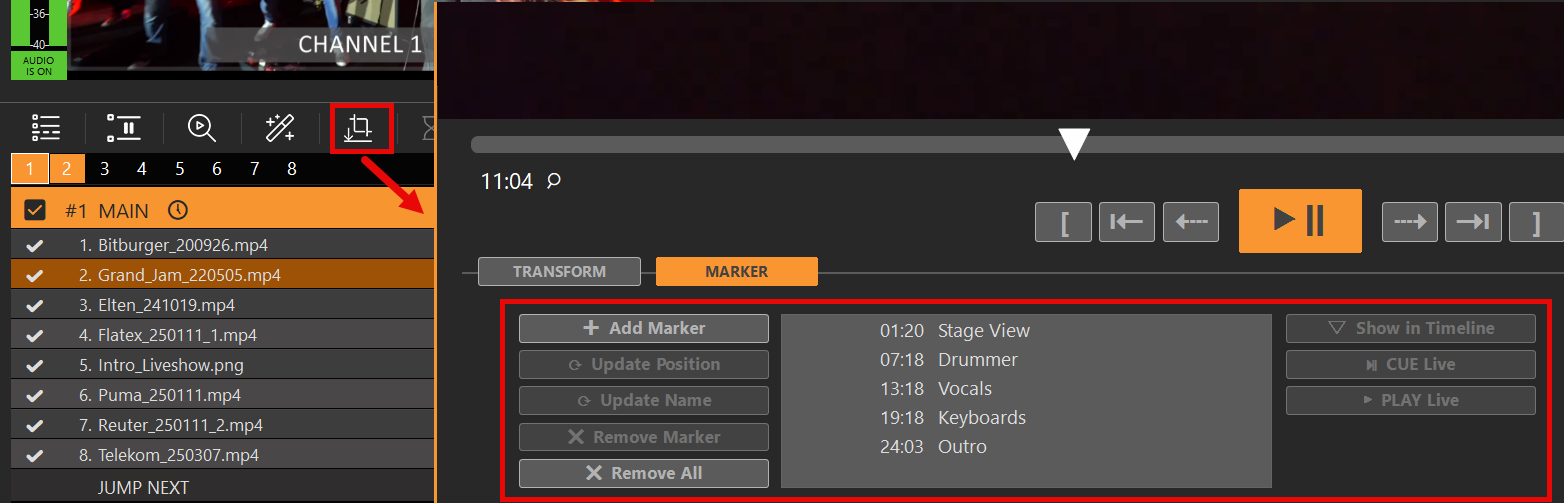
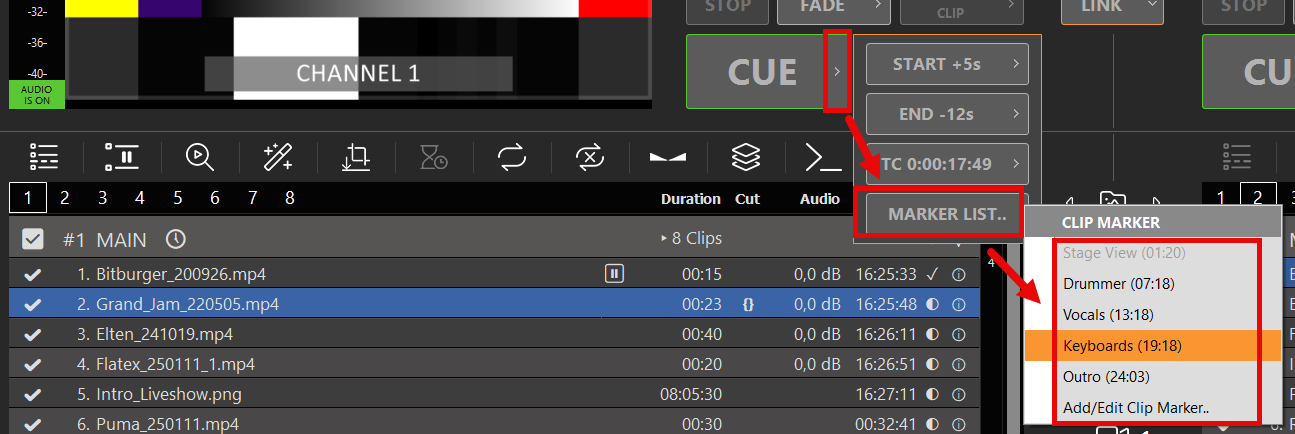
- Clip Timeline Markers: Within the individual clip timeline, you can set dedicated Markers to act as precise jump points for separate CUE triggers. These markers can be jumped to manually by an operator or targeted automatically via system commands.
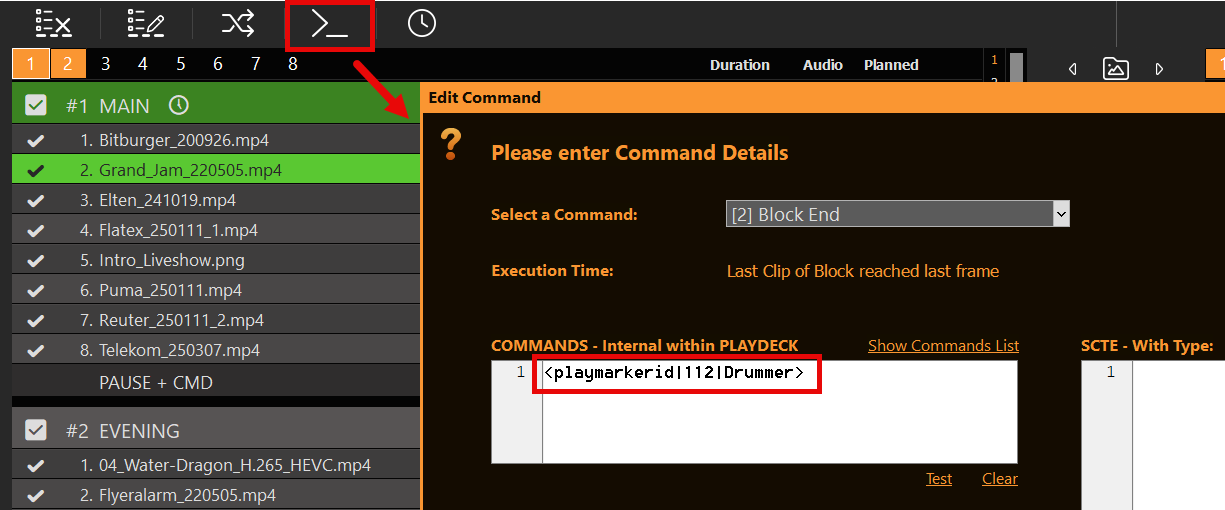
- Playout Overrides via Commands: Commands represent a deeper method of structuring your program flow. You can attach execution commands to individual clips or entire blocks at any position—including timestamps relative to the end of a clip. These commands can fully remote-control PLAYDECK, enabling your timeline to automatically trigger external events, change channel states, or jump directly to a targeted clip based on complex programming needs.
Automated Advertising: Managing Scheduled Break Blocks
Integrating commercials or commercial breaks into an automated schedule is built directly into the program flow engine.
- The Break Block Concept: If you want ads to seamlessly interrupt your active playout, you can format a block as a dedicated Break Block.
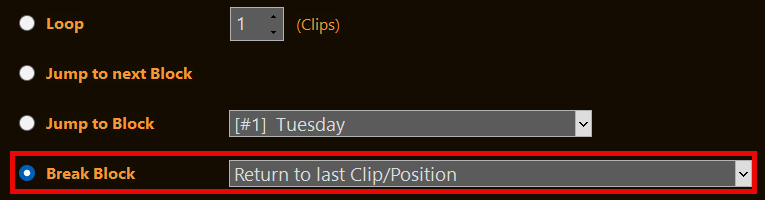
- Automatic Resuming: Set the block end behavior to Break Block and configure it to Return to last Clip/Position. When the break ends, PLAYDECK cuts back to your main playlist, resuming the exact frame of the video clip that was playing before the interruption.
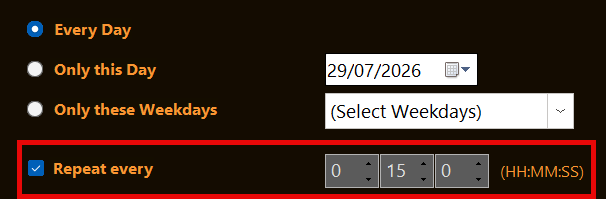
- Interval Scheduling: These ad breaks can be tightly scheduled. You can time them to fire at absolute clock times or on a fixed interval (e.g. every 15 minutes). Soft vs hard start is the same Schedule option as for other blocks: Always Auto-play → Wait for current Clip to finish (off = cut at the clock, on = wait for clip end). Details: Ad Breaks Documentation.
Visual Organization & Operator Prompts (Colors, Notes & Pauses)
When managing complex broadcast schedules, keeping the user interface readable and providing reminders for operators is key to a flawless production.
- Color Coding: You can visually group your program items by right-clicking any clip or group of clips and selecting Color. Use this to instantly separate commercials (e.g., Red) from your main content (e.g., Green), making long playlists highly scannable.
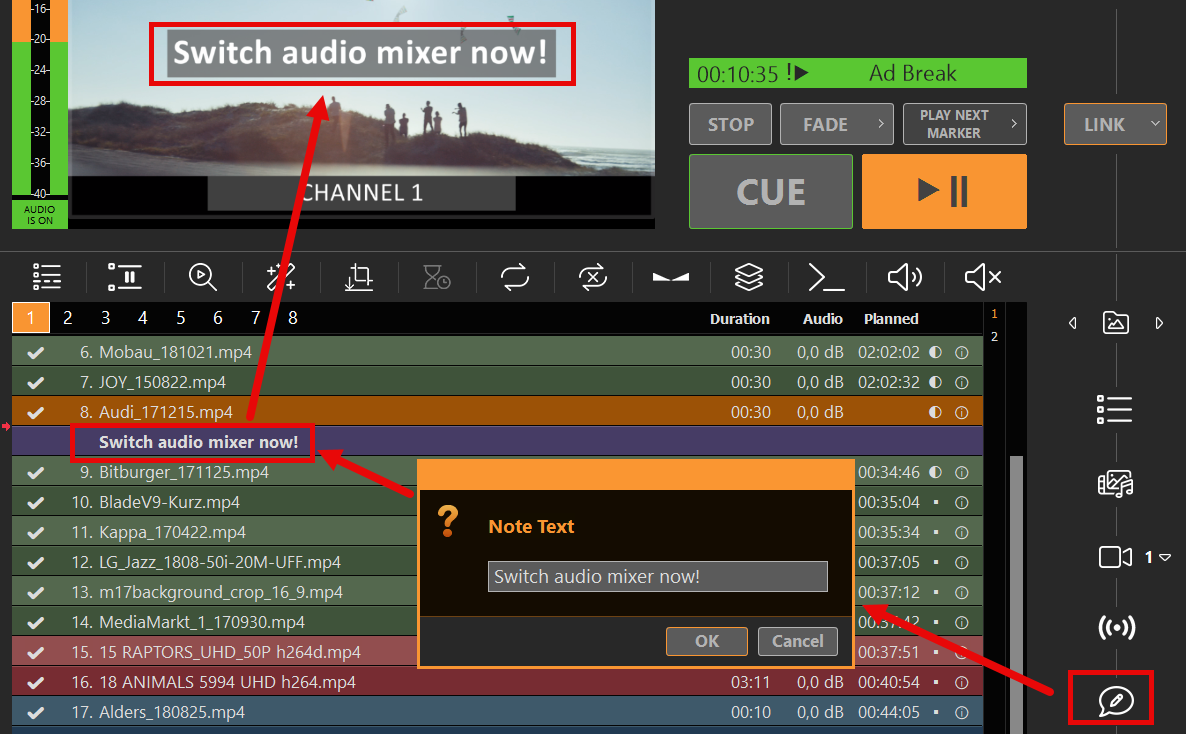
- Text Notes for Segmenting: You can drag and drop text Notes directly into the playlist just like normal clips. These notes act as visual separators to segment your program within a block. They appear prominently as an INFO banner in the UI Preview window to remind an operator of crucial tasks (e.g., “Switch audio mixer now!” or “Prepare graphic overlay”), but they are completely invisible to your master output signal.
- EPG Programme Descriptions: The same Notes can also supply the programme description (
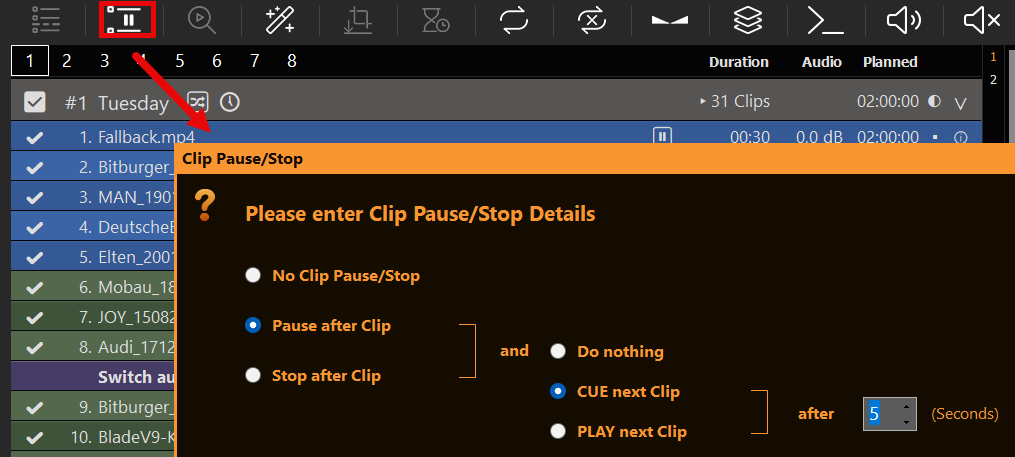
<desc>) when you export XMLTV. Place a Note inside the scheduled block (after the first clip, before the block end). If you use Notes as live operator prompts, keep those separate from EPG text — every Note in the block is concatenated into one description. - Playout Rules: The pause icon on a clip opens Playout Rules. After Clip Action is pause, stop, or continue after the clip (with optional delay). Limit Playout restricts a clip by weekdays, primetime, campaign dates, and max playouts per day. Gray clips (↷) are skipped by automation; inactive clips (checkbox off) cannot be started at all. Full guide: Playout Rules.
Broadcasting Exports & EPG Integration (Day Planner & XMLTV)
To hand over your automated schedule to management teams or external broadcasting networks, PLAYDECK offers industry-standard export tools located under the File menu.
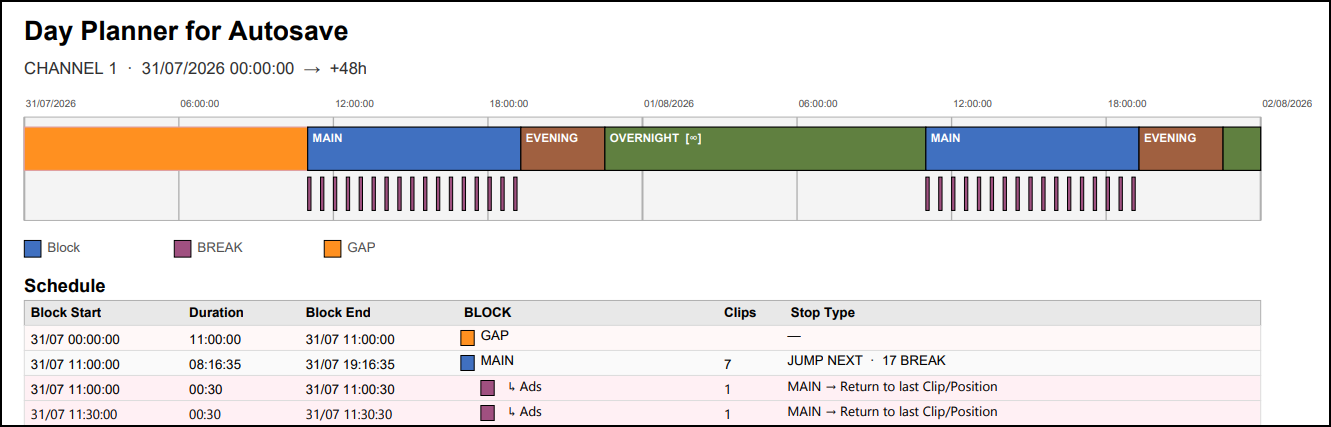
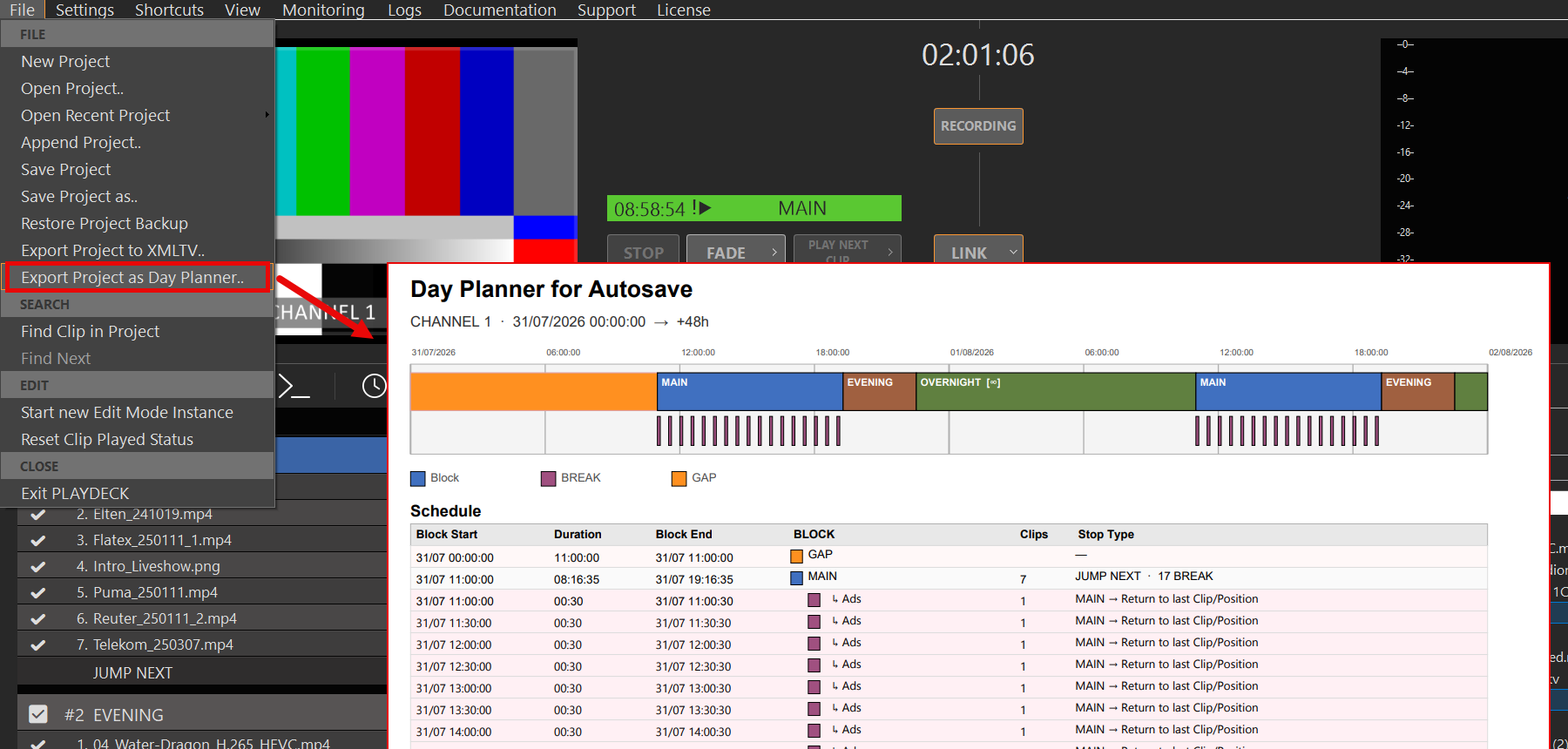
- Export Project as Day Planner: This tool generates a clean, highly visual PDF overview of your schedule. It provides a macro-view of your program structure and clearly highlights scheduled Ad Breaks and playlist GAPs. Ideal for production managers who need to verify gapless program planning.
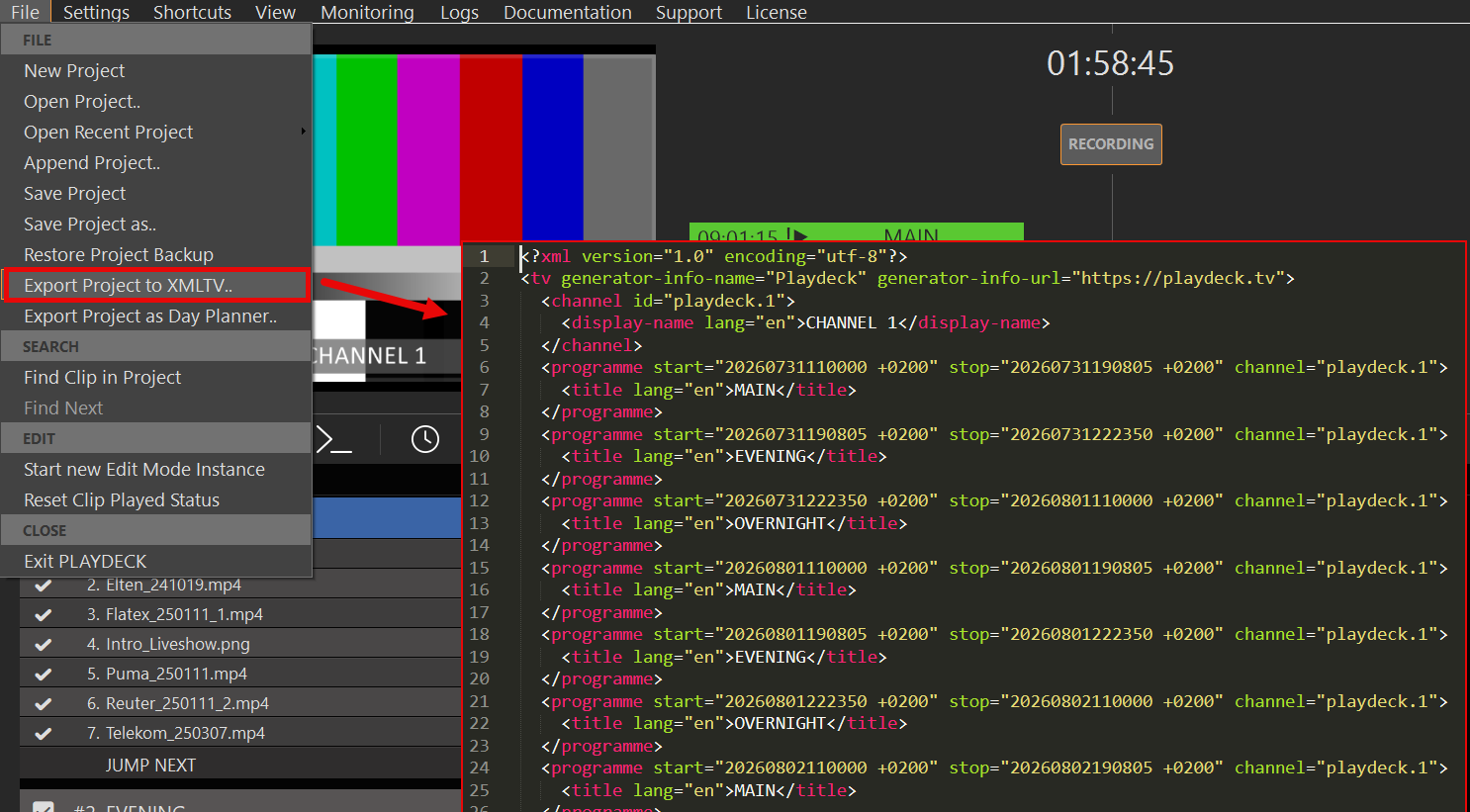
- Export Project as XMLTV: Essential for formal broadcasting workflows. This exports an XML file with programme start/stop times from your scheduled playlist blocks. The format is widely used by IPTV servers, set-top boxes, and TV guide / EPG apps to show live programme information to viewers.
How to create a working EPG (step by step)
- Schedule your programmes
Only blocks with an active Schedule (time-of-day / weekday / date) become XMLTV programmes. The block name becomes the programme<title>. Unscheduled or inactive blocks are skipped. Break blocks are also skipped — they are interruptions, not stand-alone TV programmes. - Set channel names
In Settings → Channel, set each channel’s Channel Name. These names appear as<display-name>in the XMLTV file. Channel IDs are alwaysplaydeck.1,playdeck.2, … - Add programme descriptions (optional)
Insert a playlist Note inside the block with the viewer-facing synopsis. On export, that text becomes<desc>.- Put the Note inside the block (safest: after the first clip, before the block end).
- Multiple Notes in the same block are merged into one description (separated by spaces).
- Do not mix live operator reminders into the same Notes if you care about a clean EPG.
- Export
File → Export Project as XMLTV…
PLAYDECK writes programmes for the near schedule window (about two weeks ahead). Channels must be licensed and started to appear in the export. - Publish & map in your IPTV / EPG system
Host the.xmlfile on a URL your IPTV panel, middleware, or guide app can fetch (or copy it into the system). Then map each XMLTV channel id to your stream:playdeck.1→ Channel 1 streamplaydeck.2→ Channel 2 stream
Without this mapping, the guide often looks “empty” even though the file contains data.
- Refresh when the schedule changes
XMLTV is a snapshot. After playlist or schedule edits, export again and update the file on your server / panel.
Day Planner vs XMLTV — important differences
| Day Planner (PDF) | XMLTV (EPG) | |
|---|---|---|
| Purpose | Internal planning overview | Viewer-facing TV guide |
| Gaps / empty time | Shown as GAP rows | Not exported |
| Ad Breaks | Visible in the PDF | Not exported as programmes |
| Programme title | Block name | Block name → <title> |
| Programme description | — | Playlist Notes → <desc> |
If the PDF looks “full” but the guide looks empty, check: correct calendar day, channel mapping (playdeck.N), and that you are looking at real programmes — not GAPs.
Minimal example
<programme start="20260810200000 +0000" stop="20260810210000 +0000" channel="playdeck.1">
  <title lang="en">Evening News</title>
  <desc lang="en">The latest national and international news stories of the day.</desc>
</programme>
(Category and icon are optional and currently not exported.)
Enterprise Automation: Custom Playout Logic via PLAYDECK API
If your broadcasting workflow requires deeply customized automation logic, proprietary scheduling databases, or integration with external master control switchers, you can bypass the standard user interface entirely.
- Full Remote Architecture: PLAYDECK features a comprehensive, open programming interface.
- Custom Playout Scripts: By using the PLAYDECK API, you can write your own custom scripts and external software logic to control, update, override, and drive your entire playout engine according to your custom rules.