

This article shows how to activate your license, move it to another PC, and what to do when a PC or a dongle is lost.
There is no separate full version to download. Your Trial edition becomes LITE, PLUS or STUDIO. Install the latest PLAYDECK:
https://playdeck.tv/download/
In this article:
→ Shop License
→ Dongle License
→ Offline License
→ Backup License
Shop License
All licenses you buy on playdeck.tv are stored in your personal Online License Pool. The License Manager is where you manage them: Local Licenses on the left are on this PC, the Online License Pool on the right is free to use. One pool for all your licenses, no license files to carry around.
There is no separate license website to check licenses in or out. PLAYDECK only goes online when you log in, check a license out, or check it back in here. Starting and running a show needs no internet at all.
First time on a PC
Open the License Manager:
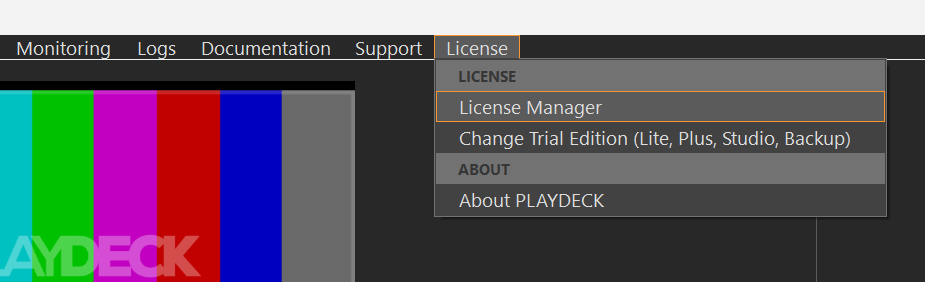
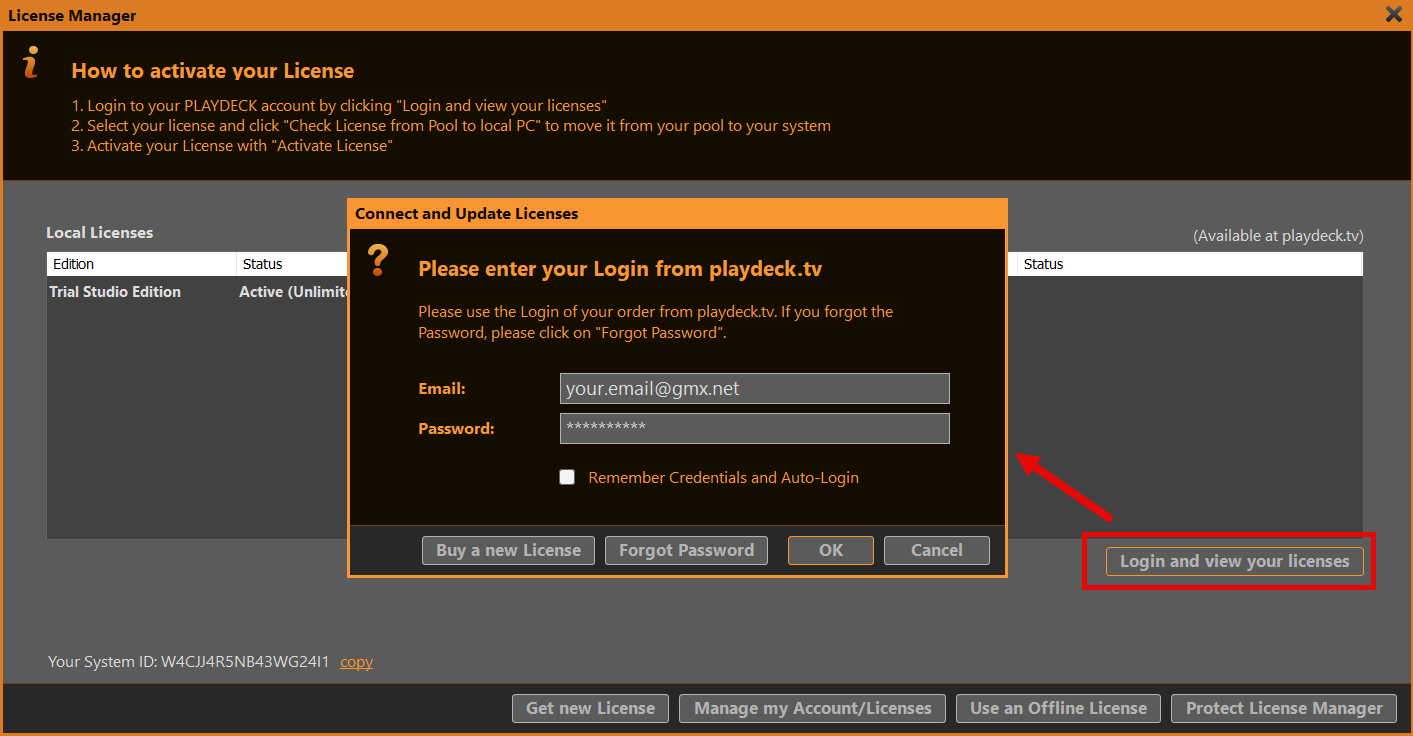
Log in with Login and view your licenses. Use the email address and password from your shop order. If you need a new password, click Forgot Password.
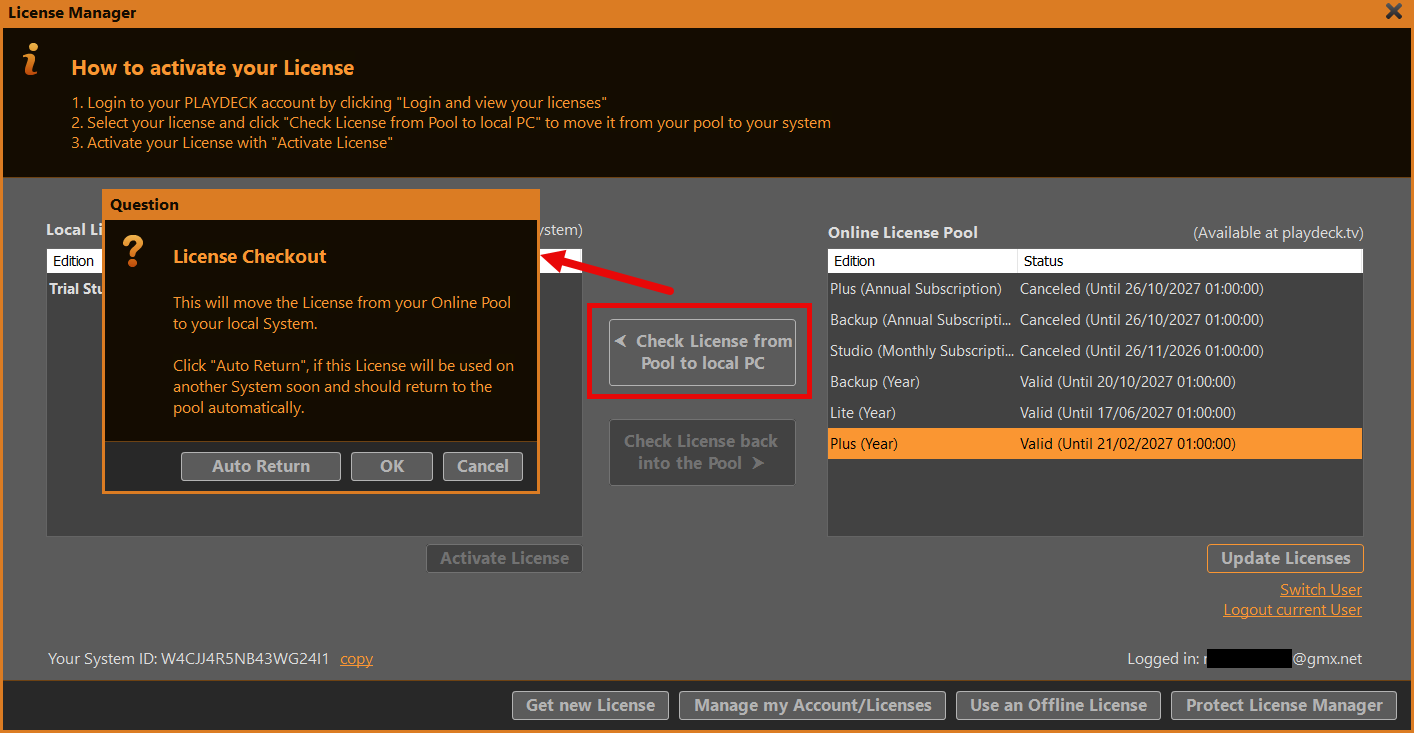
Select the license on the right, under Online License Pool, and click Check License from Pool to local PC.
PLAYDECK opens License Checkout. You have two ways to check out:
- OK keeps the license on this PC until you send it back yourself. Other systems cannot use it while it is checked out here.
- Auto Return checks the license out for a limited time only. It returns to the pool by itself, see Auto Return below.
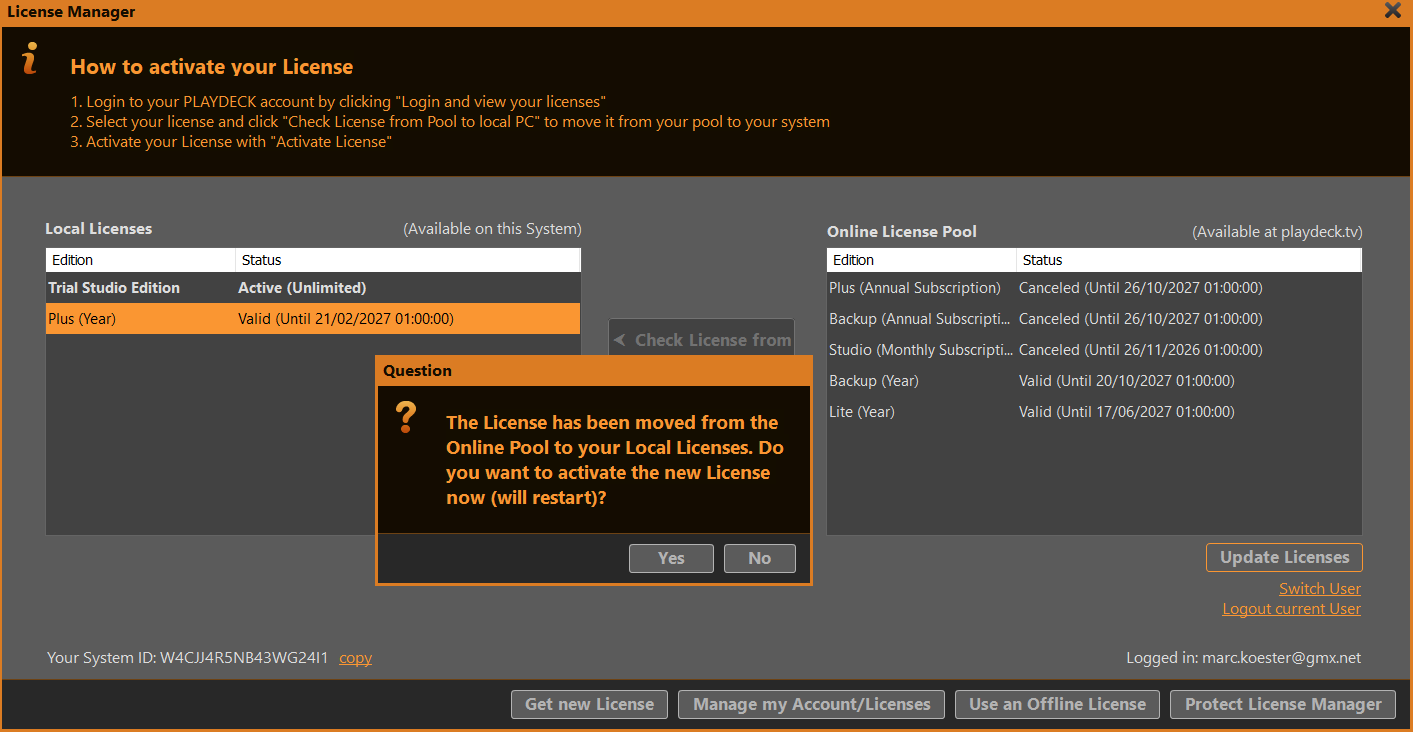
PLAYDECK then tells you the license has been moved to your local licenses and asks to activate it now. Click Yes. PLAYDECK restarts with the license active and the watermark gone.
Move to another PC
On the PC that is using the license, open the License Manager, select the license on the left, under Local Licenses, and click Check License back into the Pool.
You do not have to activate the Trial edition first. If the license is active on this PC, confirm the restart: PLAYDECK checks the license in and restarts into the Trial edition on its own.
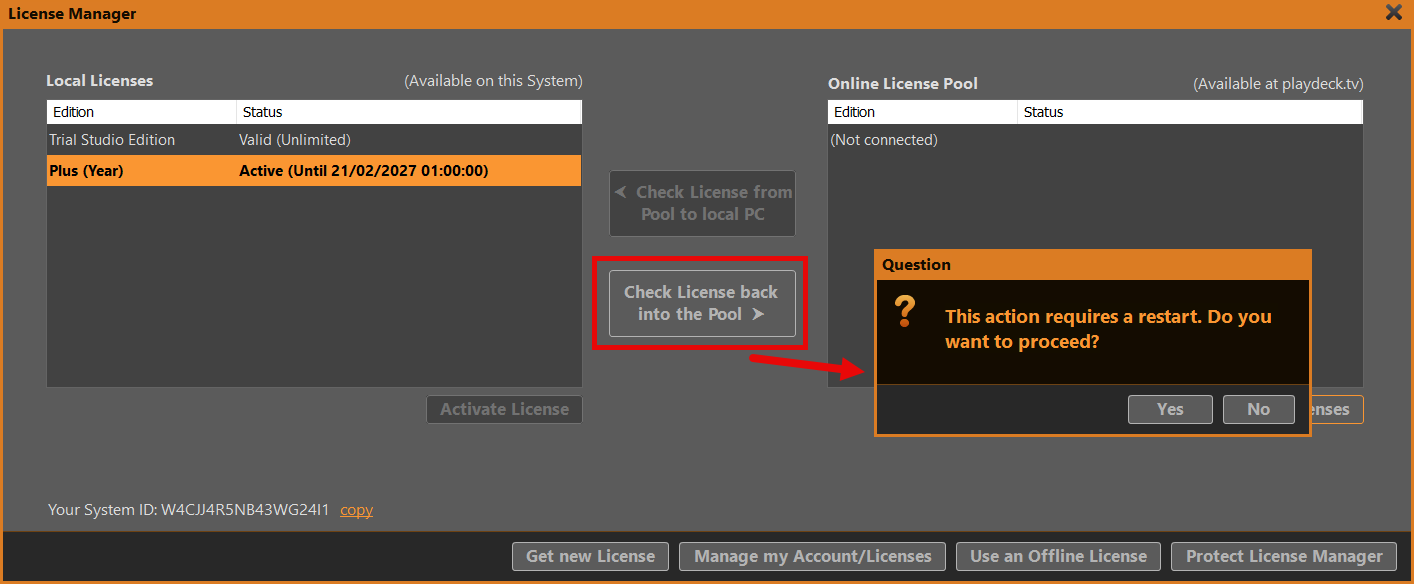
The license is now free in the pool. On the other PC, check it out as described above and activate it.
Auto Return: time-limited checkout
Choose Auto Return instead of OK in License Checkout when the license should come back by itself, for example when this PC only needs it for one show, one day, or one week.
License Auto Check-In asks: How long should the license be available on this computer?
- Only today keeps the license until the end of today.
- Until lets you pick the last day you need it. You cannot pick a day after the license itself ends.
The dialog always shows the exact moment in UTC server time and in your local time. After that moment, the license is back in the pool and can be checked out on any PC. This does not change the end date of your license or subscription.
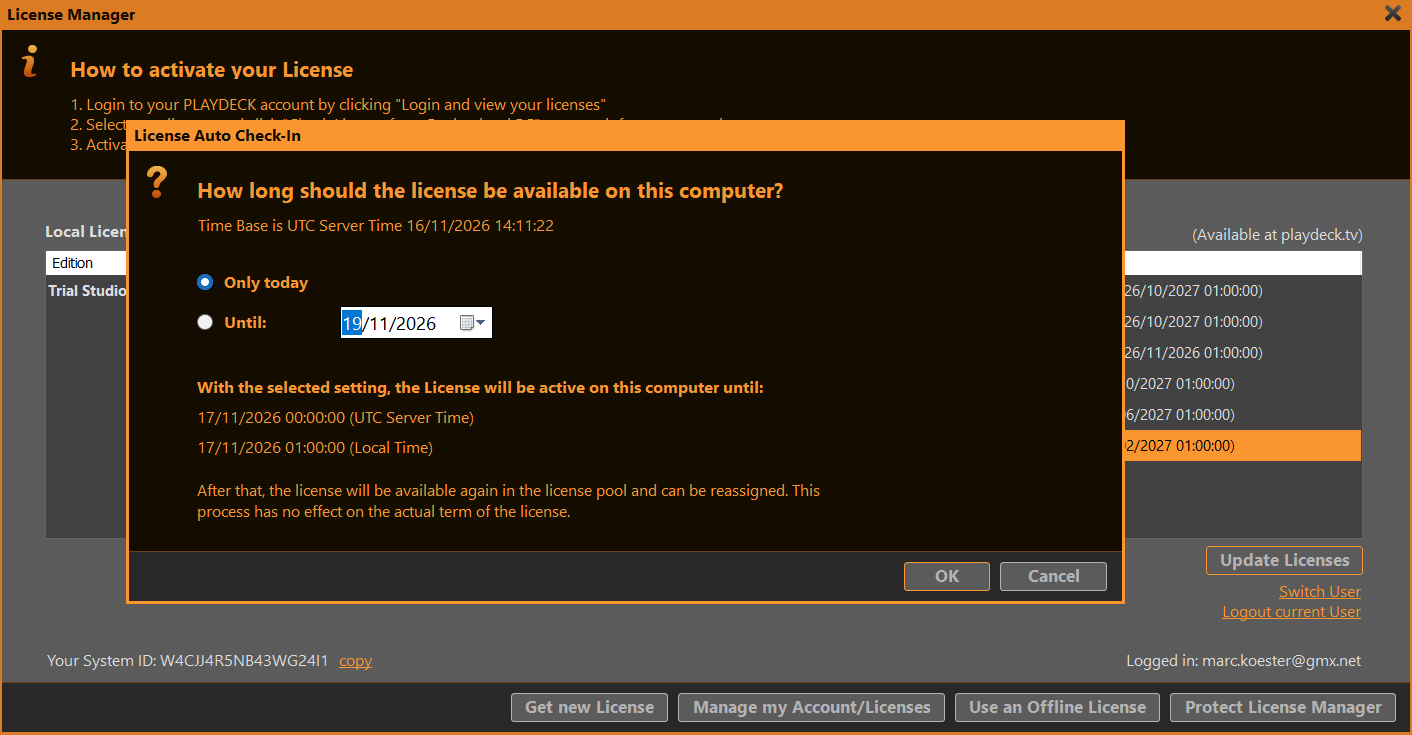
The big advantage: that PC does not have to be switched on, unpacked, or connected again to free the license. Perfect for rentals and live shows. The notebook goes back into the warehouse or stays in its case, and the license is still free for the next job.
You can also send the license back earlier at any time with Check License back into the Pool.
If this PC is lost
If the PC still starts, check the license back in yourself, as described under Move to another PC. If the PC has crashed, is lost, or Windows was reinstalled, you cannot free the license yourself. Write to [email protected] and tell us which license it is. We release it back into your pool, and you can check it out again in the License Manager.
Dongle License
First time on a PC
Attach the USB dongle to the PC, then start PLAYDECK. There is nothing else to activate.
Move to another PC
Close PLAYDECK, unplug the dongle, plug it into the other PC, and start PLAYDECK there. If you unplug the dongle while PLAYDECK is running, PLAYDECK closes at once, so always close PLAYDECK first, to keep your data saved.
If the dongle is broken or lost
We replace the dongle and send you a temporary offline license for the delivery time. If the dongle still works, we can also update it remotely with an updater file. Write to [email protected].
Offline License
First time on a PC
Open the License Manager:
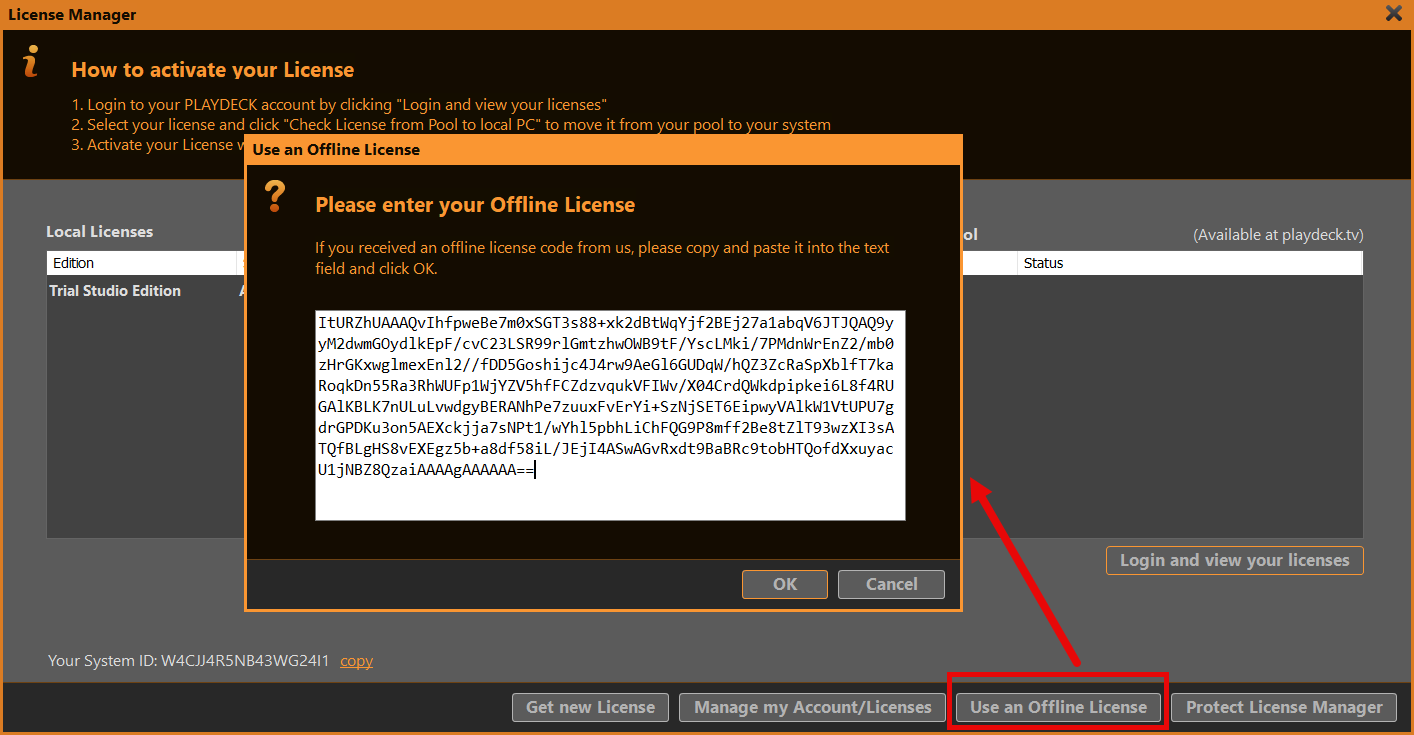
Click Use an Offline License, paste the license code, and click OK. PLAYDECK then asks to activate the license and restart.
Move to another PC, or this PC is lost
An offline license is tied to the PLAYDECK System ID of one PC, so you cannot move it yourself, and there is nothing to check back in. Write to [email protected] and include the System ID of the new PC, shown in the License Manager. We send a new offline license for that PC.
Backup License
The Backup license runs on a second PC that follows your main system. A Backup Edition is checked out from the pool like a Shop License, then linked to your main PC. Setup, moving, and ending a Backup session:
https://playdeck.tv/backup-system/
If the Backup PC is lost, we release its license back into your pool, as described under Shop License.