

PLAYDECK can take live network streams in two ways:
- Permanent Stream Input — configured under Settings → Inputs. The stream stays connected in the background (like a camera or NDI input) and you cut to it from the playlist when you need it.
- Playlist Stream clip — a one-off URL dropped onto the playlist. PLAYDECK connects when that clip is scanned / played.
For live cams, YouTube Live, and anything you cut to often, use a permanent Stream Input. For a single ad-hoc SRT/RTMP/HLS URL, a playlist stream clip is fine.
In this article:
→ Permanent Stream Input (Settings)
→ Use a Stream Input in the playlist
→ Insert a stream URL directly into the playlist
→ YouTube and website videos
Permanent Stream Input (Settings)
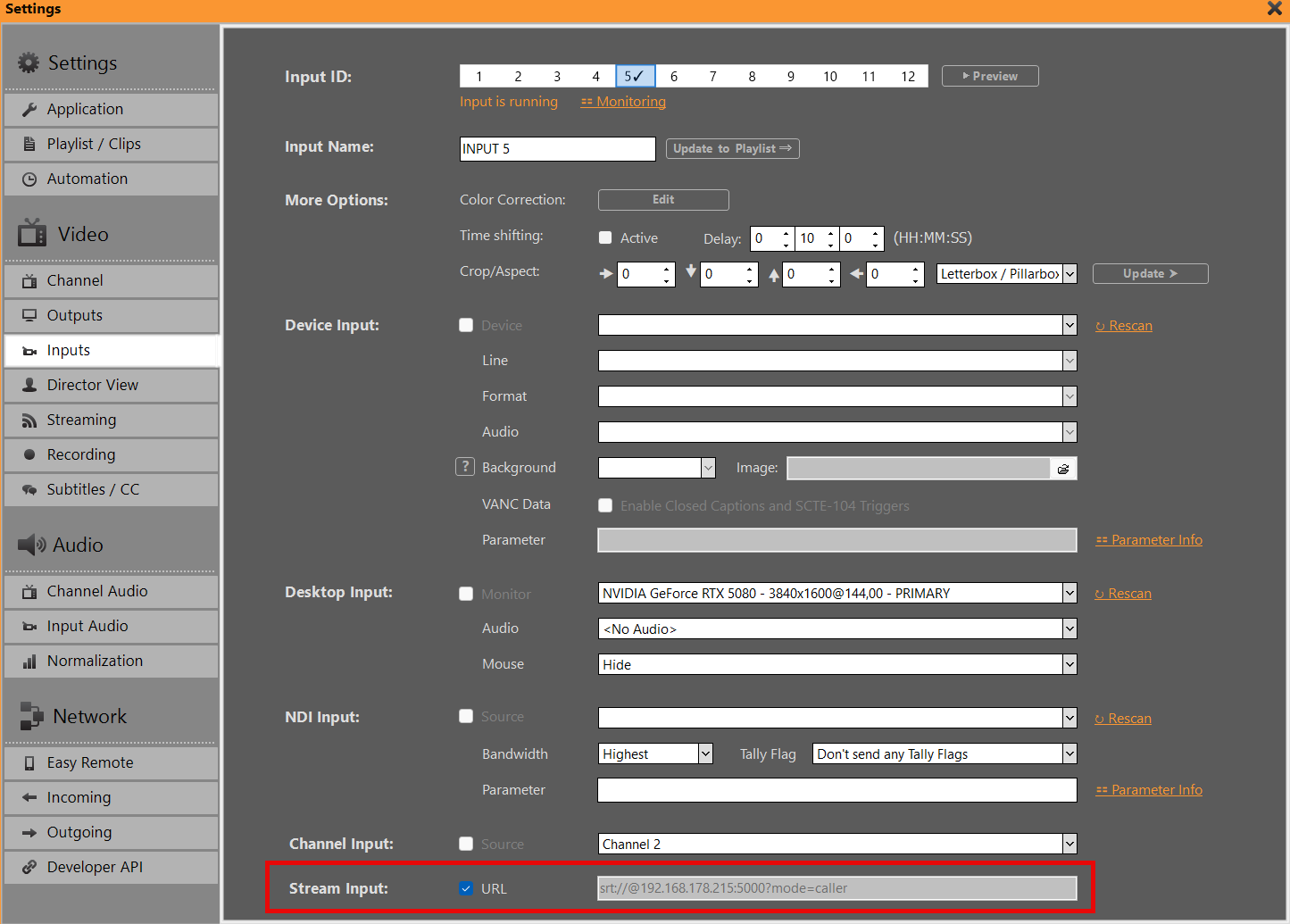
Open Settings → Inputs and select an Input slot (1–12).
Under Stream Input:
- Paste the stream URL (SRT, RTMP, UDP, HLS
.m3u8, YouTube Live / VOD URL, …). - Enable the URL checkbox next to Stream Input. That starts the permanent connection.
- Leave it on. The input stays warm while PLAYDECK runs (same idea as Device / NDI / Display inputs — only one source type per Input slot).
Notes:
- Turn URL off to stop the permanent stream.
- You cannot combine Stream Input with Device / NDI / Display / Channel on the same Input at the same time.
- If the feeder is offline, the input may show no signal until the remote stream is back — reconnect behavior follows your usual input monitoring.
- Recording / outbound stream: set the source to this Input (not a Playlist Stream clip) so the permanent ingest stays warm without dedicating a playlist channel.
Use a Stream Input in the playlist
Once the permanent Stream Input is running:
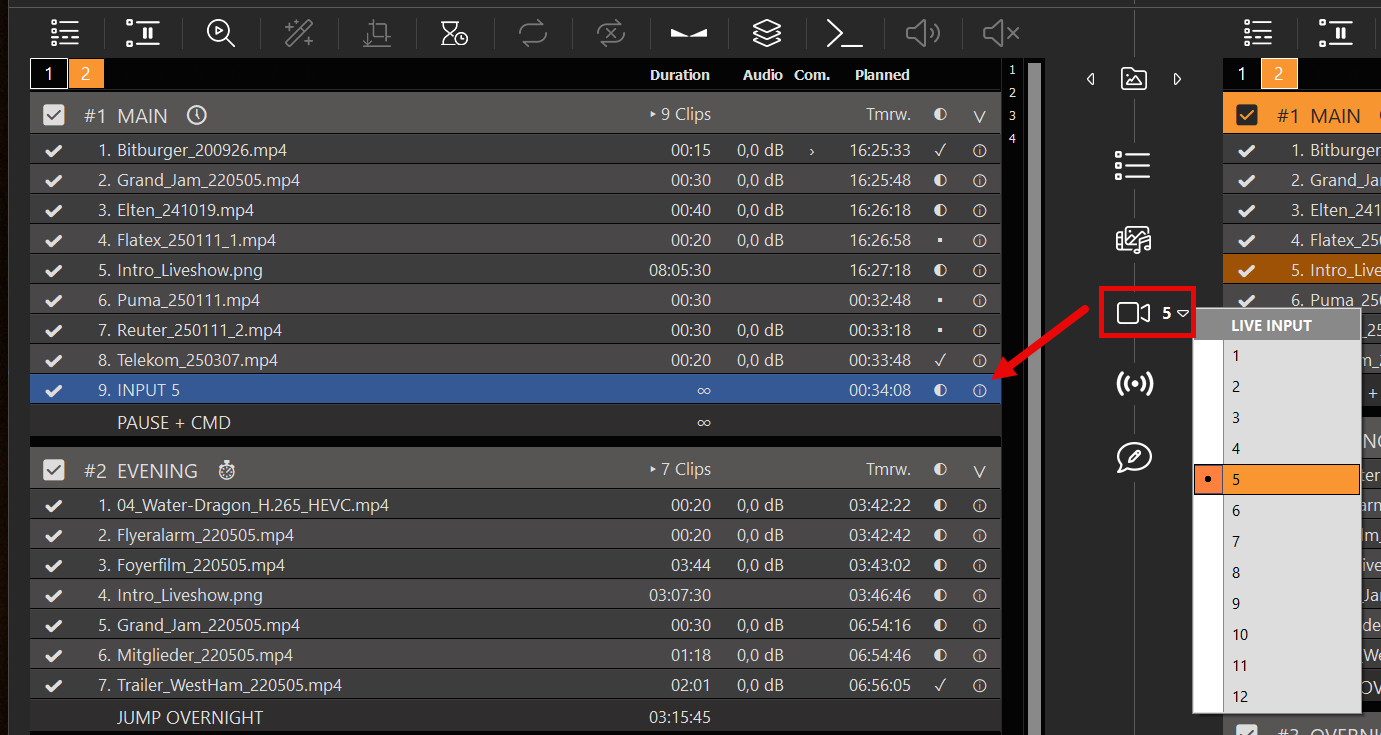
- Drag the LIVE INPUT control onto the playlist (or use the Live Input menu).
- Choose the Input number you configured (e.g. Input 3).
- Play / schedule that row like any other live input — ideal for short cuts to a cam that is already connected.
This is the path for “cut to this live cam for 30 seconds a few times a day” without reconnecting the URL every time.
Insert a stream URL directly into the playlist
For a one-shot stream (no permanent Input):
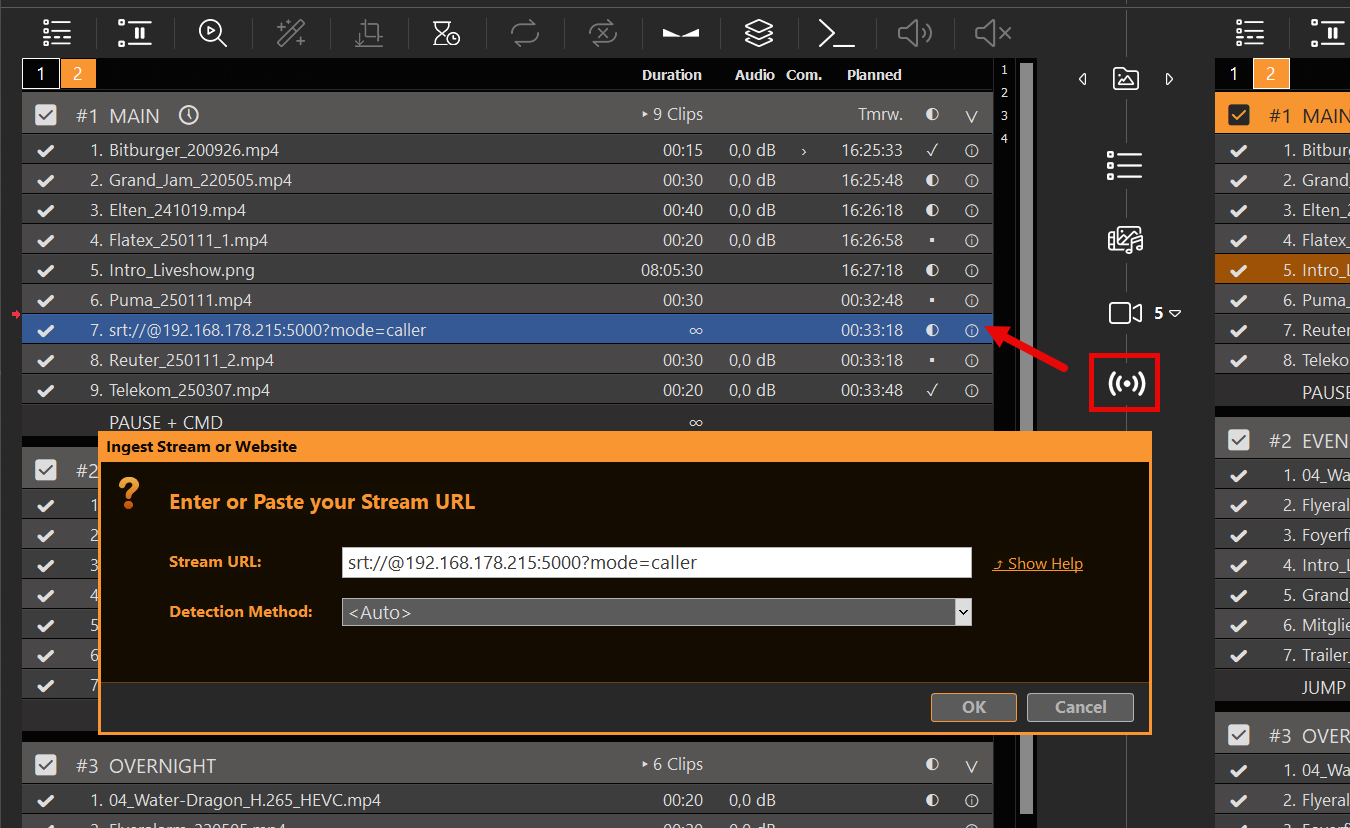
- Drag the STREAM icon onto the playlist.
- Enter the stream URL in the popup (SRT, RTMP, UDP, HLS, …).
- PLAYDECK scans the stream. White = connected, red = not reachable.
- Right-click → Change URL if you need to fix a typo.
You can also drag-drop some URLs from the browser onto the playlist when PLAYDECK recognizes them.
YouTube and website videos
- YouTube (playlist clip): drag the YouTube URL onto the playlist, or use the STREAM icon. Details: YouTube.
- YouTube as permanent Input: put the same URL under Settings → Inputs → Stream Input (URL on), then cut via LIVE INPUT as above — better for Live streams that must stay ready.
- Website / Twitch-style pages: some sites work via the STREAM icon or drag-drop. Use Show Help in the dialog for supported sites. A plain HTML player page (no direct media URL) will not play — you need a real stream URL (e.g.
.m3u8).