
Playout Rules decide when a clip is allowed to play, and what happens after it. Shuffle uses the same gray state for clips that are not in this take.
In this article:
→ Where to find it
→ After Clip Action
→ Limit Playout
→ Gray vs Inactive
→ Clip Shuffle / Sync
→ Folder Sync
→ Duration, Follow and Schedule
Where to find it
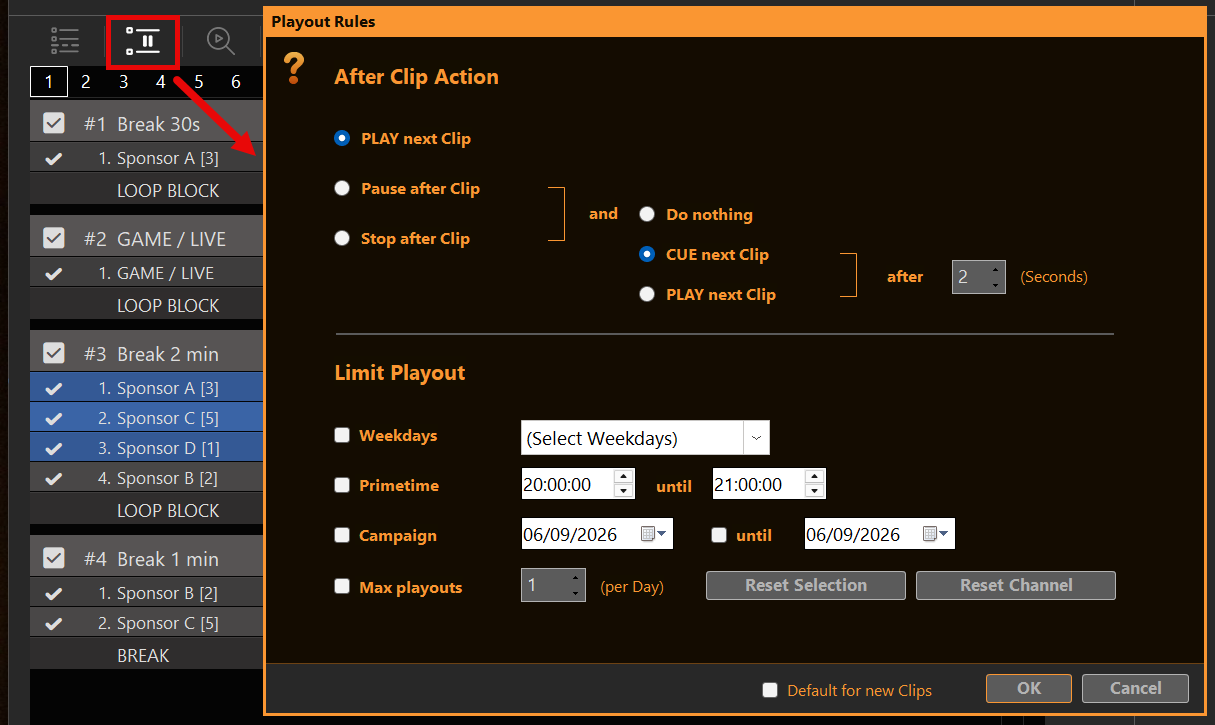
Select one or more clips and click the pause / end icon on the clip (same place as the old Clip Pause). The dialog title is Playout Rules.
The top of the dialog is After Clip Action (pause / stop / continue). Below that is Limit Playout. Default for new Clips in the footer stores both for clips you add later.
After Clip Action
This is the former Clip Pause. It only runs when the clip actually reaches its end.
- PLAY next Clip — the playlist continues as usual.
- Pause after Clip — hold on the last frame and wait, or continue after a delay.
- Stop after Clip — stop playout at the end of this clip.
On the right you choose what follows: PLAY next Clip, CUE next Clip, or Do nothing, optionally after a number of seconds.
Limit Playout
Each checked rule must match now. Unchecked rules are ignored.
- Weekdays — only on the selected days.
- Primetime — time of day. From is included, until is not (18:00–20:00 means until 19:59:59). If From is later than Until (e.g. 22:00–06:00), the window wraps overnight.
- Campaign — calendar dates. Until included. If Until is off, the clip is limited to the From day only.
- Max playouts (per Day) — how often this clip may play on the current calendar day. The counter resets at the next check after midnight (no extra timer). A play counts when the clip finished and the playhead left it. Looping the same clip does not add extra counts. A manual start does count if that clip played through.
Several rules together are AND: weekday and primetime and campaign and max playouts, if they are all on.
Reset Selection / Reset Channel in this dialog zero the daily counters. File → Reset Clip Played Status does the same for played marks and counts.
Gray vs Inactive
Two different skips:
- First-column checkbox off — the clip is inactive. Automation will not take it, and you cannot start it with CUE / PLAY / Fade.
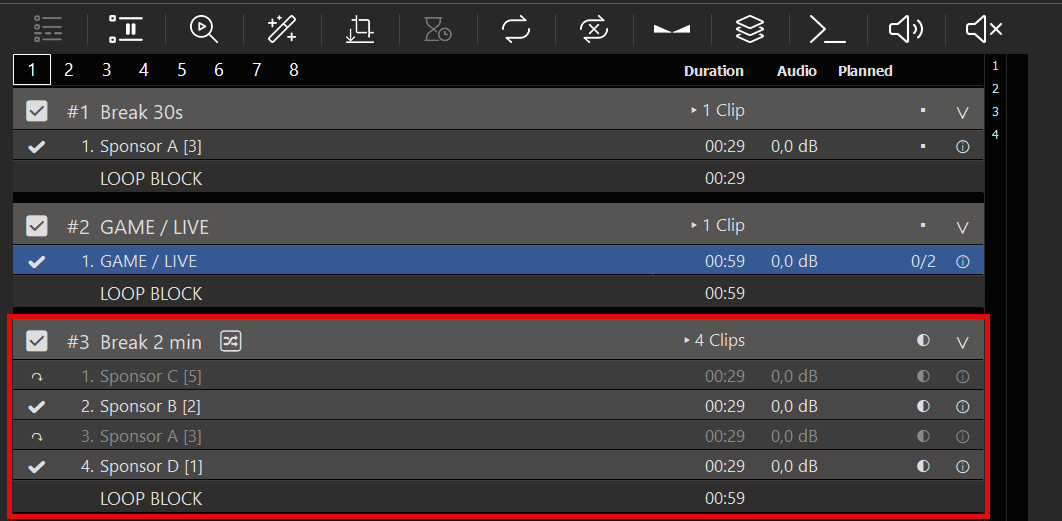
- Gray name + ↷ — the clip is out of this take (Limit Playout, or leftover after Shuffle). Automation, Follow, Planned duration and Get Next skip it. You can still start it by hand. That un-greys that clip only; it does not deal a new Shuffle take.
Block headers still show the count of clips that can actually play in this take (▸ 3 Clips), not every file in the block.
Clip Shuffle / Sync
Open Clip Shuffle / Sync from the Block (shuffle icon on the block header). Dialog title: Clip Shuffle/Sync.
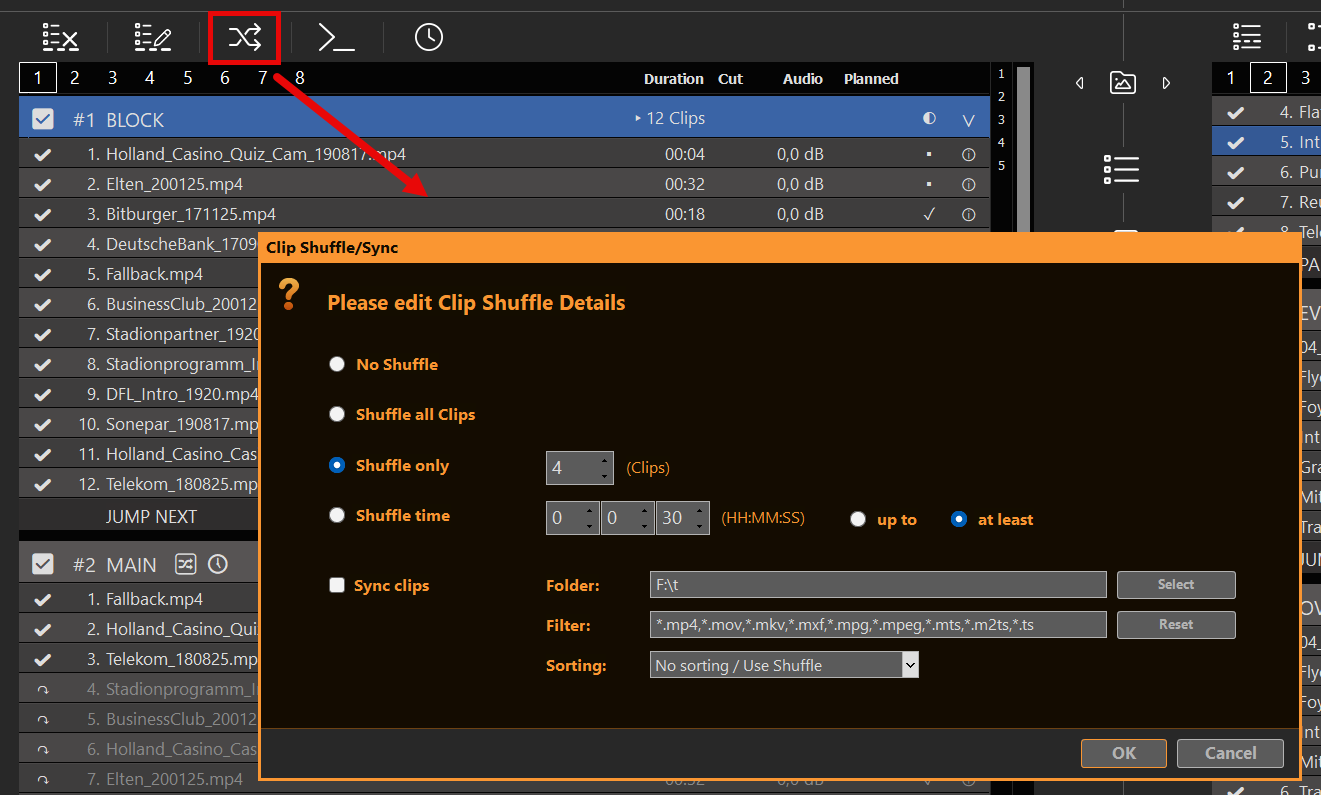
Shuffle methods
- No Shuffle — normal order. Use this when you want only Folder Sync (and optional Sorting), without any shuffle take.
- Shuffle all Clips — random order for the whole block. Every active clip is in the take.
- Shuffle only N — pick N clips for this take; the rest go gray (↷). Over many deals, PLAYDECK prefers clips that have waited longest (fair rotation), not “last played”.
- Shuffle time — shuffle first, then keep clips until the take reaches your duration:
- up to HH:MM:SS — fill as much as possible without going over; clips that do not fit go gray.
- at least HH:MM:SS — keep adding until the sum is ≥ the target; then gray the rest.
Sorting and Shuffle are mutually exclusive: a real sort (Name A–Z / Z–A, File date newest / oldest) turns Shuffle off; choosing a Shuffle method sets Sorting to No sorting / Use Shuffle.
When PLAYDECK deals a take
A new take is dealt when you enter the Block from the outside:
- CUE / PLAY / Fade on the block header — deals.
- CUE / PLAY on a clip inside the Block (including the first clip of the take) — plays that clip as-is. It does not reshuffle. If the clip was gray, it is un-greyed for this start only.
- When the Block becomes Next (jump to next Block, jump to Block, stop/pause follow, …) — deals once for that pending entry.
- Scheduled Block — when the schedule fires (or the next cache prepares that Block), PLAYDECK deals once, then starts the first take clip. If you are already playing inside that Block, the schedule does not deal again.
- Break Block — same when the Break is entered (interrupt or after clip end). Returning from the Break to the previous clip/position does not deal a new take on the return target.
- Loop Block — each new loop cycle deals a fresh take when that lap starts (the clip that just became Current stays put; the rest of the block is reshuffled). While the last clip of the old lap is still playing, Next already points at the first clip of the current order — PLAYDECK does not reshuffle under the playhead.
- Loop Clips — keeps the same take for the looped clip range.
- Leaving the Block (non-loop Block End) clears the take so the next entry can deal fresh.
Clips not in the take go gray (↷). Automation, Follow, Planned duration and Get Next skip them. You can still start a gray clip by hand — that un-greys that clip only; it does not deal a new take.
Blocks with Shuffle and/or Folder Sync show 🔀 on the header.
PLAYDECK deals a take when the Block is played from the beginning: CUE / PLAY / Fade on the block header, on the first take clip, or when the Block becomes next in playout (Block End, command, action, schedule). Clips not in the take go gray (↷).
Looping the Block keeps the same take. It does not shuffle again. To deal a new take, start the Block from the beginning.
CUE / double-click on any other clip in the Block plays that clip (and un-greys it if it was gray). It does not reshuffle the rest.
Folder Sync
You can use Folder Sync alone — leave Shuffle on No Shuffle. Sync still adds/removes/re-scans files; optional Sorting orders them. Shuffle is optional on top. In the same Clip Shuffle / Sync dialog:
- Check Sync clips.
- Set Folder (browse or path).
- Optional Filter — comma-separated patterns. Extensions (
*.mp4,mp4,.mov) and filenames: substring without*(e.g.promomatches any name containing “promo”), or wildcards (promo*,*_final.mp4,*spot*). Mix both, e.g.*.mp4,promo*,*_de.mov. Reset restores the default extension list. Empty filter = all playlist file types. - Optional Sorting — order file clips in the block to match the folder (only when Shuffle is off).
What sync does
- Adds new files from the folder as clips.
- Removes file clips that are no longer in the folder.
- Re-scans a clip if the file was replaced (same path, new size/date) — same as Rescan Clip.
- Does not touch non-file clips (inputs, notes, …).
When it runs
- In the background, while that Block is not Current and not Next (so live playout is not rewritten under you).
- Also once when you OK the dialog, if the Block is idle (not Current/Next).
- After each sync pass, PLAYDECK waits before the next background sync on that Block: about 10 seconds normally, about 30 seconds if new clips were added. Manual OK in the dialog (while idle) still runs sync immediately.
If background checks feel wrong in a live show: Settings → Disable background file checks (replace, growing files, folder sync). Leave it unchecked for normal use. New clips are still scanned when first added.
Duration, Follow and Schedule
Planned time, block duration, Follow-after-clip, and Get Next only use clips that can play now (active, not gray, Limit allowed).
A scheduled Block with no take clip at fire time is skipped. Limit Playout lives on the clip, not on Schedule Block.