

Your iPhone can be a wireless camera for PLAYDECK. Install the free Blackmagic Camera app, send an SRT stream over Wi‑Fi, and drop it into the playlist like any other live source. Optional: pull focus from the PLAYDECK desk without walking to the phone.
This is Wi‑Fi, not SDI. Fine for IMAG, a backup cam, or a room you cannot cable. Not a substitute for a locked studio camera.
In this article:
→ What you need
→ Install Blackmagic Camera
→ PLAYDECK listens (SRT)
→ iPhone sends the stream
→ Play it in the playlist
→ Remote focus (no code)
→ Remote focus with AI
→ Companion
→ If it stays red
What you need
What you need
- PLAYDECK Plus (SRT is a Plus feature)
- iPhone XR or newer, iOS 17+
- Blackmagic Camera 3.2+ for streaming, 3.4+ for the REST focus API
- iPhone and PLAYDECK PC on the same Wi‑Fi (5 GHz, not a guest network with client isolation)
Keep the iPhone plugged in and Auto-Lock off while it is on air.
Install Blackmagic Camera
- On the iPhone, install Blackmagic Camera from the App Store (free). Product page: https://www.blackmagicdesign.com/products/blackmagiccamera
- Open the app once and allow Camera + Microphone.
- Leave the phone on that Wi‑Fi. Write down the iPhone IP: iOS Settings → Wi‑Fi → tap the network → IP Address.
The stock iOS Camera app cannot do this. You need Blackmagic Camera (manual focus, SRT, REST). An NDI HX camera app is a different product — PLAYDECK can take that as an NDI Live Input, but you lose Blackmagic’s cinema controls.
PLAYDECK listens (SRT)
PLAYDECK is the listener (started first). The iPhone is the caller (connects to the PC).
- On the PLAYDECK PC, open a command prompt and run
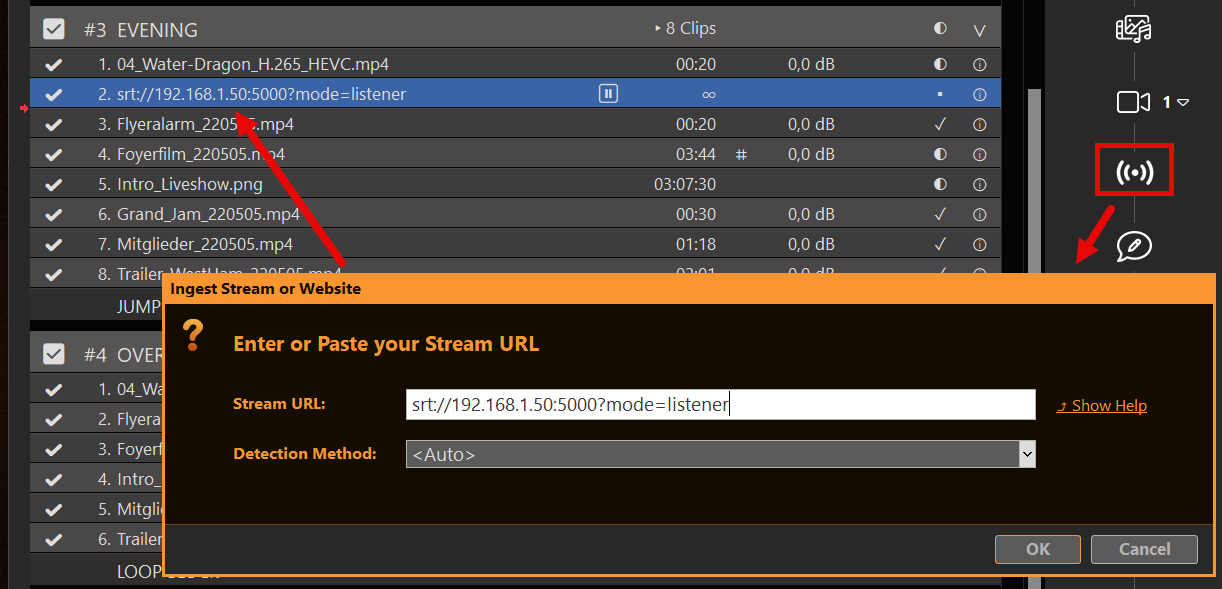
ipconfig. Use the IPv4 address of the LAN/Wi‑Fi adapter the iPhone can actually reach (example below:192.168.1.50). - In PLAYDECK, drag the STREAM icon onto the playlist (same dialog as other input streams — see https://playdeck.tv/input-streams/).
- Enter:
srt://192.168.1.50:5000?mode=listener - Play that clip so PLAYDECK opens the port. Windows Firewall may ask — allow it (UDP 5000).
Port 5000 is PLAYDECK’s own SRT default. Any free port is fine if the iPhone URL uses the same number.
iPhone sends the stream
Blackmagic Camera adds a custom SRT target from a small XML file.
On the PLAYDECK PC, save this as playdeck-srt.xml. Put your PC IP in the URL — not the iPhone IP:
<?xml version="1.0" encoding="UTF-8"?>
<streaming>
  <service>
    <name>PLAYDECK</name>
    <servers>
      <server>
        <name>Primary</name>
        <url>srt://192.168.1.50:5000</url>
      </server>
    </servers>
    <profiles>
      <profile>
        <name>HD low latency</name>
        <low-latency/>
        <config resolution="HD">
          <bitrate>6000000</bitrate>
          <audio-bitrate>128000</audio-bitrate>
          <keyframe-interval>1</keyframe-interval>
        </config>
      </profile>
    </profiles>
  </service>
</streaming>- AirDrop the file to the iPhone (or Files / iCloud).
- Open it → Share → Blackmagic Camera.
- In the app: Settings → Live Stream → platform PLAYDECK → profile HD low latency.
- Start the live stream after the PLAYDECK clip is already playing.
HD at ~6 Mbps is the sensible default. 4K needs a strong 5 GHz link and resolution="4K" with a higher bitrate (iPhone 15 Pro+).
Play it in the playlist
If PLAYDECK connected, the stream name is white. Red = no connection. Double-click the info icon for format/codec. A typo: right-click → Change URL.
Treat it like a live camera clip: play it when you need the shot. A stream has no file end, so it stays up until you stop it or the phone drops Wi‑Fi.
Do not send the iPhone to YouTube/Twitch “and then into PLAYDECK”. That is the wrong direction. PLAYDECK must be the SRT listener on your LAN.mote is for.
Remote focus (no code)
Picture and focus are two different paths. The stream only carries video. Focus is camera control.
Without writing anything:
- Apple Watch — Blackmagic Camera companion app: framing, record, exposure, focus, zoom.
- iPad / second iPhone / Mac — same Blackmagic Camera app on the same Wi‑Fi, set that device as the controller. You get the full HUD, including focus.
Use that when someone can hold a Watch or an iPad. The next section is for the operator who wants a focus knob on the PLAYDECK PC.
Remote focus with AI
Blackmagic Camera 3.4+ speaks the Camera REST API on the phone: HTTPS port 4444, self-signed certificate. PLAYDECK does not talk to that API. You (or ChatGPT) send a tiny HTTP PUT from the PC.
Enable Remote Control in the Blackmagic Camera settings so the API is on. Then on the PLAYDECK PC open:
https://IPHONE-IP:4444/control/documentation.html
Accept the certificate warning. If the API docs load, the phone is reachable. The focus calls are:
GET /control/api/v1/lens/focus— returns JSON withnormalised(0…1)PUT /control/api/v1/lens/focus— body{"normalised":0.35}PUT /control/api/v1/lens/focus/doAutoFocus— body{}
Quick test in Windows PowerShell (replace the IP). If this prints JSON, the API works:
$ip = "192.168.1.20"
[Net.ServicePointManager]::ServerCertificateValidationCallback = { $true }
Invoke-RestMethod "https://${ip}:4444/control/api/v1/lens/focus"
Auto-focus once:
Invoke-WebRequest -Method Put -Uri "https://${ip}:4444/control/api/v1/lens/focus/doAutoFocus" -ContentType "application/json" -Body "{}" -UseBasicParsing
Prompt to paste into ChatGPT / Claude / Gemini
Copy this, put your iPhone IP in, paste it into any AI. You should get a small PowerShell window with a slider.
Write a Windows PowerShell 5.1 script. No extra modules.

At the top: $IphoneIp = "192.168.1.20"

The Blackmagic Camera app on that iPhone exposes a REST API:
https://IP:4444/control/api/v1
Self-signed TLS — skip certificate validation.

PUT /lens/focus with JSON {"normalised": N} where N is 0.0 to 1.0
PUT /lens/focus/doAutoFocus with JSON {}
GET /lens/focus to read the current value

Open a small WinForms window titled "iPhone Focus":
- a trackbar 0–100 mapped to normalised
- send focus on mouse-up (do not spam every tick)
- a button "Auto Focus"
- a status label for errors

If GET returns different JSON keys than normalised, print the JSON and still send {"normalised": N}.
Use Invoke-WebRequest. Ignore empty 204 responses.
Working script (if you do not want to wait for the AI)
Save as iphone-focus.ps1, set $IphoneIp, right-click → Run with PowerShell. If Windows blocks it: Set-ExecutionPolicy -Scope Process Bypass then .\iphone-focus.ps1.
$IphoneIp = "192.168.1.20"
$base = "https://${IphoneIp}:4444/control/api/v1"

[Net.ServicePointManager]::SecurityProtocol = [Net.SecurityProtocolType]::Tls12
[Net.ServicePointManager]::ServerCertificateValidationCallback = { $true }

Add-Type -AssemblyName System.Windows.Forms
Add-Type -AssemblyName System.Drawing

function Send-Bmd([string]$Path, [string]$Body) {
  $uri = "$base$Path"
  try {
    Invoke-WebRequest -Method Put -Uri $uri -ContentType "application/json" -Body $Body -UseBasicParsing | Out-Null
    $script:status.Text = "OK  $Path  $Body"
  } catch {
    $script:status.Text = $_.Exception.Message
  }
}

$form = New-Object Windows.Forms.Form
$form.Text = "iPhone Focus"
$form.Size = New-Object Drawing.Size(440, 210)
$form.StartPosition = "CenterScreen"

$slider = New-Object Windows.Forms.TrackBar
$slider.Minimum = 0
$slider.Maximum = 100
$slider.TickFrequency = 10
$slider.Width = 380
$slider.Location = New-Object Drawing.Point(20, 20)
$slider.Add_MouseUp({
  $n = [math]::Round($slider.Value / 100, 2)
  Send-Bmd "/lens/focus" "{`"normalised`":$n}"
})

$btn = New-Object Windows.Forms.Button
$btn.Text = "Auto Focus"
$btn.Size = New-Object Drawing.Size(120, 36)
$btn.Location = New-Object Drawing.Point(20, 90)
$btn.Add_Click({ Send-Bmd "/lens/focus/doAutoFocus" "{}" })

$script:status = New-Object Windows.Forms.Label
$script:status.AutoSize = $false
$script:status.Size = New-Object Drawing.Size(380, 40)
$script:status.Location = New-Object Drawing.Point(20, 135)
$script:status.Text = "Near = 0    Far = 100"

$form.Controls.AddRange(@($slider, $btn, $script:status))
try {
  $cur = Invoke-RestMethod "$base/lens/focus"
  $script:status.Text = "Connected  $cur"
  if ($cur.normalised -ne $null) { $slider.Value = [int]([double]$cur.normalised * 100) }
} catch {
  $script:status.Text = "Cannot reach ${base} — check IP, app 3.4+, Remote Control, same Wi-Fi"
}
[void]$form.ShowDialog()
Drag the slider, watch the lens on the phone. If PUT returns 403, focus is locked (external lens / AF lock in the app).
Companion
If you already run Bitfocus Companion for PLAYDECK, add a second connection: Blackmagic Cameras API (https://bitfocus.io/connections/bmd-cameras). Host = iPhone IP, HTTPS on, port 4444, allow insecure HTTPS (self-signed). Companion reads the phone’s own API list and builds Focus / Auto Focus actions. Put those buttons next to PLAYDECK Play/Pause. See https://playdeck.tv/companion/.
If it stays red
- Start order — PLAYDECK listener clip playing first, then iPhone Live Stream.
- Guest Wi‑Fi — phones cannot see PCs. Use the production SSID.
- Wrong IP — XML URL is the PLAYDECK PC. REST URL is the iPhone.
- Firewall — UDP 5000 inbound on the PC. TCP 4444 is outbound from the PC to the phone.
- Plus license — SRT input needs Plus. Without it the clip will not connect.
- Certificate popup — expected on port 4444. Accept it. The PowerShell script skips the check.
- Latency — a few hundred ms on a good 5 GHz AP is normal. Do not expect SDI timing.
Wired studio option: Blackmagic Camera ProDock → HDMI → a capture card as a PLAYDECK Live Input. That is a cable, not this Wi‑Fi path.