

This article shows how to run PLAYDECK without an operator: daily project files from a traffic or scheduling system, reload when a file is overwritten, and a scheduled application restart.
Settings → Automation is easy to miss. A checkbox named “Disable automatic project saving” does not sound like 24/7 playout — but together with “Load newest project from folder” it is the typical unattended workflow.
In this article:
→ Settings → Automation
→ Typical use cases
→ Disable Saving and Load newest
→ Restart PLAYDECK
Settings → Automation
Open Settings → Automation (last item in the Settings group).
Three independent functions live on this page:
- Restart PLAYDECK every — daily or weekly clean start
- Disable automatic project saving — PLAYDECK does not write the open project in the background; optional reload when that file changes
- Load newest project from folder — at a clock time, load the newest
.xmlin a folder (once per day)
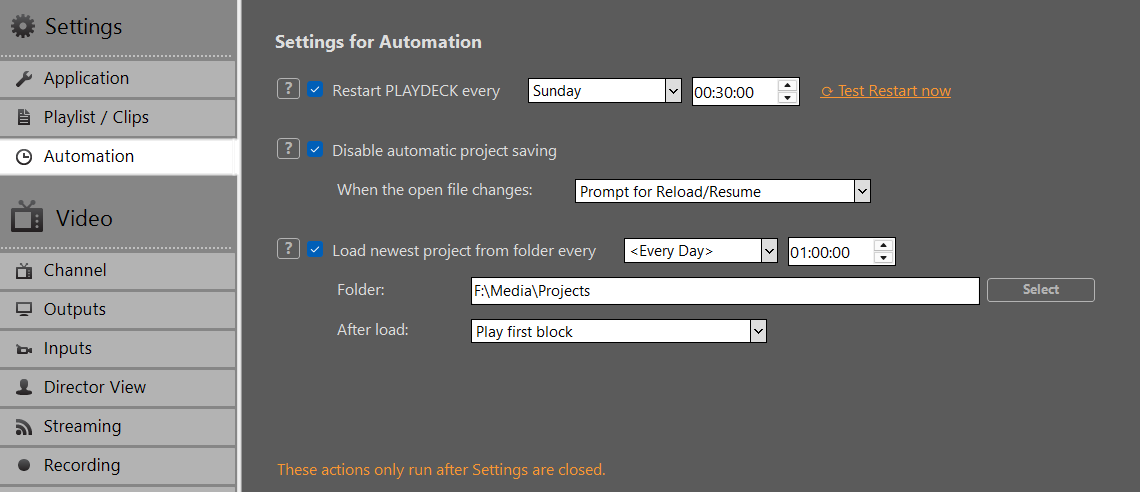
Note: Scheduled Restart, Load newest, and reload-on-file-change do not run while Settings are open. Configure the time, folder and options, then close Settings. Otherwise the scheduled time can pass with nothing happening. Test Restart now still runs immediately from Settings — that is the only exception.
Typical use cases
These are the situations where Automation matters — they are not obvious from the labels alone.
Traffic / scheduling system writes a new XML every day
A planner drops files such as 13-08-26_Playdeck.xml, 14-08-26_Playdeck.xml into a shared folder. At midnight PLAYDECK should pick the newest file and continue unattended. That is Load newest, usually together with Disable automatic project saving.
The same project file is overwritten during the day
An editor or a 3rd-party app overwrites the file that is currently open. PLAYDECK should detect that and reload. That is Disable Saving + When the open file changes → Reload/Resume. Details: Prepare/Import Playlists externally.
Both on the same machine
New dated file at 00:00, then the same day’s file overwritten again at 14:00. Enable Load newest and reload-on-change. They are not either/or.
Overnight clean start
24/7 boxes that should restart PLAYDECK once a day, even during playout. That is Restart PLAYDECK every.
Disable Saving and Load newest
Disable automatic project saving
If enabled, PLAYDECK will not save the project file in the background (the usual auto-save, and also the silent save on quit). File → Save / Save As still works.
Use this when an external system owns the XML. Otherwise PLAYDECK writes its in-memory playlist back to disk and overwrites the scheduler’s file.
When the open file changes:
- Do nothing — ignore external overwrites
- Reload/Resume immediately — reload and try to resume the same clip (by Unique ID)
- Prompt for Reload/Resume — ask first
Note: Resume only works if the currently playing clip still exists in the reloaded project. If not, that channel stops. This reload is for the same file that is already open. It is not a substitute for Load newest.
Load newest project from folder
If enabled, PLAYDECK looks in the selected folder after the selected weekday and time and loads the newest .xml once per day.
- Newest means file date (last write time), not the file name.
13-08-26vs01-09-26in the name does not matter. - Only valid PLAYDECK project files (other XML, e.g. XMLTV exports, are skipped).
- Files that are still being written (in use) are skipped.
- The currently open file is ignored. PLAYDECK will not load the same playlist again. You do not need Disable Saving just to make Load newest work.
- After a successful load, the same day will not load again.
Why combine them anyway
Load newest does not require Disable Saving — the open file is already excluded from the “newest” pick. For a traffic system you usually want both: without Disable Saving, PLAYDECK auto-saves the open project, that file’s date keeps moving, and tomorrow’s drop may look “older” than PLAYDECK’s own save. If the scheduler overwrites today’s file while it is open, PLAYDECK can also save on top of that overwrite.
Recommended 24/7 setup
- Enable Disable automatic project saving.
- When the open file changes: Reload/Resume immediately — if the same day’s file can be overwritten later; otherwise Do nothing.
- Enable Load newest project from folder every
<Every Day>at e.g.00:00:00. - Folder = the drop folder of the scheduler. Keep only PLAYDECK project XML in that folder.
- After load:
- Play first block — start playout (typical unattended switch)
- Cue first block — load the first block, wait for a later Play
- Follow block schedules — do not auto-play; blocks fire by their own clock times (Program Flow). If you test with this option and nothing starts, that is expected.
- Close Settings.
The project switch is seamless. Output stays up; only a few frames drop during the load. Set the channel background to black — if a few frames of the previous picture would flash, black is the least visible fill. This is a hard cut to the new project, not a mix. Time the file drop and the Load time (often midnight) so the cut sits in a safe gap, or use Follow block schedules in the new file.
Restart PLAYDECK
If enabled, PLAYDECK closes and starts again at the selected weekday and time, even during playout. Use this for a daily clean start on unattended machines.
Test Restart now runs the same restart immediately. The scheduled restart only runs after Settings are closed.