
来自/发往 vMix 的视频

将 vMix 与 PLAYDECK 连接(双向)的最佳方式是 NDI。此外,多声道音频和抠像功能也得到了全面支持。.


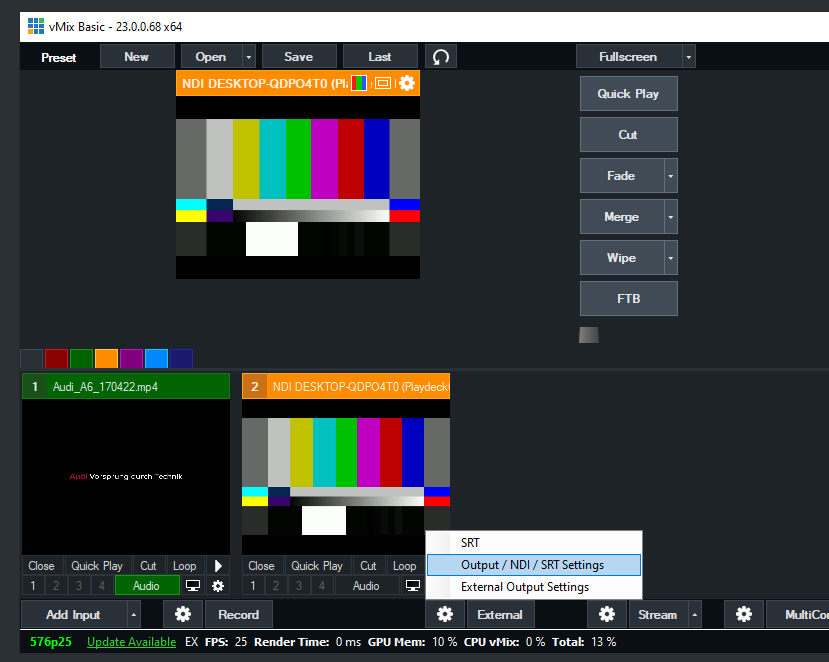
将视频从 vMix 发送至 PLAYDECK

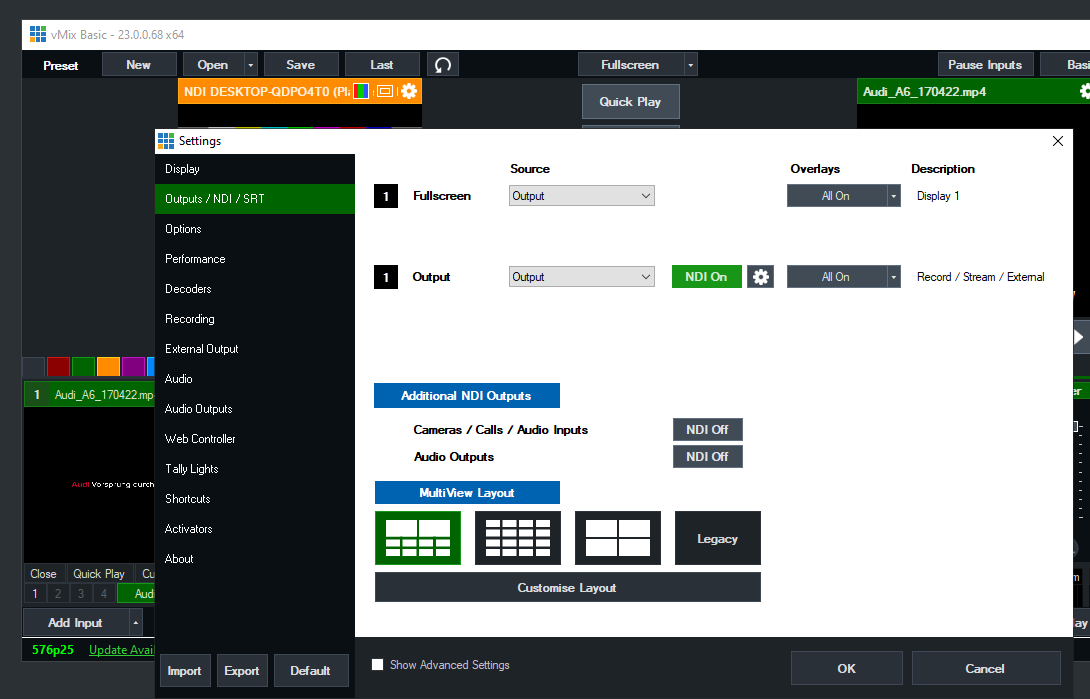
您只需按照以下方式将 NDI 设置为“外部输出”:
PLAYDECK Professional Video Playback Playout Software for Windows * Send and Receive Video to and from vMix


将视频从 PLAYDECK 发送至 vMix

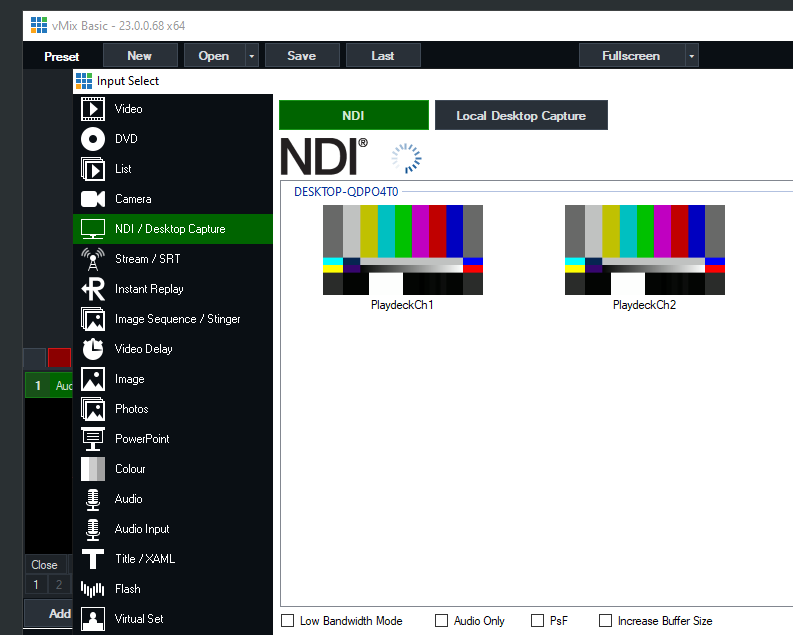
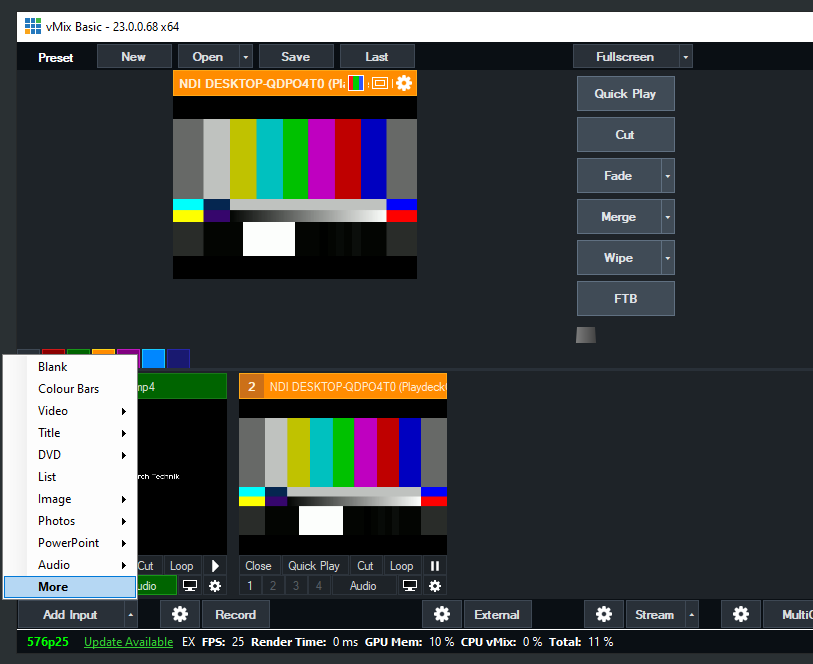
在 PLAYDECK 中启用 NDI 输出,并在 vMix 中将 NDI 作为新信号源添加,具体操作如下:
PLAYDECK Professional Video Playback Playout Software for Windows * Send and Receive Video to and from vMix


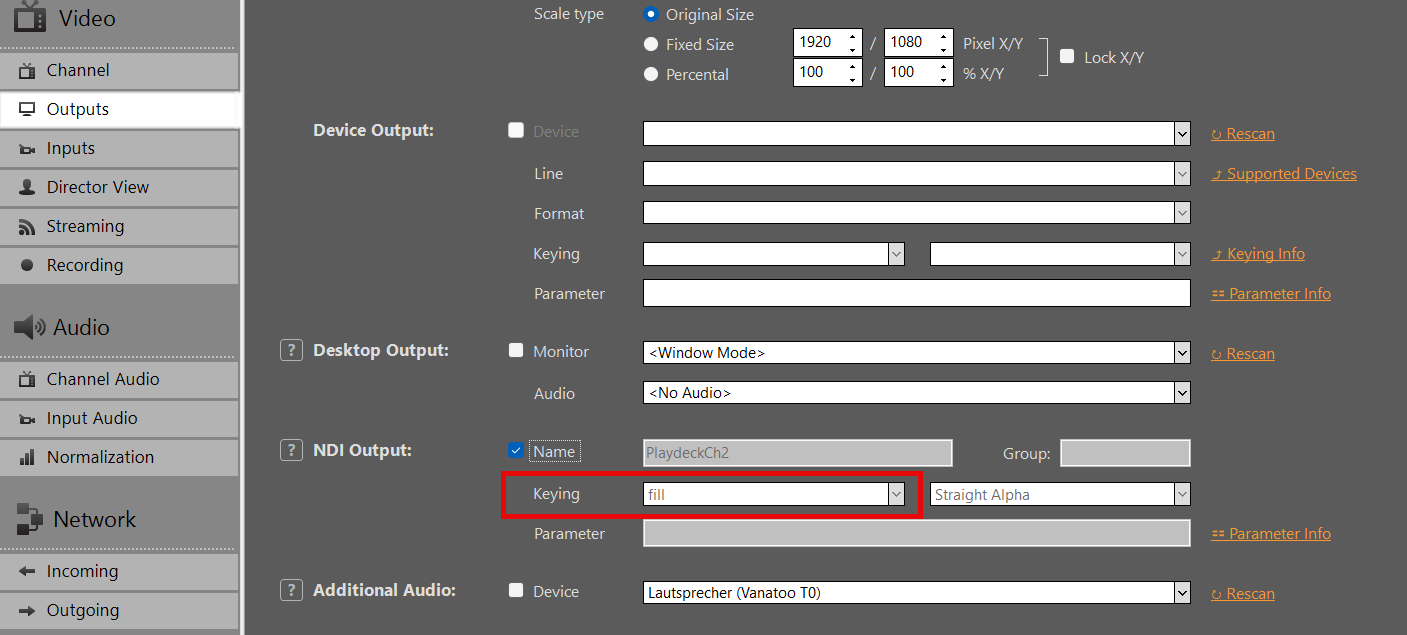
从 PLAYDECK 向 vMix 发送带 Alpha 通道的填充信号

在 PLAYDECK 中启用 NDI 输出,同时本次还需启用抠像功能:
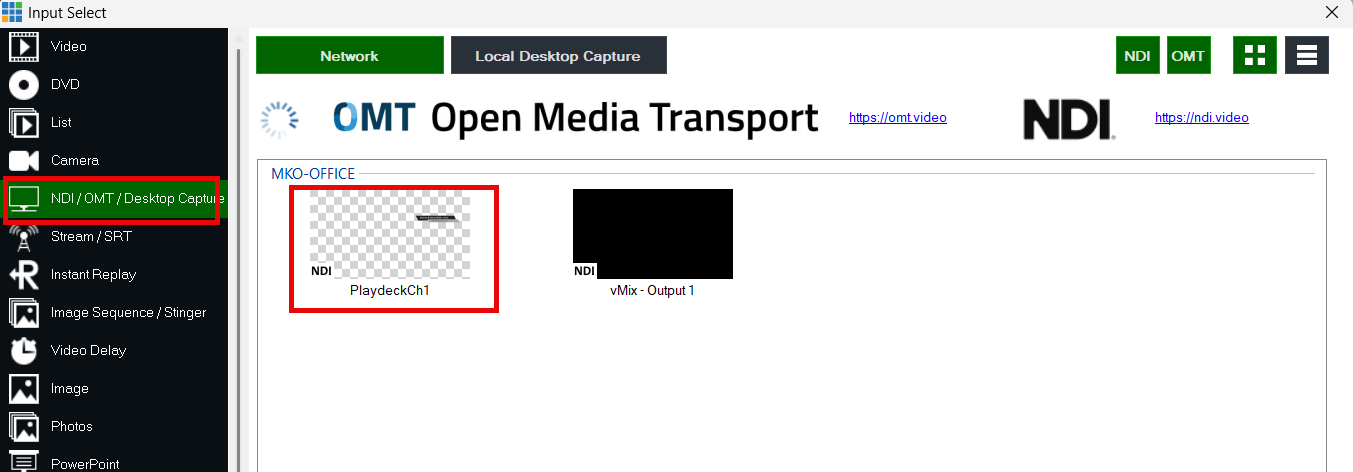
在 vMIX 中将您的 NDI 设置为输入:
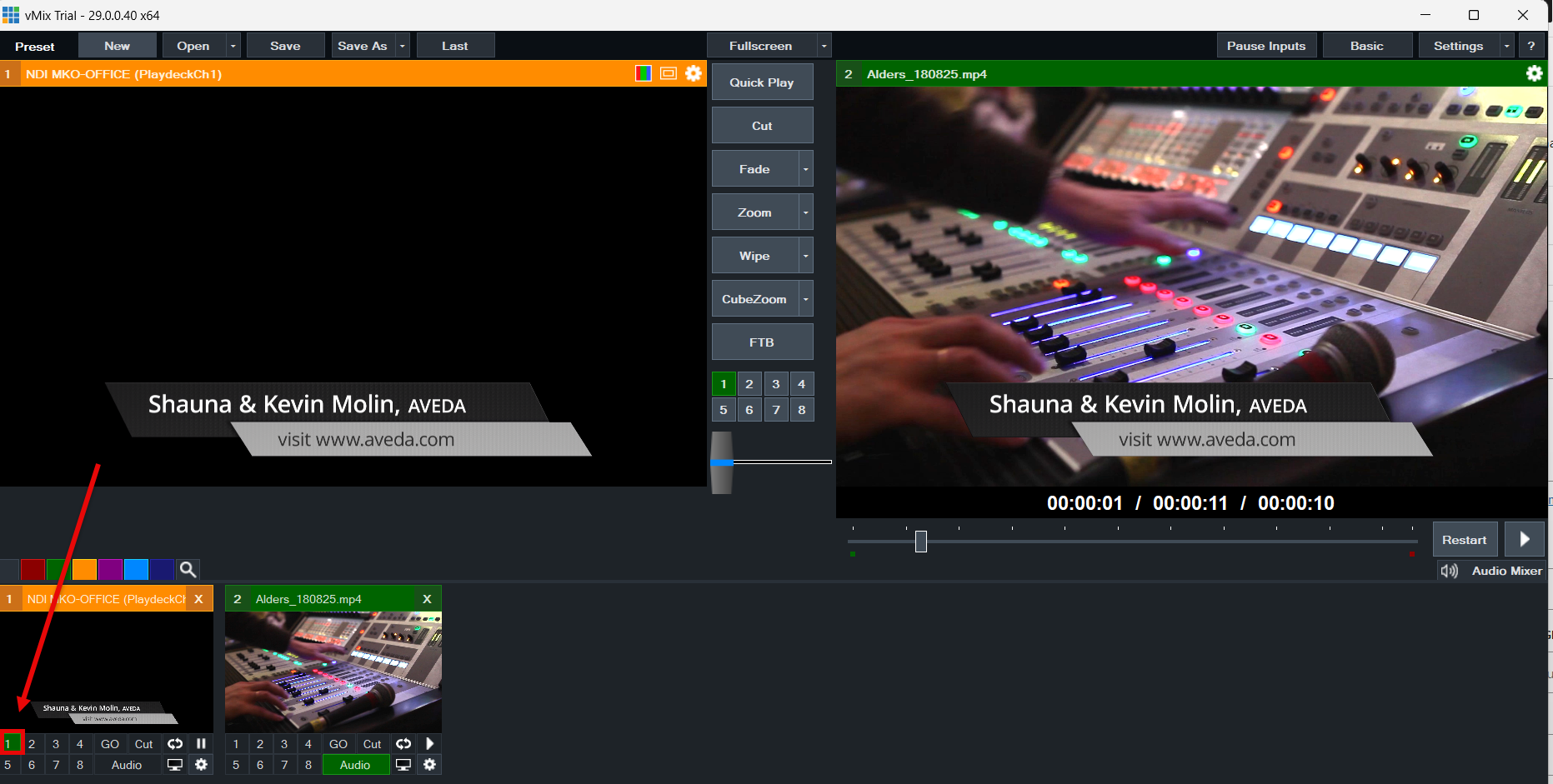
使用“叠加”按钮,将视频叠加在 vMIX 中的当前视频信号之上:
来自/发送到 OBS Studio 的视频

将 OBS 与 PLAYDECK 连接(双向)的最佳方式是 NDI。多声道音频也得到了全面支持。.

由于 OBS 默认不支持 NDI 输出,您需要安装一个额外的插件,安装过程非常简单快捷。下载插件 这里 (向下滚动并点击“distroav-6.0.0-windows-x64-Installer.exe”)。该软件可通过安装程序像其他 Windows 应用程序一样进行安装。.


将视频从 OBS 发送至 PLAYDECK

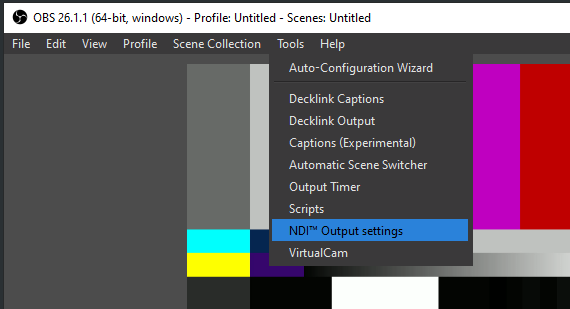
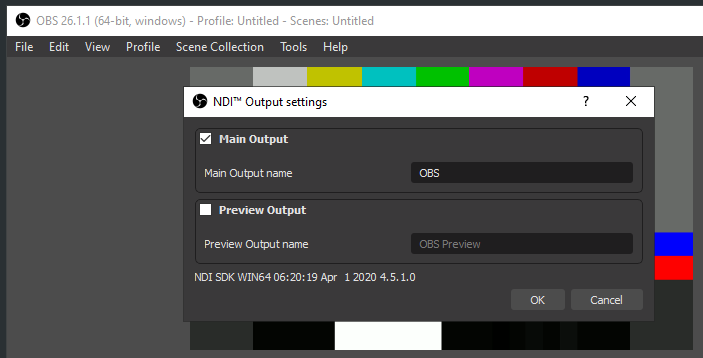
NDI 插件会在“工具”菜单中添加一个新选项。选择“NDI 输出”并启用它:

PLAYDECK Professional Video Playback Playout Software for Windows * Send and Receive Video to and from OBS


将视频从 PLAYDECK 发送至 OBS

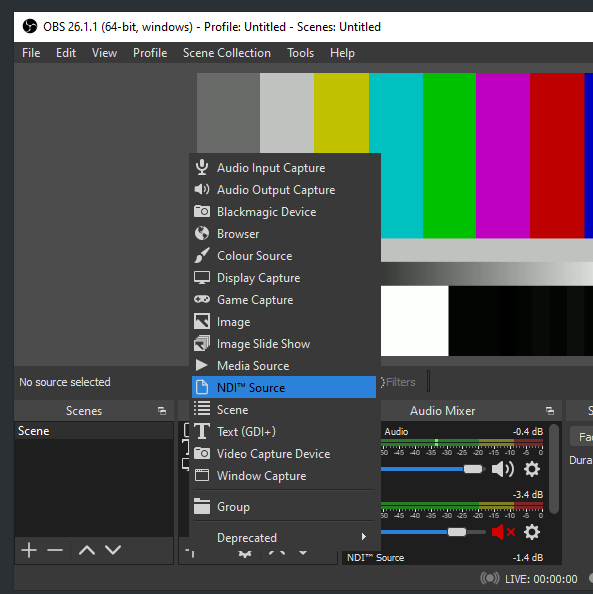
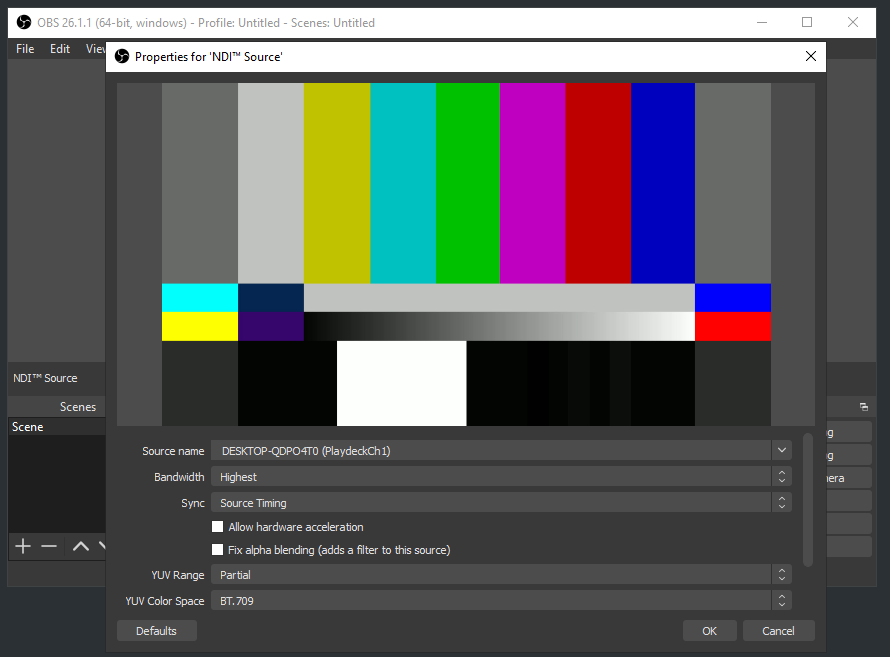
在 PLAYDECK 中启用 NDI 输出。OBS NDI 插件会插入一个新的 NDI 源,您可以按照以下方式将其添加到 OBS 场景中:

PLAYDECK Professional Video Playback Playout Software for Windows * Send and Receive Video to and from OBS