
User Manual & Guide
Official Multi-Channel Video Playout & Remote Production Documentation
Table of Contents
- User Manual & Guide
- Hardware
- Your PLAYDECK PC Build & Hardware Requirements
- Supported Input/Output Devices
- Internal and External Keying
- PiP (Picture-in-picture) with Internal Keying
- ST 2110 Device Setup
- Setup Device Reference Signal (GenLock)
- Playlist & Content
- Mastering Program Flow & Playlist Automation
- Playout Rules
- Insert Input Streams into Playlist
- Use an iPhone as a PLAYDECK Camera
- Insert YouTube Videos into Playlists
- Best Video Codecs for Playback
- Make clips playout-ready
- Automate Overlay Lower Third with Clips
- Prepare/Import Playlists externally
- Unattended 24/7 Playout
- Create Pre-Show Waiting Loop
- Creating a Slideshow Single-Monitor
- Growing Files in Playlist
- Video & Audio Output
- Broadcast your Video Feed
- Setup of your Output Streams
- ASIO / Dante Virtual Soundcard
- Multichannel Audio and Mixing
- Color Correction for Inputs and Channel
- HDR Output and Recording
- Audio Delay
- Closed Captions & SCTE
- Closed Captions & SCTE – Overview
- Closed Captions & Subtitles
- SCTE-104 on SDI
- SCTE-35 Streams & Servers
- Recording CC & SCTE
- Advertisements
- Ad Breaks to interrupt Playout
- Create L-Band Ads via second Channel
- Cloud & Remote Productions
- Setup Cloud & Remote Productions
- Using Companion for Playout Control
- Build a Custom Remote with AI
- Using Commands for Playout Control
- Video from/to OBS Studio
- Video from/to vMix
- AMP Video Server (Ross Carbonite / Generic DDR)
- Amazon EC2 Installation
- PLAYDECK API
- License & Support
- PLAYDECK License Options
- Activate your License
- Free Backup License
- Move License to another PC
- Recover lost license
- Send Log Files to Support Team
- Upload Files to Support Team
- Setup RustDesk unattended Access for Remote Support
- Video Engine Logging
User Manual & Guide
Welcome to the official PLAYDECK documentation. This comprehensive user guide is engineered to help you configure, automate, and operate your playout system flawlessly—whether you deploy on-site or in cloud-based remote production environments.
💡 Localized Production Workflows: To ensure flawless operation in high-pressure environments worldwide, the entire PLAYDECK software user interface natively supports 9 international languages.

Quick Start: System Architecture
PLAYDECK scales from simple single-channel setups to complex broadcast infrastructures. Before diving into the specific configuration chapters below, ensure you understand the core capabilities of your edition:
- Multi-Channel Playout: Manage and route up to 8 completely independent output channels simultaneously. Organize your videos, graphics, audio tracks, live inputs, or IP streams instantly via our high-speed drag-and-drop playlist interface.
- Real-Time Transcoding: Feed your playlist with almost any common video codec or container. The internal PLAYDECK engine automatically scales, converts, and transcodes all assets to match your global hardware output format in real time.
- Flexible Signal Routing: Output your pristine feeds via professional hardware I/O cards (Blackmagic Design, AJA, Deltacast, etc.), native low-latency NDI® streams, secure SRT feeds, or the Windows extended desktop.
- Advanced Control & Automation: Take absolute command of your production flow using rapid physical keyboard shortcuts, automated Tally interfaces, standardized network TCP/IP commands, or our native module built for Bitfocus Companion and Elgato Stream Deck systems. AMP Video Server: Native Generic DDR integration for Ross Carbonite and compatible switchers — browse clips and control playout from the switcher panel.
Studio Edition: Real-Time Ingest & Audio Power
If you are operating the PLAYDECK Studio Edition, you have access to expanded broadcast-grade workflows:
- 4-Channel Recording & Focused Edit-While-Ingest: Capture up to 4 dedicated recording streams simultaneously. One designated master channel can be utilized for active Edit-While-Ingest clip generation, allowing you to use high-speed keyboard shortcuts to trim, cut, and push highlight clips to your playlist instantly while the background recording continues uninterrupted.
- Native ASIO & Dante Support: Route complex multichannel audio effortlessly with native, high-performance integration for ASIO devices and Dante Virtual Soundcard (DVS) managing up to 32 independent audio channels.
How to Navigate This Documentation
Please use the navigation menu in the left sidebar to access specific technical chapters. The menu automatically expands to guide you through our step-by-step guides on Hardware, Playlists, Routing, and Automation.
Hardware
Your PLAYDECK PC Build & Hardware Requirements
Please use these guidelines to choose or build the right hardware for your PLAYDECK system. While PLAYDECK can play virtually any codec on any Windows machine, professional video playout requires robust hardware to guarantee zero frame drops.
Mac desks: PLAYDECK runs on Windows. Use a Windows VM on your Mac (e.g. Parallels) or a dedicated Windows machine. Choose GPU and output hardware for that Windows system using the archetypes below.
In this article:
→ System Configuration Archetypes
→ Legacy Systems & The CPU-Only Safety Net
→ Technical Performance Metrics (For Professionals)
→ Hardware Output Cards
→ Pre-Flight Troubleshooting Checklist
System Configuration Archetypes
Choose the production archetype below that aligns with your upcoming project requirements.
1. The “Set-and-Forget” Fixed Installation
Designed for: Stationary installations, corporate showrooms, medical facilities, schools, and digital signage.
If you need a compact, dedicated unit to seamlessly manage 1 or 2 channels of standard H.264 playback, look for small form-factor builds that do not compromise on hardware decoding.
- Our Recommendation: A performance-tier mini PC like the ASUS NUC 14 Performance or ASUS ROG NUC. Avoid the standard baseline office NUC models. Ensure your chosen mini PC configuration specifically includes a discrete NVIDIA RTX GPU (such as an RTX 4060 or 4070 laptop chip) to guarantee stutter-free H.264 timeline performance.
2. The Mobile Video Director
Designed for: Event tech providers, traveling AV crews, festivals, and remote live streaming.
If you deploy temporary live setups, push video to regional LED walls, or broadcast from mobile command stations, a thermal-efficient mobile rig is mandatory.
- Our Recommendation: High-performance, current-generation workstation or gaming laptops engineered for continuous maximum thermal load (such as the XMG ULTRA or Lenovo Legion Pro series). For broadcast environments, scale the laptop’s connectivity by pairing it with a Blackmagic UltraStudio capture and playback device via a high-bandwidth Thunderbolt interface.
3. The Broadcast & Studio Professional
Designed for: TV stations, multi-screen matrix setups, and 24/7 master control environments.
When your infrastructure handles simultaneous UHD/4K master outputs, heavily utilizes network protocols like NDI®, or handles deep layers of graphic lower-thirds, you require raw hardware overhead.
- Our Recommendation: A custom-built rackmount or tower workstation pairing a multi-core processor with a desktop NVIDIA RTX 4070 / 4080 GPU or higher, paired with hardware-locked internal SDI I/O cards (such as the Blackmagic DeckLink series).
Legacy Systems & The CPU-Only Safety Net
If your team is working with an existing office computer or an older laptop running basic integrated graphics (like Intel UHD Graphics), you do not necessarily have a hopeless case. PLAYDECK can adapt to older architectures if you configure the processing pipeline correctly.
If you encounter stuttering, timeline lag, or stability problems on older office hardware, apply this configuration fallback inside the application settings:
- Open your PLAYDECK settings.
- Locate the Application configuration settings.
- Switch the GPU Pipeline parameter to
<CPU only>. - Switch the Decoding GPU parameter to
<CPU only>.
Important Deployment Caveats for Legacy Hardware:
When fallback mode is active, your system CPU takes over the entire workload. To ensure successful execution without frame drops, you must limit your project scope: restrict your playout to a single channel, downscale your timeline target to standard 1080p Full HD, and ensure your playback clips match a highly optimized, lightweight playback format.
Technical Performance Metrics (For Professionals)
If your engineering department is evaluating existing inventory or sourcing custom parts, use these performance baselines.
1. The GPU Decoding Hierarchy
While alternative graphics options exist, they are not architecturally identical for live broadcast workloads:
NVIDIA RTX Architecture (Industry Standard): Highly recommended. NVIDIA’s dedicated NVDEC/NVENC blocks provide optimal hardware decoding throughput for standard broadcast clip formats, specifically H.264 and HEVC video streams.
Intel ARC Systems: Suitable for secondary deployments. They handle modern AV1 streams effectively and offer competent DVB 4:2:2 encoding, but do not match the overall parallel decoding capacity of an NVIDIA workstation chip under multi-channel production loads.
Intel UHD Onboard Graphics: Strictly intended for lightweight, single-channel legacy fallback usage using the CPU-only adjustments outlined above.
AMD Radeon Platforms: Hardware-accelerated video decoding via AMD is not officially supported inside PLAYDECK.
2. Target PassMark Benchmarks
If you are unsure of your current hardware performance levels, you can check your system components directly on the official PassMark Software Benchmark Database.
| Playout Scale | Target CPU PassMark Score | Target GPU PassMark Score |
|---|---|---|
| Single-Channel | 25,000+ | 9,000+ (e.g., Dedicated NVIDIA RTX) |
| Dual-Channel | 35,000+ | 12,000+ (e.g., Station-class Workstation) |
| 4 to 8 Channels | 50,000+ | 15,000+ (High-Tier Desktop RTX) |
3. When to Provision an Advanced CPU
Your system’s central processor handles severe system strain if your workflow requires any of the following processing types:
- High-bitrate master formats that bypass GPU decoding pipelines entirely (e.g., Apple ProRes, HAP, or Avid DNxHD).
- Multi-destination network routing using NDI® outputs, as these matrix encoders rely purely on your host processor.
- Intense deployment of live-rendered HTML graphics, data-driven lower-thirds, or real-time alpha-channel video overlays.
Hardware Output Cards
To bypass operating system desktop layer interference, maximize color accuracy, and maintain a strict hardware-locked framerate control signal, offload your primary feeds to a dedicated PCIe or Thunderbolt video interface.
PLAYDECK maintains native compatibility with major broadcast hardware lines, including:
- Blackmagic Design (DeckLink / UltraStudio)
- AJA Video Systems
- Deltacast & Bluefish444
- Magewell, Osprey, and Stream Labs
- ASIO & Dante Virtual Soundcard audio endpoints
Pre-Flight Troubleshooting Checklist
If you experience playback stutter, audio sync issues, or unexpected lag during configuration, run through this quick self-diagnostic checklist before contacting support.
- Check the
<CPU only>toggle: If running on an office laptop with integrated Intel graphics, ensure both GPU Pipeline and Decoding GPU are set to<CPU only>in the settings menu. - Verify Windows Power Plans: Laptops often throttle performance on battery. Connect your device to a power outlet and change your Windows power plan to High Performance or Best Performance.
- Monitor the Playback Clock: Look at the integrated performance monitor in PLAYDECK during playback. If the frame counter drops or turns red, your hardware is hitting a performance bottleneck.
- Match Output Refresh Rates: Ensure the refresh rate of your Windows display settings (e.g., 50Hz or 60Hz) exactly matches the output frame rate of your project settings in PLAYDECK.
- Inspect the Clip Codec: If a specific video causes issues, verify its properties. High-bitrate 4K files or uncompressed formats will overwhelm basic system processors. Use an H.264 MP4 file for the safest baseline test.
- Update the I/O Drivers: If using Blackmagic DeckLink or UltraStudio hardware, ensure you have the latest version of Desktop Video installed via the Blackmagic Design support page.
Supported Input/Output Devices
We basically support all cards of the following manufacturers, since we always include the latest drivers. But because of the vast amount of cards out there, we only tested the most common ones.
Blackmagic Design
Important: Needs Version 14.5+ of Blackmagic Desktop Video Setup.
- DeckLink 4K Extreme 12G
- DeckLink 8K Pro
- DeckLink Duo 2
- Intensity Pro 4K
- DeckLink Mini Monitor / Mini Recorder
- DeckLink Quad 1 / 2 / HDMI Recorder
- DeckLink SDI 4K
- DeckLink Studio 2 / 4K
- Ultra Studio HD Mini / 4K Mini / 4K Extreme 3 / Monitor 3G
- DeckLink IP/SDI HD
AJA
- Corvid 24 R1
- Corvid 44
- Corvid 88
- KONA LHi
- KONA IP
Deltacast
- DELTA-3G-e 22
- DELTA-3G-elp-d 8c
- DELTA-3G-elp-key 11
- DELTA-ip-ST2110
Bluefish444
- Epoch 4K Neutron
- Epoch 4K Supernova S+
- Epoch Neutron
- Epoch Supernova CG
- KRONOS K8
DekTec
- DTA-2144B
Magewell
- Pro Capture Quad HDMI
- Pro Capture Quad SDI
Osprey
- Osprey 915
- Osprey 925
- Osprey 927
- Osprey 935
- Osprey 945
- Osprey 914
- Osprey 924
- Osprey 944
- Osprey 1214
- Osprey 1215
- Osprey 1225
- Osprey 1227
- Osprey 1245
- Osprey 1285
- Osprey M15
- Osprey M14
- Osprey M24
- Osprey M25
Stream Labs
- Alpha HD
- MH4LM
- MS4
- MSP2
Yuan
- SC550N1
Internal and External Keying
PLAYDECK supports both Internal (Superimposed Graphics over Incoming Signal) and External (Generating Video Fill and Key Signal) Keying, given that the Output card supports it too. You can also output the key or fill signal separately.
You can also use NDI to send your Key or Fill Signal with Alpha Channel Support.
Internal Keying
In Internal Keying mode, PLAYDECK will superimpose the video over an incoming signal on the same card:
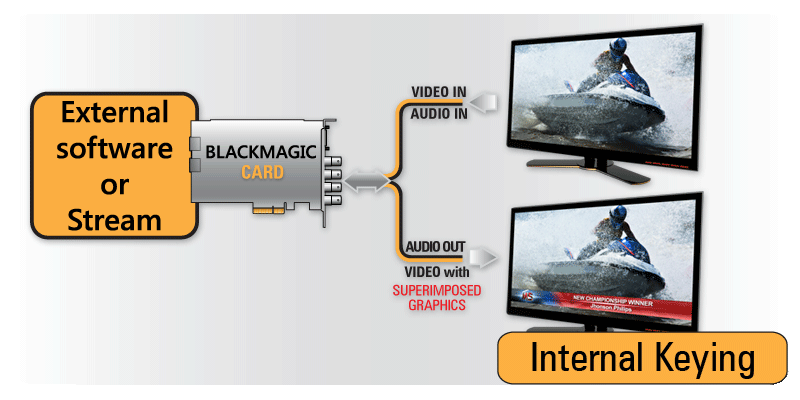
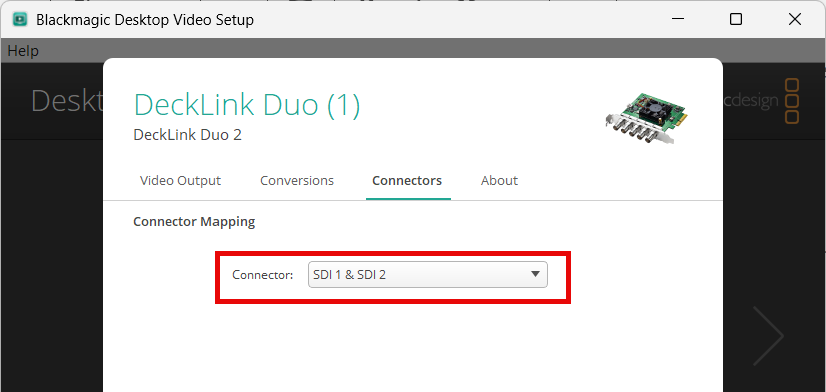
Lets take the Decklink Duo 2 for example: It has 4 SDI Ports. We need to tell the Card, which 2 Ports will be used for Internal Keying with the help of Desktop Video Setup (Blackmagic’s own Setup-App):


The Decklink will now operate like this:

If we start PLAYDECK now, the INTERNAL Option becomes selectable as Device Output:

Once you activate the Device for Keying, PLAYDECK will automatically change your Background to TRANSPARENT and your Color Space to ARGB32 (to support Alpha Channel):

The Image shows PLAYDECK Overlays Sample: Create Overlay > HTML > Screen-Title.html.
External Keying
In External Keying mode, PLAYDECK generates both Fill and Key signals and the keying is made by an external keyer:
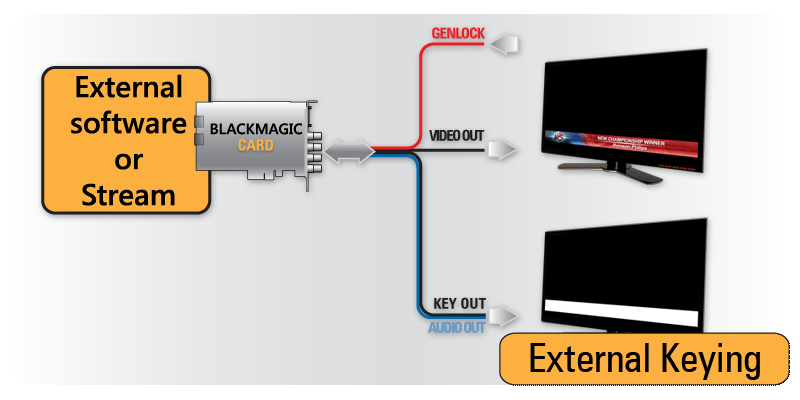
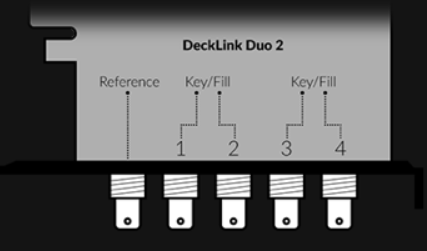
Lets take the Decklink Duo 2 for example: It has 4 SDI Ports. We need to tell the Card, which 2 Ports will be used for External Keying with the help of Desktop Video Setup (Blackmagic’s own Setup-App):
The Decklink will now operate like this:
If we start PLAYDECK now, the EXTERNAL Option becomes selectable as Device Output:

Once you activate the Device for Keying, PLAYDECK will automatically change your Background to TRANSPARENT and your Color Space to ARGB32 (to support Alpha Channel):
The Image shows PLAYDECK Overlays Sample: Create Overlay > HTML > Screen-Title.html.
PiP (Picture-in-picture) with Internal Keying
This article will show how to utilize Internal Keying as means of overlaying Video over Video (Picture in Picture).
1. Setup of Internal Keying
We need to setup PLAYDECK to have a BG FEED and a PIP FEED and mix them into the MAIN FEED. For this we use Internal Keying. See this article for more info on Internal Keying.
Use any Device that is capable of Internal Keying. In our example we use the Blackmagic DeckLink Duo2. Open the Desktop Video Setup and combine and first 2 SDI Outputs. Leave the other Outputs solo:
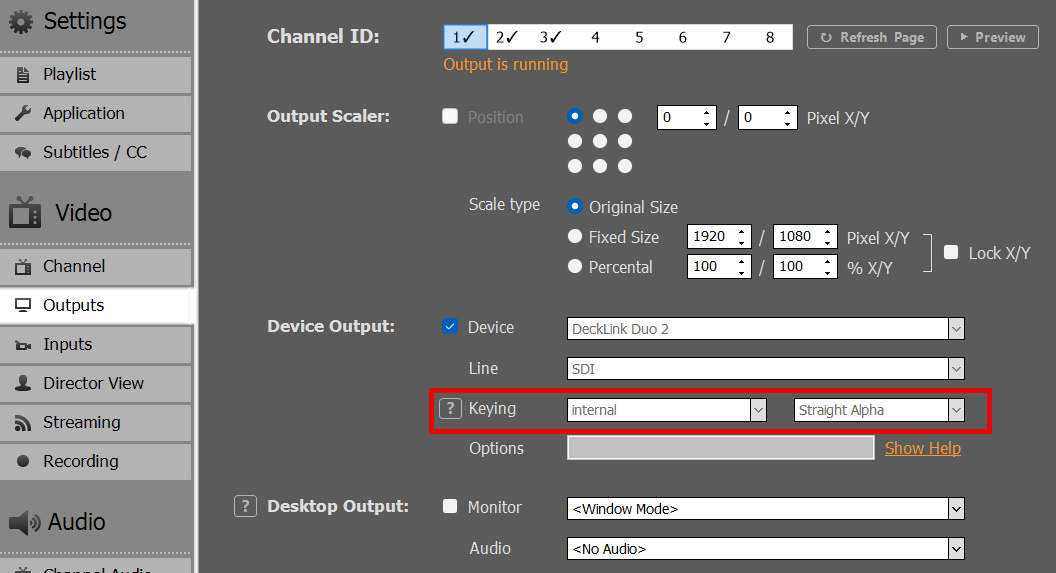
Next we enable Internal Keying in Channel 1 in PLAYDECK:
2. Setup of BG FEED
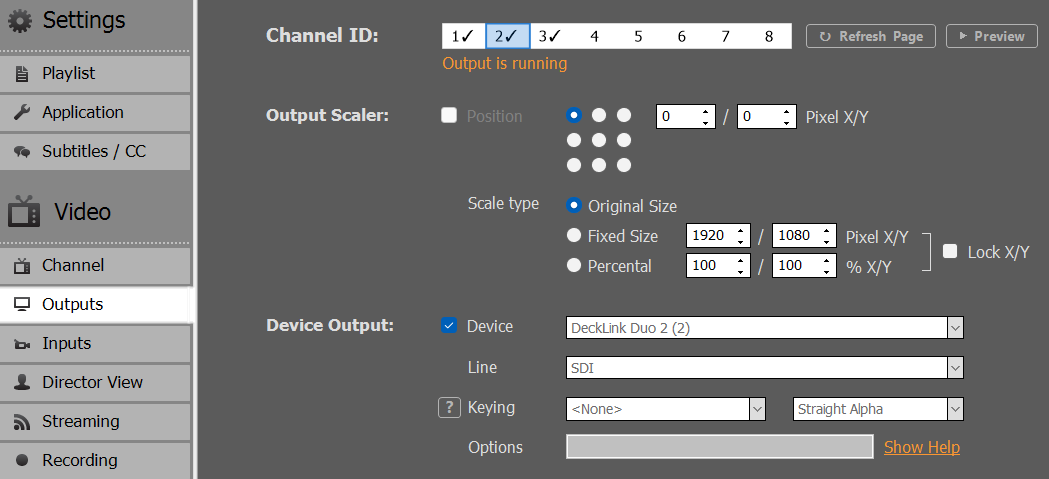
Now we need to send our BG FEED to SDI 1. For this we use Channel 2 and send it via SDI Loop from SDI 3 to SDI 1. Please note, that because we combined SDI 1+2, SDI 3 is now designated as “Decklink Duo 2 (2)”:
Then we start any video content on Channel 2:
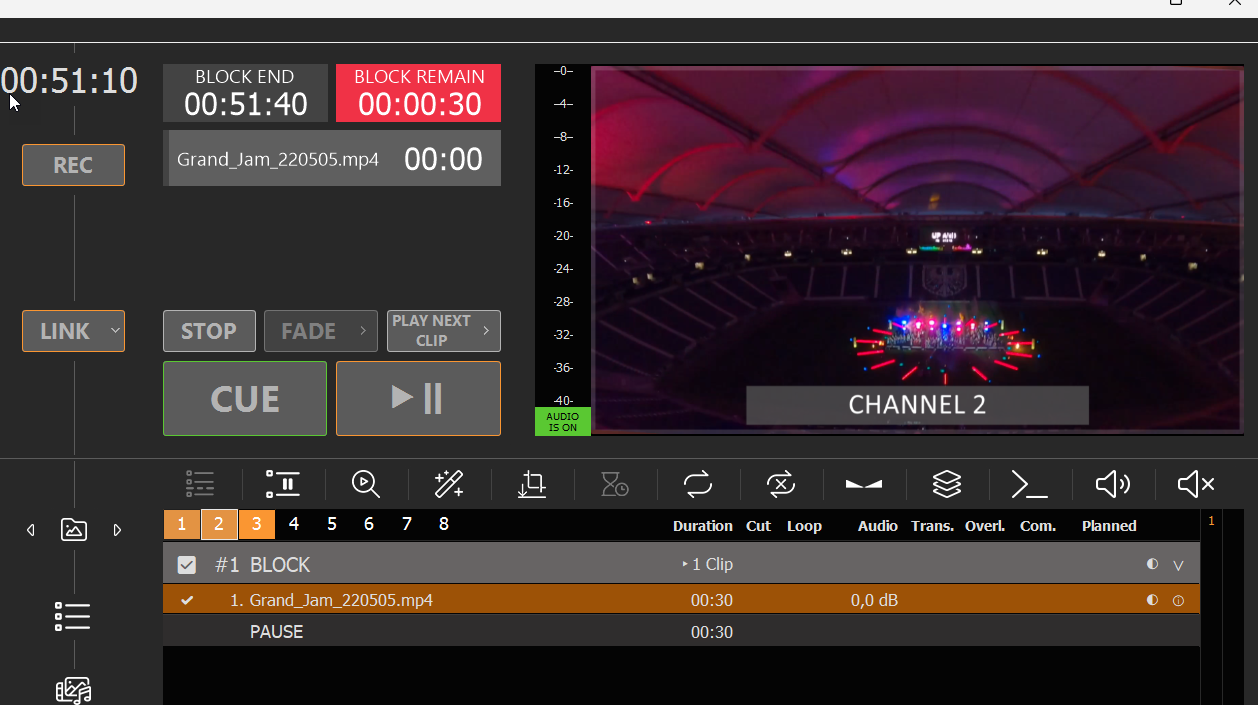
If you have a SDI Monitor on SDI 2, you can already see the BG FEED playing there now.
We could now go ahead and play any Content with Alpha on Channel 1, which is keyed over the BG FEED, e.g. Alpha Videos (ProRes, HAP-A) or simple Overlays. But since we need our PIP FEEDBACK scaled and positioned, we need to set it up on another Channel.
3. Setup of PIP FEED
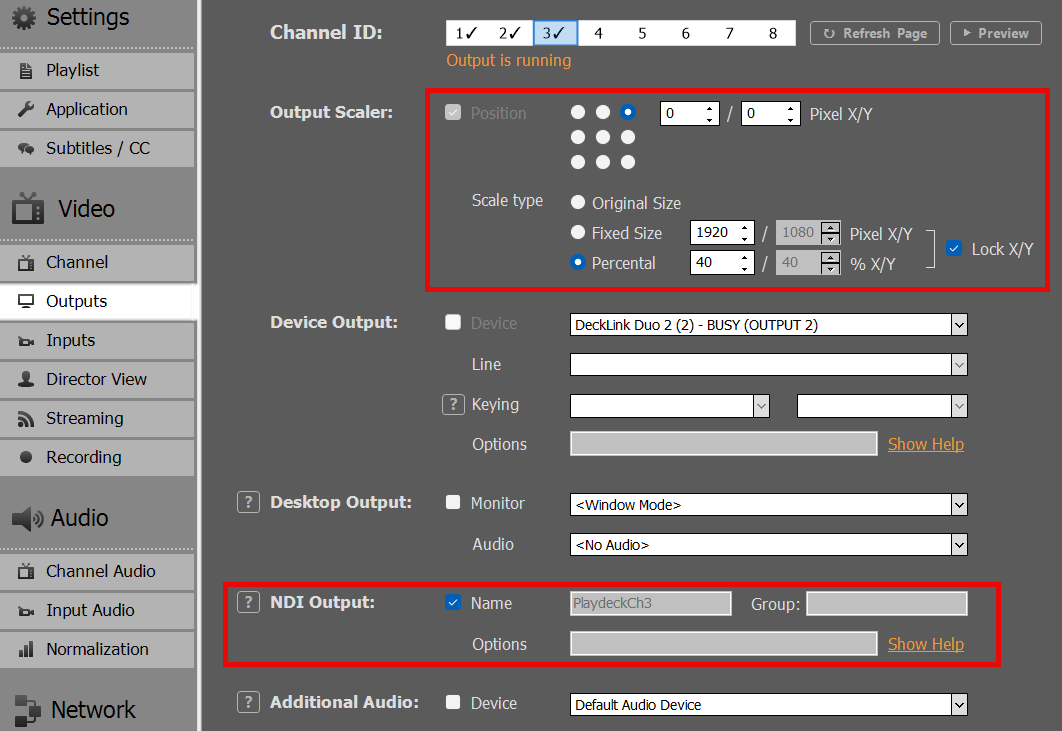
We use Channel 3 as PIP FEEDBACK, so we can play regular Video Content here. We want to send it via NDI from Channel 3 to Channel 1 and activate the Output Scaler, so that our PIP is in the UPPER RIGHT Corner:
We now insert a Video Clip on Channel 3, but this could also be Live Video, Streams or anything else:
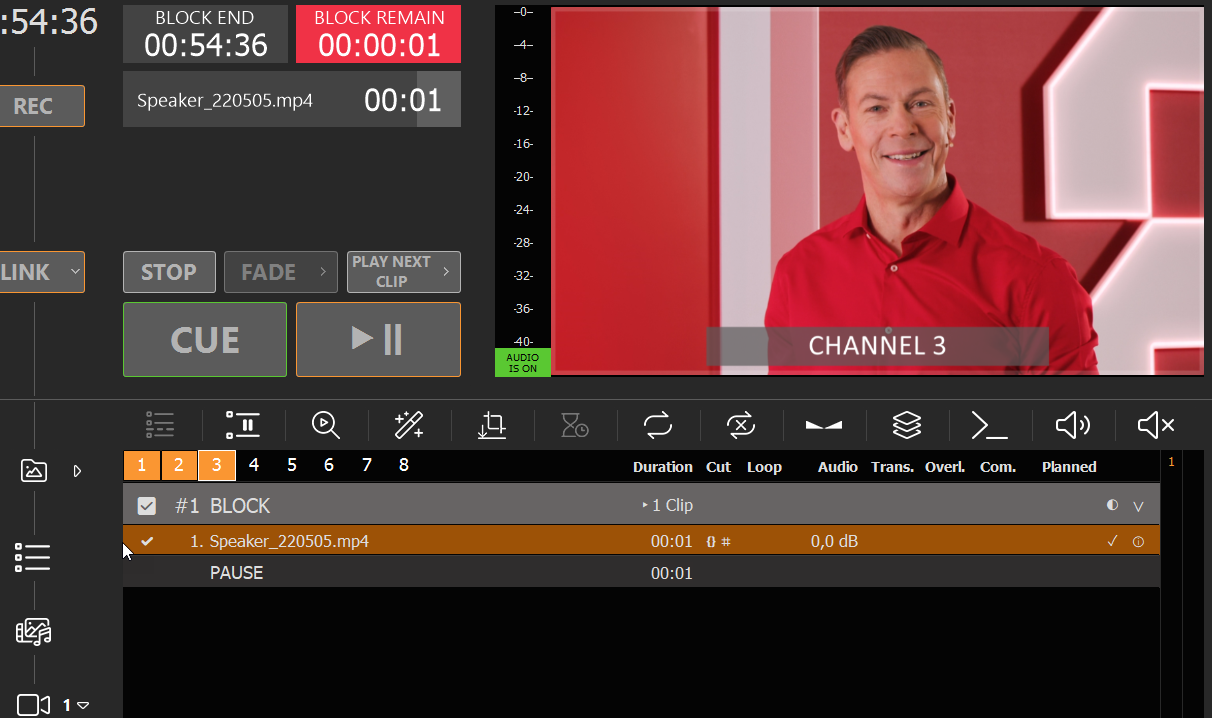
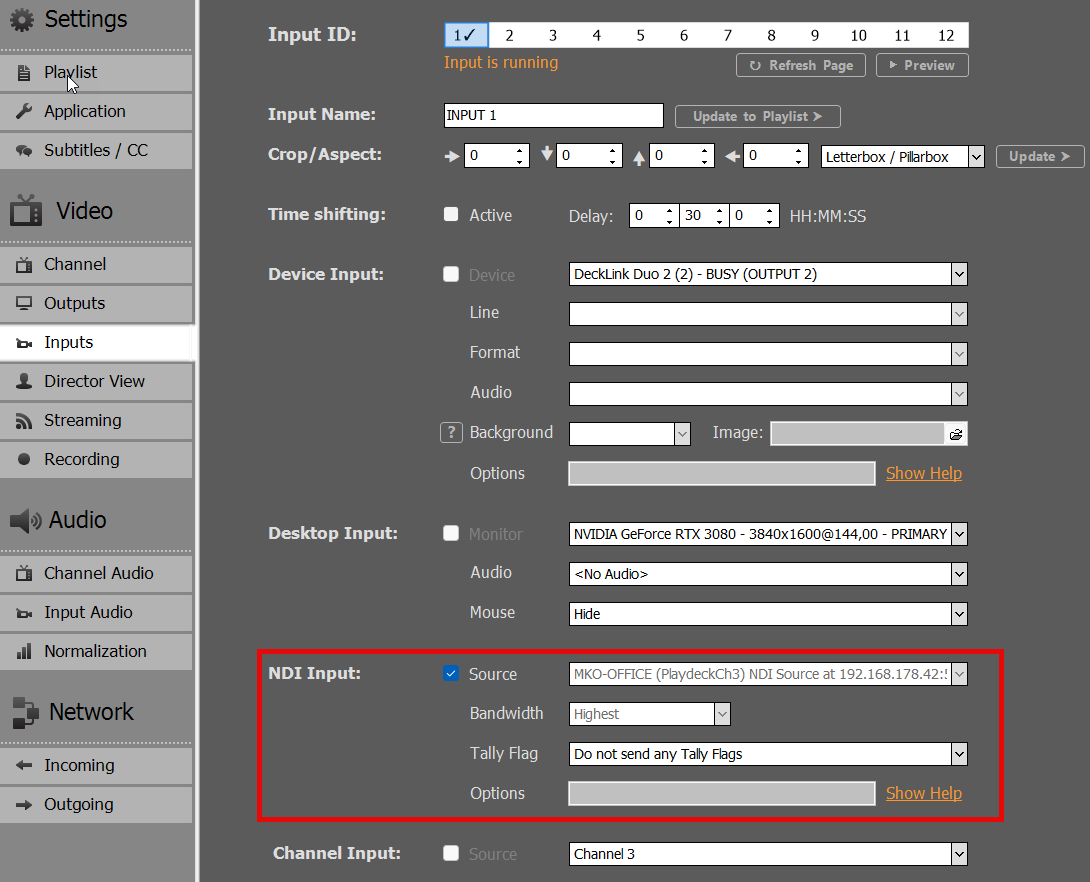
We loop this NDI Feedback to Input 1:
Then insert Input 1 into the Playlist of Channel 1:
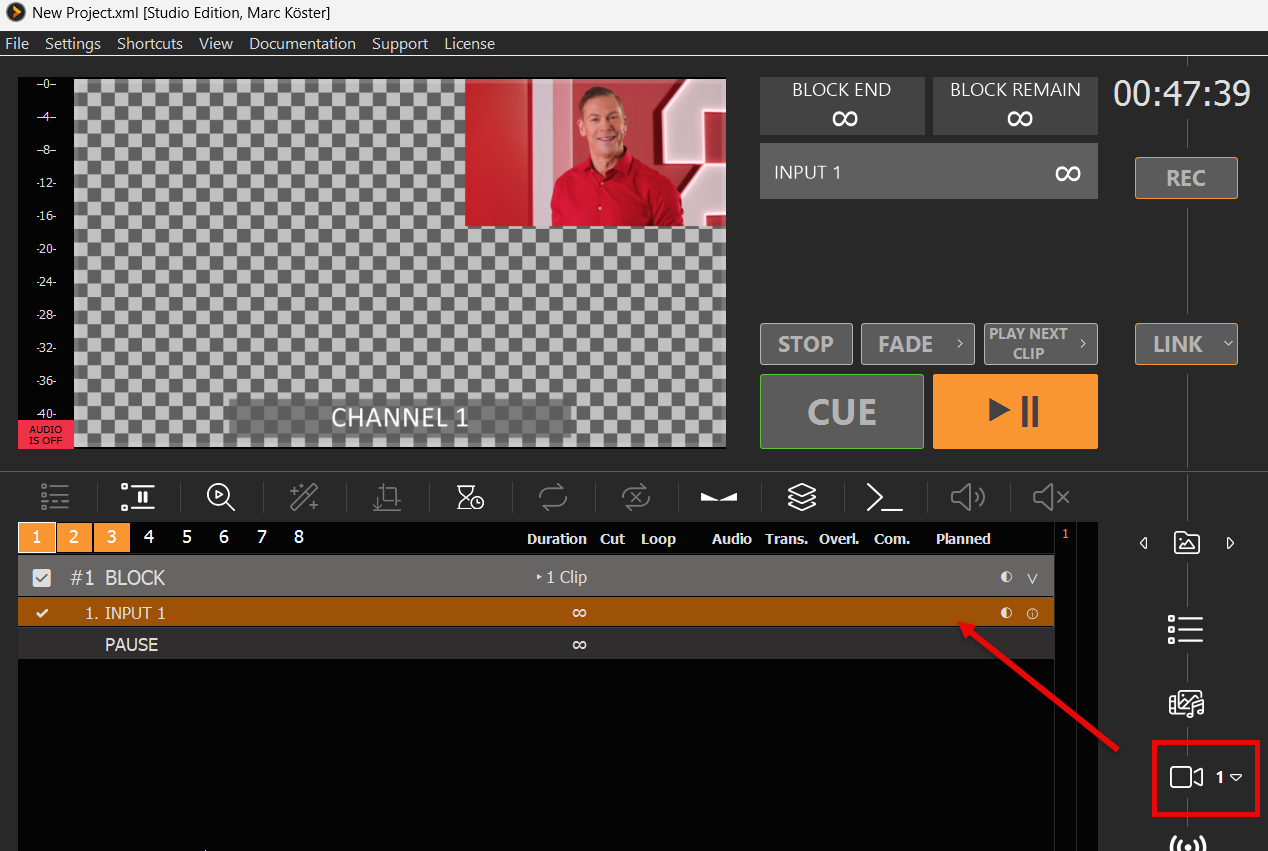
We now downscaled the Channel 3 Playlist into Channel 1, which will be keyed over the BG FEED of Channel 2.
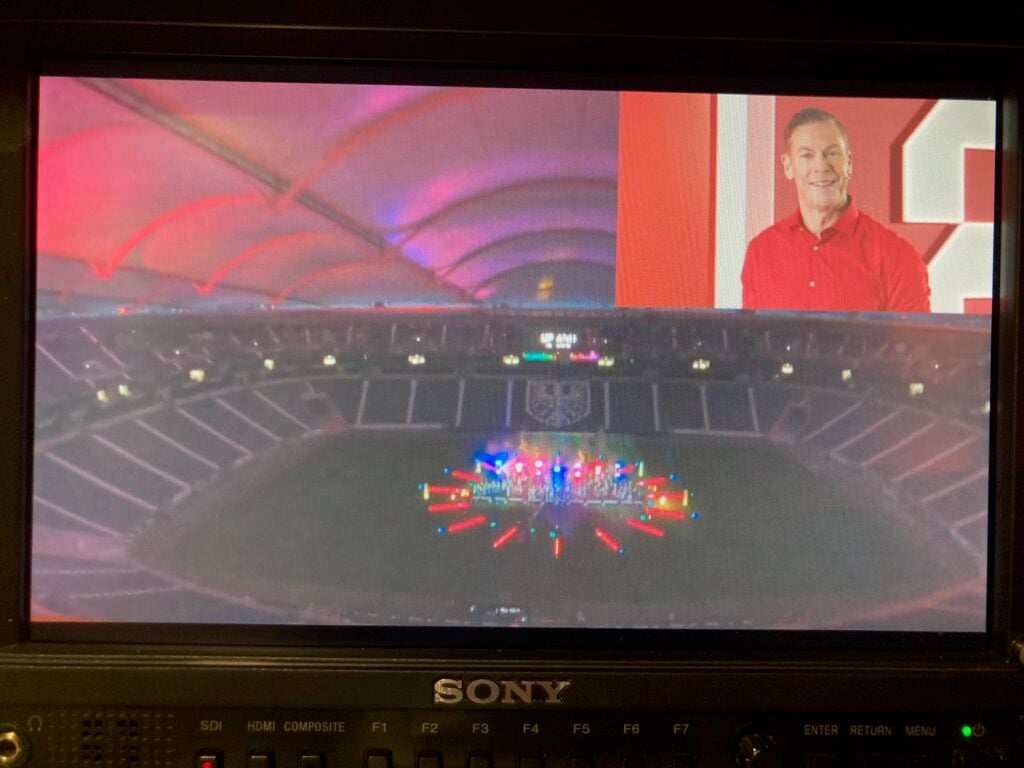
4. FINAL OUTPUT / MAIN FEED
The MAIN FEED is send to SDI 2 and this is the result on the SDI Monitor of SDI 2 (photographed):
ST 2110 Device Setup
For High Quality and Lag-free network operation, we recommend using High-end network hardware (router, switch) as well as high speed ethernet cables (Cat6+).
In this article:
→ BlackMagic 2110/IP Cards
→ AJA 2110/IP Cards
→ Deltacst 2110/IP Cards
BlackMagic 2110/IP Cards
BlackMagic Devices can be configured with the Tools given by the manufacturer:
Blackmagic Desktop Video Setup:
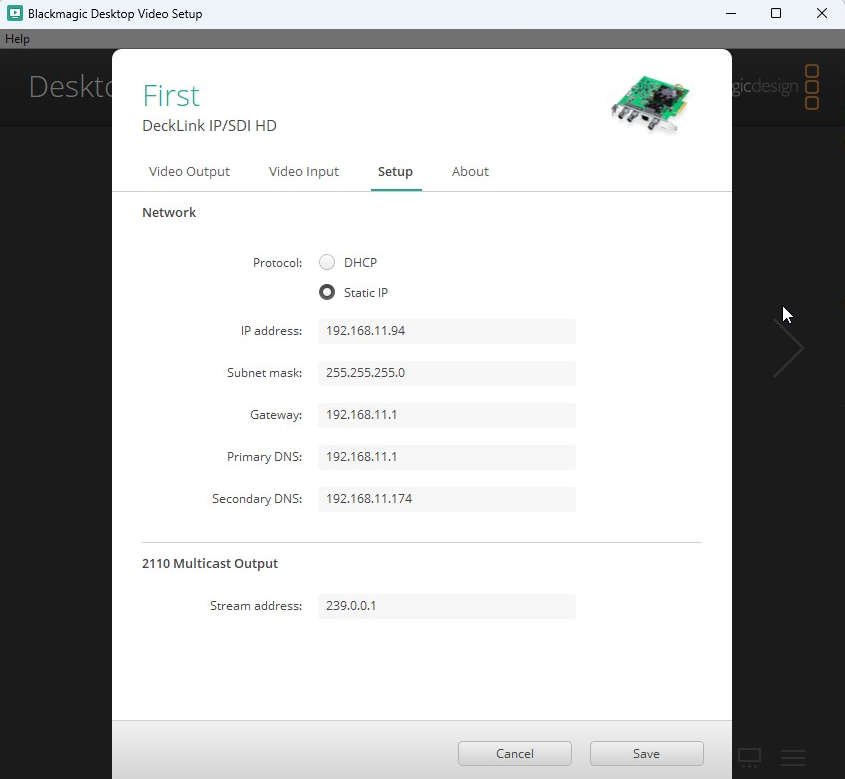
AJA 2110/IP Cards
PLAYDECK allows to assign a network configuration file, which will be loaded upon PLAYDECK start.
Structure of Configuration File (JSON)
{
    "protocol":"2110",
    "network2110":
    { // this part configures the parameters of the device itself, the connectors (SFP) with IP configurations
        "ptpPreferredGMID":"00-00-00-00-00-00-00-00",
        "ptpDomain":0,
        "setup4k":"false",
        "multiSDP":"false",
        "audioCombine":"false",
        "rxMatchOverride":0,
        "sfps":
        [   // the configuration itself for each of the connectors
            {
                "designator":"sfp1",
                "ipAddress":"192.16.45.8",
                "subnetMask":"255.255.0.0",
                "gateWay":"255.255.255.255",
                "enable":"true"
            },
            {
                "designator":"sfp2",
                "ipAddress":"192.16.45.9",
                "subnetMask":"255.255.0.0",
                "gateWay":"255.255.255.255",
                "enable":"true"
            }
        ]
    },
    "receiveVideo2110":
    [ // this part is to receive a video feed where you set the connector, the source address
      // and its port for both the connectors.
        {
            "stream":"video1",
            ...
        },
        {
            "stream":"video2",
            ...
        }
    ],
    "receiveAudio2110":
    [ // this part is to receive an audio feed where you set the connector, the source address
      // and its port for both the connectors.
        {
            "stream":"audio1",
            ...
        },
        {
            "stream":"audio2",
            ...
        }
    ],
    "receiveAnc2110":
    [  // this part is to receive the ancillary data where you set the connector, the source address
       // and its port for both the connectors.
        {
            "stream":"anc1",
            ...
        },
        {
            "stream":"anc2",
            ...
        }
    ],
    "transmitVideo2110":
    [  // this part is to send a video signal where you set the connector, the destination address
       // and its port for both the connectors.
        {
            "stream":"video3",
            ...
        },
        {
            "stream":"video4",
            ...
        }
    ],
    "transmitAudio2110":
    [  // this part is to send an audio signal where you set the connector, the destination address
       // and its port for both the connectors.
        {
            "stream":"audio3",
            ...
        },
        {
            "stream":"audio4",
            ....
        }
    ],
    "transmitAnc2110":
    [  // this part is to send ancilary data where you set the connector, the destination address
       // and its port for both the connectors.
        {
            "stream":"anc3",
            ...
        },
        {
            "stream":"anc4",
            ...
        }
    ]
}
Sample Configuration File
You can download this sample JSON File.
Assign Configuration to PLAYDECK
The Configuration will be loaded while starting PLAYDECK and will be assigned to all Inputs and Outputs (if assigned).
For INPUTS, edit the full path to your JSON File in this Registry Key:
HKEY_CURRENT_USER\Software\Medialooks\MFormats\MFLive\AJA2\aja.ip_config
For OUTPUTS, edit the full path to your JSON File in this Registry Key:
HKEY_CURRENT_USER\Software\Medialooks\MFormats\MFRenderer\AJA2\aja.ip_config
Deltacast 2110/IP Cards
PLAYDECK allows to assign a network configuration file, which will be loaded upon PLAYDECK start.
Structure of Configuration File (JSON)
{
    "tx2110Setup":
    {
        "ethPort":0,
        "DHCP":"true",
        "ipAddress":"127.0.0.1",
        "subnetMask":"255.255.255.0",
        "gateWay":"127.0.0.1",
        "ipAddressMulticast":"239.1.32.32",
        "udpPort":16
    },

    "rx2110Setup":
    {
        "ethPort":0,
        "DHCP":"true",
        "ipAddress":"127.0.0.1",
        "subnetMask":"255.255.255.0",
        "gateWay":"127.0.0.1",
        "ipAddressMulticast":"239.1.32.32",
        "udpPort":16
    }
}
Sample Configuration File
You can download this sample JSON File.
Assign Configuration to PLAYDECK
The Configuration will be loaded while starting PLAYDECK and will be assigned to all Inputs and Outputs (if assigned).
For INPUTS, edit the full path to your JSON File in this Registry Key:
HKEY_CURRENT_USER\Software\Medialooks\MFormats\MFLive\MFDeviceDC\dc.ip_config
For OUTPUTS, edit the full path to your JSON File in this Registry Key:
HKEY_CURRENT_USER\Software\Medialooks\MFormats\MFRenderer\DC\dc.ip_config
Setup Device Reference Signal (GenLock)
Introducing a Reference Signal will force the Output Hardware to send Frames based on the Reference Clock.
1. Multichannel SYNC as a use case
If you plan to synchronize multiple channel, you should connect an external clock to your device, then CUE all Channel via LINK (or Commands) and UNPAUSE all Channel. This will start all Channel (almost) SYNC, while the Reference Clock will make sure, that all Channel STAY SYNC. This is only guaranteed for all Channel, that output over the same Device.
This article shows, how to use Action Buttons to start multiple Channel in SYNC.
2. Providing a Reference Signal (GenLock)
Please check with your manufacturer, if your Output Card supports a Reference Input. In this example we use “Blackmagic DeckLink Duo 2”:
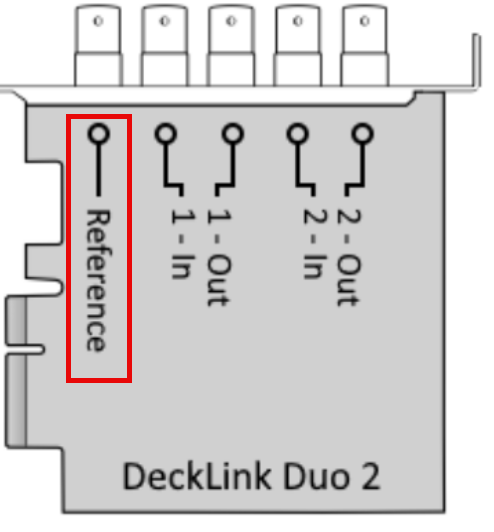
If none of your other hardware generates a Clock Signal, you can use separate hardware to generate such a signal, like the Blackmagic Sync Generator.
3. Setting the Reference Input in PLAYDECK
Some Devices need specific reference input settings, like AJA Devices. In this Example, we set the AJA Reference Input to “external” for the Device:
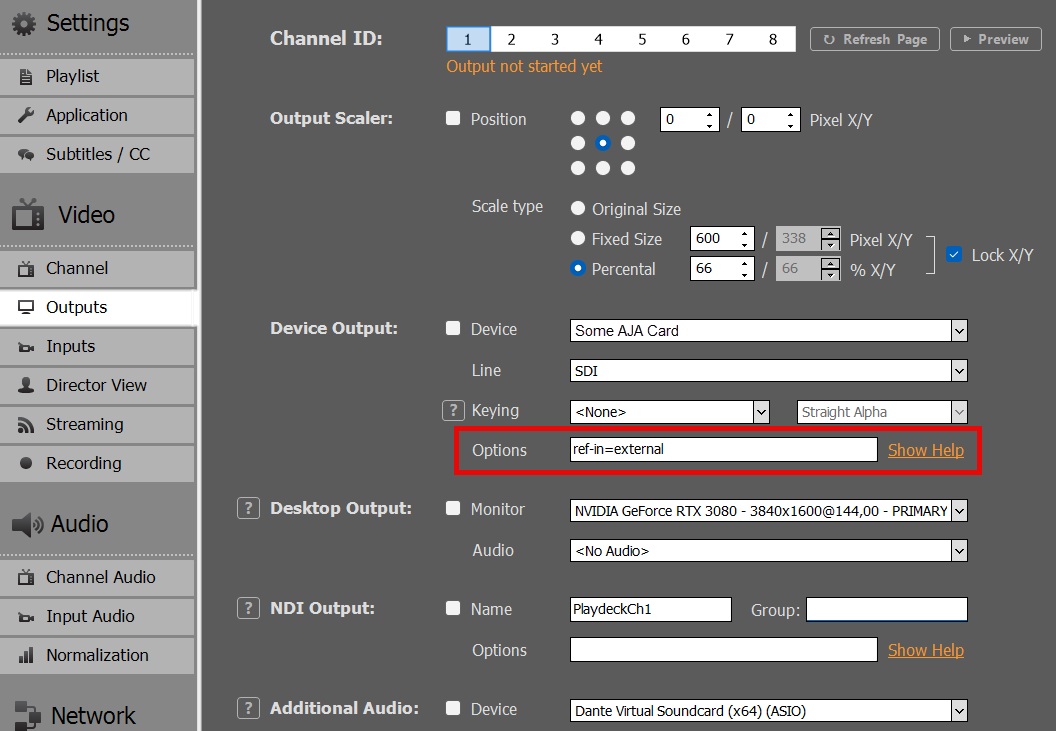
If you click on SHOW HELP, you will see all other Options, that can be set for each device manufacturer.
Playlist & Content
Mastering Program Flow & Playlist Automation
Welcome to the PLAYDECK Playlist Automation and Program Flow guide. While PLAYDECK serves as an excellent manual clip player for live operators, it also features a highly advanced automation engine for continuous broadcasting and structured event schedules. This guide will show you how to transition from basic manual playout to sophisticated automation—allowing you to control precise playback down to the exact second, keep your timeline perfectly readable, and build self-running, smart playlist logic.
In this article:
→ Fulfilling Factual Timelines (Time-of-Day Scheduling)
→ The Smart “Planned” Column: Predictive vs. Real Playout
→ Structuring Program Flow (Block End Methods & Auto-Shuffle)
→ Advanced Playout Control: Marker Cues & Command Actions
→ Automated Advertising: Managing Scheduled Break Blocks
→ Visual Organization & Operator Prompts (Colors, Notes & Pauses)
→ Broadcasting Exports & EPG Integration (Day Planner & XMLTV)
→ Enterprise Automation: Custom Playout Logic via PLAYDECK API
Fulfilling Factual Timelines (Time-of-Day Scheduling)
Many broadcasting environments, corporate events, and digital signage installations require strict compliance with real-world clock times. PLAYDECK solves this through individual block schedules.
- The Concept: Instead of scheduling single clips, you organize your media into Playback Blocks and apply an absolute time constraint to the entire block.
- The Setup:
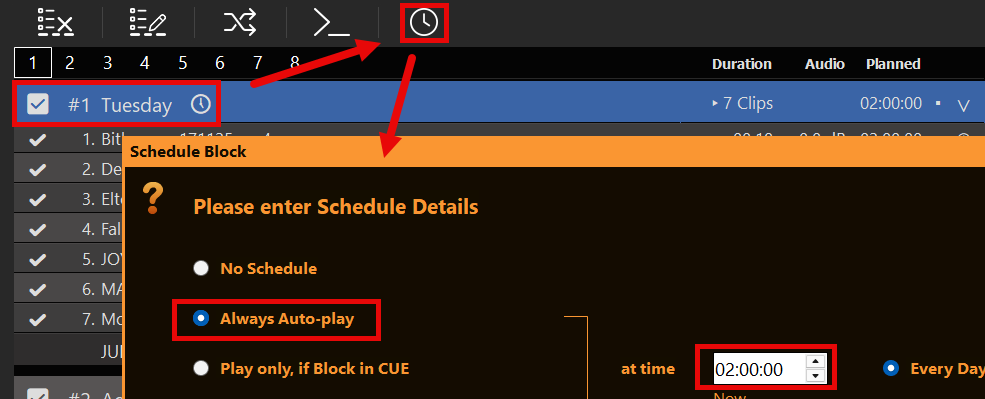
- Select your target Playback Block in the timeline.
- Click the Clock Icon on the block header toolbar.
- Enter your target start time down to the exact second (e.g.,
11:02:48 AM).
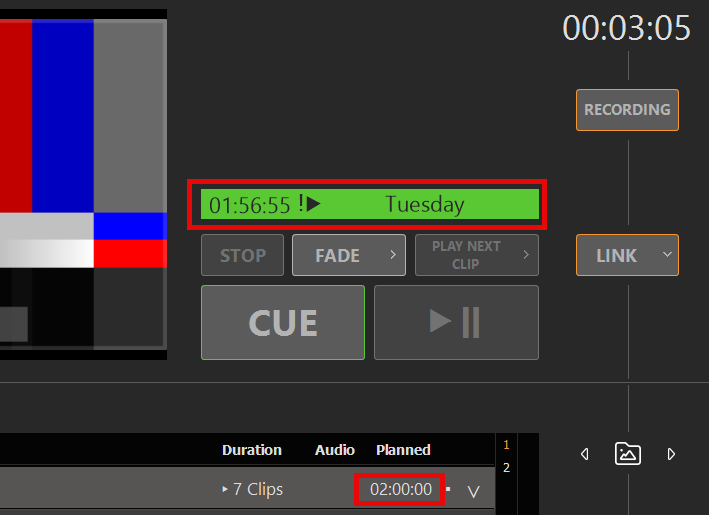
- Auto-Trigger Engine: Once you enable the auto-trigger flag, PLAYDECK continuously checks the system clock. The moment the scheduled time arrives, the block fires automatically. To keep operators perfectly prepared, a live, frame-accurate countdown timer to the next (earliest) upcoming scheduled block is displayed right at the top of the interface next to the Preview window.
The Smart “Planned” Column: Predictive vs. Real Playout
One of PLAYDECK’s most powerful features is its real-time mathematical timeline engine, visible in the Planned column of your playlist view.
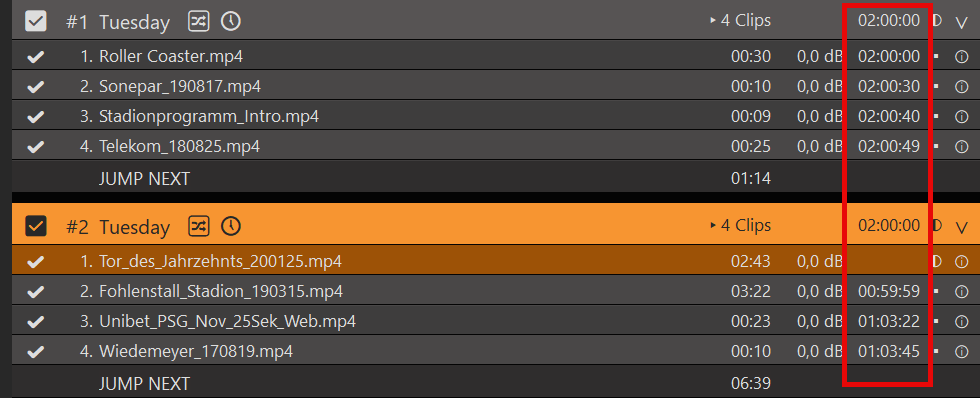
- Predictive Calculation: The moment you assign a schedule to a block, PLAYDECK instantly calculates the exact airtime for every single clip within that block. This engine is highly intelligent: it automatically factors in custom clip trims (In/Out points), loop configurations, and transition durations. You will see exactly when Clip #5 will go on air before the block even starts. Planned times and block duration only include clips that can play in this take. Inactive clips and gray clips (Shuffle leftover or Limit Playout) are omitted.
- Dynamic Reality Update: The moment the block goes LIVE, the “Planned” column instantly adapts. If a live event ran long and your block started 45 seconds later than scheduled, the column dynamically stops showing the theoretical schedule. Instead, it instantly updates to reflect the actual, real-world execution times for all remaining clips based on the current playout reality.
Structuring Program Flow (Block End Methods & Auto-Shuffle)
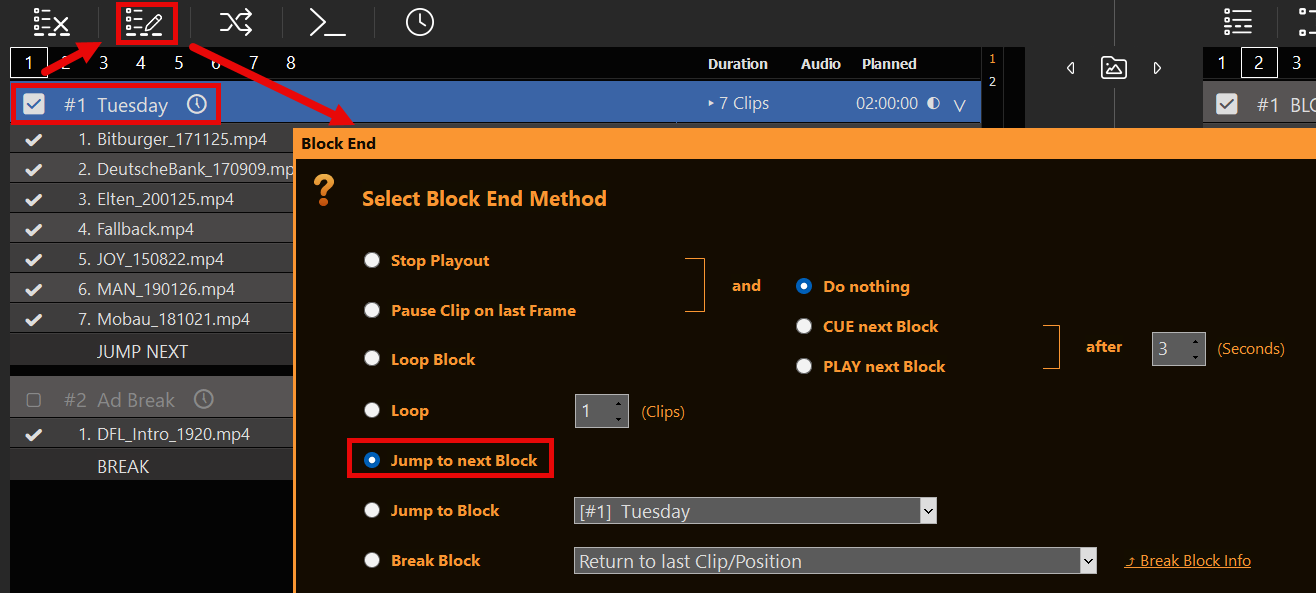
Automation is not just about when a block starts, but how PLAYDECK behaves after a block finishes playing. By opening the Block End behavior settings (the list icon on the block header), you define the automatic transition logic between different program segments.
- Jump to next Block & PLAY next Block: This is the standard linear broadcasting rule. Once the current block finishes its last take clip, PLAYDECK automatically skips to the next block in the list and immediately triggers playback. You can even define a custom delay in seconds before the next block fires off.
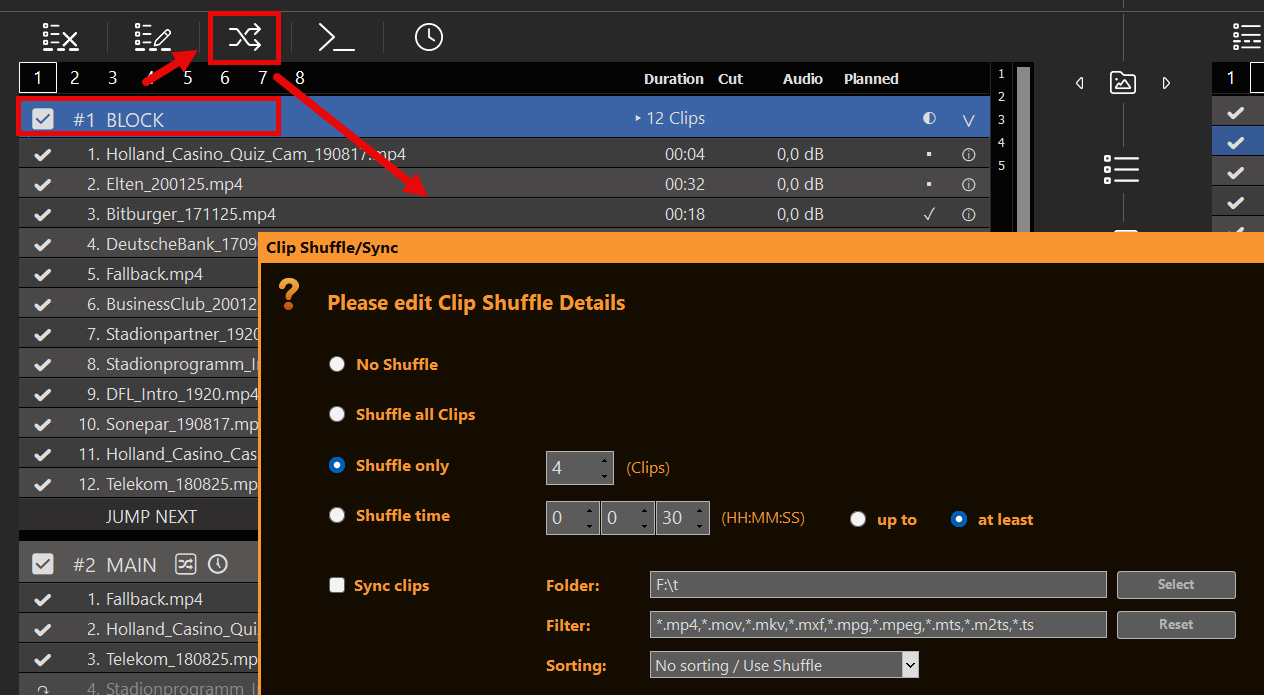
- Loop Block & Clip Shuffle: The block repeats until a manual command or a scheduled block overrides it. Open Clip Shuffle / Sync on the Block to shuffle all clips, only N clips, or fill a time budget (Shuffle time). Optional Sync clips alone (No Shuffle) or together with Shuffle keeps the block matched to a folder while the Block is idle (not Current/Next; cooldown ~10s / ~30s when clips were added). PLAYDECK deals a take on block header CUE/PLAY/Fade, when the Block becomes Next, or when a Schedule / Break enters that Block — not when you CUE a clip inside the Block. Leftover clips stay gray (↷). Looping keeps the same take. Details: Playout Rules.
Advanced Playout Control: Marker Cues & Command Actions
For advanced show control and complex broadcasting logic, PLAYDECK provides internal triggers that extend far beyond standard linear video playback.
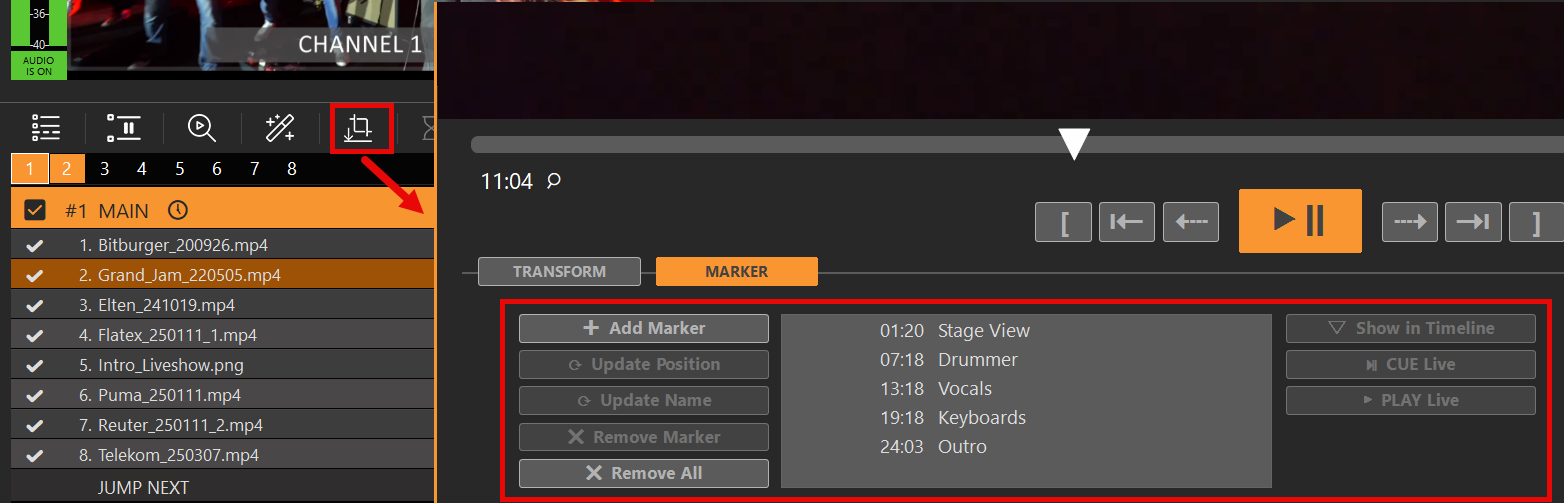
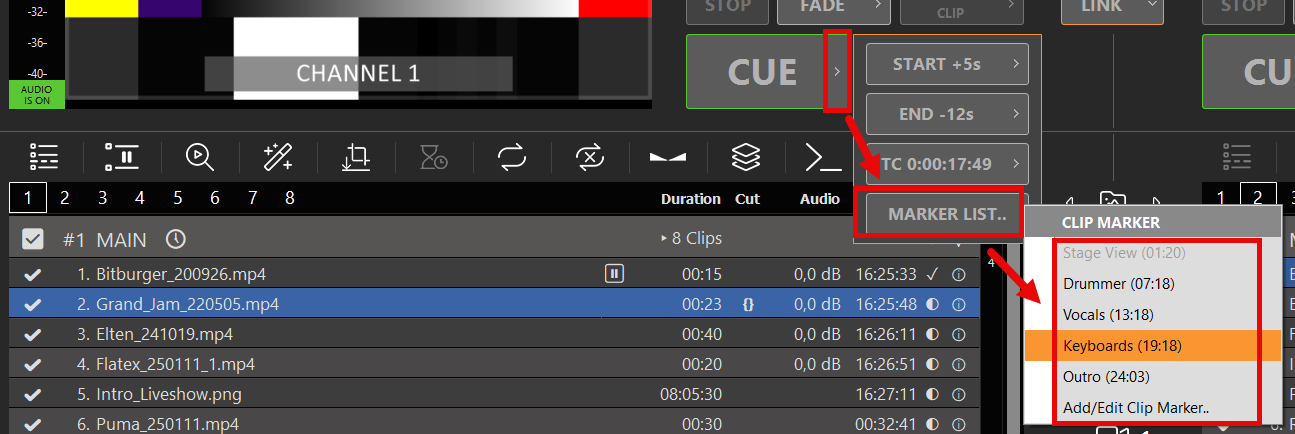
- Clip Timeline Markers: Within the individual clip timeline, you can set dedicated Markers to act as precise jump points for separate CUE triggers. These markers can be jumped to manually by an operator or targeted automatically via system commands.
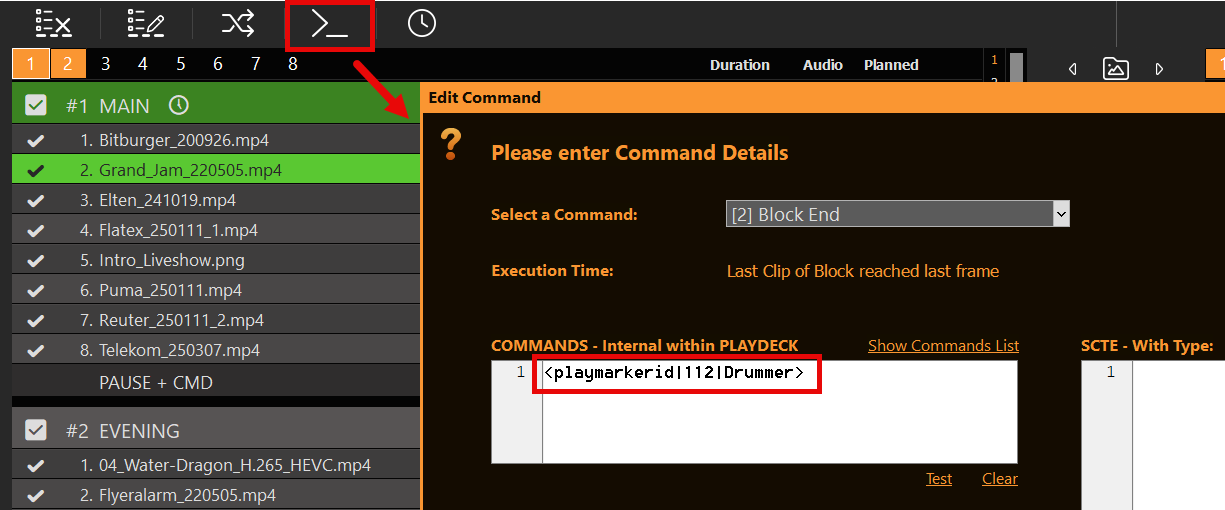
- Playout Overrides via Commands: Commands represent a deeper method of structuring your program flow. You can attach execution commands to individual clips or entire blocks at any position—including timestamps relative to the end of a clip. These commands can fully remote-control PLAYDECK, enabling your timeline to automatically trigger external events, change channel states, or jump directly to a targeted clip based on complex programming needs.
Automated Advertising: Managing Scheduled Break Blocks
Integrating commercials or commercial breaks into an automated schedule is built directly into the program flow engine.
- The Break Block Concept: If you want ads to seamlessly interrupt your active playout, you can format a block as a dedicated Break Block.
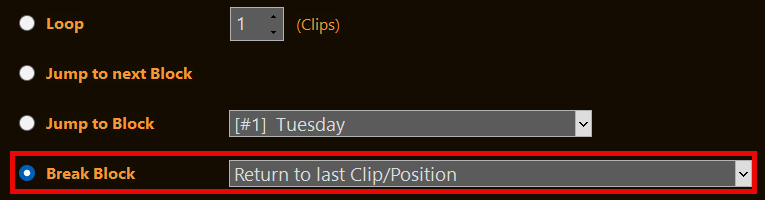
- Automatic Resuming: Set the block end behavior to Break Block and configure it to Return to last Clip/Position. When the break ends, PLAYDECK cuts back to your main playlist, resuming the exact frame of the video clip that was playing before the interruption.
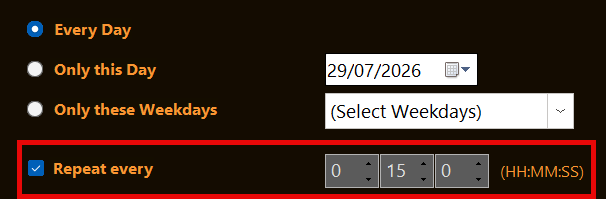
- Interval Scheduling: These ad breaks can be tightly scheduled. You can time them to fire off at absolute real-world clock times or configure them to execute periodically on a fixed interval, such as every 15 minutes. For more information, check out the specialized Ad Breaks Documentation.
Visual Organization & Operator Prompts (Colors, Notes & Pauses)
When managing complex broadcast schedules, keeping the user interface readable and providing reminders for operators is key to a flawless production.
- Color Coding: You can visually group your program items by right-clicking any clip or group of clips and selecting Color. Use this to instantly separate commercials (e.g., Red) from your main content (e.g., Green), making long playlists highly scannable.
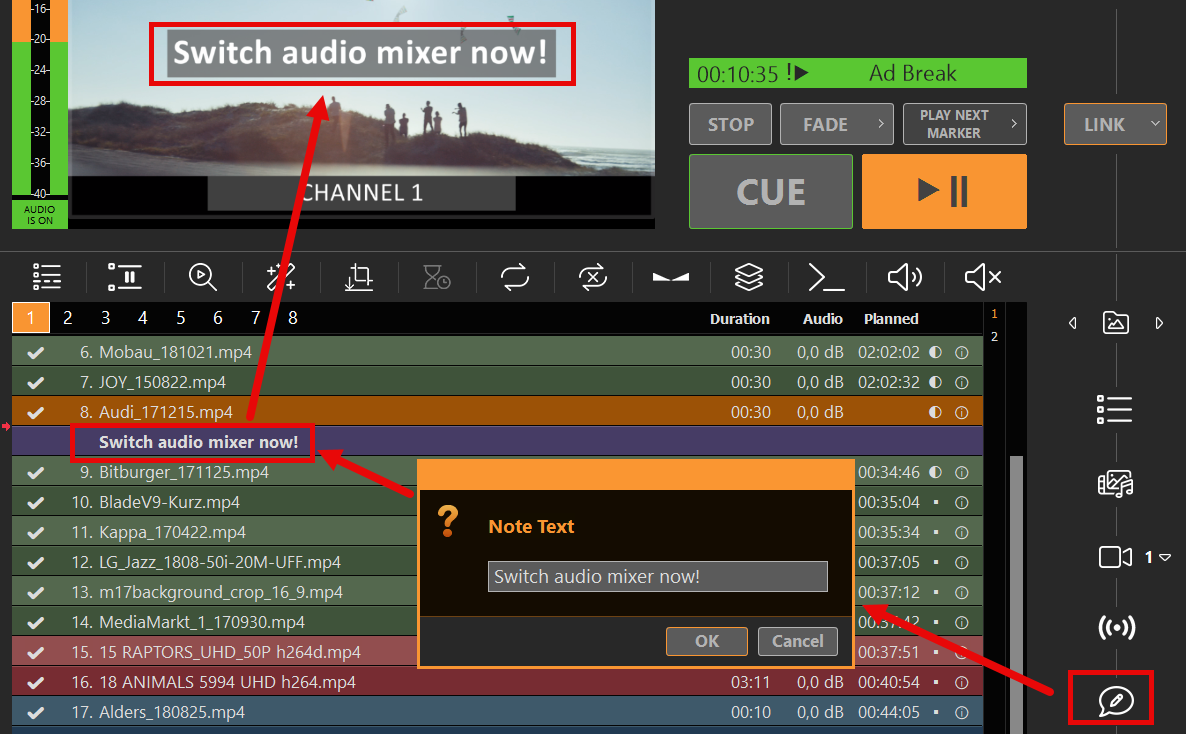
- Text Notes for Segmenting: You can drag and drop text Notes directly into the playlist just like normal clips. These notes act as visual separators to segment your program within a block. They appear prominently as an INFO banner in the UI Preview window to remind an operator of crucial tasks (e.g., “Switch audio mixer now!” or “Prepare graphic overlay”), but they are completely invisible to your master output signal.
- EPG Programme Descriptions: The same Notes can also supply the programme description (
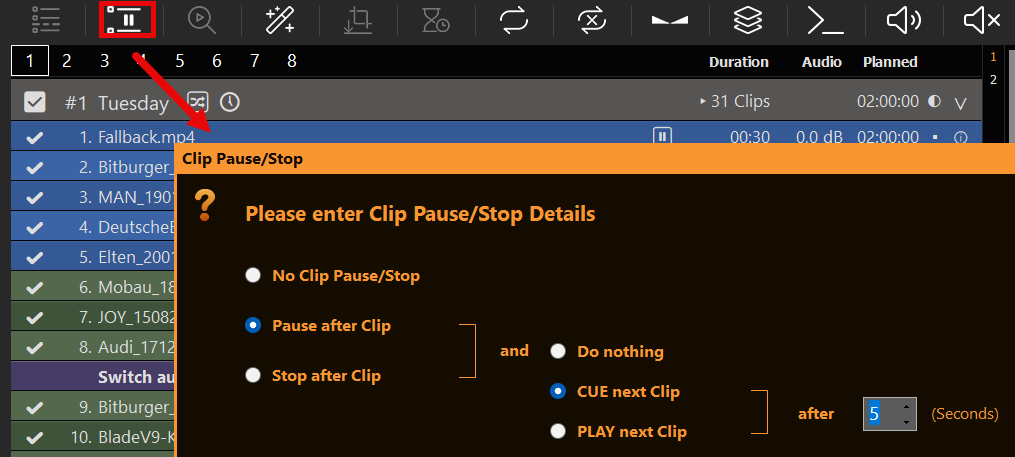
<desc>) when you export XMLTV. Place a Note inside the scheduled block (after the first clip, before the block end). If you use Notes as live operator prompts, keep those separate from EPG text — every Note in the block is concatenated into one description. - Playout Rules: The pause icon on a clip opens Playout Rules. After Clip Action is pause, stop, or continue after the clip (with optional delay). Limit Playout restricts a clip by weekdays, primetime, campaign dates, and max playouts per day. Gray clips (↷) are skipped by automation; inactive clips (checkbox off) cannot be started at all. Full guide: Playout Rules.
Broadcasting Exports & EPG Integration (Day Planner & XMLTV)
To hand over your automated schedule to management teams or external broadcasting networks, PLAYDECK offers industry-standard export tools located under the File menu.
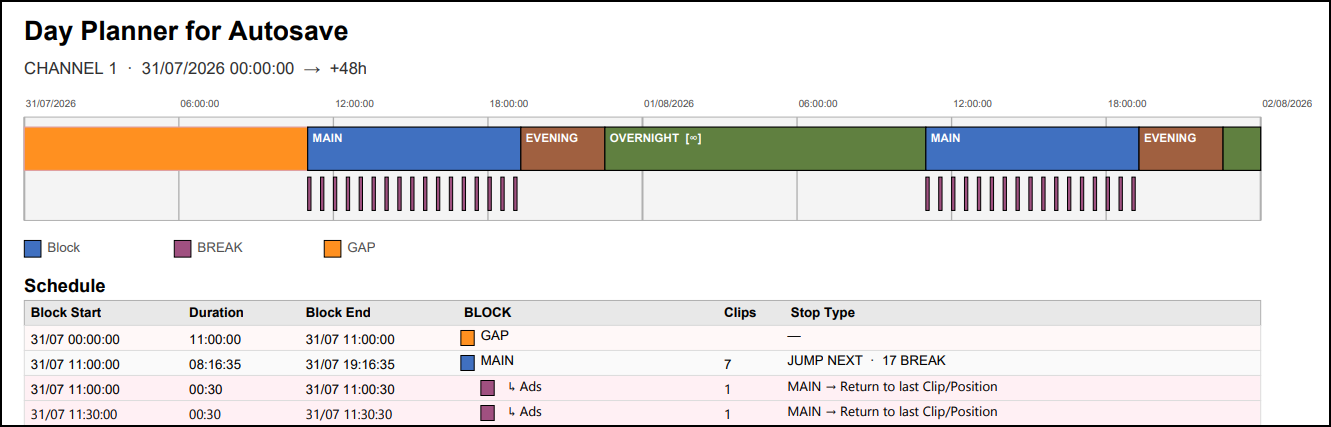
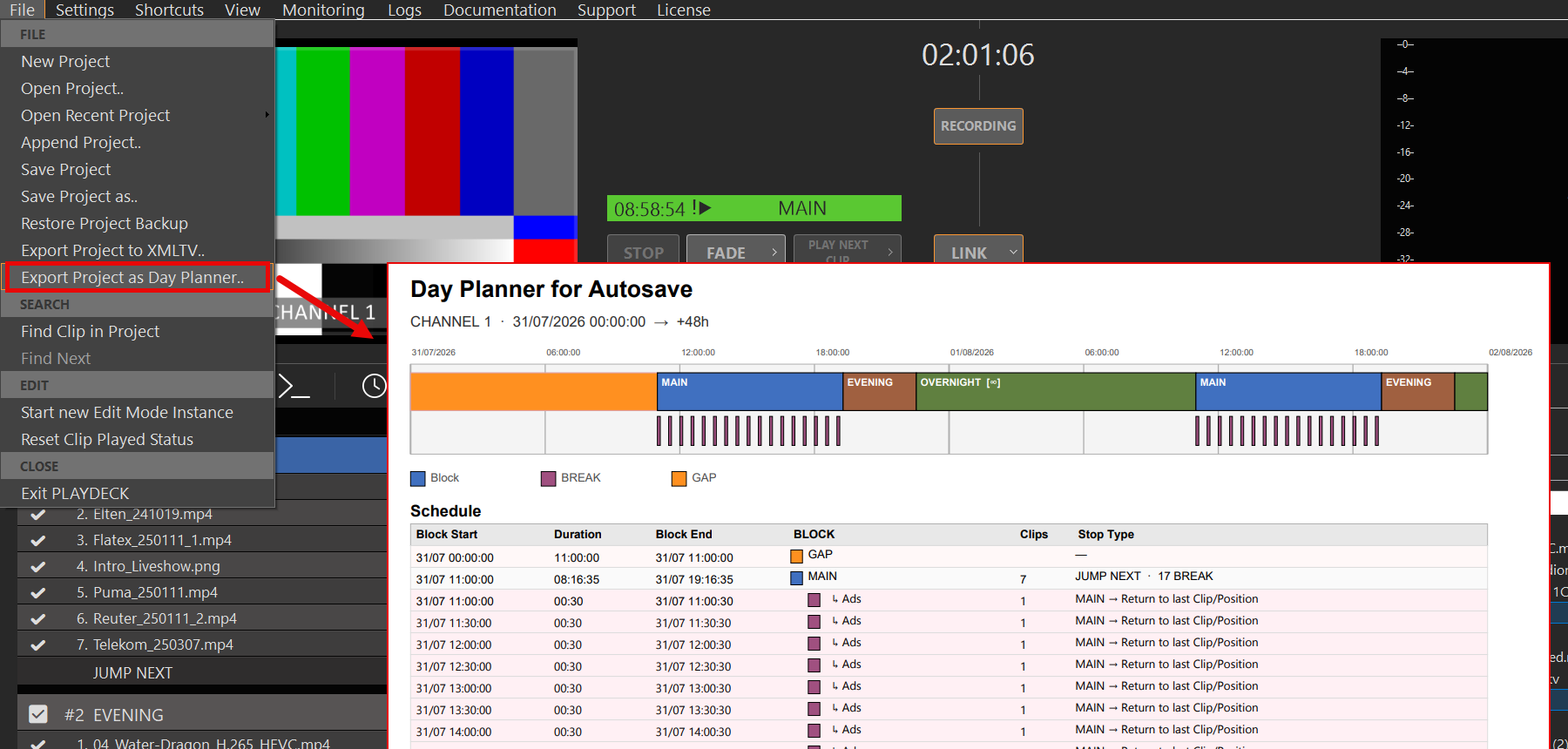
- Export Project as Day Planner: This tool generates a clean, highly visual PDF overview of your schedule. It provides a macro-view of your program structure and clearly highlights scheduled Ad Breaks and playlist GAPs. Ideal for production managers who need to verify gapless program planning.
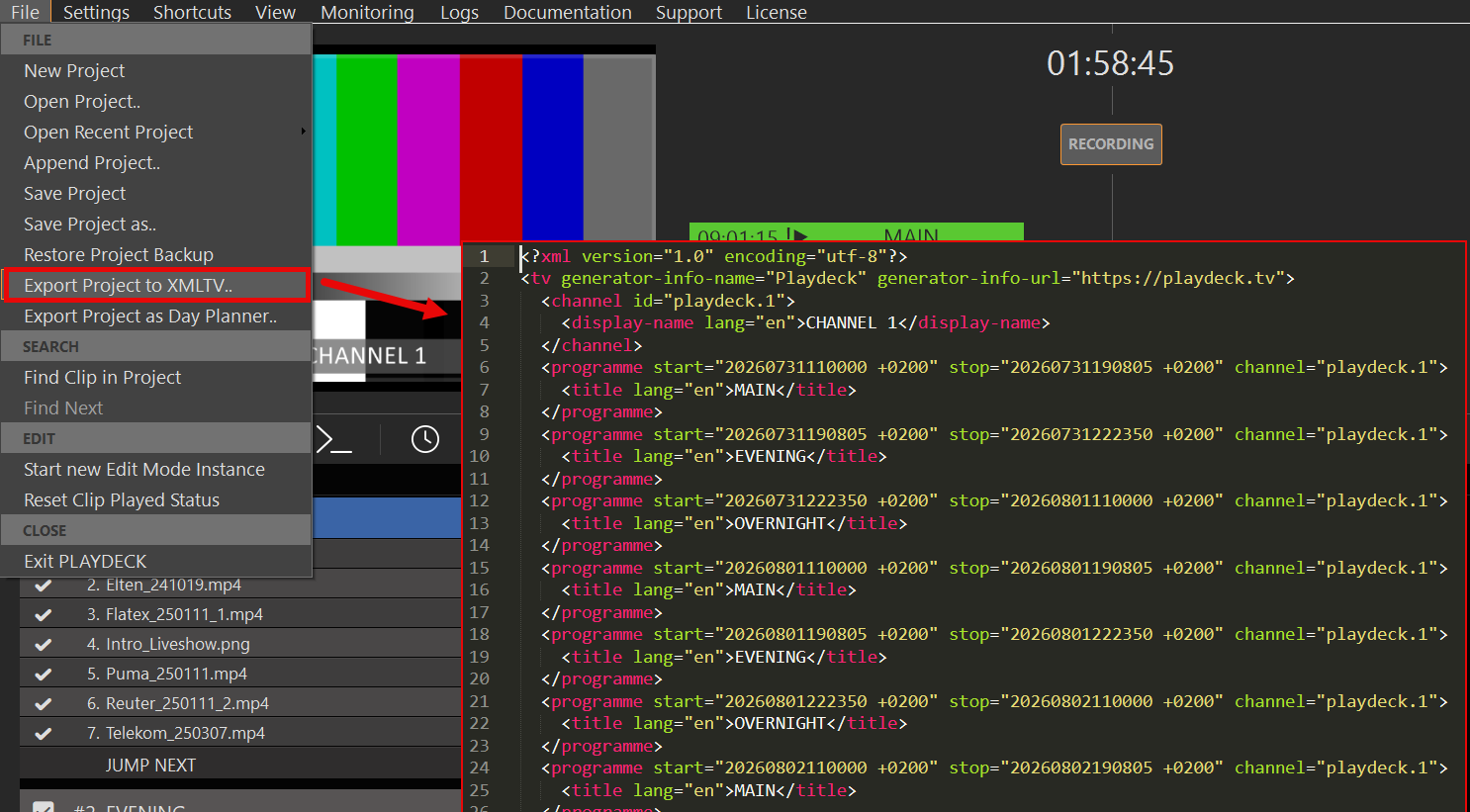
- Export Project as XMLTV: Essential for formal broadcasting workflows. This exports an XML file with programme start/stop times from your scheduled playlist blocks. The format is widely used by IPTV servers, set-top boxes, and TV guide / EPG apps to show live programme information to viewers.
How to create a working EPG (step by step)
- Schedule your programmes
Only blocks with an active Schedule (time-of-day / weekday / date) become XMLTV programmes. The block name becomes the programme<title>. Unscheduled or inactive blocks are skipped. Break blocks are also skipped — they are interruptions, not stand-alone TV programmes. - Set channel names
In Settings → Channel, set each channel’s Channel Name. These names appear as<display-name>in the XMLTV file. Channel IDs are alwaysplaydeck.1,playdeck.2, … - Add programme descriptions (optional)
Insert a playlist Note inside the block with the viewer-facing synopsis. On export, that text becomes<desc>.- Put the Note inside the block (safest: after the first clip, before the block end).
- Multiple Notes in the same block are merged into one description (separated by spaces).
- Do not mix live operator reminders into the same Notes if you care about a clean EPG.
- Export
File → Export Project as XMLTV…
PLAYDECK writes programmes for the near schedule window (about two weeks ahead). Channels must be licensed and started to appear in the export. - Publish & map in your IPTV / EPG system
Host the.xmlfile on a URL your IPTV panel, middleware, or guide app can fetch (or copy it into the system). Then map each XMLTV channel id to your stream:playdeck.1→ Channel 1 streamplaydeck.2→ Channel 2 stream
Without this mapping, the guide often looks “empty” even though the file contains data.
- Refresh when the schedule changes
XMLTV is a snapshot. After playlist or schedule edits, export again and update the file on your server / panel.
Day Planner vs XMLTV — important differences
| Day Planner (PDF) | XMLTV (EPG) | |
|---|---|---|
| Purpose | Internal planning overview | Viewer-facing TV guide |
| Gaps / empty time | Shown as GAP rows | Not exported |
| Ad Breaks | Visible in the PDF | Not exported as programmes |
| Programme title | Block name | Block name → <title> |
| Programme description | — | Playlist Notes → <desc> |
If the PDF looks “full” but the guide looks empty, check: correct calendar day, channel mapping (playdeck.N), and that you are looking at real programmes — not GAPs.
Minimal example
<programme start="20260810200000 +0000" stop="20260810210000 +0000" channel="playdeck.1">
  <title lang="en">Evening News</title>
  <desc lang="en">The latest national and international news stories of the day.</desc>
</programme>
(Category and icon are optional and currently not exported.)
Enterprise Automation: Custom Playout Logic via PLAYDECK API
If your broadcasting workflow requires deeply customized automation logic, proprietary scheduling databases, or integration with external master control switchers, you can bypass the standard user interface entirely.
- Full Remote Architecture: PLAYDECK features a comprehensive, open programming interface.
- Custom Playout Scripts: By using the PLAYDECK API, you can write your own custom scripts and external software logic to control, update, override, and drive your entire playout engine according to your custom rules.
Playout Rules
Playout Rules decide when a clip is allowed to play, and what happens after it. Shuffle uses the same gray state for clips that are not in this take.
In this article:
→ Where to find it
→ After Clip Action
→ Limit Playout
→ Gray vs Inactive
→ Clip Shuffle / Sync
→ Folder Sync
→ Duration, Follow and Schedule
Where to find it
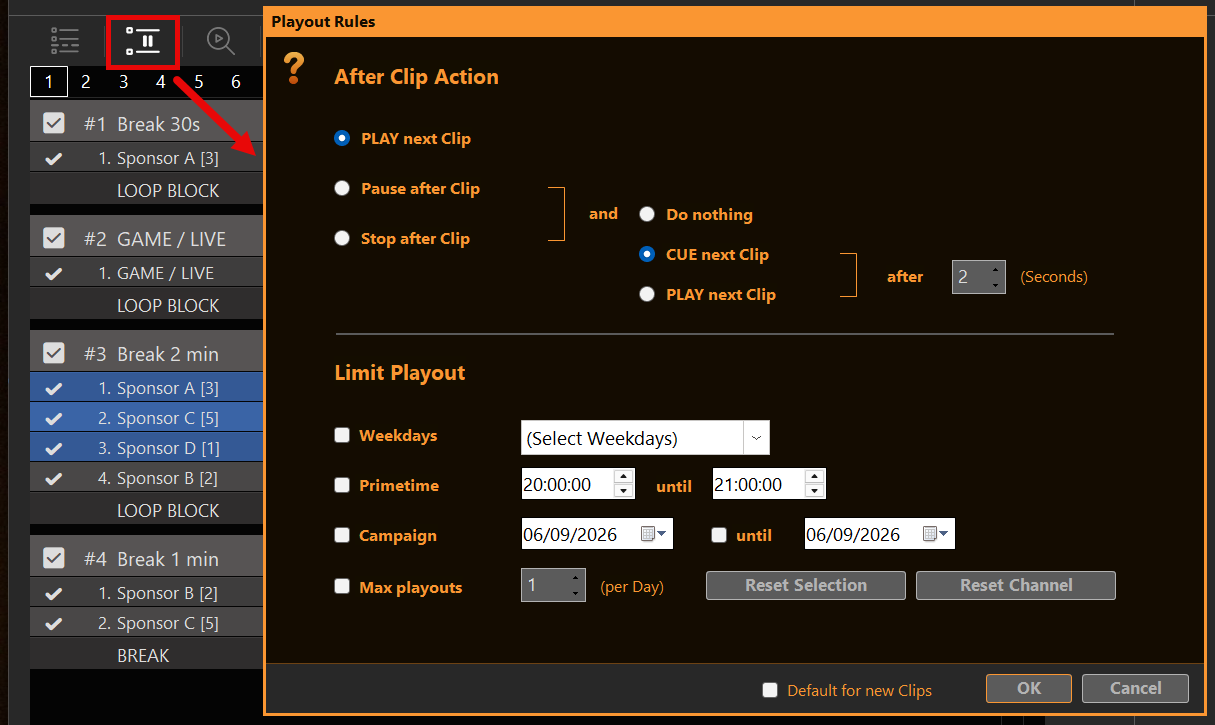
Select one or more clips and click the pause / end icon on the clip (same place as the old Clip Pause). The dialog title is Playout Rules.
The top of the dialog is After Clip Action (pause / stop / continue). Below that is Limit Playout. Default for new Clips in the footer stores both for clips you add later.
After Clip Action
This is the former Clip Pause. It only runs when the clip actually reaches its end.
- PLAY next Clip — the playlist continues as usual.
- Pause after Clip — hold on the last frame and wait, or continue after a delay.
- Stop after Clip — stop playout at the end of this clip.
On the right you choose what follows: PLAY next Clip, CUE next Clip, or Do nothing, optionally after a number of seconds.
Limit Playout
Each checked rule must match now. Unchecked rules are ignored.
- Weekdays — only on the selected days.
- Primetime — time of day. From is included, until is not (18:00–20:00 means until 19:59:59). If From is later than Until (e.g. 22:00–06:00), the window wraps overnight.
- Campaign — calendar dates. Until included. If Until is off, the clip is limited to the From day only.
- Max playouts (per Day) — how often this clip may play on the current calendar day. The counter resets at the next check after midnight (no extra timer). A play counts when the clip finished and the playhead left it. Looping the same clip does not add extra counts. A manual start does count if that clip played through.
Several rules together are AND: weekday and primetime and campaign and max playouts, if they are all on.
Reset Selection / Reset Channel in this dialog zero the daily counters. File → Reset Clip Played Status does the same for played marks and counts.
Gray vs Inactive
Two different skips:
- First-column checkbox off — the clip is inactive. Automation will not take it, and you cannot start it with CUE / PLAY / Fade.
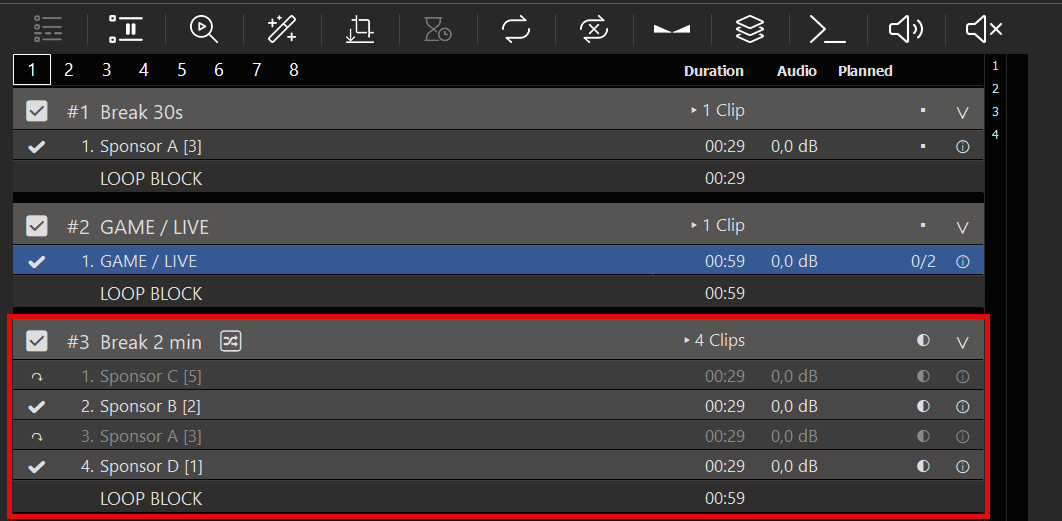
- Gray name + ↷ — the clip is out of this take (Limit Playout, or leftover after Shuffle). Automation, Follow, Planned duration and Get Next skip it. You can still start it by hand. That un-greys that clip only; it does not deal a new Shuffle take.
Block headers still show the count of clips that can actually play in this take (▸ 3 Clips), not every file in the block.
Clip Shuffle / Sync
Open Clip Shuffle / Sync from the Block (shuffle icon on the block header). Dialog title: Clip Shuffle/Sync.
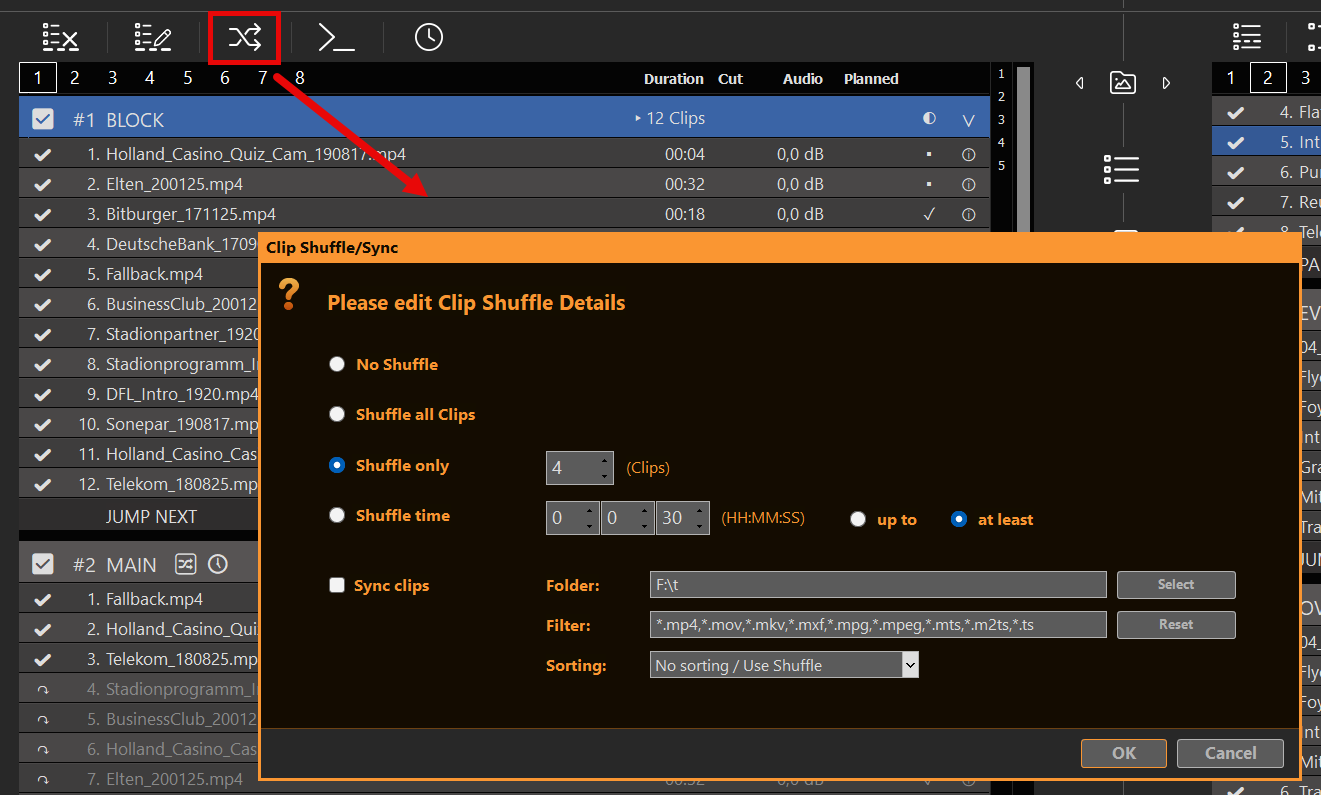
Shuffle methods
- No Shuffle — normal order. Use this when you want only Folder Sync (and optional Sorting), without any shuffle take.
- Shuffle all Clips — random order for the whole block. Every active clip is in the take.
- Shuffle only N — pick N clips for this take; the rest go gray (↷). Over many deals, PLAYDECK prefers clips that have waited longest (fair rotation), not “last played”.
- Shuffle time — shuffle first, then keep clips until the take reaches your duration:
- up to HH:MM:SS — fill as much as possible without going over; clips that do not fit go gray.
- at least HH:MM:SS — keep adding until the sum is ≥ the target; then gray the rest.
Sorting and Shuffle are mutually exclusive: a real sort (Name A–Z / Z–A, File date newest / oldest) turns Shuffle off; choosing a Shuffle method sets Sorting to No sorting / Use Shuffle.
When PLAYDECK deals a take
A new take is dealt when you enter the Block from the outside:
- CUE / PLAY / Fade on the block header — deals.
- CUE / PLAY on a clip inside the Block (including the first clip of the take) — plays that clip as-is. It does not reshuffle. If the clip was gray, it is un-greyed for this start only.
- When the Block becomes Next (jump to next Block, jump to Block, stop/pause follow, …) — deals once for that pending entry.
- Scheduled Block — when the schedule fires (or the next cache prepares that Block), PLAYDECK deals once, then starts the first take clip. If you are already playing inside that Block, the schedule does not deal again.
- Break Block — same when the Break is entered (interrupt or after clip end). Returning from the Break to the previous clip/position does not deal a new take on the return target.
- Loop Block / Loop Clips — keeps the same take. Leaving the Block (non-loop Block End) clears the take so the next entry can deal fresh.
Clips not in the take go gray (↷). Automation, Follow, Planned duration and Get Next skip them. You can still start a gray clip by hand — that un-greys that clip only; it does not deal a new take.
Blocks with Shuffle and/or Folder Sync show 🔀 on the header.
Open Clip Shuffle from the Block (Block End / list icon). Methods: No Shuffle, Shuffle all Clips, or Shuffle only N clips, with optional fixed clips at the top of the block.
PLAYDECK deals a take when the Block is played from the beginning: CUE / PLAY / Fade on the block header, on the first take clip, or when the Block becomes next in playout (Block End, command, action, schedule). Clips not in the take go gray (↷).
Looping the Block keeps the same take. It does not shuffle again. To deal a new take, start the Block from the beginning.
CUE / double-click on any other clip in the Block plays that clip (and un-greys it if it was gray). It does not reshuffle the rest.
Folder Sync
You can use Folder Sync alone — leave Shuffle on No Shuffle. Sync still adds/removes/re-scans files; optional Sorting orders them. Shuffle is optional on top. In the same Clip Shuffle / Sync dialog:
- Check Sync clips.
- Set Folder (browse or path).
- Optional Filter — comma-separated patterns. Extensions (
*.mp4,mp4,.mov) and filenames: substring without*(e.g.promomatches any name containing “promo”), or wildcards (promo*,*_final.mp4,*spot*). Mix both, e.g.*.mp4,promo*,*_de.mov. Reset restores the default extension list. Empty filter = all playlist file types. - Optional Sorting — order file clips in the block to match the folder (only when Shuffle is off).
What sync does
- Adds new files from the folder as clips.
- Removes file clips that are no longer in the folder.
- Re-scans a clip if the file was replaced (same path, new size/date) — same as Rescan Clip.
- Does not touch non-file clips (inputs, notes, …).
When it runs
- In the background, while that Block is not Current and not Next (so live playout is not rewritten under you).
- Also once when you OK the dialog, if the Block is idle (not Current/Next).
- After each sync pass, PLAYDECK waits before the next background sync on that Block: about 10 seconds normally, about 30 seconds if new clips were added. Manual OK in the dialog (while idle) still runs sync immediately.
If background checks feel wrong in a live show: Settings → Disable background file checks (replace, growing files, folder sync). Leave it unchecked for normal use. New clips are still scanned when first added.
Duration, Follow and Schedule
Planned time, block duration, Follow-after-clip, and Get Next only use clips that can play now (active, not gray, Limit allowed).
A scheduled Block with no take clip at fire time is skipped. Limit Playout lives on the clip, not on Schedule Block.
Insert Input Streams into Playlist
This article will show how to insert Streams into your Playlist.
In this article:
→ Insert Stream (SRT, RTMP, UDP, …)
→ Insert YouTube Video
→ Insert Website Video
Insert Stream (SRT, RTMP, UDP, …)
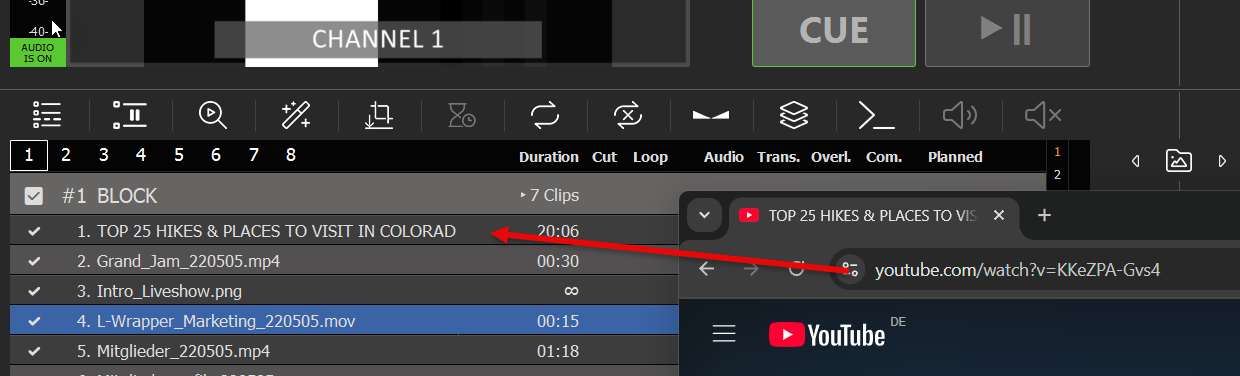
You can directly Drag Drop any YouTube URL from your Browser to PLAYDECK:
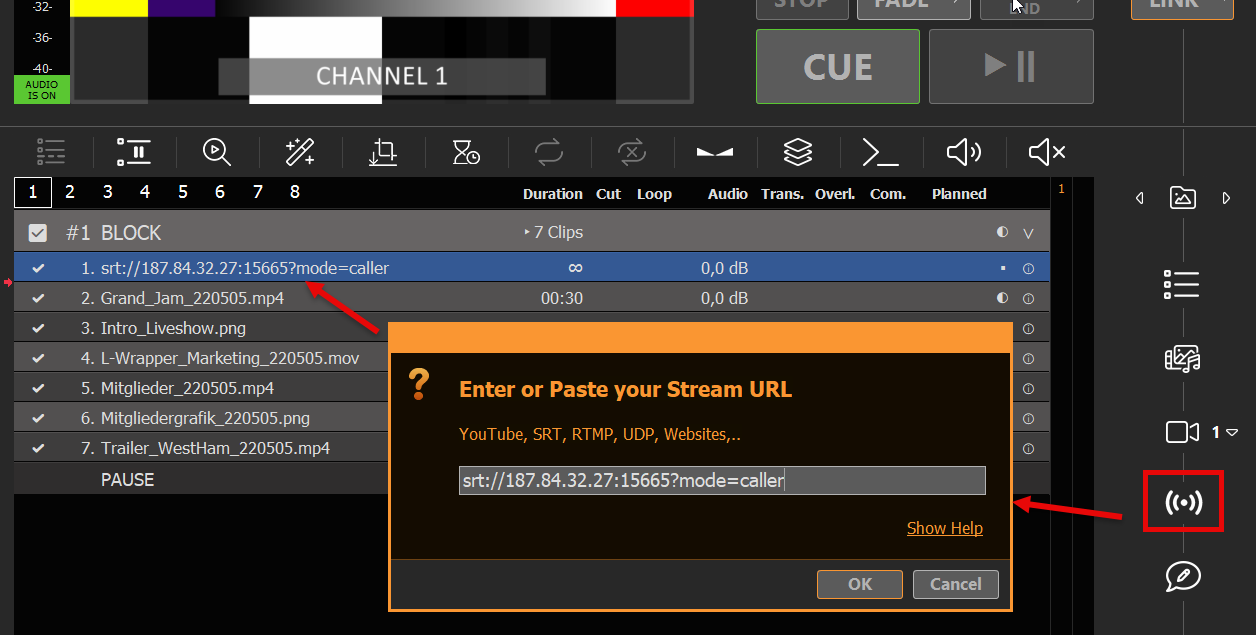
To insert a new Stream into your Playlist, simply Drag Drop the STREAM Icon onto the Playlist. A new Popup will appear, where you can enter the Stream URL:
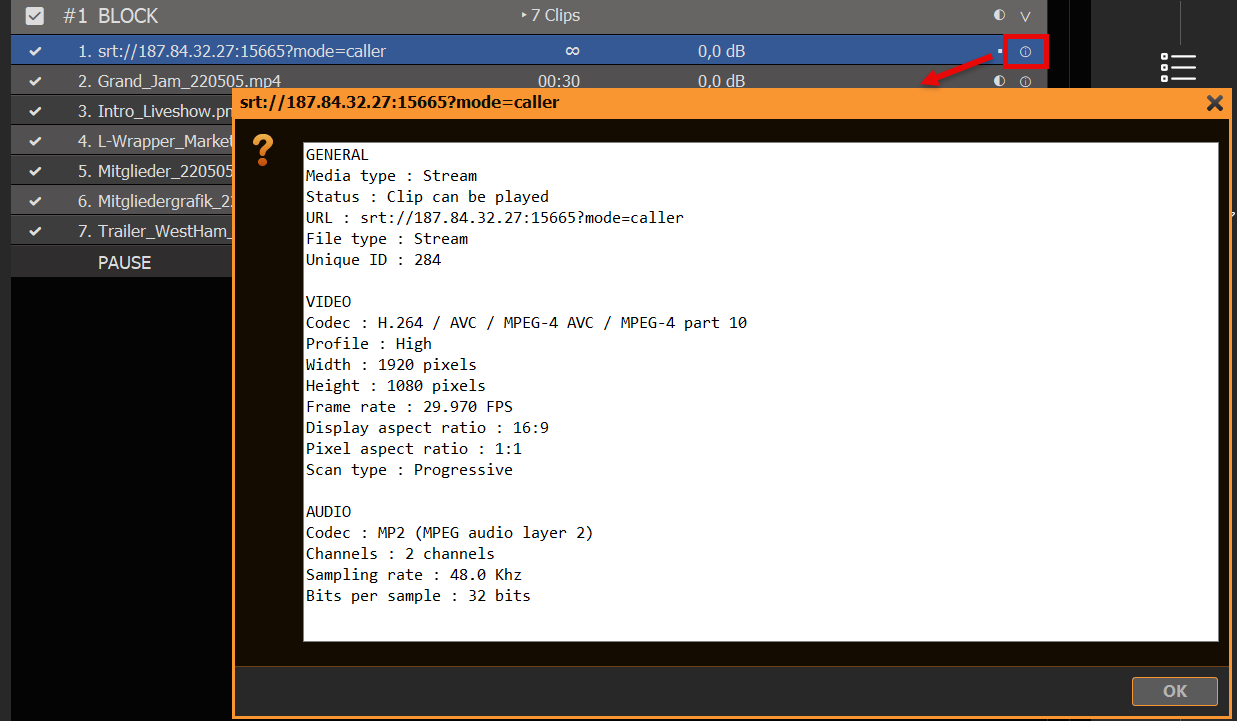
Your Stream will be scanned by PLAYDECK now. If the PLAYDECK could connect to your Stream successfully, the Text will be shown in WHITE. You can now play the Stream and/or can double-click the INFO icon to view more information about the Stream, like Video format and codec:
If the Stream can NOT be connected, it will appear in RED:

If you made a typo, you can quickly re-edit the URL by right-clicking and selecting CHANGE URL:
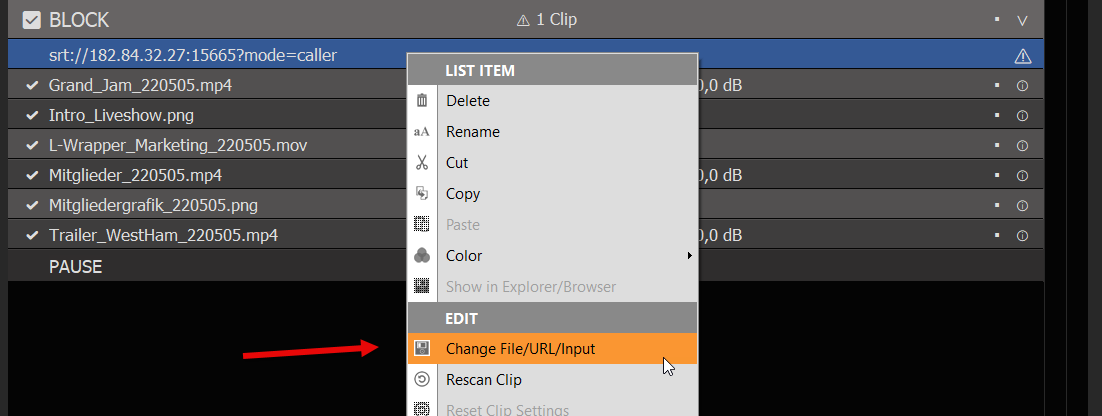
Insert YouTube Video
You can insert YouTube Links via Drag Drop or in the same manner as insert as Input Stream. See this article on more information about YouTube.
Insert Website Video
You can insert some Websites per Drag Drop directly into the Playlist or via the STREAM Icon. We use TWITCH in this example. Click SHOW HELP to get more info about what Websites can be used:

Use an iPhone as a PLAYDECK Camera
Your iPhone can be a wireless camera for PLAYDECK. Install the free Blackmagic Camera app, send an SRT stream over Wi‑Fi, and drop it into the playlist like any other live source. Optional: pull focus from the PLAYDECK desk without walking to the phone.
This is Wi‑Fi, not SDI. Fine for IMAG, a backup cam, or a room you cannot cable. Not a substitute for a locked studio camera.
In this article:
→ What you need
→ Install Blackmagic Camera
→ PLAYDECK listens (SRT)
→ iPhone sends the stream
→ Play it in the playlist
→ Remote focus (no code)
→ Remote focus with AI
→ Companion
→ If it stays red
What you need
What you need
- PLAYDECK Plus (SRT is a Plus feature)
- iPhone XR or newer, iOS 17+
- Blackmagic Camera 3.2+ for streaming, 3.4+ for the REST focus API
- iPhone and PLAYDECK PC on the same Wi‑Fi (5 GHz, not a guest network with client isolation)
Keep the iPhone plugged in and Auto-Lock off while it is on air.
Install Blackmagic Camera
- On the iPhone, install Blackmagic Camera from the App Store (free). Product page: https://www.blackmagicdesign.com/products/blackmagiccamera
- Open the app once and allow Camera + Microphone.
- Leave the phone on that Wi‑Fi. Write down the iPhone IP: iOS Settings → Wi‑Fi → tap the network → IP Address.
The stock iOS Camera app cannot do this. You need Blackmagic Camera (manual focus, SRT, REST). An NDI HX camera app is a different product — PLAYDECK can take that as an NDI Live Input, but you lose Blackmagic’s cinema controls.
PLAYDECK listens (SRT)
PLAYDECK is the listener (started first). The iPhone is the caller (connects to the PC).
- On the PLAYDECK PC, open a command prompt and run
ipconfig. Use the IPv4 address of the LAN/Wi‑Fi adapter the iPhone can actually reach (example below:192.168.1.50). - In PLAYDECK, drag the STREAM icon onto the playlist (same dialog as other input streams — see https://playdeck.tv/input-streams/).
- Enter:
srt://192.168.1.50:5000?mode=listener - Play that clip so PLAYDECK opens the port. Windows Firewall may ask — allow it (UDP 5000).
Port 5000 is PLAYDECK’s own SRT default. Any free port is fine if the iPhone URL uses the same number.
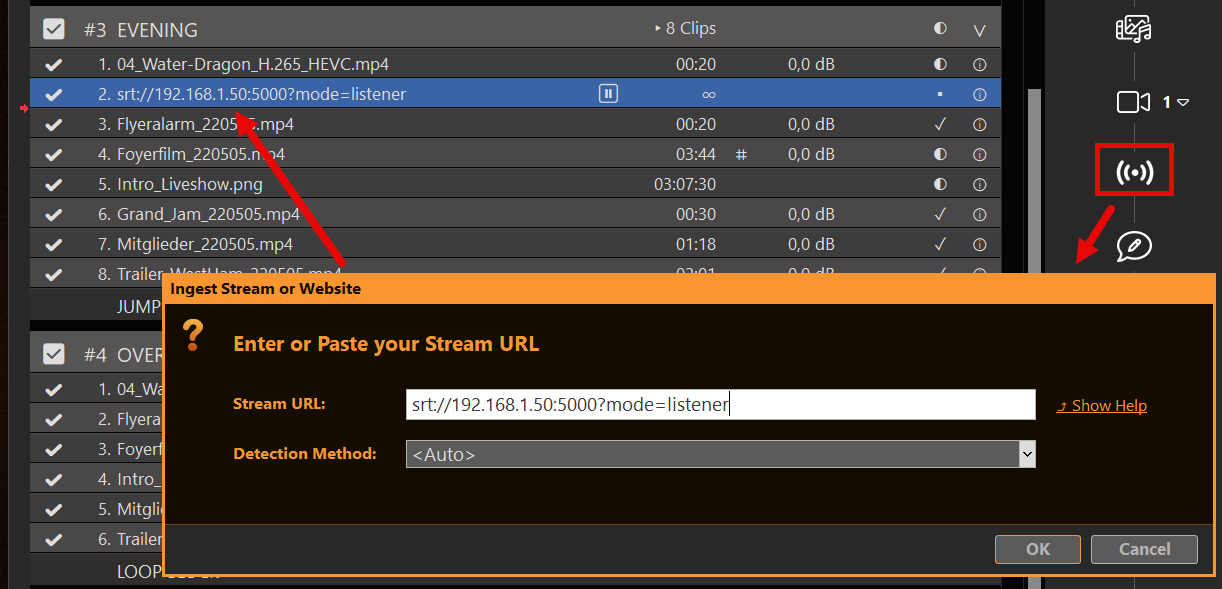
iPhone sends the stream
Blackmagic Camera adds a custom SRT target from a small XML file.
On the PLAYDECK PC, save this as playdeck-srt.xml. Put your PC IP in the URL — not the iPhone IP:
<?xml version="1.0" encoding="UTF-8"?>
<streaming>
  <service>
    <name>PLAYDECK</name>
    <servers>
      <server>
        <name>Primary</name>
        <url>srt://192.168.1.50:5000</url>
      </server>
    </servers>
    <profiles>
      <profile>
        <name>HD low latency</name>
        <low-latency/>
        <config resolution="HD">
          <bitrate>6000000</bitrate>
          <audio-bitrate>128000</audio-bitrate>
          <keyframe-interval>1</keyframe-interval>
        </config>
      </profile>
    </profiles>
  </service>
</streaming>- AirDrop the file to the iPhone (or Files / iCloud).
- Open it → Share → Blackmagic Camera.
- In the app: Settings → Live Stream → platform PLAYDECK → profile HD low latency.
- Start the live stream after the PLAYDECK clip is already playing.
HD at ~6 Mbps is the sensible default. 4K needs a strong 5 GHz link and resolution="4K" with a higher bitrate (iPhone 15 Pro+).
Play it in the playlist
If PLAYDECK connected, the stream name is white. Red = no connection. Double-click the info icon for format/codec. A typo: right-click → Change URL.
Treat it like a live camera clip: play it when you need the shot. A stream has no file end, so it stays up until you stop it or the phone drops Wi‑Fi.
Do not send the iPhone to YouTube/Twitch “and then into PLAYDECK”. That is the wrong direction. PLAYDECK must be the SRT listener on your LAN.mote is for.
Remote focus (no code)
Picture and focus are two different paths. The stream only carries video. Focus is camera control.
Without writing anything:
- Apple Watch — Blackmagic Camera companion app: framing, record, exposure, focus, zoom.
- iPad / second iPhone / Mac — same Blackmagic Camera app on the same Wi‑Fi, set that device as the controller. You get the full HUD, including focus.
Use that when someone can hold a Watch or an iPad. The next section is for the operator who wants a focus knob on the PLAYDECK PC.
Remote focus with AI
Blackmagic Camera 3.4+ speaks the Camera REST API on the phone: HTTPS port 4444, self-signed certificate. PLAYDECK does not talk to that API. You (or ChatGPT) send a tiny HTTP PUT from the PC.
Enable Remote Control in the Blackmagic Camera settings so the API is on. Then on the PLAYDECK PC open:
https://IPHONE-IP:4444/control/documentation.html
Accept the certificate warning. If the API docs load, the phone is reachable. The focus calls are:
GET /control/api/v1/lens/focus— returns JSON withnormalised(0…1)PUT /control/api/v1/lens/focus— body{"normalised":0.35}PUT /control/api/v1/lens/focus/doAutoFocus— body{}
Quick test in Windows PowerShell (replace the IP). If this prints JSON, the API works:
$ip = "192.168.1.20"
[Net.ServicePointManager]::ServerCertificateValidationCallback = { $true }
Invoke-RestMethod "https://${ip}:4444/control/api/v1/lens/focus"
Auto-focus once:
Invoke-WebRequest -Method Put -Uri "https://${ip}:4444/control/api/v1/lens/focus/doAutoFocus" -ContentType "application/json" -Body "{}" -UseBasicParsing
Prompt to paste into ChatGPT / Claude / Gemini
Copy this, put your iPhone IP in, paste it into any AI. You should get a small PowerShell window with a slider.
Write a Windows PowerShell 5.1 script. No extra modules.

At the top: $IphoneIp = "192.168.1.20"

The Blackmagic Camera app on that iPhone exposes a REST API:
https://IP:4444/control/api/v1
Self-signed TLS — skip certificate validation.

PUT /lens/focus with JSON {"normalised": N} where N is 0.0 to 1.0
PUT /lens/focus/doAutoFocus with JSON {}
GET /lens/focus to read the current value

Open a small WinForms window titled "iPhone Focus":
- a trackbar 0–100 mapped to normalised
- send focus on mouse-up (do not spam every tick)
- a button "Auto Focus"
- a status label for errors

If GET returns different JSON keys than normalised, print the JSON and still send {"normalised": N}.
Use Invoke-WebRequest. Ignore empty 204 responses.
Working script (if you do not want to wait for the AI)
Save as iphone-focus.ps1, set $IphoneIp, right-click → Run with PowerShell. If Windows blocks it: Set-ExecutionPolicy -Scope Process Bypass then .\iphone-focus.ps1.
$IphoneIp = "192.168.1.20"
$base = "https://${IphoneIp}:4444/control/api/v1"

[Net.ServicePointManager]::SecurityProtocol = [Net.SecurityProtocolType]::Tls12
[Net.ServicePointManager]::ServerCertificateValidationCallback = { $true }

Add-Type -AssemblyName System.Windows.Forms
Add-Type -AssemblyName System.Drawing

function Send-Bmd([string]$Path, [string]$Body) {
  $uri = "$base$Path"
  try {
    Invoke-WebRequest -Method Put -Uri $uri -ContentType "application/json" -Body $Body -UseBasicParsing | Out-Null
    $script:status.Text = "OK  $Path  $Body"
  } catch {
    $script:status.Text = $_.Exception.Message
  }
}

$form = New-Object Windows.Forms.Form
$form.Text = "iPhone Focus"
$form.Size = New-Object Drawing.Size(440, 210)
$form.StartPosition = "CenterScreen"

$slider = New-Object Windows.Forms.TrackBar
$slider.Minimum = 0
$slider.Maximum = 100
$slider.TickFrequency = 10
$slider.Width = 380
$slider.Location = New-Object Drawing.Point(20, 20)
$slider.Add_MouseUp({
  $n = [math]::Round($slider.Value / 100, 2)
  Send-Bmd "/lens/focus" "{`"normalised`":$n}"
})

$btn = New-Object Windows.Forms.Button
$btn.Text = "Auto Focus"
$btn.Size = New-Object Drawing.Size(120, 36)
$btn.Location = New-Object Drawing.Point(20, 90)
$btn.Add_Click({ Send-Bmd "/lens/focus/doAutoFocus" "{}" })

$script:status = New-Object Windows.Forms.Label
$script:status.AutoSize = $false
$script:status.Size = New-Object Drawing.Size(380, 40)
$script:status.Location = New-Object Drawing.Point(20, 135)
$script:status.Text = "Near = 0    Far = 100"

$form.Controls.AddRange(@($slider, $btn, $script:status))
try {
  $cur = Invoke-RestMethod "$base/lens/focus"
  $script:status.Text = "Connected  $cur"
  if ($cur.normalised -ne $null) { $slider.Value = [int]([double]$cur.normalised * 100) }
} catch {
  $script:status.Text = "Cannot reach ${base} — check IP, app 3.4+, Remote Control, same Wi-Fi"
}
[void]$form.ShowDialog()
Drag the slider, watch the lens on the phone. If PUT returns 403, focus is locked (external lens / AF lock in the app).
Companion
If you already run Bitfocus Companion for PLAYDECK, add a second connection: Blackmagic Cameras API (https://bitfocus.io/connections/bmd-cameras). Host = iPhone IP, HTTPS on, port 4444, allow insecure HTTPS (self-signed). Companion reads the phone’s own API list and builds Focus / Auto Focus actions. Put those buttons next to PLAYDECK Play/Pause. See https://playdeck.tv/companion/.
If it stays red
- Start order — PLAYDECK listener clip playing first, then iPhone Live Stream.
- Guest Wi‑Fi — phones cannot see PCs. Use the production SSID.
- Wrong IP — XML URL is the PLAYDECK PC. REST URL is the iPhone.
- Firewall — UDP 5000 inbound on the PC. TCP 4444 is outbound from the PC to the phone.
- Plus license — SRT input needs Plus. Without it the clip will not connect.
- Certificate popup — expected on port 4444. Accept it. The PowerShell script skips the check.
- Latency — a few hundred ms on a good 5 GHz AP is normal. Do not expect SDI timing.
Wired studio option: Blackmagic Camera ProDock → HDMI → a capture card as a PLAYDECK Live Input. That is a cable, not this Wi‑Fi path.
Insert YouTube Videos into Playlists
This article will show how to load and edit YouTube Videos.
1. Load YouTube into PLAYDECK
You can directly Drag Drop any YouTube URL from your Browser to PLAYDECK:
Or you can use the Stream Drag Drop Icon to paste/edit the URL:
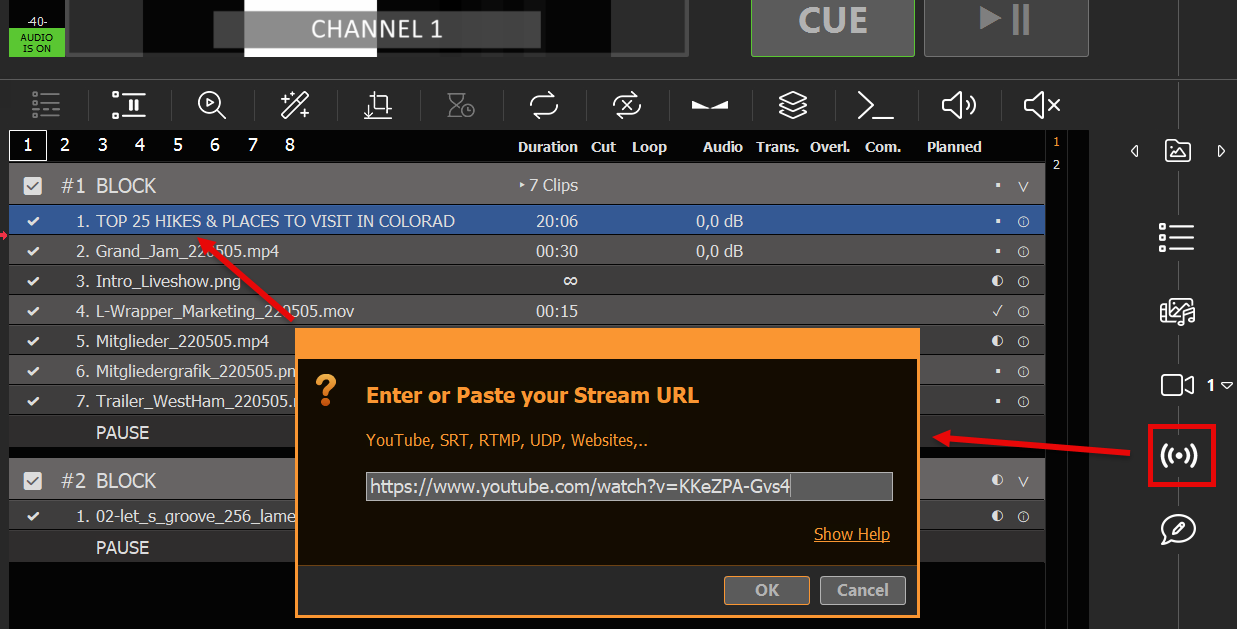
Your YouTube Videos is ready to play out-of-the-box. The quality will be pre-selected dependent on your Playlist Video Format and the Formats provided from YouTube.
Note: Avoid using long YouTube Links with Playlists like “…?v=0oIIRc0zc_U&list=RD0oIIRc0zc_U”, as they might not work or cause Lag/Stutter. We recommend using short links like “…?v=0oIIRc0zc_U”.
2. Update YouTube Driver
Should the added YouTube Clip be shown as UNPLAYABLE/RED in PLAYDECK, please update the integrated YouTube Driver. Chances are, YouTube made changes to its platform and you need a newer driver from us:

3. Change Quality, Video and Audio
YouTube Videos are always available in different qualities. You can switch Video Tracks by right-clicking the YouTube Video:
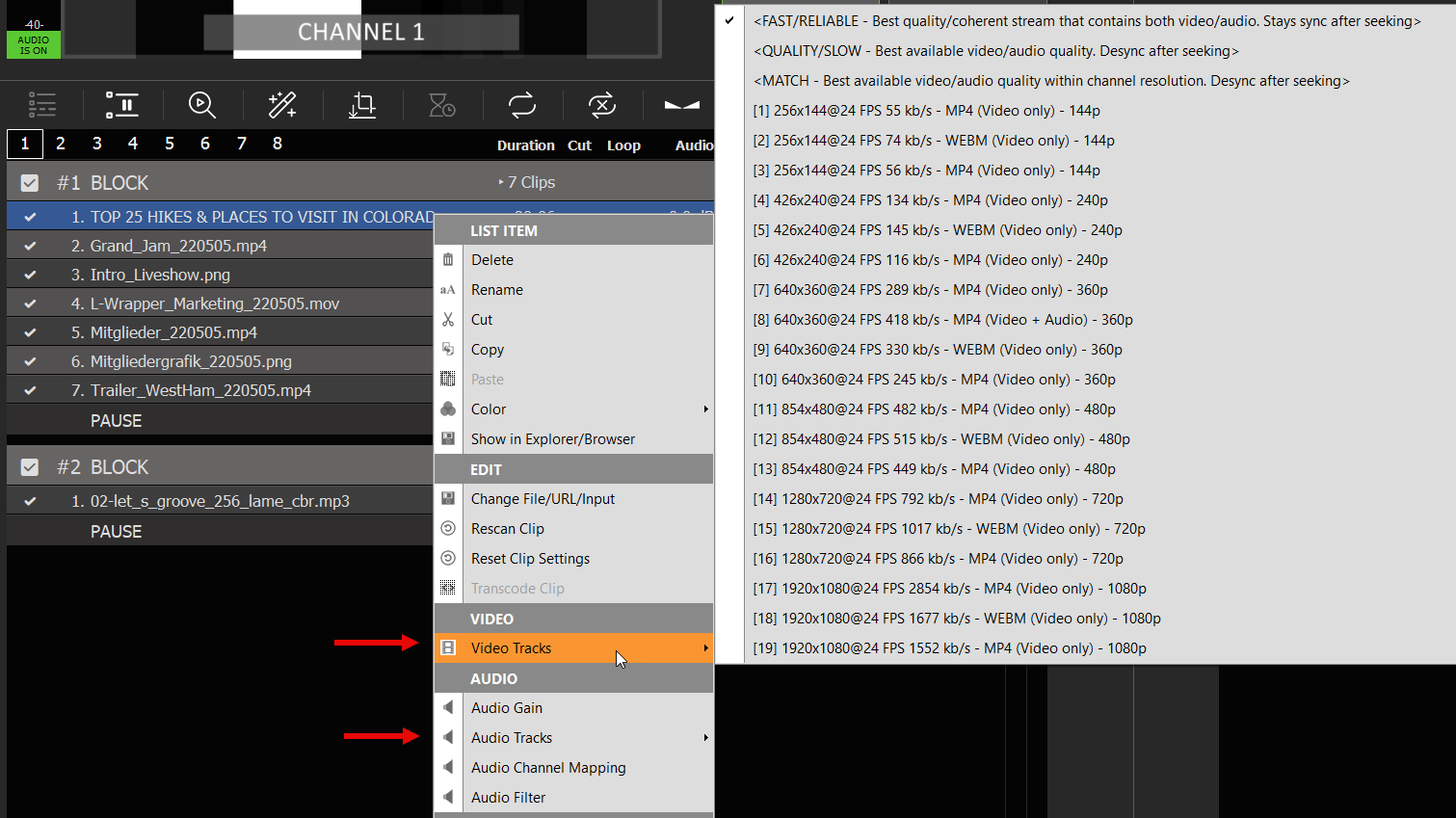
Note: YouTube provides combined Video+Audio Tracks, which are much faster. If you switch to non-combined Video Track, caching can take much longer and seeking can desync video/audio.
Best Video Codecs for Playback
PLAYDECK can play almost any Codec out there. If the Codec is not supported by your GPU, it always falls back to CPU to make it work. There are very view exception: NotchLC for example cant be played with PLAYDECK.
We understand, that most of you have not much control over the Video Codec selection, as you receive your Video Files from Customer right before the show.
But if you have the Time to transcode the Video Files or even more are part of the production process, then you have more options than just H.264 MP4 Files.
We recommend going with AV1, if your NVIDIA supports it, except when you need Alpha-channel, than switch to HAP. In all other cases fall back to H.265/HEVC. ProRes has the best image quality, but is not really suited for real-time playback, as it is more of an editing and post-production codec.
There is also a feature in PLAYDECK to make clips playout-ready in one step (GPU codec, and optionally playlist size, FPS and rotation). Please see this article.
H.265/HEVC
General-purpose codec. Use, if your NVIDIA GPU does not support AV1 and if you dont need Alpha-channel.
- Developer: JCT-VC
- GPU Decoding: Yes, but depends on NVIDIA GPU, see this List
- Quality: Good quality at all bitrates
- Alpha-channel: No
- Features: HDR, 10-bit color, 8K
AV1
Most efficient Codec. Use, if you your GPU supports it and you don’t need Alpha-channel. Near-lossless quality and significantly smaller file sizes than ProRes.
- Developer: Alliance for Open Media (Open Source)
- GPU Decoding: Yes, but depends on NVIDIA GPU, see this List
- Quality: Better quality than H.265/HEVC, esp. at lower bitrates
- Alpha-channel: No
- Features: HDR, 10-bit color, 8K
HAP
Very universal Codec. Use, if you need Alpha-channel, and preferred over ProRes because of lower CPU load.
- Developer: Vidvox
- GPU Decoding: No, but lower CPU load than ProRes
- Quality: Better quality than H.265/HEVC, but less than AV1
- Alpha-channel: Yes (with HAP Alpha and HAP Q)
- Features:
ProRes
Offers highest image quality with ProRes 4444. Preserves fine details and colors exceptionally well, at the cost of high CPU load. Use only, if you can afford the CPU load and need highest possible visual quality. This is an editing codec and no real-time codec.
- Developer: Apple
- GPU Decoding: No. High CPU load
- Quality: Better quality than all other, esp. at higher bitrates
- Alpha-channel: Yes (with ProRes 4444)
- Features: HDR, 10/12-bit color, 8K
Make clips playout-ready
PLAYDECK can play almost any clip in real time. That is convenient — and it can tax the system: CPU-only codecs (ProRes, DNxHD, HAP, MXF), a different resolution or frame rate than the playlist, iPhone rotation that lives only in metadata, squeezed pixels, or odd audio. If CPU hits the limit, you usually hear it first as audio stutter.
For a general overview of best possible Video Codecs for Playout, please see this article.
In this article:
→ Using Transcode Clip
→ When you actually need it
→ AUTO vs optional checkboxes
→ After the run
→ What files are decoded on CPU
→ What GPUs are recommended?
Using Transcode Clip
Transcode Clip writes a new file that is already in shape for your playlist (playout-ready). Right-click one or more clips → Transcode Clip.
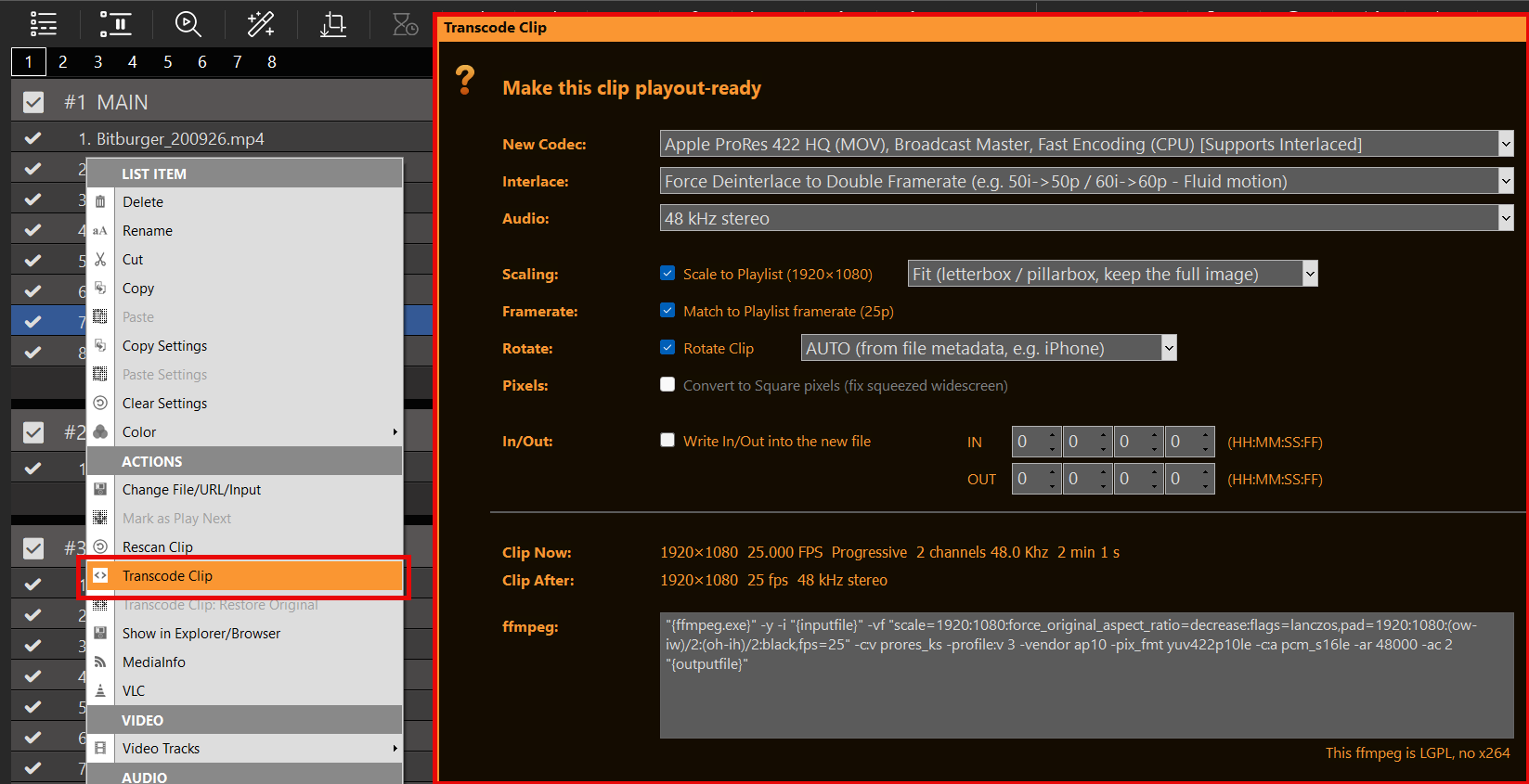
Leave the top lists on AUTO if you are in a hurry. Tick the checkboxes below only if you need scale, FPS, rotation, square pixels or a baked-in cut — details in the next section.
The ffmpeg line at the bottom follows your options. You can edit it; a broken command is on the operator. PLAYDECK ships an LGPL ffmpeg (no x264). Hardware H.264 (NVENC/QSV) and software OpenH264 are fine. libx264 will fail.
Need the original file back? Right-click → Transcode Clip: Restore Original.
When you actually need it
- Stutter / high CPU — ProRes, DNxHD, HAP, MXF: they decode on CPU in PLAYDECK. Transcode to a GPU codec (leave Codec on AUTO).
- Yellow mismatch icons — clip size or FPS ≠ playlist. Tick Scale and/or Match framerate.
- iPhone / sideways — tick Rotate, leave AUTO (or set 90° if AUTO does nothing).
- Tiny web / YouTube files — Scale to playlist. YouTube clips can be transcoded in the same dialog (download + encode).
- Show starts in 10 minutes — AUTO only, OK. No checkboxes required.
AUTO vs optional checkboxes
The dialog is split on purpose so you do not have to fear the wrong setting.
Top = AUTO. Codec, Interlace and Audio are always on. The first item in each list is AUTO. That is the safe default: PLAYDECK picks a GPU encoder if it can (NVENC, QSV, otherwise AV1), keeps progressive files progressive and handles interlaced sources, and for audio copies the original soundtrack when the new file format allows it (MP4: AAC/MP3, MOV: PCM/AAC, MKV: most codecs). If copy would break the file, it writes 48 kHz stereo instead (AAC, or PCM for ProRes/DNxHD).
You can still override: pick a specific codec, force deinterlace, force Copy original audio, or force 48 kHz stereo. You do not have to.
Bottom = optional. Scale, Framerate, Pixels, Rotate and In/Out are off until you tick them. Unticked means: leave the picture/time as it is, only the AUTO encode runs.
- Scale to Playlist — enable the size change. Next to it: Fit (full image, black bars), Fill (crop to fill the frame), Stretch (distort to exact playlist size).
- Match to Playlist framerate — write a constant playlist FPS. Use this for variable or “weird” rates (iPhone, web) so duration and audio stay in sync.
- Convert to Square pixels — only active if the file is not 1:1. Old squeezed HD (e.g. 1440×1080 that should look 16:9). PLAYDECK and VLC can show that differently; the tick writes normal pixels.
- Rotate Clip — tick to rotate. The dropdown is AUTO (from file metadata, typical iPhone) or 90° / 180°. Unticked = no rotation. PLAYDECK’s engine ignores rotation metadata; VLC often does not.
- Write In/Out into the new file — tick to bake the cut into a shorter file. Unticked = in/out stay live in the playlist.
Leave every checkbox off if the only problem is CPU/GPU codec. Tick only the line that matches the clip you actually have.
After the run
The new file is saved next to the old one with _transcoded in the name, swapped into the playlist, and re-scanned. Multi-select: one pass, each clip keeps its own in/out if Bake is on.
If ffmpeg rejects the command (typo in the memo), PLAYDECK shows the error text. ESC cancels.
Playlist undo: Restore Project Backup if you need an older project state — that is separate from Restore Original on the clip.
What files are decoded on CPU
PLAYDECK can play these, but not via the GPU on Windows. That is when Transcode Clip (Codec AUTO) is worth it.
ProRes
High-quality codec from Apple / Mac. Apple never released a GPU decoder for Windows, so PLAYDECK decodes ProRes on the CPU. If you need an alpha channel, HAP-A is the better Windows choice.
HAP and variants (HAP-A)
Alpha channel, lower CPU load than ProRes — still CPU, not GPU.
DNxHD, MXF
Same: no GPU decode in PLAYDECK.
What GPUs are recommended?
See Your PLAYDECK PC Build / Hardware.
Automate Overlay Lower Third with Clips
This article will show how to use how to create Overlays Groups and bind them to Clips or schedule them.
In this article:
→ Create Lower Third (with overlays.uno)
→ Create Lower Third (with ClassX)
→ Create Lower Third (in PLAYDECK)
→ Automate Overlay with Clips/Blocks
→ Schedule Overlay
→ Remote Control
→ External Keying
1. Create Lower Third (with overlays.uno)
For this example we use a ready-to-go Lower Third Overlay from overlays.uno.
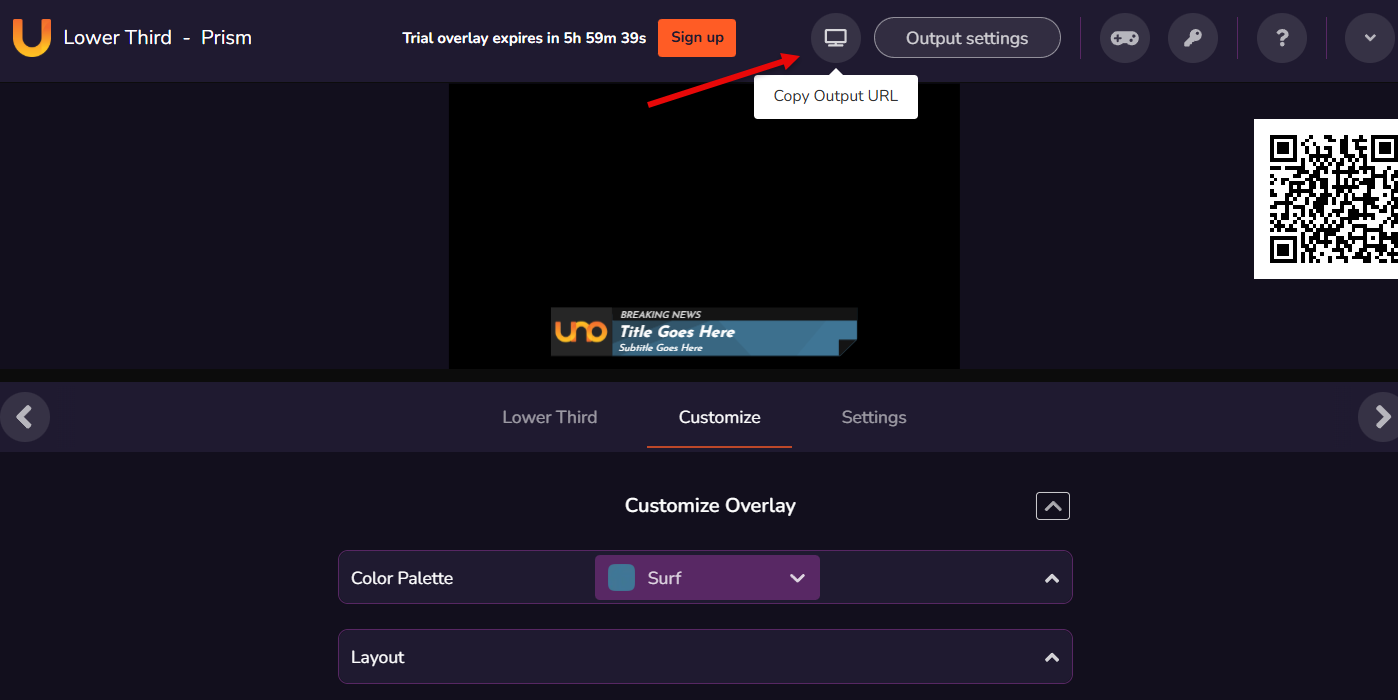
Open this Overlay Template and click on “Use for free”:
https://overlays.uno/library/199-Lower-Third—Prism
Then click on “Copy Output URL” to have the target URL in your Clipboard.
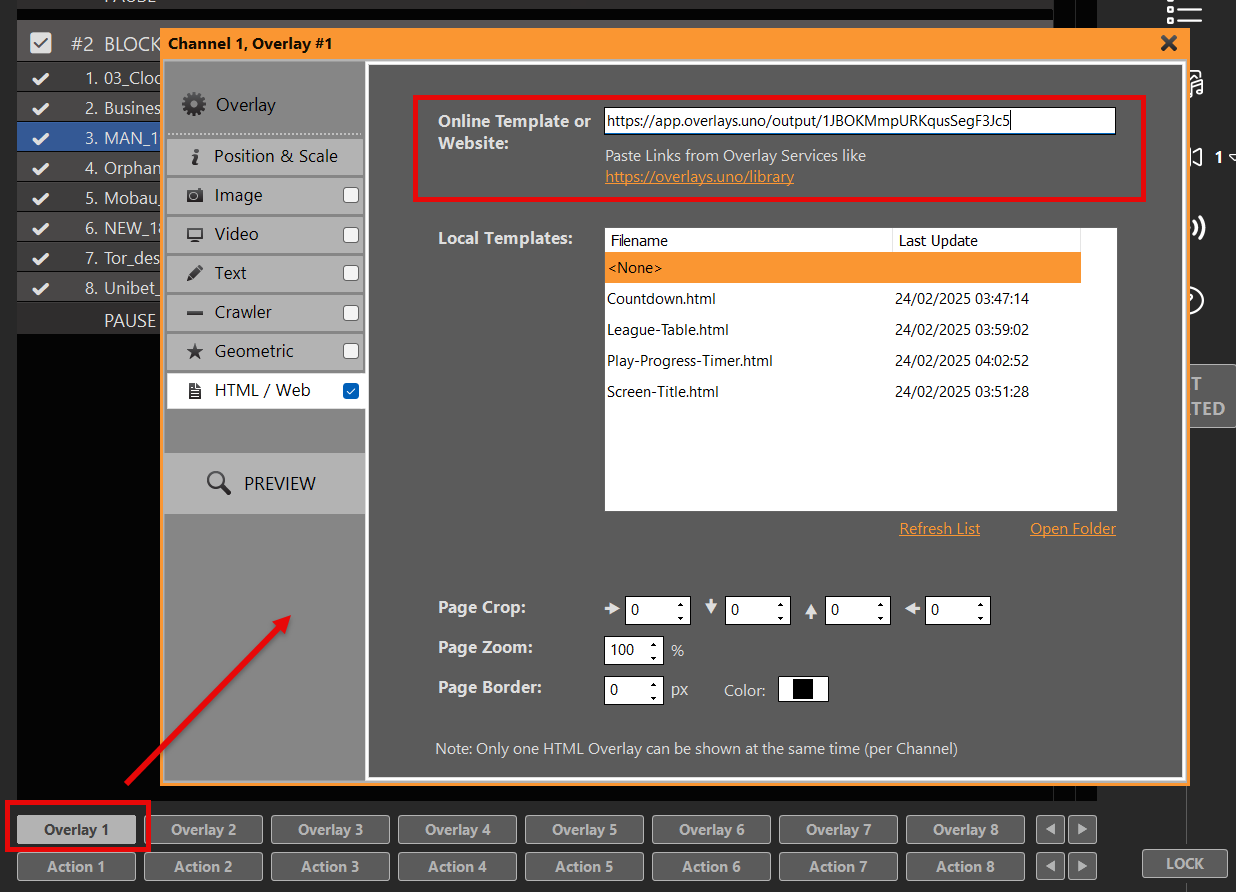
In PLAYDECK, click on any empty Overlay Button, select “HTML” and paste the URL into the upper Online Template Field:
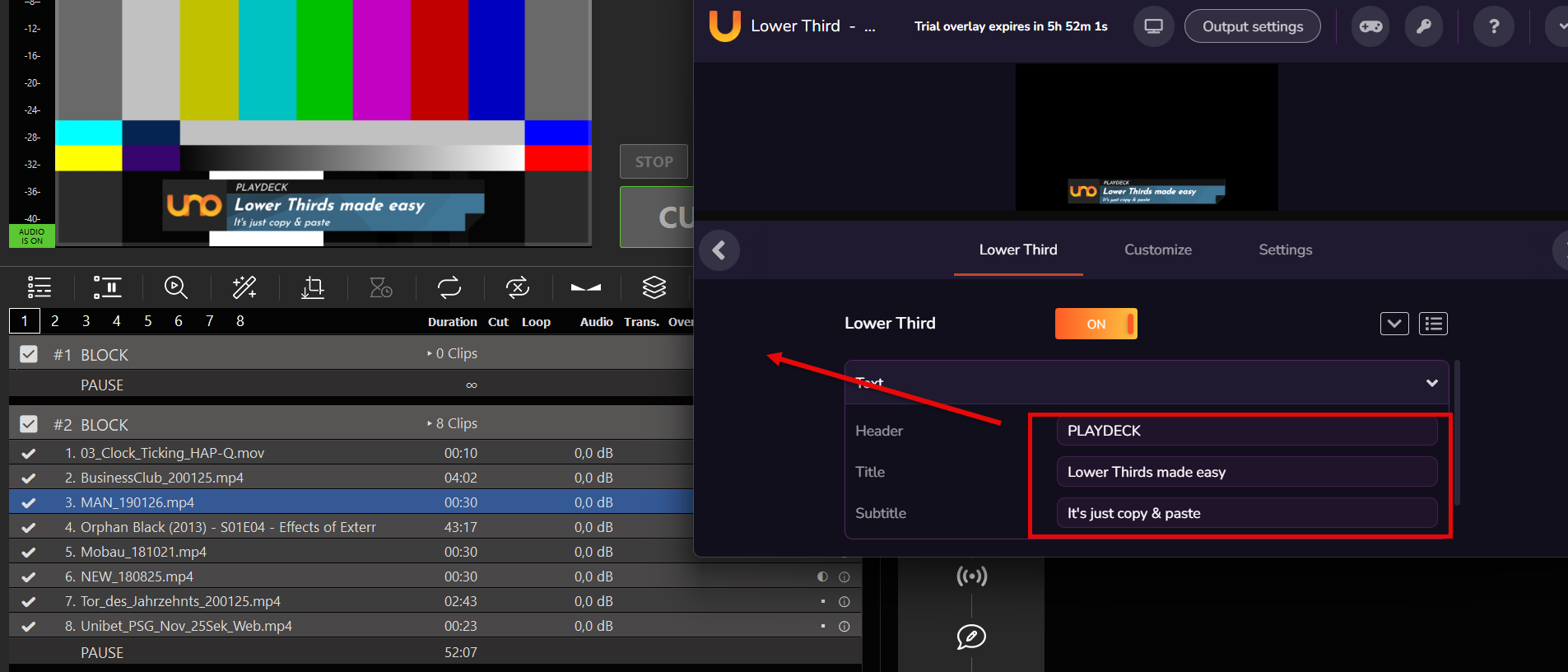
The Overlay is immediately ready for display. You can even live-update Logo and Text via the overlay.uno Overlay website:
2. Create Lower Third (with ClassX)
ClassX Liveboard is a professional CG Playout Solution for automating dynamic overlay contents. You can register for a Demo Version on their website.
After installation of LiveBoard, you can simply add Videos, GFX and other Contents via the user interface. There you also name the Contents with a unique identifier, e.g. “MyLowerThird” for later reference.
LiveBoard allows to connect via TCP and send Commands to show/hide certain Contents. A complete list of Commands is always found in their Window installation path:
C:\Program Files\…\ClassX_Applications_v6\remotecontroltester\commands
For now, these 2 Commands are enough for us:
LBC_PLAYCONTENT "MyLowerThird"
LBC_STOPCONTENT "MyLowerThird"
Lets enable our TCP in PLAYDECK to talk to LiveBoard. The default Port of LiveBoard is 301. Enabling this will show CONNECTED, if the LiveBoard Server is running. Otherwise PLAYDECK will try to connect every 5 seconds, so you can start LiveBoard before or after PLAYDECK:
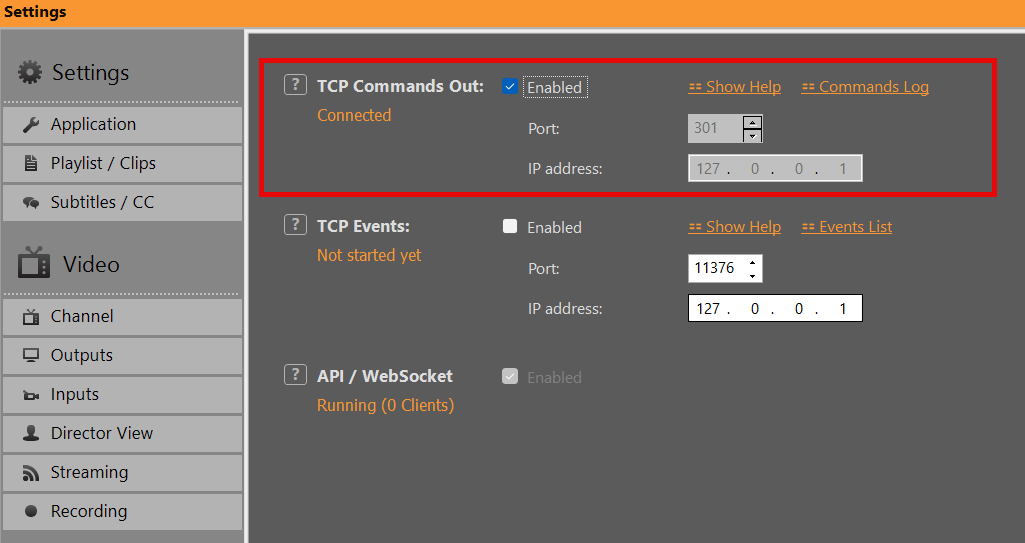
Please follow up with 4. Automate Overlay with Clips/Blocks
3. Create Lower Third (in PLAYDECK)
Lets create our own custom “lower third” composed of a background GFX and Text and group them together.
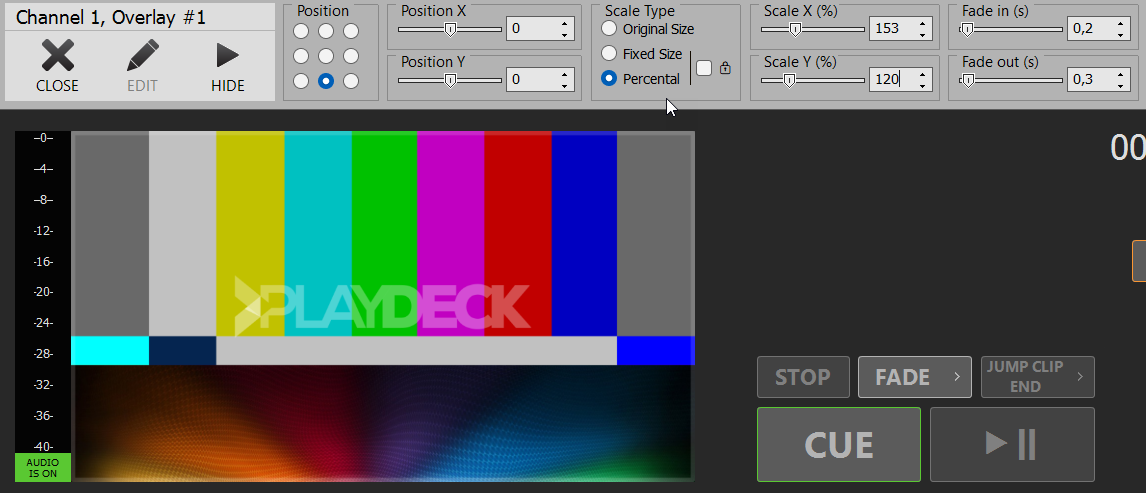
Click on an empty Overlay Button to open the Editor, then add some Background GFX. Close the Editor, right-click the Overlay Button and position your Background to the bottom area. We also right-click in the video preview and disable “Channel Name”:
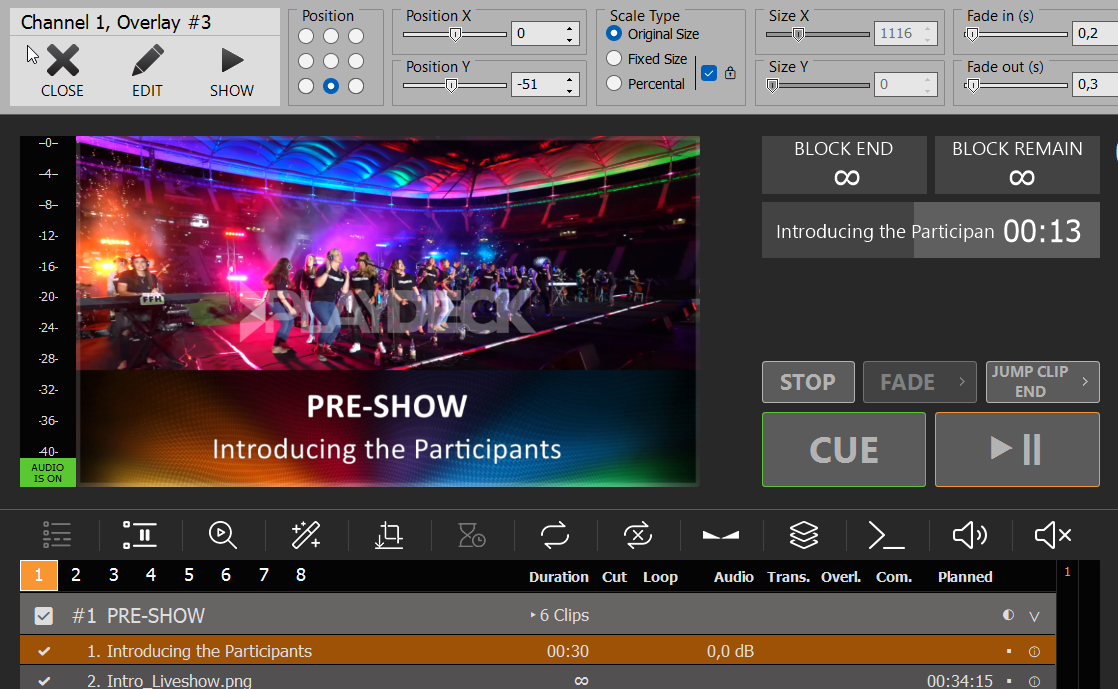
We add another Text Overlay and use {blockname} as text placeholder for our title text. Then add another Text Overlay and use {clipname} as text placeholder. Then some positioning and it looks like this:
Now lets group then together: Right-click an empty Overlay Button and select “Create Overlay Group”. Then add our 3 previous Overlays and order them bottom-up:
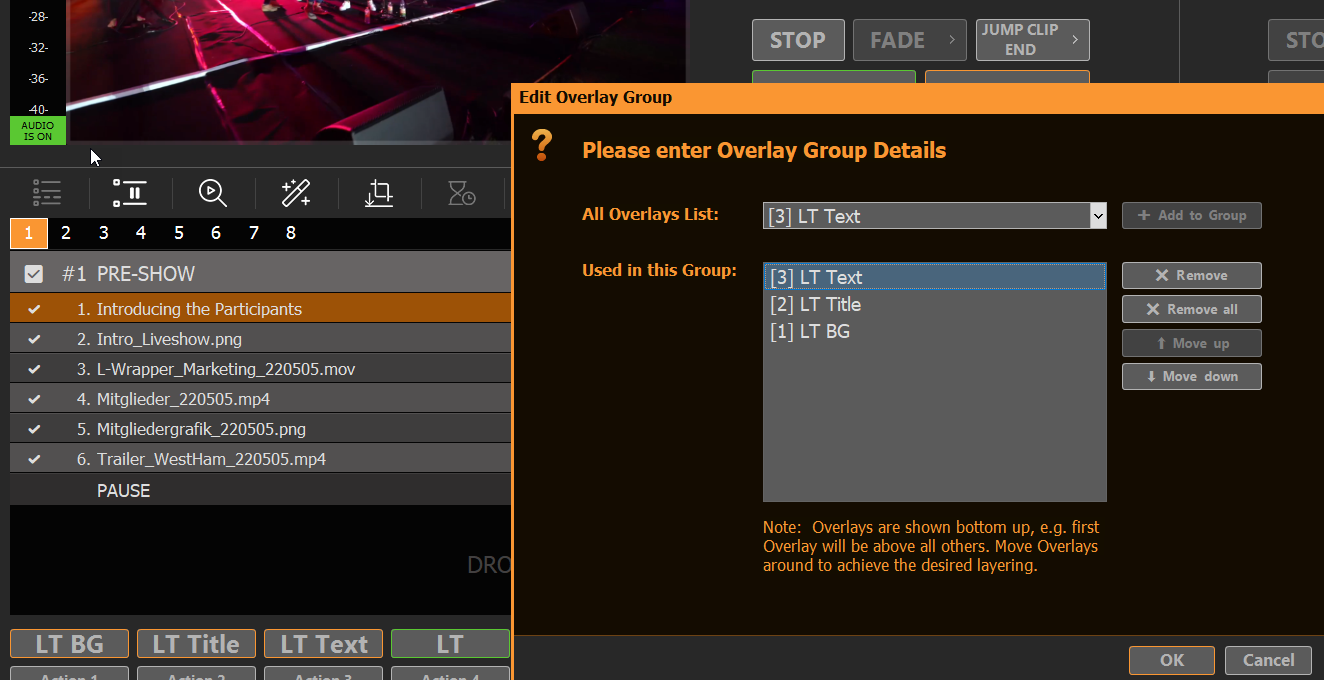
4. Automate Overlay with Clips/Blocks
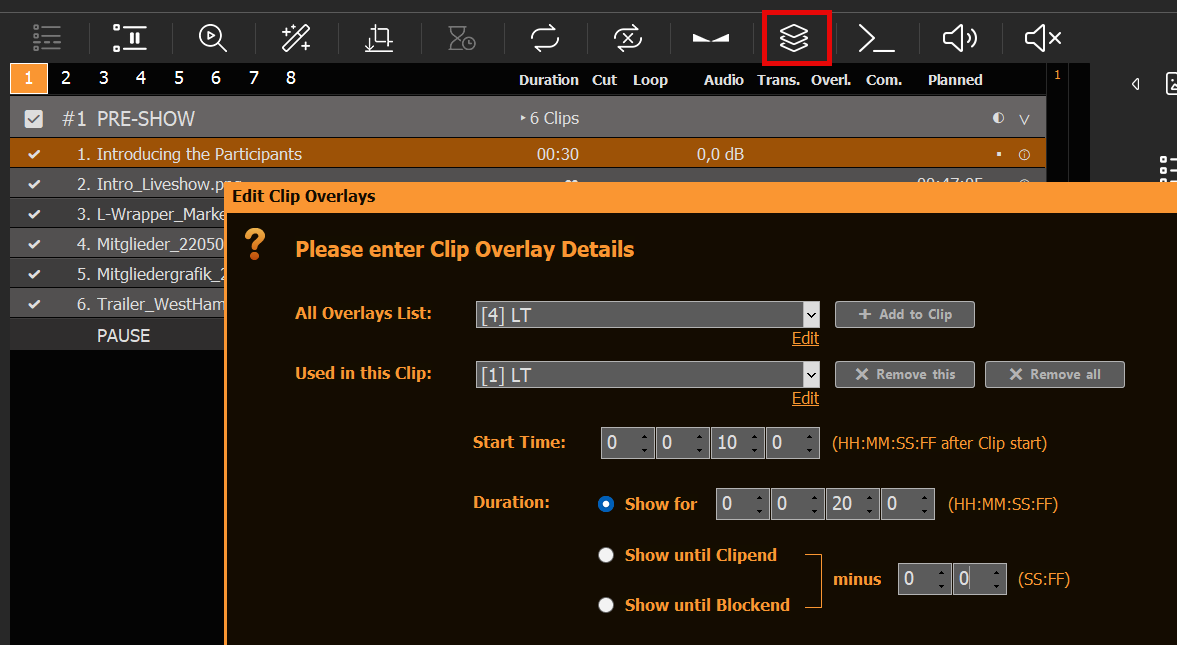
We now have a functioning Overlay Button for the Lower Third with dynamic Text Content. Now let’s attach this Overlay to a specific Clip. Select the related Clip and click on the Overlays Icon, then add our Overlay to that Clip, starting 5 Seconds into the Clip and showing for 10 Seconds:
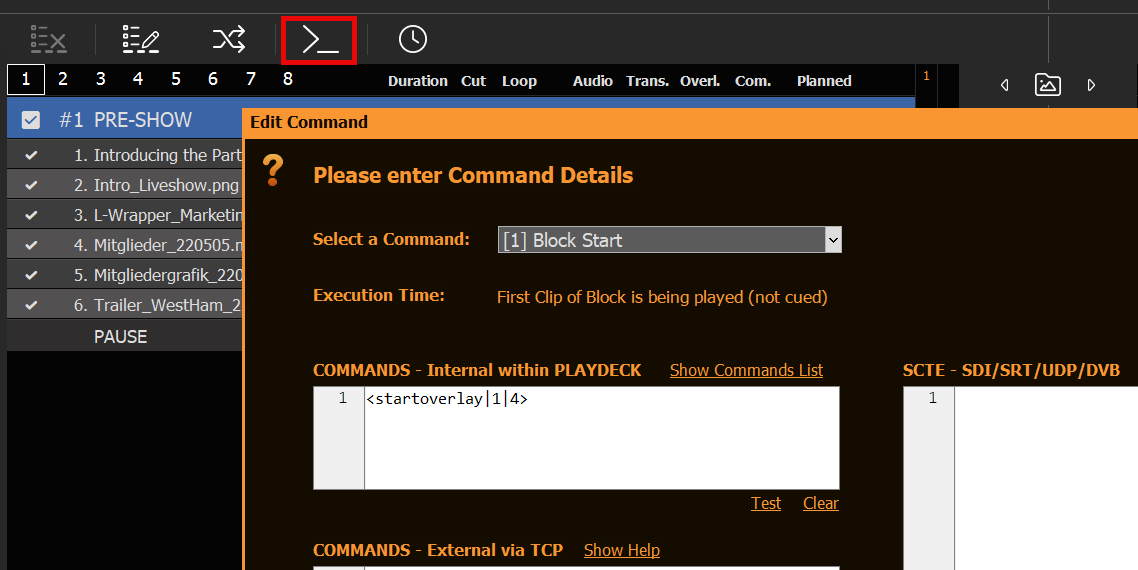
To attach an Overlay to a Block, you can use Commands:
You can copy the Overlay Attachments by right-clicking the Clip/Block and selecting “Copy/Paste Settings”. This will help immensely to duplicate attachments across the playlist.
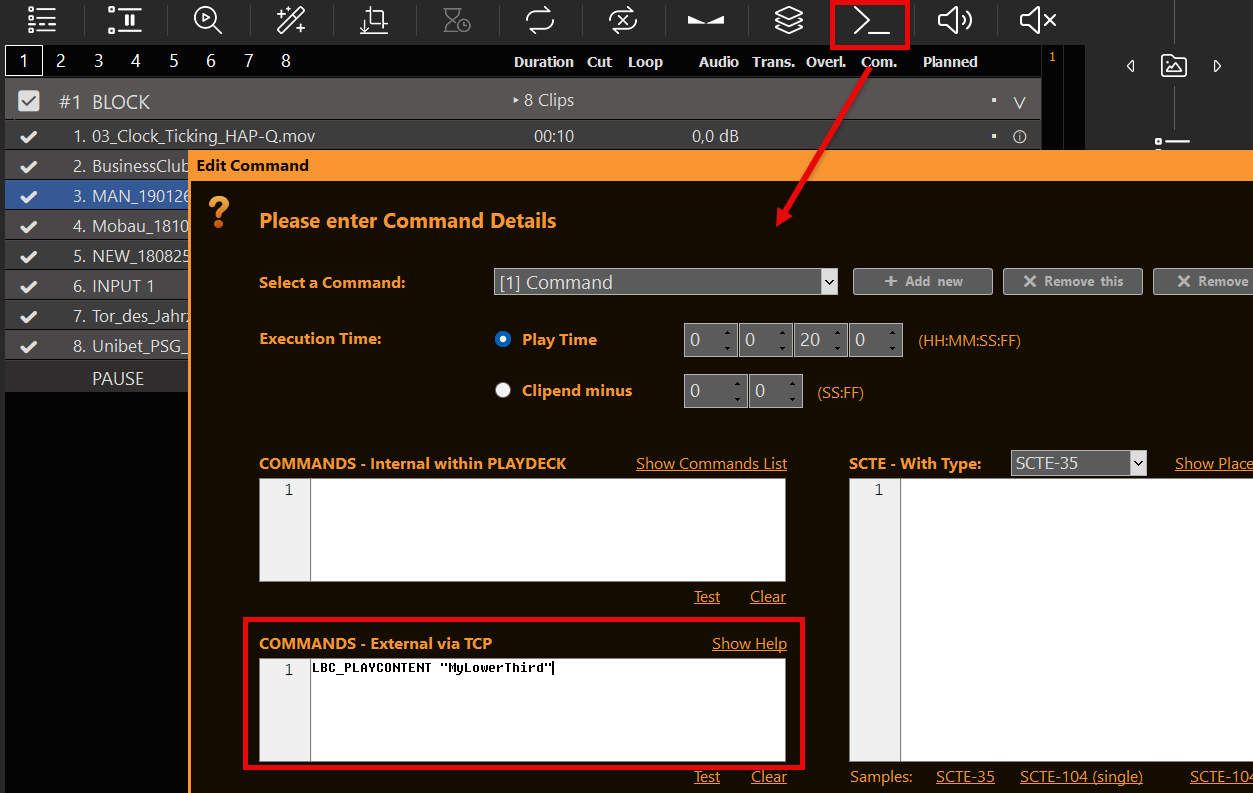
To automate external Overlays, e.g. ClassX, you would also use Commands on Clips or Blocks, but write your Commands in the “External via TCP” Section:
You can also show/hide Overlays via Actions Buttons via internal or external Commands.
5. Schedule Overlay
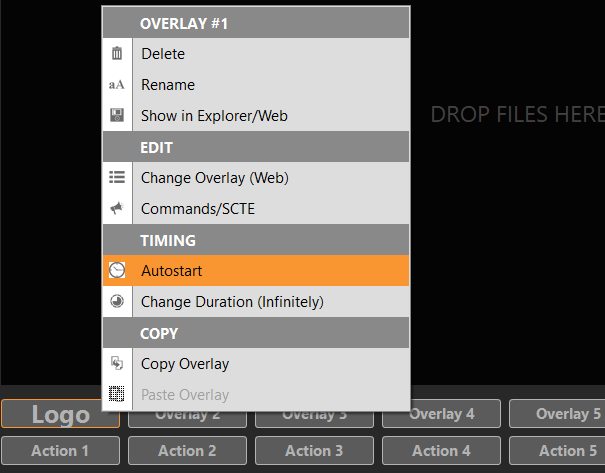
In addition to attaching overlays to playlist items, you can also schedule them to run at a specific time and for a specific duration, by right-clicking the overlay:
6. Remote Control
You already learned about Commands in 4. Automate Overlay with Clips/Blocks. You can call these commands from anywhere and start your overlays via your Stream Deck or any other Remote Control Software.
Here is an article on how to setup and use commands in general:
https://playdeck.tv/howto/commands/
And here you find more information on how to setup and use Stream Deck with Companion:
https://playdeck.tv/howto/companion/
7. External Keying
You can use one Channel of PLAYDECK just for the Overlays and send them to your Mixer via External Keying, which is supported for Device Output as well as NDI Output:
https://playdeck.tv/howto/keying/
Prepare/Import Playlists externally
This article will show options to prepare your Playlists on another System or import Playlist from other Apps.
In this article:
→ Use Free Channel
→ Use Playlist Trial Edition
→ Append Playlist during Broadcast
→ Automatically Detect and Reload new Playlist
→ Interface with 3rd party Apps
Use Free Channel
You have some spare Channel in PLAYDECK? Use them to prepare and test new Contents, then copy them to your Main Feed Channel. You can DRAG DROP Blocks from Channel to Channel, or copy them with pressing CTRL after starting DRAG DROP.
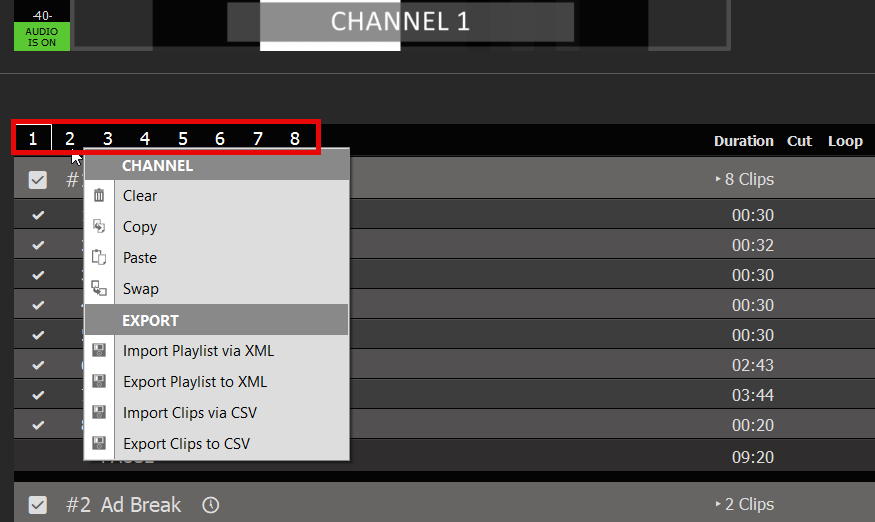
You can also copy, overwrite or append whole Playlists, by right-clicking the CHANNEL NUMBER:
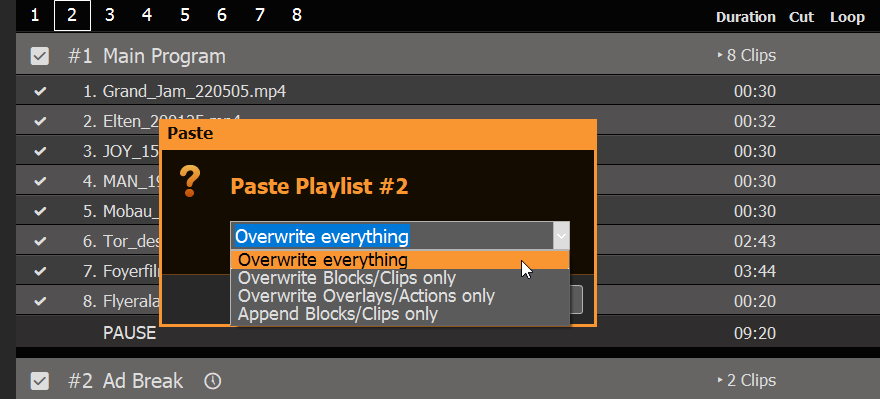
If you paste new Content on an existing Playlist (or Import XML), you get the option to overwrite or append:
Use Playlist Trial Edition
You can install PLAYDECK on any other machine and edit your Playlists there. Except the Watermark of the Trial Edition, there are no other restrictions, so you can prepare Playlists and send them to your Main System.
Append Playlist during Broadcast
You want to import new Playlists and don’t want to interrupt your Broadcast? No problem: Use the APPEND PROJECT Option in the FILE MENU:
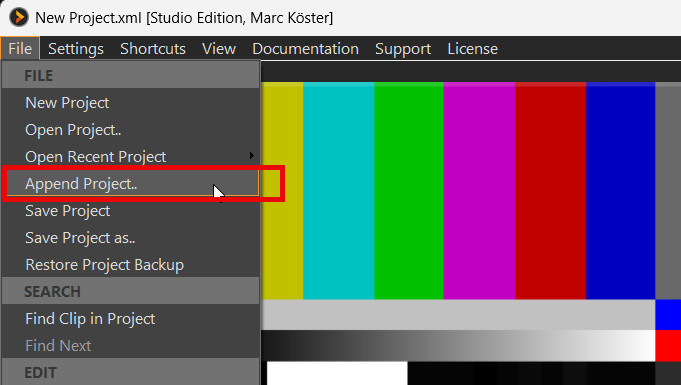
This will load any PLAYDECK Project, but instead of replacing the Playlists, all Playlists will be extended by the Clips found in the Project. You can then safely remove any old Content.
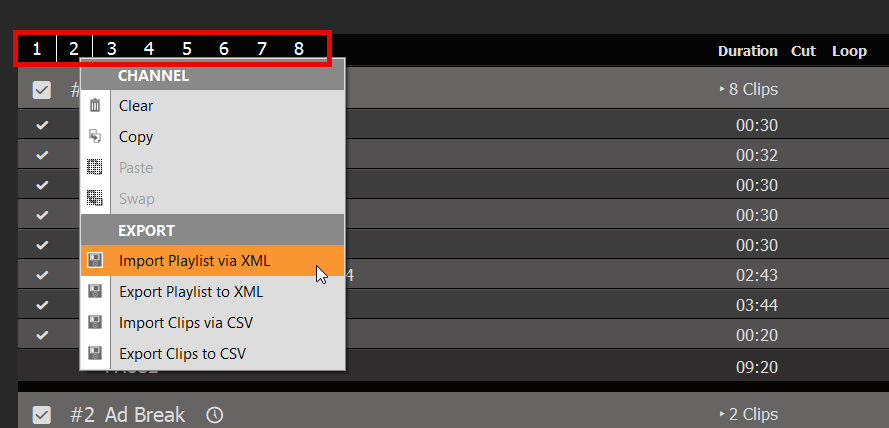
You can apply this procedure to individual Playlists by Exporting a Playlist to XML and Importing that XML on the other Machine. This is done by right-clicking the CHANNEL NUMBER:
This workflow is perfect for any day-to-day schedule, where you add new days and remove old ones.
Automatically Detect and Reload new Playlist
You can also OVERWRITE the current load Project File on your Main System and let PLAYDECK detect this and reload the Project, after which the Playout will resume. Enable this functionality in the Application Settings:
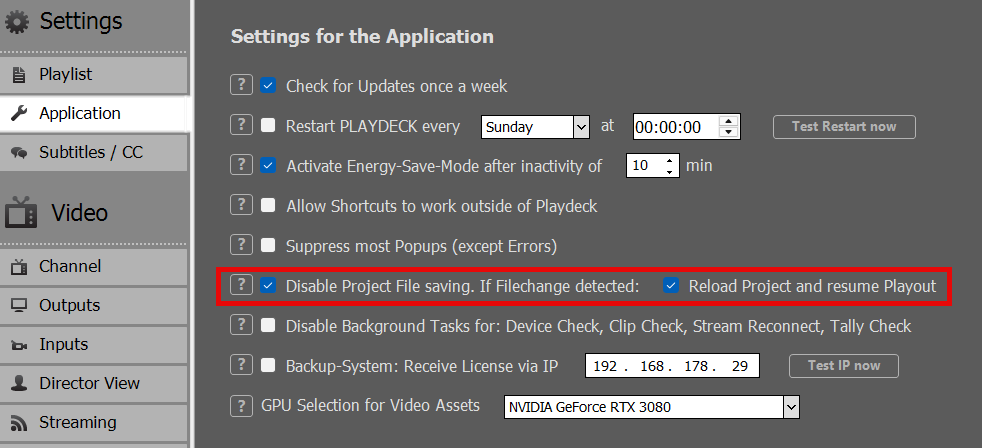
Note: RESUME PLAYOUT only works, if the current Playing Clip exists in the newly re-loaded Project, otherwise Playout stops for that Channel. The Clip is identified by a UNIQUE ID, so it could have moved to another Block in the re-loaded Project.
This workflow is best suited for any automated systems, where Project Files are generated automatically and uploaded to the Main System. Or when the Content Editor does not have access to the Main System and uploads the new Playlist to the NAS/Cloud Storage.
Interface with 3rd party Apps
We don’t support the Playlist Format of other 3rd party Apps, as there is just too much diversity on the market, and a lot Playlist Function (Mixing, Overlaps, Schedules) would not be compatible with PLAYDECK.
If you like to prepare your Playlist in a 3rd Party App, you need to export your Playlist to CSV, then Edit that CSV to work with PLAYDECK, then Import that CSV into PLAYDECK.
Why CSV? Because it is the most easy List Format, which support multiple values per Item. It can be edited with any Text or Table Editor, from Notepad to Excel.
Let’s have a look at our CSV. For this we build ourself a Sample Playlists with 2 Blocks. We mixed in different Content Types: Video Clips with IN/OUT Points, Device Inputs, YouTube Videos, UDP Input Stream, GFX with Runtime, a Note. We also added a Schedule to the 2nd Block:
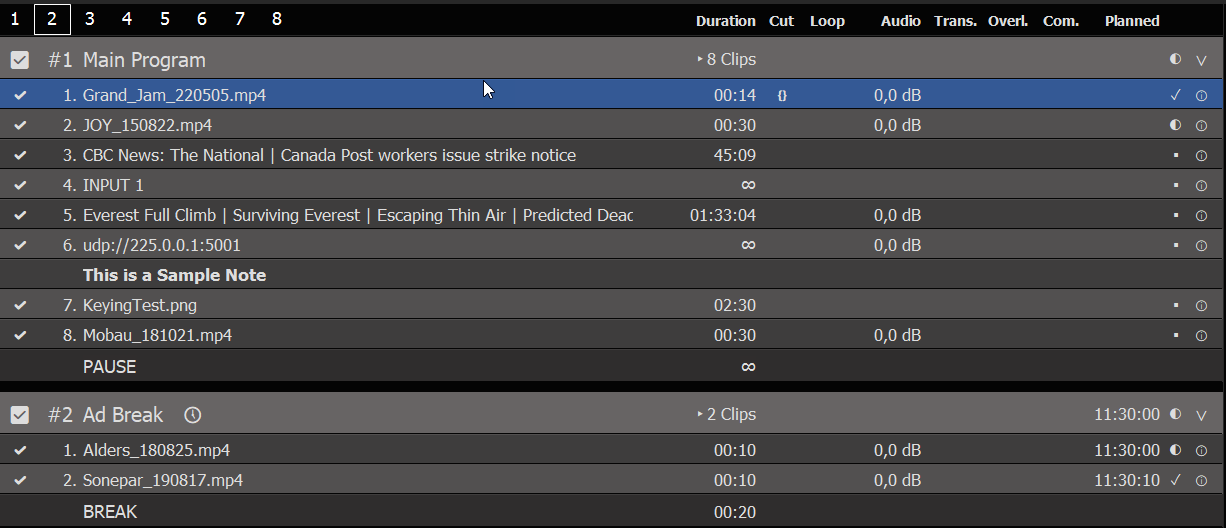
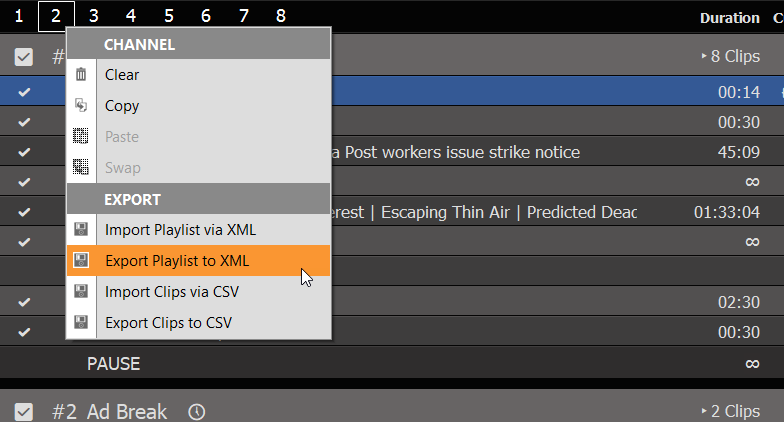
We now right-click the CHANNEL NUMBER 2 and select EXPORT TO CSV:
We then open the saved CSV File in Notepad (click here to download/open in new Tab):

As you can see, its not “too” much Text Lines. Since the first Lines are just HEADER, it looks even more clear in a Table Editor:
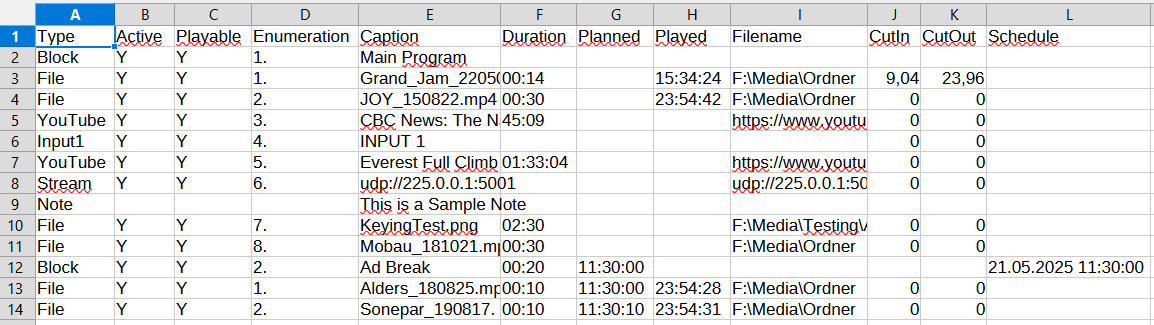
And this is how you write/generate CSV Files: You export your Content in any 3rd party app, open any editor and bring it in PLAYDECK FORMAT. But WHAT IS PLAYDECK FORMAT.
These are the REQUIRED COLUMNS. They can be it ANY POSITION (any column #):
Type = Block, File, Website (or YouTube), Input#, Stream, Note
Caption = Any Text to display in PLAYDECK
Filename = The Path/File or the URL (YouTube and Streams)
These are the OPTIONAL COLUMNS. They can be it ANY POSITION (any column #):
Active = The Checkbox in the first Column in PLAYDECK
Duration = Only used be File-Types that are Images. Leave empty or 0 for endless
CutIn / CutOut = IN- and/or OUT-Point for Trimming
Schedule = Only used by Block-Types
Note: More advanced Properties (e.g. Audio Gain) are not supported, as to keep our CSV Format clean and easy. To import/export ALL Properties, please use XML instead of CSV.
Note: PLAYDECK uses UTF-8 encoding for saving and loading CSV files.
Unattended 24/7 Playout
This article shows how to run PLAYDECK without an operator: daily project files from a traffic or scheduling system, reload when a file is overwritten, and a scheduled application restart.
Settings → Automation is easy to miss. A checkbox named “Disable automatic project saving” does not sound like 24/7 playout — but together with “Load newest project from folder” it is the typical unattended workflow.
In this article:
→ Settings → Automation
→ Typical use cases
→ Disable Saving and Load newest
→ Restart PLAYDECK
Settings → Automation
Open Settings → Automation (last item in the Settings group).
Three independent functions live on this page:
- Restart PLAYDECK every — daily or weekly clean start
- Disable automatic project saving — PLAYDECK does not write the open project in the background; optional reload when that file changes
- Load newest project from folder — at a clock time, load the newest
.xmlin a folder (once per day)
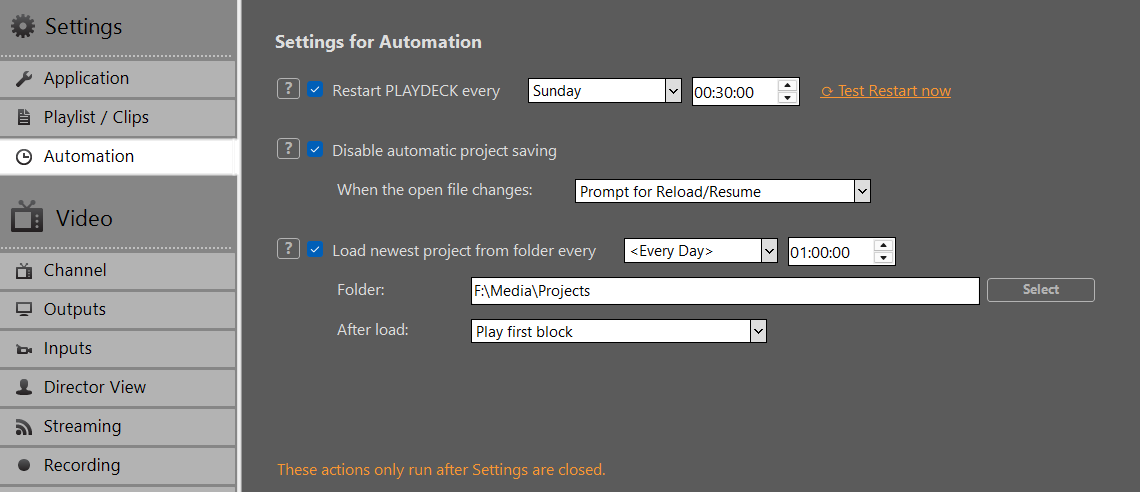
Note: Scheduled Restart, Load newest, and reload-on-file-change do not run while Settings are open. Configure the time, folder and options, then close Settings. Otherwise the scheduled time can pass with nothing happening. Test Restart now still runs immediately from Settings — that is the only exception.
Typical use cases
These are the situations where Automation matters — they are not obvious from the labels alone.
Traffic / scheduling system writes a new XML every day
A planner drops files such as 13-08-26_Playdeck.xml, 14-08-26_Playdeck.xml into a shared folder. At midnight PLAYDECK should pick the newest file and continue unattended. That is Load newest, usually together with Disable automatic project saving.
The same project file is overwritten during the day
An editor or a 3rd-party app overwrites the file that is currently open. PLAYDECK should detect that and reload. That is Disable Saving + When the open file changes → Reload/Resume. Details: Prepare/Import Playlists externally.
Both on the same machine
New dated file at 00:00, then the same day’s file overwritten again at 14:00. Enable Load newest and reload-on-change. They are not either/or.
Overnight clean start
24/7 boxes that should restart PLAYDECK once a day, even during playout. That is Restart PLAYDECK every.
Disable Saving and Load newest
Disable automatic project saving
If enabled, PLAYDECK will not save the project file in the background (the usual auto-save, and also the silent save on quit). File → Save / Save As still works.
Use this when an external system owns the XML. Otherwise PLAYDECK writes its in-memory playlist back to disk and overwrites the scheduler’s file.
When the open file changes:
- Do nothing — ignore external overwrites
- Reload/Resume immediately — reload and try to resume the same clip (by Unique ID)
- Prompt for Reload/Resume — ask first
Note: Resume only works if the currently playing clip still exists in the reloaded project. If not, that channel stops. This reload is for the same file that is already open. It is not a substitute for Load newest.
Load newest project from folder
If enabled, PLAYDECK looks in the selected folder after the selected weekday and time and loads the newest .xml once per day.
- Newest means file date (last write time), not the file name.
13-08-26vs01-09-26in the name does not matter. - Only valid PLAYDECK project files (other XML, e.g. XMLTV exports, are skipped).
- Files that are still being written (in use) are skipped.
- The currently open file is ignored. PLAYDECK will not load the same playlist again. You do not need Disable Saving just to make Load newest work.
- After a successful load, the same day will not load again.
Why combine them anyway
Load newest does not require Disable Saving — the open file is already excluded from the “newest” pick. For a traffic system you usually want both: without Disable Saving, PLAYDECK auto-saves the open project, that file’s date keeps moving, and tomorrow’s drop may look “older” than PLAYDECK’s own save. If the scheduler overwrites today’s file while it is open, PLAYDECK can also save on top of that overwrite.
Recommended 24/7 setup
- Enable Disable automatic project saving.
- When the open file changes: Reload/Resume immediately — if the same day’s file can be overwritten later; otherwise Do nothing.
- Enable Load newest project from folder every
<Every Day>at e.g.00:00:00. - Folder = the drop folder of the scheduler. Keep only PLAYDECK project XML in that folder.
- After load:
- Play first block — start playout (typical unattended switch)
- Cue first block — load the first block, wait for a later Play
- Follow block schedules — do not auto-play; blocks fire by their own clock times (Program Flow). If you test with this option and nothing starts, that is expected.
- Close Settings.
The project switch is seamless. Output stays up; only a few frames drop during the load. Set the channel background to black — if a few frames of the previous picture would flash, black is the least visible fill. This is a hard cut to the new project, not a mix. Time the file drop and the Load time (often midnight) so the cut sits in a safe gap, or use Follow block schedules in the new file.
Restart PLAYDECK
If enabled, PLAYDECK closes and starts again at the selected weekday and time, even during playout. Use this for a daily clean start on unattended machines.
Test Restart now runs the same restart immediately. The scheduled restart only runs after Settings are closed.
Create Pre-Show Waiting Loop
This article will show how to create a Audio Playlist and combine this with a looping video, perfect for pre-show waiting Loops.
We start by creating a loop block and insert some mp3 audio file to the block:
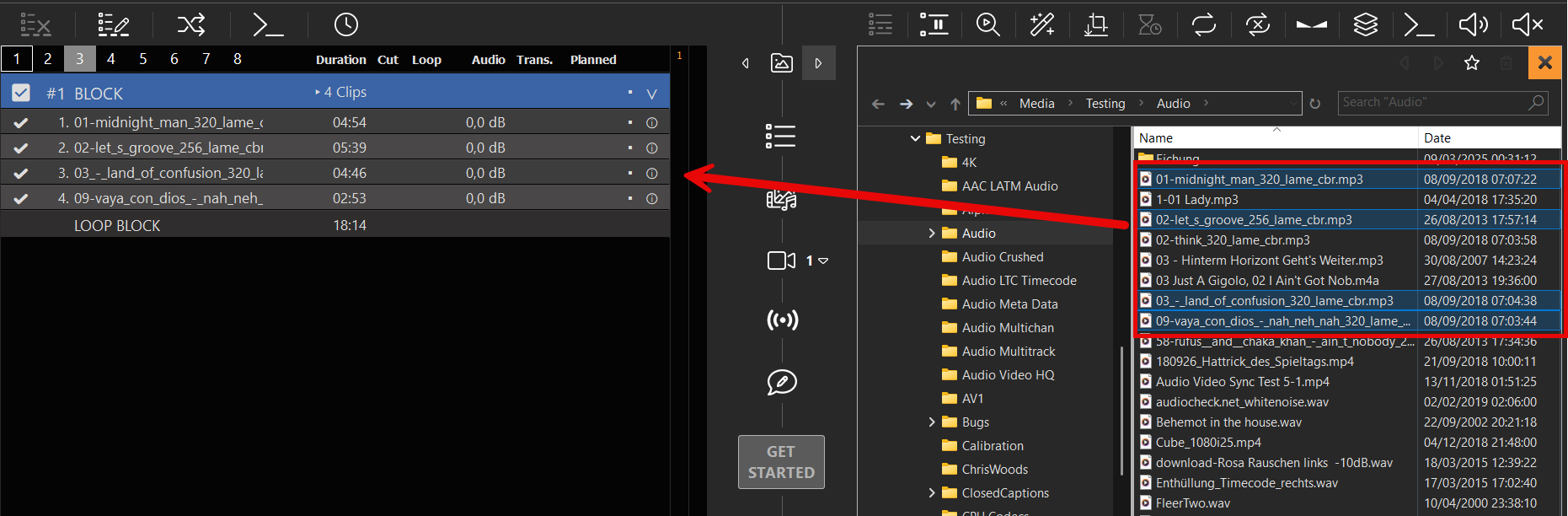
Now we add a default image, which is shown, whenever audio-only clips are playing:
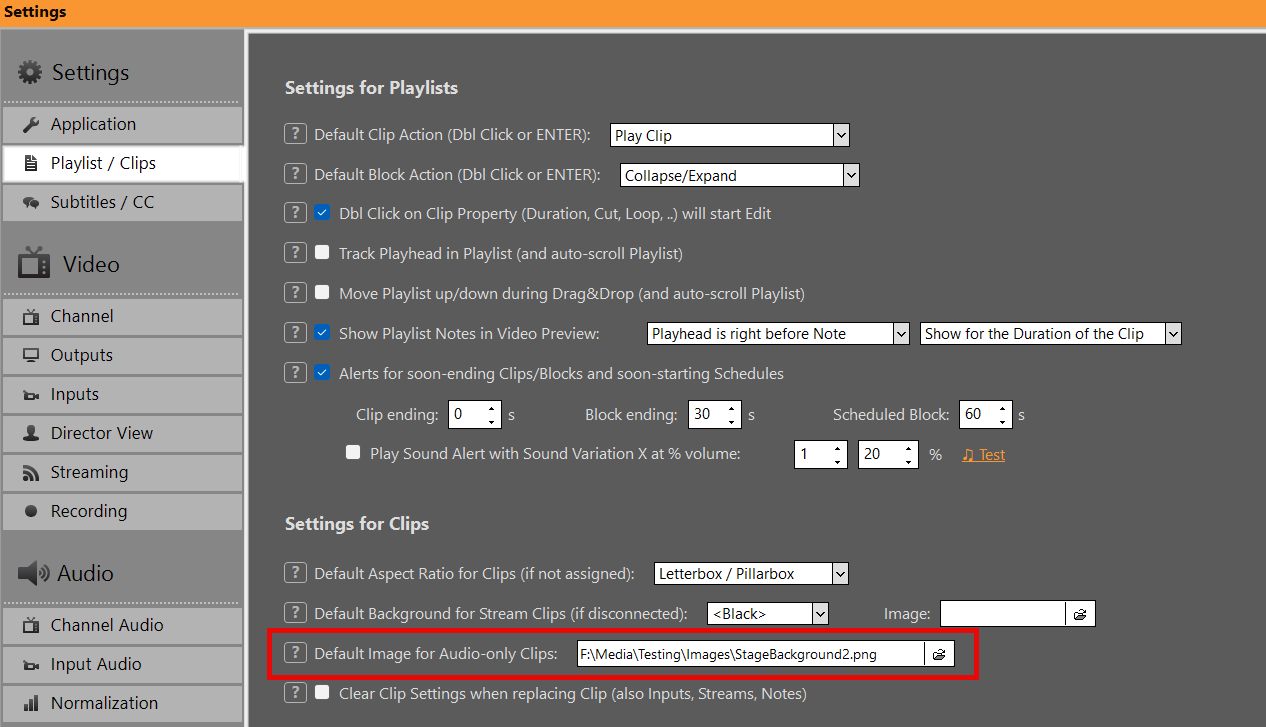
And voila, we have a pre-show waiting loop:
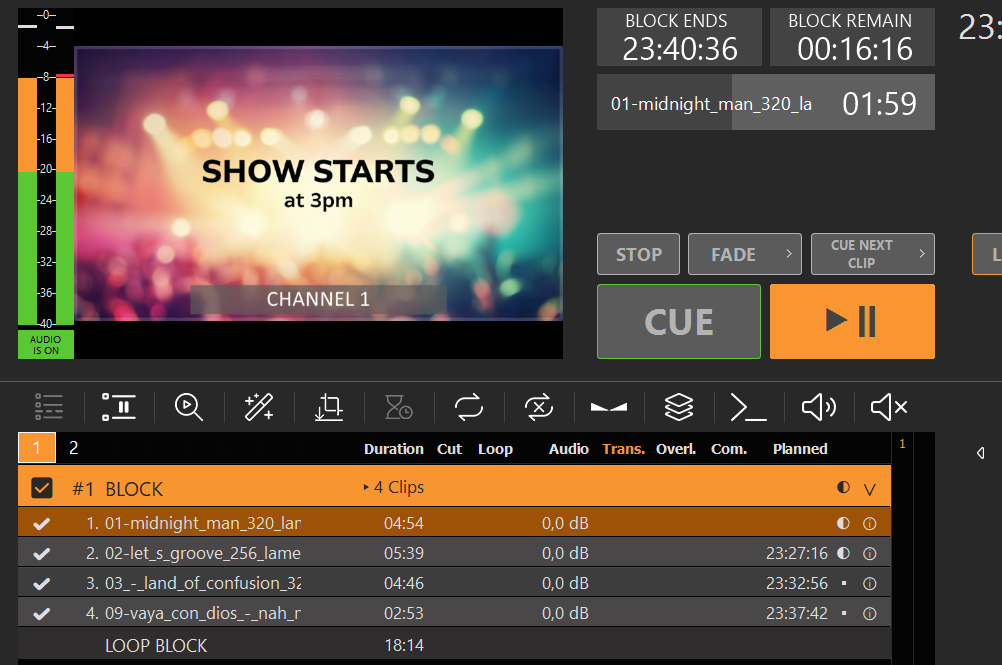
But that’s not all. We can also use a video loop instead of a still image. For this we add the video as overlay with a loop setting. The video will be shown in fullscreen, if it has the same size, otherwise we can scale it in the overlay settings:
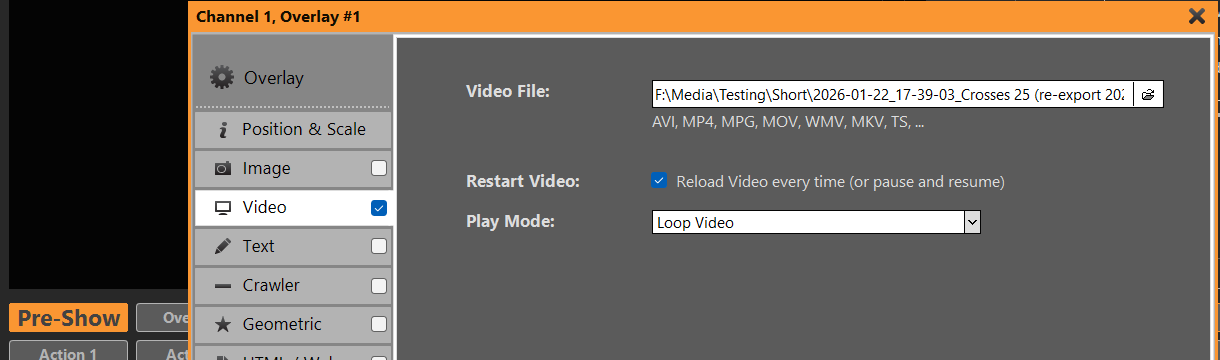
We could also add an Countdown via overlays.uno. Quick and easy:
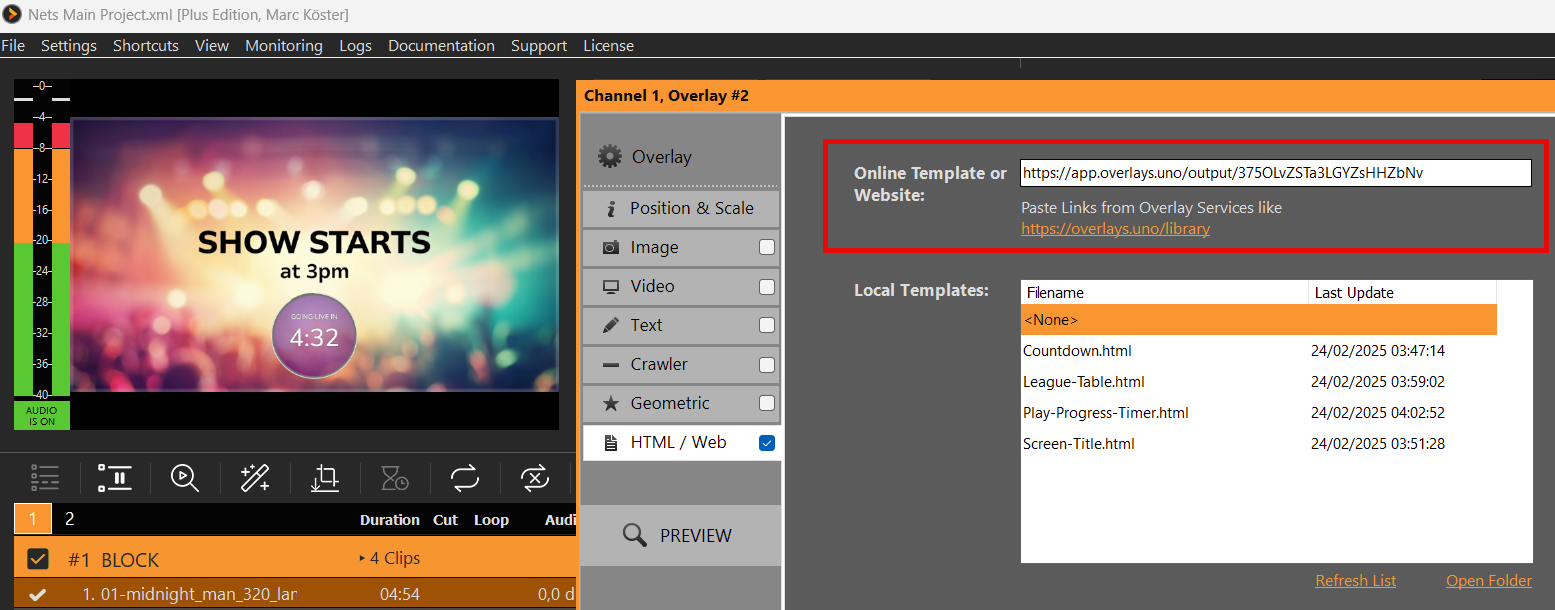
Creating a Slideshow Single-Monitor
This article will show how to create a Slideshow with Transitions and output on the same Monitor.
1. Creating the Show
Open the integrated File Explorer by clicking the right-arrow between the Playlists. The search for your images folder, select all images and add the to the Playlist by Drag Drop:
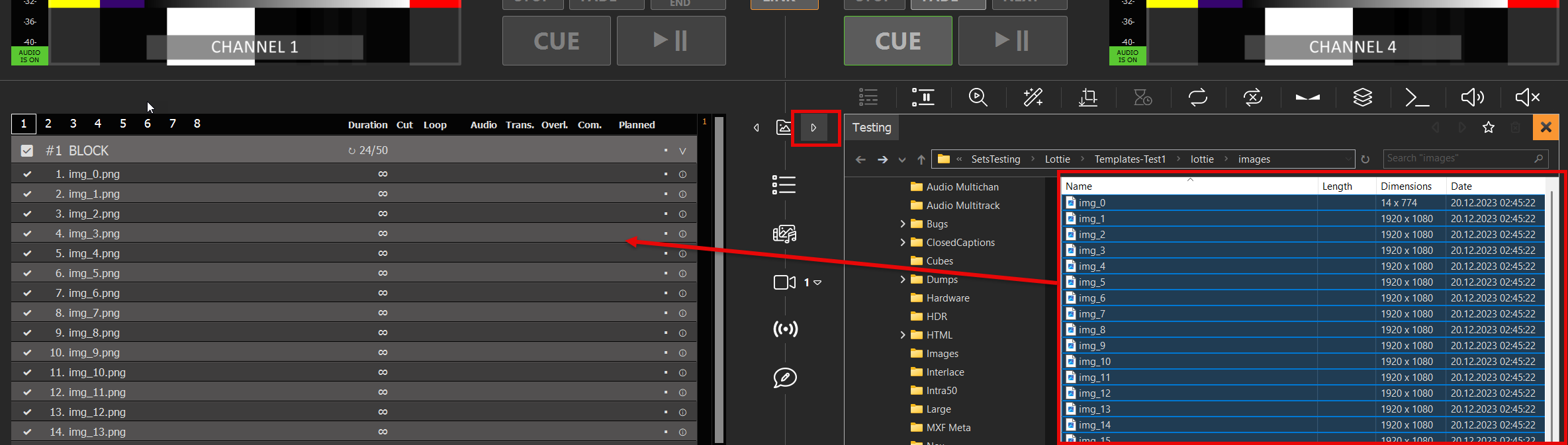
Select any Clip in the Playlist and press CTRL+A to select all Clips, then select the Icon for DURATION and enter a suitable duration for each image, e.g. 15 seconds:
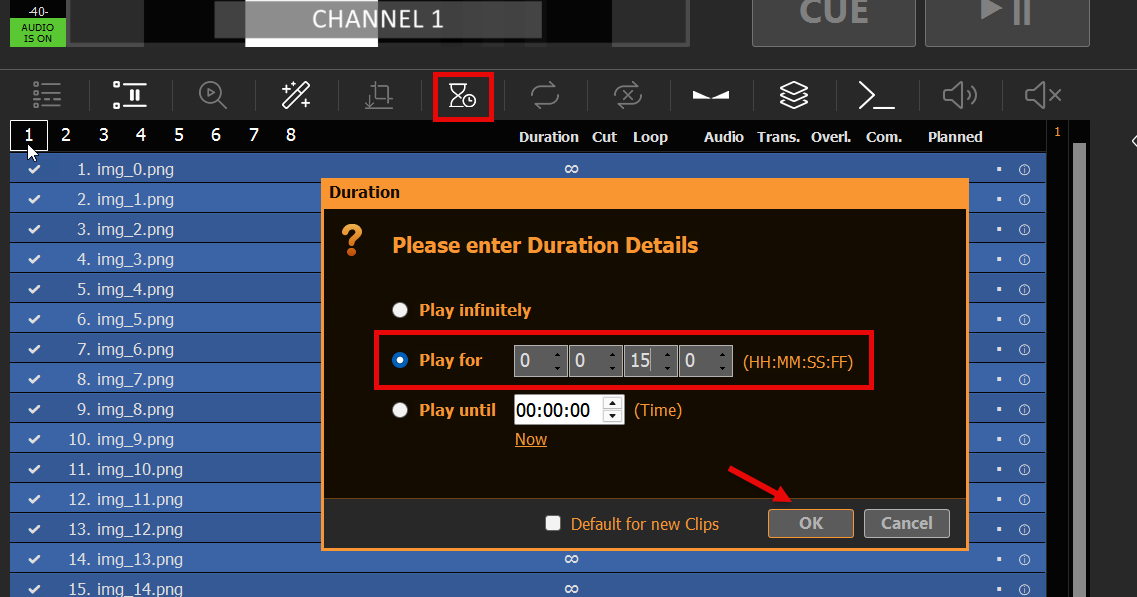
While al Clips are still selected, click the Icon TRANSITION next and add any transition. In this case we use a smooth long Fade Transition:
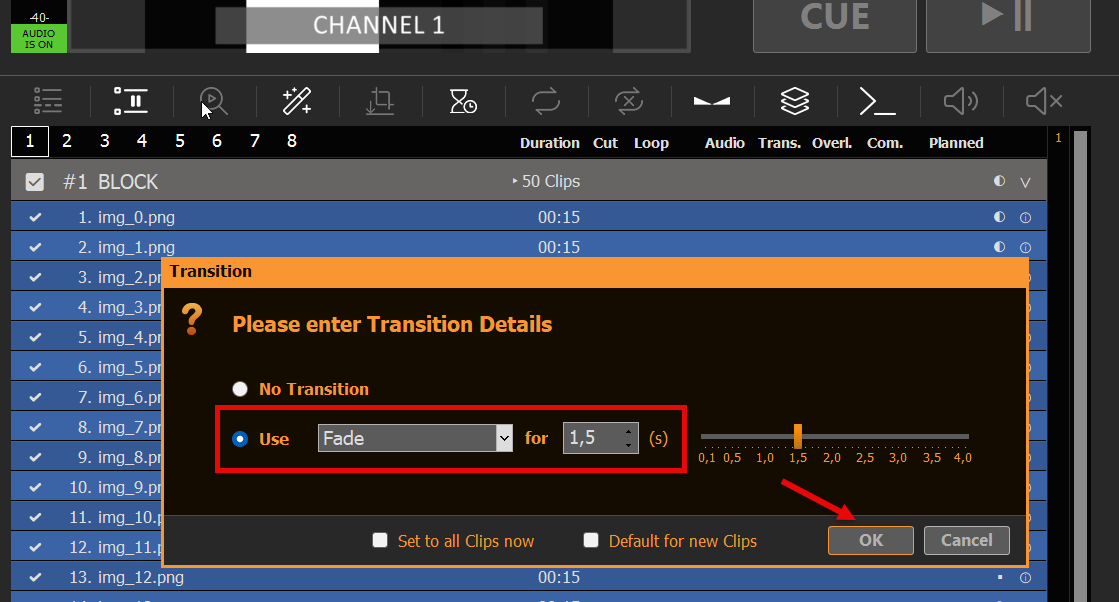
At the bottom of the Playlist you can see the total duration of your Slideshow:

2. Playing the Slideshow
You simply double-click the first Clip (or use Buttons CUE+PLAY), then double-click the Preview Area (or right-click and select FULLSCREEN). Your Playout will now be maximized to your Monitor Size, at maximum Quality. And the Mouse Cursor will be hidden. Use ESC to exit Fullscreen.
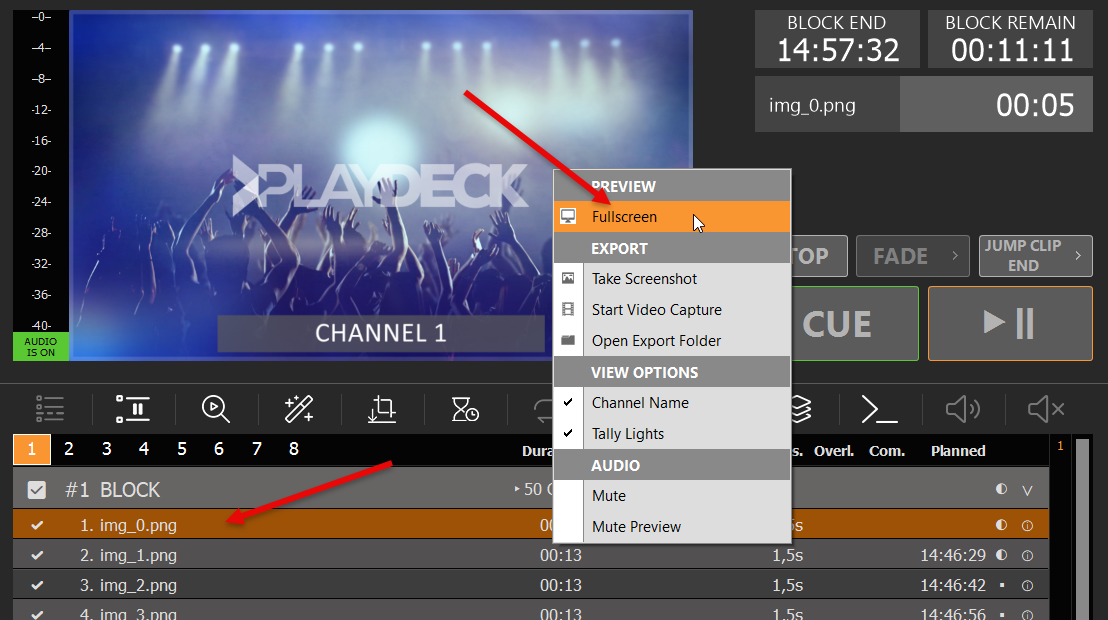
Note: During Fullscreen, you can use the SPACE Key to pause/u-pause Playback.
You can also output the video signal on a second monitor, or send it to your TV. You could also send it via NDI to another PC and open the signal with PLAYDECK (use the free Backup License), or VCL Mediaplayer or any other 3rd party app:
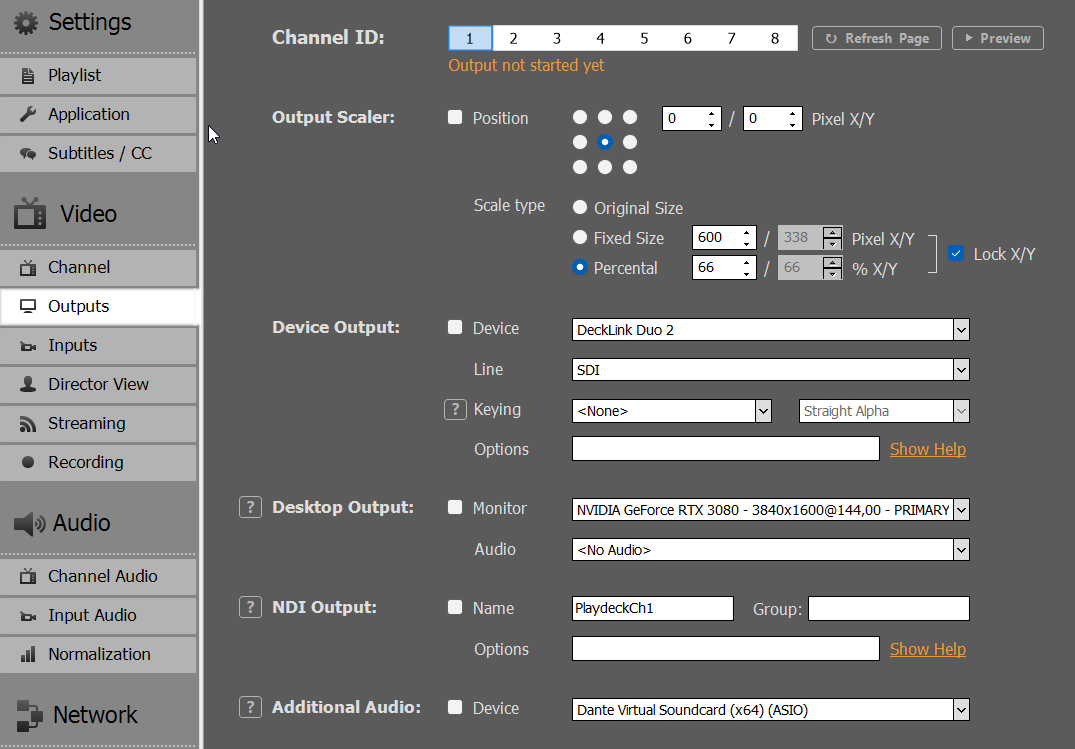
Growing Files in Playlist
This article will show how to insert growing files into a playlist.
Definition
A growing file is a file that is still being recorded – it is therefore growing in size.
Recommended Setting
When working with growing Files, we recommend you enabling the Settings “Re-scan the runtime of growing files” to make sure the duration is updated every 5 seconds in your playlist view:
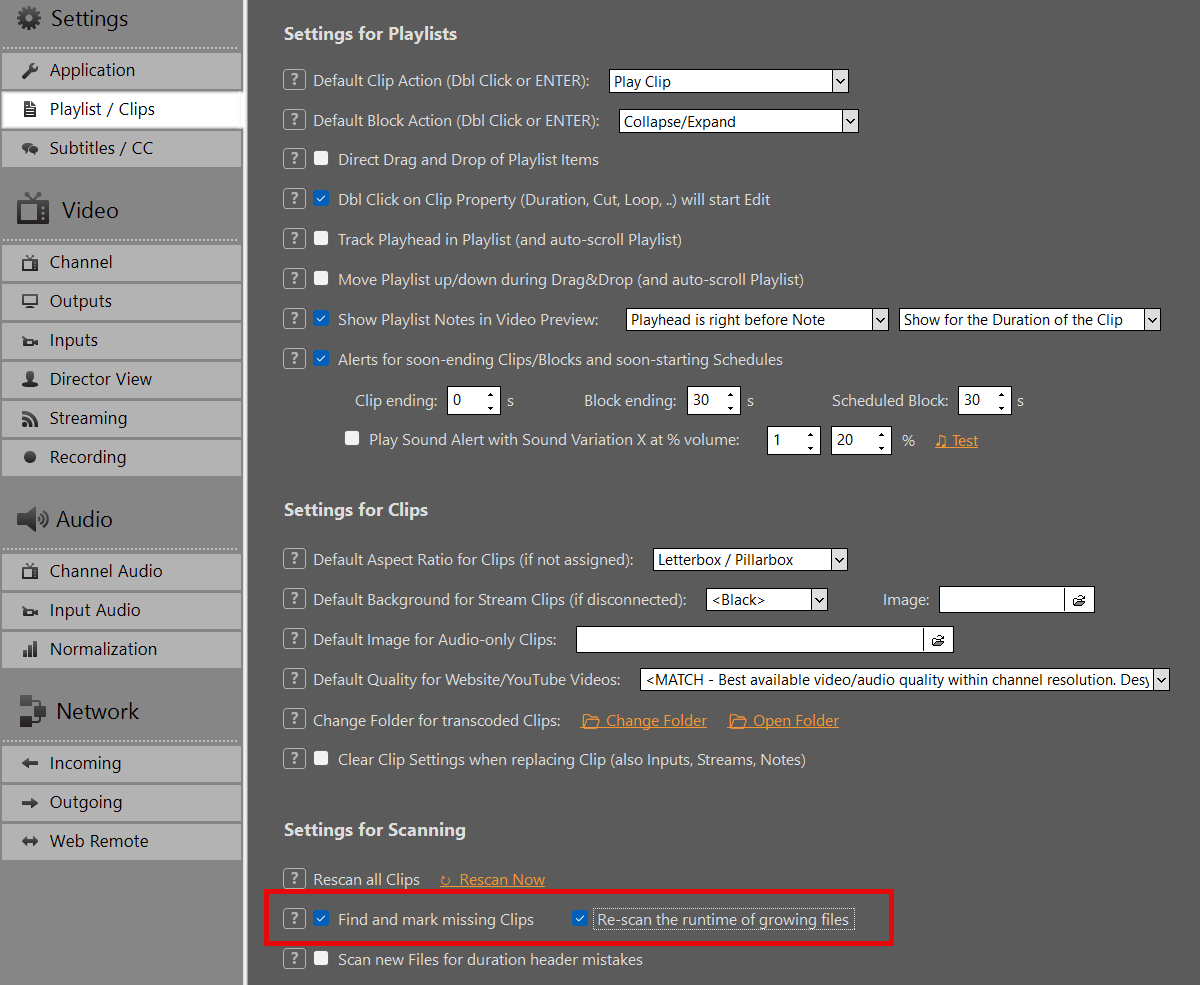
Insert to Playlist
Growing files can be inserted to the playlist like any other file: By Drag Drop from outside of PLAYDECK or using the integrated file explorer. They will be detected as “growing”, which can be verified in the info column. The clip duration will be updated every 5 seconds:
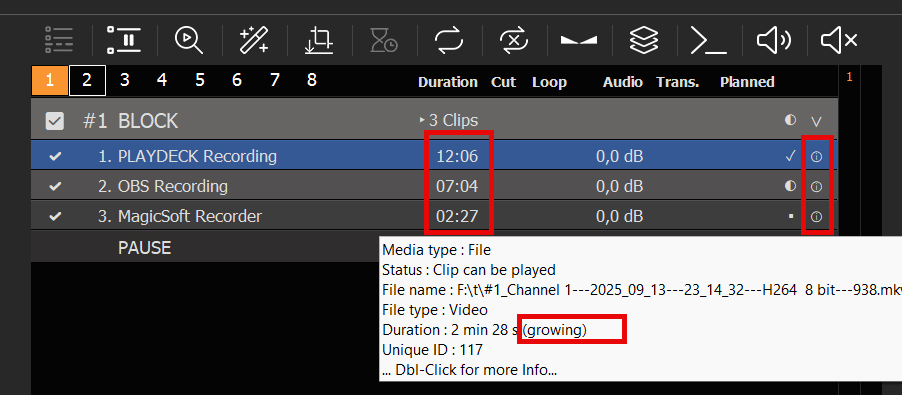
Possible Sources
The files can be recorded anywhere, they don’t need to be recorded in PLAYDECK. In the above screenshot we are using one PLAYDECK recording, another from OBS Studio and another from MagicSoft Recorder.
Possible Formats
Only the following file container formats are supported. But within that container you can use any video codec:
– MKV
– AVI
– MPEG
Cutting and Editing
You can cut and edit growing files the same way as regular files. For example: You can set an OUT point to the file and loop it, while it is still being recorded.
Video & Audio Output
Broadcast your Video Feed
This article will show how to send your channel video feed to any desired target and audience.
In this article:
→ Single-Monitor Output
→ HDMI via Extended Desktop
→ SDI / HDMI Output Card
→ SMTP ST 2110 / IP Output Card
→ NDI (Network Device Interface)
→ Streaming (UDP, RTMP, SRT, DVB, …)
→ Dante Virtual Soundcard (DVS)
→ Director View
Single-Monitor Output
The most simple way to show your Video Feed, is to output your Channel in Fullscreen. Enable Fullscreen by Double-Clicking the Preview or Right-Click and select “Fullscreen”:
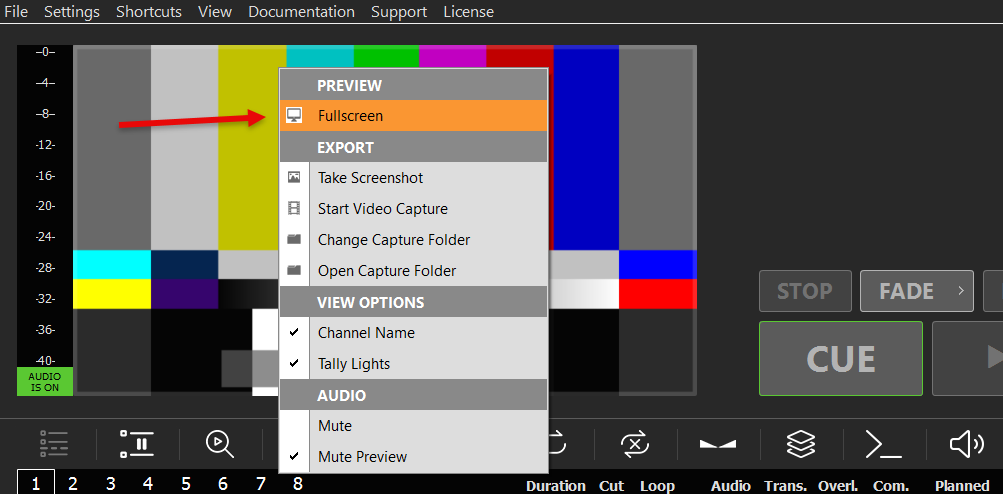
The Fullscreen Output will use a much higher quality and FPS as the regular Preview. You can exit the Fullscreen by pressing any Mouse Button or the ESC Key.
This Mode is best suited for quick private Slideshows. Here is an example on how to setup a Slideshow with PLAYDECK:
https://playdeck.tv/howto/slideshow/
HDMI via Extended Desktop
Another simple way to send your video feed is to use your HDMI outputs of your PC or your Graphics Card. To make the HDMI Output visible to PLAYDECK, you need to setup a new “Extended Desktop Output”, like you would do, if you added a secondary Monitor:
1. Connect in Windows
Connect your HDMI Device to your PC physically and turn the HDMI on, so Windows can find it. Connect it to your Graphics Card (preferred) or your Mainboard. Right-Click anywhere on your Desktop and select “Display settings”. You should see your new Monitor and it should say “Display is extended” (That’s why it’s called “Extended Desktop”). If you don’t have access to your HDMI Output Device yet (e.g. LED Screen), you can use any Dummy PC Monitor for Setup. PLAYDECK will later scale your (other) output automatically, if you use the same HDMI Port. Please also make sure, your Monitor uses 60 FPS and not 120 or 144, as this might lead to lag.
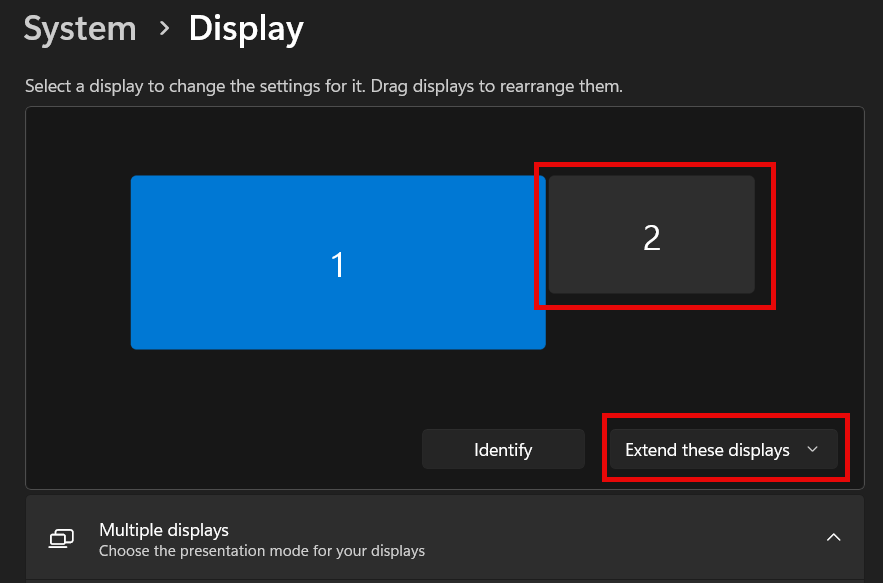
2. Assign in PLAYDECK
Start PLAYDECK and select your new Monitor as “Desktop Output” for your Channel. Once activated, PLAYDECK will “overlay” its output on the Monitor. It will be On-Top of all other Windows Apps and the Mouse Pointer will be disabled. Should you accidently activate this on your PRIMARY Display, press ALT+F4 to close it, as you cant access Windows or PLAYDECK otherwise.
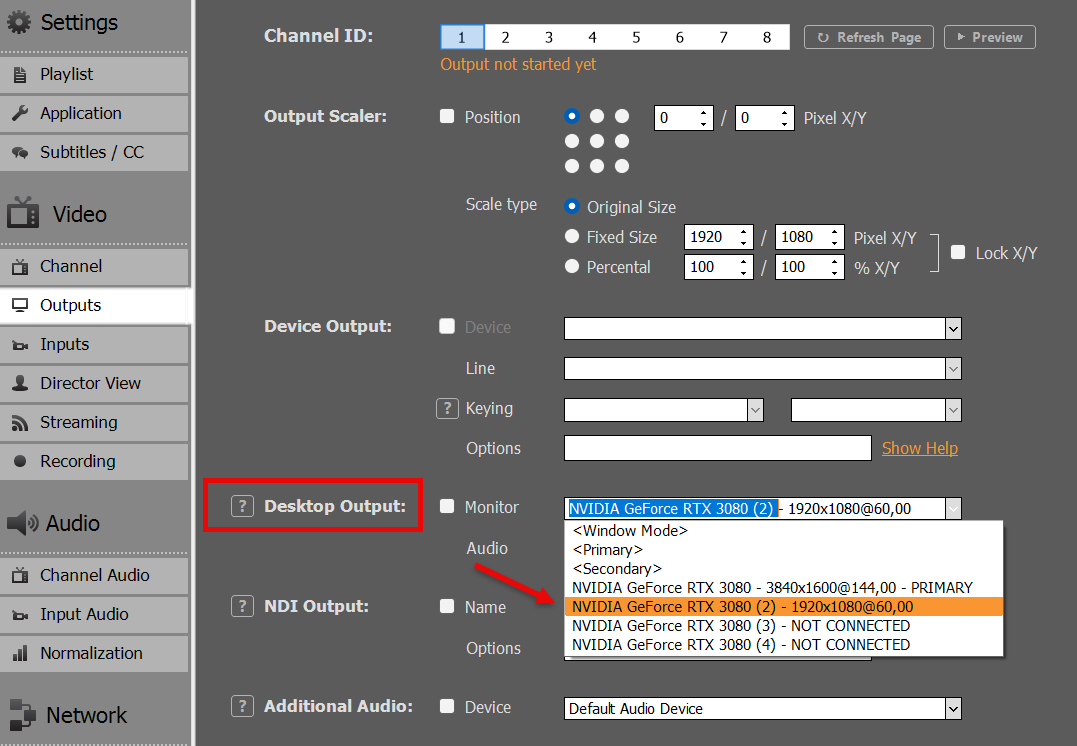
PLAYDECK is able to re-connect to your Desktop Output, should it disconnect or on a power-loss or if the HDMI Device is receiving power after PLAYDECK has been started already.
This Mode is best suited for local transmission to a TV or LED Screen, e.g. during exhibitions or events.
SDI / HDMI Output Card
Output Cards have a huge advantage over Desktop Output:
– Stronger Video Signal for longer cable transport
– Much less CPU/GPU Usage, as Card will offload resources
– No Frame Drops, as Cards have integrated Frame Rate Control and Conversion
– Much higher picture quality, especially Colors
Output Cards are almost always worth the costs and are highly recommended. They provide a much more stable video transport solution compared to Desktop Output and an overall better experience.
Find a list of all supported Output Cards:
https://playdeck.tv/howto/supporteddevices/
If you need a recommendation, we mostly use BlackMagic DeckLink Cards. They are available for SDI and HDMI:
https://www.blackmagicdesign.com/products/decklink
1. Install the Output Card into your PC
You would need a separate PCIe Slot on your Mainboard. Imagine this Card as “Secondary Graphics Card”. Prefer a PCIe slot wired to the CPU (motherboard manual: CPU, not Chipset). Shared/chipset slots often stutter even when bandwidth looks fine. Details: Troubleshooting.
You can also “host” your Card in an external housing for mobile production, like the “Sonnet Echo Express” and connect it via Thunderbolt, but please be aware that bandwidth available via Thunderbolt is lower than the PCIe bandwidth required for some some Cards like the “DeckLink 8K Pro”.
2. Install Driver for Windows
Most Cards need a specific Driver installed for Windows to operate. Those Driver also deliver Tools to test the Card before using it in PLAYDECK.
Make sure, you always have the latest Version of the Driver installed in your System for maximum stability and quality. For BlackMagic Card, PLAYDECK needs at least “Desktop Video 14.5” as Driver, otherwise the Card will not work as intended:
https://www.blackmagicdesign.com/support/family/capture-and-playback
3. Activate in PLAYDECK
Select your Output Cards and Line in PLAYDECK and activate the Device Output. Unlike Desktop Outputs, these Output Cards don’t need a connected display via SDI or HDMI, they will activate right away:
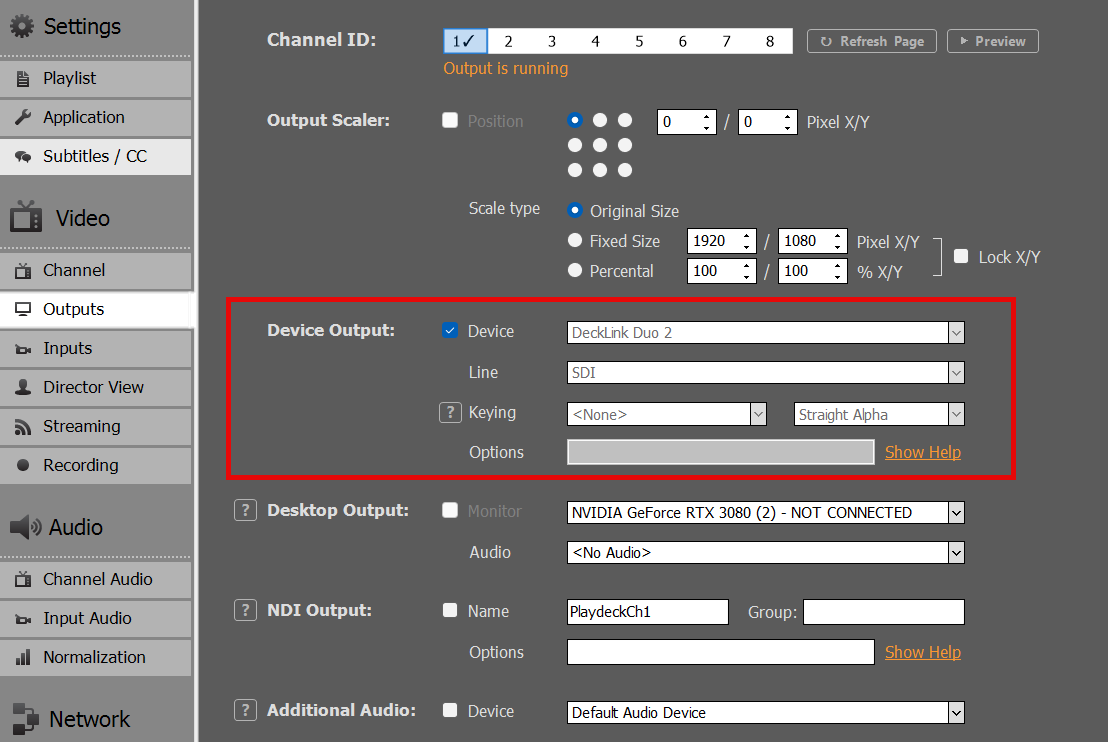
SMTP ST 2110 / IP Output Card
These Cards are very similar to SDI/HDMI Cards described above. Please read there for Installation.
The difference between 2110 and SDI Cards is, that 2110 Cards send the signal via LAN (local area network). This is a modern and growing standard for Studios to transport video signals within the company. While it is theoretically possible to use existing LAN for ST 2110, it is recommended to use a separate LAN with specific PTP-aware switches (precision time protocol). Once setup, the main advantage is, the multiple receiver can easily access the video feed generated by PLAYDECK.
We provide a separate article for 2110 Devices and their Network setup options:
https://playdeck.tv/howto/2110-device-setup/
NDI (Network Device Interface)
NDI is another Network Transport Option for your video feeds. It can be used with the existing LAN (local area network) and doesn’t need specific network configuration. It provides its own “discovery system”, meaning: You send your NDI signal into the network and it will be automatically detected by any NDI receiver.
NDI is the preferred method to exchange video feeds with other Applications. Here are some examples:
https://playdeck.tv/howto/obs-studio/
https://playdeck.tv/howto/vmix/
NDI can also be used in a Cloud Setup, e.g. Amazon EC2 instances, to transport between server:
https://playdeck.tv/howto/amazon-ec2/
You can use NDI to “loop” the Signal within PLAYDECK for specific Tasks, like this Picture-In-Picture:
https://playdeck.tv/howto/pip/
There are many tools available to help you setup NDI in your environment:
https://ndi.video/tools/
If you need to setup a NDI Discovery Server, this will help you:
https://ndi.video/tools/access-manager/
https://docs.ndi.video/all/using-ndi/ndi-tools/ndi-tools-for-windows/access-manager
Note: There has been a problem with NDI causing stuttering after a window update. Here is the solution:
https://www.vmix.com/knowledgebase/article.aspx/376/windows-update-affecting-ndi-stability
Streaming (UDP, RTMP, SRT, DVB, …)
You can pick out of several Streaming Protocols, which all serve a different purpose.
– UDP/RTMP Streaming: Low-latency Live Streaming
– SRT: High-reliability Broadcasts
– DVB: Traditional Broadcasting
– And many more (RTP, RIST, Icecast, HLS
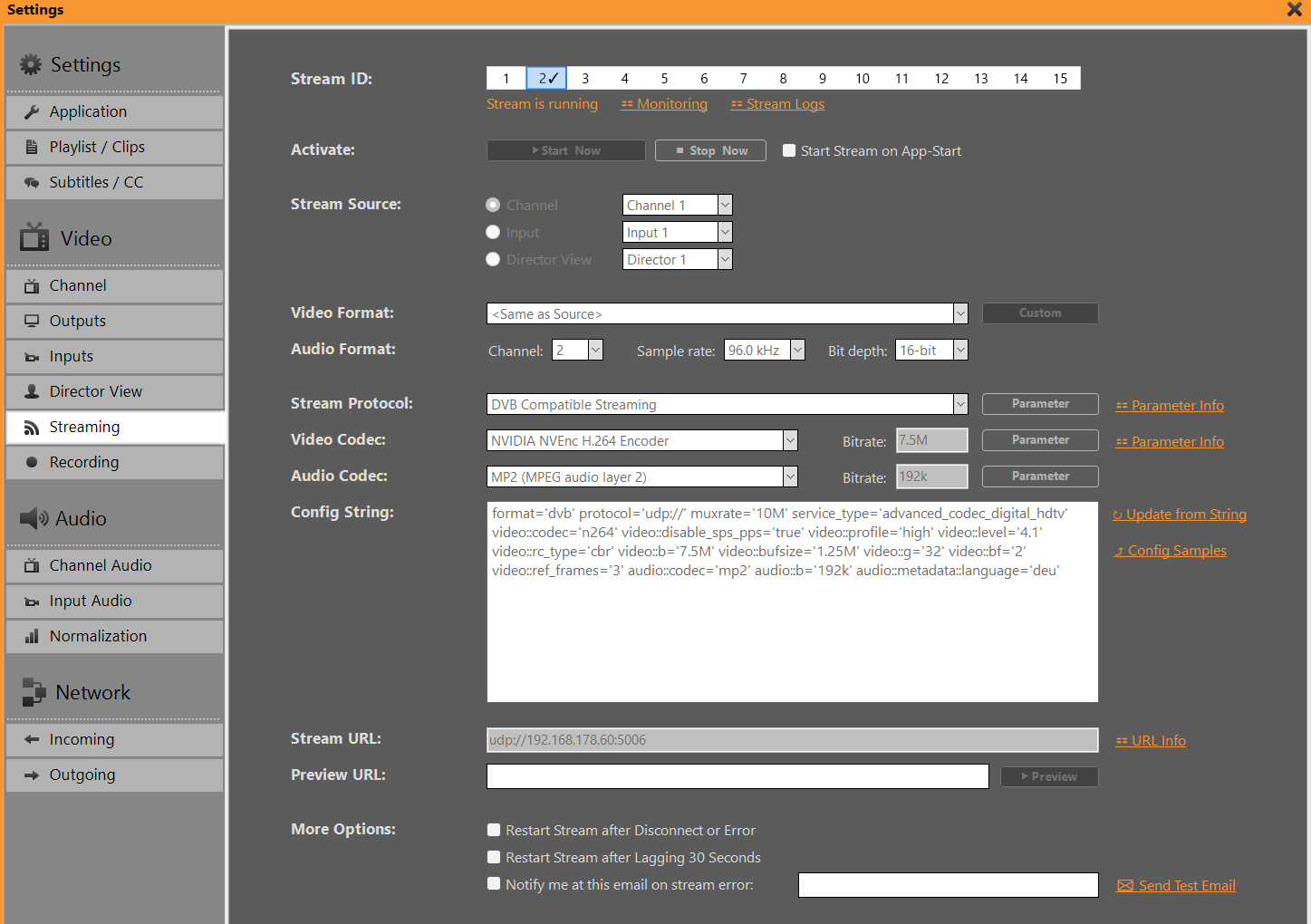
We provided a more in-depth article for streaming:
https://playdeck.tv/howto/output-streams/
Dante Virtual Soundcard (DVS)
This is strictly speaking not a video feed, as DVS is audio-only. This is yet another Network (LAN) Option. The use case for DVS is, if you need to send your audio feed SEPARATE or ADDITIONAL to your video feeds, or in audio-only productions. The most common use case is, that in live events, the audio mixer needs ALL audio feeds of ALL PLAYDECK channel, meaning: He wants to receive 8 audio channel in stereo pairs of your 4 video channel.
We are providing an article to setup and use Dante:
https://playdeck.tv/howto/dante/
Director View
This is a specific Output option PLAYDECK provides, to inform your crew of the state of affairs: This will mix several different video feeds into one video feed and overlay information about remaining time. This is meant to provide assistance in a multi-room or multi-person environment.
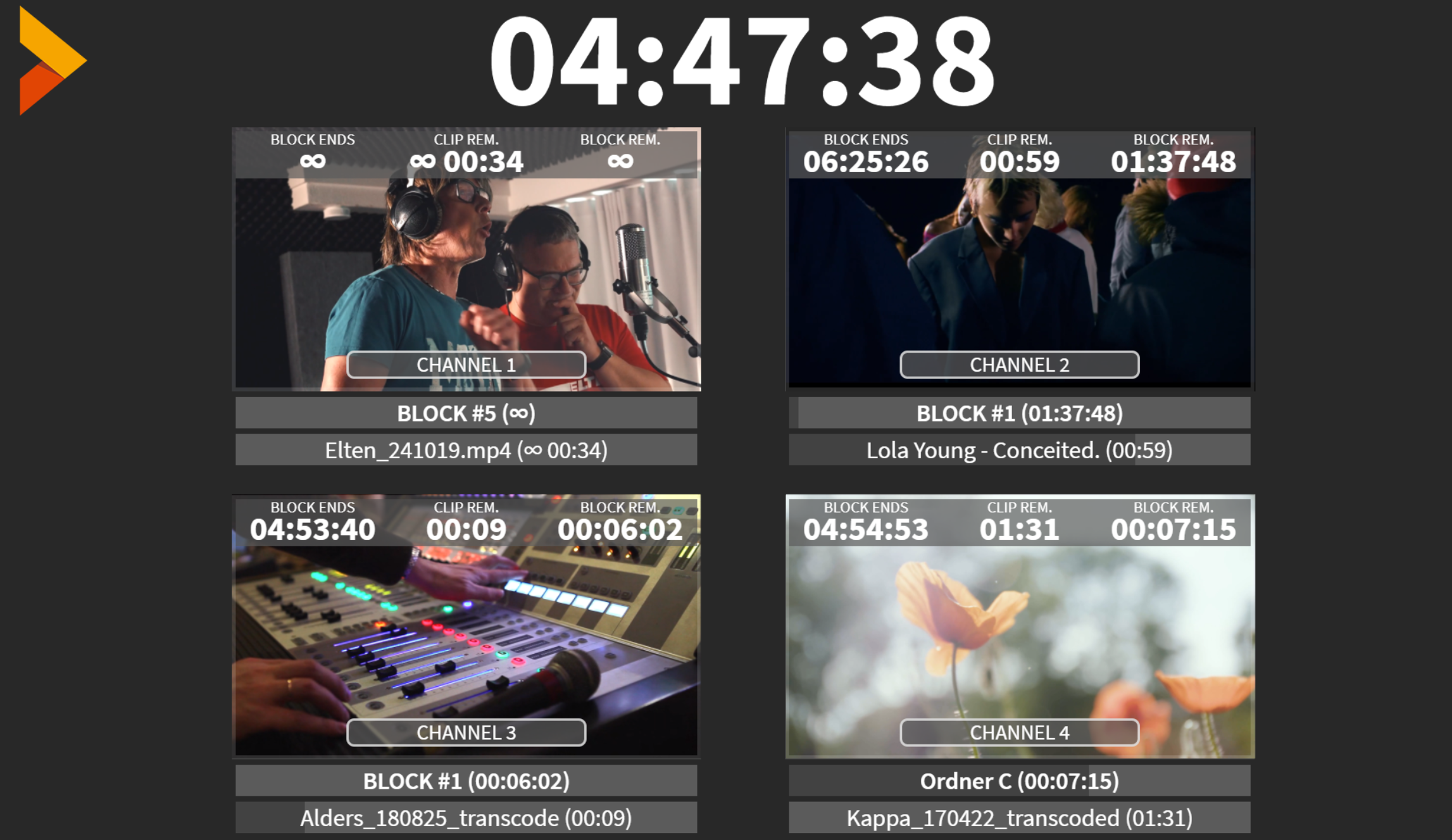
This video feed works like a separate channel: You can send it parallel to your other outputs. You can setup and send up to 4 different Director Views. You can pick how many and which channel should be included:
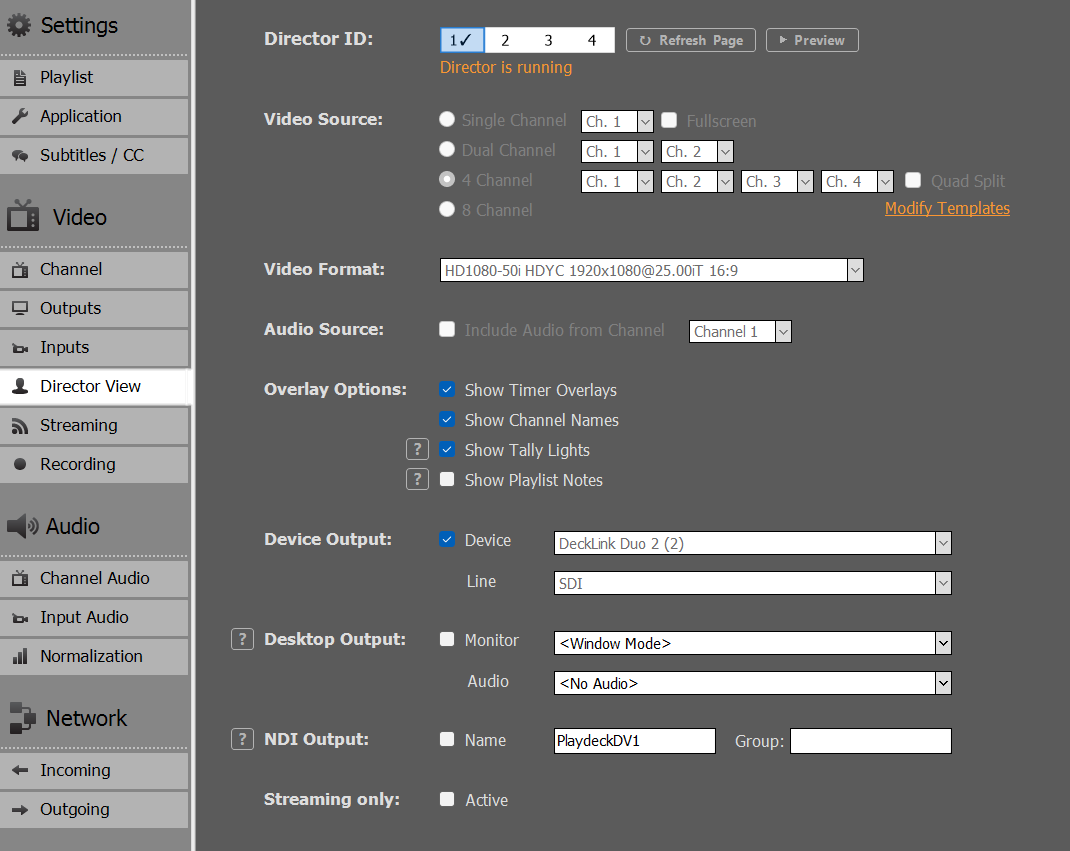
In addition, you can modify the overlay to fit your own company, e.g. integrate your own logo or change fonts.
Setup of your Output Streams
This article will show how to setup your Output Streams for different purposes.
In this article:
→ Introduction
→ Using Parameter and Config String
→ Config Samples
→ AAC High Quality Audio Streams
→ Color Space and Chroma subsampling and Interlace
→ Multiple Audio Tracks
→ Routing Streams over specific IP
→ Monitoring & Troubleshooting
Introduction
You are able to setup 15 different Stream Configurations for any Source, being Channel, Inputs and Director View. As a default, your Video Format is copied from the Source, once the Stream starts, but you can transcode into any Resolution.
Once you pick your Protocol, the other Fields for Video/Audio Codec and URL will change according to your selection, meaning: Not every Video/Audio Codec will be available for every Stream Protocol.
INFO: NVIDIA Encoder do NOT support Interlaced Formats anymore. Pick Intel QuickSync instead.
Your URL will show a suggestion of the required URL Format. Click on “URL Info” to show more examples, e.g. how to integrate Username/Password. The Preview URL will not be used by PLAYDECK, it’s just for your convenience to open the Internet Browser upon clicking “Preview”.
Using Parameter and Config
Further Parameter can be set to Protocol and Codecs, which are specific for your selection. These can be used to finetune your Settings, e.g. make your Stream CBR or add Metadata.
Clicking on “Parameter” will open a Editor, which will only show the possible Settings for your selection. It will highlight any Value that differs from the Default Value.
The “Config String” is a representation of all your Protocol/Codec selection as well as their respective Parameter. The Config String works both ways: You can also copy/paste a Config String into the Text Field, then click “Update from String” to apply the Values upwards. This allows you to simply copy Settings between Stream ID’s or share with other User.
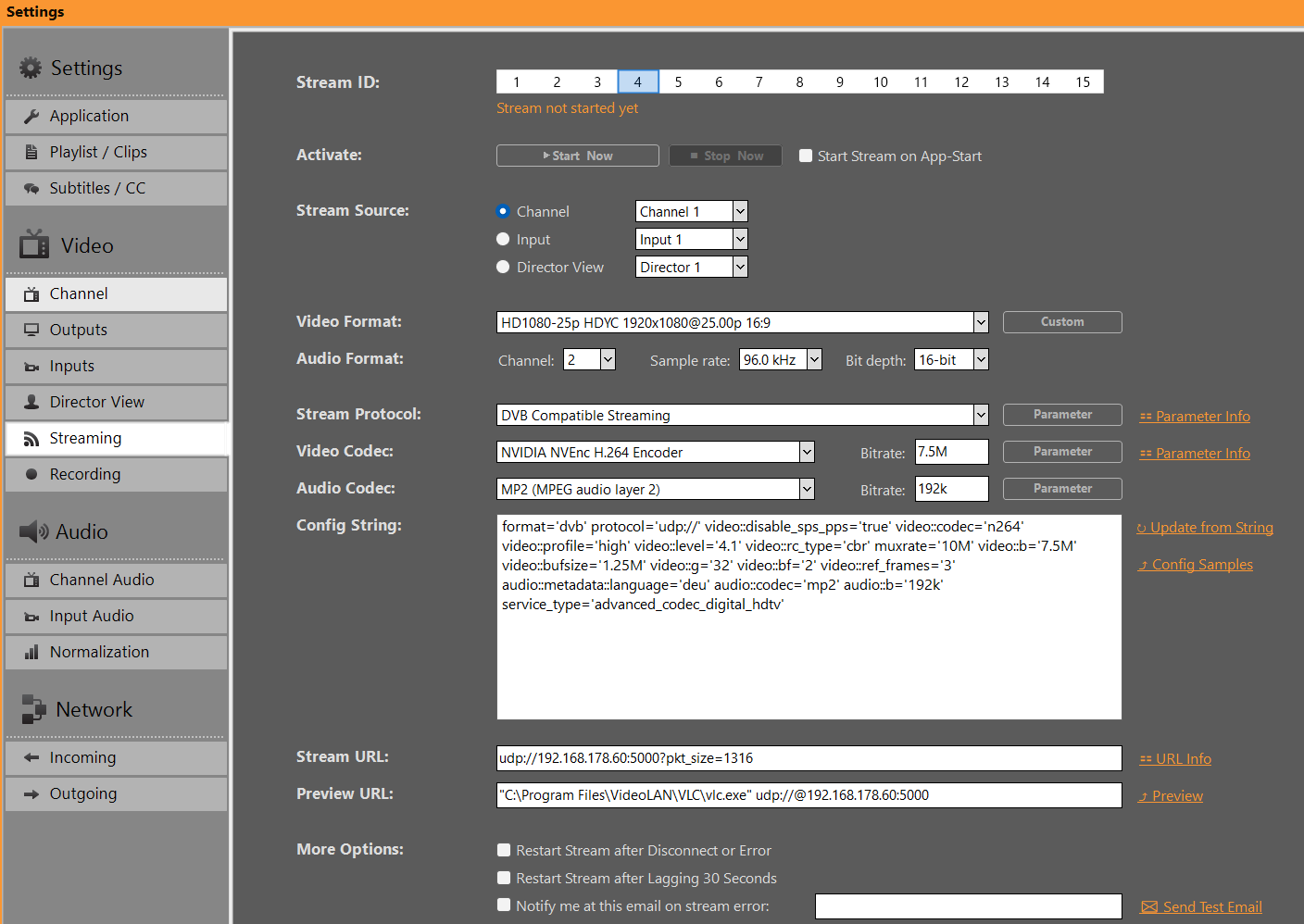
Config Samples
Here is a quick selection of recommended Configurations for different purposes. Copy and Paste to PLAYDECK and click “Update from String”.
DVB Stream with CBR and GOP B-frames. No PCR or PTS-DTS or Buffer underrun Error
format='dvb' protocol='udp://' mpegts_start_pid='60' video::streamid='80' video::disable_sps_pps='true' video::codec='n264' video::profile='high' video::level='4.1' video::rc_type='cbr' muxrate='10M' video::b='7.5M' video::bufsize='1.25M' video::g='32' video::bf='2' video::ref_frames='3' audio::streamid='81' audio::metadata::language='deu' audio::codec='mp2' audio::b='192k' pmt_start_pid='100' mpegts_flags='-system_b' rc_buffers='4' pcr_period='35' pat_period='0.1' sdt_period='0.5' tdt_period='10' start_pcr='0' service_name='TEST' service_provider='PD' service_id='1' original_network_id='1' transport_stream_id='201' service_type='advanced_codec_digital_hdtv'
Or in Short Form:
format='dvb' protocol='udp://' video::disable_sps_pps='true' video::codec='n264' video::profile='high' video::level='4.1' video::rc_type='cbr' muxrate='10M' video::b='7.5M' video::bufsize='1.25M' video::g='32' video::bf='2' video::ref_frames='3' audio::metadata::language='deu' audio::codec='mp2' audio::b='192k' service_type='advanced_codec_digital_hdtv'
INFO: Every DVB Receiver is different und you might need different Parameters. Some Receiver will not allow ANY deviancy from official guidelines, and will show BLACK. The most reliable solution to encode DVB signals are Hardware Encoder, e.g. Haivision.
Best practice to test DVB Streams for PCR Error or other, is using one of these Tools:
– DVBControl DVBAnalyzer (costs ~2000 EUR, but is most reliable and detects PTS-DTS Error)
– StreamGURU (costs ~300 EUR, can detect any ETR Error and shows Bitrate Graphic)
– TSAnalyzer (free, but can ingest Stream URL, needs TS File on HD)
– Others worth mentioning: DVBInspector, Elecard Stream Analyzer, StreamXpert
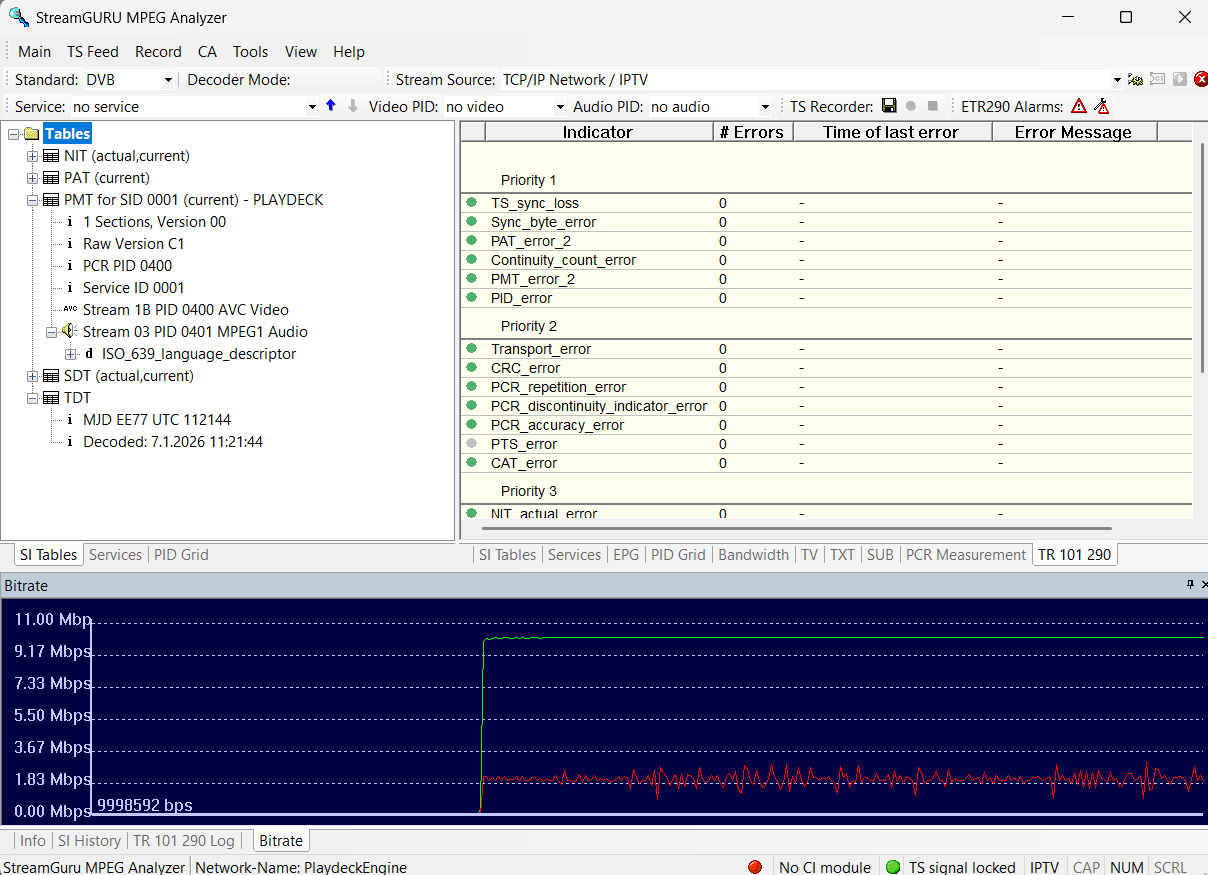
————————————————————
SRT Stream in CBR for 25 FPS with High Quality Audio
The next Sample is being used by several Customer in a Multichannel Stream Setup to broadcast Music Video Content. This Config runs smooth for 4 parallel Output+Stream Channel – achieving optimal sound and picture quality with FHD ACC audio.
format='mpegts' protocol='srt://' video::codec='n264' video::b='4M' video::rc_type='cbr' video::preset='p4' audio::codec='aac' audio::b='128K' audio::profile='aac_low' audio::stereo_mode='ms_force' audio::minrate='128K' audio::maxrate='128K' audio::bufsize='128K' audio::aac_coder='0'————————————————————
RTMP Stream in CBR for 60 FPS with 2 second-keyframe
The next Sample is for YouTube. Use the YouTube Analytic and Stream Health Tools to test your Stream Satbility:
format='flv' protocol='rtmp://' video::codec='n264' video::b='9000k' video::maxrate='9000k' video::bufsize='9000k' video::g='120' video::preset='veryfast' audio::codec='aac' audio::b='128k' audio::ar='44100'
The next Sample is for Twitch. Use Twitch Inspector to check your Stream Stability and add “?bandwidthtest=true” to your Stream URL to prevent going Live.
format='flv' protocol='rtmp://' merge_tracks='true' video::codec='n264' video::b='5800k' video::maxrate='5800k' video::bufsize='5800k' video::g='120' video::preset='veryfast' audio::codec='aac' audio::b='128k' video::tune='zerolatency' audio::codec='aac' audio::ar='44100' audio::b='128k'
————————————————————
Sony XDCAM HD422 Standard
video parameters—including 4:2:2 chroma subsampling, a specific GOP structure (M=3, N=15), and interlaced field processing—alongside professional-grade 24-bit PCM audio at a 48 kHz sample rate.
format='mxf' video::codec='mpeg2video' video::b='50M' video::interlace='1' video::top='1' video::g='15' video::v422='true' video::bf='2' video::flags='+ildct+ilme' audio::codec='pcm_s24le' audio::ar='48000'AAC High Quality Audio Streams
The default AAC streaming settings save CPU, but might sound flat on music channels. For pristine audio, choose one of the two profiles below based on your target audience and source material.
Quick Prep:
– Source: Use 48 kHz clips (320kbps or lossless PCM).
– Video: Lower video to 720p30 if bandwidth is low. Always use hardware encoding.
Option 1: Maximum Compatibility & Stability (Safe Variant)
Best for: Standard streaming, cable operators, and DVB-T multiplexers. This is the safest profile to prevent phase issues across various types of content.
format='mpegts' protocol='udp://' video::codec='n264' video::b='4M' audio::codec='aac' audio::b='256K' audio::profile='aac_low' audio::aac_coder='0'
audio::profile=’aac_low’: Sets AAC-LC for maximum quality and 100% hardware decoder compatibility.
audio::aac_coder=’0′: Forces a high-quality two-loop encoding run for clear transients. (Change to 1 if you face CPU spikes).
Dynamic Stereo: Leaves stereo management to the encoder, making it highly resilient against imperfect source material.
Option 2: High-Fidelity Streaming (Optimized Stereo Variant)
Best for: Dedicated music channels with pristine studio-grade source files. This profile utilizes a tight VBR envelope and forced Mid/Side stereo processing.
format='mpegts' protocol='udp://' video::codec='n264' video::b='4M' audio::codec='aac' audio::b='256K' audio::profile='aac_low' audio::stereo_mode='ms_force' audio::minrate='200K' audio::maxrate='320K' audio::bufsize='640K' audio::aac_coder='0'
audio::stereo_mode=’ms_force’: Forces Mid/Side stereo processing, maximizing bandwidth efficiency for deep, wide stereo soundscapes.
minrate=’200K’ / maxrate=’320K’ / bufsize=’640K’: A tight VBR envelope that prevents quality drops in quiet passages while leaving room for heavy musical peaks.
Note: If your audio lacks “punch” or sounds hollow on certain clips, switch back to Option 1, as your source material might contain phase inconsistencies.
Color Space and Chroma subsampling and Interlace
The Support for certain Color Spaces, e.g. 4:2:2 for DVB, or Interlaced Encoding, depend very much on the Intel CPU or NVidia GPU you are using.
Here is a page for NVidia NVenc and 422 Support and here for Intel Quick Sync and 422 Support.
In basic terms:
1. NVidia Support for Interlaced Encoding:
– Pascal (GTX 10-Serie): Last architecture with interlace support
– Turing / Ampere / Ada (RTX 20/30/40): Hardware support for interlaced encoding was removed
– Blackwell (RTX 50-Serie): Interlaced encoding for H.264 (8-bit and 10-bit) has been re-introduced
2. NVidia Support for 4:2:2 Color Space:
– Blackwell (RTX 50-Serie)
3. Intel Support for 4:2:2 Color Space
– 10th Gen and newer processors offer support for Hardware Accelerated encoding and decoding of HEVC codec on 4:2:2 color sampling via Quick Sync.
– Previous graphics controllers on 9th Generation Intel® Core™ Processors and older were limited to HEVC codec 4:2:0 color sampling for hardware accelerated encoding and decoding.
This is a quick config sample to encode 4:2:2 with Intel Quick Sync (10th Gen+)
format='dvb' protocol='udp://' video::codec='hevc_qsv' video::b='5M' audio::codec='aac' audio::b='128K' video::pix_fmt='yuyv422'
Note: Features such as interlace and 4:2:2 color space are also available in x264 CPU encoders. Since we use an LGPL version of FFmpeg without GPL parts (e.g., libx264), these features are not enabled. It is possible to replace the FFmpeg libraries with your own versions.
Multiple Audio Tracks
If you need to send multiple Audio Tracks, e.g. for different Languages or for Director Audio, you can do so with all supported Protocols (DVB, RTMP, UDP and some more). You can also apply different Audio Codecs.
The way this works is, that you have ALL Audio Tracks already active in your Channel, then SPLIT the Audio Tracks for your Stream Output in e.g. Stereo Pairs.
First, make sure your Channel is set to more then 2 Audio Channel:
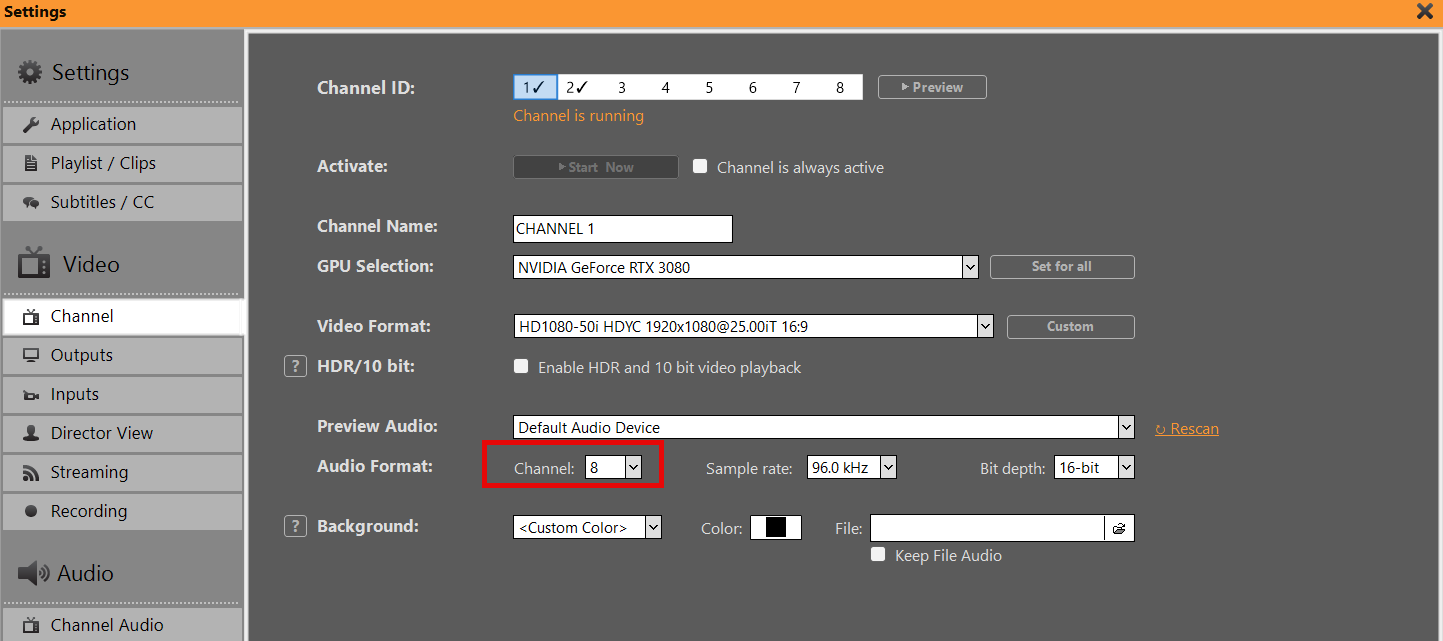
Then “fill” these Audio Channel with Audio Content, e.g. by enabling All Audio Tracks on a Clip or ingesting all Tracks via SDI (up to 16 Audio Tracks). You can also use Audio Mapping to mix up/down your Audio Tracks or use Audio Filter to copy and delay certain Audio Tracks.
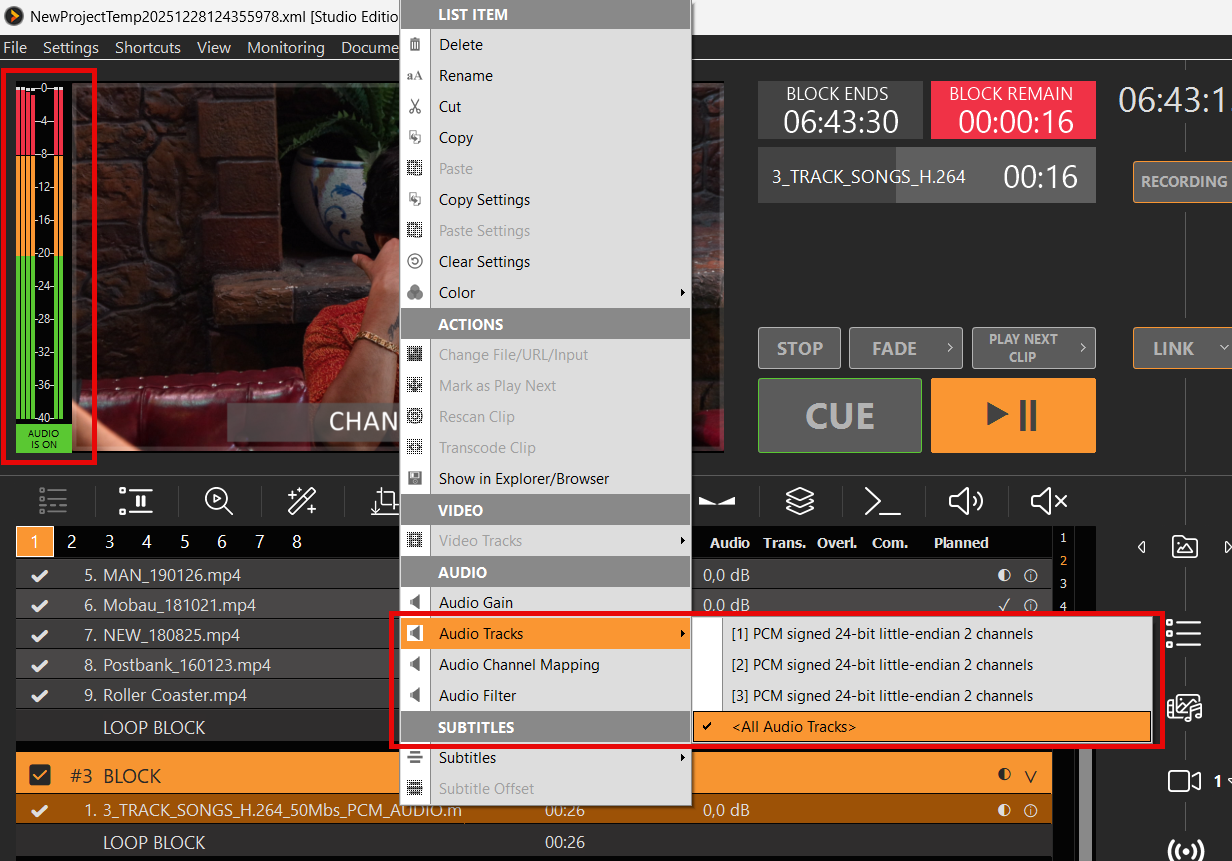
Then you open your Stream Settings, especially the Parameter of your Stream Protocol and enable Audio Track Splitting:
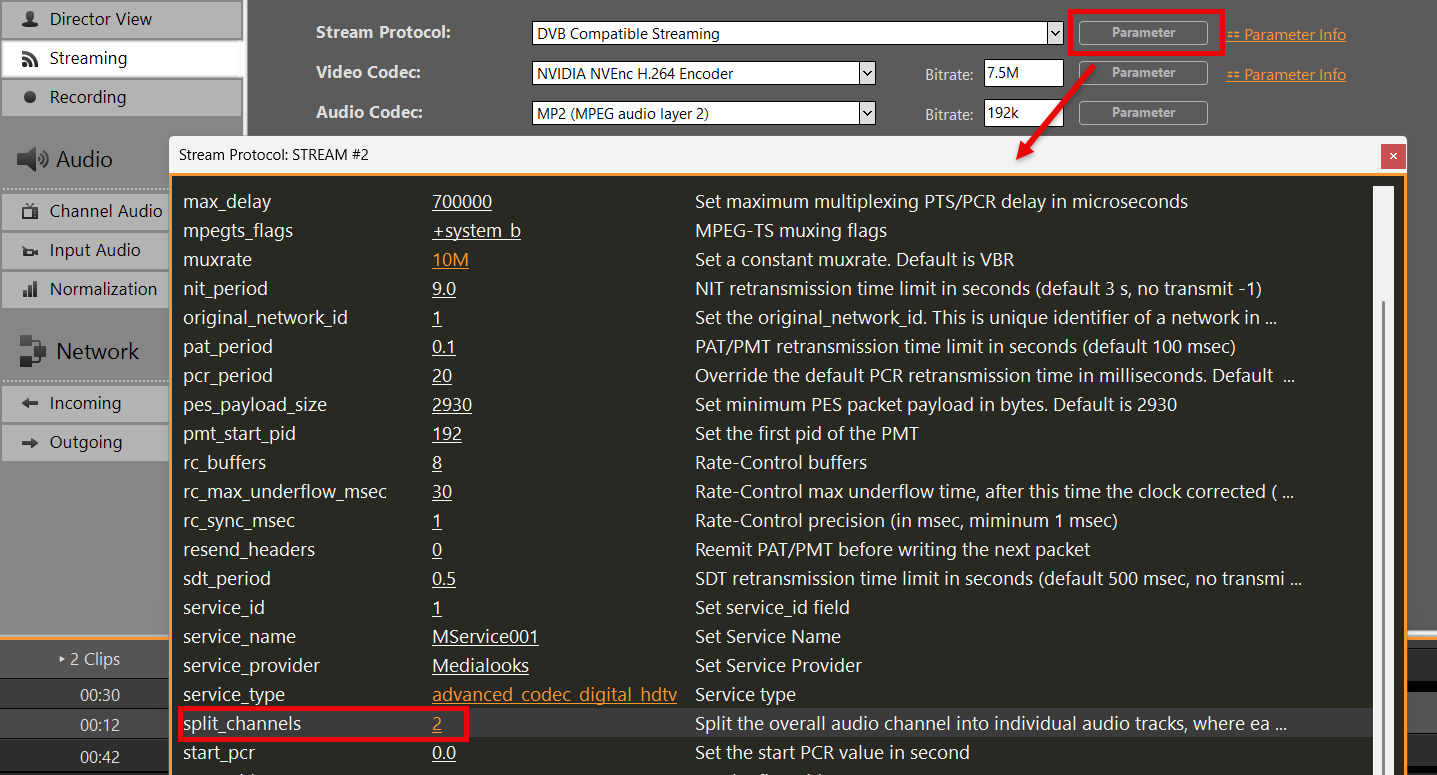
INFO: The Number of Audio Channel in your Stream Settings need to stay at 2.
If needed, you can apply different Audio Codecs for the addition Audio Tracks. Please note the added and increasing Numbers for every Audio Tracks after the first one:
audio::codec='aac' audio.1::codec='ac3' audio.2::codec='libmp3lame' audio.3::codec='mp2'
You can also apply a Language Descriptor for every Audio Track:
audio::metadata::language='eng' audio.1::metadata::language='ita' audio.2::metadata::language='fra' audio.3::metadata::language='ger'
INFO: Language Codes must comply to ISO 639-2
You can then test your resulting Audio Tracks in e.g. StreamGURU:
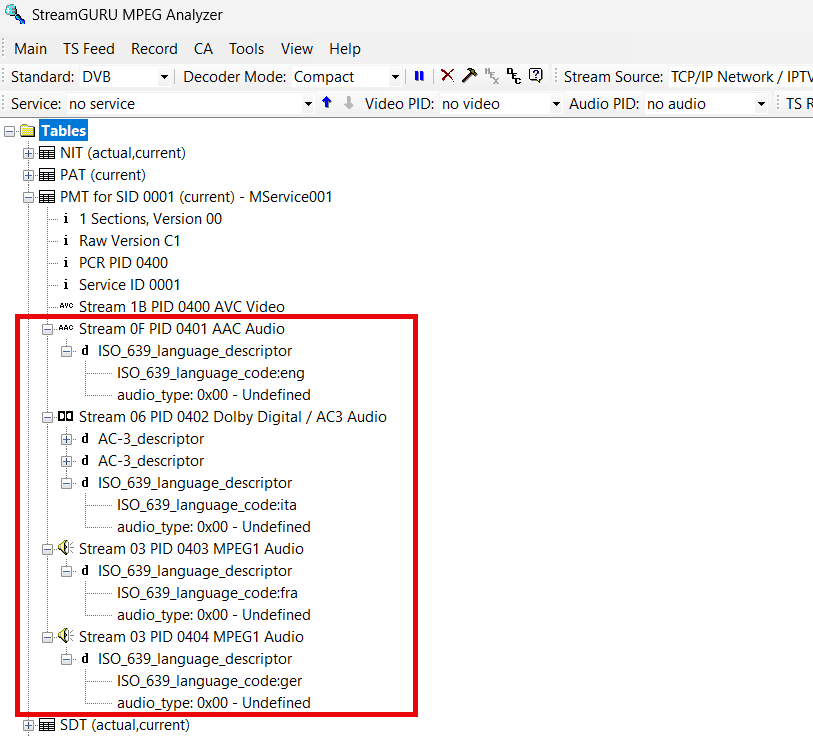
Routing Streams over specific IP
Your production requires you to send your streams via specific networks. This is mostly used to have a dedicated/reserved line for streaming, so it doesn’t interfere with regular network traffic.
If using UDP Streams you simple add this parameter directly to the URL:
udp://ip:port?localaddr=172.20.10.2
If using SRT Streams you simple add this parameter directly to the URL. This only works in rendezvous mode:
srt://ip:port?mode=rendezvous&localip=172.20.10.2
If using RTMP Streams, there sadly is no paramter. You need to route all RTMP outbound traffic manually. For this we use Proxifier. Goto Profile, Proxification Rules, Add new Rule and edit like this and move it to the top if the rules. Pick your desired adapter via “Advanced”.
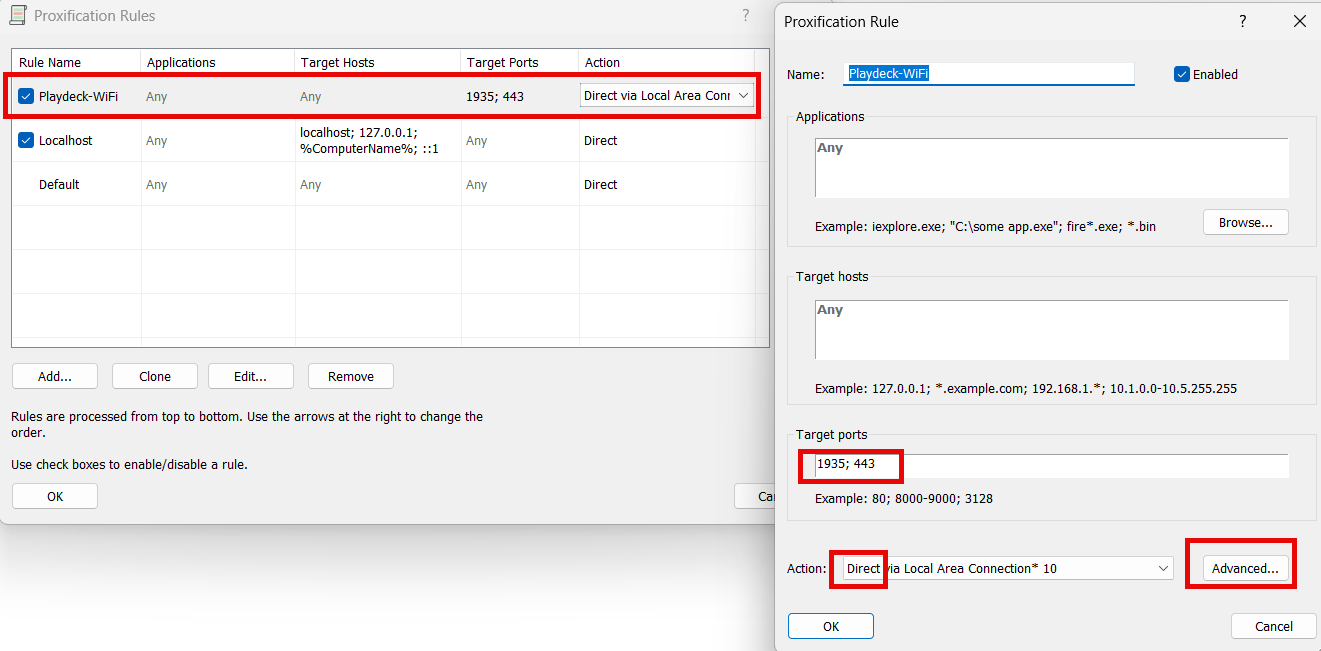
If you want to run a dry test locally without the 2nd line, enable both Ethernet Adapter and Wifi on your PC, then Start a new Hotspot on your Mobile Phone and connect PC Wifi to that Phone. Then open Console (“cmd”) and type “ipconfig”. The IP address you need is there:
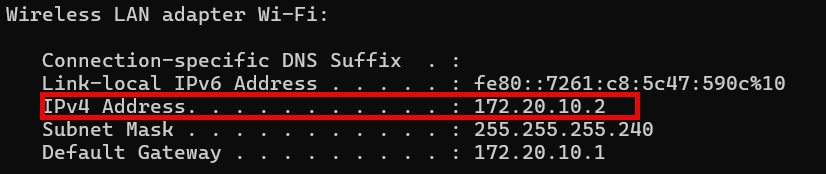
You can test your network traffic with wireshark.
Monitoring & Troubleshooting
If your Streams are lagging or even stopping completely, you are often in the dark what exactly happened. Here are some pointer to help you identify the problem.
1. Bitrate
Follow this Rule: The Video and Audio Bitrate Setting (for your Stream) should never exceed the Clip Encoding Bitrate. Check by right-clicking your Clip in the Playlist and open MediaInfo. In this case, set your Video Bitrate to 3M and Audio Bitrate to 128K.

2. Monitoring
Open the Monitor Window in PLAYDECK or open the Stream Logs.
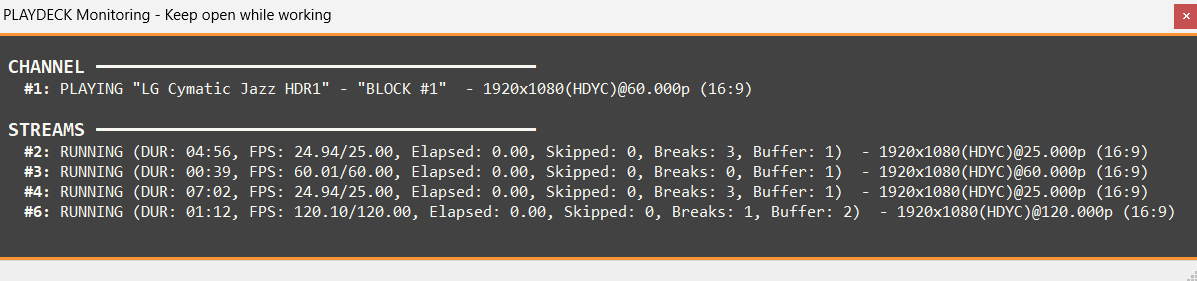
FPS 50/60 (FPS Average/Desired)
Compares the current and average encoding frame rate against the desired level. A drop here indicates the system cannot keep up with real-time encoding.
Elapsed (Frame Waiting Time in Seconds)
Shows Time elapsed after the last Frame has been processed. If this value increases, not frames can be processed due to missing Source, or false settings or no connection.
Skipped (Dropped Frames)
The most critical indicator of performance bottlenecks. If this value increases, the encoder is intentionally dropping frames because it cannot process them fast enough.
Breaks (Frames lost)
If the network is slow, you see Breaks because the Server wants a new frame but it cannot get there in time (for protocols that requires acknowledgement like RTMP or SRT). Breaks can also happen if the Source does not deliver a frame in time.
Buffer (Frames waiting)
Monitors the number of frames waiting in the internal queue. A constantly growing buffer typically precedes skipped frames or Breaks. High Skipped, Low Breaks: This usually means your CPU/GPU encoder is too slow. High Breaks, Low/Zero Skipped: This usually means the network or source is the bottleneck. The writer is ready to encode but the frames aren’t arriving or being “pulled” at the correct time intervals due to the connection lag.
3. Network/Bandwidth Problems
Turn of all your Streams, open your Windows Console (“cmd” in Start Menu) and type
tracert <hostname_or_ip>
Use your Target URLs Hostname or IP Address. If you see any Values >100 ms, this will indicate a slow connection to your Stream Target.
Also keep in mind, that while today Download Speeds with Fibre, Cable or DSL or mostly high speed (>100 Mbps), the Upload Speed could be very much slower than that. Use a Tool like Speedtest to determine your actual Upload Speed.
Also use Bandwidth Profiler on the Stream Server to check, if your desired Bitrate is also received on the Server. Most Provider or Software will provide with Tools to measure the received Bitrate. Ideally it is shown as Graph, which can point out any Gaps during the Transmission. If you have no Tool at Hand, we recommend streaming to YouTube, as it has a build-in Stream Analyzer, which is very useful to diagnose any instable connections.
In addition, please check with your Provider or Service, if the provide any LOCAL Stream Ingest URL’s for your Region or Country. As an example, Twitch provides these Twitch Ingest Endpoints.
ASIO / Dante Virtual Soundcard
This article explains how to setup ASIO audio interface and devices with PLAYDECK.
In this article:
→ Setup ASIO
→ Dante Virtual Soundcard (DVS)
→ Troubleshooting
Setup ASIO
Enable the “Additional Audio Output” setting to output audio via ASIO.
Important: As a real-time playout solution, PLAYDECK requires a stable synchronization clock from the ASIO device. Without this clock signal, frames cannot be processed correctly, resulting in severe stuttering.
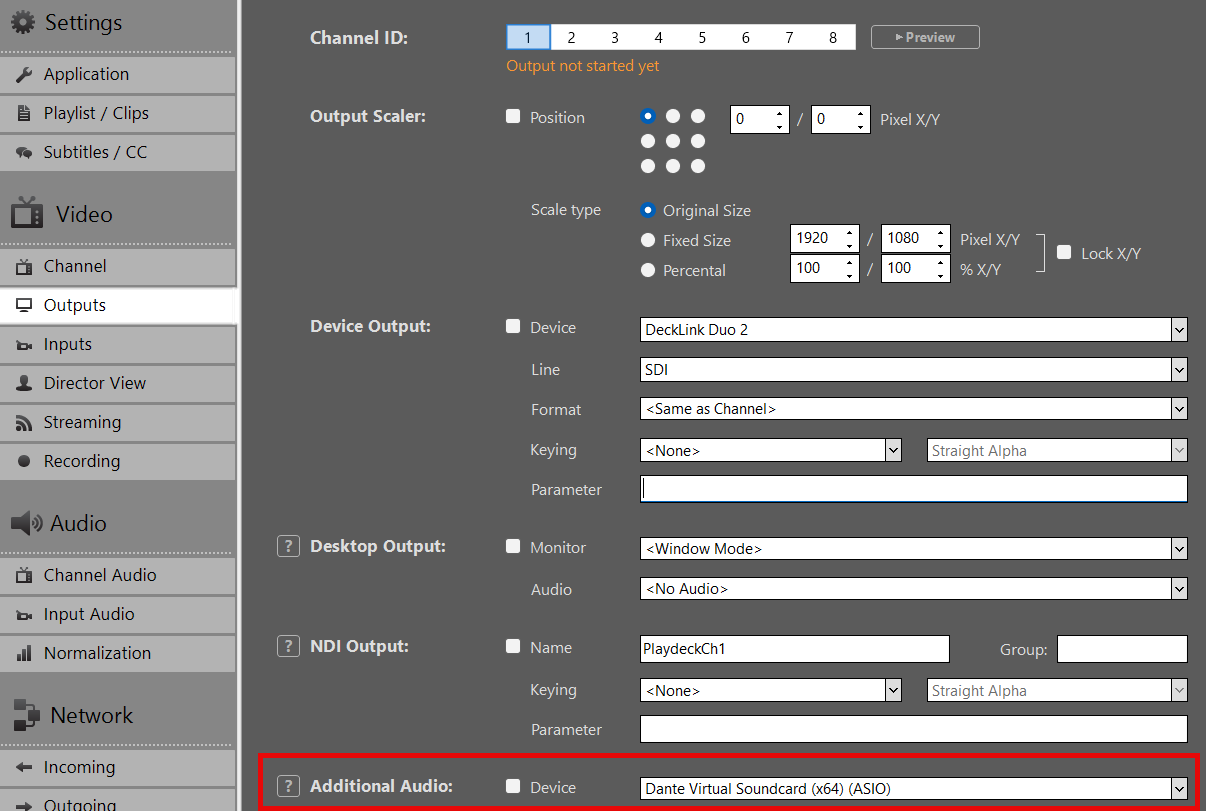
Dante Virtual Soundcard (DVS)
Dante Virtual Soundcard (DVS) is a software solution that turns your computer into a Dante-enabled workstation, allowing you to transmit and receive high-quality audio over a standard Ethernet (LAN) network.
https://www.getdante.com/products/software-essentials/dante-virtual-soundcard/
You can interface DVS with PLAYDECK using either ASIO or WDM mode:
- ASIO (Recommended): Transmit up to 64 audio channels across all PLAYDECK outputs. This provides the lowest latency and highest channel count for professional workflows.
- WDM: Limited to 16 audio channels, restricted to one stereo pair per PLAYDECK output channel.
Configuration Steps
1. Start the DVS Engine:
Open the Dante Virtual Soundcard control panel, set the interface to ASIO, and click Start.
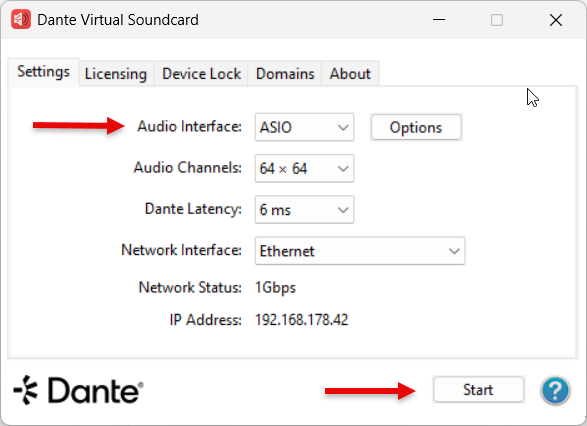
2. Select the Device in PLAYDECK:
You can now select “Dante Virtual Soundcard” as your ASIO device within the PLAYDECK settings.
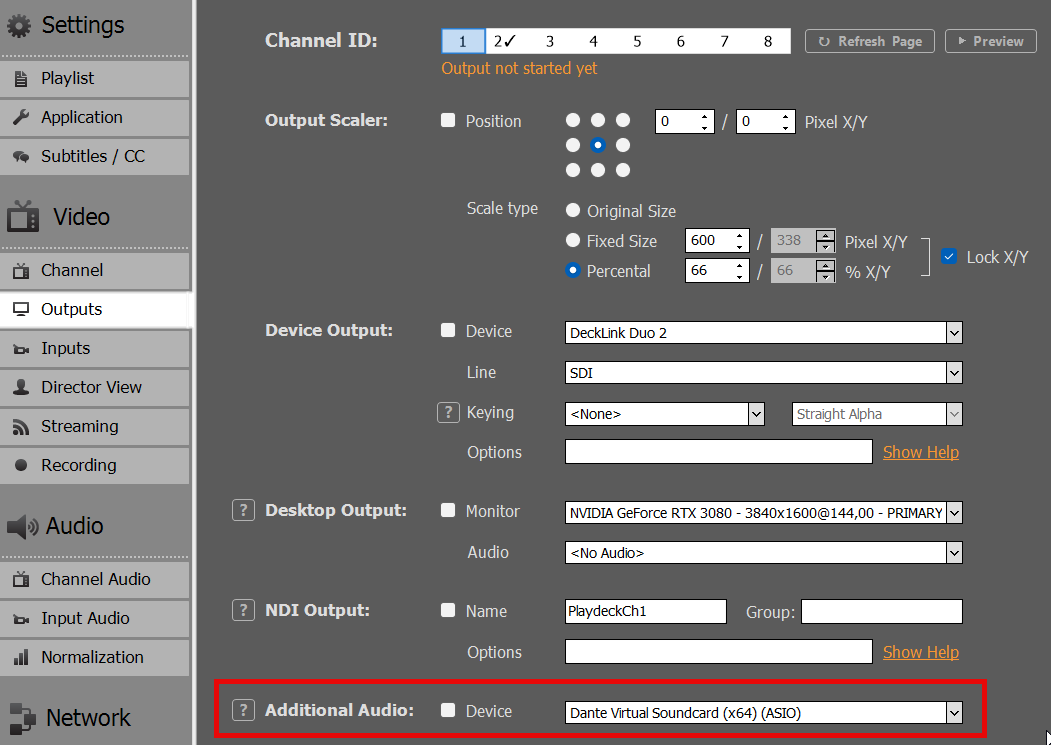
3. Channel Mapping:
PLAYDECK will automatically begin routing the audio channels assigned to that specific output. A single output can support up to 32 audio channels.
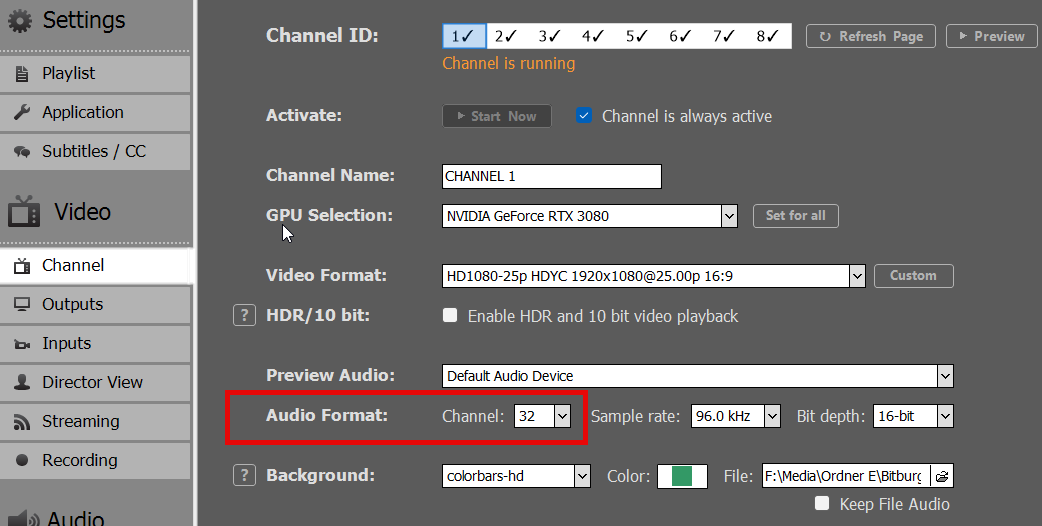
4. ASIO Device Splitting:
To use the ASIO driver across multiple PLAYDECK output channels simultaneously, enable ASIO Device Splitting.
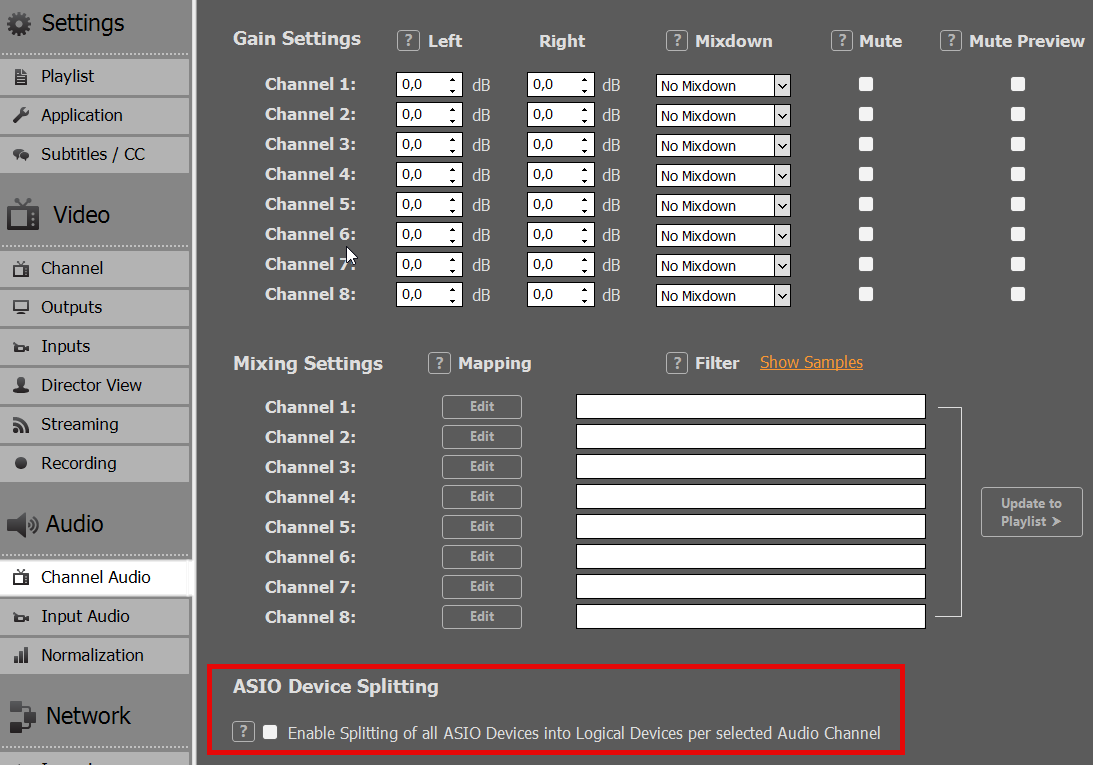
5. Assigning Multiple Outputs:
Once splitting is active, DVS will appear as multiple sub-devices. This allows you to assign a dedicated ASIO device to each individual PLAYDECK output channel.
Note on Splitting Logic: The channel allocation is determined by the “Audio Channels” setting for each output. For example, if Output 1 and 2 are set to 8 channels each, and others are set to 2 channels, the ASIO driver will split the stream accordingly to accommodate those specific requirements.
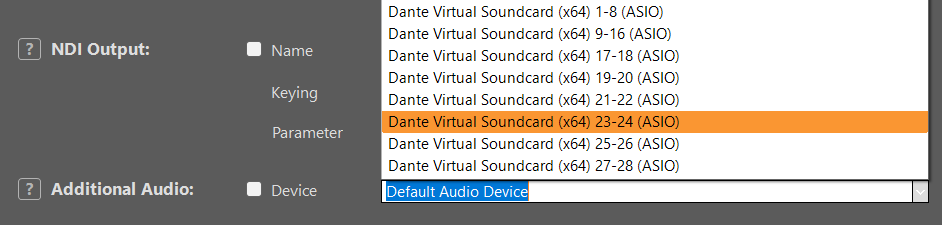
Troubleshooting
Slow Playback (Frame by Frame)
This occurs if PLAYDECK cannot synchronize with the clock signal from the ASIO device. Because PLAYDECK is a real-time playout engine, it requires a stable clock to process frames.
Solution: Ensure a Clock Leader (formerly Master Clock) is active on your network. This can be provided by hardware (e.g., a Dante-enabled mixer), a software driver, or a dedicated clock generator.
If you are using Dante, you may need additional tools to verify your workflow. Follow these steps to set up a local test environment:
- PC 1: Install PLAYDECK and Dante Virtual Soundcard (DVS). Start DVS in ASIO mode and select it within PLAYDECK.
- PC 2: Install Dante Via and Dante Controller.
- In both Dante Via and Controller, ensure the correct Ethernet Interface is selected.
- In Dante Via, enable at least one output device.
Once configured, open Dante Controller. You should see “Dante Via” acting as the Clock Leader with your PLAYDECK system successfully connected.
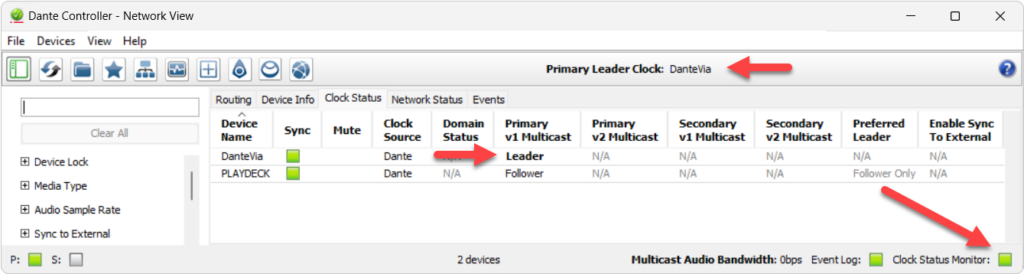
View this screen capture of the test setup:
https://downloads.playdeck.tv/assets/DanteClockTest.mkv
Note: In some cases, installing ASIO4ALL can help stabilize the “handshake” between PLAYDECK and specific audio interfaces. (https://asio4all.org/)
Poor Audio Quality
Distorted or “glitchy” audio is usually caused by a sample rate mismatch. Ensure the Sample Rate (e.g., 48 kHz) is identical across all of the following:
- Windows Sound Settings (Advanced properties)
- PLAYDECK settings
- ASIO Device / DVS control panel
Audio Channel Mixing and Routing
When working with multichannel audio, you may need to downmix your channels for specific outputs. Please refer to this article for detailed instructions on managing multichannel routing.
Multichannel Audio and Mixing
PLAYDECK support 32 Audio Channel per Output Channel. You can pass-thru Audio Channel (via SDI, NDI, Streams, ASIO), Mix-down to Stereo/Mono or Mix-up to Multichannel. Please note, that we have a sperate Post for Dante Virtual Soundcard.
Pass-thru
Enable Multichannel Audio by simply setting more than 2 Audio Channel in your Output Channel Settings. In this example we set 16 Audio Channel, as this is the native number of Audio Channel for SDI Output Cards:
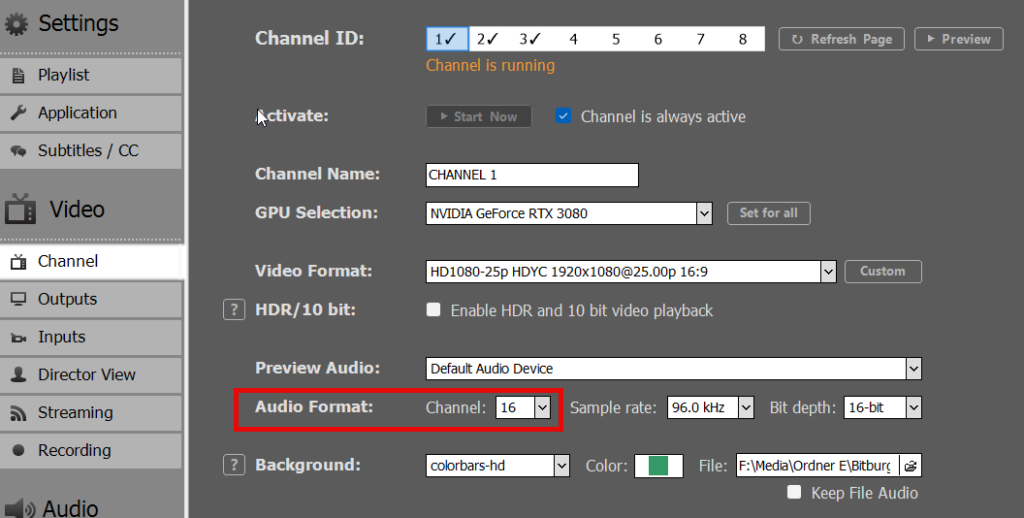
Now you are good to go already. Your VU Meter will switch automatically to 16 Audio Channel:
Multichannel Audio is not also active for all Inputs and Outputs: SDI, NDI, Streams. You can check, if you click PREVIEW after activating your Device. All Previews have VU Meter as Overlays:
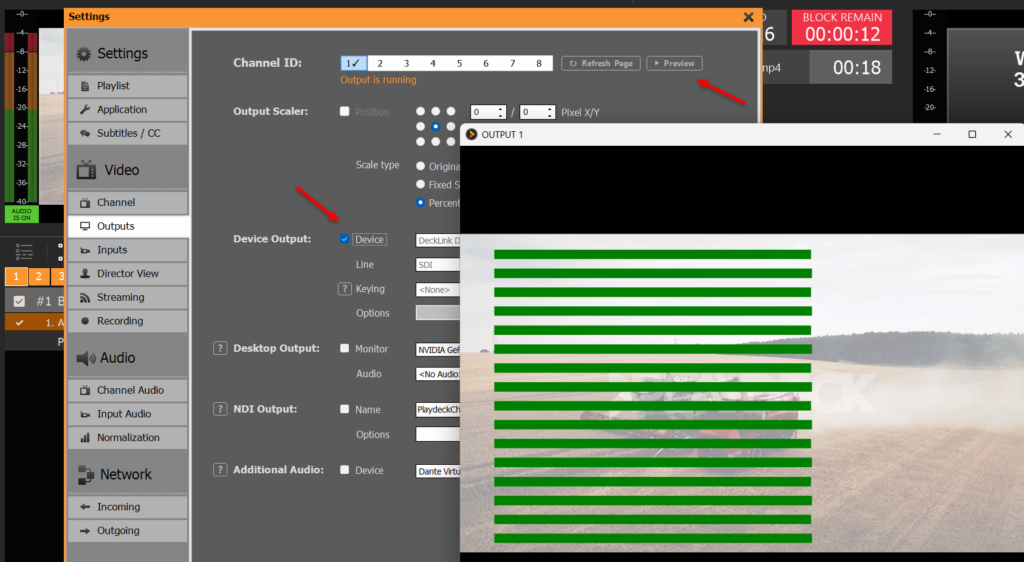
Here is another Example for Input Preview:
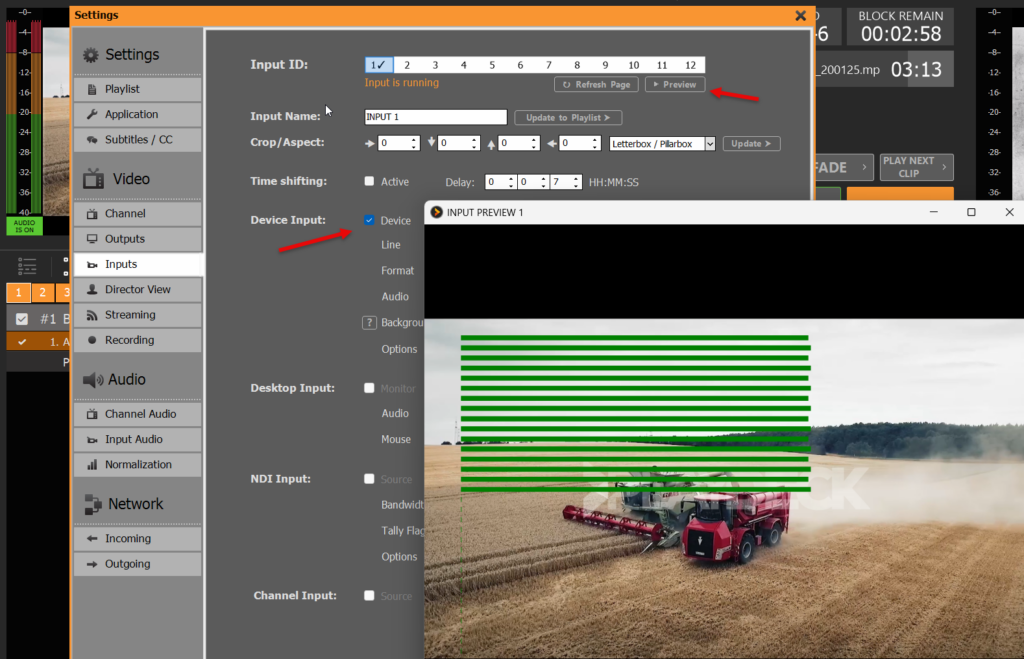
Mix-down
If you have Multichannel-Audio Content (or SDI Inputs) and want to Mix-down your Audio to MONO/STEREO, you would also need to increase the Audio Channel. In this case we use 16. This is important to tell PLAYDECK to process 16 Audio Channel (from Source eg SDI), otherwise all Audio Channel above 2 would be CUT/SILENT:
You can now select different ways to Mix-down your Audio. Please note, that there are seperate Settings for CHANNEL (Clips, Input Streams) and INPUTS (Device Input):
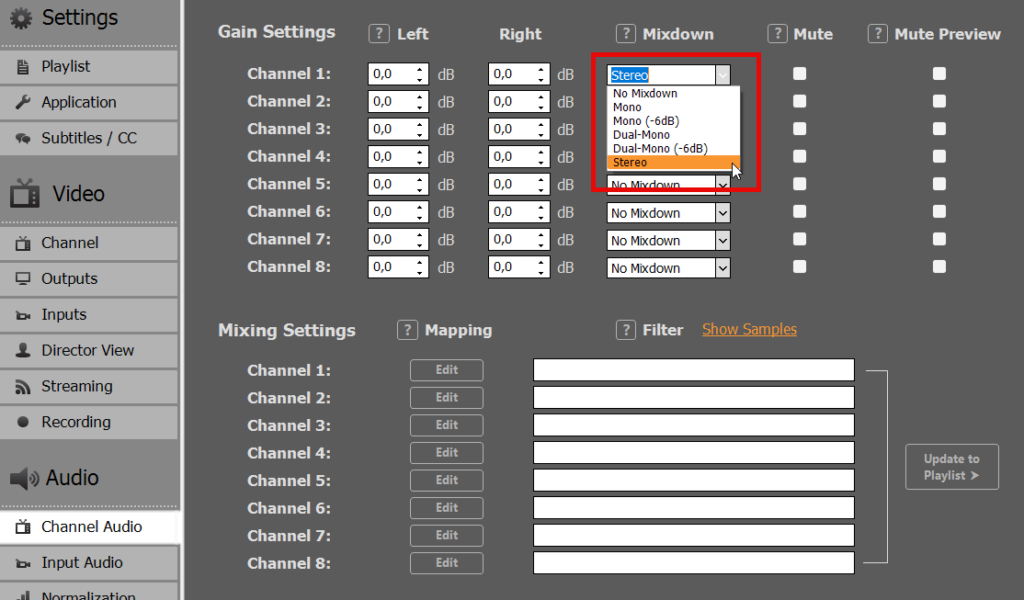
Multiple Audio Tracks
If your File has more than one Audio Tracks, you can switch the Audio Tracks by right-clicking the File and selecting AUDIO TRACKS:
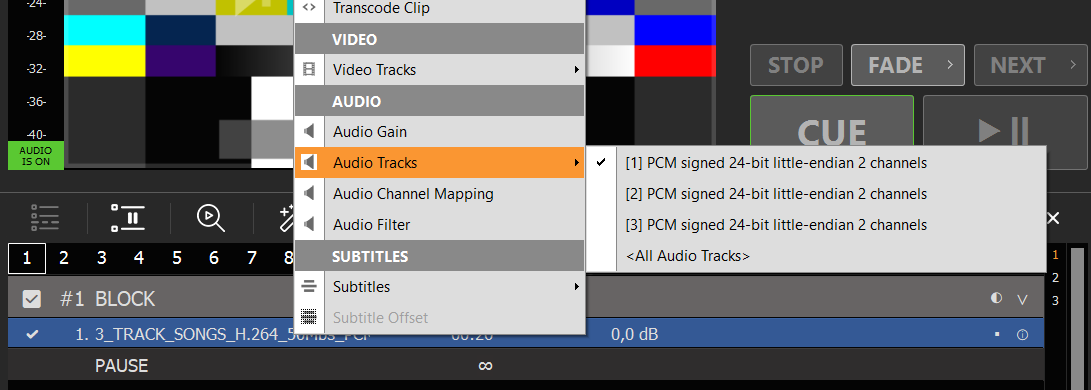
To play ALL Audio Tracks at once, select ALL AUDIO TRACKS. Alle Audio Channel will be concatenated. In our example this would result in 6 Audio Channel for Output. So make sure to set your Channel to 8 Audio Channels, otherwise everything above 2 Channel will not be processed:
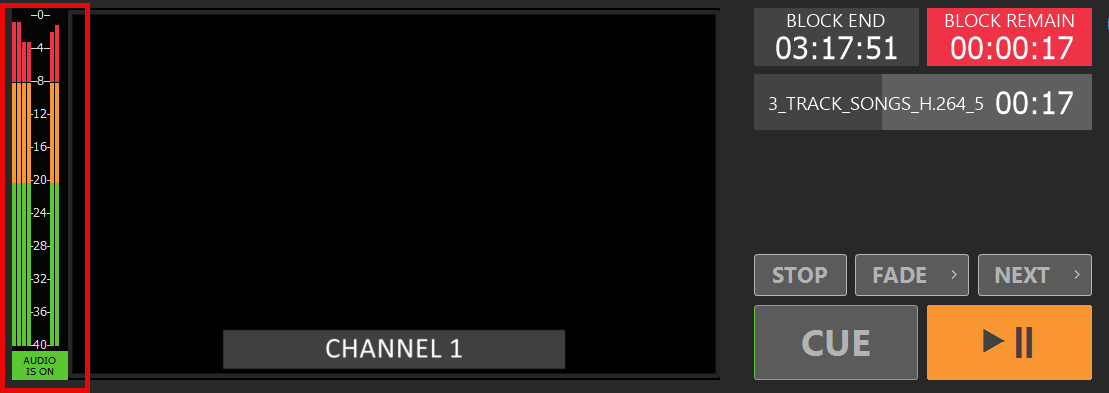
Note: Use any of the other Mixing Options to Mix-down to STEREO or similar.
Custom Mixing
For more advanced Mixing, you can click EDIT under MIXING SETTINGS. In this example we Mix-down 16 incoming Audio Channel to 4 outgoing Audio Channel. Please note, that there are seperate Settings for CHANNEL (Clips, Input Streams) and INPUTS (Device Input):
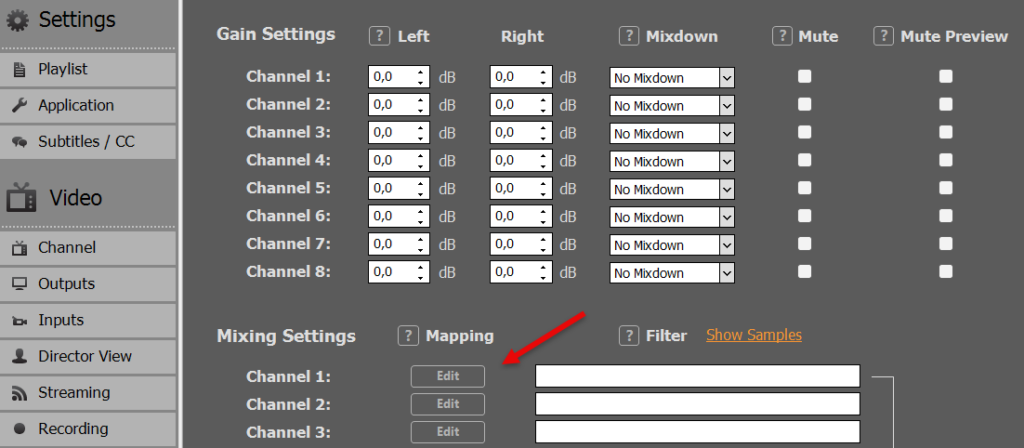
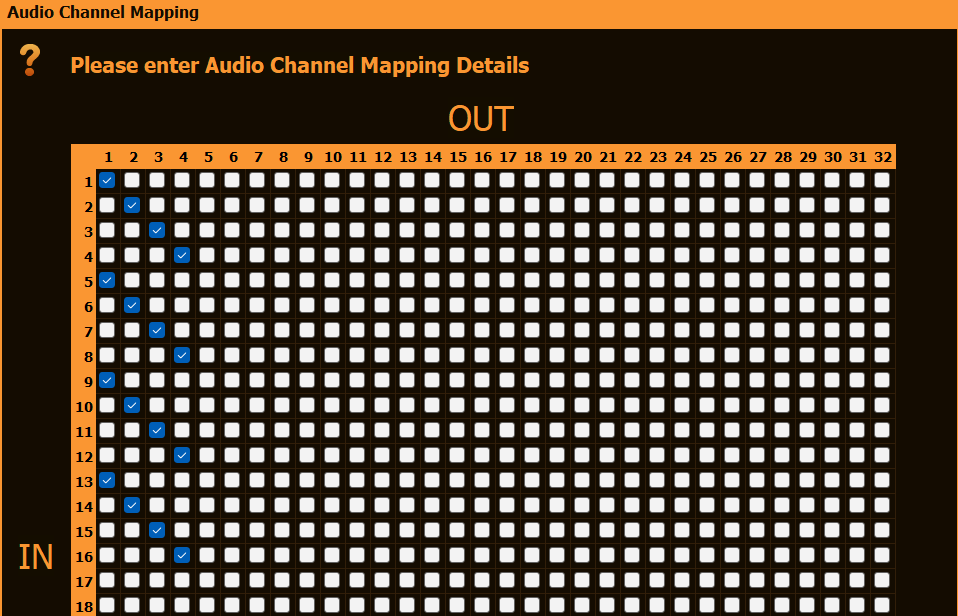
You can refine your Mixing even more by moving to the Content Level: Right-click any Playlist Item and select AUDIO CHANNEL MAPPING:
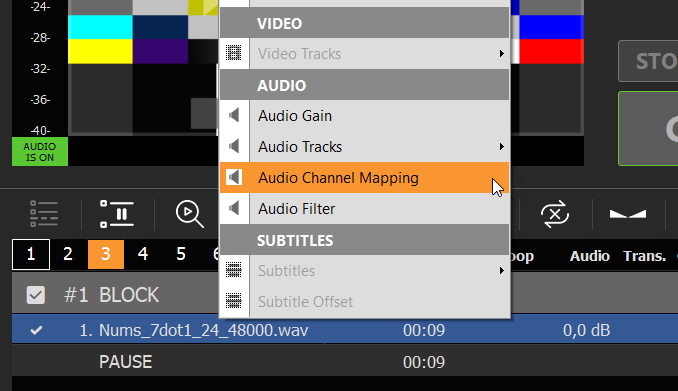
Color Correction for Inputs and Channel
This article will show how to use Color Correction Tools for your Broadcasts.
→ Video Range (16-235) vs. Full Range (0-255)
→ Color Adjustment Controls
→ Tools: Waveform, Vectorscope & Histogram
→ Why is CPU Processing required?
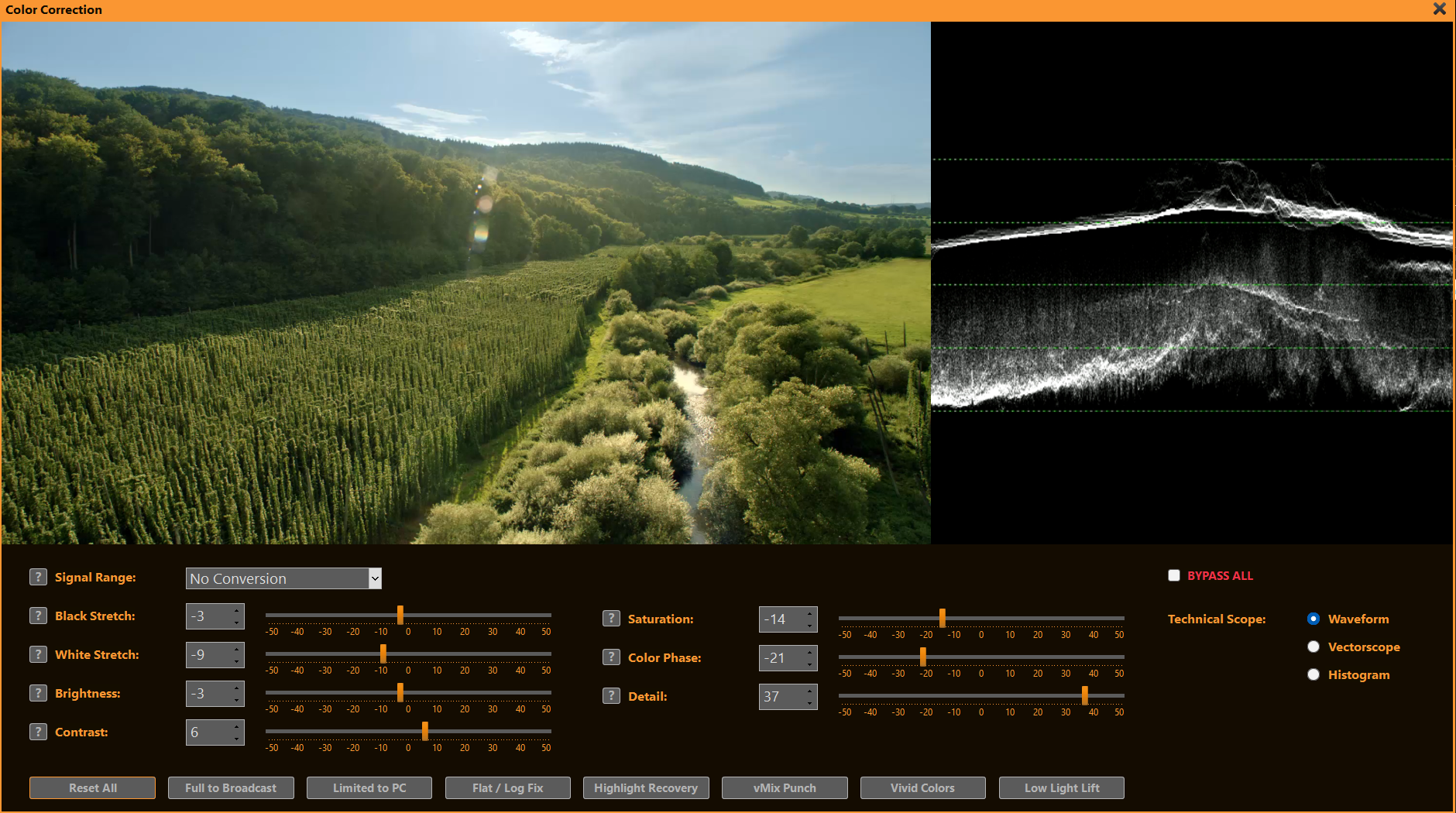
Video Range (16-235) vs. Full Range (0-255)
Video Range (Limited / Broadcast): Uses 16–235 (8-bit). Black = 16, white = 235. Standard for TV, broadcast, streaming — preserves headroom.
Full Range (PC / Data): Uses full 0–255. Black = 0, white = 255. Native for computer monitors, graphics, photos.
Color Range Expansion converts Video → Full Range (lifting blacks, expanding whites) to avoid washed-out appearance on PC displays. Mismatches cause crushed blacks, blown whites, or grayish/milky picture.
With PLAYDECK you can quickly convert between both modes by selecting the signal range or one of the preset buttons:
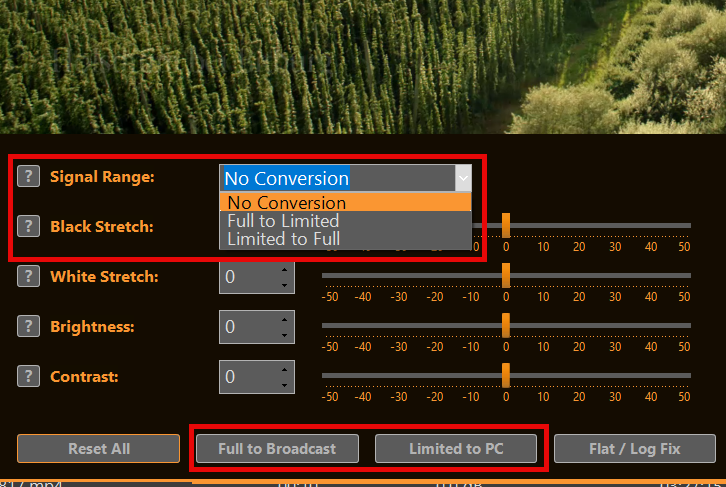
Color Adjustment Controls
PLAYDECK’s sliders help solve common broadcast and live-production challenges quickly:
- Black Stretch Recover lost shadow detail in underexposed footage or create deeper, more cinematic blacks for dramatic looks.
- White Stretch Bring back highlight detail in overexposed shots (e.g. skies, lights) or add punch to flat, washed-out highlights.
- Brightness Correct overall too-dark or too-bright sources without changing contrast — ideal for matching multiple cameras.
- Contrast Make flat, low-energy pictures pop for sports/news or reduce harsh contrast on harsh studio lighting.
- Saturation Boost dull, desaturated camera feeds (e.g. ENG cameras) or tone down overly vivid graphics/logos for broadcast-safe output.
- Color Phase Fix green/magenta casts from mismatched lighting, warm up cool skin tones, or match color temperature between sources.
- Detail Sharpen soft, low-resolution streams or reduce noise in low-light footage without introducing artifacts.

Tools: Waveform, Vectorscope & Histogram
hese professional monitoring tools appear in a dedicated panel next to the video preview — perfect for precise color and exposure control during live production or playback.
- Waveform: Check overall exposure and luminance levels quickly. Spot clipped highlights (flat at 100 IRE), crushed blacks (piled at 0 IRE), or mismatched camera levels so you can adjust brightness/black/white stretch before broadcast.
- Vectorscope: Verify and correct color balance and saturation. Ensure skin tones stay in the correct flesh-tone line, detect unwanted color casts (e.g. green from LED lights), and confirm broadcast-legal saturation without over-the-top vividness.
- Histogram: Analyze tonal distribution across the image. Identify if shadows/midtones/highlights are evenly spread or if detail is lost in dark/bright areas — ideal for fine-tuning contrast and stretch sliders to achieve a balanced, professional picture.
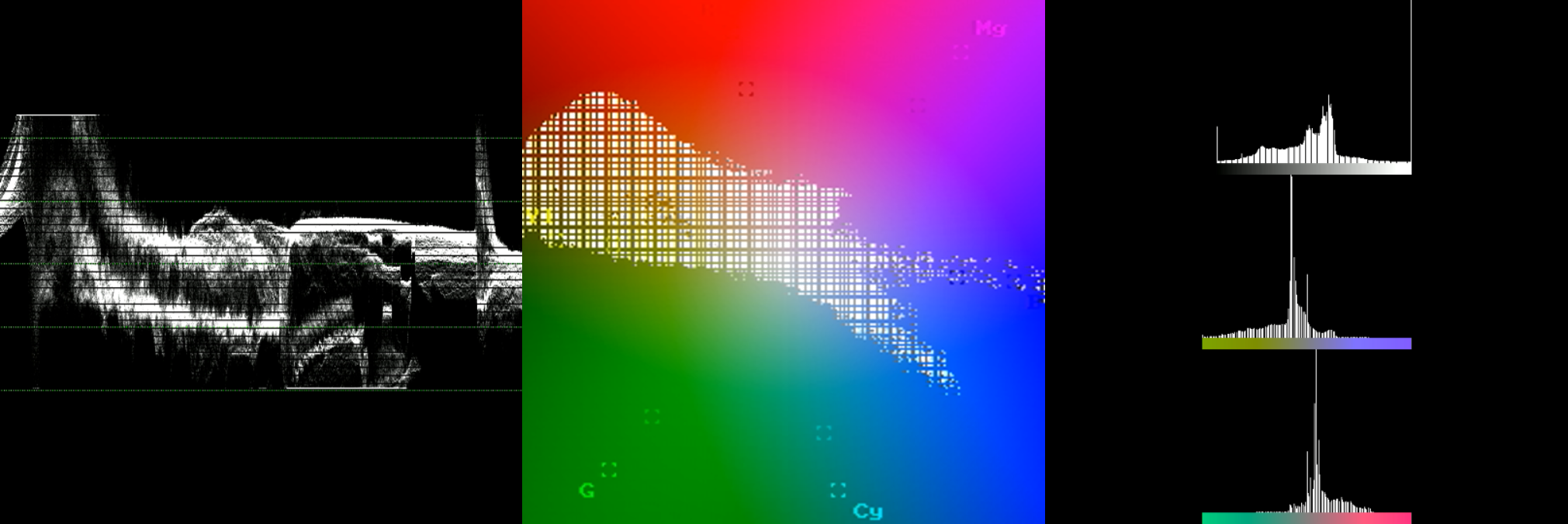
Why is CPU Processing required?
When using Color Correction (or certain other video filters) for the first time, PLAYDECK may prompt you to switch to CPU Processing:
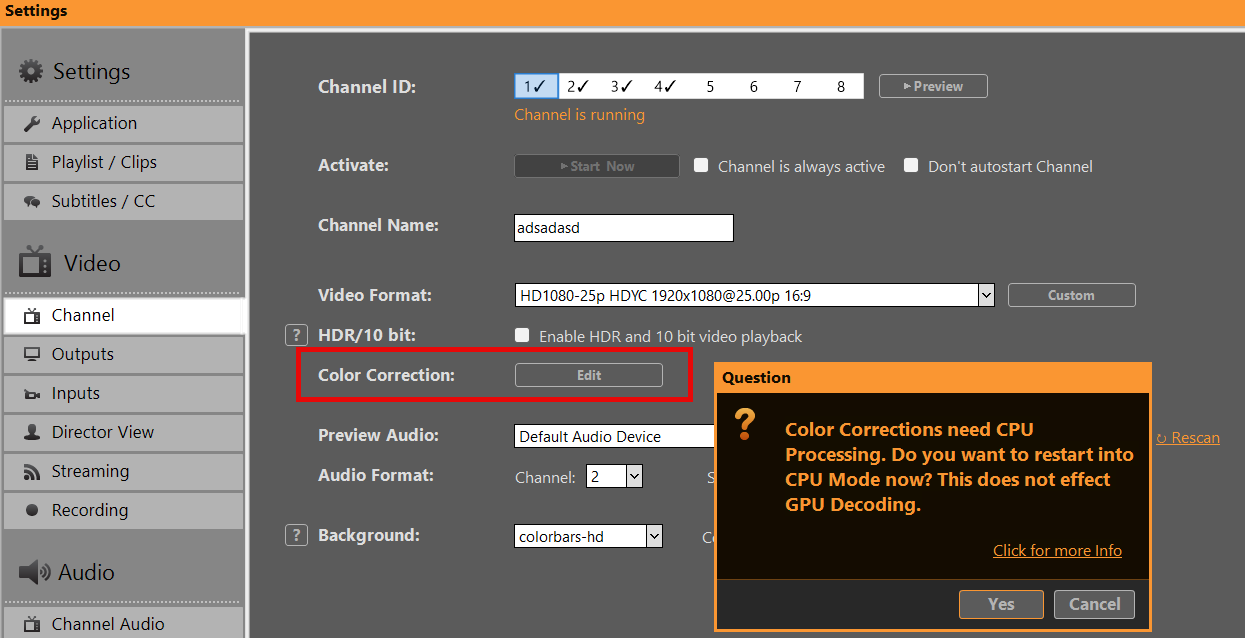
Reason: Certain video filters (vfilters) on inputs and playlists rely on FFmpeg processing, which runs only on the CPU. The GPU pipeline does not support these standard filters, so CPU mode is required for them to work correctly — ensuring reliable playback and effects.
GPU Processing handles: Scaling, Mixing, Overlays, Format Conversion, and many Effects.
Switching to CPU mode keeps all features working normally — the only difference is higher CPU usage (and lower GPU load).
You can switch back to GPU Processing anytime in the application settings:
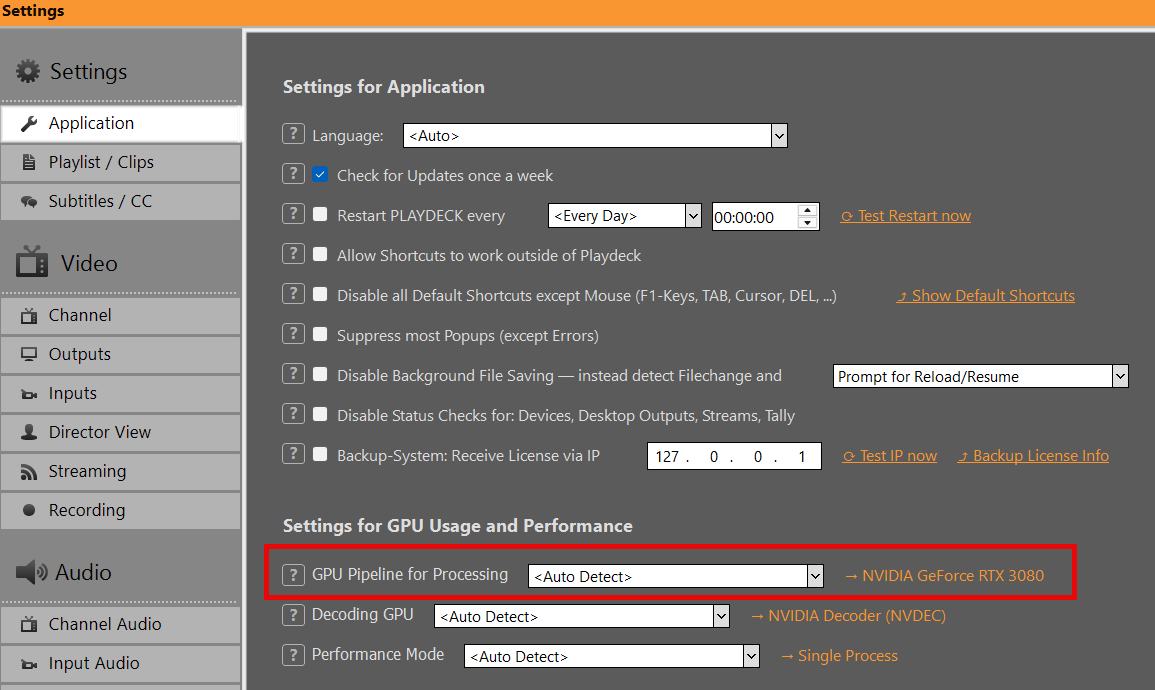
HDR Output and Recording
PLAYDECK supports HDR playback, SDI output (via Blackmagic DeckLink) and HDR recording.
→ Prerequisites in Hardware
→ Enabling HDR Mode
→ Setting up SDI Output
→ Setting up Recording
→ Monitoring & Controlling
→ Troubleshooting
Prerequisites in Hardware
Graphics card
NVIDIA GPU with at least Turing architecture (GTX 16xx / RTX 20xx or newer).
Recommended: RTX 30xx / 40xx series (e.g. RTX 3080, 4070, 4080).
→ Required for 10-bit decoding/processing/encoding.
SDI output card
Blackmagic Design DeckLink with 10-bit and HDR metadata support:
– DeckLink 8K Pro
– DeckLink 12G Extreme
– DeckLink 6G / 12G models (Quad 2 / Duo 2 / Mini Recorder 4K etc.)
→ Older models (e.g. DeckLink 4K Extreme without 12G) may be limited to 4K 30p or no HDR metadata.
You can check your Graphics card in PLAYDECK:
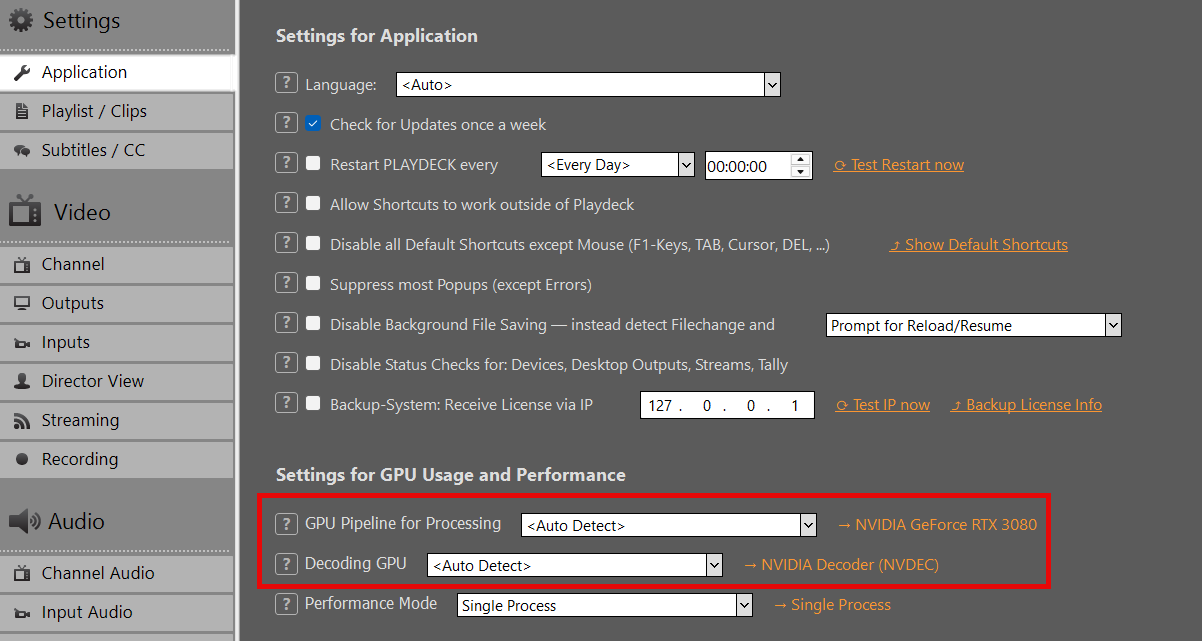
Enabling HDR Mode
HDR Mode needs to be enabled in the Channel Settings. In HDR Settings, choose one of the following Output Pixel Format. Start with v210 unless you specifically need RGB processing.
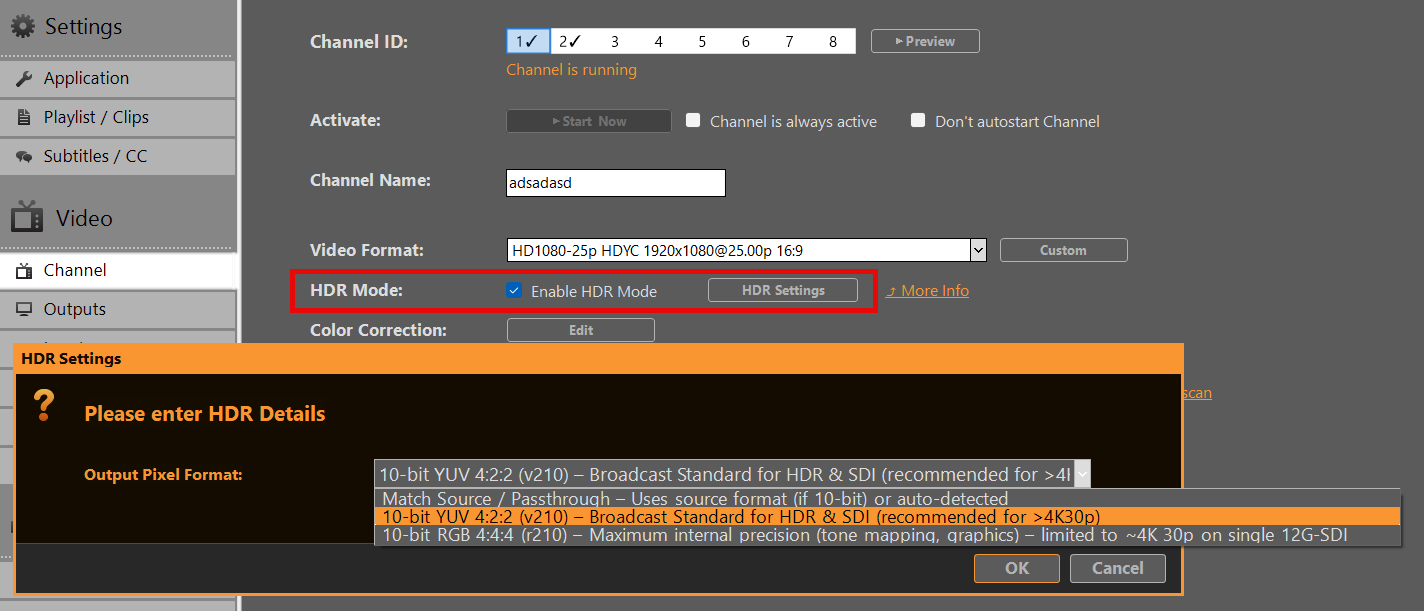
Match Source / Passthrough
Uses the source pixel format (if 10-bit) or auto-detected
→ May default to r210 on HLG/PQ content.
10-bit YUV 4:2:2 (v210) – Broadcast Standard for HDR & SDI (recommended)
→ Preferred choice for most SDI workflows.
→ Full compatibility up to 8K 60p on single-link 12G-SDI.
→ Recommended when frame rate > 4K 30p.
10-bit RGB 4:4:4 (r210) – Maximum internal precision
→ Best for tone mapping, keying or heavy internal processing.
→ Limitation: On many DeckLink cards limited to ~4K 30p (bandwidth constraint on single 12G-SDI link).
→ Use with caution at higher frame rates.
Setting up SDI Output
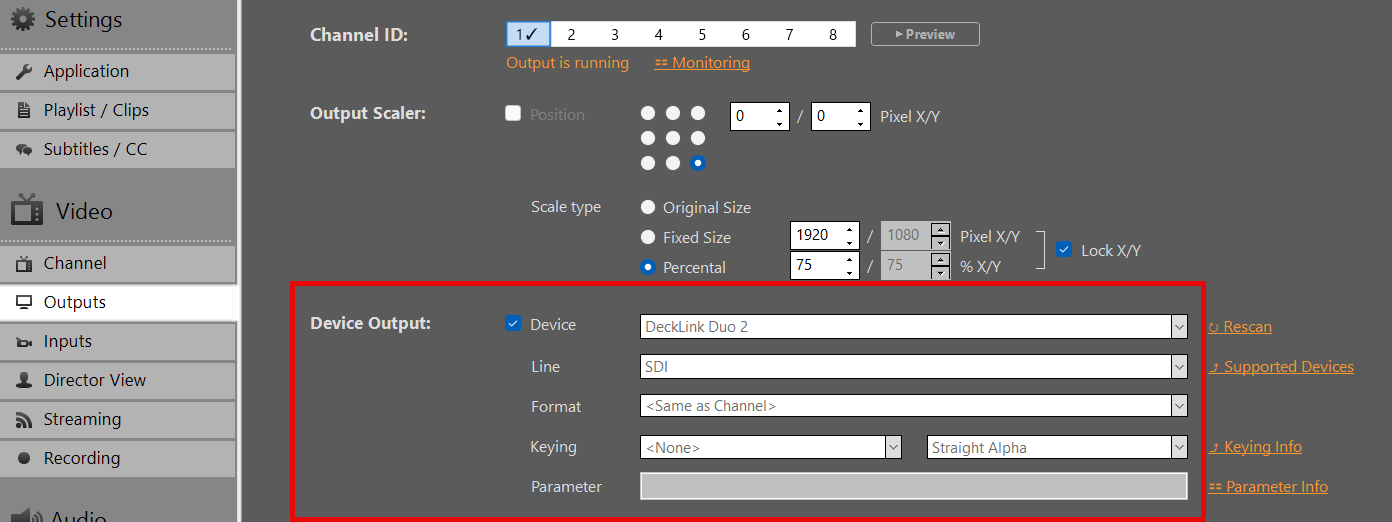
In Output Settings, select your DeckLink card as the output device. 10-bit Output will be activated automatically. If the Card doesn’t support it, it will fall back to SDR.
Important:
HDR metadata (PQ/HLG) is carried in VANC (Vertical Ancillary Data) on SDI.
Most modern DeckLink cards and downstream devices (monitors, switchers) detect this automatically when 10-bit signal is present.
You need to re-enable your Device, if you changed Output Pixel Format in HDR Settings.
Setting up Recording
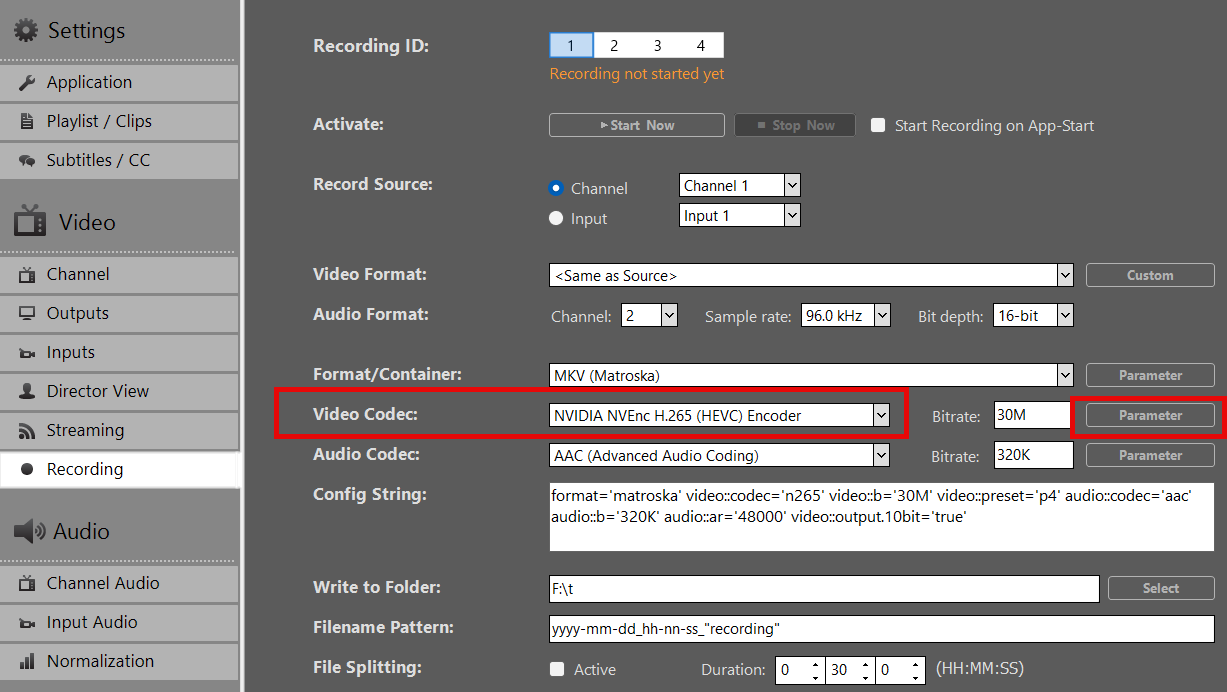
- Select a Format/Container (recommended: MOV or MKV).
- Pick NVIDIA H265 HEVC as Video Codec. Currently, no other Video Codecs are supported for HDR.
- Apply your preferred bitrate (50–100 Mbps recommended for 4K HDR)
- Click on Parameter behind Video Codec and set these options:
– output.10bit = true
– output.444 = true (! Only is “10-bit RGB 4:4:4 (r210)” selected in HDR Settings)
– preset = p4
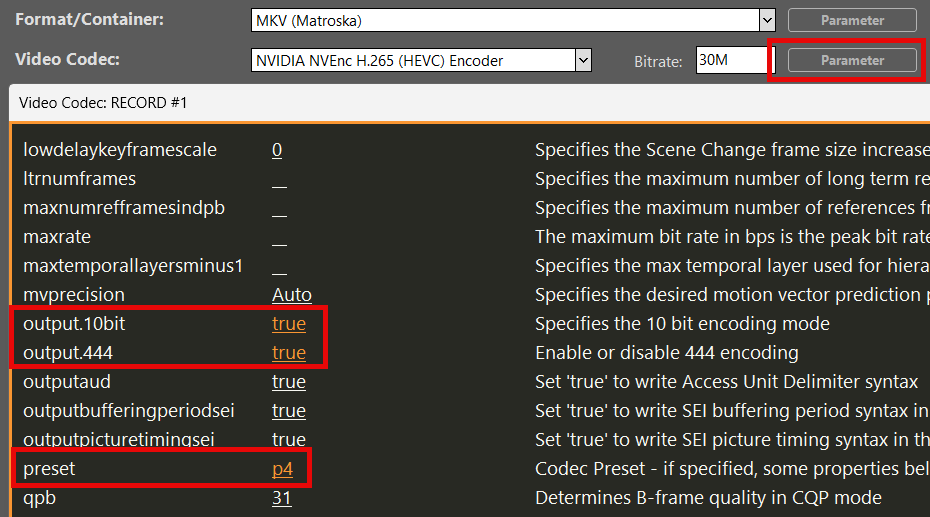
Result: Recorded file contains BT.2020 + HLG/PQ metadata when source was HDR.
Monitoring & Controlling
Play a HDR Clip in the Playlist. You can download this HDR HLG BT2020 Test Video.
Note: Preview on standard HDMI SDR monitors may appear washed-out or flat for HDR content — this is expected behavior.
You can check on the Clip’s HDR properties by right-clicking the Clip and selecting MediaInfo:
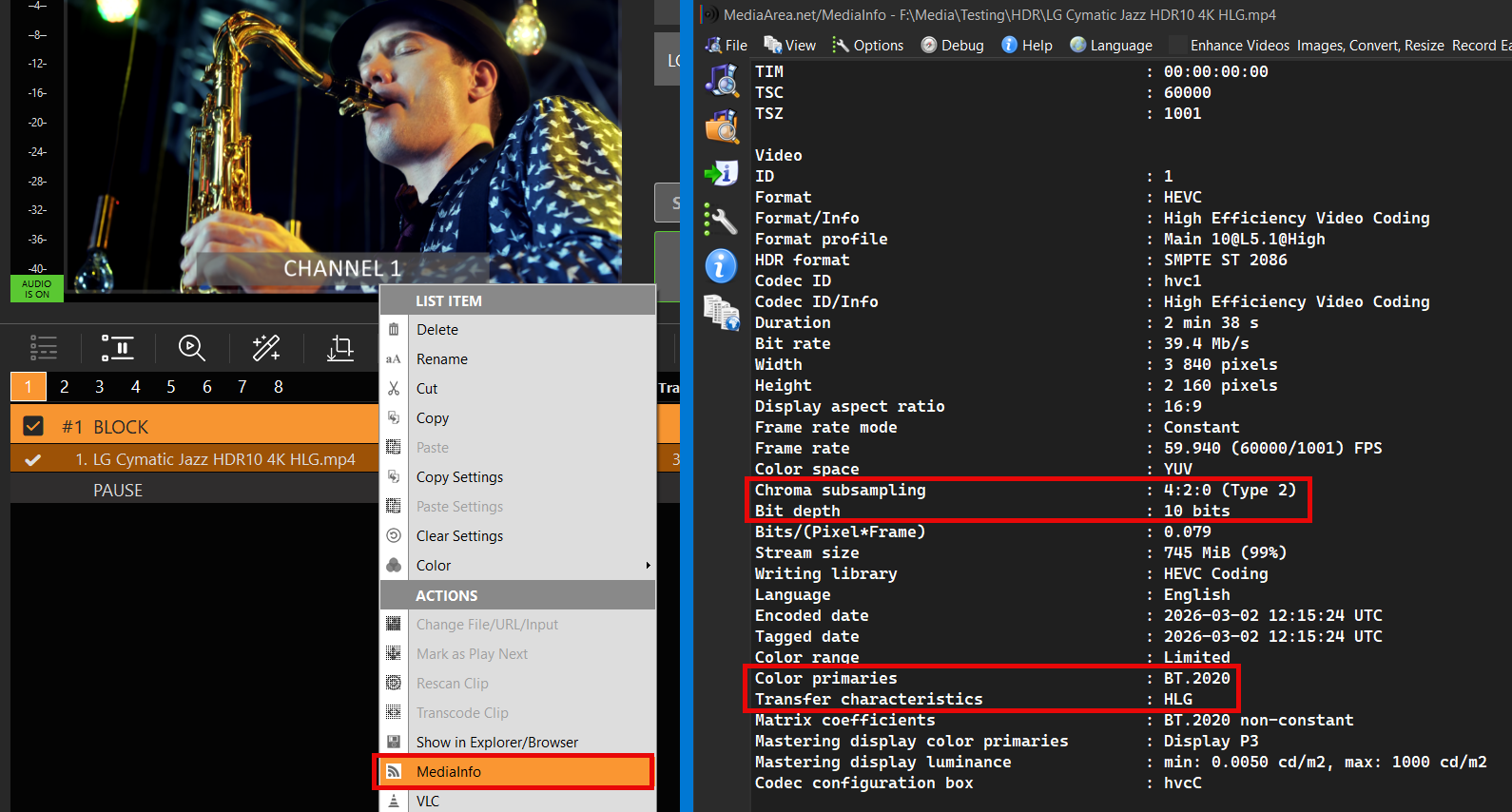
To verify, if PLAYDECK is correctly processing your HDR File, open Monitoring from the Main Menu and check these properties:
– Pixel Format (v210 or r210)
– Transfer characteristics (HLG or PQ)
– Color primaries (BT2020)
This allows you to check, if your SDI Card is sending HDR without a SDI HDR Monitor.
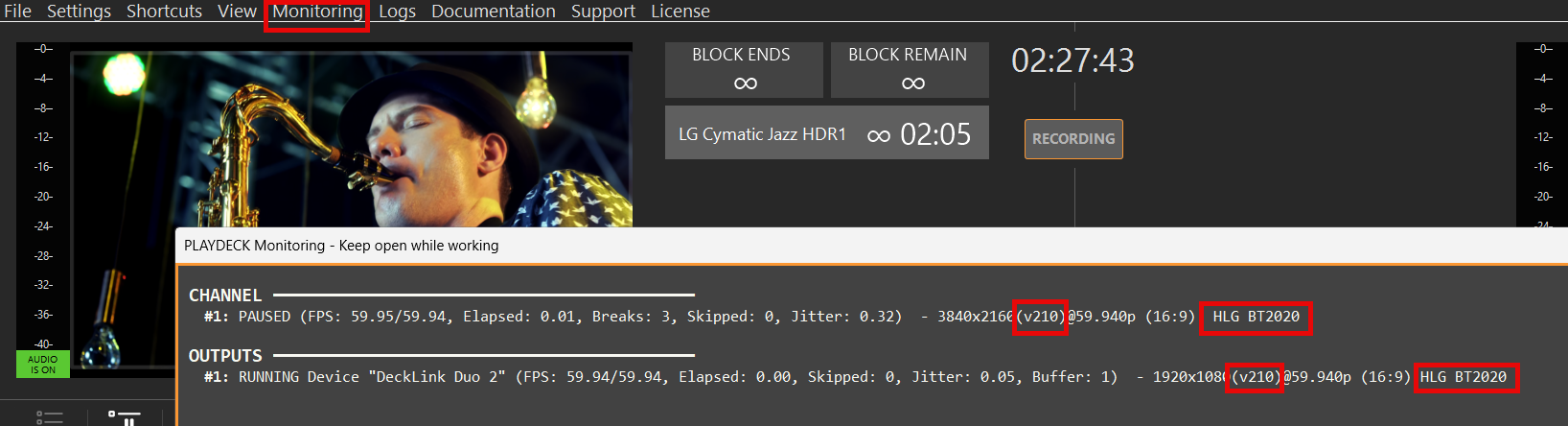
To verify your Recording, open the Recording Folder and Drag Drop your new File into the Playlist.

It should show the same HDR Meta Data as your Original (or your HDR Settings):
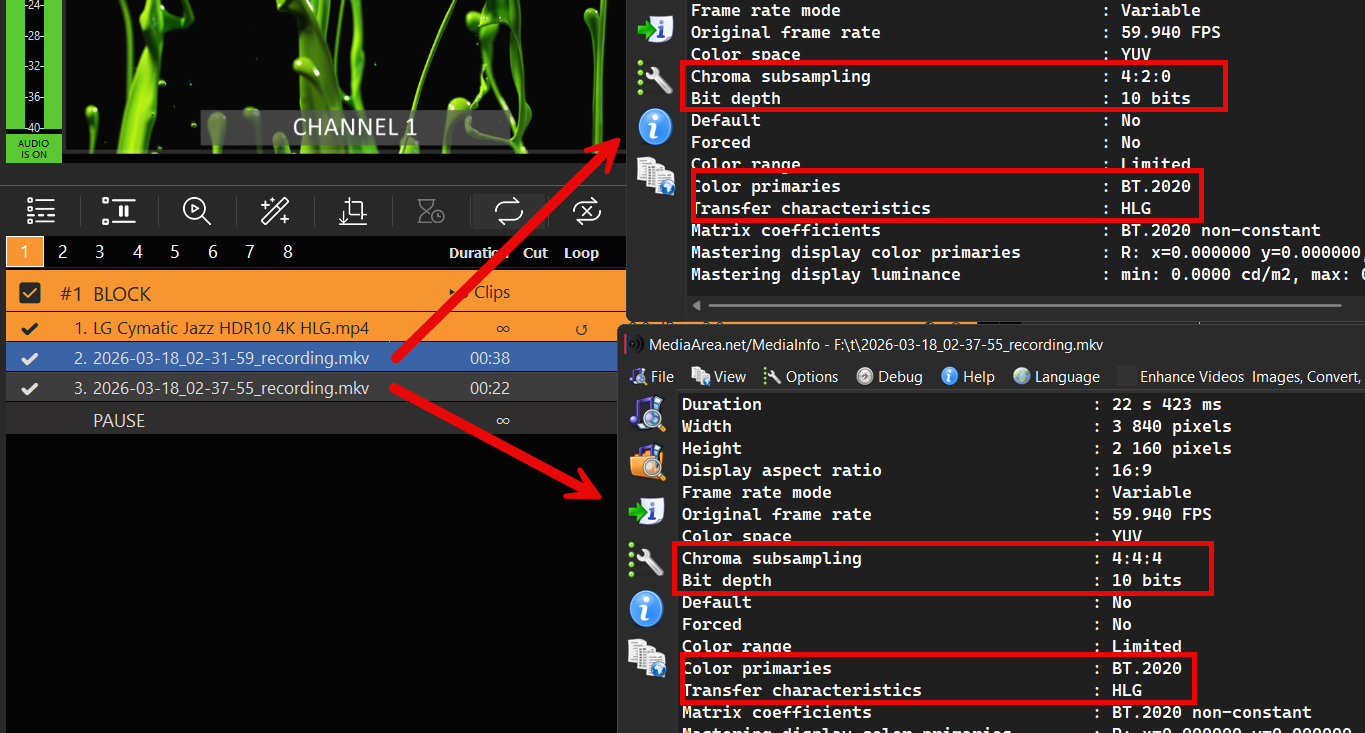
Troubleshooting
Working with HDR requires sufficient system bandwidth to handle increased pixel data and frame sizes, which can be tested using Blackmagic’s SignalGenHDR.exe tool. Users can stress-test their setup by running4 simultaneous instances to output 4K signals and verify 12G-SDI throughput capacity.
Download the Tool here:
https://downloads.playdeck.tv/assets/SignalGenHDR.zip
Audio Delay
Sometimes, in Live Productions, you have to send the Audio delayed compared to the Video, to compensate for the processing Lag of huge LCD Screens (Lipsync). Or add a Limiter/Gate to the Microphone Input Audio.
In this article:
→ Simple Audio Delay
→ Copy Audio and Delay
→ More Audio Filter
Simple Audio Delay
This is actually pretty fast to implement in PLAYDECK. You add the ADELAY Audio Filter to the Channel like this. In this example we set 600ms Delay for Audio Channel 1 and 2:
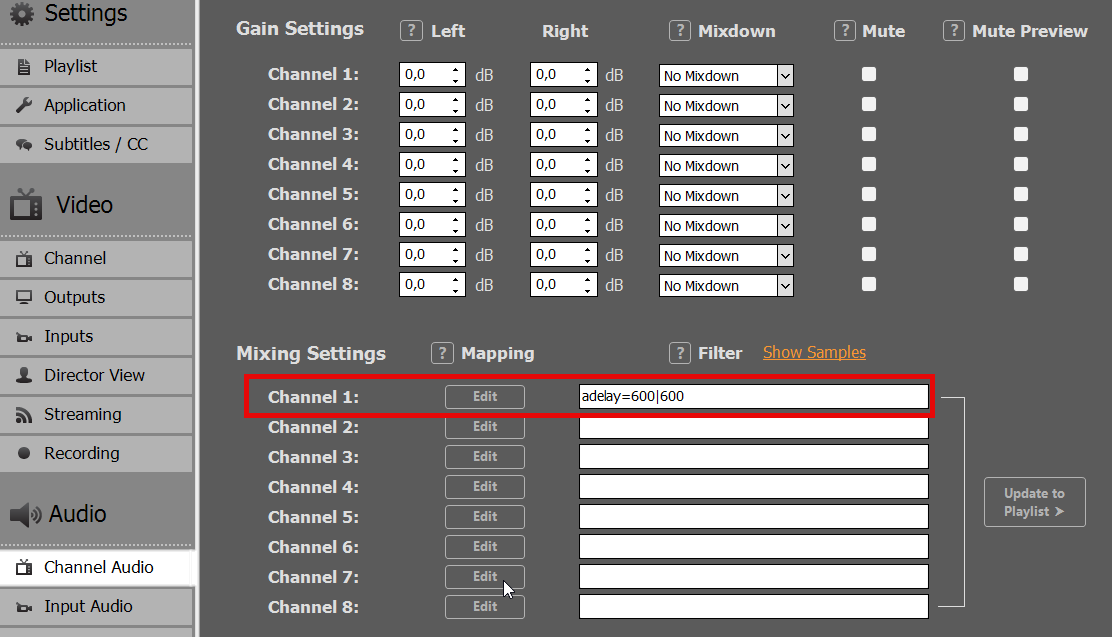
This can also be set to INPUTS to compensate for any incoming Lipsync Issue.
Copy Audio and Delay
You can also COPY the Audio Channel 1 and 2 to Audio Channel 3 and 4 and delay those. The use case here is, that the Audio Mixer Person has Live Preview Audio.
This needs to be done on the Playlist Level, so clear any Audio Filter in the Settings.
First, make sure to increase the Audio Channel for your Output Channel, otherwise all Audio Channel above 2 will not be processed:
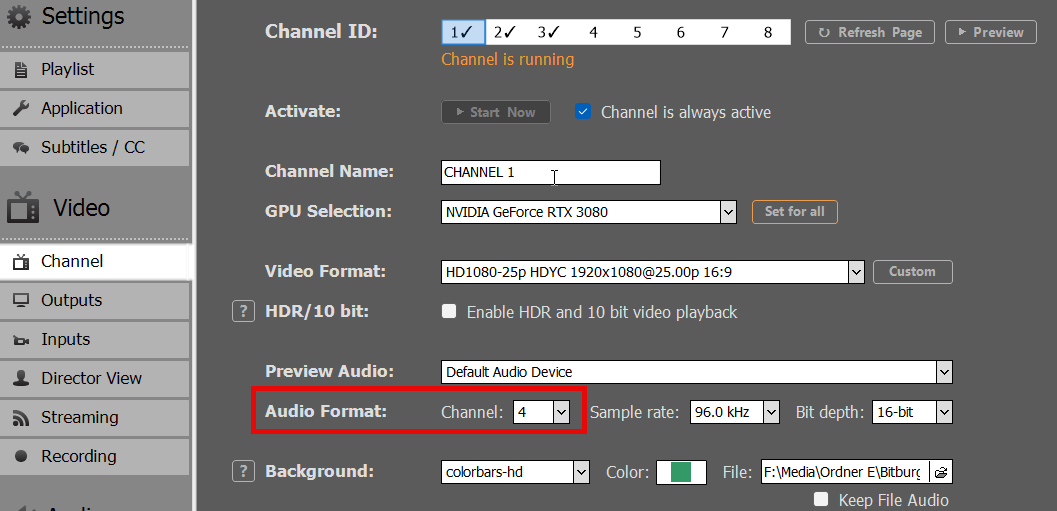
The Right-Click any Playlist Item and select AUDIO CHANNEL MAPPING:
This will copy Audio Channel 1 and 2 to Audio Channel 3 and 4:
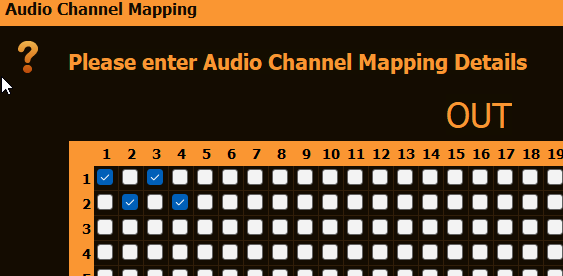
Now right-click the Playlist Item again, select AUDIO FILTER and add the ADELAY Filter, but only for Audio Channel 3 and 4:
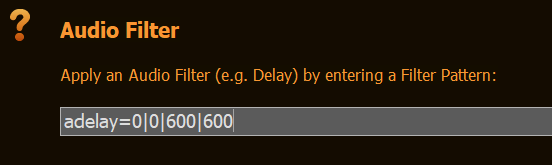
More Audio Filter
For a complete List of all Audio Filter, click SHOW SAMPLES. This will open a TEXT FILE with Examples.
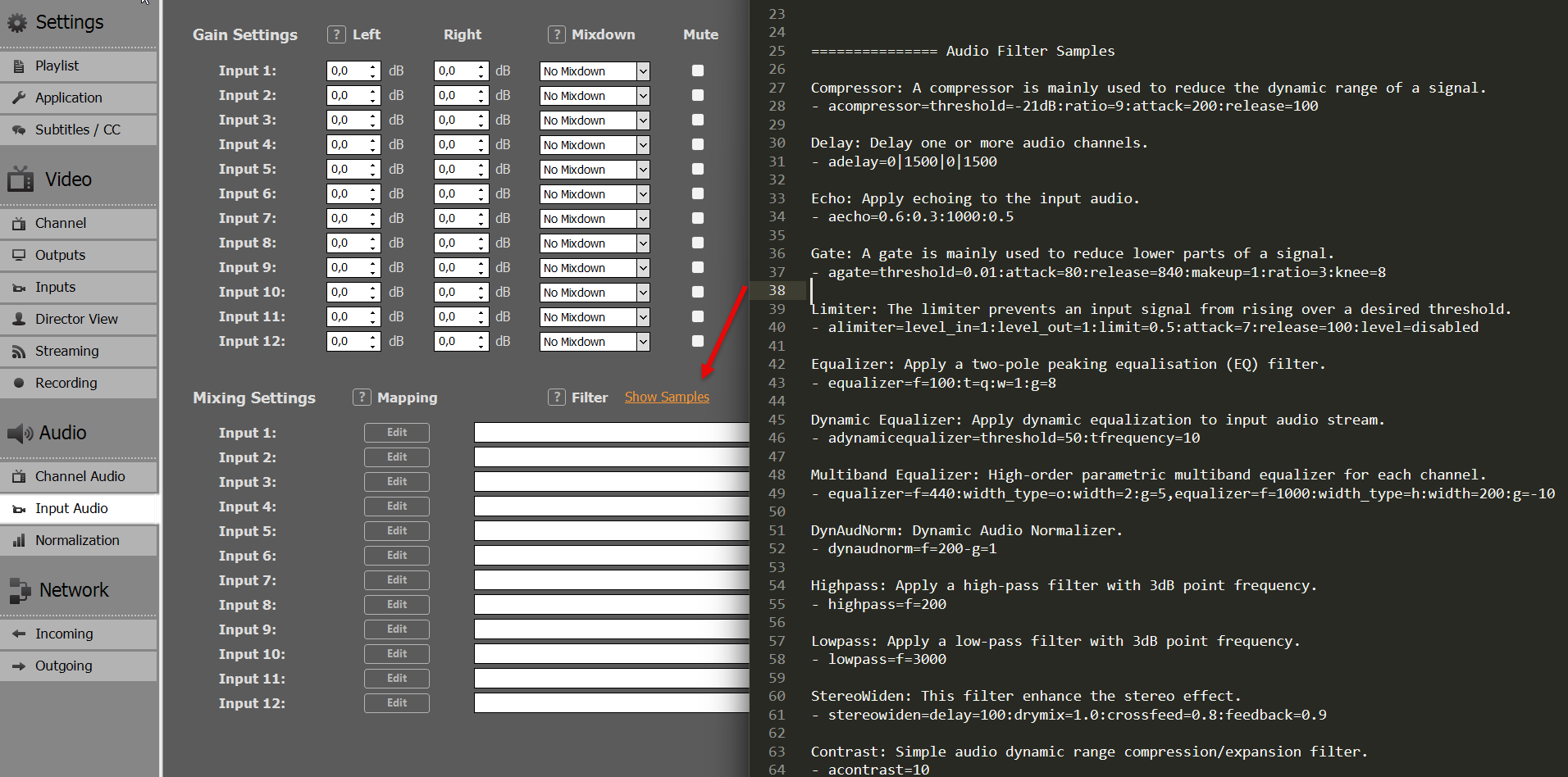
Closed Captions & SCTE
Closed Captions & SCTE – Overview
PLAYDECK can carry Closed Captions (CEA-608 / CEA-708) and SCTE ad/splice markers through many inputs and outputs. They are different signals:
- Closed Captions travel with the video (SDI VANC, or embedded in MPEG-2 / MPEG-4 / H.264 elementary streams).
- SCTE-104 is used on SDI (VANC).
- SCTE-35 is used in MPEG-TS (UDP, SRT, DVB-compatible streams, TS recordings, HLS segments).
This page is the map: what works from where to where, what you must enable, and where the limits are. Step-by-step setup lives in the linked articles below.
Note: Soft Subtitles (SRT / ASS) are always burned into the picture. They are not the same as Closed Captions. See Closed Captions & Subtitles.
In this article:
→ Quick rules
→ How to enable CC and SCTE
→ Closed Captions matrix
→ SCTE matrix
→ Known limits
→ Related articles
Quick rules
- SDI ↔ IP are different SCTE worlds
SDI = SCTE-104. Streams / TS files = SCTE-35. PLAYDECK does not convert 104 ↔ 35 automatically. - Streams need embed flags
Unlike the SDI “VANC Data” checkbox for Inputs, stream and recording options are easy to miss. You must set them in the stream/recording Parameter / config string (embed_cc,embed_scte35). - Codec vs protocol
- CC pass-through (
embed_cc): depends on video codec (MPEG-2, MPEG-4 Part 2, H.264 — not HEVC). - SCTE-35 (
embed_scte35): depends on MPEG-TS transport, not on the video codec.
- CC pass-through (
- Pass-through vs burn-in (CC)
- Pass-through: caption data stays in the signal; PLAYDECK can preview it; downstream devices decode it. Needs VANC /
embed_ccas applicable. - Burn-in: text is drawn into the video pixels; no embed flag required for the text to be visible on outputs.
- Pass-through: caption data stays in the signal; PLAYDECK can preview it; downstream devices decode it. Needs VANC /
- UDP loopback
Prefer your machine’s LAN IP (e.g.udp://192.168.x.x:5000?pkt_size=1316).udp://127.0.0.1:…is unreliable in current setups.
How to enable CC and SCTE
SDI
| Direction | What to do |
|---|---|
| Input | Enable VANC Data → Enable Closed Captions and SCTE-104 Triggers on that input. This turns on VANC/CC/ANC capture (there is some processing cost — that is why it is opt-in). |
| Output | With a Closed Captions license, PLAYDECK enables CC/VANC on the SDI renderer automatically. |
Streams and Recordings
Open Parameter on the stream or recording and set the flags in the config string (examples):
embed_cc='true'
embed_scte35='true'| Flag | Use for |
|---|---|
embed_cc='true' | CC pass-through into MPEG-2 / MPEG-4 / H.264 (UDP, SRT, DVB, HLS segments, TS/MKV record, RTMP/FLV, etc.) |
embed_scte35='true' | SCTE-35 into MPEG-TS only (UDP, SRT, DVB, TS file record, HLS segments). Not for MKV or RTMP/FLV. |
Without these flags, pass-through CC / SCTE-35 will not leave PLAYDECK on that output — even if the UI looks “ready”.
Injecting SCTE
Attach SCTE commands to clips, blocks, overlays, or Action buttons. Choose SCTE-104 when targeting SDI, SCTE-35 when targeting MPEG-TS streams or TS files. Details and XML samples: SCTE-104 on SDI · SCTE-35 to servers.
Closed Captions matrix
Verified PLAYDECK behaviour (pass-through unless noted).
| Path | Result | Notes |
|---|---|---|
| File → SDI → SDI (loop) | Yes | Enable VANC on the receiving input. |
| File → UDP / SRT / DVB → Stream in | Yes | embed_cc='true'; MPEG-2, MPEG-4 Part 2, or H.264 (e.g. NVEnc / Quick Sync). HEVC: no. |
| File → RTMP → YouTube | Yes | embed_cc='true'; YouTube shows CC. |
| File → NDI → NDI (PLAYDECK loop) | Yes | PLAYDECK↔PLAYDECK only. NDI Studio Monitor / vMix do not show CC. |
File → HLS (.m3u8) | Yes* | CC in segments; PLAYDECK can play the m3u8 and show CC. (*Not as separate tags in the playlist file.) |
| Recording MKV | Yes | embed_cc; optional sidecars via scc_capture / anc_capture (.scc / .anc). |
| Recording MPEG-TS | Yes | embed_cc; MediaInfo shows EIA-608/708 muxed in video. |
| SDI → Stream (chain) | Yes | VANC capture in + embed_cc on the stream. |
Stream without embed_cc | No (pass-through) | Burn-in still works (pixels). |
Burn-in works on SDI, NDI, streams, and desktop outputs whenever CC is rendered into the frame (channel pass-through option off).
More UI detail: Closed Captions & Subtitles.
SCTE matrix
| Path | Result | Notes |
|---|---|---|
| SCTE-104 → SDI → SDI | Yes | Use SCTE-104 commands. Check Event Log >> / <<. |
| SCTE-35 → UDP / SRT / DVB → Stream | Yes | Requires embed_scte35='true'. Codec does not matter. |
| SCTE-35 stream → stream forward | Yes | e.g. Ch1 → UDP → Ch2 → UDP → Ch3; << on both receivers. |
| SCTE-104 on SDI, then stream that channel to IP | 104 on SDI yes; not on IP | No automatic 104→35. Fire SCTE-35 on the stream-sending channel if the IP side needs markers. |
| SCTE-35 toward SDI output | No | Wrong domain for SDI. |
| SCTE-104 toward UDP/SRT/DVB | No | Wrong domain for MPEG-TS. |
| NDI loop (104 or 35) | No | No << on NDI receive in PLAYDECK. |
| Record MPEG-TS + SCTE-35 while recording | Yes | Visible in DVB Inspector; PLAYDECK playback shows << SCTE-35. |
| Record / play MKV | No SCTE | MKV has no embed_scte35. |
| HLS | Partial | No SCTE/CUE tags in the .m3u8. PLAYDECK playback of the m3u8 can still show << SCTE-35 from segments. External packagers that only read manifest cues need another tool (e.g. Nimble). |
DVB-compatible streaming in PLAYDECK behaves like UDP/SRT for CC and SCTE-35 once the embed flags are set (format='dvb', still udp:// or SRT URL).
Known limits
SCTE-104 together with an active CC/ASS track (SDI)
If a clip is playing with an active Closed Caption or ASS text track, SCTE-104 may only arrive intermittently on an SDI loop (>> send is stable, << receive is not). Disable the text track if SCTE-104 reliability on SDI is critical.
This conflict was not seen on MPEG-TS streams when using SCTE-35 (with or without embed_cc).
NDI
- CC: works in a PLAYDECK↔PLAYDECK loop; not shown in NDI Studio Monitor or vMix.
- SCTE: not received back over NDI in PLAYDECK.
HEVC
embed_cc does not deliver usable CC pass-through with HEVC in our tests. Use MPEG-2, MPEG-4 Part 2, or H.264 for CC pass-through.
HLS manifests
PLAYDECK does not write SCTE/CUE tags into the .m3u8. Caption and SCTE-35 data can still be present in the underlying segments.
Related articles
| Article | What you will find |
|---|---|
| Closed Captions & Subtitles | Tracks, burn-in vs pass-through, preview, SRT/ASS |
| SCTE on SDI (SCTE-104) | VANC, commands, SDI loop testing |
| Sending SCTE-35 to a stream server | XML samples, placeholders, Nimble / HLS workflows |
| Recording CC & SCTE | MKV vs TS, sidecars, playback checks |
Event Log tips
Use Logs → SCTE:
>>= marker applied on the sending channel<<= marker detected on a receiving playlist/stream
For TS files, DVB Inspector (or TSDuck) is useful to confirm SCTE-35 inside the file; MediaInfo often shows CC clearly but not SCTE-35.
Closed Captions & Subtitles
PLAYDECK supports Closed Captions (CEA-608 / CEA-708) and Subtitles (ASS / SRT). They look similar on screen, but they behave differently.
- Subtitles always end up burned into the picture.
- Closed Captions can be burned in or passed through in the signal (SDI VANC, or embedded in supported video streams).
For the full from→to matrix (SDI, NDI, UDP/SRT/DVB, RTMP, HLS, recording), start here:
Closed Captions & SCTE — Overview
In this article:
→ Subtitles vs Closed Captions
→ Subtitles (ASS / SRT)
→ Closed Captions sources
→ Burn-in vs Pass-Through
→ Enable CC on inputs and outputs
→ Quick test
→ Related
Subtitles vs Closed Captions
| Subtitles | Closed Captions | |
|---|---|---|
| Typical sources | ASS embedded, external SRT | CC embedded, SCC/MCC/ANC sidecars, SDI VANC, streams, NDI (PLAYDECK loop) |
| On outputs | Always in the picture | Burn-in or pass-through in the signal |
| Styling in PLAYDECK | Font etc. in settings | Preview/burn-in style in settings; position/animation often fixed inside the CC data |
| Same as SCTE? | No | No — SCTE is separate signaling (overview) |
Subtitles (ASS / SRT)
Subtitles can only come from video files and are always burned onto the frames.
- Add the clip to a playlist.
- Right-click the clip and select the subtitle track (disabled by default).
Embedded: shown as ASS Embedded.
External SRT: same base filename as the video (.srt), in the same folder or in a Subs / Subtitles subfolder.
Wherever you send the channel (SDI, NDI, stream, desktop), the subtitle text is already in the image. Adjust font and related options in settings.
PLAYDECK does not include an editor to type new subtitle/CC text into files. Use an external tool if you need to author captions.
Closed Captions sources
From files
Right-click the clip → select the CC track (e.g. CC Embedded).
Also supported as sidecars (same base name, same folder): SCC, MCC, ANC.
When recording with scc_capture / anc_capture, PLAYDECK can write .scc / .anc next to the media file; playback can pick them up again. See the overview recording notes.
From live inputs / streams
PLAYDECK can read, preview, and forward CC with:
- SDI (if the device supports VANC; enable VANC Data on the input)
- Streams with MPEG-2 or H.264 (also MPEG-4 Part 2 in our tests) — UDP, SRT, DVB-compatible, etc., with
embed_cc='true'on the sender - NDI in a PLAYDECK ↔ PLAYDECK loop (many third-party NDI tools do not show CC)
- RTMP to YouTube with
embed_cc='true'(YouTube can display CC)
Not for CC pass-through: HEVC with embed_cc (no usable pass-through in our tests).
Burn-in vs Pass-Through
In settings (Closed Captions):
- Burn-in (default): CC text is rendered onto the channel output frames. Every destination sees the text in the picture (including Desktop Output).
- Pass-Through (always active): CC is not burned into the output picture. PLAYDECK still shows CC in the channel preview. Downstream players/decoders (YouTube, another PLAYDECK, etc.) are responsible for displaying the captions.
Use Desktop Output (window mode) to check whether text is in the picture or only in the preview.
Tip: If you loop a burn-in channel into a second channel that also pass-through-previews CC, you can see double text (pixels + overlay). Switch the first channel to Pass-Through to avoid that.
CC data often includes fixed position and mode (e.g. roll-up / pop-on). PLAYDECK does not restyle that for preview/burn-in beyond its CC display settings.
Enable CC on inputs and outputs
Full matrix: Closed Captions & SCTE — Overview.
SDI input
Enable VANC Data → Enable Closed Captions and SCTE-104 Triggers.
Required to capture CC (and SCTE-104) from SDI. Opt-in because VANC capture adds processing.
SDI / NDI output
With a Closed Captions license, SDI/NDI output is prepared to carry CC when present in the channel pipeline.
Streams + Recordings
In Parameter, add:
embed_cc='true'
Without this, pass-through CC will not be embedded in the outgoing elementary stream (burn-in still works if enabled).
UDP target: use your LAN IP, not 127.0.0.1.
Quick test
- Load a sample clip with embedded CC; select the CC track; loop the block. Confirm CC in the channel preview.
- Enable SDI and/or NDI output; optionally loop SDI/NDI back into an input (VANC on for SDI).
- Add a UDP (or SRT) stream with H.264 and
embed_cc='true'; play that URL on another channel. - Confirm Desktop Output vs preview behaviour.
Sample clip:
https://downloads.playdeck.tv/assets/Sample Video_QTCC.mov
Related
| Article | What you will find |
|---|---|
| Closed Captions & SCTE — Overview | Full matrix, SCTE domains, limits |
| SCTE on SDI | SCTE-104 |
| SCTE-35 to a stream server | SCTE-35, Nimble, HLS cues |
| Recording CC & SCTE | MKV vs TS, sidecars, playback checks |
SCTE-104 on SDI
On SDI, PLAYDECK uses SCTE-104 markers in VANC (not SCTE-35). Use SCTE-104 to signal ad inserts / splice points to downstream SDI equipment.
For the full matrix (including streams, recording, NDI) see:
Closed Captions & SCTE — Overview
For IP / MPEG-TS markers, use SCTE-35 instead: Sending SCTE-35 to a stream server.
In this article:
→ SDI vs streams
→ Enable SCTE-104 on SDI
→ Send SCTE-104
→ Detect and log
→ SDI loop test
→ Forwarding
→ Important limit (CC / ASS track)
→ Related
SDI vs streams
| Connection | SCTE type |
|---|---|
| SDI (DeckLink, etc.) | SCTE-104 only (VANC) |
| UDP / SRT / DVB / TS file / HLS segments | SCTE-35 only |
PLAYDECK does not convert SCTE-104 ↔ SCTE-35 automatically.
If you go SDI → IP stream, SCTE-104 will not appear as SCTE-35 on the stream. Fire SCTE-35 on the channel that owns the stream output (see overview and SCTE-35).
Enable SCTE-104 on SDI
Input
On the SDI input, enable VANC Data → Enable Closed Captions and SCTE-104 Triggers.
Same checkbox as Closed Captions capture. It is opt-in because VANC capture adds processing load.
Output
With a license that includes SCTE / CC, SDI output can carry VANC including SCTE-104 when markers are present on the channel.
Send SCTE-104
Attach SCTE commands to clips, blocks, overlays, or Action buttons. Set the command type to SCTE-104 and paste XML your SDI gear expects.
PLAYDECK does not convert SCTE-104 ↔ SCTE-35. If the same break must hit SDI and an IP stream, fire two commands (104 on SDI, 35 on the stream channel).
The Commands dialog has SCTE-104 Out / In samples. One break = one ID: Out uses {eventidhex}, In uses {eventlastidhex}. Duration in 104 is tenths of a second as 4-digit hex ({blockduration10hex}), not the 90 kHz number from SCTE-35.
<SCTE35_protocol_version>0</SCTE35_protocol_version> is a normal field in a 104 multiple_operation_message (the splice op is SCTE-35 protocol version 0). It does not mean PLAYDECK is sending SCTE-35 on SDI. <protocol_version>1</protocol_version> is the 104 message version.
SCTE-104 Out (splice request, opID 257)
Typical on block start. time_type 0 = immediate (no pre-roll clock).
<SCTE104 line=12>
  <multiple_operation_message>
    <protocol_version>1</protocol_version>
    <AS_index>0</AS_index>
    <message_number>1</message_number>
    <DPI_PID_index>1</DPI_PID_index>
    <SCTE35_protocol_version>0</SCTE35_protocol_version>
    <timestamp>
      <time_type>0</time_type>
    </timestamp>
    <ops>
      <op>
        <opID>257</opID>
        <data>02 {eventidhex} 00010000 {blockduration10hex} 010101</data>
      </op>
    </ops>
  </multiple_operation_message>
</SCTE104>
SCTE-104 In
Block end. Same ID, no duration in the data.
<SCTE104 line=12>
  <multiple_operation_message>
    <protocol_version>1</protocol_version>
    <AS_index>0</AS_index>
    <message_number>1</message_number>
    <DPI_PID_index>1</DPI_PID_index>
    <SCTE35_protocol_version>0</SCTE35_protocol_version>
    <timestamp>
      <time_type>0</time_type>
    </timestamp>
    <ops>
      <op>
        <opID>257</opID>
        <data>04 {eventlastidhex} 00010000 0000 010100</data>
      </op>
    </ops>
  </multiple_operation_message>
</SCTE104>
Adjust line=, AS_index, DPI_PID_index and the <data> layout to whatever your inserter documents. Placeholders are listed on Sending SCTE-35 to Streams & Servers.
Detect and log
Open the SCTE Event Log (Logs → SCTE).
>>= marker sent on that channel<<= marker detected on a receiving playlist (e.g. SDI input playing in another channel)
Logging both directions is the fastest way to verify a loop without external analyzers.
SDI loop test
- Channel 1: SDI output active.
- Physical loop (or second port) into an SDI input; enable VANC Data on that input.
- Channel 2: play that input in the playlist.
- Channel 1: Action button with SCTE-104 sample; both channels playing.
- Event Log:
>>on Ch1 and<<SCTE-104 on Ch2.
You can add a second SDI hop (Ch2 → Ch3) to confirm forwarding on SDI.
Forwarding
PLAYDECK can forward incoming SCTE-104 from an SDI input to an SDI output when that input is played through a channel that drives SDI out.
Forwarding SDI (104) → UDP/SRT (35) does not happen automatically. Use SCTE-35 on the streaming channel instead.
Important limit (CC / ASS track)
If Channel 1 is playing a clip with an active Closed Caption or ASS text track, SCTE-104 on SDI may only be received intermittently (>> still looks fine; << on the loop is unreliable).
Workaround: turn the text track off when SCTE-104 on SDI must be reliable.
This conflict was not observed for SCTE-35 on MPEG-TS streams in the same way.
Related
| Article | Topic |
|---|---|
| Closed Captions & SCTE — Overview | Full matrix, domains, embed flags |
| Sending SCTE-35 to a stream server | UDP/SRT/DVB, Nimble, HLS |
| Closed Captions & Subtitles | CC burn-in / pass-through |
| Recording CC & SCTE | MKV vs TS, sidecars, playback checks |
SCTE-35 Streams & Servers
SCTE-35 markers travel in MPEG transport streams. In PLAYDECK that means UDP, SRT, DVB-compatible streaming, MPEG-TS recordings, and HLS segments — not SDI and not MKV/RTMP.
On SDI, use SCTE-104 instead: Using SCTE-104 on SDI.
Full from→to matrix: Closed Captions & SCTE — Overview.
PLAYDECK lets you author your own SCTE-35 XML (flexible for any receiver). Placeholders fill in clip/block timing and IDs.
In this article:
→ Enable SCTE-35
→ Where to attach markers
→ XML examples & placeholders
→ Local stream loop test
→ Forwarding between streams
→ HLS output
→ Test with Nimble Streamer
→ Logging & tools
→ Related
Enable SCTE-35
SCTE-35 is not on by default for streams/recordings. Open Parameter and set:
embed_scte35='true'| Works with | Does not apply |
|---|---|
UDP, SRT, DVB-compatible (format mpegts/dvb), MPEG-TS file record, HLS segments | SDI, NDI, MKV, RTMP/FLV |
The video codec does not matter for SCTE-35 (unlike Closed Captions / embed_cc).
UDP URL tip: use your LAN IP (e.g. udp://192.168.x.x:5000?pkt_size=1316). Prefer not 127.0.0.1.
You can combine with captions when needed:
embed_scte35='true' embed_cc='true'
No conflict was found between SCTE-35 and embed_cc on MPEG-TS streams (unlike SCTE-104 + active CC/ASS track on SDI — see overview limits).
Where to attach markers
Attach SCTE commands to:
- Clips (any play position)
- Blocks (start / end)
- Overlays (show / hide)
- Action buttons
Set the command type to SCTE-35 (not SCTE-104) when the target is a stream or TS file.
XML examples & placeholders
Formats vary by receiver. The samples below match the SCTE-35 Out / In buttons in the Commands dialog and work for typical splice_insert / SSAI workflows (including Nimble). Ask your provider if they need a different XML shape.
One ad break airing = one spliceEventId. The marker that opens the break ({eventid}) and the marker that closes it ({eventlastid}) must carry the same number. The next break gets a new ID. PLAYDECK increments a per-channel counter when {eventid} / {eventidhex} is in the XML; {eventlastid} / {eventlastidhex} reuse the last value and do not increment. The counter is not stored on the playlist row (a loop or the next day must not reuse yesterday’s ID). It resets when PLAYDECK restarts.
Do not put {timestamp} into spliceEventId — parsers often read the year (e.g. 2026) as the event ID.
Duration placeholders fill only while the channel is playing. For a block break use {blockduration} (90 kHz ticks: seconds × 90000). {clipduration} is the current clip, not the whole break.
Splice with duration (auto-return)
Use on block start (or an Action that opens the break). autoReturn="1" lets the receiver return after the duration; you can still fire an In with {eventlastid} if your chain wants an explicit CUE-IN.
<SpliceInfoSection>
  <SpliceInsert
    spliceEventId="{eventid}"
    outOfNetworkIndicator="1"
    spliceImmediateFlag="1">
    <Program />
    <BreakDuration
      autoReturn="1"
      duration="{blockduration}" />
  </SpliceInsert>
</SpliceInfoSection>
Splice In (return)
Same break, block end (or a second Action). No duration. Same ID via {eventlastid}.
<SpliceInfoSection>
  <SpliceInsert
    spliceEventId="{eventlastid}"
    outOfNetworkIndicator="0"
    spliceImmediateFlag="1">
    <Program />
  </SpliceInsert>
</SpliceInfoSection>
outOfNetworkIndicator 1 = leave program (CUE-OUT), 0 = return (CUE-IN). Close </SpliceInsert> — missing end tags break many parsers.
Placeholders
| Token | What you get |
|---|---|
{eventid} | New event ID (decimal). Increments once per command that contains {eventid} / {eventidhex}. |
{eventlastid} | Last event ID, no increment. Use on In. |
{eventidhex} / {eventlastidhex} | Same IDs as 8-digit hex (SCTE-104 <data>). |
{blockduration} | Block length, 90 kHz decimal (SCTE-35). |
{clipduration} | Current clip length, 90 kHz. |
{blockduration10} / {clipduration10} | Same length in tenths of a second (SCTE-104). |
{blockduration10hex} | Tenths as 4-digit hex, max FFFF. |
{blockduration+6} / {blockduration10hex+6} | Add/subtract whole seconds (e.g. opener/closer). Spaces allowed inside { }. |
{timestamp} {timestampunix} {airtimenext} {plannednext} {clipid} {blockid} | Timing / playlist IDs — not for spliceEventId. |
Command type must be SCTE-35 (not SCTE-104) when the target is a stream or TS file.
Local stream loop test
- Channel 1: start UDP or SRT with
embed_scte35='true'. - Channel 2: play the same URL as a stream clip.
- Action on Ch1 with SCTE-35 XML → Event Log:
>>on Ch1,<<SCTE-35 on Ch2.
Optional: record to a .ts file with embed_scte35='true', fire markers while recording, then confirm in DVB Inspector and by playing the file in PLAYDECK (<<). See Recording CC & SCTE.
Forwarding between streams
PLAYDECK can forward SCTE-35 across stream inputs/outputs (e.g. SRT → UDP or Ch1 → Ch2 → Ch3 over UDP).
Receivers show << on each hop when embed_scte35 is enabled on each outgoing MPEG-TS stream.
Not supported: automatic SCTE-104 → SCTE-35 when an SDI source is streamed to IP. Send SCTE-35 on the streaming channel instead.
HLS output
If you select Apple HLS, PLAYDECK writes a local .m3u8 (+ segments), not a live CDN publish by itself.
- PLAYDECK does not write SCTE/CUE tags into the
.m3u8manifest. - SCTE-35 / CC can still be present in segments. Playing the m3u8 in PLAYDECK can show CC and
<<SCTE-35. - For manifest-based ad markers (e.g.
#EXT-X-CUE-OUT), use a server such as Nimble (below) or another packager that converts SCTE-35 → HLS cues.
Test with Nimble Streamer
Typical path: PLAYDECK UDP + embed_scte35 → Nimble → HLS with cue tags.
- Install Nimble; enable SCTE in
nimble.conf(example):
Restart the Nimble service after editing.
scte35_processing_enabled = true
scte35_forwarding_enabled = true
hls_ad_scte35_forwarding_enabled = true
hls_ad_marker_format = cue
hls_ad_splice_out_cont_marker_enabled = true- In WMSPanel: MPEG-TS In (UDP) matching PLAYDECK’s target; MPEG-TS Out / HLS as needed.
- PLAYDECK stream URL → that UDP port; video codec free (e.g. H.264);
embed_scte35='true'. - Attach SCTE-35 to clip start (or Action); start stream; verify cues in Nimble logs and in HLS chunk playlists (browser Network tab).
Logging & tools
- PLAYDECK SCTE Event Log:
>>sent,<<received. - DVB Inspector / TSDuck: inspect SCTE-35 inside
.tsfiles or captures. - MediaInfo: great for CC tracks; often does not list SCTE-35 clearly.
Related
| Article | Topic |
|---|---|
| Closed Captions & SCTE — Overview | Full matrix, domains, limits |
| Using SCTE-104 on SDI | SDI VANC markers |
| Closed Captions & Subtitles | CC burn-in / pass-through |
| Recording CC & SCTE | MKV vs TS, sidecars, playback checks |
Recording CC & SCTE
PLAYDECK can record Closed Captions and SCTE-35 into files — but not every container supports both.
- Closed Captions can go into MKV or MPEG-TS (and related stream-style recordings).
- SCTE-35 only goes into MPEG-TS (
.ts), not into MKV.
Matrix and domains: Closed Captions & SCTE — Overview.
In this article:
→ What to enable
→ MKV vs MPEG-TS
→ Sidecar files (.scc / .anc)
→ Verify playback
→ Related
What to enable
In the recording Parameter / config string, set the flags you need:
embed_cc='true'
embed_scte35='true'
scc_capture='true'
anc_capture='true'| Parameter | Purpose |
|---|---|
embed_cc='true' | Embed CC into the video elementary stream (e.g. H.264 / MPEG-2) |
scc_capture='true' | Write a parallel .scc file (CEA-608) |
anc_capture='true' | Write a parallel .anc file (CEA-708) |
embed_scte35='true' | Embed SCTE-35 into an MPEG-TS recording only |
Same idea as streaming: these flags are easy to miss — without them, pass-through CC / SCTE-35 will not be stored as expected.
While recording SCTE-35, fire markers from clips, blocks, overlays, or Action buttons (SCTE-35 type).
MKV vs MPEG-TS
| MKV | MPEG-TS (.ts) | |
|---|---|---|
Closed Captions (embed_cc) | Yes | Yes |
Sidecars .scc / .anc | Yes (if capture flags on) | Yes (if capture flags on) |
SCTE-35 (embed_scte35) | No | Yes |
| Typical check | PLAYDECK playlist shows CC | MediaInfo: EIA-608/708 in video; DVB Inspector: SCTE-35 cues; PLAYDECK: CC + << SCTE-35 |
Rule of thumb
- Need CC only (and optional sidecars) → MKV or TS.
- Need CC + SCTE-35 in one file → MPEG-TS.
Sidecar files (.scc / .anc)
With scc_capture / anc_capture, PLAYDECK can create:
yourfile.scc— CEA-608 (usable in many tools)yourfile.anc— CEA-708-style ANC (mainly Medialooks/PLAYDECK)
Same base name and folder as the video. On playback, PLAYDECK can use embedded CC and/or these sidecars (see also Closed Captions & Subtitles).
Verify playback
Closed Captions
- Add the recorded file to a playlist.
- Select the CC track if offered.
- Confirm CC in the channel preview (pass-through or burn-in as configured).
For TS, MediaInfo often lists Text tracks (EIA-608 / EIA-708) muxed into the video.
SCTE-35 (TS only)
- During record, send SCTE-35 from an Action (or clip command).
- Open the
.tsin DVB Inspector (or TSDuck) and confirm splice/SCTE-35 cues. - Play the same
.tsin PLAYDECK → SCTE Event Log should show<<SCTE-35.
Note: Playing an MKV recording will not show SCTE-35 in the log — the container does not carry it. MediaInfo also often omits SCTE-35 even when DVB Inspector shows cues; prefer DVB Inspector / PLAYDECK << for SCTE checks.
Related
| Article | Topic |
|---|---|
| Closed Captions & SCTE — Overview | Full matrix |
| Closed Captions & Subtitles | Tracks, burn-in / pass-through |
| SCTE on SDI (SCTE-104) | SDI VANC markers |
| Sending SCTE-35 to a stream server | Live streams, Nimble, HLS |
Advertisements
Ad Breaks to interrupt Playout
This article will show how to use a BREAK BLOCK to create Ad Breaks that interrupt your regular Playout, and will return after.
In this article:
→ Using Break Blocks as Ad Breaks
→ Schedule Break Block
→ Using Action Buttons for Ad Breaks
→ Fill a timed Break from a folder
→ Attach Overlays to the Break Block
→ Attach SCTE Marker to the Break Block
Using Break Blocks as Ad Breaks
This is fairly simple: You create a new Content Block in your Playlist with one difference: The Block ends as BREAK BLOCK (instead of STOP or PAUSE). For this we select the Block and click on the BLOCK END Icon (or Double-Click the Block end). Then we select BREAK BLOCK.
After Break you choose where Playout continues when the ads are done:
- Return to last position
- Return to clip from beginning
- Continue with next clip
Interrupt current clip is on by default. PLAYDECK then hard-cuts into the Break at the scheduled time. Uncheck it and the current clip is allowed to finish first — the Break plays as next, it does not cut.
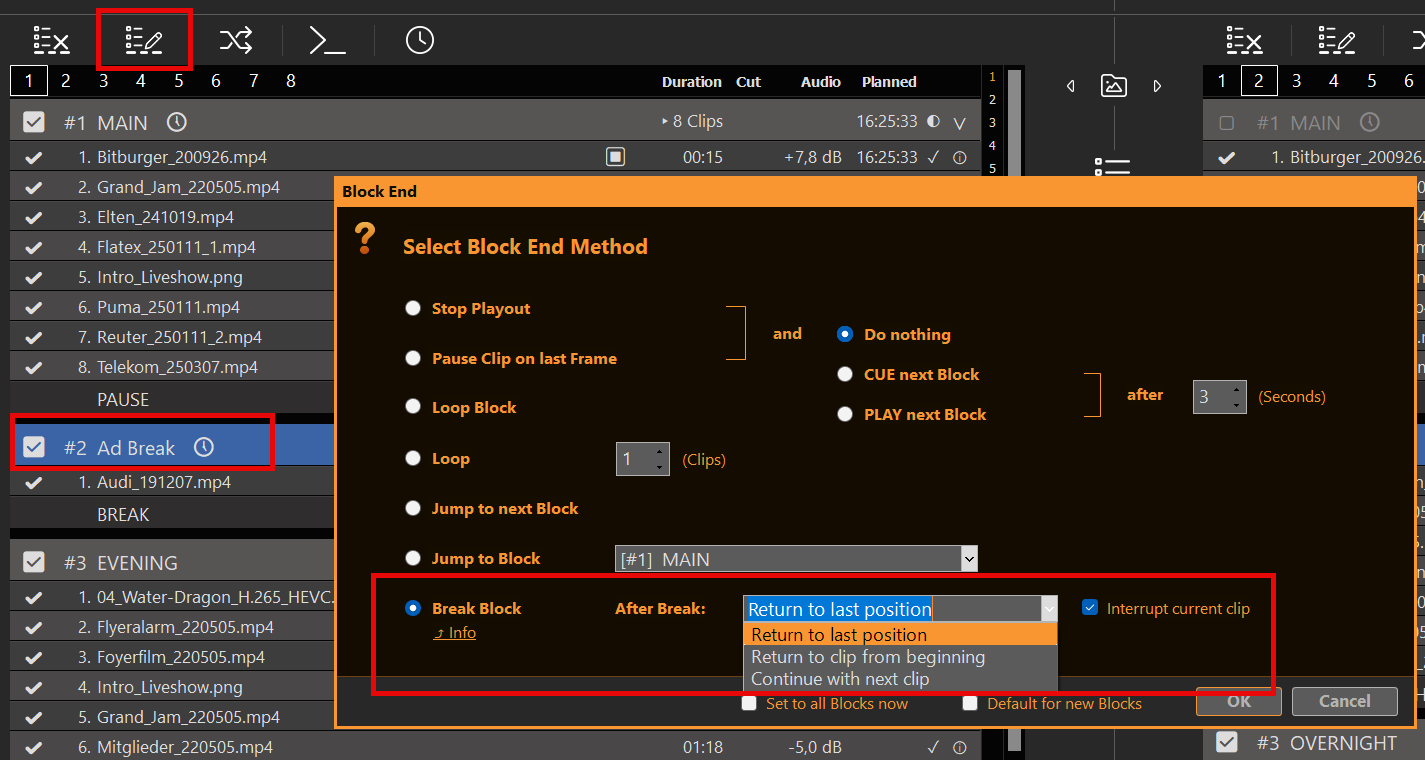
This BREAK BLOCK behaves like this: Once it reaches its end, it will return to the clip and position (or other), which was playing BEFORE entering the BREAK BLOCK from OUTSIDE. Meaning: You can jump from anywhere to anywhere in the BREAK BLOCK, and it will remember where to return to.
Schedule Break Block
You can schedule the Break Block like any other Block Type by selecting the Block and clicking the SCHEDULE Icon:
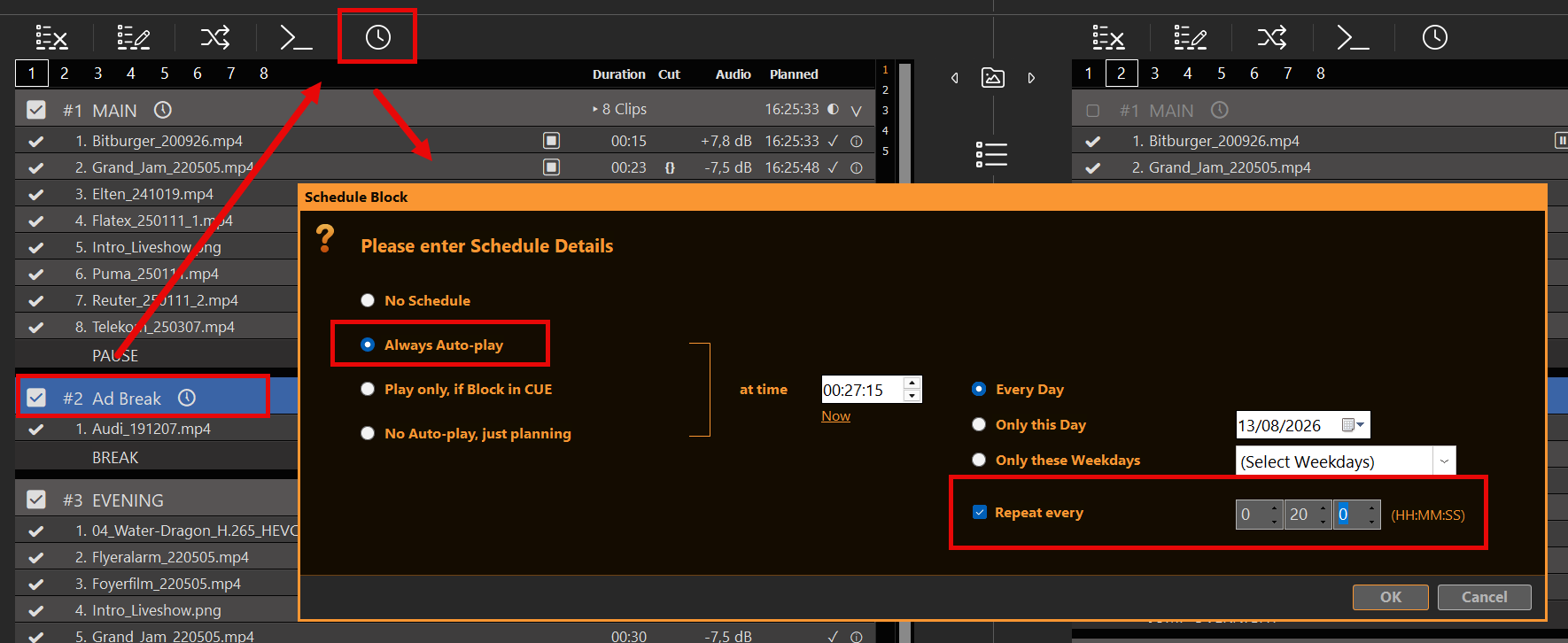
In this example we start our Break Interruption every day at 11:00 o’clock and will repeat this every 2 and half hours for the remaining of the day. There will be no Ad Breaks between 0:00 and 11:30.
A scheduled Ad Break will NEVER fire on its own: If nothing is playing, there is nothing to interrupt and return back to. Consequentially a scheduled Ad Break will NEVER fire within another Ad Break. This also presents opportunity: You can program repeating Ad Breaks with collisions on purpose and have the first one get priority and ignore the other one.
With Interrupt current clip enabled, the Break starts at the scheduled time. With it disabled, PLAYDECK waits for the current clip to end. Live or endless clips never reach a clip end, so a Break with Interrupt off will not start while they are playing. Stop, CUE, or playing a different clip cancels a waiting Break. Pause keeps it.
Using Action Buttons for Ad Breaks
Instead of scheduled Break Blocks, you can also use Action Buttons. For this simply click an empty Action Button and select to play the related Ad Block:
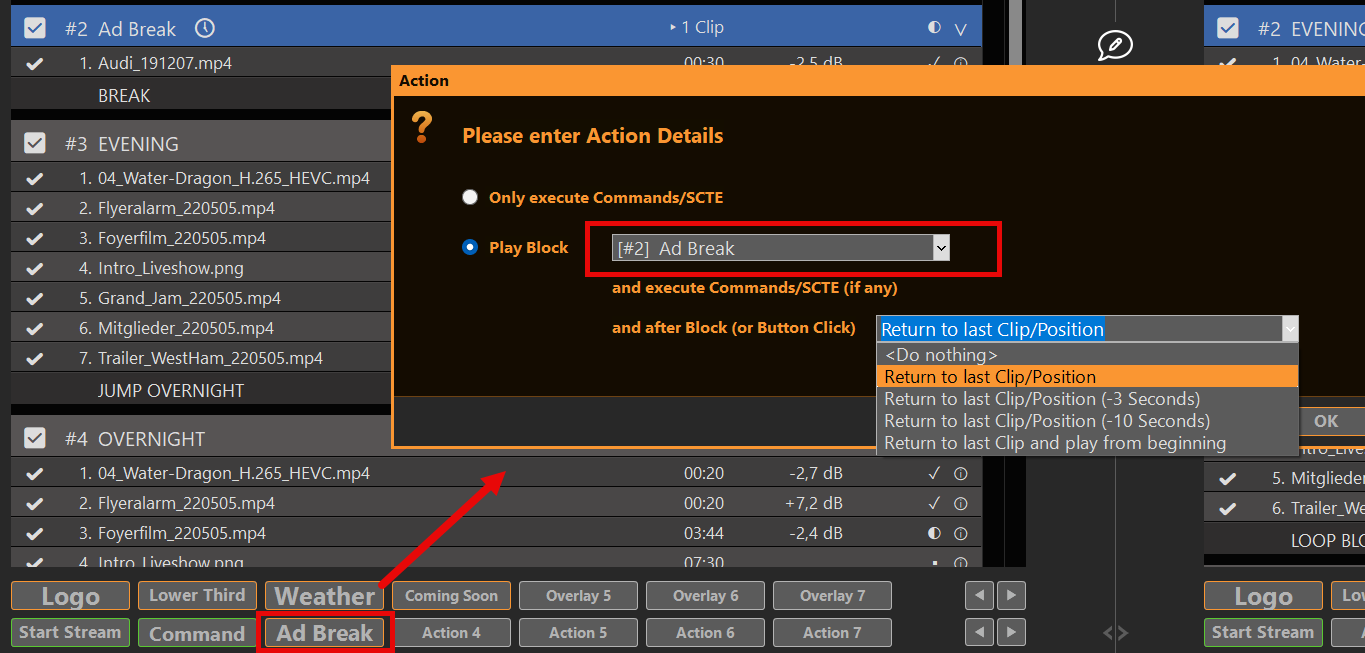
After Block the Action can use its own return method:
- Do nothing — uses the Break Block End (After Break)
- Return to last Clip/Position
- Return to last Clip/Position (−3 Seconds)
- Return to last Clip/Position (−10 Seconds)
- Return to last Clip and play from beginning
Continue with next clip exists only on the Block End, not on the Action. If you select Do nothing, the Block End will be used, like in our example above. If you select any other Option, the Return method of the Action will be used over the Block End method. This gives new options:
- You could use both return methods, depending if the Break Block starts via scheduling or via Action Button
- If started via Action Button, you can leave the Break Block EARLY and still return
The second option is perfect for looping Break Blocks, as you return to the previous playout if you click the Action Button a second time.
To fill the Break from a folder and only play what fits in the Break length, see Fill a timed Break from a folder below.
Fill a timed Break from a folder
A Break Block can hold a pool of commercials — fixed files in the playlist, or a folder that stays in sync.
Recipe: ~2 minute Break from a folder
- Make the Block a Break Block (Block End → Break). Choose After Break (return to last position, from beginning, or next clip) as usual.
- Open Clip Shuffle / Sync on that Block:
- Check Sync clips and set the folder (Filter optional — extensions and/or filename patterns).
- You can use Sync alone (No Shuffle) if you only want the folder mirrored.
- For a timed fill: set Shuffle time → up to
00:02:00(or your Break length).
- Each time the Break is entered (Schedule or Action), PLAYDECK deals a take: only as many clips as fit in that time. Leftovers stay gray (↷) for this Break. Returning from the Break does not deal a new take on the return target.
Alternatives
- Shuffle only N (e.g. 1) — one new spot per Break entry; the rest stay gray until the next deal.
- Shuffle all Clips — full random order of the synced pool (every active clip in the take).
Folder Sync runs in the background only while the Break Block is not Current and not Next (cooldown ~10s, ~30s when clips were added). Details: Playout Rules — Clip Shuffle / Sync.
Limit how often each spot plays
On a spot, open Playout Rules (pause icon) → Limit Playout, e.g.:
- Max playouts (per Day) = 5
- optional weekdays, primetime, campaign dates
Automation never picks a gray or limited spot. You can still fire one by hand.
Important with Folder Sync: new files from the folder become new clips. Existing Limit settings are not copied onto them. Before you rely on Sync:
- Set Limit Playout on one clip (e.g. Max 5 per day).
- Check Default for new clips in that dialog and OK.
- From then on, every newly added clip — including Folder Sync — gets those defaults.
Full guide: Playout Rules.
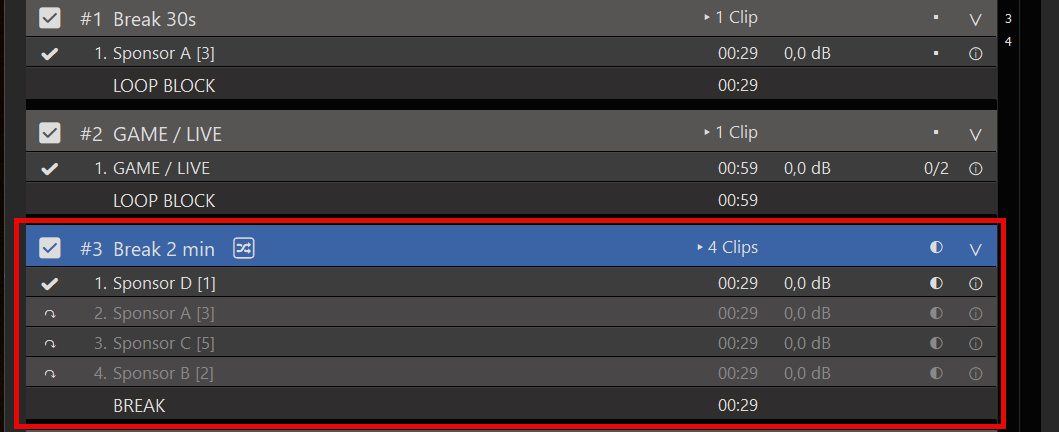
Attach Overlays to the Break Block
Oftentimes you want Overlays to start automatically together with your Break Block Content. We therefore recommend the following articles:
- Automate Overlay Lower Third with Clips
- Create L-Band Ads via second Channel
- External Overlays with ClassX (and other)
Attach SCTE Marker to the Break Block
If you want to signal your Streaming Server or Broadcasting System to insert Ads for the duration of your Break Block, we recommend the following article:
Create L-Band Ads via second Channel
This article will show how to use how to utilize the second Channel to create L-Band advertisements.
1. L-Band Specifications
Every Station has their own specs on the size, so we just borrow this sample from News18:
The principal is always the same: We “shrink” our main content proportionally to make room for Ads in the remaining area. After shrinking, we leave some overlap to not risk black background. Our final shrink-size is: 1520×855 Pixel.
2. Scale Channel 1 and send to Channel 2
We assume with have our Main Video Content on Channel 1. So we enable the Output Scaler in the Settings to our shrunk size of 1520×855 Pixel. Then we send our scaled Content as NDI signal:
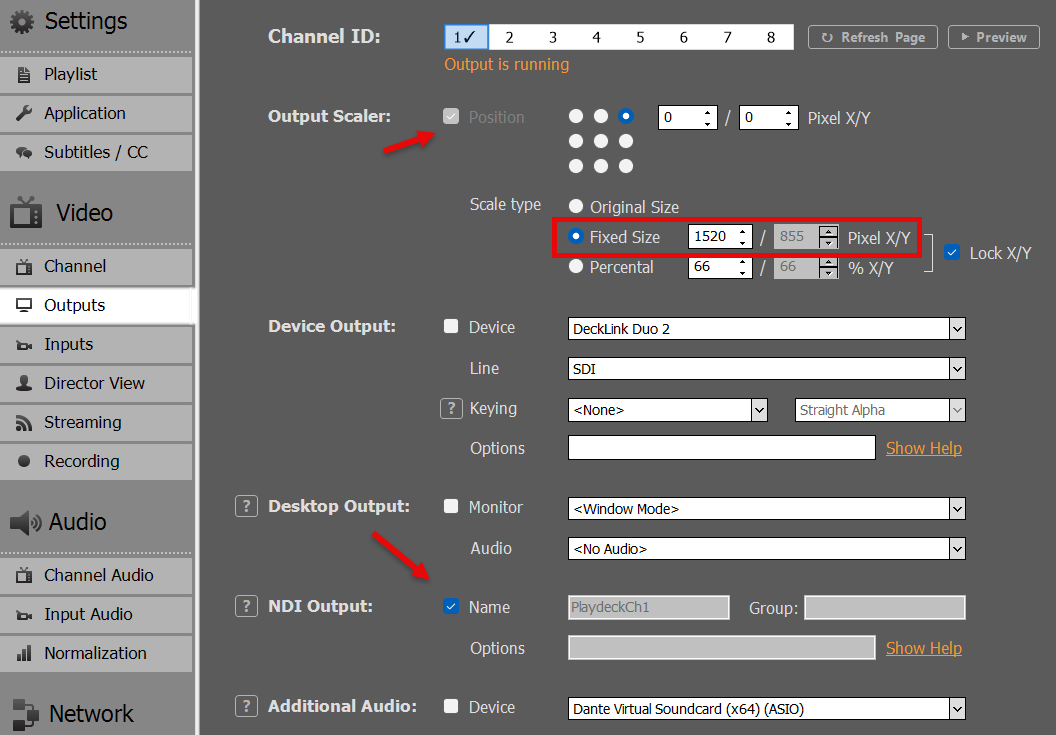
We now loop our NDI signal to Input 1:
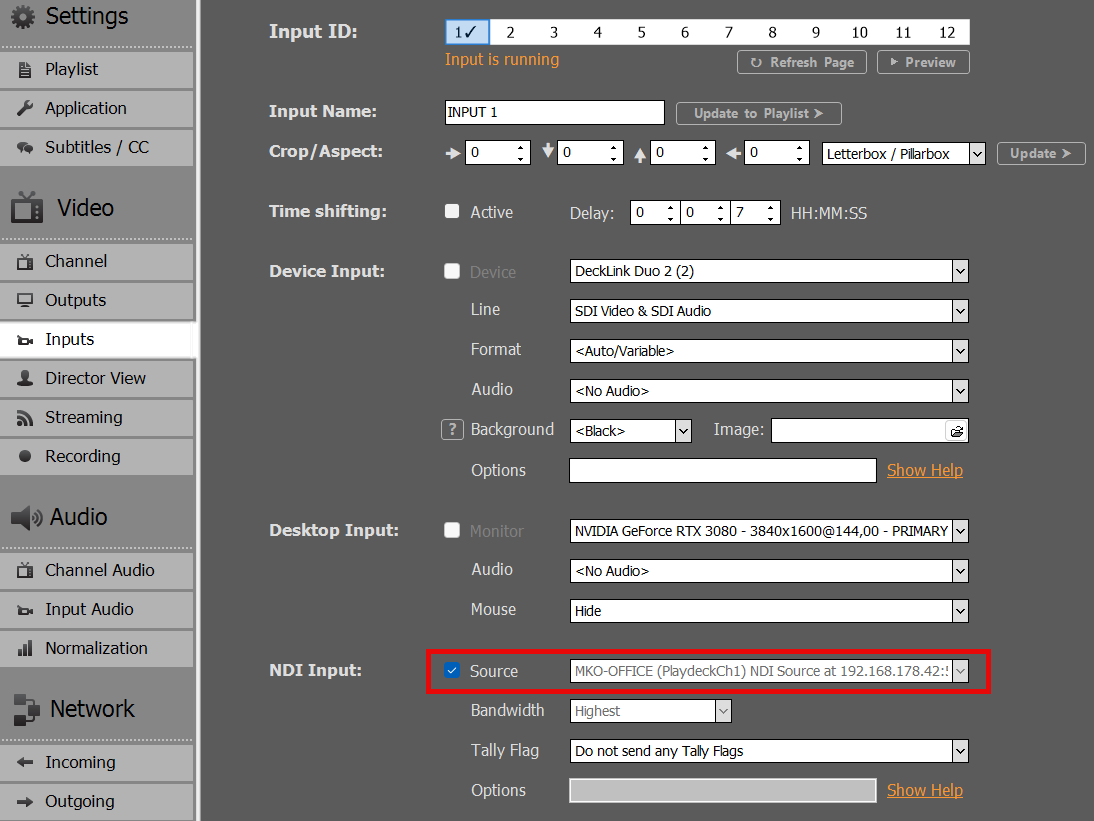
We then add Input 1 to the Playlist of Channel 2, by Drag Drop of the Input Icon to the Playlist. We now have the Video Content in L-Band size:
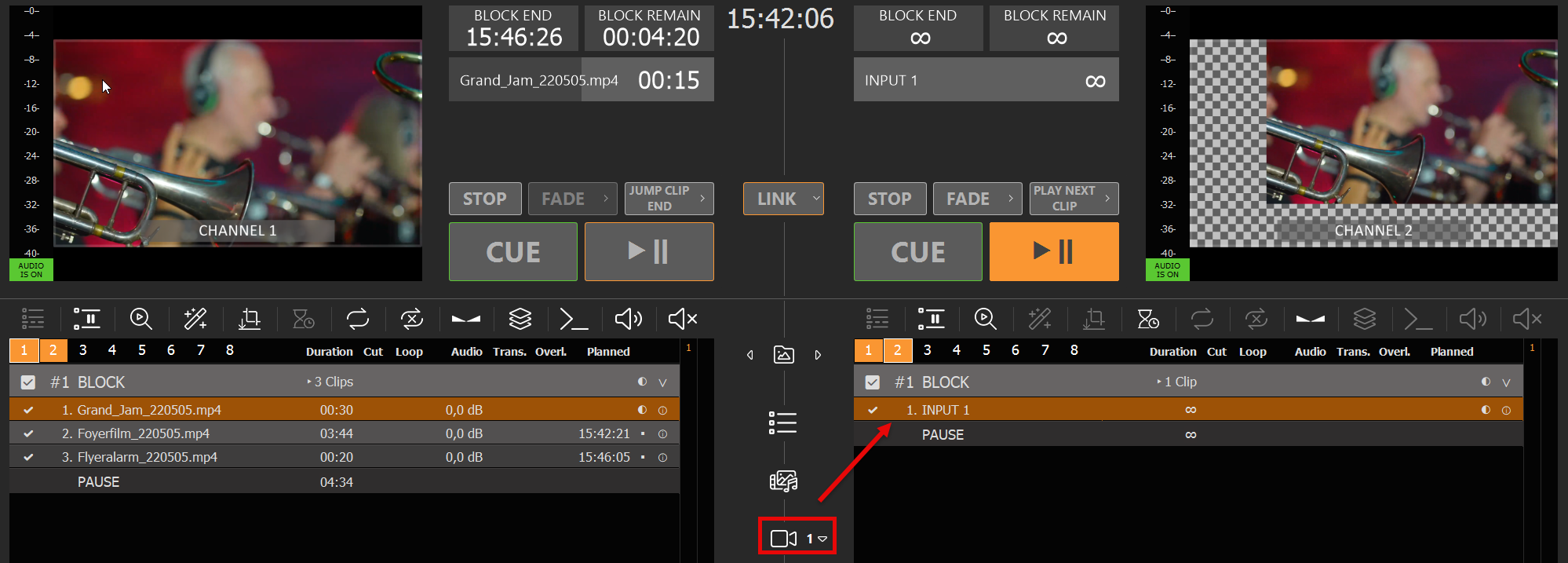
3. Add the Clean Feed for Switching
Since our Final Output will run over Channel 2, we also want our Clean Feed to be selectable in the Channel 2 Playlist. For this, we can simply copy the Channel without the Output Scaler. Use another Input and set Channel 1 as Source:
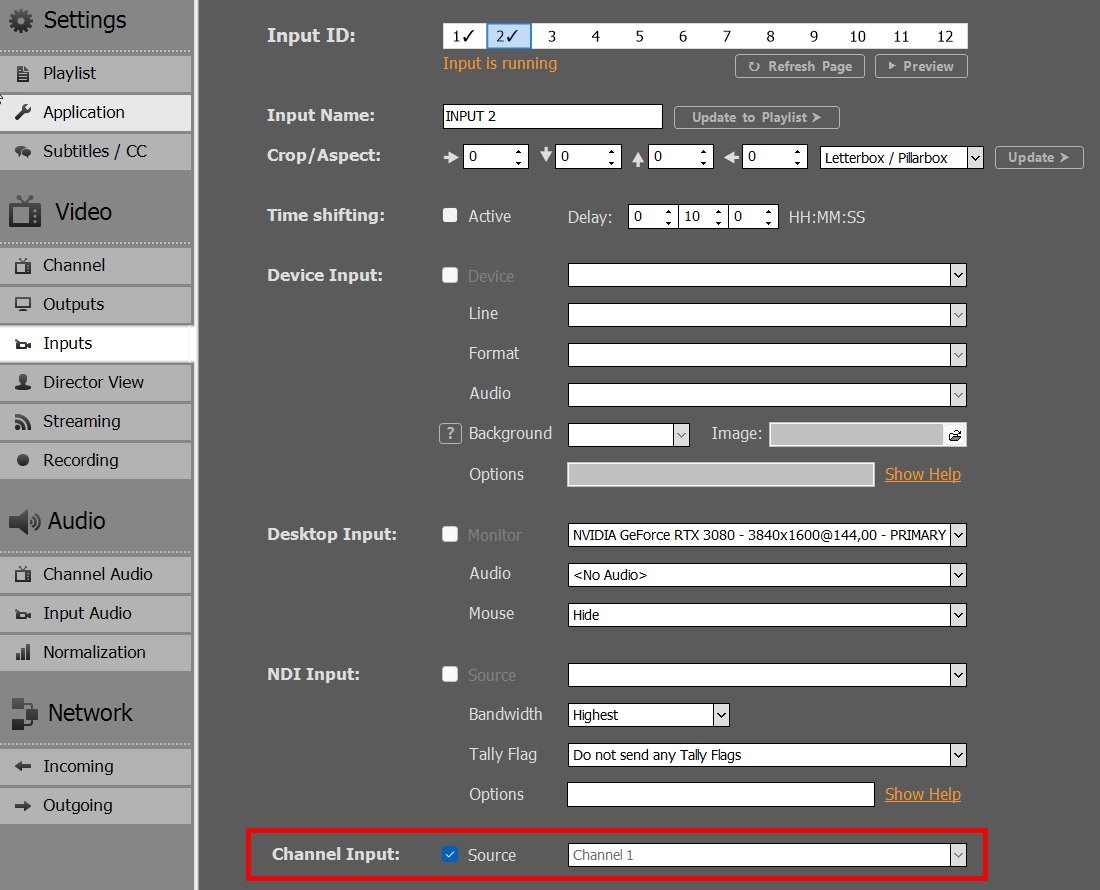
Then also add that Input to Channel 2. I already renamed both Inputs in the Playlist to be more distinguishable:
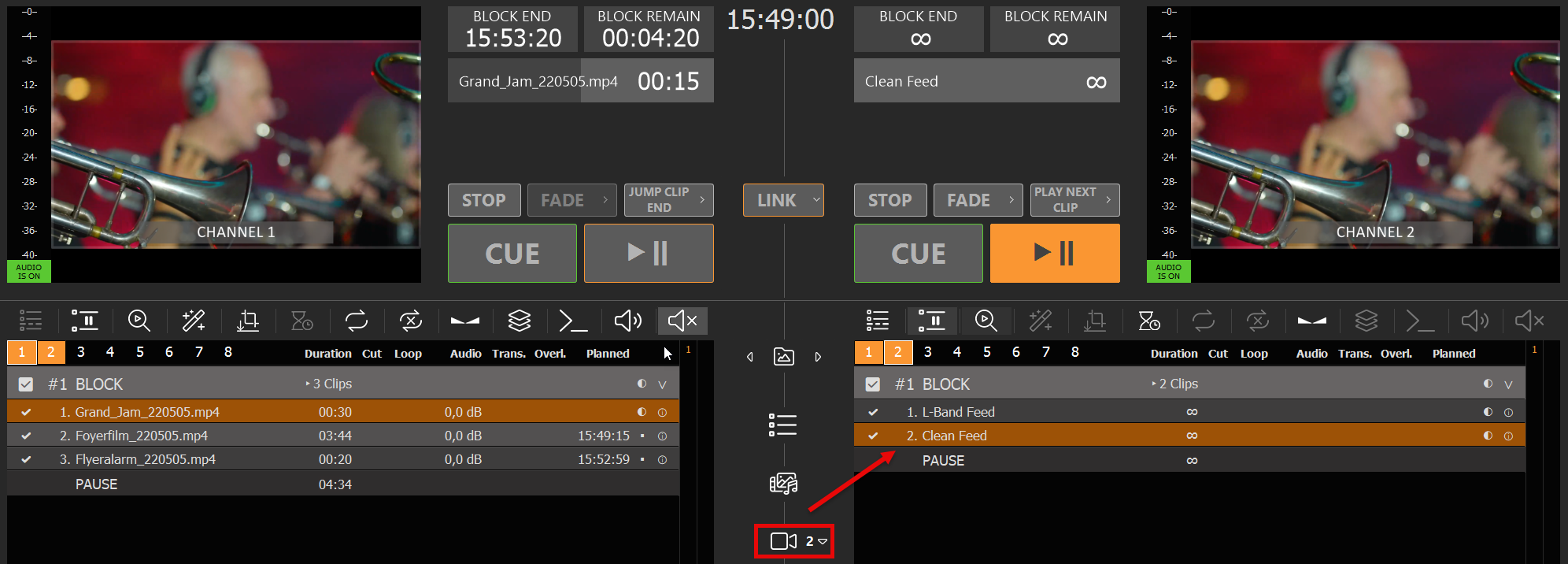
You can now quickly switch between L-Bands and Clean Feed.
4. Use Overlays for L-Bands
You can use PLAYDECK Overlays for your L-Bands. For simplicity, we use this transparent PNG over the Video signal. But these can be more complex. See this article on how to create Overlay groups and fade them together.
Click on any empty Overlay Button, then add our Sample PNG:

We now want our Overlay to ONLY play with the Playlist Clip for the “L-Band Feed” Input. For this we select the L-Band Clip and click the Overlay Icon, then add our new Overlay for the whole duration of the Clip:
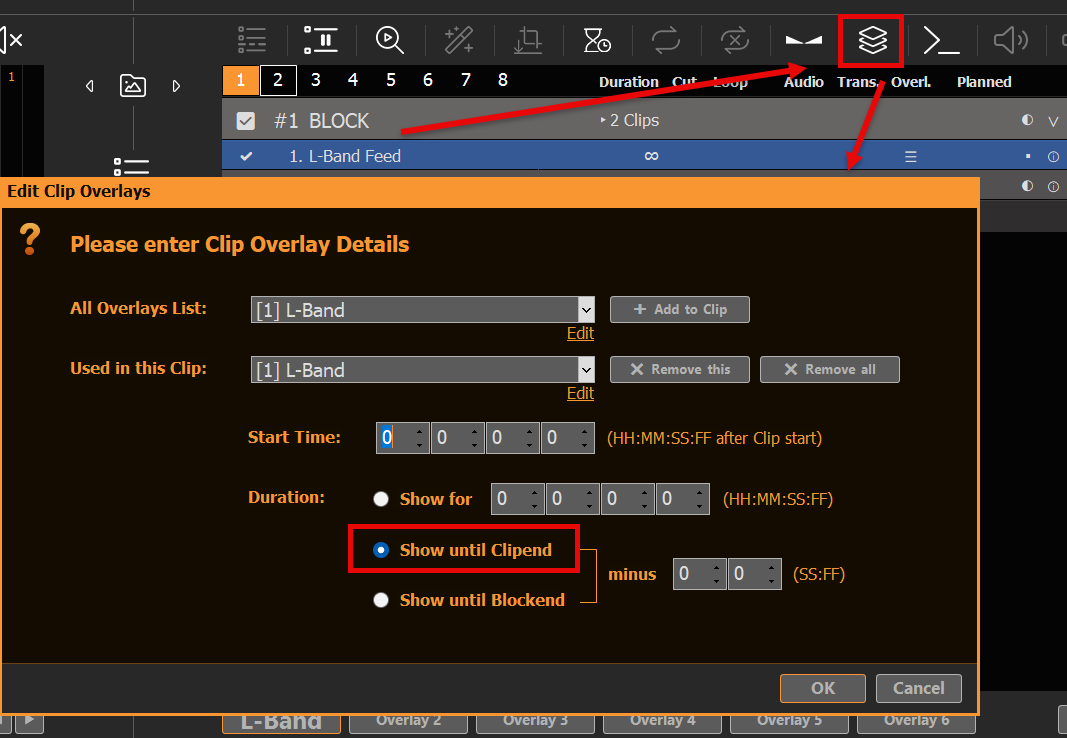
Our L-Band Overlay will now automatically start together with the L-Band Feed:
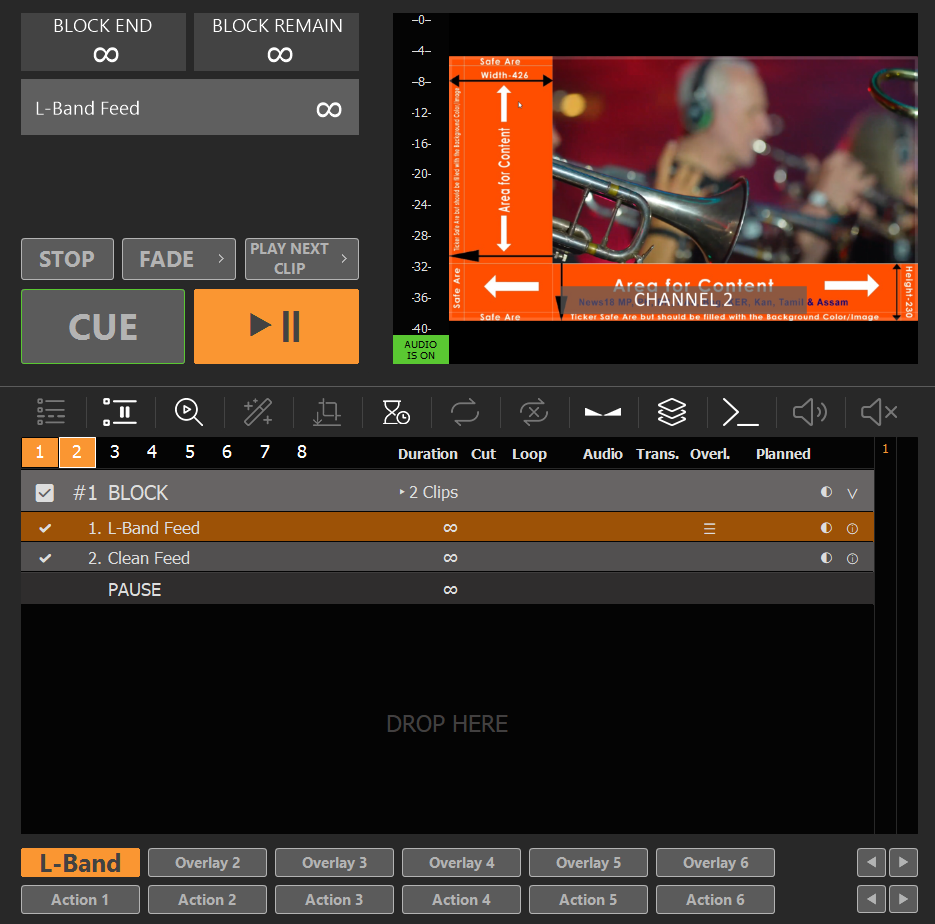
Note: Overlays that are assigned to Clips always have a slight reaction delay. This can be overcome by finetuning Playlist and Overlay Fade Times. You could also split the L-Band Feed and Clean Feed to Channel 2 and 3 and use an external Mixer for Transitions.
Cloud & Remote Productions
Setup Cloud & Remote Productions
Welcome to the Playdeck Cloud & Remote Productions guide. This central guide helps you transition from a local studio environment to a decentralized or cloud-hosted setup. Rather than detailing specific commercial cloud providers, this page gives you the exact blueprint to deploy Playdeck on any online server or headless machine, feed remote streams into your playlists, and configure network triggers for total remote automation.
In this article:
→ Why Choose Remote Deployment? (Production Use Cases)
→ System Requirements & Network Architecture
→ Remote Inputs
→ Remote Outputs
→ Remote Control & Automation
Why Choose Remote Deployment? (Production Use Cases)
Installing Playdeck on an online remote server or data center computer instead of a local office machine provides critical architectural advantages. Below is why professional workflows utilize remote deployments:
Scenario A: High-Pressure Corporate Events & Galas
- The Problem with Local Office Setup: Running a live event playout from an office or venue laptop exposes you to local network drops, accidental Windows update reboots, or personnel accidentally messing with the local machine.
- Why Remote PC Deployment: By moving Playdeck to a dedicated online server, you isolate the playout engine entirely. Even if your local office internet goes down completely, Playdeck continues to run safely in the data center. Its dedicated HDMI/SDI output automatically isolates the feed—guaranteeing that the operating system desktop, mouse cursors, or other running applications are never displayed on the program feed, maintaining a clean look even if a remote operator disconnects.
Scenario B: 24/7 Fixed Installations & Automated Playout
- The Problem with Local Office Setup: Office computers are vulnerable to local power outages, hardware tampering, and standard consumer network interruptions, making them highly unreliable for around-the-clock broadcasting.
- Why Remote PC Deployment: A remote data center computer offers enterprise-grade power redundancy (UPS) and climate control. You can manage a completely headless system from anywhere via RDP. Because you have full remote access, you can update, reorder, or completely replace the active playlist remotely via the web interface or API commands from any device worldwide, ensuring instant schedule adjustments on a headless system without interrupting the active stream.
Scenario C: Multi-Destination Cloud Distribution & Monitoring
- The Problem with Local Office Setup: Standard office DSL or Wi-Fi connections simply lack the upload bandwidth required to output multiple high-quality video streams simultaneously, causing massive packet loss and stuttering.
- Why Remote PC Deployment: Data center servers are hooked directly into massive internet backbones with symmetrical gigabit speeds. This allows you to output your main playout signal to a high-quality master SRT destination while simultaneously pushing multiple lower-bitrate RTMP feeds to social platforms—completely bypassing local office bandwidth bottlenecks. Furthermore, production assistants or clients can monitor the active playlist, clip countdowns, and system health status globally via the Web UI interface, ensuring zero performance impact on the primary hardware-accelerated video rendering engine.
System Requirements & Network Architecture
You can run Playdeck in the cloud or data centers on almost any modern virtualized or physical machine. This provides massive internet bandwidth for handling multiple parallel stream outputs and high-bitrate ingests compared to typical office DSL or Wi-Fi connections.
- Operating System: Any standard Windows 11 (64-bit) environment.
- Remote Management: The system can run completely “headless” (without a physical monitor attached). You can connect and manage the interface entirely via Remote Desktop Protocol (RDP).
- Hardware & GPU: While standard hardware requirements apply, a dedicated GPU (e.g., NVIDIA) is highly recommended to handle hardware decoding for common codecs like H.264.
- Base Specifications: For a detailed breakdown of recommended components, check out our Playdeck PC Build Guide.
Remote Inputs
Playdeck features an intelligent ingest engine that automatically detects your input source type. A major technical advantage: Playdeck does not constantly consume bandwidth for all streams. It initiates the stream network pull dynamically right before the clip is scheduled to air (one clip ahead in the playlist), allowing you to queue an infinite number of remote cameras or feeds without overloading your network.
- Adding a Stream: Drag and drop the Stream Icon (located between the two playlists) directly into your playlist, then enter your ingest URL.
- SRT & Live Feeds: Feed low-latency Secure Reliable Transport (SRT) or generic stream links directly into your timeline. For detailed stream configuration, see our Input Streams Guide.
- YouTube Ingest: Paste any YouTube video or livestream URL. After Playdeck scans the link, right-click the item in your playlist and navigate to Video Tracks or Audio Tracks to manually select your preferred stream quality. Learn more in our YouTube Integration Guide.
Remote Outputs
Distribute your playout signal from your cloud server or studio to any remote destination with maximum efficiency:
- Direct Cloud Streaming: Use the native streaming options to push your output directly to major cloud platforms (YouTube Live, Twitch, Facebook Live) or custom RTMP/SRT media servers.
- Low-Latency Master Control: Deliver high-quality SRT output feeds to enterprise cloud switchers or decentralized broadcast facilities.
- Virtual Monitoring: Map Playdeck’s output to virtual camera and audio drivers to route the live feed directly into video conferencing tools (Zoom, Microsoft Teams) for instant client approval or remote monitoring.
Remote Control & Automation
Playdeck offers a deep matrix of network commands, remote interfaces, and hardware trigger support divided cleanly within the settings menu.
Network > Remote Control
- Web User Interface: Access a dedicated, mobile-friendly remote layout from any smartphone, tablet, or external browser. Simply scan the QR Code displayed in this menu section to launch it instantly without manual activation steps.
- Bitfocus Companion: Control your playout from anywhere via a physical Stream Deck or virtual buttons. Review the integration steps in the Companion Documentation.
- Playdeck API: Connect via WebSockets (REST API planned) to send commands or read live playlists, playout statuses, and events. This API forms the exact foundation of our own Web UI Remote Control. Read the technical syntax in the Playdeck API Reference.
Network > Incoming
- TCP Commands: An open, versatile interface used to fully remote-control Playdeck using third-party apps, including dynamically inserting new clips or initiating streams. See the complete command list in our TCP Commands Guide.
- ATEM & vMix Integration: Map local or LAN-based ATEM Switchers (via USB/Network) and vMix instances to act as automatic CUE+PLAY triggers the exact moment a designated input goes live.
- Hardware Triggers (COM/USB): Connect older or highly customized physical hardware devices utilizing a closed-circuit setup for instant CUE+PLAY actions.
- Broadcast Standards (TSL UMD & NDI Tally): Trigger automated CUE+PLAY via TSL UMD (versions 3.1 and 5.0, e.g. Ross mixer tally) or via NDI Tally when an assigned NDI input goes live.
- AMP Video Server (Generic DDR): PLAYDECK acts as an AMP server. Switchers such as Ross Carbonite connect as client, browse playlist clips, and control cue, play, stop and pause. Video is routed separately (SDI/NDI/HDMI). See our AMP Video Server Guide.
Network > Outgoing
- TCP Commands: Instruct Playdeck to automatically send custom, individual strings to external third-party hardware or software whenever specific events occur (e.g., Clip/Block Start, Action Buttons, or Overlay triggers).
- TCP Events: Broadcast predefined, automated system status changes from Playdeck to keep external control systems perfectly in sync with your active playout timeline.
Using Companion for Playout Control
This article will show how to use bitfocus Companion together with PLAYDECK. Companion has a ready-to-use module for PLAYDECK. This is the most comfortable way to connect PLAYDECK to your ATEM Mixer or STREAMDECK.
The Companion Module has been developed and is maintained by Nick Semonov. He is a Community Developer and also a great guy to work with.
For native clip-list and transport control from a Ross Carbonite panel, use AMP Video Server in Settings → Incoming instead of Companion. Companion remains the best option for Stream Deck and ATEM button workflows. See AMP Video Server.
In this article:
→ Installation
→ Button Page with Presets
→ Custom Commands instead of Actions
→ Custom Button Feedbacks
Installation
1. Start PLAYDECK, so Companion can find it
2. Download and install the latest stable Version of Companion
3. Start Companion and add the PLAYDECK Module
4. You are done, if Companion shows a GREEN Checkmark for this Connection. If you cant get a Connection, please disable your Firewall or allow TCP Port 11411.
Button Page with Presets
We will use Companion Presets to quickly create a fresh Page of Buttons for a casual Playout Situation.
1. Create a new Page, then go to PRESETS and select PLAYDECK
2. For our Sample we specifically want to target Channel 1. You could also use LISTS, which are dynamic and use the visible Channel in PLAYDECK (Left and Right). You could also control your ASSETS (Streams, Recordings). Select CHANNEL 1 to continue
3. With Drag & Drop we create a simple Playout Solution: Play Control with some Overlays. The Buttons are added with FEEDBACKS, meaning: You will get a RED Button according to the PLAY STATE (CUE, Playing, Paused, Stopped).
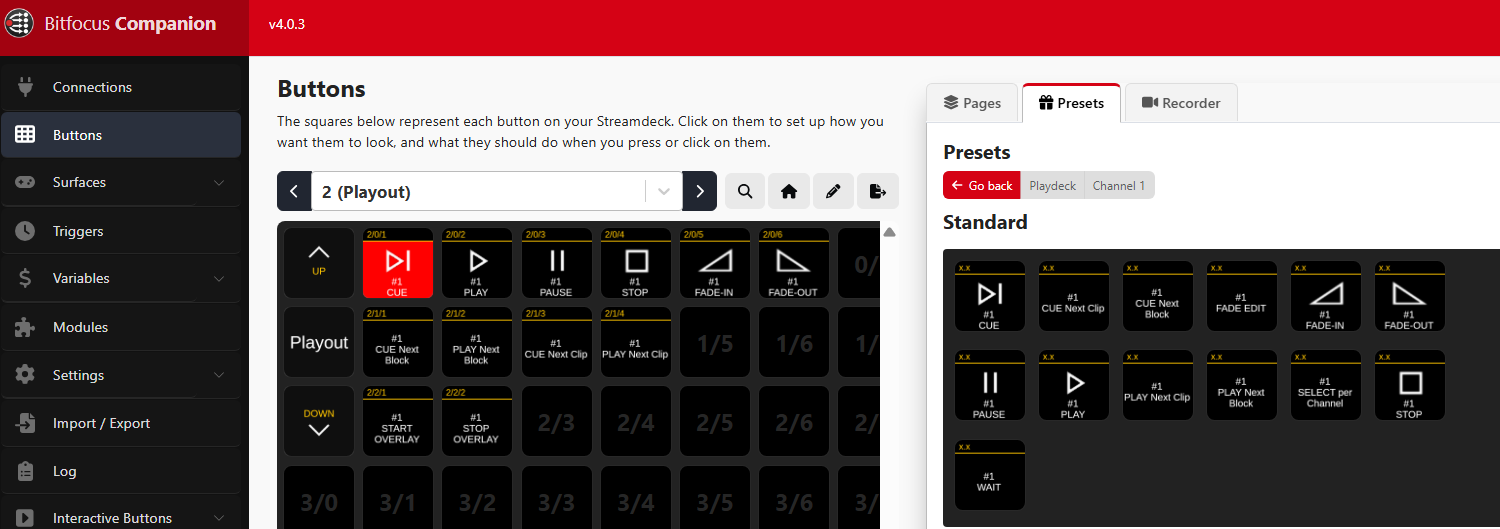
4. The PLAY Button also shows the remaining Clip Time during Playout:
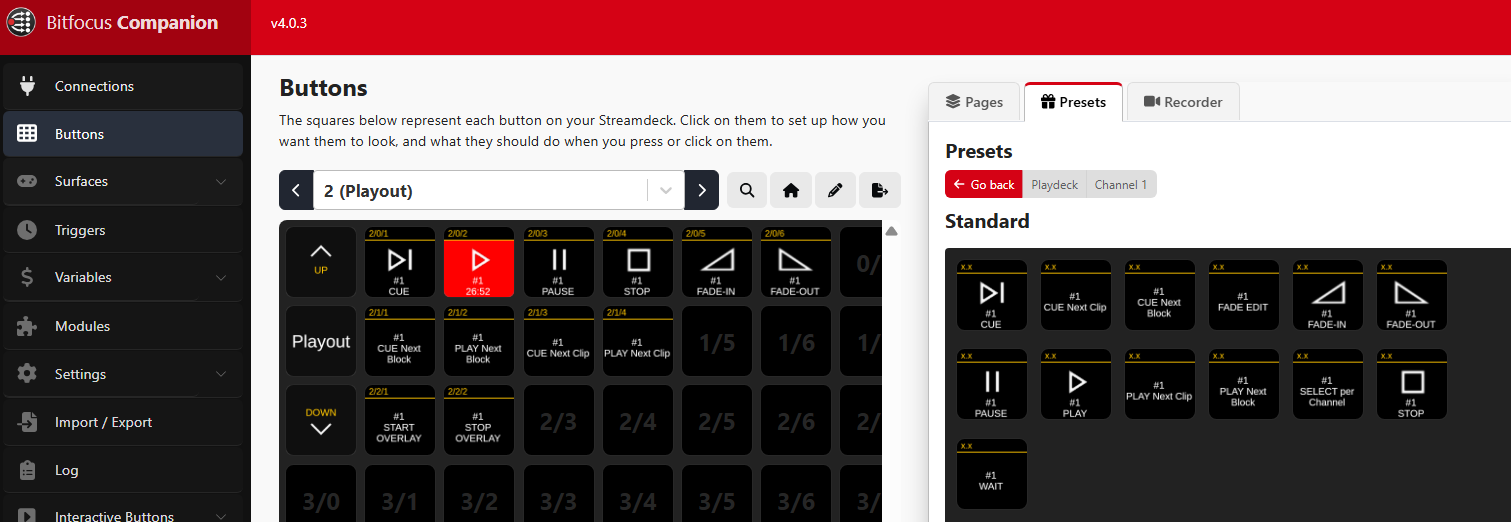
5. Some Buttons need more Information for you, like the START OVERLAY Button. It needs to know, which Overlay(s) should be started:
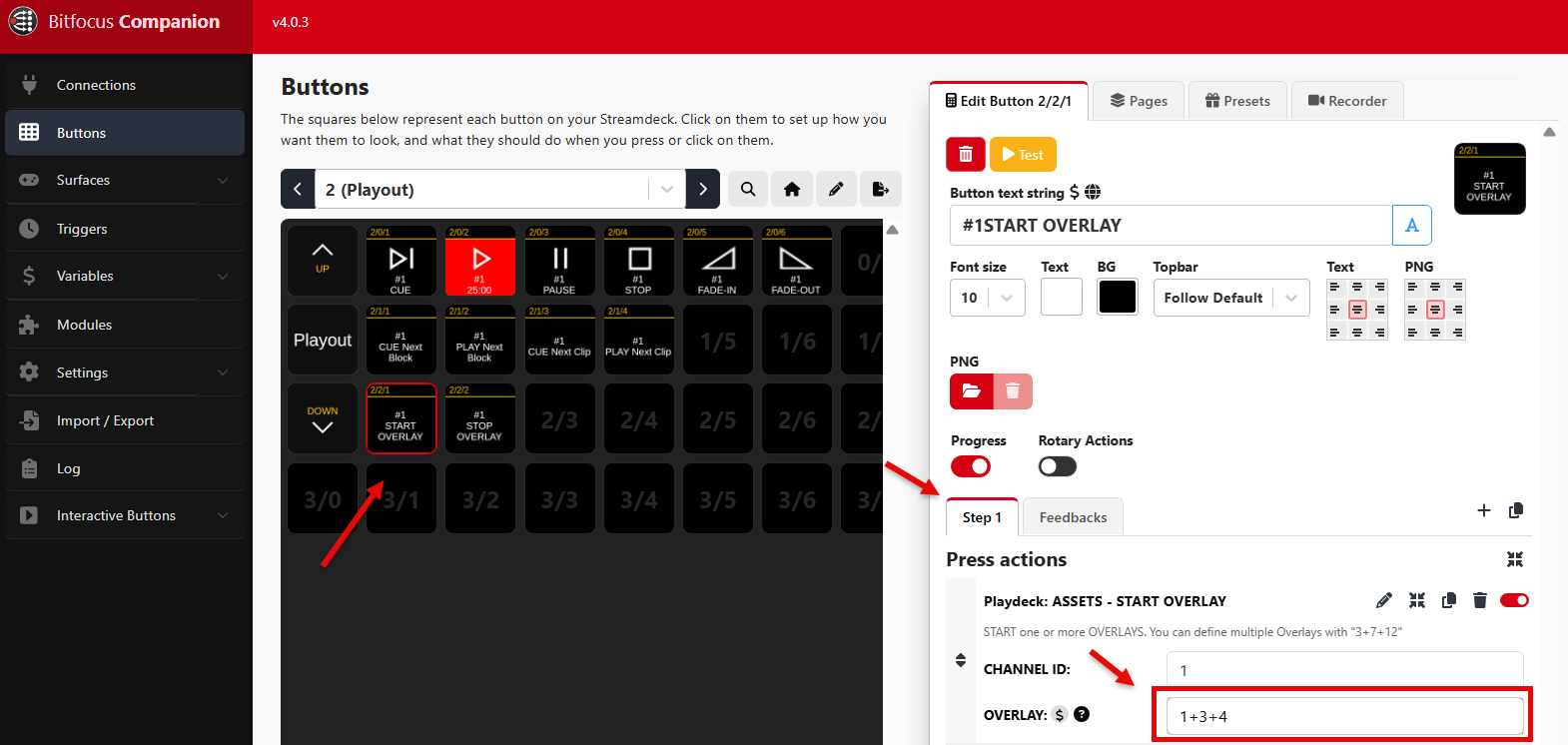
Custom Commands instead of Actions
We will add any PLAYDECK Command to a Companion Button. This is useful, if you are more of a “code” type of person or if there a new Commands in PLAYDECK, which are (not yet) available in Companion. Its also possible to add multiple Commands at the same time.
1. We create a new Button and add a new Action. We now select CUSTOM COMMAND and click DONE
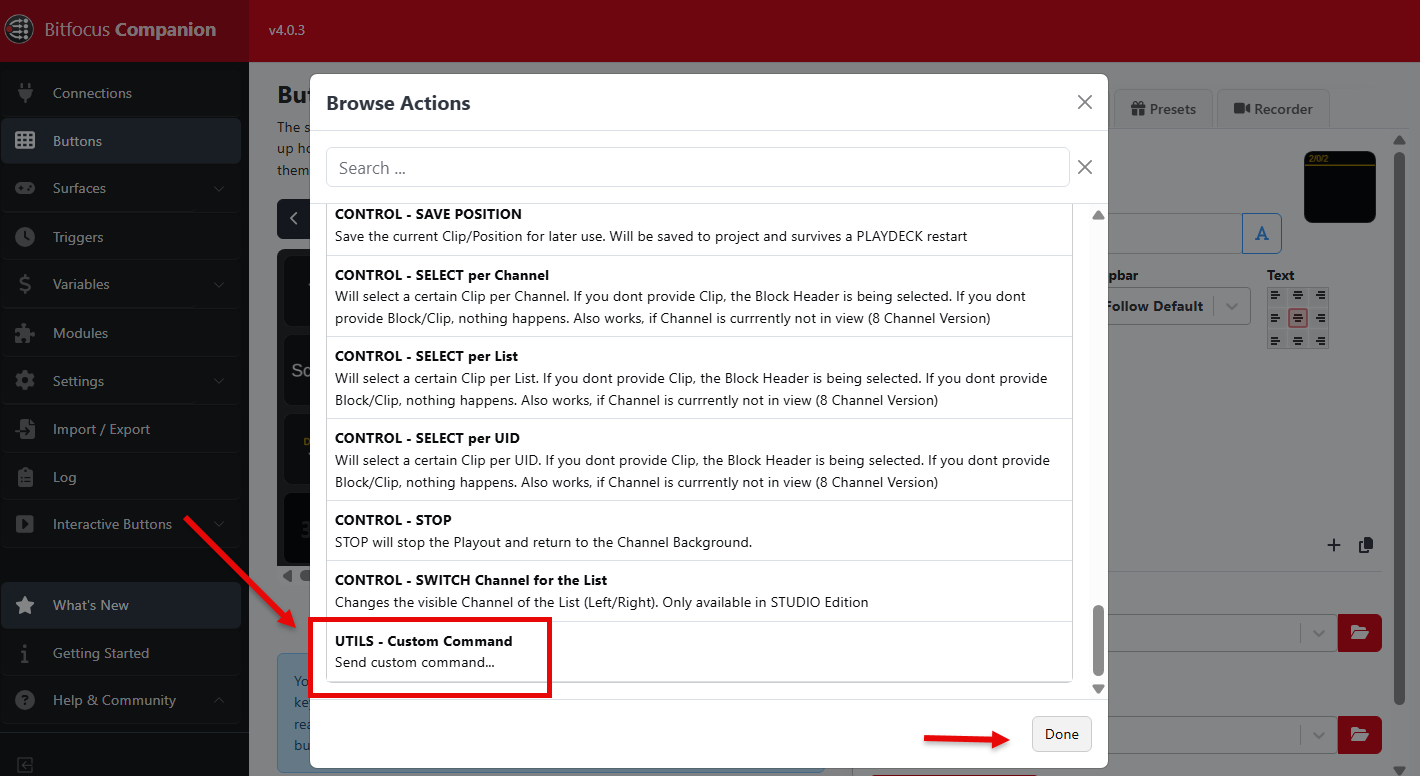
2. In PLAYDECK we open the COMMANDS LIST to review, which Command we want to use
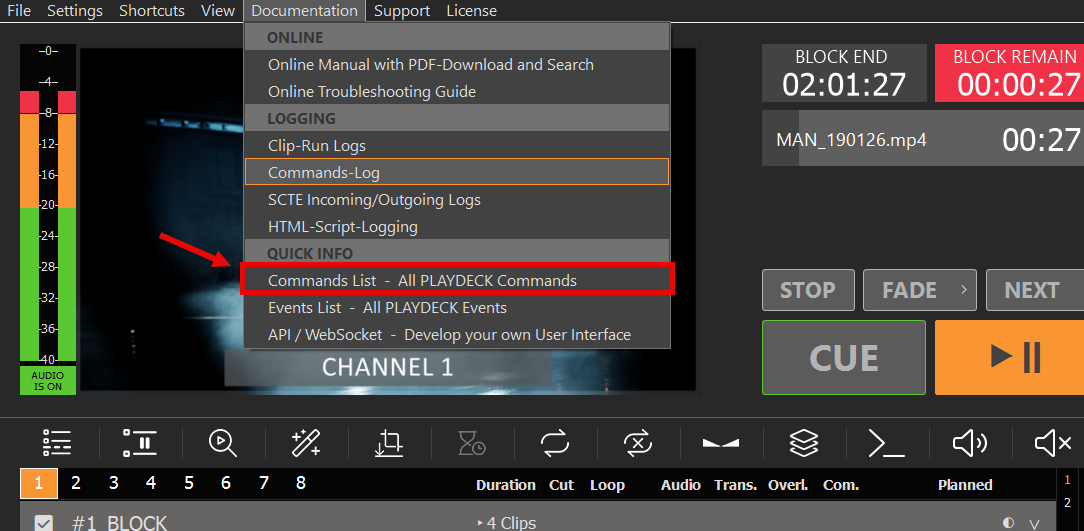
3. We decide that we want to start multiple Overlays on several Channel and after that start 2 Streams:
<startoverlay|1|1+3>
<startoverlay|2|1+5>
<startstream|1>
<startstream|2>
4. We wrap up all Commands into one Line and copy it into the COMMANDS Field. If we then press our Button, we start our Overlays and our Streams, as all Commands are executed in the written order.
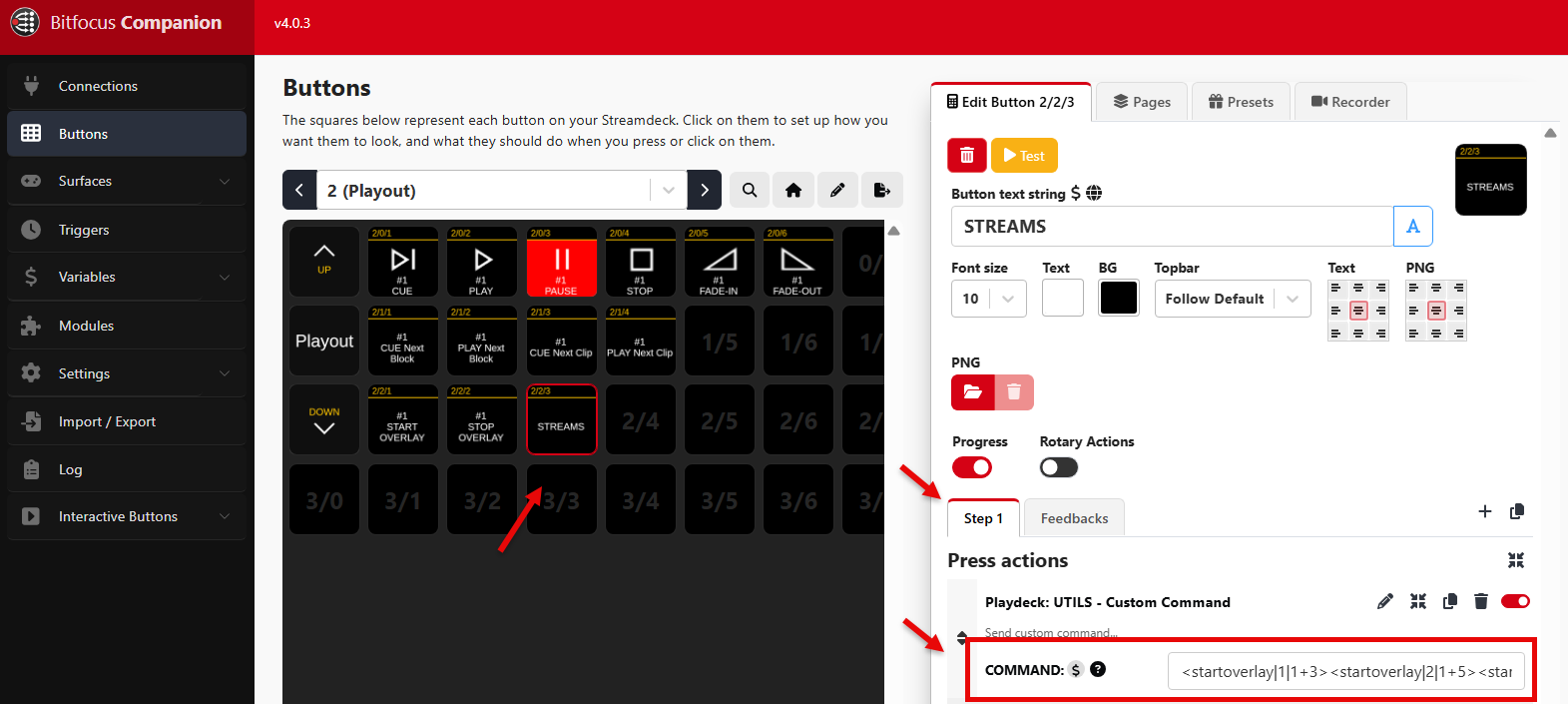
5. Another good example is starting 2 Channel synchronized:
<cue|1><cue|2><wait|1000><play|1><play|2>
This will CUE both Channel, then wait 1 Second for CUE being ready (Clip Caching), then PLAY both Channel.
Custom Button Feedbacks
Instead of using the pre-defined Feedbacks (e.g. PLAY STATE), you can use Companion VARIABLES to use many more Feedbacks. In this example we will start a specific Block and show its remaining Time on the Button.
1. We add a new Block to Channel #1 in PLAYDECK and rename it “MAIN PROGRAM”
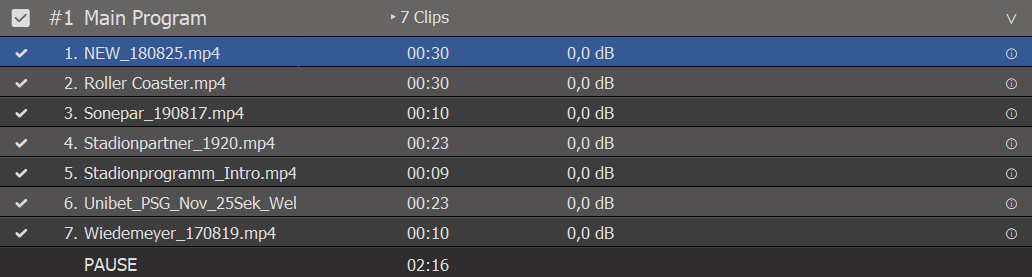
2. Now we add a new Button to Companion and assign the CONTROL PLAY FLEX Action to the Button.
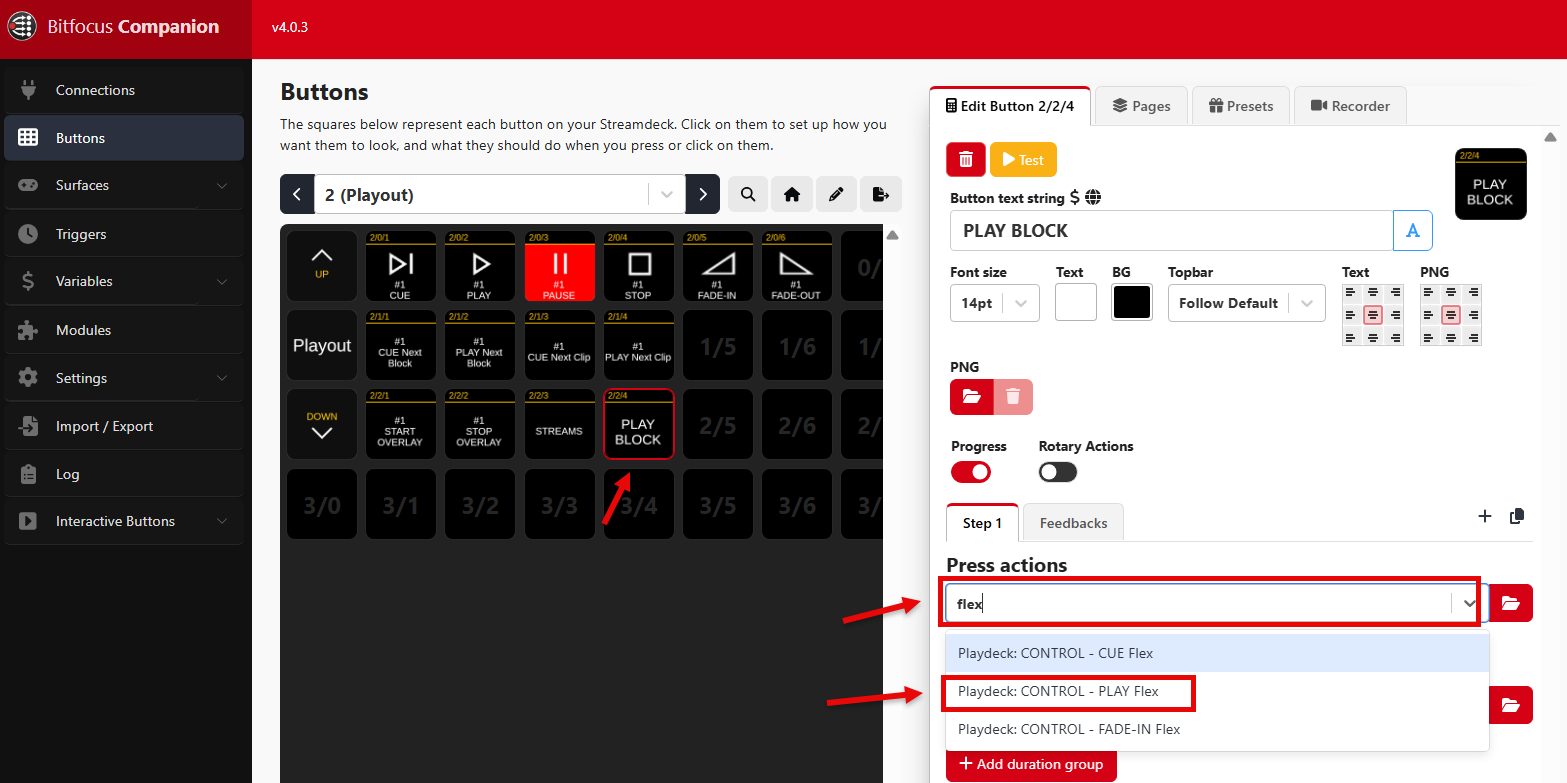
3. The PLAY FLEX Action allows us to play a Block by Name (instead of ID). We use the PATTERN “b:main c#1” to start our Block, as described in the COMMANDS LIST (PLAYDECK > Main Menu > Documentation):
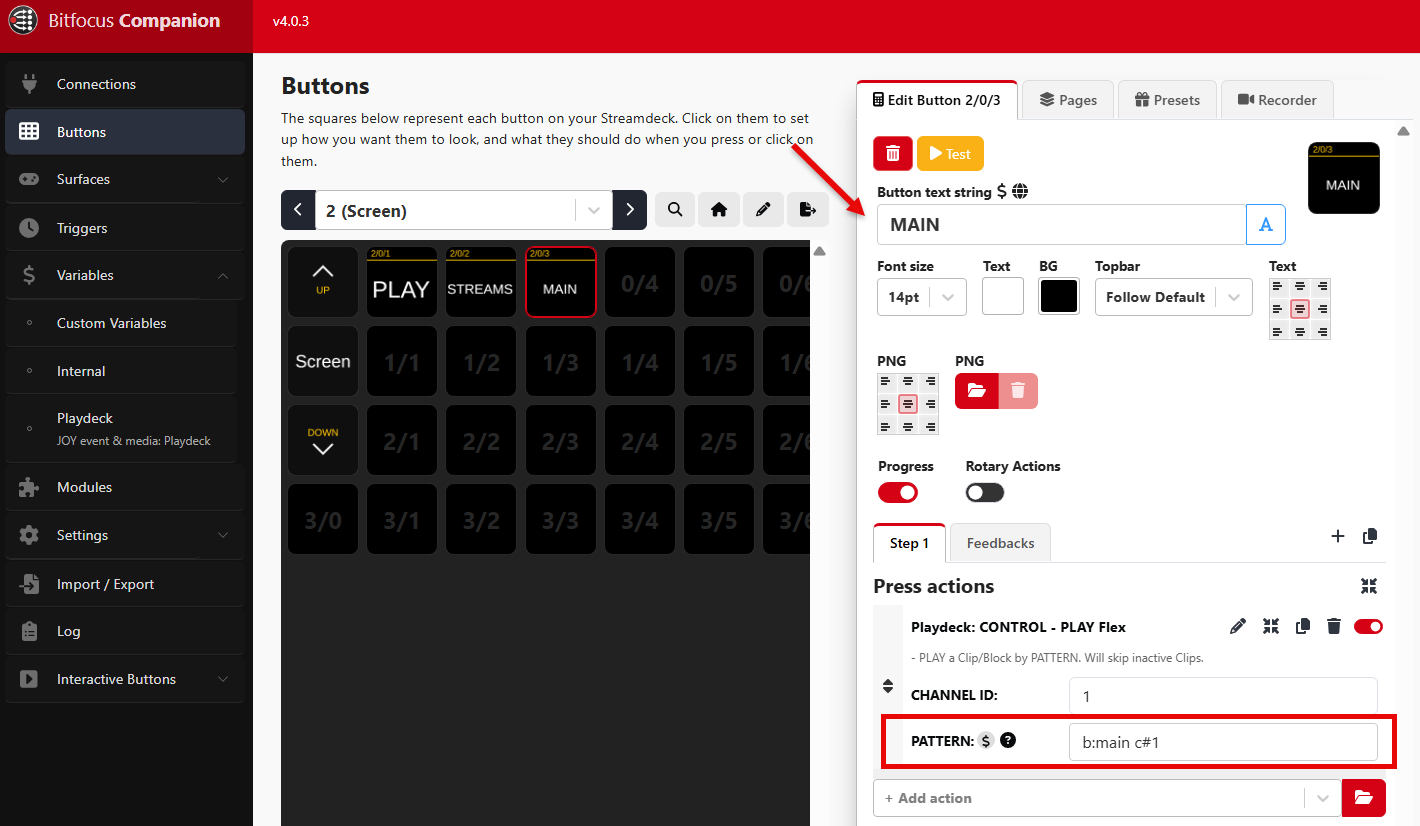
4. We now have a Block Play Button, but we also want the remaining Block Time to display, once the Block is playing. For this we need to add a custom Feedback to the Button, which will check “some” variable and do “something”:
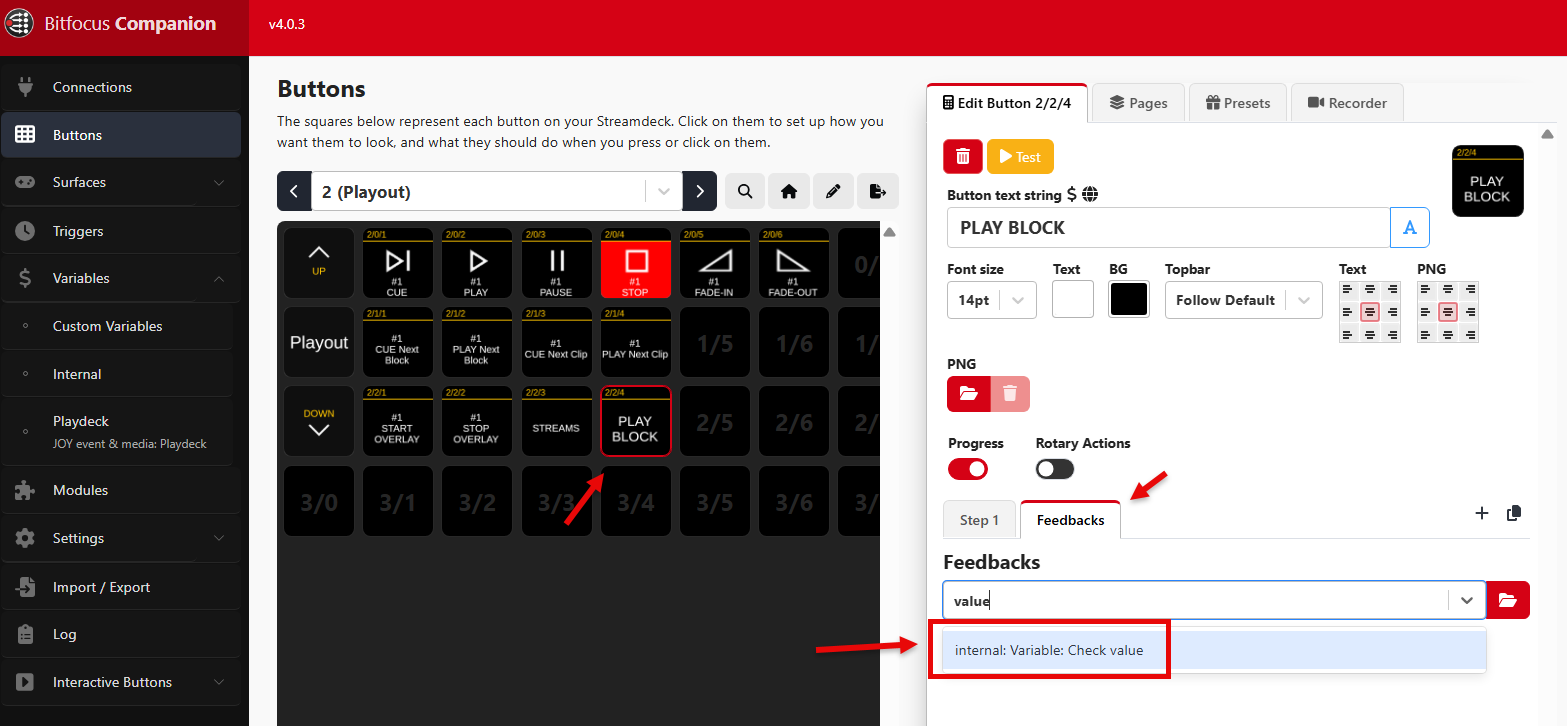
5. We check against the current playing Block by searching for “block name” in the VARIABLE field and add our Block “Main Program” as VALUE:
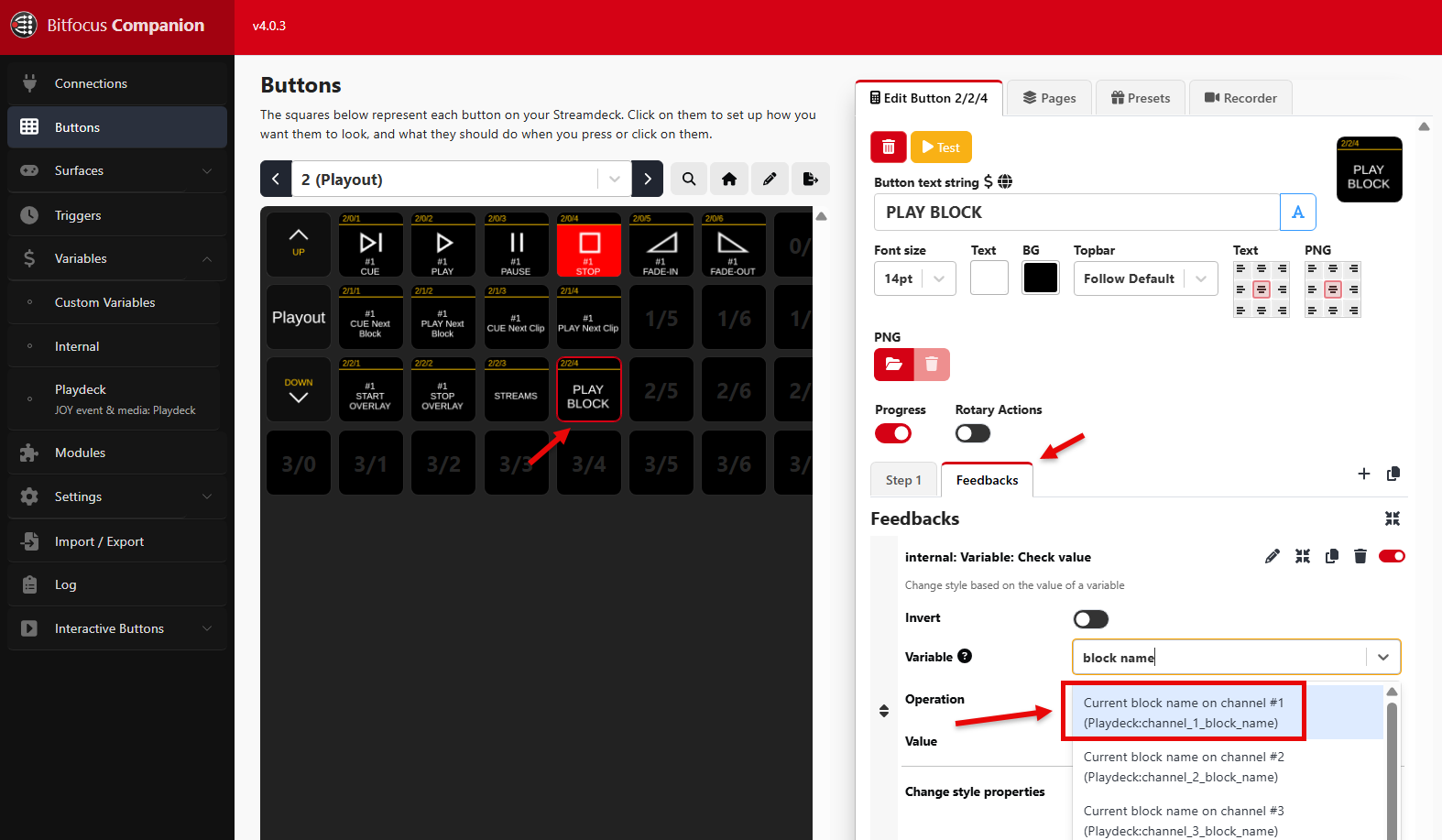
6. We then add TEXT as new STYLE PROPERTY, since our intention is to show the remaining Block Time:
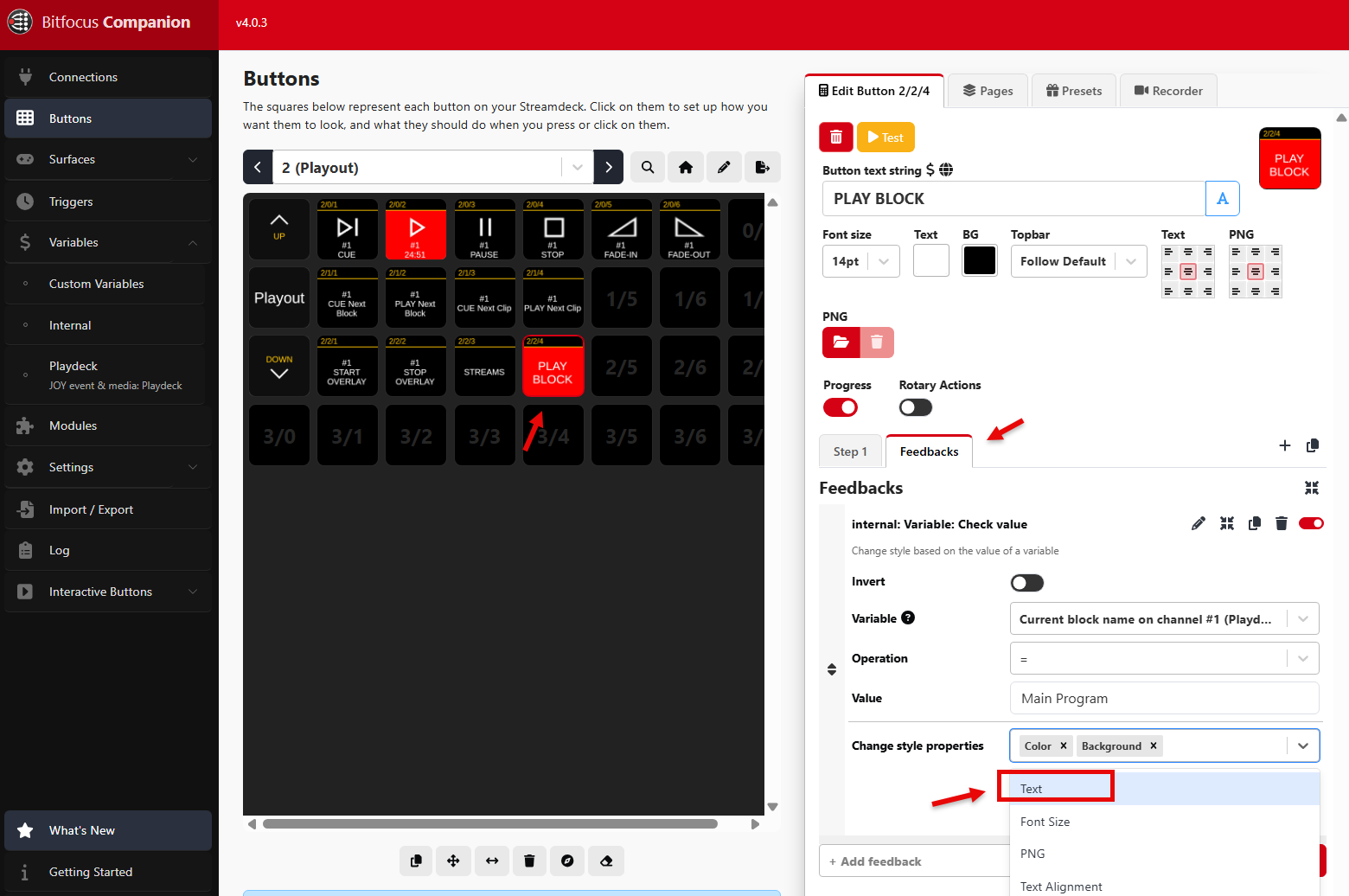
7. Add “$(Playdeck:channel_1_block_remain)” as BUTTON TEXT STRING, and our Button is finished:
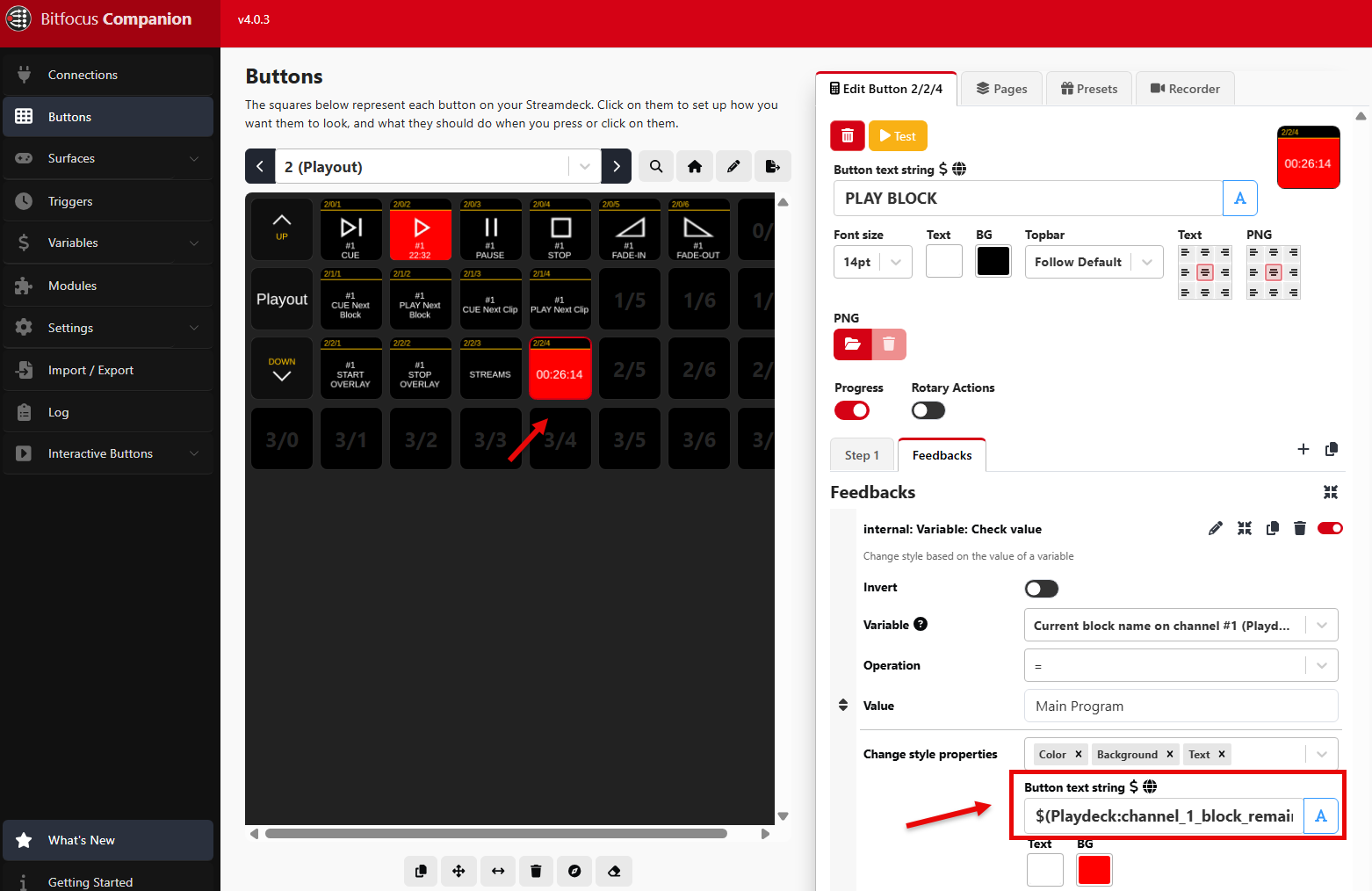
8. But how did we receive our BUTTON TEXT STRING? Companion will show you all available VARIABLES you can use in PLAYDECK. You can then click the small COPY ICON to transport the Variable to your Buttons:
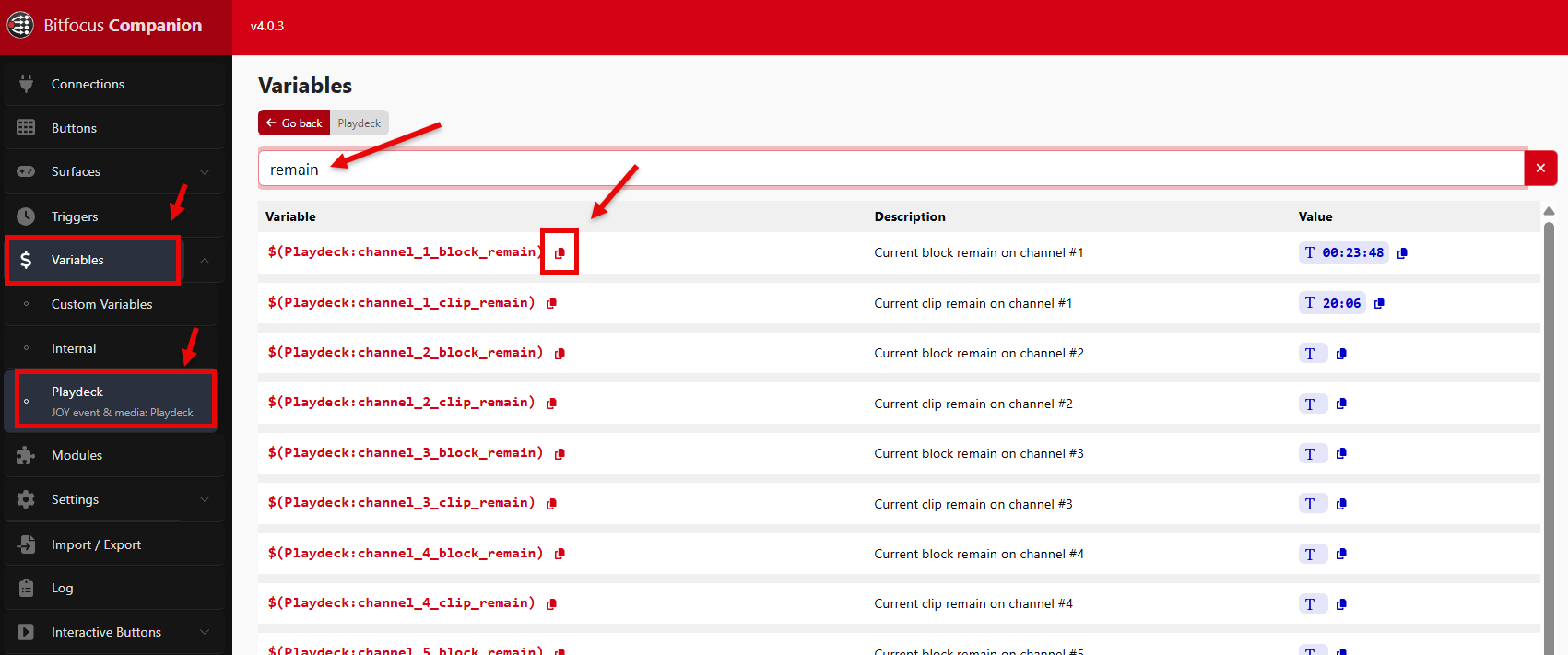
Build a Custom Remote with AI
PLAYDECK already gives you two comfortable remotes: Bitfocus Companion if you have a Stream Deck or an ATEM, and the built-in Web Remote if you just want a browser on the same Wi‑Fi.
Custom Remote is the third path. You paste one HTML file, PLAYDECK serves it on this PC, and your phone opens it with a QR code. ChatGPT, Gemini or Claude only rewrite that file. PLAYDECK never talks to the AI, and you never install a chatbot inside the playout machine.
This is for the job Web Remote is not shaped for: a floor manager who only needs three huge buttons, a producer who wants remaining time the size of a truck, a show that needs one extra command the stock UI does not show. You describe the job in plain language. The AI returns HTML. You paste it back.
Do not edit files inside the PLAYDECK program folder. Updates overwrite them. Custom Remote is the fork that survives an update.
In this article:
→ What you get
→ Use the Sample (start here)
→ Let AI change it
→ Commands and live status
→ Using Web Remote as a base
→ If something does not work
What you get
Settings → Remote Control → Custom Remote.
PLAYDECK stores your HTML and serves it at a stable address:
http://YOUR-PC:11411/custom
The URL does not change when you paste a new layout. The QR next to the box encodes that same address. Phone and PLAYDECK PC must be on the same Wi‑Fi. If the page stays empty, allow TCP port 11411 in the firewall (the same port Companion and Web Remote already use).
There is always only one Custom Remote. One box, one file, one QR. That is on purpose. You are not building a website host. You are building the remote for this show.
The built-in Web Remote stays at / (the root of port 11411). Companion stays Companion. Overlays and Director View stay their own templates. Custom Remote does not replace them.
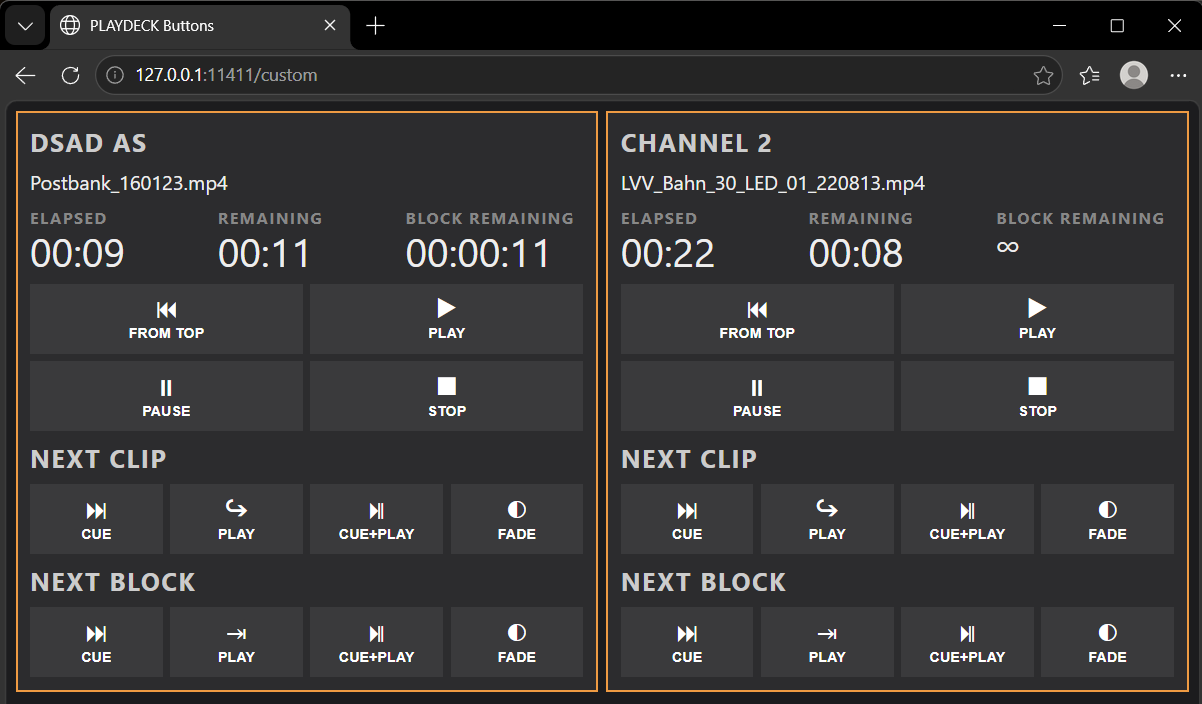
Use the Sample (start here)
If you have never done this, do not start from an empty page and do not start from Web Remote. Start from the Sample. It is a phone-first button board: two channels, fat transport keys, next clip / next block in the same modes Companion uses (Cue, Play, Cue+Play, Fade). It shows clip name, elapsed, remaining, and block remaining. Infinite clips and blocks show ∞ (sometimes ∞ plus a loop time). That is the same text PLAYDECK shows in the progress bar. We do not invent a fake countdown.
- Settings → Remote Control → Custom Remote.
- Click Load Sample.
- Click Save and Open Custom Remote.
- Scan the QR with your phone camera, or open the address in the phone browser.
You should be able to cue, play, pause, stop, jump from the top of the playlist, and walk clip by clip / block by block — without reading a command list first.
That Sample is also the file you hand to the AI. It already contains the only technical contract that matters: one script tag, and PLAYDECK commands written on the buttons.
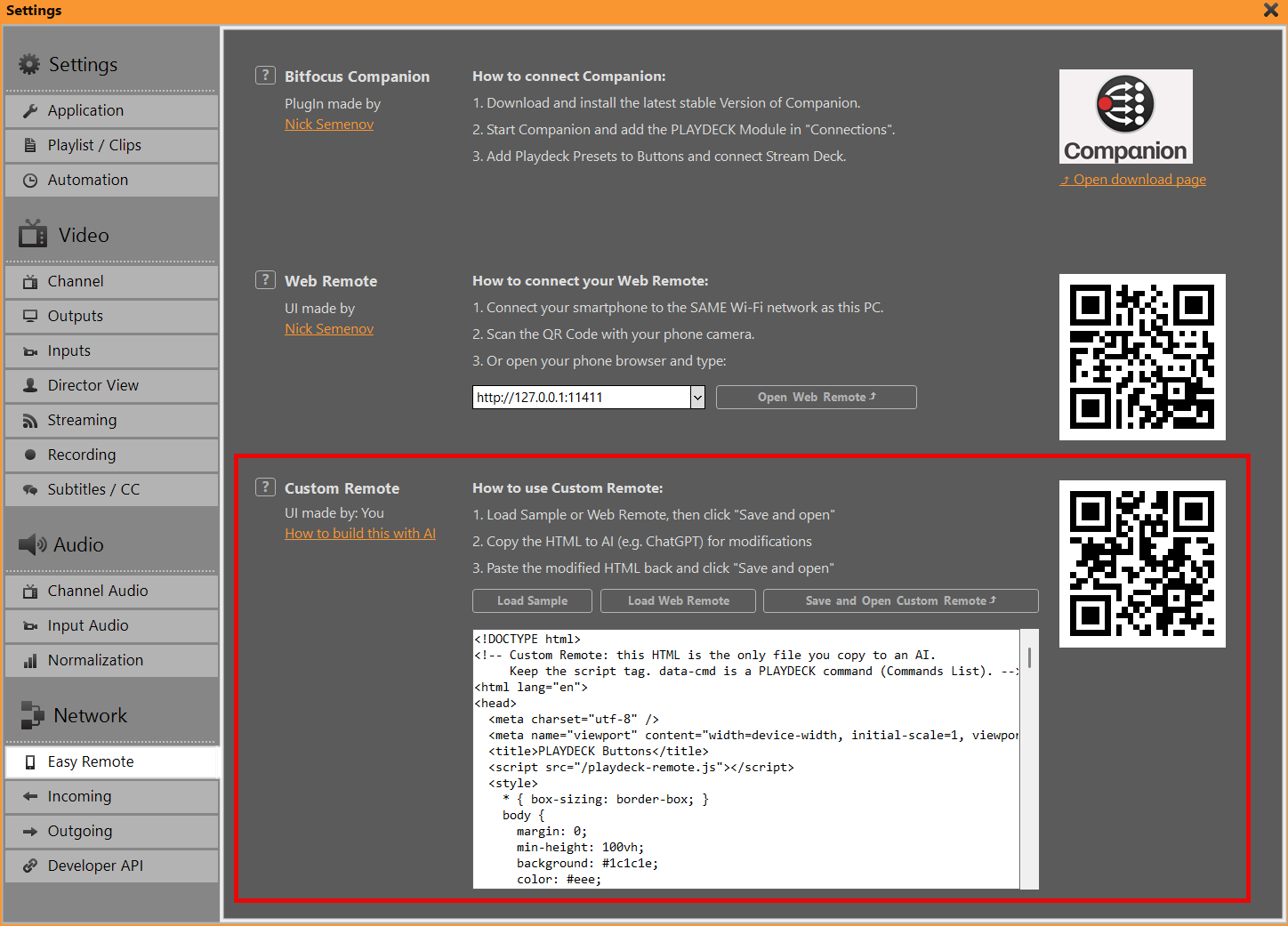
Let AI change it
Copy everything in the HTML box. Paste it into ChatGPT (or Gemini / Claude). Say what the remote is for, not which JavaScript library to use.
Keep this in every prompt:
Keep the line <script src="/playdeck-remote.js"></script>. Do not open your own WebSocket. Do not rewrite playdeck-remote.js. data-cmd is a PLAYDECK command from the Commands List. data-bind shows live status.
Then add the job, for example:
Floor manager, Channel 1 only
Make this a floor-manager iPad. Channel 1 only. Remaining time huge. Three buttons: PLAY, PAUSE, PLAY NEXT CLIP. Dark background, no gold borders, large tap targets.
Restyle, keep the buttons
Keep all existing buttons and commands. Change only colors, spacing and type so it looks like a broadcast panel. Playing channel should stay obvious.
Add one extra action
Keep the Sample as it is. Add a button under Channel 1 that sends startoverlay|1|1. Label it OVERLAY 1.
Paste the HTML the AI returns back into the box → Save and Open → reload the phone. If the AI dropped the script tag, PLAYDECK puts it back when you save. If the AI invented button names like fromtop or next instead of real commands, those keys will do nothing — put the Commands List command back on data-cmd.
You can paste into the box with Ctrl+V. There is no separate Paste button. Load Sample / Load Web Remote replace the box and save. Typing in the box without Save and Open does not update the phone.
Commands and live status
The helper script /playdeck-remote.js only talks WebSocket. You do not copy that file to the AI. You do not rewrite it. The HTML is the only file in the conversation.
A button is a PLAYDECK command, the same family Companion’s Custom Command uses:
<button data-cmd="play|1">PLAY</button>
<button data-cmd="cueandplay|1|1|1">FROM TOP</button>
<button data-cmd="playnext|1">PLAY NEXT CLIP</button>
<button data-cmd="cuenextblock|1">CUE NEXT BLOCK</button>
Live text is data-bind plus data-channel:
<div data-bind="channelName" data-channel="1"></div>
<div data-bind="clipName" data-channel="1"></div>
<div data-bind="elapsed" data-channel="1"></div>
<div data-bind="remain" data-channel="1"></div>
<div data-bind="blockRemain" data-channel="1"></div>
<div data-bind="blockName" data-channel="1"></div>
Elapsed and remaining are clip time. Block remaining is the block. Infinite shows ∞.
The full command list is in PLAYDECK: Main Menu → Documentation. If you can send it from Companion as a custom command, you can put it on data-cmd.
If a page needs logic the attributes cannot do (a spot counter, a rundown table), that extra JavaScript belongs in the same HTML file. Use PlaydeckRemote.send('play|1') and PlaydeckRemote.onStatus(...). Still one file, still no second WebSocket.
Using Web Remote as a base
The Sample is the path that works well with AI: few buttons, little code.
Sometimes you really want Nick’s Web Remote — the clip list, progress bars, channel tabs — but orange instead of grey, or a bigger clock, or hidden tabs. Then:
- Custom Remote → Load Web Remote → Save and Open.
- You now have a copy of the built-in Web Remote under
/custom. The original Web Remote at/is unchanged. - Copy that HTML to the AI with a strict rule:
This page is PLAYDECK Web Remote. Change CSS and labels only. Do not rewrite the JavaScript that builds the playlist, progress bars, or channel tabs. Keep <script src="/playdeck-remote.js"></script>.
If the AI “simplifies” that JavaScript, the clip list usually dies. Load Web Remote again and retry with a smaller ask (colors only).
Never tell people to edit webremote.html on disk and keep a backup for the next reinstall. That is what Custom Remote is for.
If something does not work
Blank phone page. Same Wi‑Fi as the PLAYDECK PC? TCP 11411 allowed? Try Save and Open on the PC first. The address is http://IP:11411/custom — not https, not another port.
Buttons do nothing. The script tag must stay. data-cmd must be a real command (play|1, not play). Reload after Save and Open.
Times stuck or list stale. Reload the phone. For a Web Remote copy, wait a few seconds — that page refreshes playlist data on a short interval.
∞ instead of a clock. The clip or block has infinite duration (live, loop, clock). PLAYDECK shows the same.
I wanted to change the normal Web Remote. You did: Load Web Remote is that page, served as Custom Remote. Leave / for everyone who still wants the stock UI.
Companion / Stream Deck. Keep using Companion for hardware. Custom Remote is HTML on a phone or tablet, not a replacement for the module.
Using Commands for Playout Control
This article will show how to use Commands to control your Playout.
In this article:
→ Example: CUE+PLAY multiple Channel
→ List of all Commands and where to add them
→ Send Commands from other Apps
Example: CUE+PLAY multiple Channel
We want to create an Action Button, which will CUE several Output Channel and PLAY them simultaneously (almost synced).
Create a new Action Button by clicking on it and select COMMANDS, then EDIT COMMANDS:
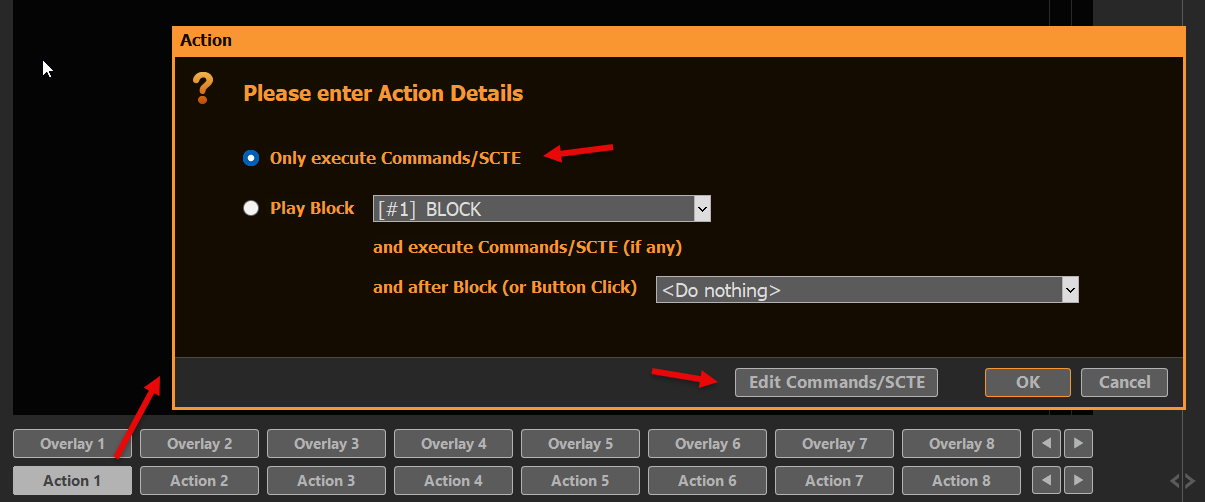
Add this Line under “COMMANDS – Internal”:
<cue|1|1><cue|2|1><wait|1000><play|1|1><play|2|1>
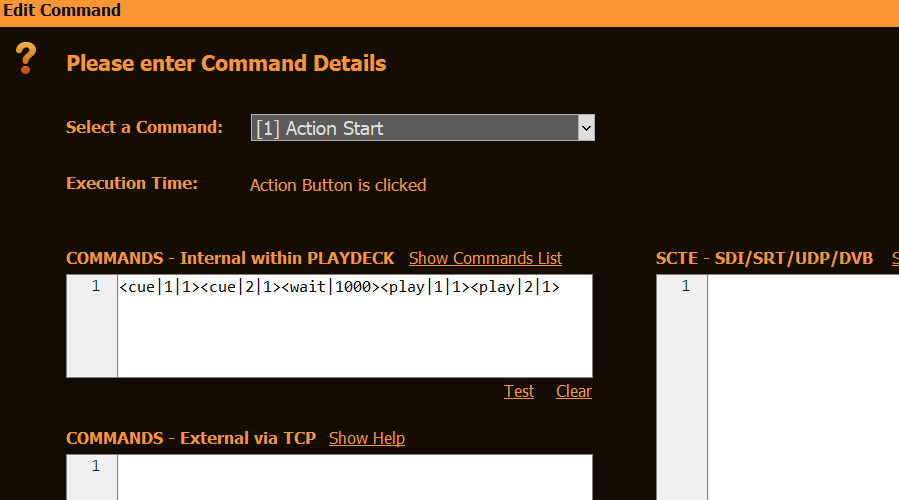
This will CUE Channel 1 and 2 (1st Clip 1st Block), then wait 1000ms (for caching), then PLAY both Channel.
List of all Commands and where to add them
The List of all Commands can be quickly opened over PLAYDECK’s Main Menu:
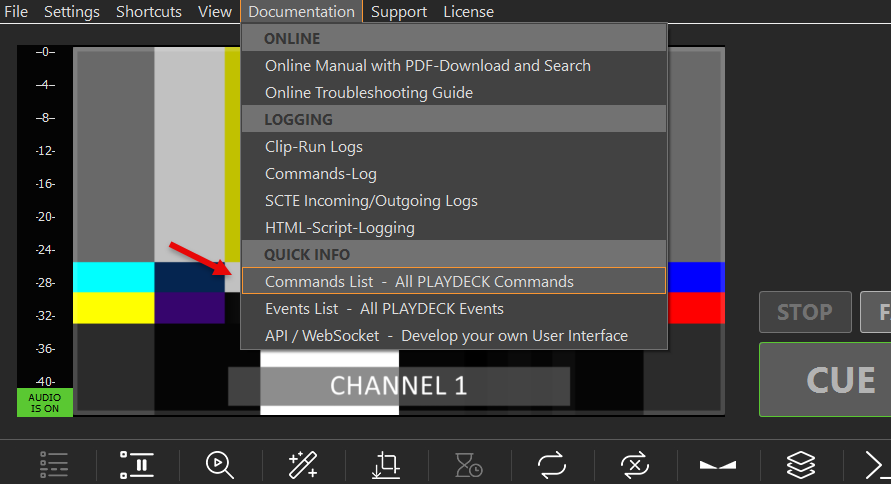
Commands can be added to:
- Action Buttons (Start, End)
- Overlay Button (Start, End)
- Clips (Any Time)
- Blocks (Start, End)
Mostly via this Icon:

Send Commands from other Apps
We have a separate article on how to control PLAYDECK with Companion.
But what, if it is not Companion, but a different 3rd party App? First, you would need to enable TCP Commands. This will open PLAYDECK up to receive and execute Commands from external sources:
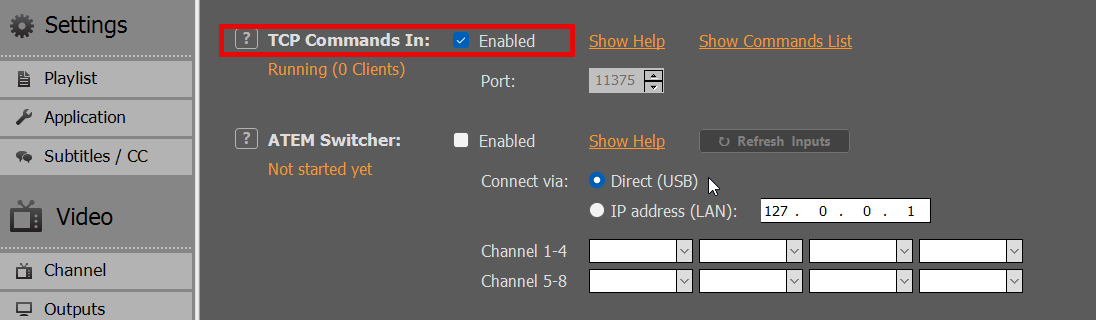
In your 3rd party app, connect to PLAYDECK via TCP and send one or multiple Commands. In this Sample we use Hercules to send a Command, which will start Streams 1 and 2:
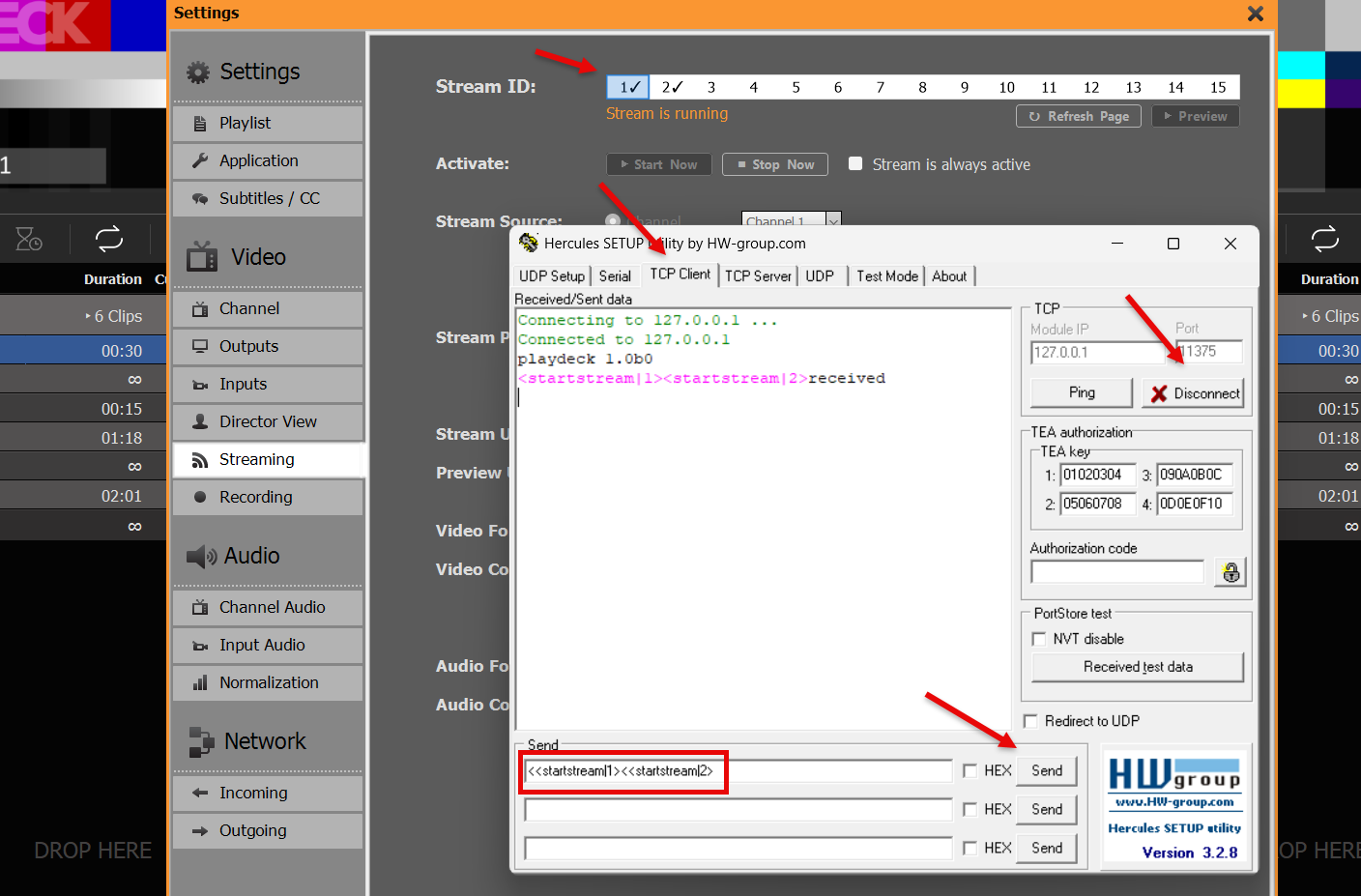
Note: AMP Video Server (Settings → Incoming) is a separate protocol for Ross Carbonite and Generic DDR switchers (default port 3811). It is not the same as TCP Commands In (default port 11375). For AMP setup, see AMP Video Server.
Video from/to OBS Studio
The best way to connect OBS with PLAYDECK (both ways) is NDI. Multichannel Audio is also fully supported.
Since OBS does does not deliver NDI out of the box, you need to install an additional PlugIn, which is a quick and easy process. Download the PlugIn here (scroll down and click on “distroav-6.0.0-windows-x64-Installer.exe”). It is installed like any other Windows application via Installer.
Send Video from OBS to PLAYDECK
The NDI PlugIn inserts a new Option into the Tools Menu. Pick NDI Output and activate it:
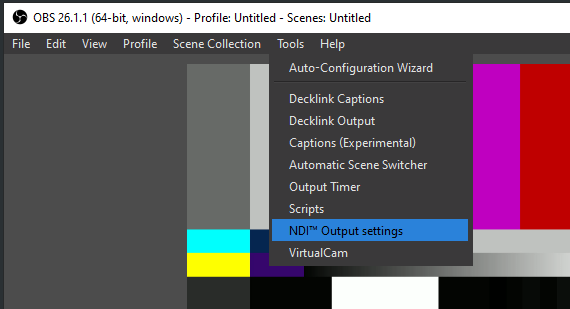
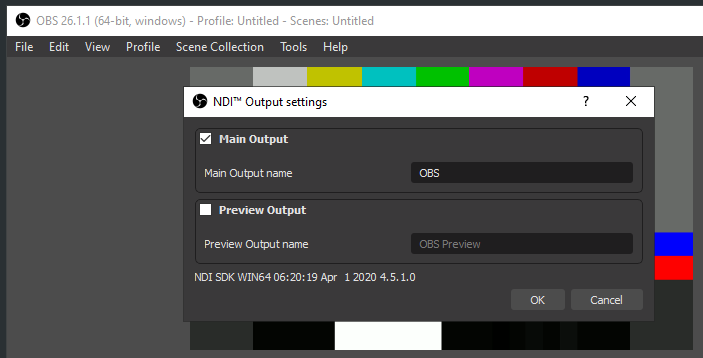
Send Video from PLAYDECK to OBS
Activate NDI Output in PLAYDECK. The OBS NDI PlugIn inserts a new NDI Source, which you can add to your OBS Scene like this:
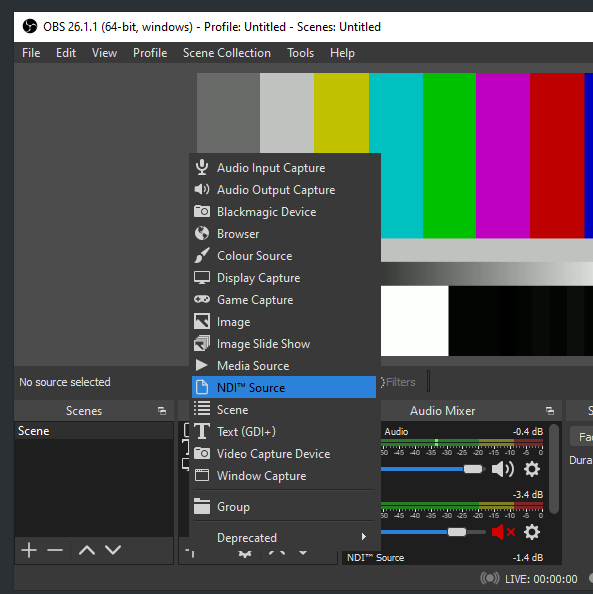
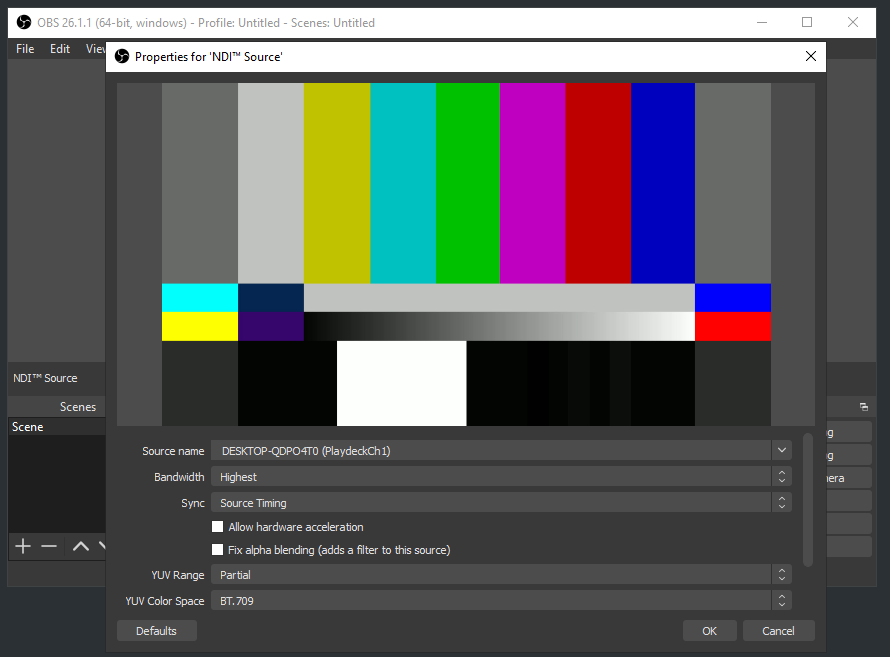
Video from/to vMix
The best way to connect vMix with PLAYDECK (both ways) is NDI. Multichannel Audio is also fully supported as well as Keying.
Send Video from vMix to PLAYDECK
You only need to activate NDI as External Output like this:
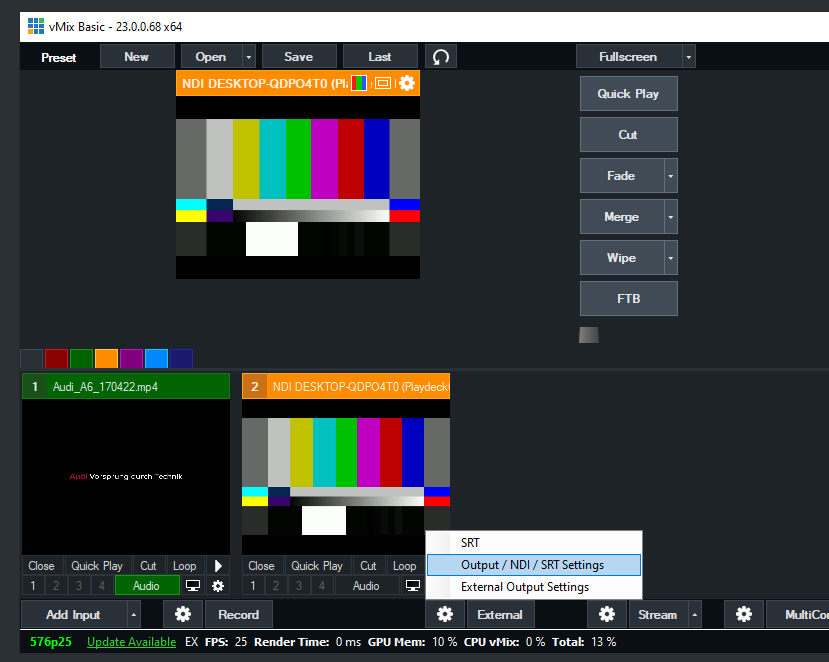
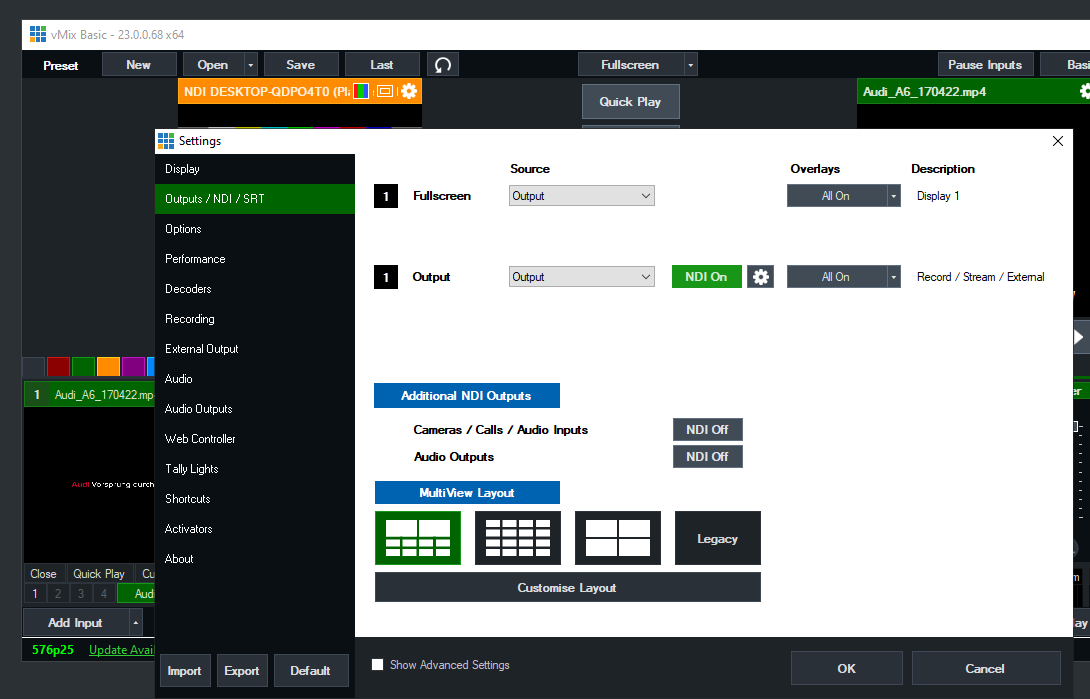
Send Video from PLAYDECK to vMix
Activate NDI Output in PLAYDECK and add the NDI as new Source in vMix like this:
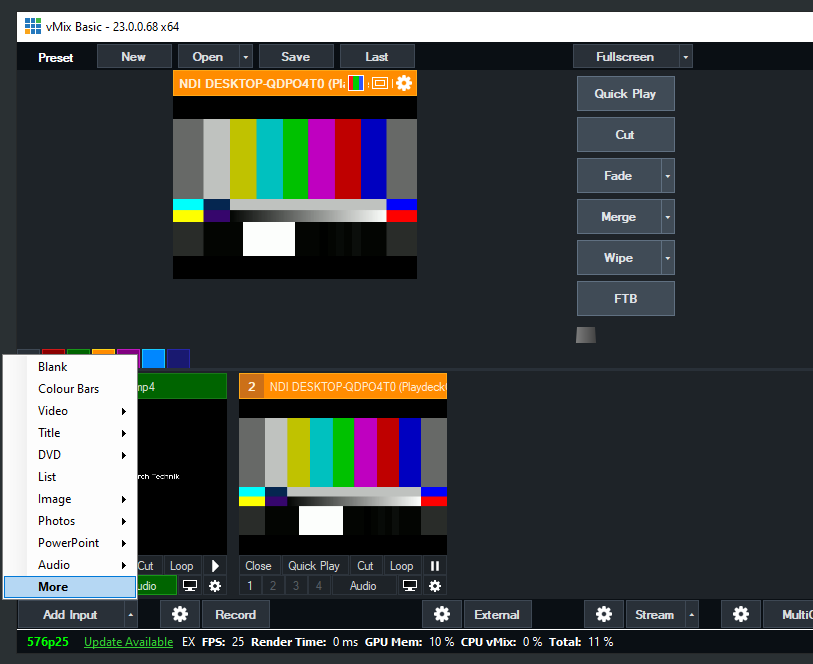
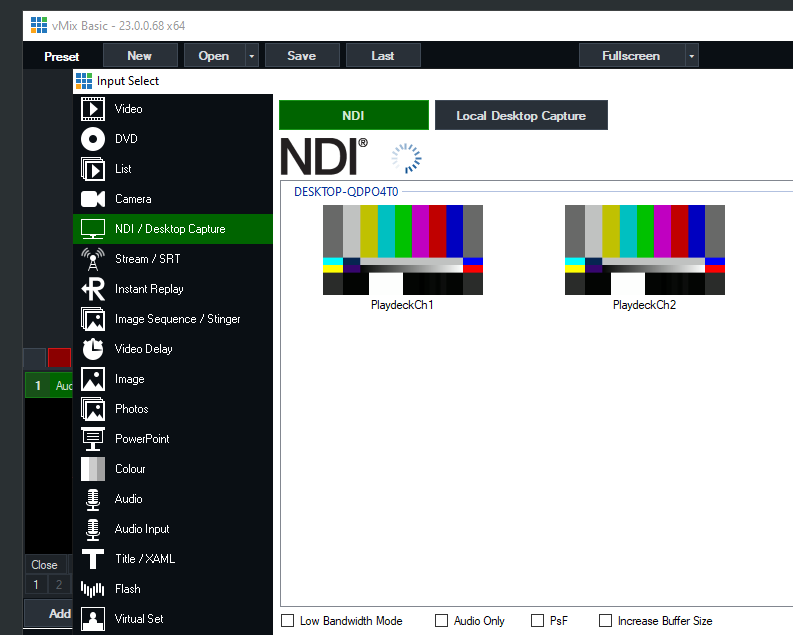
Send Fill Signal with Alpha Channel from PLAYDECK to vMix
Activate NDI Output in PLAYDECK, but this time also activate Keying:
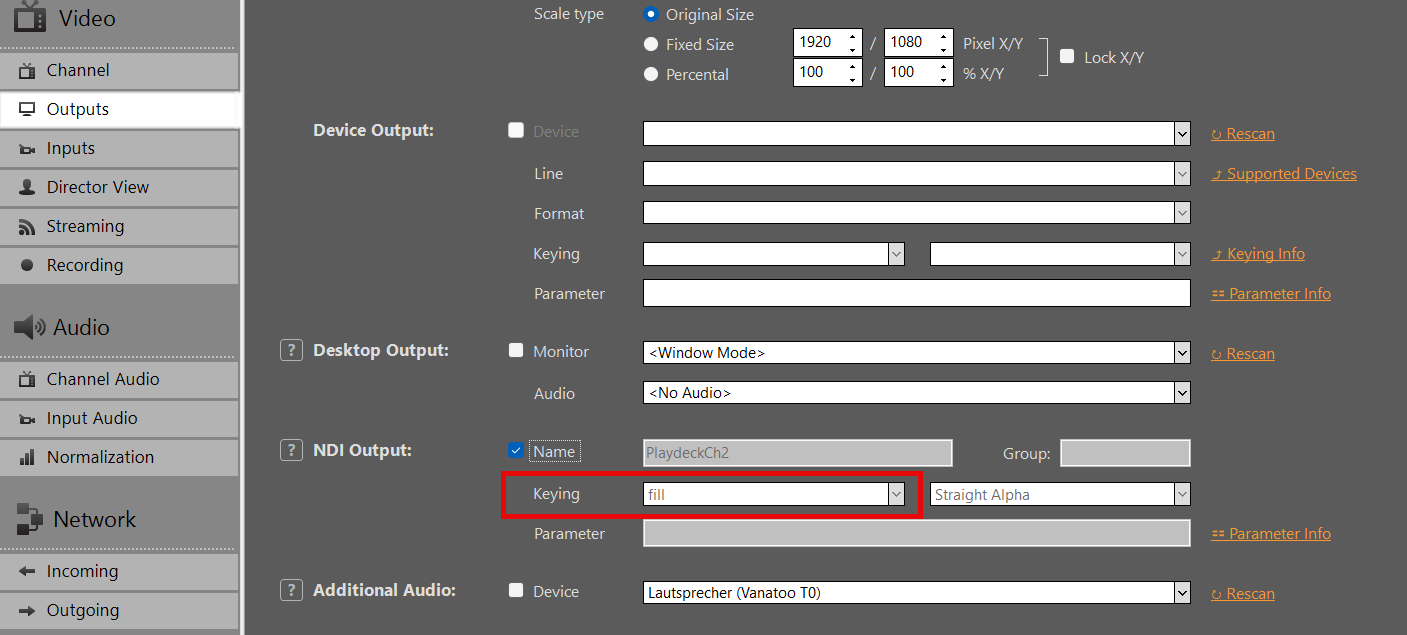
Add your NDI as Input in vMIX:
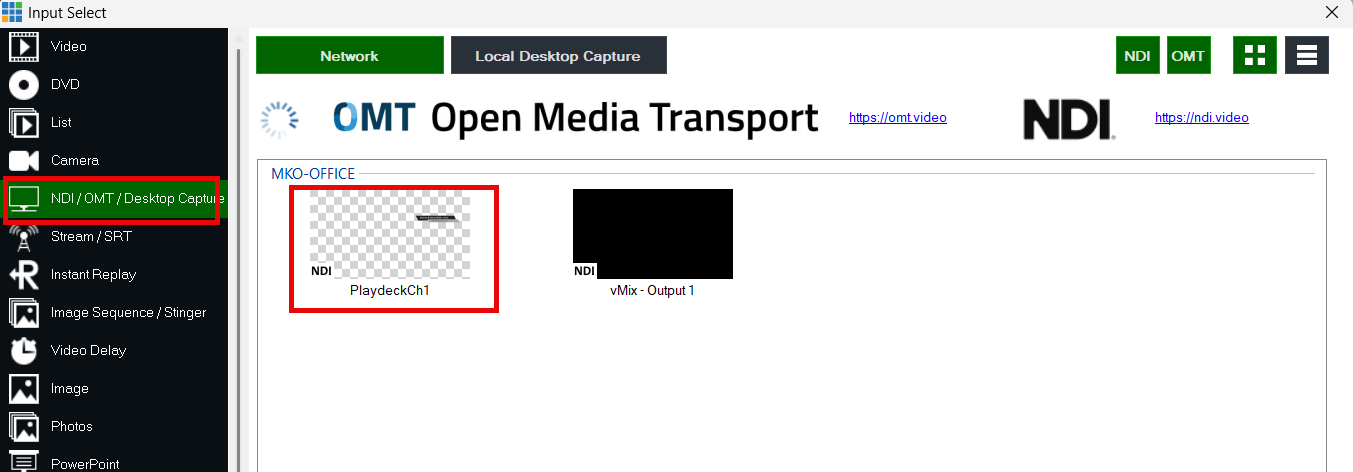
Use the Overlay Buttons to place the Video ontop of the current Video signal in vMIX:
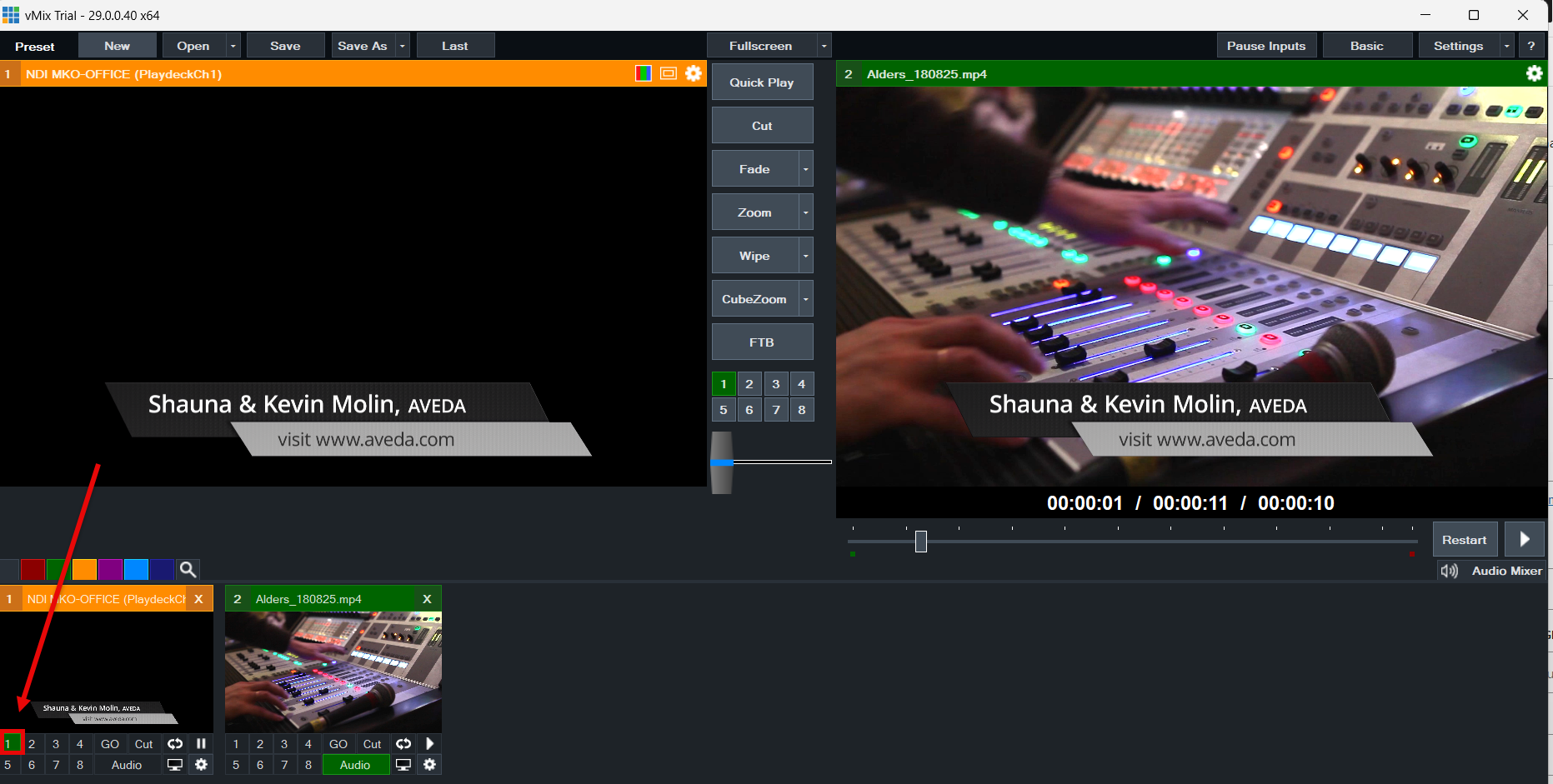
AMP Video Server (Ross Carbonite / Generic DDR)
This article shows how to connect a broadcast switcher such as Ross Ultrix Carbonite to PLAYDECK using AMP (Advanced Media Protocol). PLAYDECK acts as a Generic DDR. The switcher lists clips and sends cue, play, stop, eject, jog, loop and record.
AMP is control only — it does not carry video. Route PLAYDECK program out to the switcher separately via SDI, NDI or HDMI.
In this article:
→ Enable AMP in PLAYDECK
→ Route video to the switcher
→ Configure the switcher (Carbonite)
→ Channel mapping
→ Panel commands
→ Clip list & IDs
→ Status and logging
→ Troubleshooting
Enable AMP in PLAYDECK
- Open Settings → Network → Incoming.
- Enable AMP Video Server.
- Keep the default port 3811, unless your switcher requires another port.
- Allow inbound TCP on that port from the switcher IP (Windows Firewall).
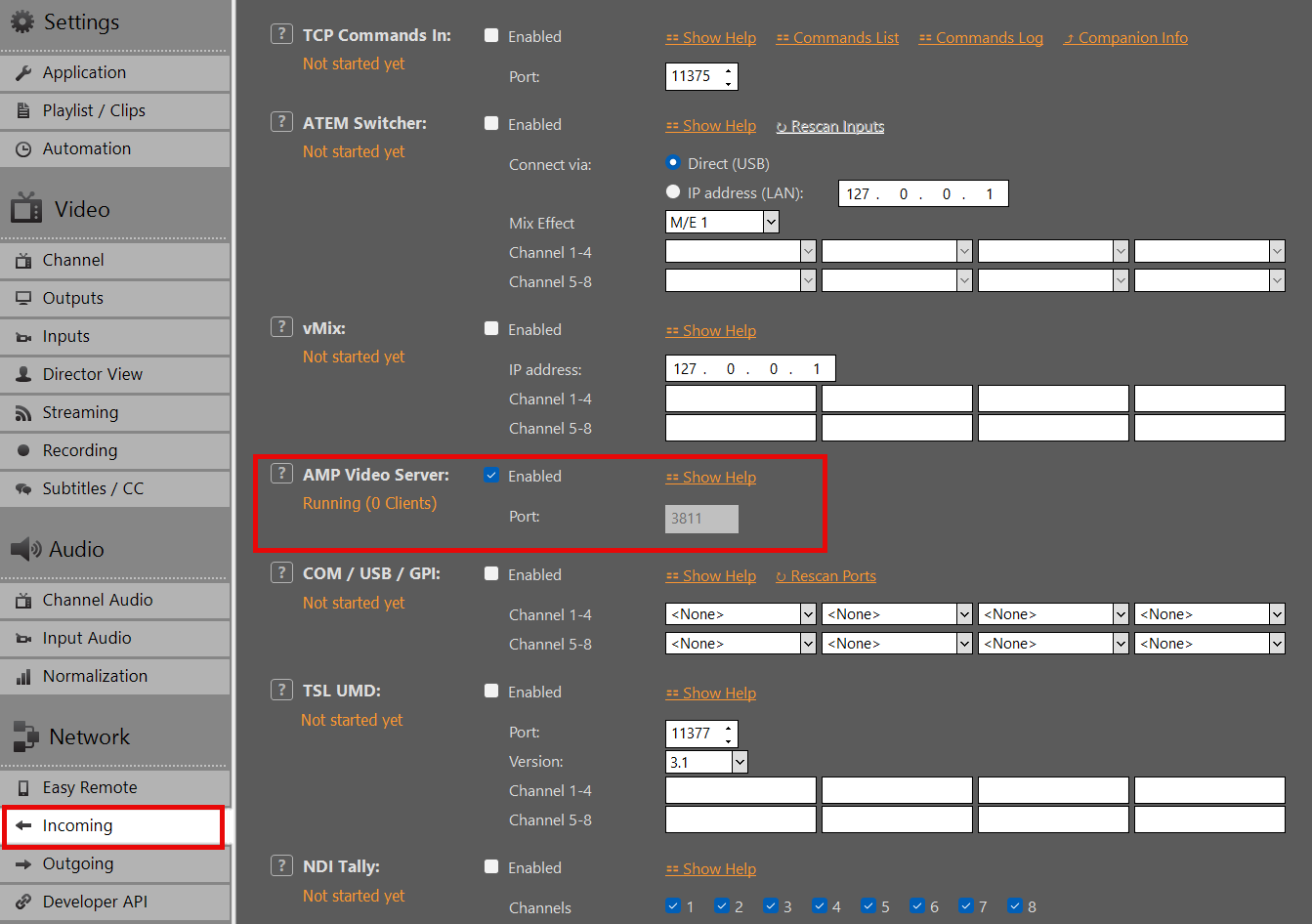
When AMP is active, PLAYDECK listens for switcher connections on the configured TCP port.
Route video to the switcher
AMP does not transport picture. You must feed the switcher from a normal PLAYDECK output:
- SDI / HDMI via a playout card (Blackmagic, AJA, Deltacast, …)
- NDI (see our Broadcast your Video Feed guide)
- Extended desktop / HDMI from the graphics card
Assign that source to the switcher input you use for the AMP device (e.g. BNC or NDI source from the PLAYDECK PC).
Configure the switcher (Carbonite)
On the Ross switcher (Ultrix Carbonite or compatible panel):
- Device Config → Add Server → AMP
- IP = PLAYDECK PC on the LAN
- Port = as set in PLAYDECK (default 3811)
- Protocol / server type: Generic DDR
- Enable Allow playlist control on the server side if the switcher asks for it
Ross Tria/Mira AMP documentation applies (driver AMP_0.2, Protocol ID Generic DDR).
Pick a VTR on the panel (e.g. Vtr1). Each AMP connection uses one VTR channel on the switcher.
Channel mapping
| Switcher | PLAYDECK |
|---|---|
| Vtr1 … Vtr8 | Channel 1 … 8 |
| PGM1 … PGM8 | Channel 1 … 8 (accepted too) |
One Carbonite AMP connection = one VTR. For multiple channels, add multiple AMP servers or VTR assignments as your switcher allows.
Panel commands
| Switcher | PLAYDECK |
|---|---|
| Play | Play |
| Stop | Pause (still). Play continues. |
| Eject | Stop the channel (background) |
| Cue | Cue that clip at Cut In |
| Jog / shuttle | Variable speed. Release the dial = still. Play = 1× again. |
| Loop on / off | Infinite loop / no loop on the current clip |
| Record | Start/stop the PLAYDECK recording whose source is this channel (not Always-on). Map that recording slot to the same playlist channel as the VTR. |
Status and logging
Status on the switcher follows PLAYDECK: Play, Pause, Cue.
Incoming AMP: Logs → Command Logs (<< AMP, readable).
Status and logging
Status on the switcher follows PLAYDECK: Play, Pause, Cue.
While a new clip is still caching, the previous clip may keep playing until cue is ready.
Incoming AMP traffic is logged under Logs → Command Logs (<< AMP).
Troubleshooting
| Problem | Check |
|---|---|
| Switcher cannot connect | AMP enabled in PLAYDECK; firewall allows TCP on the port; same LAN/subnet |
| Empty or wrong clip list | Clips active on the mapped channel; captions/filenames visible in playlist |
| Jog does nothing / stays at wrong speed | PLAYDECK playing; after release it stays still (press Play for 1×) |
| Cue fails | Use exact 8-character ID from the list |
| Record does nothing | Recording slot: source = playlist, channel = this VTR, not Always-on; engine running |
| Picture black | Video not routed — AMP is control only; check SDI/NDI/HDMI to switcher |
| No log lines | Open Logs → Command Logs while testing |
Amazon EC2 Installation
PLAYDECK supports most Amazon EC2 server instances and the NVidia GPU Power they provide. This allows you to setup a cloud based infrastructure for NDI transport or other purposes.
We assume, you have a Amazon AWS Account and basic knowledge of EC2.
First, you pick a new EC2 instance, which supports a PLAYDECK installation:
Windows Server with a virtual NVIDIA GPU and pre-installed NVIDIA driver:
https://docs.aws.amazon.com/AWSEC2/latest/UserGuide/install-nvidia-driver.html#preinstalled-nvidia-driver
A typical instance would be “Windows 2019 / g4dn.xlarge” – It has a Tesla virtual NVIDIA GPU and good enough Specs to run PLAYDECK: 16 vCPUs (Intel Xeon), 64GB RAM, 1 vGPU (NVidia T4) with 16GB GPU RAM.
Now install the Instance via those Links or your EC2 Management Console.
To connect to the instance via RDP you first have to open Port 3389 in the Instance Security Settings.
Once connected, you find yourself unable to download anything via the Browser. Therefore enable Downloads like this: START Menu > Server Manager > Local Server > IE Enhanced Security Configuration > Off
Now download and install PLAYDECK as usual:
https://playdeck.tv/download/
PLAYDECK API
Integrate PLAYDECK into scripts, automation systems, and custom user interfaces using our standard REST API (OpenAPI 3) and WebSocket interface for real-time control on a single port.
In this article:
→ Which interface do I need?
→ REST API quickstart
→ Interactive API Reference
→ WebSocket real-time channel
→ Legacy TCP Commands Input
→ Integration Examples
Which interface do I need?
PLAYDECK offers different interfaces depending on your integration requirements. Use the following overview to select the correct protocol and port:
| Use Case | Recommended Interface | Port |
|---|---|---|
| Scripts, cURL, Postman, Custom HTTP Integrations | REST API /api/v1 (OpenAPI 3) | 11411 |
| Live Status, Events, HTML Overlays, Bitfocus Companion | WebSocket Channel | 11411 |
| Ready-made Control Surfaces | Bitfocus Companion (via WebSocket) | 11411 |
| Legacy TCP Clients / Existing Automation Pipelines | TCP Commands In | 11375 |
Recommendation: Most new integration projects should start with the REST API. Switch to or combine it with WebSocket only if you require continuous, low-latency status updates or real-time event triggers.
REST API quickstart
While PLAYDECK is running, the HTTP REST API is automatically available on port 11411 (sharing the same service as the built-in Web Remote).
Base URL
http://HOST:11411/api/v1
Replace HOST with the actual IP address of your PLAYDECK machine, found under Settings ➔ Network ➔ Developer API.
Testing inside PLAYDECK
You do not need external tools to start testing. Open Settings ➔ Network ➔ Developer API within the software application to send sample requests directly from the UI or launch the interactive documentation.
HTTP Request Examples
1. Service Health Check:
GET /api/v1/health HTTP/1.1
Host: HOST:11411
2. Retrieve Playout Status (JSON response):
GET /api/v1/status HTTP/1.1
Host: HOST:11411
3. Trigger Play on Playout Channel 1:
POST /api/v1/channels/1/play HTTP/1.1
Host: HOST:11411
4. Play Block 1, Clip 2 on Playout Channel 1:
POST /api/v1/channels/1/play/1/2 HTTP/1.1
Host: HOST:11411
Many actions accept optional path parameters for targeted control (such as block/clip IDs, timecode offsets, or overlay IDs).
Legacy Command Escape Hatch
If you need full coverage of the classic PLAYDECK command language via HTTP, you can pass pipe-formatted commands into the dedicated commands endpoint:
POST /api/v1/commands HTTP/1.1
Host: HOST:11411
Content-Type: application/json

{
  "command": "play",
  "args": ["1", "1", "2"]
}
Note: No API key or authentication token is required for local area network (LAN) operations in the current version.
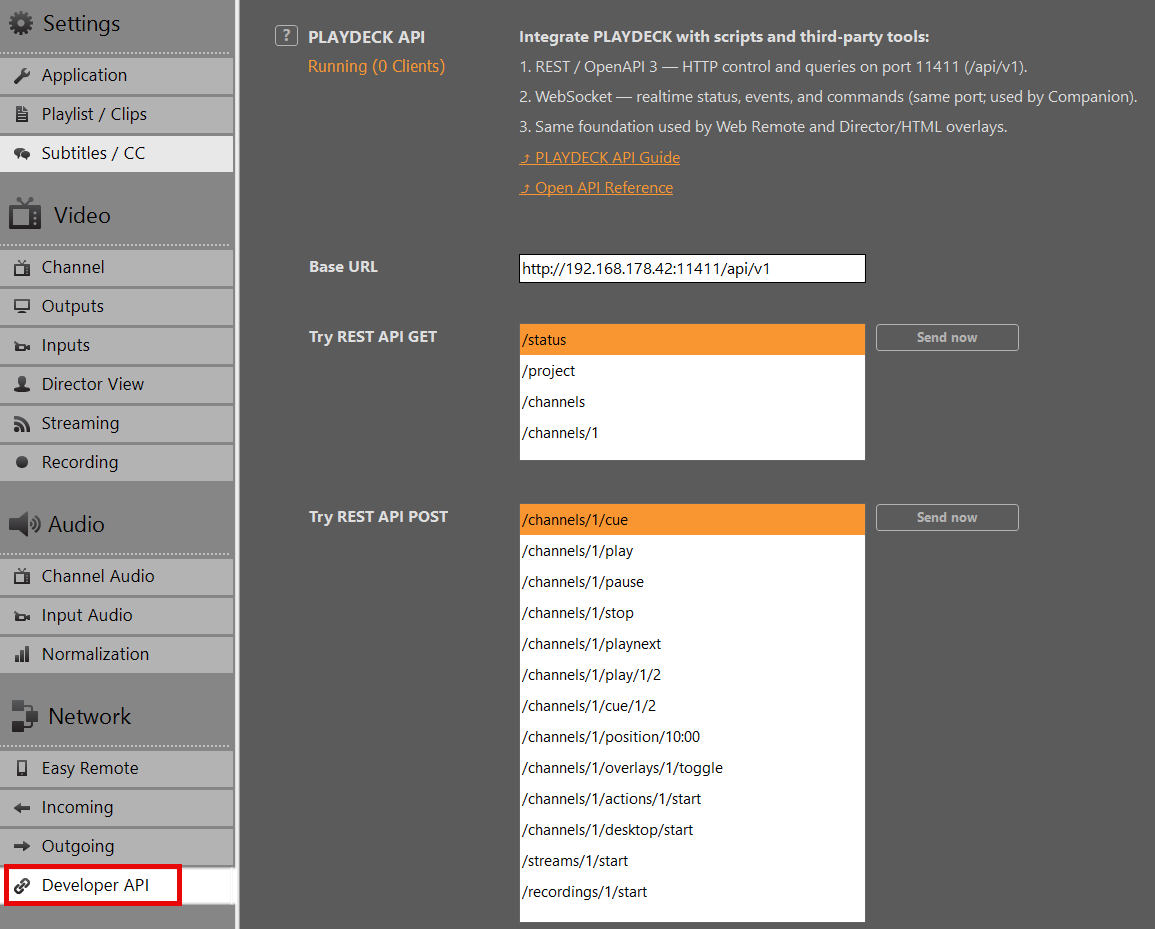
Interactive API Reference
The complete machine-readable contract for this interface is provided as an OpenAPI 3 specification document.
➔ Download: OpenAPI Specification (YAML)
For interactive browsing, payload inspection, and direct “Try it out” testing against your active PLAYDECK instance:
- Launch PLAYDECK.
- Navigate to Settings ➔ Network ➔ Developer API and click Open API Reference.
- Alternatively, open a web browser on any machine within the same network and navigate to:
http://HOST:11411/api/v1/docs
This documentation page dynamically lists all available REST endpoints, required parameters, schema definitions, and expected response payloads.
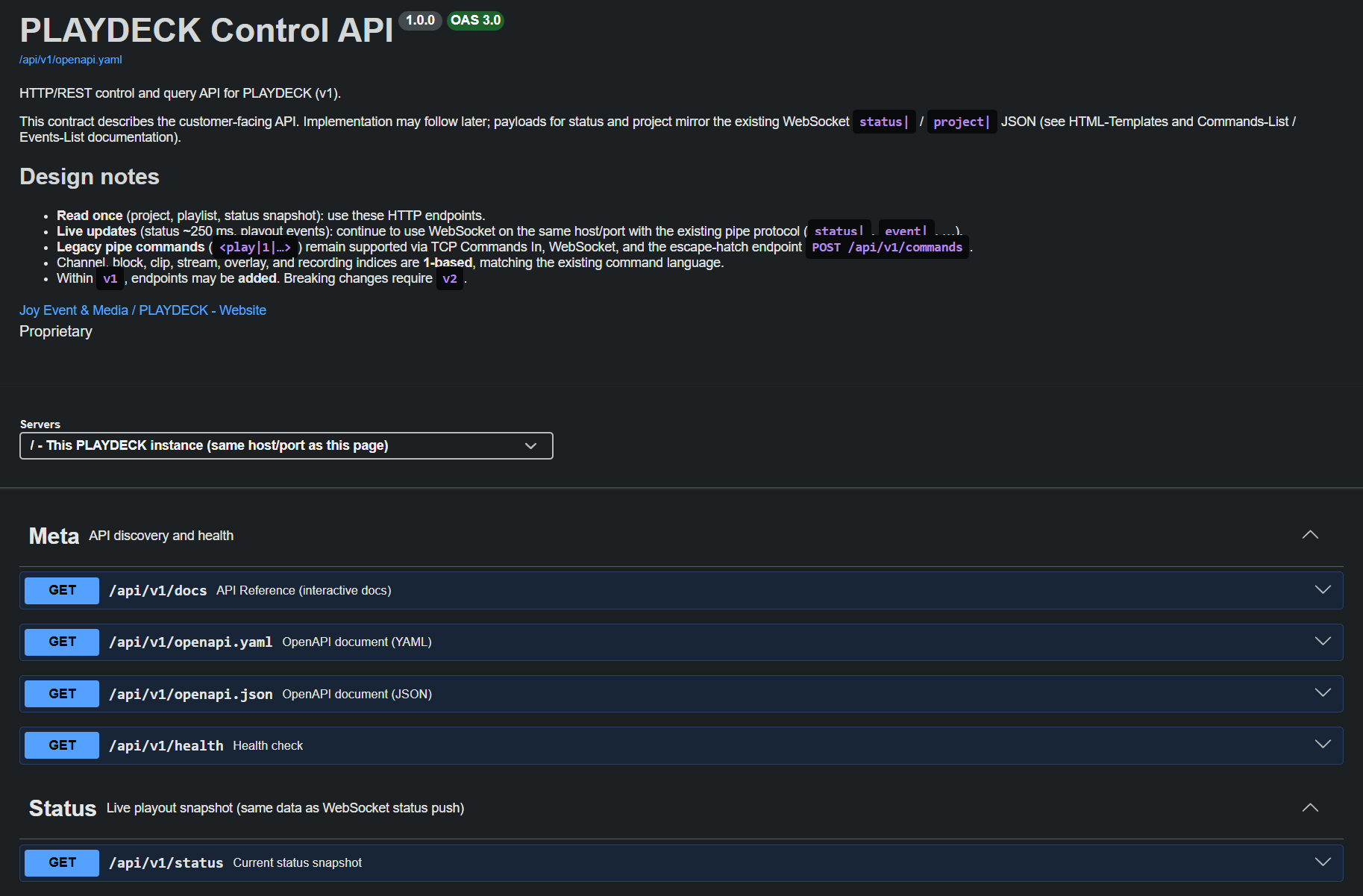
WebSocket real-time channel
Port 11411 simultaneously handles WebSocket connections. This bi-directional channel is engineered specifically for operations requiring sustained data streaming:
- Continuous Playout Status: High-frequency playback position tracking and timecode updates.
- Event Triggers: Immediate notifications when a clip, block, or playlist starts, stops, or loops.
- Classic Pipe Commands: Direct processing of native control commands formatted as
<play|1|...>.
The official Bitfocus Companion PLAYDECK module, the Web Remote UI, custom HTML graphics overlays, and Director View templates utilize this specific real-time channel. Complete syntax documentation for commands and event types can be found directly within the application package or within your local template directory:
Web Remote UI:
c:\Program Files\JoyEventMedia\Playdeck\html\webremote.html

HTML-Templates:
C:\Users\Public\Documents\JoyEventMedia\Playdeck\HTML-Templates\
or
c:\Users\<user>\AppData\Local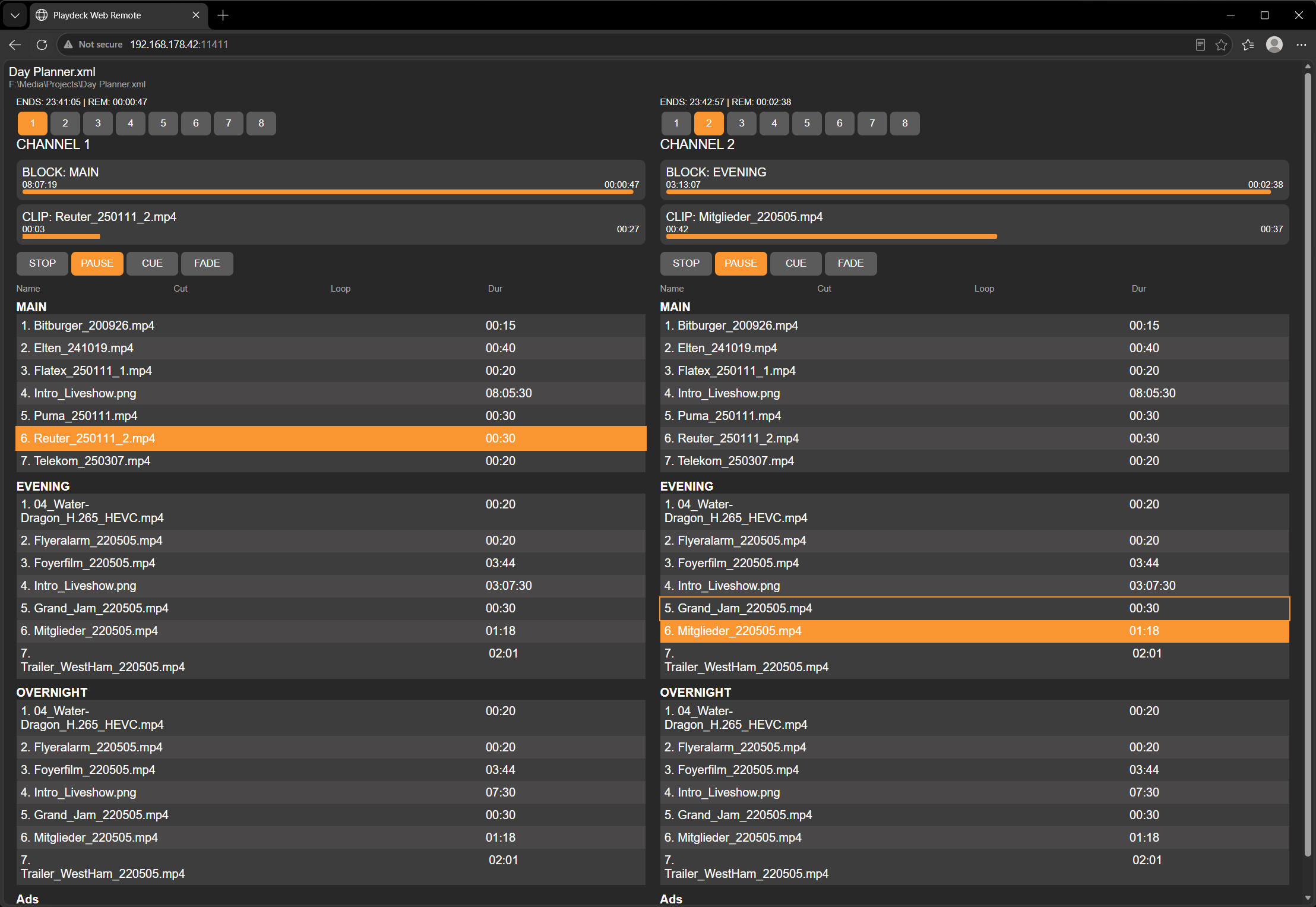
Legacy TCP Commands Input
To maintain backwards compatibility with existing broadcast automation infrastructure, PLAYDECK continues to accept incoming raw TCP connections on port 11375.
This setting is managed under Settings ➔ Network ➔ Incoming ➔ TCP Commands In. The payload syntax matches the pipe-delimited format used by the WebSocket channel and the REST /api/v1/commands endpoint.
- Developer Note: For all clean-sheet development projects and new script integrations, we highly recommend utilizing the REST API instead of raw TCP sockets.
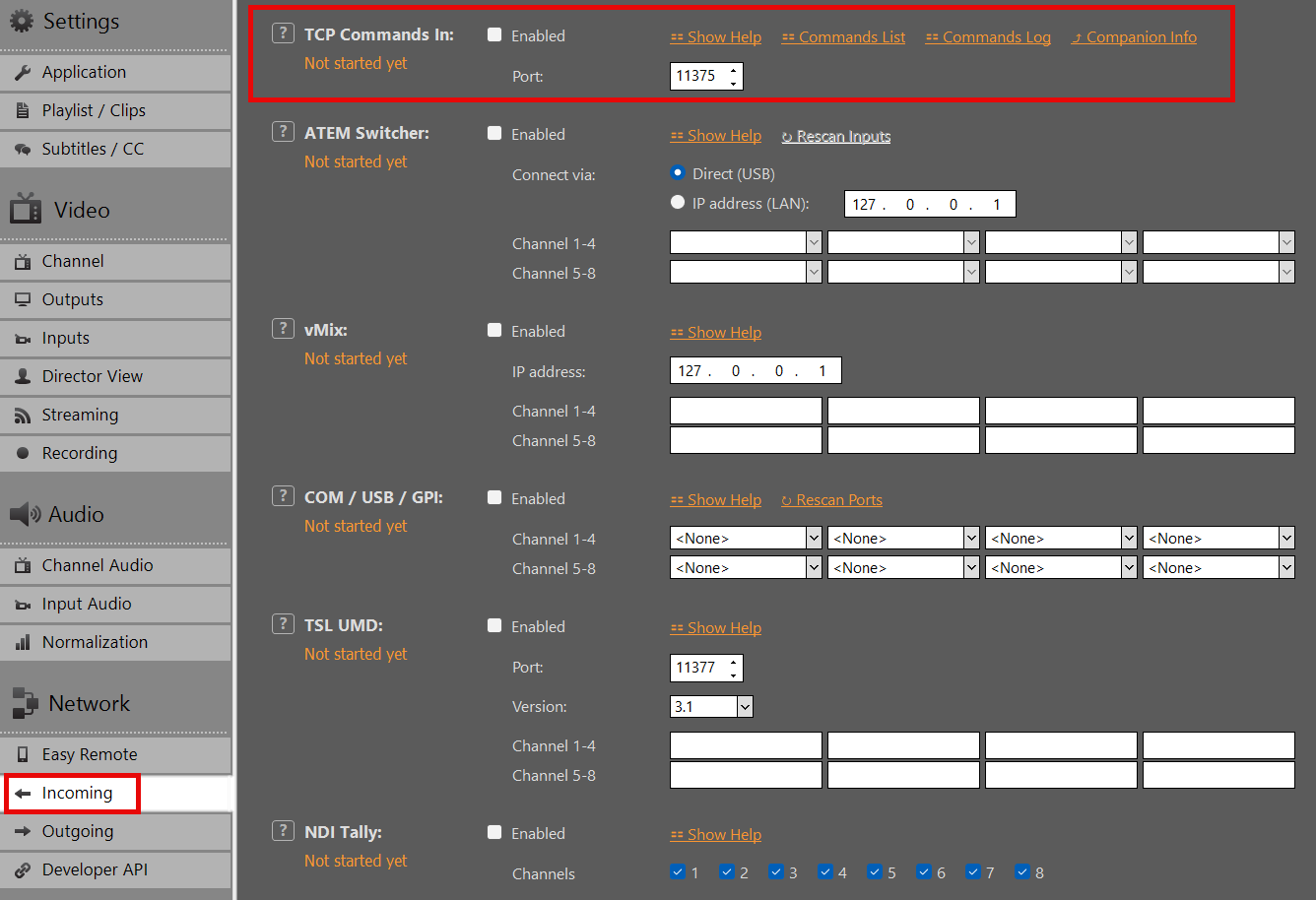
Integration Examples
- Bitfocus Companion: Rapid deployment of physical hardware control surfaces using our production-ready native module over WebSockets.
- Web Remote: Full-featured production control interface accessible through any browser on port
11411. - Director View & HTML Overlays: Built-in web templates showcasing live status binding.
- Custom Software Tools: Rapid application development using standard HTTP clients generated from our OpenAPI specification, optionally backed by WebSockets for telemetry.
Questions or custom workflow requirements? Contact our engineering team at [email protected].
License & Support
PLAYDECK License Options
Simple, Flexible & Transparent:
PLAYDECK is available in three editions and multiple license models to fit your production needs. All prices exclude VAT and can be processed in your preferred currency via our global shop. Choose the plan that matches your independent playout channels and workflow requirements.
→ PLAYDECK Editions
→ Choose Your License Model
→ Free Trial Edition (incl. Limitations)
→ License Activation
→ Support Options
→ License Portability & Backup
→ Special Conditions & Discounts
→ Upgrades, Downgrades & Cancellations
→ Dongle Details
→ Reseller Conditions
PLAYDECK Editions
We offer three editions tailored to your production scale, primarily differing in the number of independent main playout channels you can control simultaneously:
- LITE: 1 independent playout channel – €190.80 per year (≈ €15.90/month, save €132 vs. monthly billing)
- PLUS: 2 independent playout channels – €430.80 per year (≈ €35.90/month, save €288 vs. monthly billing)
- STUDIO: 8 independent playout channels – €994.80 per year (≈ €82.90/month, save €684 vs. monthly billing)
All editions share the same powerful, rock-solid core: native support for virtually every codec and container format, low-latency GPU decoding, professional hardware I/O (SDI/HDMI via Blackmagic, AJA, Deltacast), IP streaming (NDI®, SRT, RTMP), graphics overlays, and automated failsafes.
For a full, detailed feature comparison chart (audio channel routing, recording channels, advanced scheduling, etc.), visit our official Plans & Pricing page: https://playdeck.tv/plans-pricing/
Choose Your License Model
PLAYDECK offers flexible licensing to match different workflows:
Online Shop License (most popular): Tied to your email in a personal License Pool. Requires internet for transfers/check-in/out. Easy portability.
USB Dongle License: Hardware-based (USB stick). No internet needed for daily use/activation. Portable by moving the dongle.
Offline License (special cases): Permanently bound to one specific PC (System ID). No internet ever required. Not portable without re-issuance.
Free Trial Edition (incl. Limitations)
Download and test PLAYDECK completely free—no time limit, no credit card required. Switch editions instantly inside the software via Menu → License → Change Trial Edition.
Limitations:
— Watermark on all video outputs.
— Occasional random short audio mutes (clearly signaled on screen).
All other production features are fully unlocked—ideal for comprehensive real-world testing of your local or cloud setup before purchase.
License Activation
Activation is quick and simple. Access our detailed activation guide here: https://playdeck.tv/activate-license/
Quick Steps:
— Shop / Online Pool: Open the License Manager inside PLAYDECK, log in with your purchase email, and instantly check out your seat from your personal pool.
— Dongle: Simply plug the physical USB security key into the machine—the software auto-detects the license immediately.
— Offline: Paste the machine-bound activation key provided by our support desk into the License Manager.
Support Options
[email protected] – available nearly 24/7, even for trial users or pre-purchase questions.
No forced onboarding. PLAYDECK is built to run easily out-of-the-box. If needed (rare), we can remote-connect via RustDesk to fix issues fast.
License Portability & Backup
PLAYDECK commercial licenses are highly flexible and designed to move seamlessly between production systems:
| License Type | How to Transfer | Internet Required for Move? | Lost / Crash Handling |
|---|---|---|---|
| Shop License (Pool) | Check-in/out via internal License Manager (tied to email) | Yes | Free instant pool reset—simply email our desk. |
| Dongle License | Unplug and connect the physical USB stick to the new computer | No | Hardware replacement options available upon verification. |
| Offline License | Bound to one PC—email your new System ID for secure re-issuance | No | System ID re-issue possible for hardware upgrades. |
Perfect for freelancers, technical rental fleets, and dynamic multi-PC staging environments.
Detailed guide for transfering: https://playdeck.tv/move-license/
Detailed guide for recovery: https://playdeck.tv/recover-license/
Special Conditions & Discounts
- NGO / Educational / Non-Profit: 25% discount on all licenses (any edition/duration). Email [email protected] with proof (e.g., official email/certificate) → we send discount code or invoice.
- Multi-Year Pre-Pay: Up to 5 years with 25% discount on total. Contact support for quote.
- No Lifetime License: We release regular updates for driver/OS/codec compatibility and third-party fees. Lifetime would mean missing critical improvements.
If you like to purchase a larger number of licenses, we can discuss special options – please contact us.
Upgrades, Downgrades & Cancellations
Upgrades & Downgrades: Possible at any time. We issue a pro-rata refund or store credit for your remaining license runtime, allowing you to seamlessly purchase your new tier. Due to automated shop infrastructure, direct mid-term upgrades cannot be processed automatically.
Cancellations: Cancel your subscription at any time via your user account at playdeck.tv or by emailing [email protected]. You will retain full commercial access until the exact end of your current paid billing period. No cancellation penalties apply.
Dongle Details
Dongle licenses share the exact same pricing structure as our annual online plans (minimum 1-year duration required). Extensions and renewals are processed remotely via network updates—no new hardware shipping is required for renewals.
One-Time Hardware Fee: €15 for the rugged USB security key (plus standard local shipping and handling costs).
Key Operational Advantages:
— 100% Air-Gapped Security: Completely offline activation and continuous validation. No internet connection is ever required for daily deployment.
— Instant Physical Portability: Move your license between production rigs instantly by simply plugging the USB key into the active machine.
Financial Example: A PLAYDECK Plus Dongle costs €430.80 per year plus a one-time €15 hardware fee.
Reseller Conditions
Interested in reselling PLAYDECK in your region or integrating it into your media staging catalog? We welcome international B2B partners and keep our referral process straightforward:
— Full authorization to market, promote, and sell PLAYDECK via your digital platforms.
— 25% standard commission per referred sales transaction (processed via custom customer discount codes or direct payout architecture).
— Fast commission claims backed by simple verification of prior customer interaction (e.g., email trail copy).
— Access our unified digital asset deployment kit containing official logos, brand typography, and promotional banners: Download deployment kit.
Email [email protected] to launch your partnership—we keep our partner onboarding highly efficient.
Activate your License
This article will show how to activate your License and remove the Watermark from the TRIAL Edition.
If you already have activated your License and want to know how to MOVE the License to another System, please see this article.
There is no separate “Full Version” Download, you simply transform your TRIAL Edition into a LITE, PLUS or STUDIO Edition. Always download and install the latest Version of PLAYDECK, since we publish regular updates:
https://playdeck.tv/download/
In this article:
→ Shop License
→ Dongle License
→ Offline License
→ Backup License
Shop License
All your Shop Licenses, that you purchased via playdeck.tv, will be stored in your personal Online License Pool. This helps you organize multiple Licenses.
To transfer your license from the Online License Pool to your System, go into your License Manager:
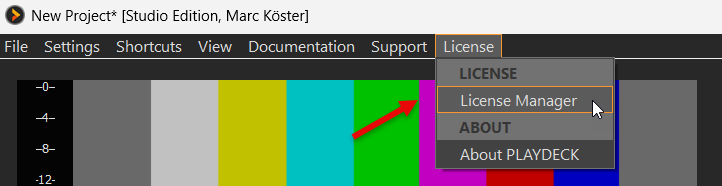
Now login to your PLAYDECK ACCOUNT. Use the email address and password, which you used during CHECKOUT in the SHOP. Use the FORGOT PASSWORD button, if you need to reset your password:
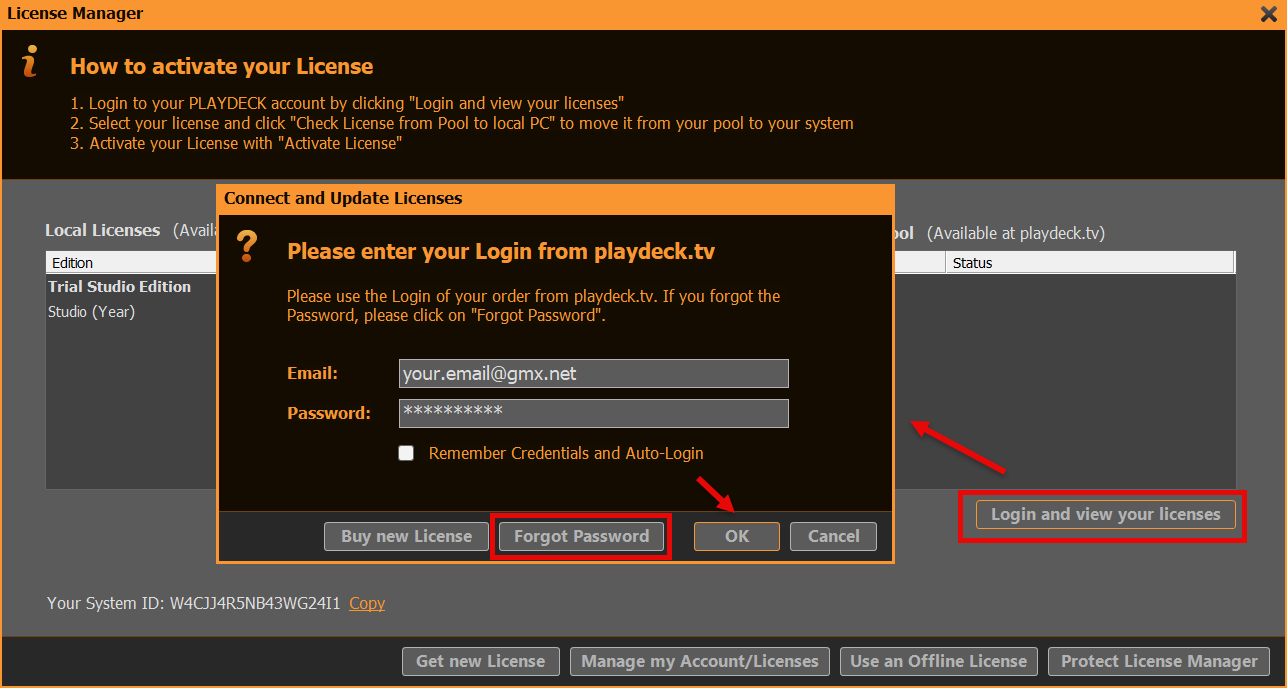
We can now move the License from you RIGHT Side to the LEFT Side with a Button Click (CHECK LICENSE FROM POOL TO LOCAL PC). This means, that the License becomes UNAVAILABLE to other Systems and becomes AVAILABLE on THIS System. PLAYDECK will now offer to activate the License and restart:
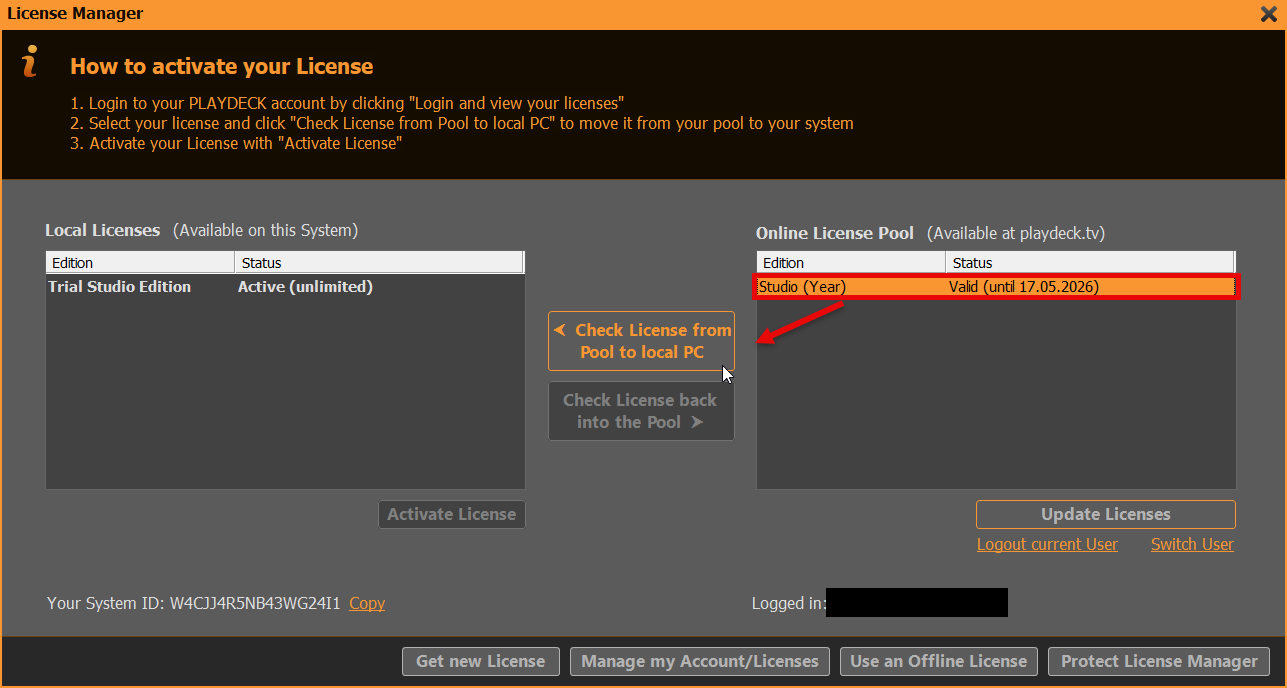
Dongle License
Simply attach the USB Dongle to the PC, then start PLAYDECK on that PC. Please note, that if you detach the Dongle while PLAYDECK is still running, PLAYDECK will close immediately and without prior notice. It is recommended to close PLAYDECK regularly to ensure, that all Data is saved properly.
Offline License
The Offline License is bound to the PLAYDECK System ID and can NOT be moved to another System by the Customer. To activate your Offline License, open the License Manager:
Then click on USE AN OFFLINE LICENSE and copy and paste the Offline License Code into the text field and click OK. PLAYDECK will now offer to activate the License and restart:
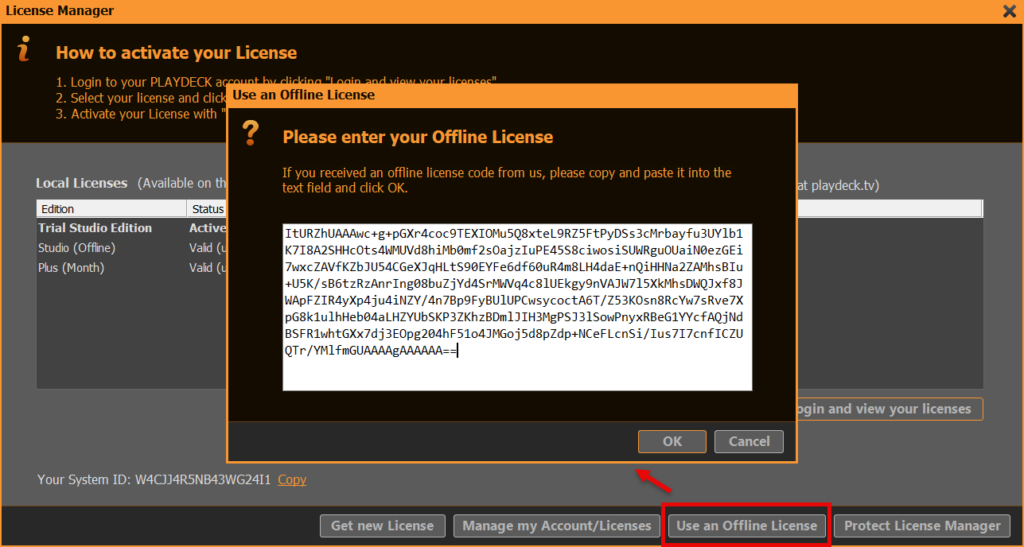
Backup License
We have a separate article on how to use the Backup License.
Free Backup License
This article will show how to use the Free Backup License, which comes with every PLAYDECK License. The Backup License functions as follows:
- Can be used with ANY PLAYDECK License (Dongle, Shop, Offline)
- Can be used on ANY PLAYDECK-PC in the same network
- Multiple Clients are supported
- 24/7 operation is NOT supported (max 24h per session)
1. Setup
On your MAIN System (the one WITH the License), you don’t have to do anything: The BACKUP LICENSE SYSTEM is enabled by default. It will use the WebSocket Port 11411, so make sure this Port is not blocked:
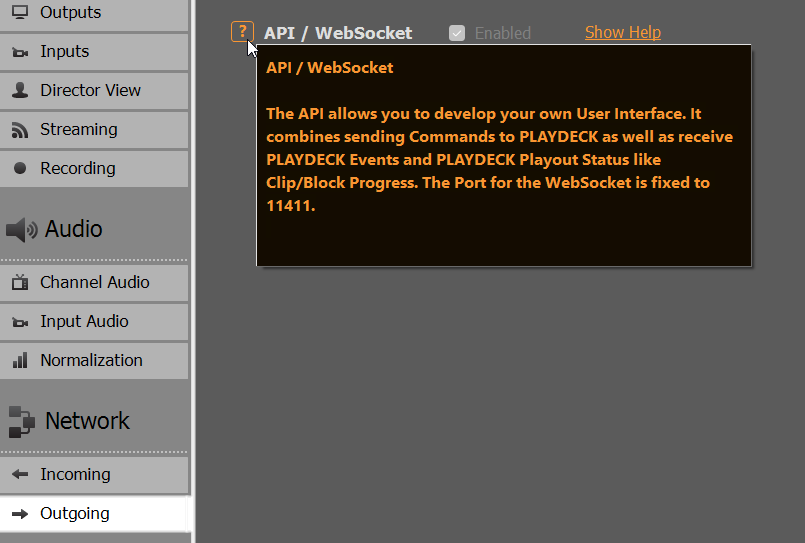
On the CLIENT System (the one WITHOUT the License), you perform a regular PLAYDECK installation, nothing special here: PLAYDECK will not start in TRIAL MODE with the watermark:
Now we need to tell CLIENT PLAYDECK, where to find the MAIN PLAYDECK, by providing the IP address of MAIN. To receive the IP address of your MAIN, you can simply open the ABOUT BOX in PLAYDECK (Main Menu > License > About):
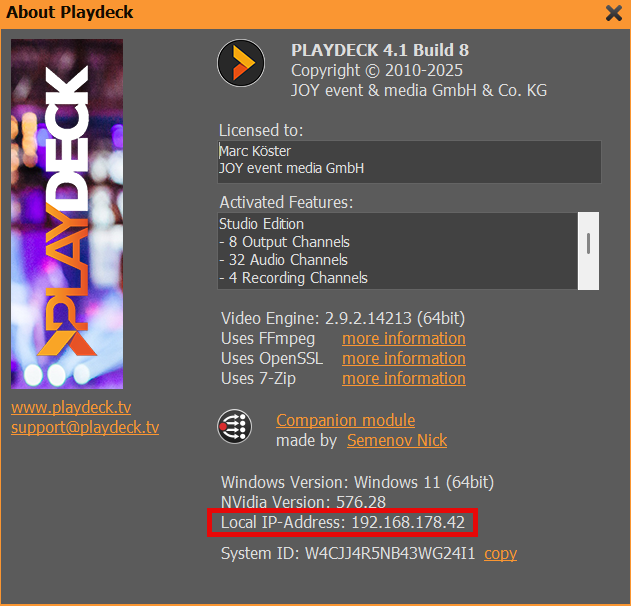
On your CLIENT, go to Application Settings, enter the IP address of MAIN PLAYDECK and click TEST IP NOW. The CLIENT now tests the Network connection and searches for a valid License on MAIN. If you don’t see the following INFO POPUP, please check your MAIN License and your Network connection between MAIN and CLIENT:
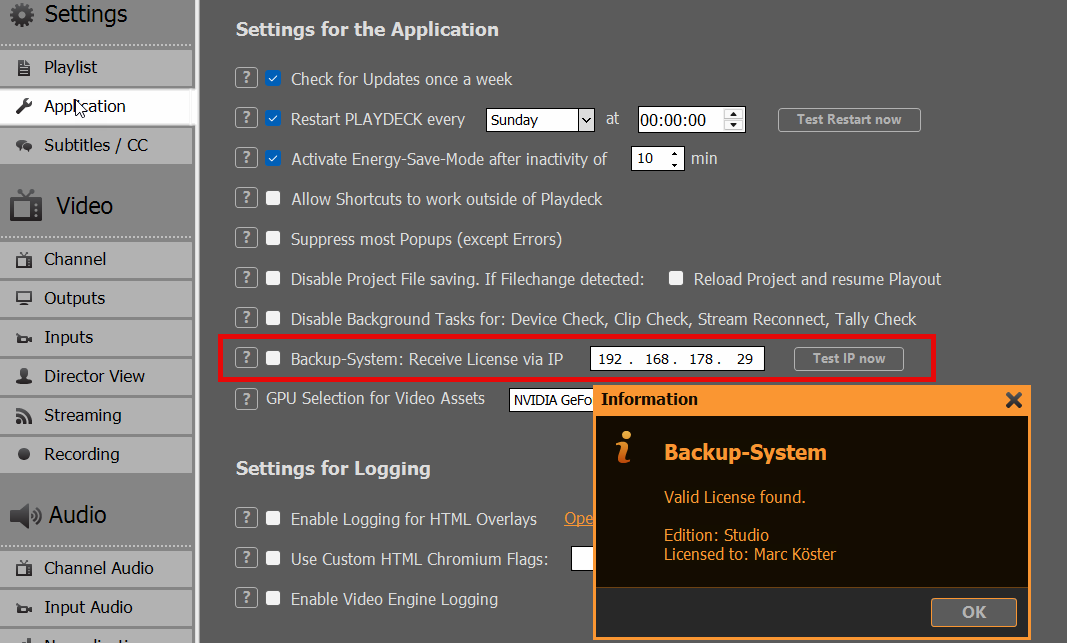
You can now enable the feature by clicking BACKUP-SYSTEM. PLAYDECK will restart now with the exact same License of MAIN. You can verify, the CLIENT is using the Backup License correctly in several Displays:
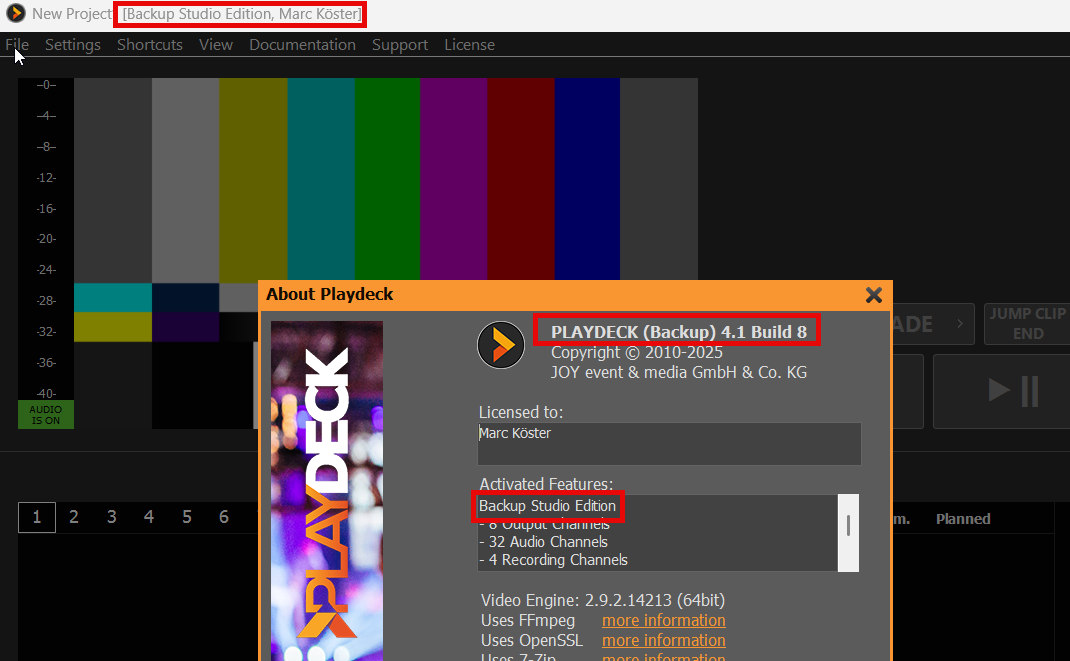
Note: If the CLIENT has a valid License itself, the License of MAIN will NOT be used.
2. Rules of Backup-License
The Backup-License is not meant for 24/7 operation, but to provide a fail-safe for immediate operation, e.g. in a live production, and without the need to buy a secondary license, just to have a backup system for some use cases.
For unattended 24/7 operation, you would need to purchase a secondary license. Please contact use at [email protected], if your next License is for Backup only, and we will provide you with a appropriate discount.
The MAXIMUM RUNTIME of your BACKUP LICENSE will be:
– 2 hours, if the MAIN gets disconnected or closed
– 24 hours, if then MAIN stays online
PALYDECK will terminate the CLIENT without prior warning. So please make sure, to bring the MAIN back online within the 2 hour window, or to restart both MAIN and CLIENT within the 24 hour window.
You can control the remaining RUNTIME in the Settings of the CLIENT:
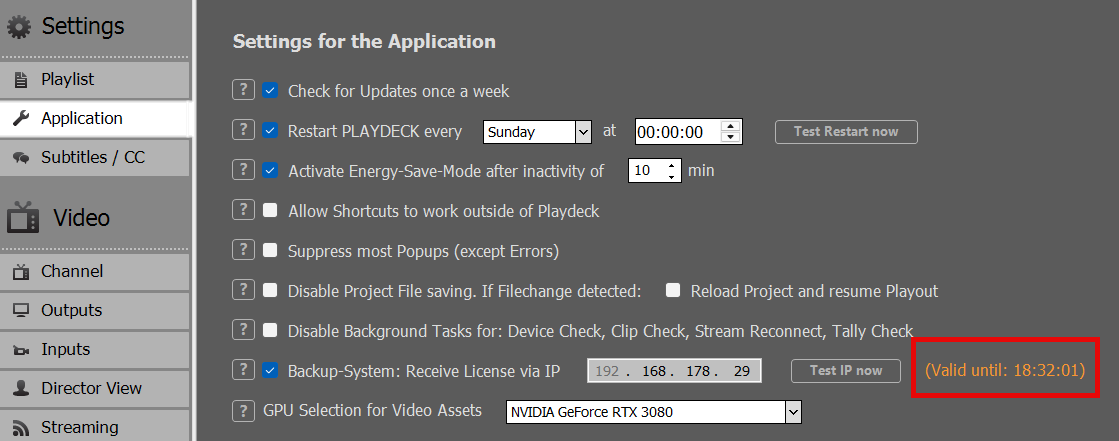
Move License to another PC
This article will show how to move your License from one System to another System.
In this article:
→ Shop License
→ USB Dongle License
→ Offline License
→ Backup License
Shop License
You can move your License via a simple Check-In/Out System. On the System with the active License, go into your License Manager:
First, we want to deactivate the current License: Select the TRIAL Edition and click ACTIVATE, then confirm the restart query:
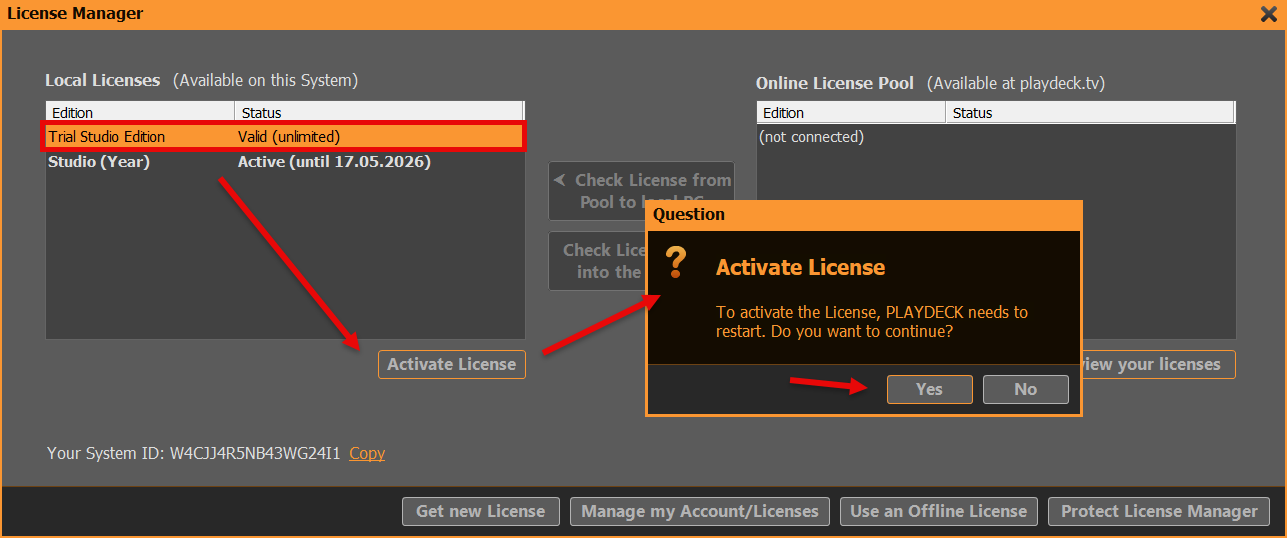
After restarting PLAYDECK, we can now move the freed License back to your Online License Pool. Re-open the License Manager. Now login to your PLAYDECK ACCOUNT. Use the email address and password, which you used during CHECKOUT in the SHOP. Use the FORGOT PASSWORD button, if you need to reset your password:
We can now move the License from you LEFT Side to the RIGHT Side with a Button Click (CHECK LICENSE BACK INTO THE POOL). This means, that the License becomes UNAVAILABLE on the current System and becomes AVAILABLE on ANY other System:
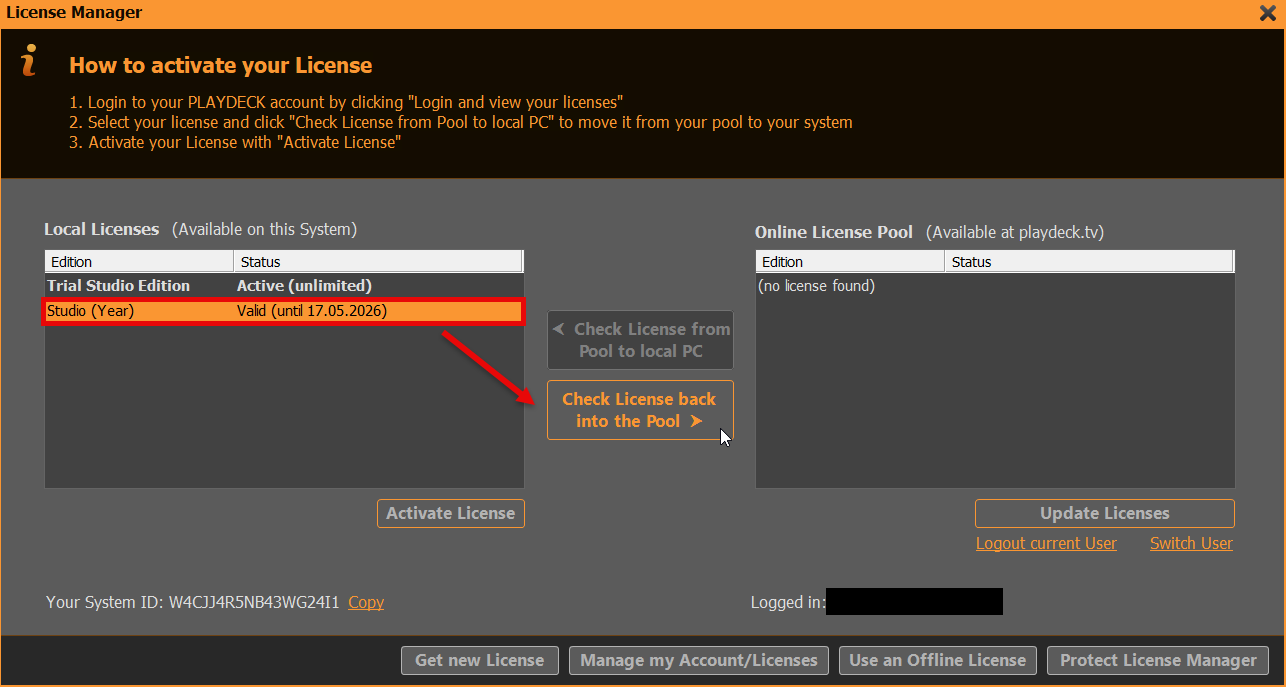
The next Screen shows the OTHER PC after logging into the License Manager. You simply reverse the Process now: Select the License on the RIGHT Side and move it with the Button to the Left Side (CHECK LICENSE FROM POOL TO LOCAL PC). PLAYDECK will now offer to activate the License and restart:
USB Dongle License
Simply detach the USB Dongle and attach it to another PC, then start PLAYDECK on that PC. Please note, that if you detach the Dongle while PLAYDECK is still running, PLAYDECK will close immediately and without prior notice. It is recommended to close PLAYDECK regularly to ensure, that all Data is saved properly.
Offline License
The Offline License is bound to the PLAYDECK System ID and can NOT be moved to another System by the Customer. Please write us at [email protected] to receive a new Offline License.
Backup License
We have a separate article on how to use the Backup License.
Recover lost license
This article explains, how to recover a lost license.
Shop license
If you still can access the PC system with the license, you might be able to recover and move the license by yourself:
https://playdeck.tv/howto/move-license/
But if that PC system has crashed, is lost or you had to re-install windows, you will not be able to recover your license by yourself. In this case, please contact us at [email protected]. We are happy to release the license for you, so it can be checked out again with the license manager.
USB Dongle license
If the USB device is broken or lost, we can replace your Dongle and provide you with a temporary offline license during the delivery time. If the Dongle is still working, we can update the Dongle remotely with an updater-file. Please also contact us at [email protected].
Offline license
The offline license can’t be moved to another PC by default. Please also contact us at [email protected] to receive a new offline license from us.
Send Log Files to Support Team
This article will show how to send you PLAYDECK Log Files to our Support Team.
In this article:
→ Send via Internet
→ Send offline via ZIP File
IMPORTANT: Please always send a message to [email protected], informing us about:
– Log Files have been uploaded
– Your PLAYDECK System ID
– Date/Time of last occurrence of issue/problem
Thanks!
Send via Internet
If you have an active Internet Connection on your PLAYDECK System, open the Main Menu and select SUPPORT and then SEND LOG FILES:
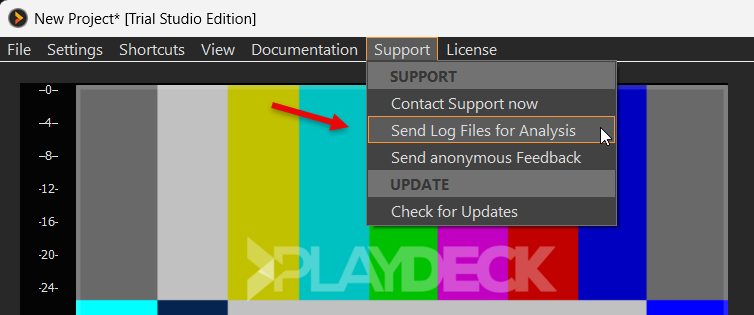
Then select the INTERNET Option:
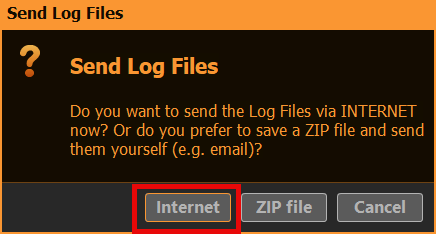
After the upload is complete, please send us a message to [email protected] along with your System ID. If you seen the following Popup, the System ID is in your Clipboard already and you can simply paste it with CTRL+V into your email message:
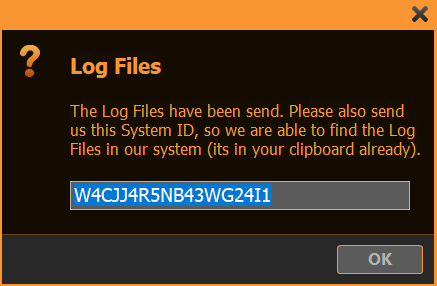
Send offline via ZIP File
If you DONT have an active Internet Connection on your PLAYDECK System, open the Main Menu and select SUPPORT and then SEND LOG FILES:
Then select the ZIP FILE Option:
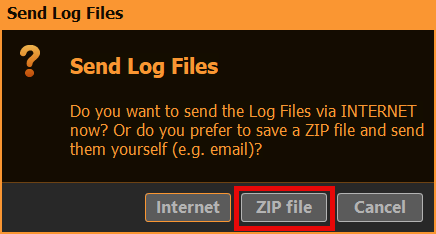
After you pick a destination Folder on your System, a 7-ZIP-file will be written there:

Please send us a message to [email protected] along with your ZIP-file.
If your Email-system doesn’t allow sending Files or the ZIP-file itself is too large (> 5 MB), you can also use our download portal to upload the File.
Note: If you are unable to even start PLAYDECK, please ZIP this Folder manually:
c:\ProgramData\JoyEventMedia\Playdeck\logs
Upload Files to Support Team
This article will show how to upload Files and send them to the PLAYDECK Team.
Open our download portal via this URL: https://download.joy-event-media.de/
You can add your Files now via Drag-drop or file-browser. In our example we already added some PLAYDECK Log-files and a sample video. If you are done adding, please click UPLOAD.
Important: Without the Download-link we cant access your Files. This is to protect Customer data.
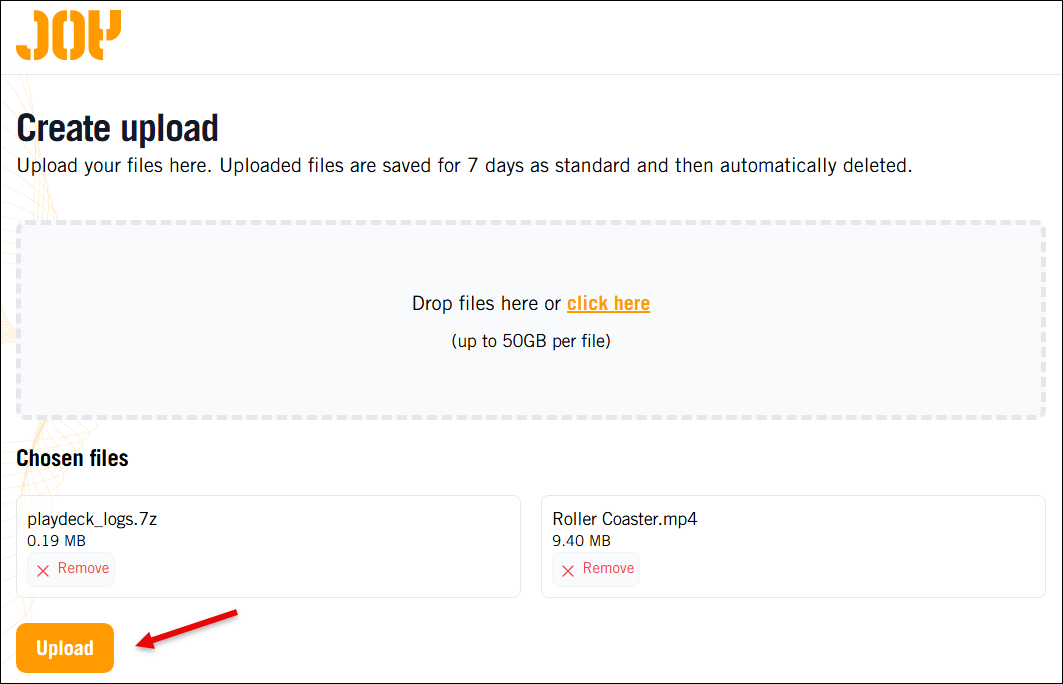
After the Upload is complete, please click COPY to put the Download-link into the Clipboard. Then write us a message to [email protected] along with that Download-link:
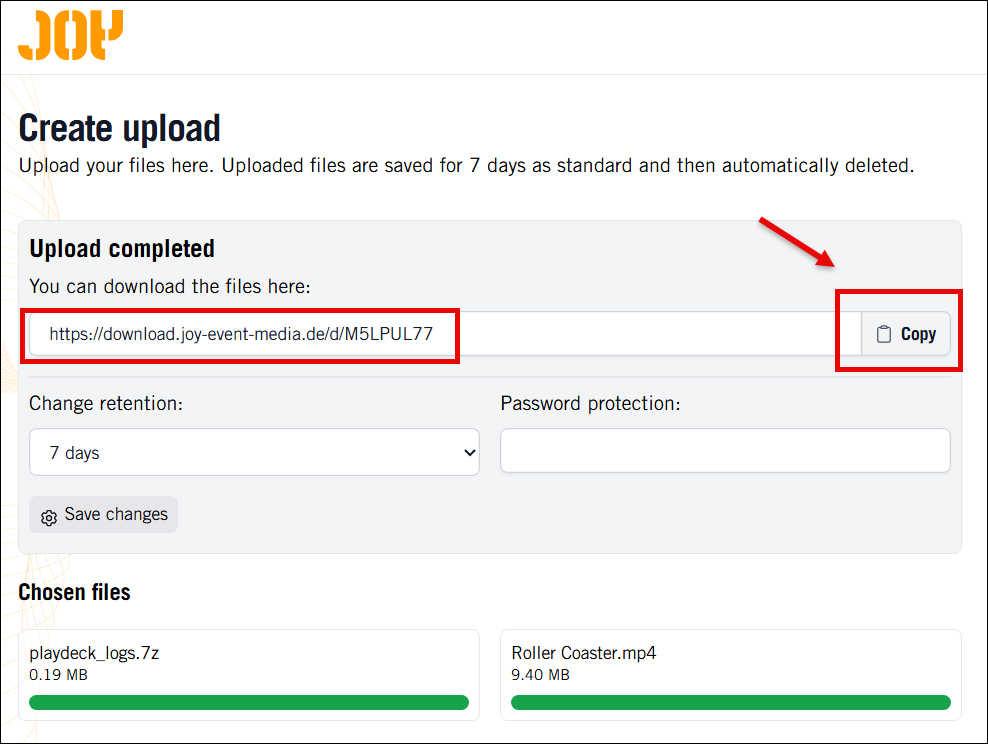
Setup RustDesk unattended Access for Remote Support
RustDesk is a free Remote Destop Software, which we use to login to remote systems. The main advantage of RustDesk over other Remote Desktop Connections is, that is does interfere with installed GPUs (eg. installing a Virtual GPU), therefore not interfering with PLAYDECK during Remote Access.
1. To get started, download our customized RustDesk from our website. This version will use our private RustDesk server (and not the public server) to protect your data and improve the connection speed.
https://get.remote-joy-event-media.de/rustdesk.exe
2. Once you start RustDesk for the first time, you will need to install it. Please deactivate “Install virtual display driver”, which might interfere with PLAYDECK.
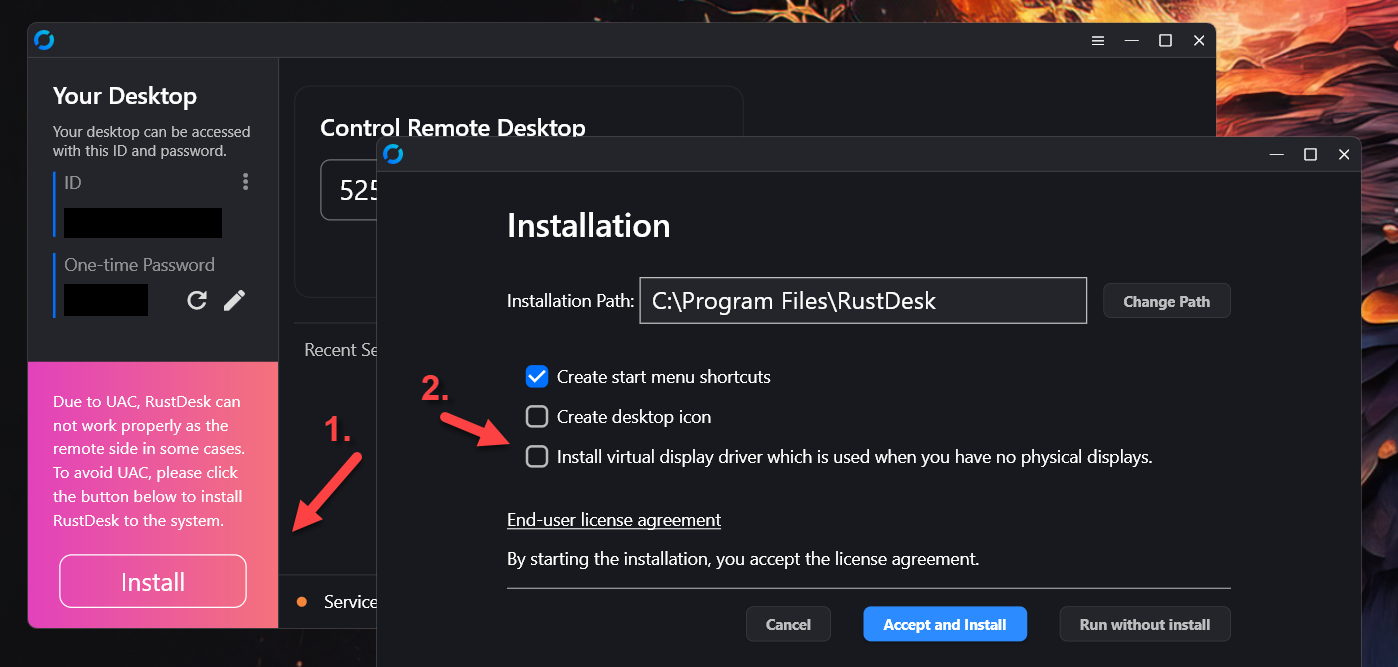
3. After re-starting RustDesk, you will not need to activate “Start Service”. This is important to elevate priviliges to e.g. open the device manager. After that you need to setup a permanent password: Click on the Edit Icon next to “One-time Password”.
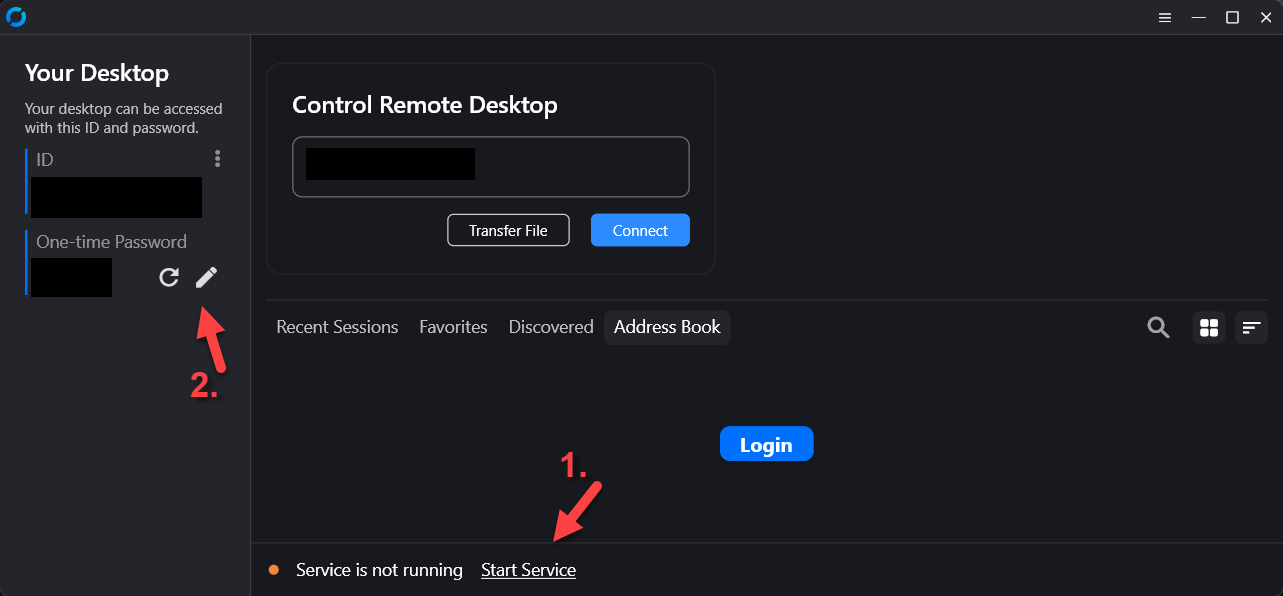
4. Then click on “Unlock Security Settings” and scroll down.
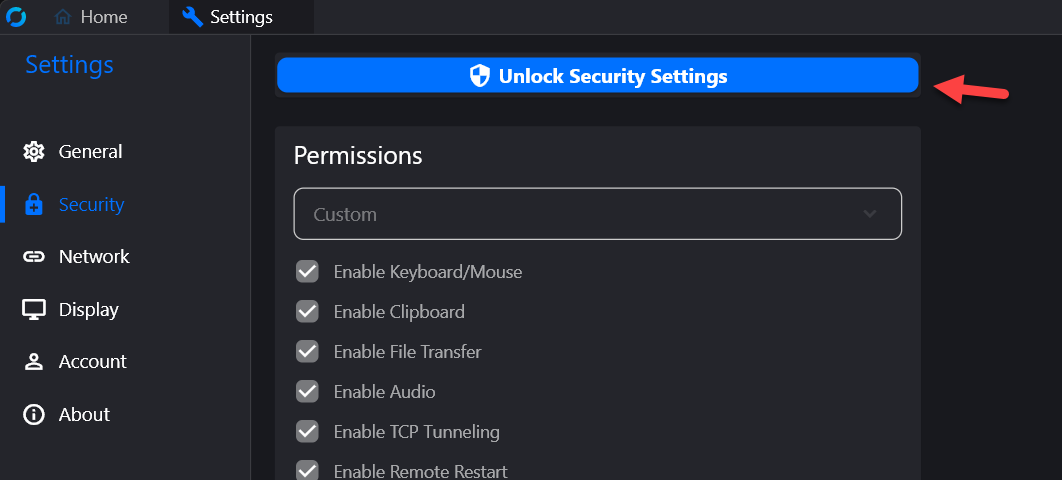
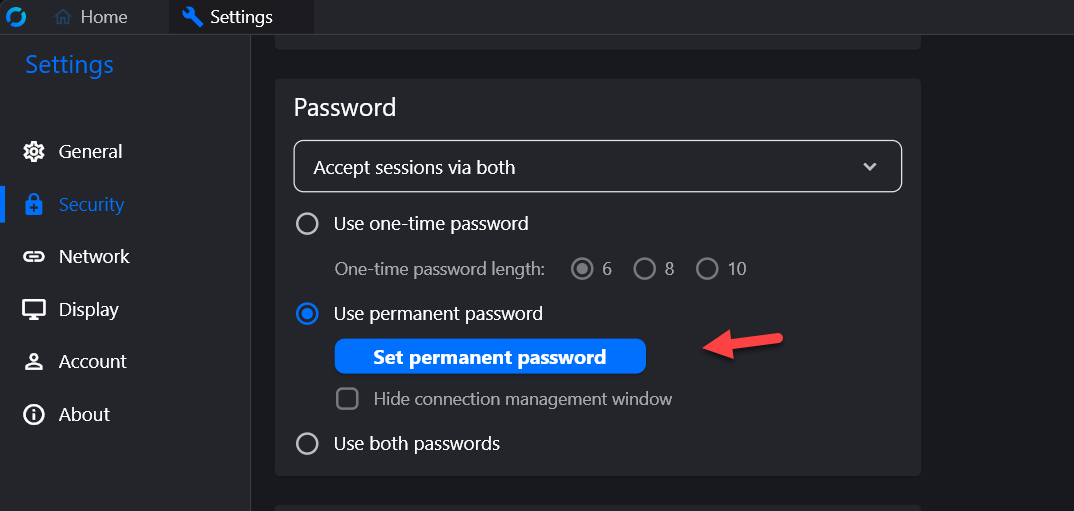
5. Please send us your ID together with your permanent password to [email protected]
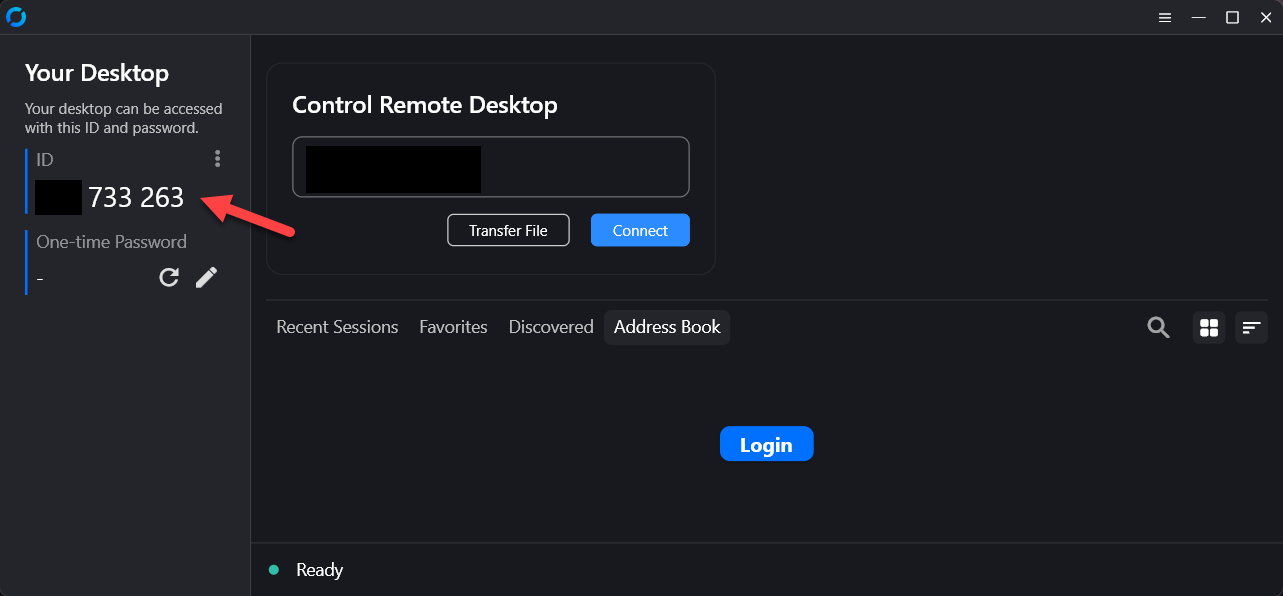
6. (Optional) If possible, please start RustDesk on a secondary PC (No need to install) and test the connection to the System you have setup for remote support. Now thru this remote connection, on the secondary system, please try to:
– Open Device Manager
– Open Task Manager
– Open NVidia Panel
– Copy any File to this Folder: c:\Program Files(x86)\JoyEventMedia\Playdeck\
These tests make sure, that all needed support actions can be done remotely. If is likely, that any Anti-Malware or other Protection software breaks the connection. In that case please de-activate those Tools temporarily for the remote support session.
Video Engine Logging
This article will show how to setup Video Engine Logging.
1. Setup Logging
Start PLAYDECK, open Settings, and select the APPLICATION tab. At the bottom of the page, you will find the configuration options.

Output Folder: Choose your destination directory. This can also be a shared network folder.
Storage Warning: Logs can easily consume up to 1 GB per minute (at Verbosity 0 with all modules enabled). Ensure you have sufficient free disk space based on how long it might take for the issue to occur.
Verbosity: Always start logging with 0 – trace. This ensures the Video Engine developers receive all necessary information.
Modules: Select all to begin with. If the log files become too large, you can reduce their size by focusing on specific modules:
The first thing to setup is your Output Folder for the Log Files. This can be a shared Folder on your Network. Logs can easily consume up to 1 GB per Minute (on Verbosity 0 and all Modules). Plan enough free disc space, depending on the estimated time until Bug occurrence.
The next setup is Verbosity: Please always start Logging with 0 – trace, so the Video Engine Devs have ALL information.
With the Modules setting we pick all to begin with. If Log Files get to big, we can reduce the size by focussing on specific modules:
all: Logs everything.playlist,file,codecs: Covers playout, file decoding, and clip loading/playing errors.writer: Covers streams, recordings, and encoding.network: Covers streaming protocols.renderer: Covers device output and NDI.live: Covers live inputs.device: Everything related to hardware devices.blackmagic: Everything related to Blackmagic Design hardware.
Split Option: This depends on how many channels you are running, as every channel operates on its own process. If you use more than 2 channels, we highly recommend enabling the Split option.
2. Start / Stop Logging
To catch a bug on the fly, you will need to start logging, reproduce the issue, stop logging, and then send the files to the development team.
Timing: You can START and STOP logging at any time. This allows you to prepare your playlist or devices beforehand. Minimize the time between starting and stopping to keep the overall file size manageable.
Session Folder: Once you click START, a new subfolder named after the current timestamp (e.g., 2026-05-16__01-20-00) will be created in your designated logging path.
Stopping: Once the bug occurs, click STOP. Wait at least 10 seconds to ensure all active log processes finish writing to the disk.
Compression: Open your logging path and locate the session folder. Right-click the folder, select Compress to…, and choose 7z (preferred) or ZIP. Compression may take some time depending on the file size.
Now we need to ZIP the contents of the session folder. Identify your session folder by START time. Then right-click your session folder, select Compress to and pick 7z File (if available) or ZIP File. Now lean back, compression could take some time.
3. Uploading Logs
Please upload your compressed log files using our official download portal:
https://download.joy-event-media.de
- Drag and drop your ZIP/7z file into the browser window or use the file browser.
- Click UPLOAD.
- Once complete, click COPY to copy the generated download link to your clipboard.
- Send an email to [email protected] and paste the download link into the message.
Note: Without this specific download link, our team cannot access your files due to data protection policies.
4. Cleanup
Make sure to delete the original log files and session folders after successful compression and upload to free up disk space. PLAYDECK does not automatically delete or clean up old log files.