This article will show how to load and edit YouTube Videos.
1. Load YouTube into PLAYDECK
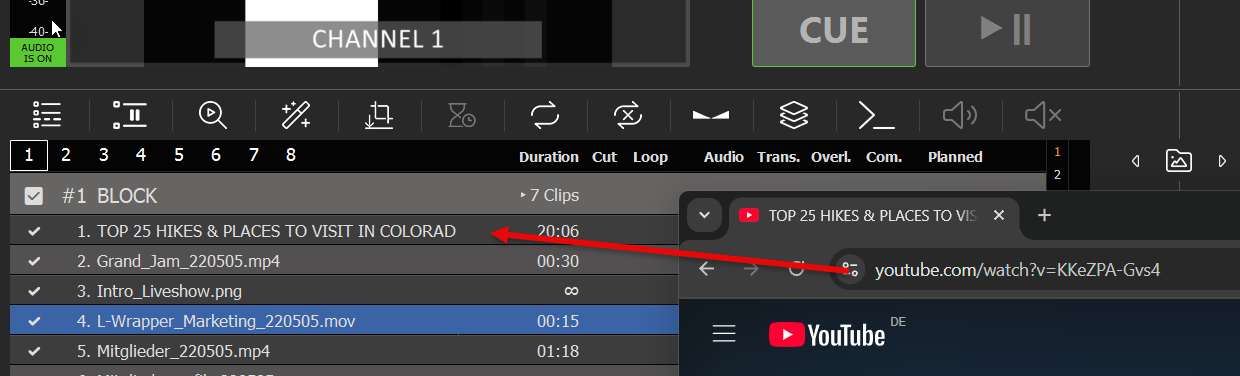
You can directly Drag Drop any YouTube URL from your Browser to PLAYDECK:
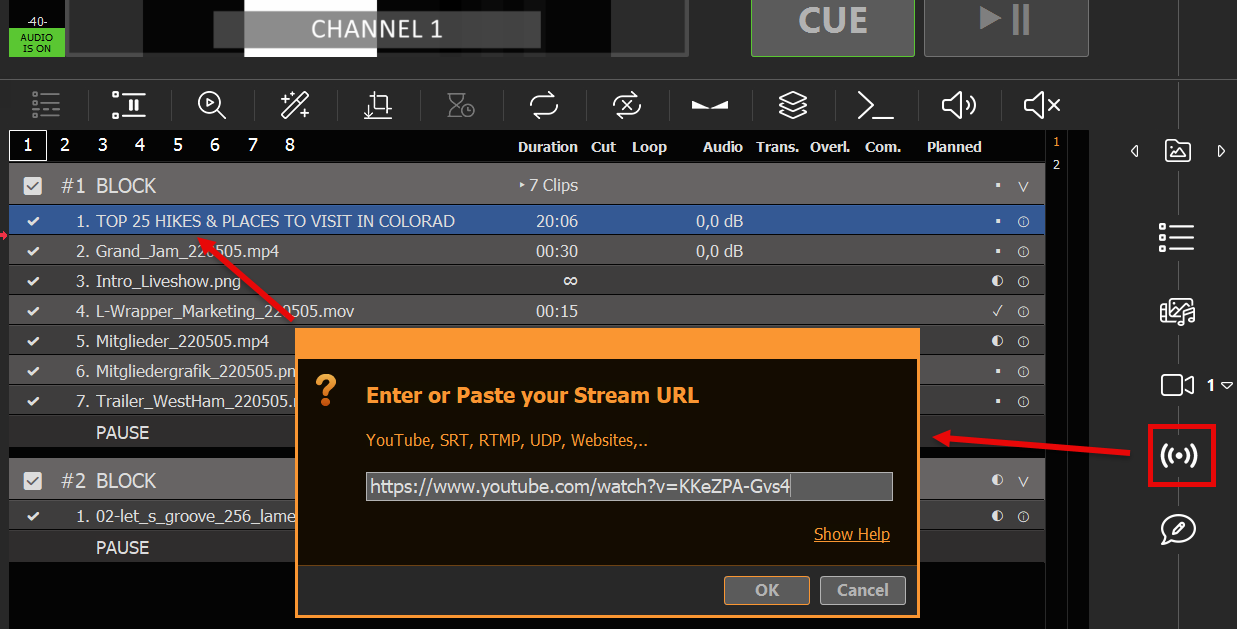
Or you can use the Stream Drag Drop Icon to paste/edit the URL:
Your YouTube Videos is ready to play out-of-the-box. The quality will be pre-selected dependent on your Playlist Video Format and the Formats provided from YouTube.
Note: Avoid using long YouTube Links with Playlists like “…?v=0oIIRc0zc_U&list=RD0oIIRc0zc_U”, as they might not work or cause Lag/Stutter. We recommend using short links like “…?v=0oIIRc0zc_U”.
2. Update YouTube Driver
Should the added YouTube Clip be shown as UNPLAYABLE/RED in PLAYDECK, please update the integrated YouTube Driver. Chances are, YouTube made changes to its platform and you need a newer driver from us:
3. Change Quality, Video and Audio
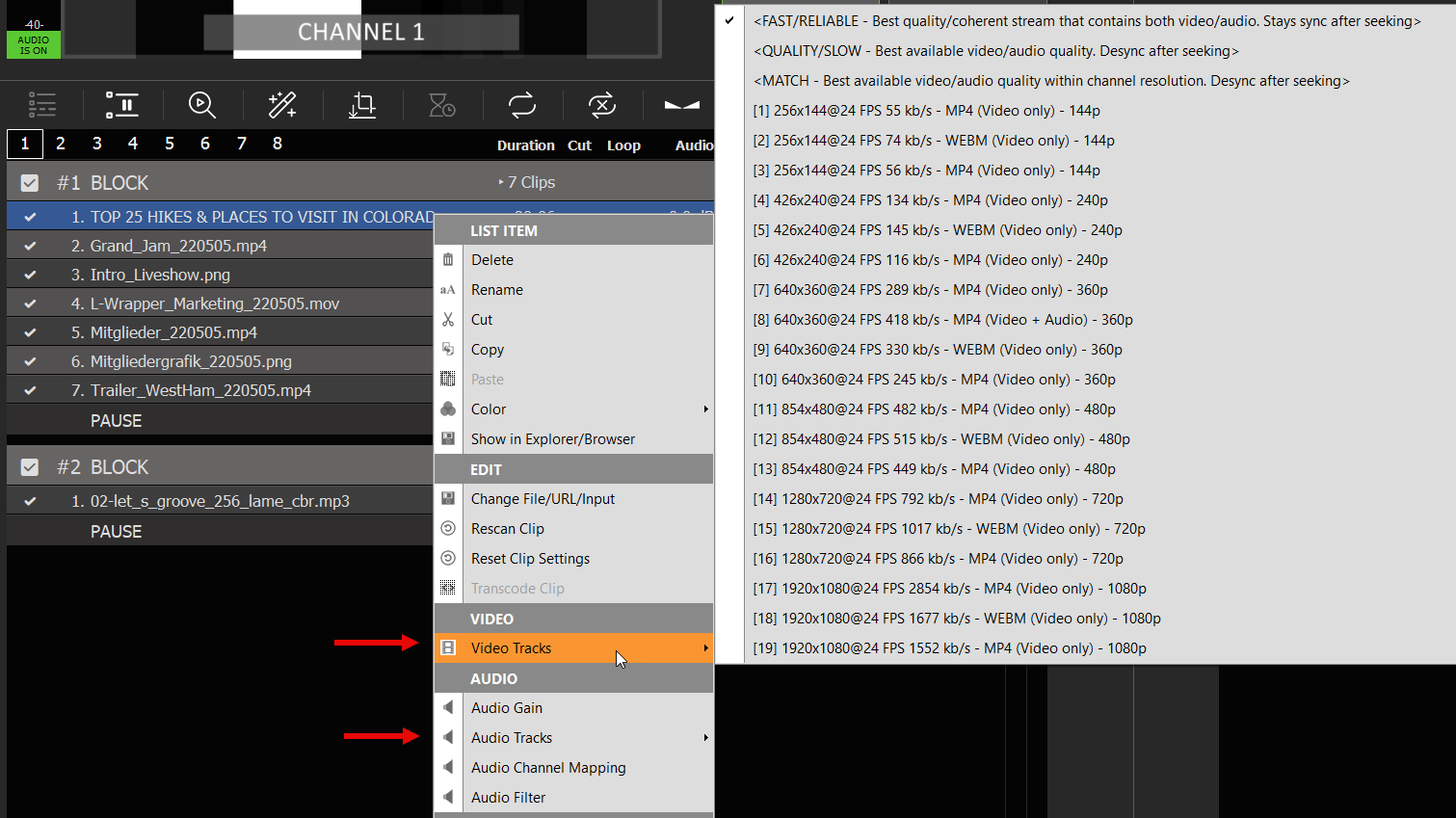
YouTube Videos are always available in different qualities. You can switch Video Tracks by right-clicking the YouTube Video:
Note: YouTube provides combined Video+Audio Tracks, which are much faster. If you switch to non-combined Video Track, caching can take much longer and seeking can desync video/audio.
Please use this basic guidelines for your PLAYDECK System. While PLAYDECK can basically play any Codec on any Windows machine, we want you to have a good experience, which requires some rules of thumb.
PLAYDECK can be installed on any Windows 64-bit machine. This includes Windows Server Versions or Custom Cloud Builds.
PLAYDECK needs fast modern Hardware, if pushed to the Limit. It has to transcode any given Video Format and Framerate in Real-time into your selected Output Format. Ideally without any Frame Drops.
As with all Tasks, it all depends on your use case: Are you using the LITE Edition to operate one Full HD Channel in a Live Event for some Hours? Or are you using STUDIO to broadcast multiple UHD Channel to several receiver e.g. Streams, NDI, and all in a 24/7 manner?
One thing is certain: You need a powerful NVIDIA or INTEL GPU. AMD is not supported for decoding, but it will run nevertheless. Your NVIDIA GPU should have ideally at least a Score of 9.000 on the Passmark Scale. This would be achieved with a NVIDIA RTX 4060.
There is also a Passmark Scale for CPU. We recommend at least a Score of 25.000 for single channel, 35.000 for dual channel and 50.000 for 4-8 channel.
All other PC components should not be much older than 2 years, just to meet modern driver standards, as we update PLAYDECK at least 4 times a year with the latest driver. You will want to utilize and profit from that, as all PLAYDECK updates are free of charge, as long as you have a valid license.
This is a LIVE Spec, we use for our own PLAYDECK Production Systems:
Please also plan your GPU upfront according to your encoding and decoding needs. Here is a page for NVidia NVenc and 422 Support and here for Intel Quick Sync and 422 Support. As a rule of thumb: Lower NVidia Cards can’t encode DVB 422 and can’t decode AV1. Almost any Intel Onboard GPU (UHD, Iris, ARC) can encode DVB 422, but only the ARC can also decode AV1. Here is a little Helper:
NVidia RTX 3080
Decode HEVC — STRONG
Decode H264/H265 — STRONG
Decode AV1 — (No)
Encode DVB 4:2:2 — (No)
Intel UHD
Decode HEVC — MINIMAL
Decode H264/H265 — MINIMAL
Decode AV1 — (No)
Encode DVB 4:2:2 — OK
Intel ARC
Decode HEVC — GOOD
Decode H264/H265 — GOOD
Decode AV1 — GOOD
Encode DVB 4:2:2 — GOOD
Output Cards
If you use a dedicated Output Card (e.g. BM Decklink), you will not only offload resources to the Card and reduce overall System GPU/CPU load, but you will also benefit from:
More “true” Colors
Nearly Zero Frame Drops due to Frame Rate Control
Overall higher Picture Quality
Much more stable than HDMI over Desktop (no Windows-interference)
We support Output Cards from these Manufacturers (see complete List):
Blackmagic Design
AJA
Deltacast
Bluefish444
DekTect
Magewell
Osprey
Stream Labs
Yuan
ASIO Devices (eg DANTE)
CPU Usage = Stronger CPU needed
If you fall under one of the following categories, please plan a stronger CPU for your System:
– You are mostly using CPU Codecs, that can’t be GPU-decoded with PLAYDECK: ProRes, HAP, DNxHD – You use multiple NDI Outputs, as they are encoded on CPU only – You are heavily using Overlays in PLAYDECK, as they are also CPU-only – You are using multiple screen captures or web camera devices
Headless Playout NUC
If Form Factor is important or your Playout System should run unsupervised, we can recommend this NUC: ASUS NUC 14 Pro.
It has a very strong INTEL ARC GPU with 8 GB. I can decode anything like a NVidia (with QuickSnyc) plsu AV1. Very balanced CPU/GPU power. Can operate 2 channel playout including HDMI output and Streams.
Notebooks
If you are aiming for mobile productions, we go with the XMG ULTRA 17 or the Razor Blade Notebook and extend it with a Blackmagic Ultra Studio card via the thunderbolt interface. If in doubt, which manufacturer to go for, decide for a Gamer Notebook. Those are designed to run at maximum performance. Avoid buying Office-type Notebooks like Dell, which are designed for power saving and can seriously limit your playout performance.
Thank you for choosing PLAYDECK! We are convinced that with PLAYDECK you will significantly increase your productivity, whether you produce live events, stadium TV, theatre performances, museums, TV broadcasts or virtual and hybrid streaming events. You can run PLAYDECK both on-site and cloud-based.
PLAYDECK provides you with 8 completely independent output channels in which you can organize your videos, graphics, audio files, live inputs, streams or YouTube clips simply by dragging and dropping.
PLAYDECK supports almost any codec and converts all content to the selected output format in real time. The output is completely flexible via dedicated output cards (e.g. from Blackmagic, AJA, Bluefish, …), via the extended desktop, via NDI or via Streams.
In the Studio Edition, your recording channel can be edited while the recording is still running (edit-while-ingest, e.g. highlight editing), played back with a time delay or streamed. For maximum flexibility you can choose from a wide range of different recording formats.
But PLAYDECK (depending on your license) is much, much more than a simple playout system: You can trim and crop your content, you can automatically adjust the volume, you can schedule the start of your contributions, you can control the playlist externally, you can start playback via your video switcher, you can transfer closed captions, you can completely customize PLAYDECK with advanced scripting functions, you can…
You are welcome to inform yourself about the incredible functionality of PLAYDECK in the following chapters. We are sure you will love it!
Sometimes, in Live Productions, you have to send the Audio delayed compared to the Video, to compensate for the processing Lag of huge LCD Screens (Lipsync). Or add a Limiter/Gate to the Microphone Input Audio.
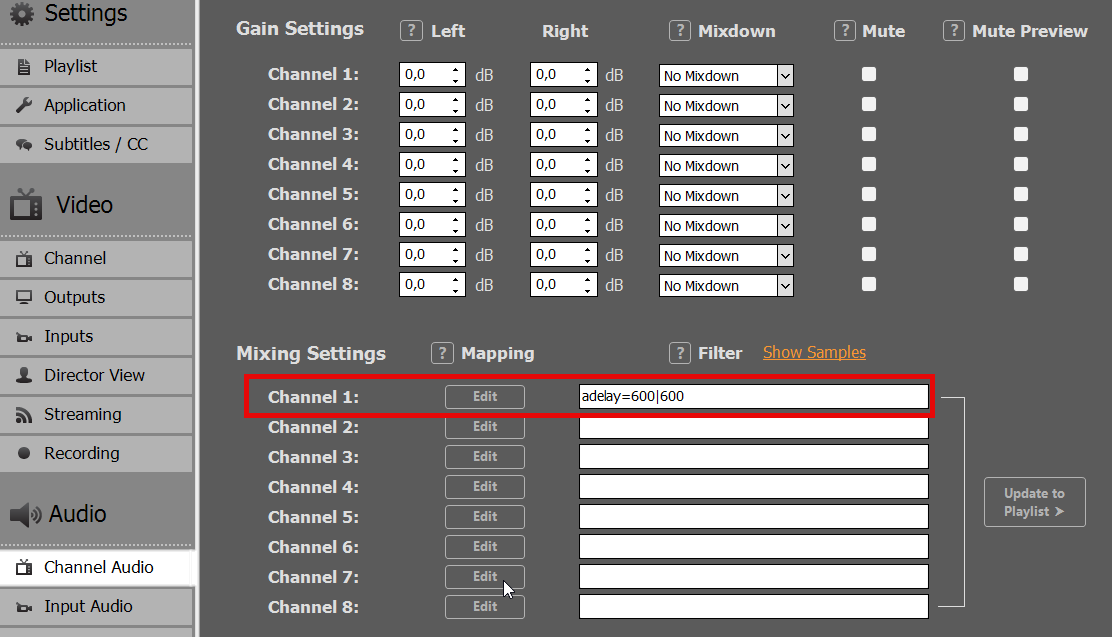
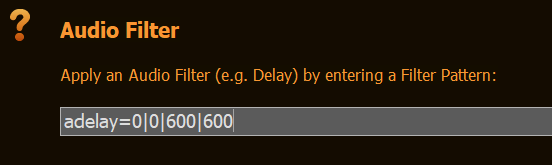
This is actually pretty fast to implement in PLAYDECK. You add the ADELAY Audio Filter to the Channel like this. In this example we set 600ms Delay for Audio Channel 1 and 2:
This can also be set to INPUTS to compensate for any incoming Lipsync Issue.
Copy Audio and Delay
You can also COPY the Audio Channel 1 and 2 to Audio Channel 3 and 4 and delay those. The use case here is, that the Audio Mixer Person has Live Preview Audio.
This needs to be done on the Playlist Level, so clear any Audio Filter in the Settings.
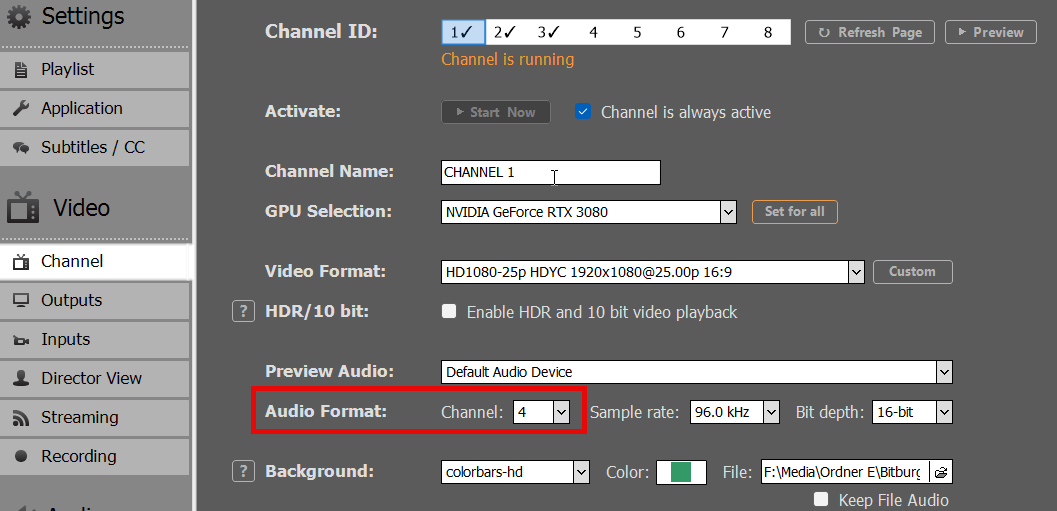
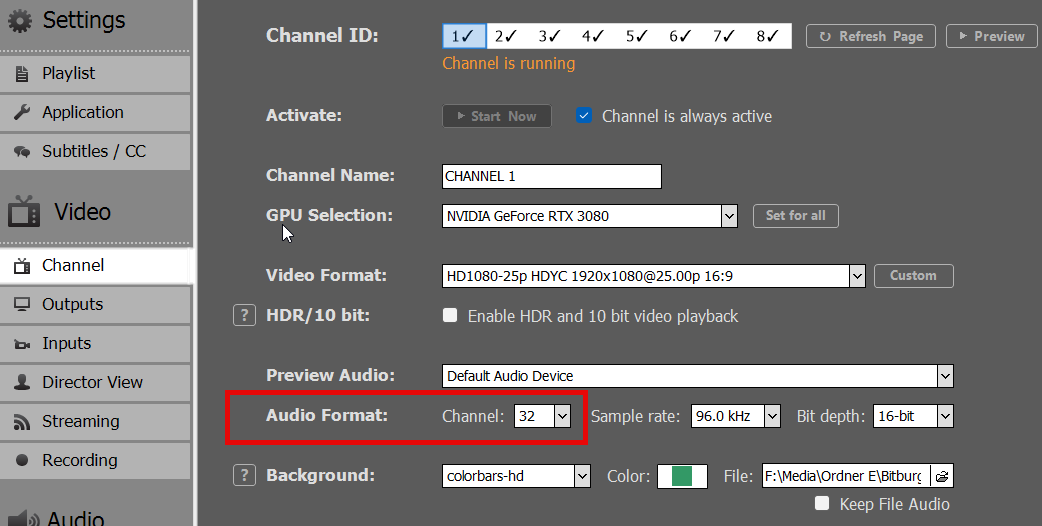
First, make sure to increase the Audio Channel for your Output Channel, otherwise all Audio Channel above 2 will not be processed:
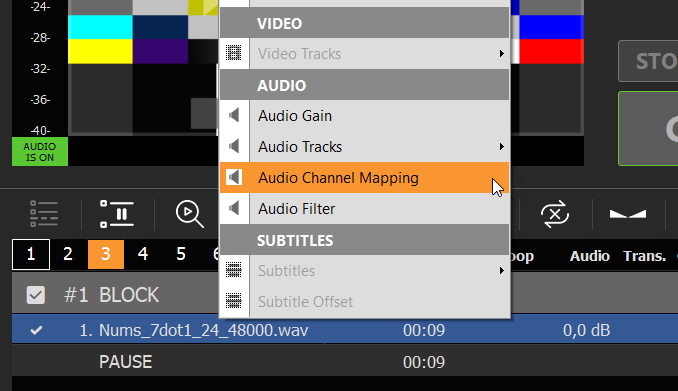
The Right-Click any Playlist Item and select AUDIO CHANNEL MAPPING:
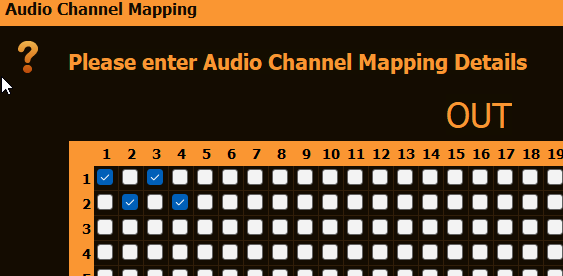
This will copy Audio Channel 1 and 2 to Audio Channel 3 and 4:
Now right-click the Playlist Item again, select AUDIO FILTER and add the ADELAY Filter, but only for Audio Channel 3 and 4:
More Audio Filter
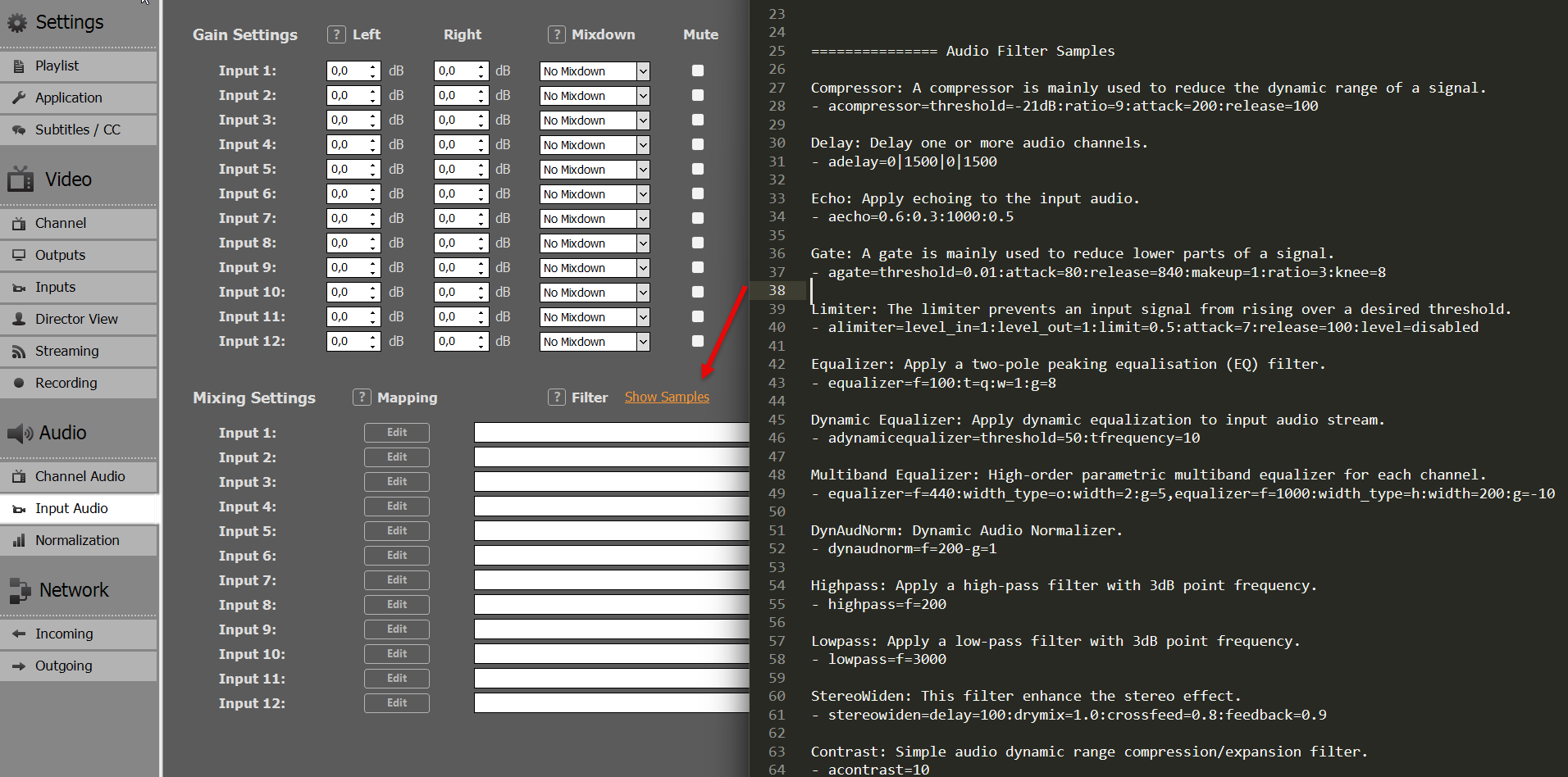
For a complete List of all Audio Filter, click SHOW SAMPLES. This will open a TEXT FILE with Examples.
This article will show how to setup Video Engine Logging.
1. Setup Logging
Start PLAYDECK, open Settings, and select the APPLICATION tab. At the bottom of the page, you will find the configuration options.
Output Folder: Choose your destination directory. This can also be a shared network folder.
Storage Warning: Logs can easily consume up to 1 GB per minute (at Verbosity 0 with all modules enabled). Ensure you have sufficient free disk space based on how long it might take for the issue to occur.
Verbosity: Always start logging with 0 – trace. This ensures the Video Engine developers receive all necessary information.
Modules: Select all to begin with. If the log files become too large, you can reduce their size by focusing on specific modules:
The first thing to setup is your Output Folder for the Log Files. This can be a shared Folder on your Network. Logs can easily consume up to 1 GB per Minute (on Verbosity 0 and all Modules). Plan enough free disc space, depending on the estimated time until Bug occurrence.
The next setup is Verbosity: Please always start Logging with 0 – trace, so the Video Engine Devs have ALL information.
With the Modules setting we pick all to begin with. If Log Files get to big, we can reduce the size by focussing on specific modules:
all: Logs everything.
playlist,file,codecs: Covers playout, file decoding, and clip loading/playing errors.
writer: Covers streams, recordings, and encoding.
network: Covers streaming protocols.
renderer: Covers device output and NDI.
live: Covers live inputs.
device: Everything related to hardware devices.
blackmagic: Everything related to Blackmagic Design hardware.
Split Option: This depends on how many channels you are running, as every channel operates on its own process. If you use more than 2 channels, we highly recommend enabling the Split option.
2. Start / Stop Logging
To catch a bug on the fly, you will need to start logging, reproduce the issue, stop logging, and then send the files to the development team.
Timing: You can START and STOP logging at any time. This allows you to prepare your playlist or devices beforehand. Minimize the time between starting and stopping to keep the overall file size manageable.
Session Folder: Once you click START, a new subfolder named after the current timestamp (e.g., 2026-05-16__01-20-00) will be created in your designated logging path.
Stopping: Once the bug occurs, click STOP. Wait at least 10 seconds to ensure all active log processes finish writing to the disk.
Compression: Open your logging path and locate the session folder. Right-click the folder, select Compress to…, and choose 7z (preferred) or ZIP. Compression may take some time depending on the file size.
Now we need to ZIP the contents of the session folder. Identify your session folder by START time. Then right-click your session folder, select Compress to and pick 7z File (if available) or ZIP File. Now lean back, compression could take some time.
3. Uploading Logs
Please upload your compressed log files using our official download portal:
Drag and drop your ZIP/7z file into the browser window or use the file browser.
Click UPLOAD.
Once complete, click COPY to copy the generated download link to your clipboard.
Send an email to [email protected] and paste the download link into the message.
Note: Without this specific download link, our team cannot access your files due to data protection policies.
4. Cleanup
Make sure to delete the original log files and session folders after successful compression and upload to free up disk space. PLAYDECK does not automatically delete or clean up old log files.
SCTE Marker are mainly used to insert Ads into the Video Output by signaling the Receiver (e.g. Streaming Server) at what time to insert Ads and with what Duration. This allows 3rd Party Systems to dynamically pick Ads from a Database. You can read more about SCTE-35 in general on this website.
You can attach SCTE Marker to 4 different Objects in PLAYDECK: – Clips (any Position) – Blocks (Start and End) – Overlays (Show and Hide) – Actions Buttons
Instead of providing your with predefined SCTE Marker, we picked a different approach: You have to write your own SCTE Marker. This could mean a bit of a learning curve, but in the end, it is much more flexible. The advantage is, that you will always be compatible to all receiver. For gathering Clip duration and other “variables” we provide certain “placeholder”.
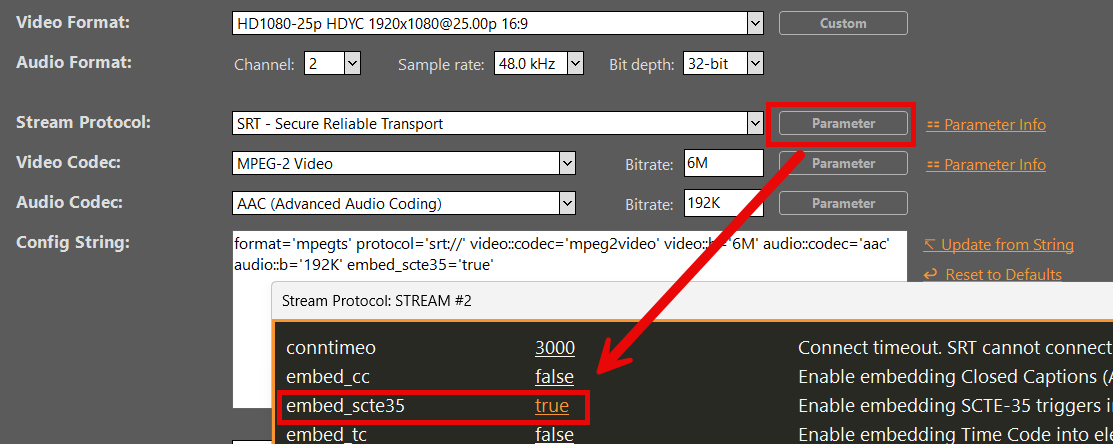
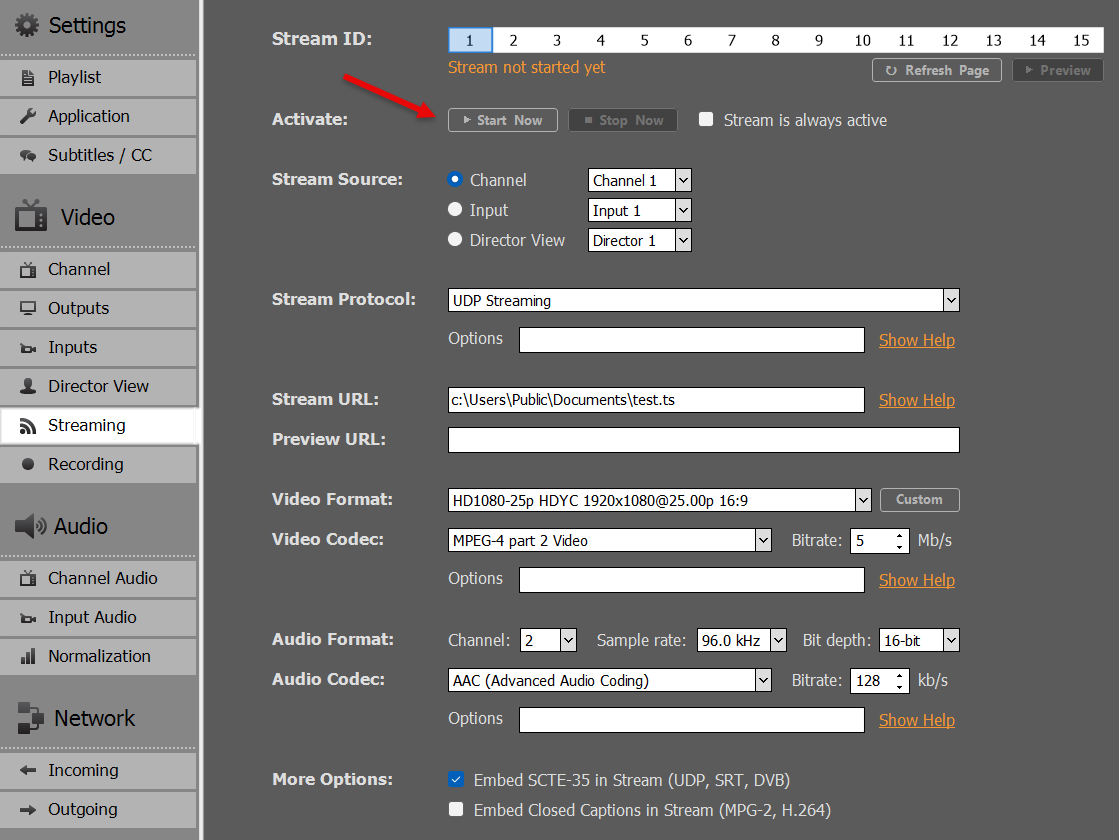
Please note, that SCTE has to be enabled in your Stream options:
SCTE-35 Marker Examples
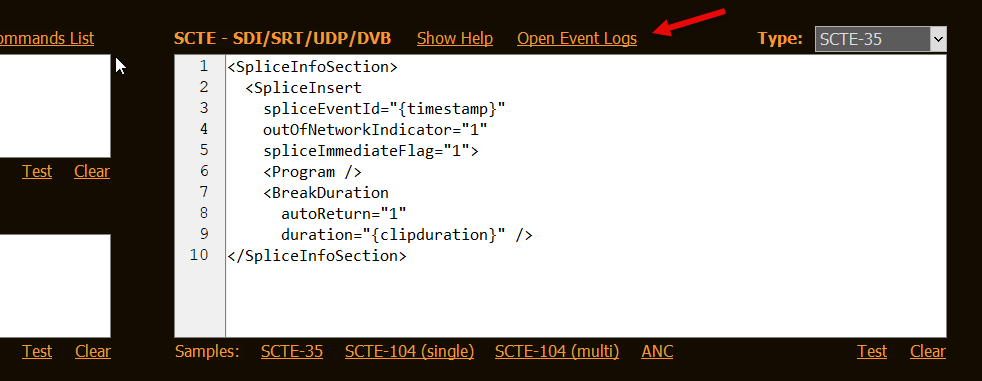
Let’s look at some SCTE-35 Sample. It represents the most used form of SCTE-35 called “Splicing”.
Note: The SCTE-35 Format presented here works best with Nimble Streamer (see below). Depending on your Stream Server, the Format might be different. Ask your Provider.
This will insert an Ad and return to your Program automatically after the given duration. The duration will be set automatically by PLAYDECK for your current running Clip. This can be exchanged with {blockduration} or a manual value. If you pick a manual value for duration, the formula is: CLIP DURATION multiplied by 90000 and rounded. The reason behind this is, that 90000 is default Timescale most SCTE Systems use. Example: The Clip is 12.4 seconds, so the SCTE duration would be 1116000.
Instead of sending a duration, you could also send 2 separate SCTE Marker to Start/End the Ad. Those are called CUE-OUT (leaving your Program for Ad) and CUE-IN (return to your Program).
As you most likely have observed already, the only difference is “outOfNetworkIndicator” being 1 (CUE-OUT) and 0 (CUE-IN). The SCTE System itself will pair both Marker based on the “spliceEventId”.
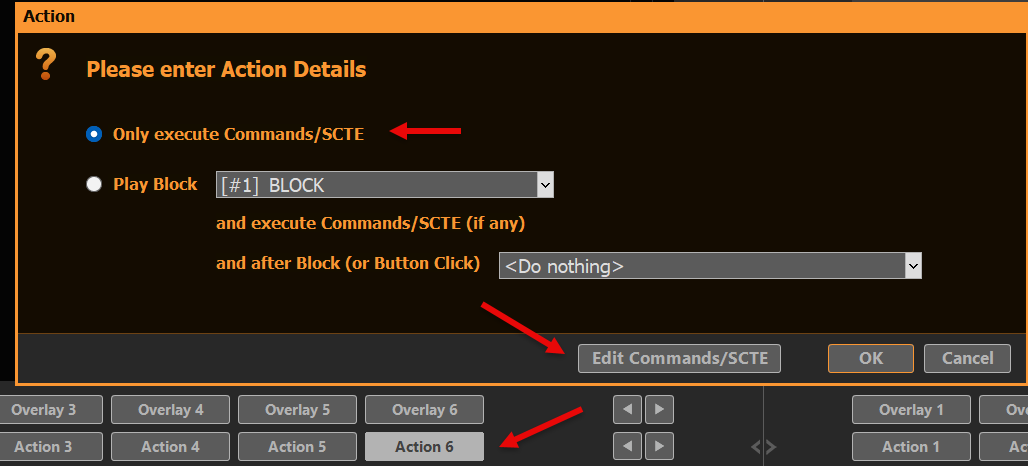
Open PLAYDECK. You don’t need to load any Clips yet. Right-Click on any ACTION Button, create a new Action and select COMMANDS/SCTE:
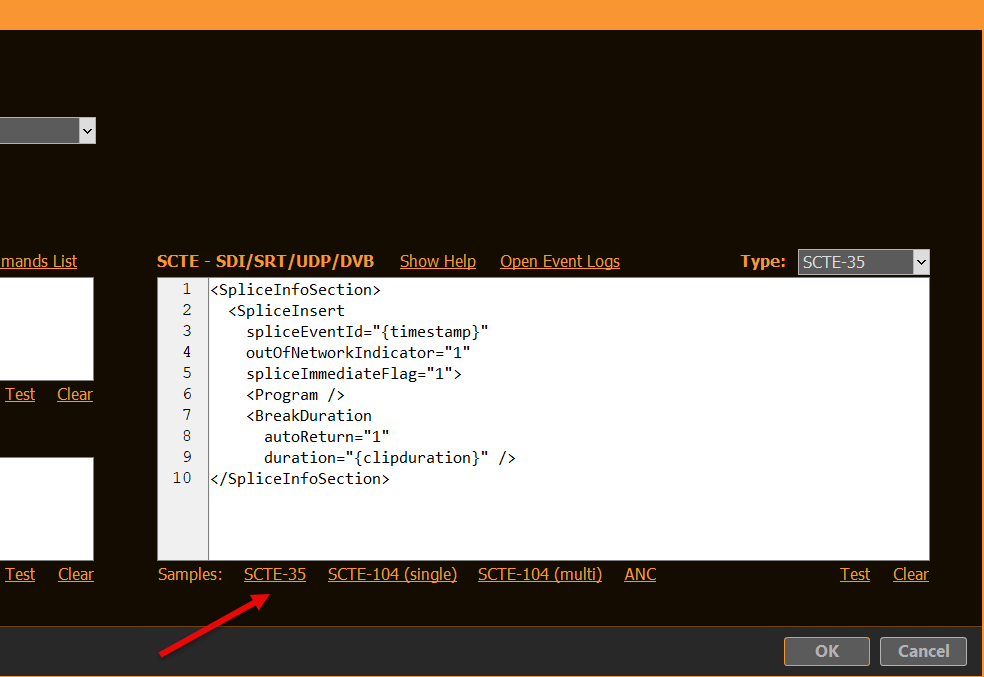
Insert the SCTE-35 Sample Tag by clicking SCTE-35. Close the Popups with OK (twice):
We are now able to send a SCTE-35 Tag to any compatible Stream (UDP, DVB, SRT). If you click the Action now, nothing will happen, as we don’t have a Stream yet.
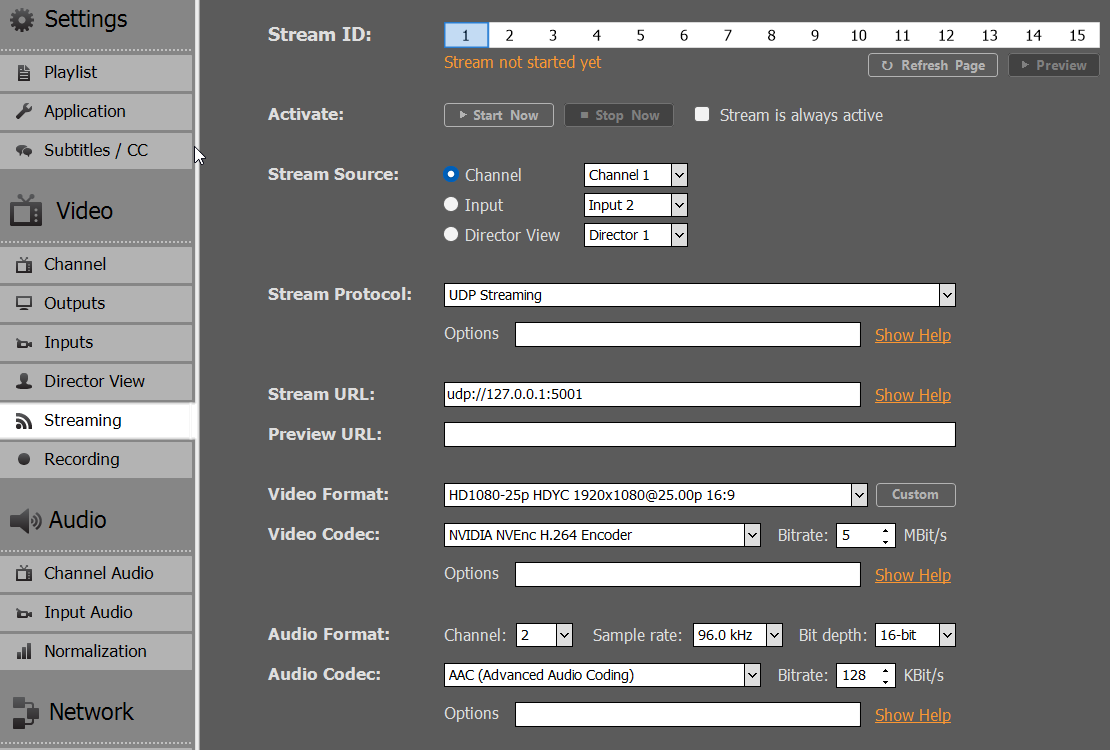
Let’s create a Test UDP Stream, where we simply send the Output to a File, so we don’t have to hassle with Server Stuff (yet). Copy the Settings as follows and start the Stream with START NOW.
We want to send our Sample SCTE-35 Tag to the Stream now. So close Settings and click your Action Button several Times, then go back to Settings and stop your Stream with STOP NOW.
Your SCTE-35 Tags have been logged by PLAYDECK. You can check the Logs, if you go back to your SCTE-35 Code on the Action Button and click OPEN EVENT LOGS:
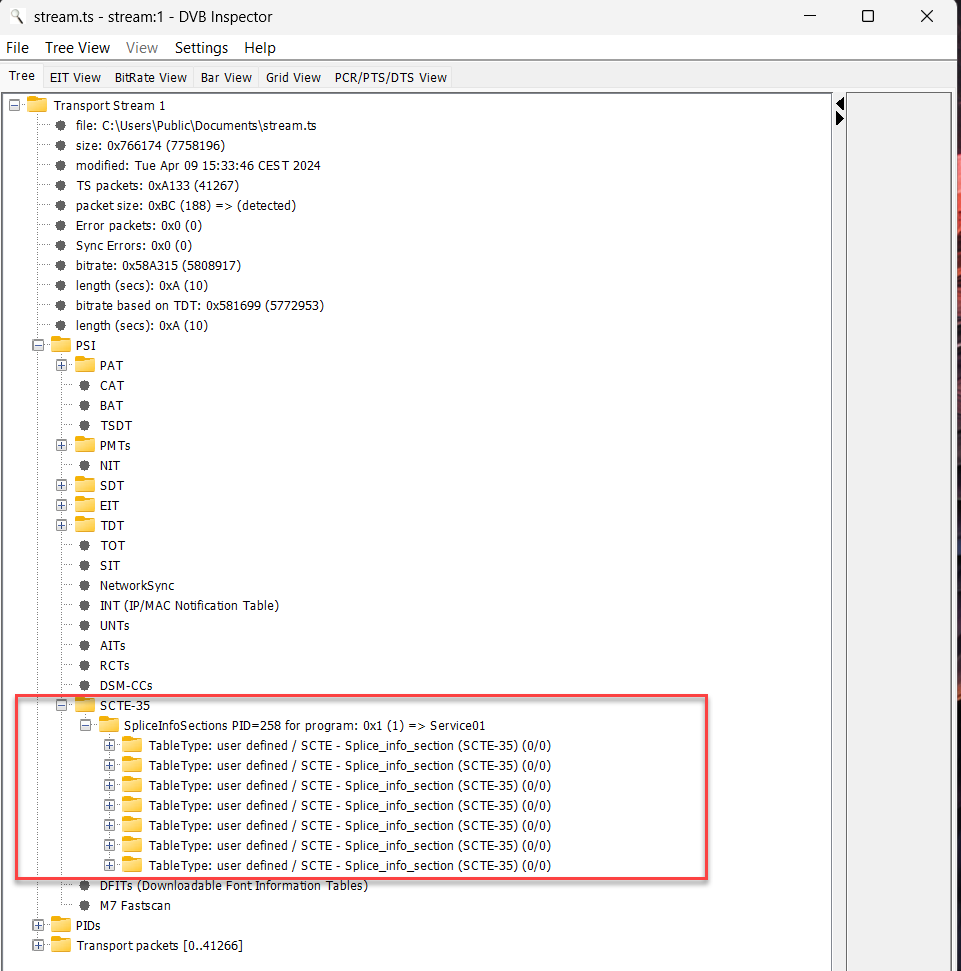
You can also make the SCTE-35 Tags visible, which are in your recorded Stream. For this, we need a separate Tool called “DVBInspector”. This Tool also needs JAVA Runtime, so download both:
Now unzip your “DVBinspector-1.18.0-dist.zip” (or similar) and start “DVBinspector-1.18.0.jar”. Then Drag+Drop your TS File onto the Application. Open the Tree as follows to view your SCTE Marker.
Test SCTE-35 Marker in Nimble Streamer
Nimble Streamer is our Streaming Service of choice. It is cost-efficient, easy to setup and maintain, but still has the depth of complexity for advanced use cases:
Install the 14-day Trial Version of Nimble to the same machine that PLAYDECK is running. This is not a necessity, but makes things simpler, as you don’t have to put up with a network setup. You will also be asked by Nimble to create an account with WMSPanel, which is a web based setup tool for Nimble, as the Nimble Streamer itself installs without User Interface.
INFO: For this SCTE-35 Sample to work, you DONT need to have “Nimble Live Transcoder” or “Nimble Advertizer” PlugIns, if you test this on a Live Installation. They are disabled in the Trial Installation by Default.
Once you got Nimble running, there is one more configuration you need to do manually. Open the Nimble Server Configuration file here: c:\Program Files\Nimble Streamer\conf\nimble.conf
At the bottom of this file, add the following Lines and save the file.
Important: You need to restart Nimble now by either restarting your PC or restarting the Windows Service “Nimble Streamer” manually.
Here are the lines again, but with comments for you (dont use these):
scte35_processing_enabled = true  // Enabled the SCTE module in general. Needed for all other Options
scte35_forwarding_enabled = true  // Allows passing through the SCTE-35 markers via Live Transcoder
hls_ad_scte35_forwarding_enabled = true  // Enables forwarding of SCTE-35 markers into HLS streams
hls_ad_marker_format = cue  // Sets Nimble to use CUE-OUT and CUE-IN markers
hls_ad_splice_out_cont_marker_enabled = true  // Enables automatic insertion of EXT-X-CUE-OUT-CONT
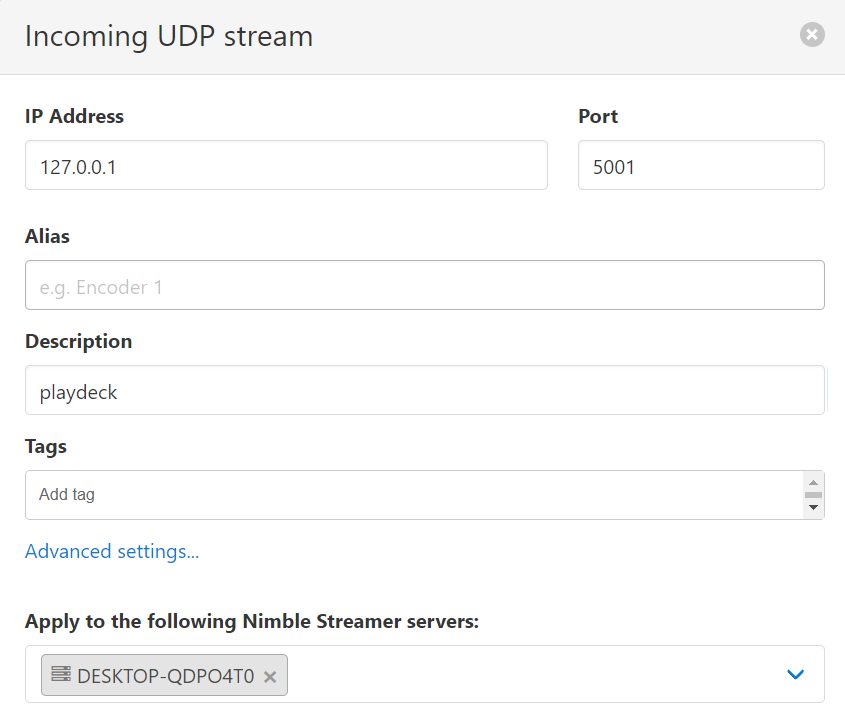
Now let’s set up your Streams in WMSPanel: First we are going to define our incoming Stream. Go to “Nimble Streamer” in the Menu and select “MPEGTS In” and click the “Add UDP stream” Button, then add the incoming stream like this. You can use any other Port, should 5001 be in use already.
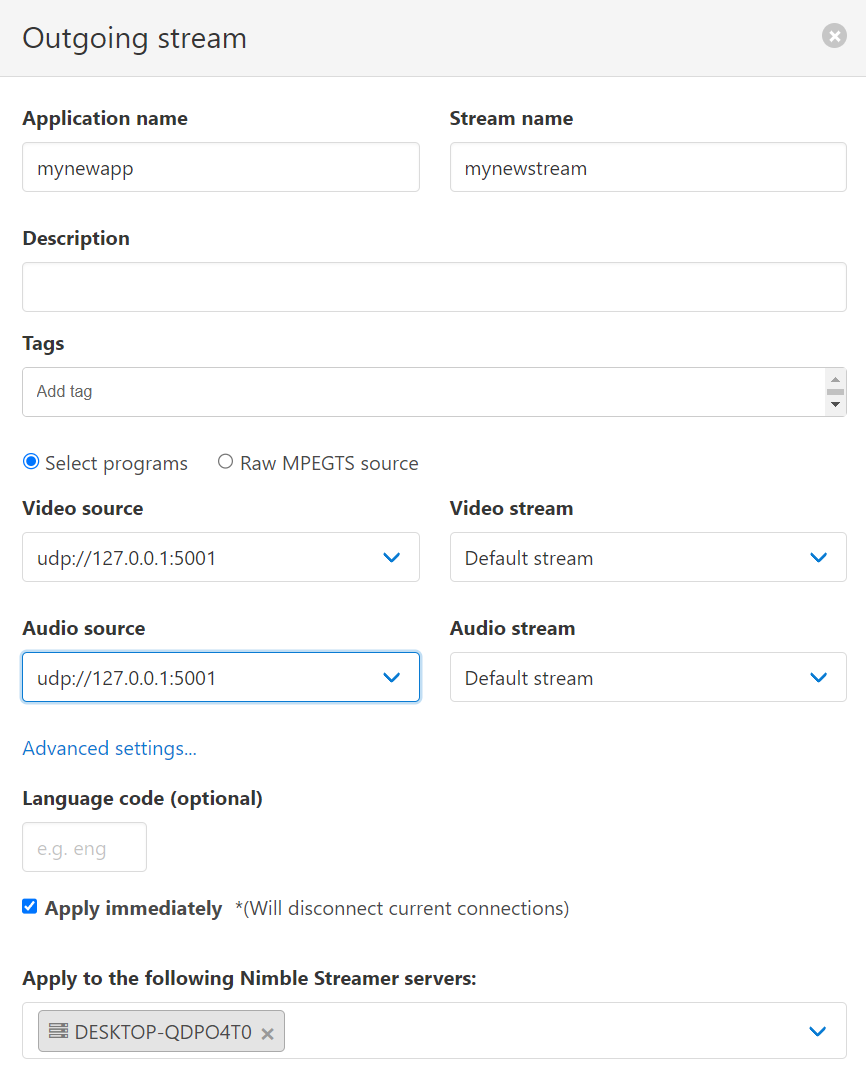
Next we are going to setup the outgoing stream format. We want to use HLS here to demonstrate the conversion of SCTE Marker from UDP to HLS. On the same page, go to “MPEGTS Out” and click the “Add outgoing stream” Button, then add like this. Make sure you select you input stream as video and audio source.
Next we continue our setup in PLAYDECK. Got to the Stream Output Settings and change the Stream URL to “udp://127.0.0.1:5001”.
INFO: You can pick any preferred Video Codec. SCTE-35 will always be send. In this case I picked H.264 to let my NVIDIA GPU do the encoding, which will lower my CPU usage.
INFO: Please note, that PLAYDECK is not capable to directly stream HLS. If you select “Apple HTTP Live Streaming” as Streaming Format, the output will be written to a file. You therefore need to specify a file target as “Stream URL” e.g. “c:\Users\Public\Documents\stream.m3u8”. Then use that File to stream using any Streaming Server. PLAYDECK is not able to write HLS SCTE Tags into the HLS Manifest file (the *.3u8 file).
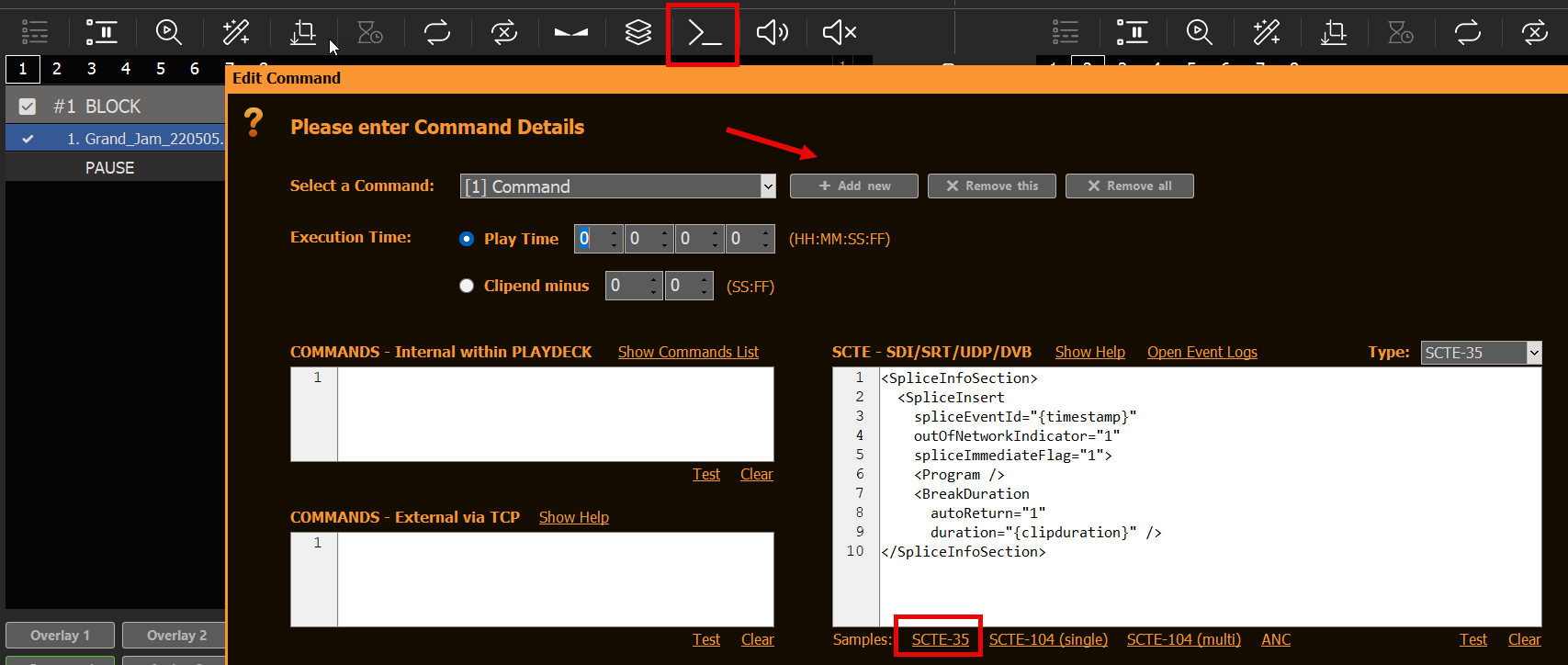
Next we want PLAYDECK to automatically send SCTE, not just via a Button, but Clip related. So we insert any Clip and click the COMMANDS Icon in the Toolbar, then add a new Command, select PLAY TIME 0, then insert the SCTE-35 Sample:
INFO: You can also add SCTE Marker to Blocks, Overlays and Action Buttons.
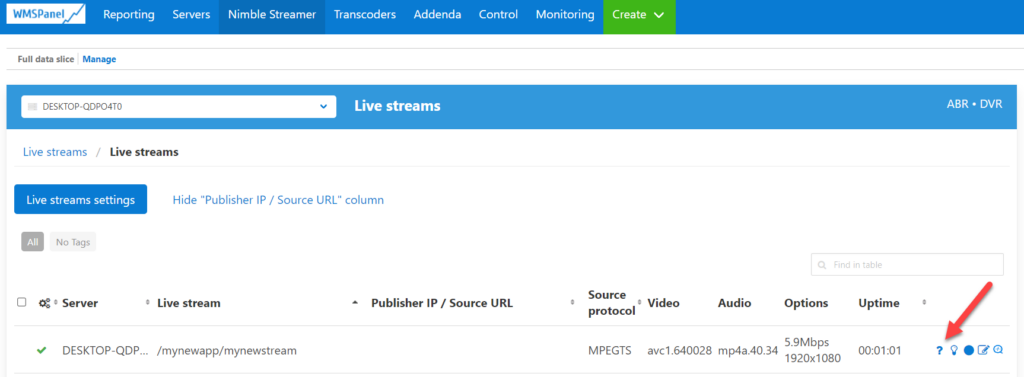
Now let’s get things rolling: CUE and PLAY the Clip and start the Stream in the PLAYDECK Settings. Hop over to the WMSPanel and open from the Menu “Nimble Streamer” the option “Live Streams”. You will now see 1 running Live stream. Click on it and pick the question mark on the far right like this.
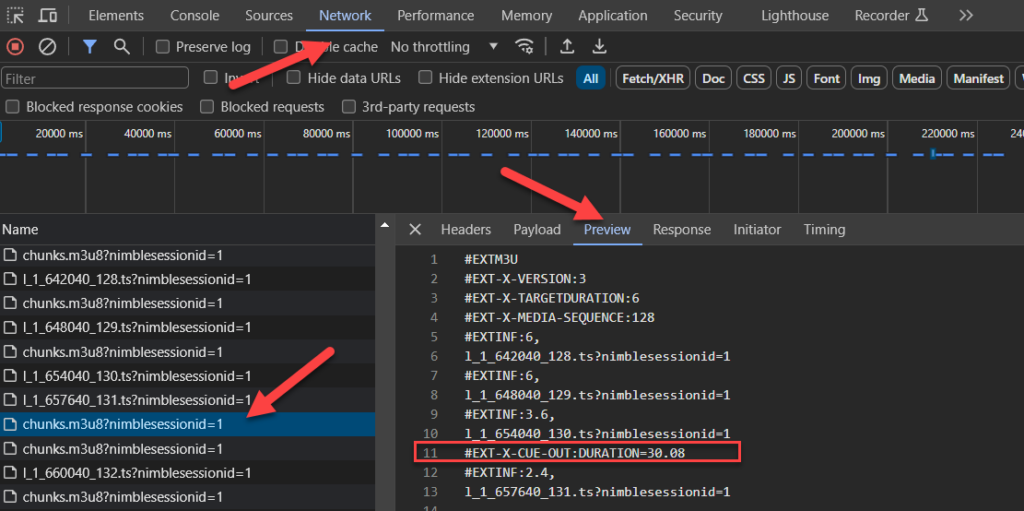
Once you posted that URL into CHROME, you will see your PLAYDECK stream playing immediately. Now let me show you how to monitor your SCTE Marker. In Chrome press F12 to open the Developer Tools. On top click the “Network” Tab. You will now see several “chunks.m3u8”, which are part of you stream. Click on one of the Chunk files (also called HLS Manifest) and select “Preview” next to it. You will now see the HLS SCTE Tag. If it isn’t there, click on another chunk, as we send the SCTE only on Clip Start.
That’s it! We reached our Test Goals. Upcoming are more information which might be relevant to dig into.
Additional Information
Logging in PLAYDECK
We log all incoming and outgoing SCTE Tags. This gives you also the opportunity to test your outgoing SCTE by simply Looping your Output to an Input (SDI as well as Streams), and let PLAYDECK detect your SCTE. You can open the Log Files via the “Logs” Main Menu:
Logging in Nimble Streamer
If anything goes wrong or doesn’t happen as expected, a good start is to review the Nimble Log Files. The Log can be found here on Windows: c:\Program Files\Nimble Streamer\log
Logging is enabled by default in the Nimble Trial addition, but in case you need to activate it, here are the flags for the “nimble.conf”.
log_access = file
logging = debug
Now open the log file and scan for “SCTE”. You might see something like this, which indicates you have a typo in your SCTE Marker in PLAYDECK:
[SCTE35] unsupported splice command type=6 for [mynewapp/mynewstream]
If your SCTE Marker parsed successful in Nimble, it will look like this:
This is a collection of tools and plugins with a large library to manipulate MPEG transport streams. With this you would be able to insert SCTE Marker outside of PLAYDECK based on an algorithm or other complex logic.
This tool can also convert SCTE-35 Marker in UDP Streams or MPEG-TS Files into HLS SCTE Tags. This allows you to install a streaming server, which does not have automatic SCTE-35 to HLS conversion.
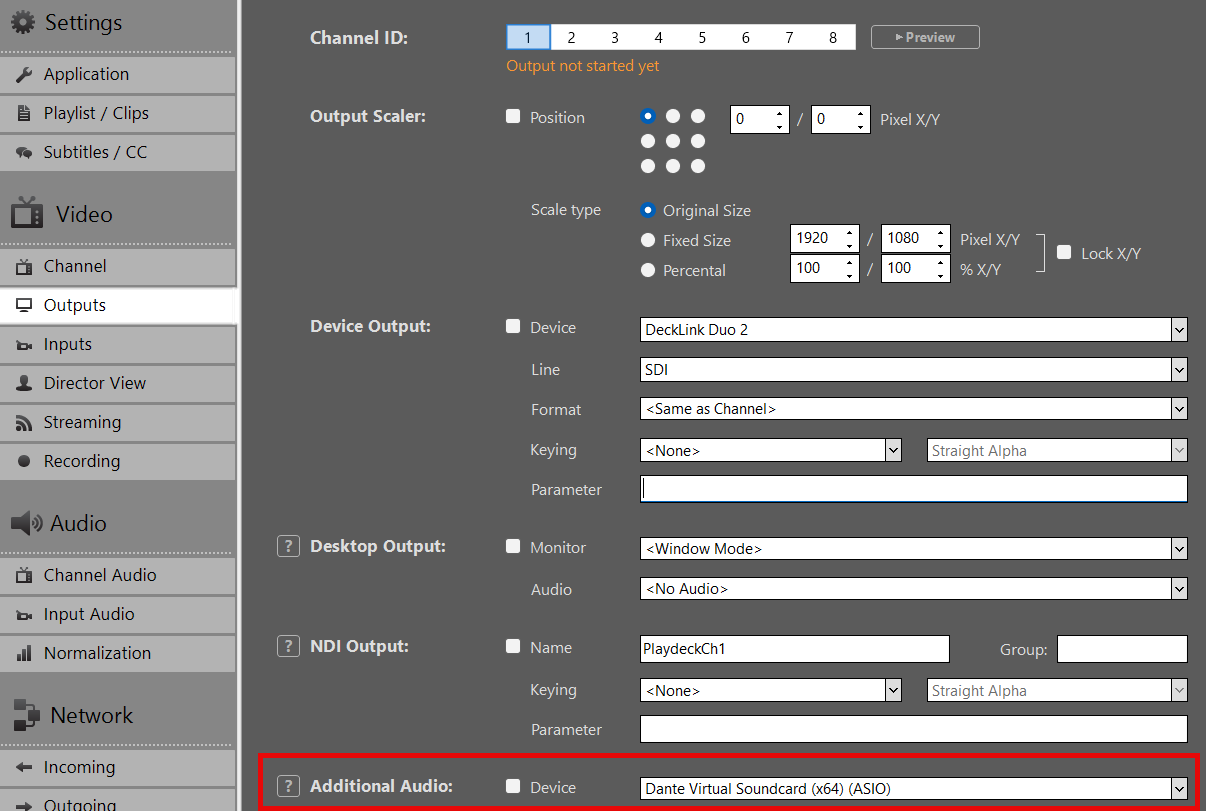
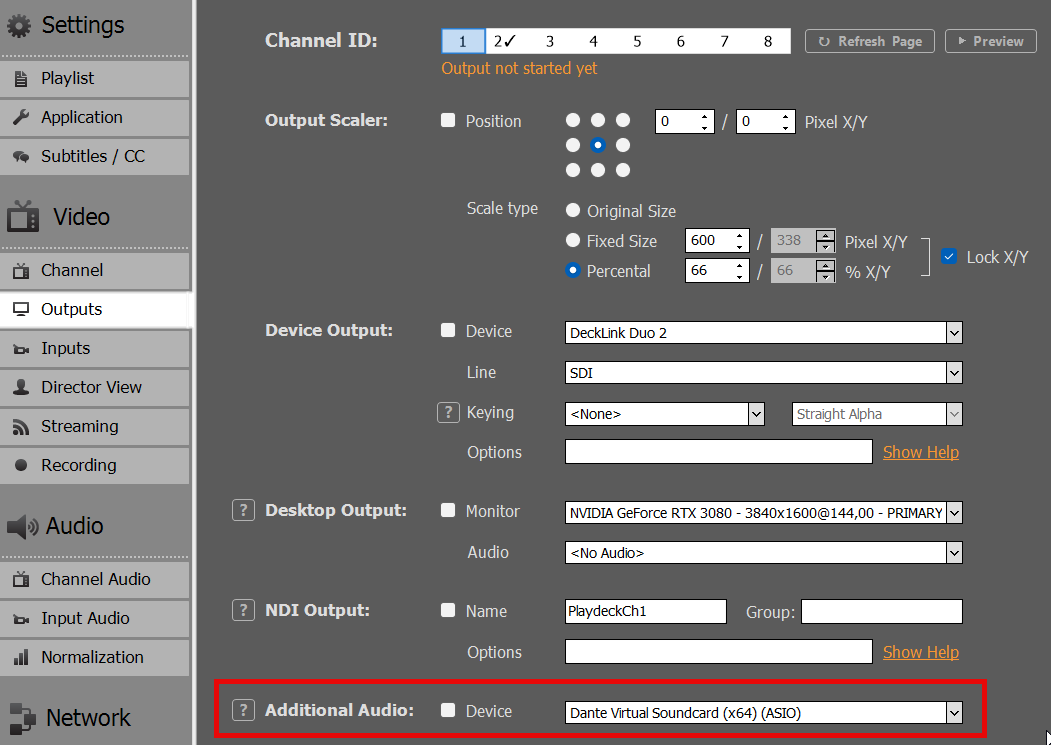
Enable the “Additional Audio Output” setting to output audio via ASIO.
Important: As a real-time playout solution, PLAYDECK requires a stable synchronization clock from the ASIO device. Without this clock signal, frames cannot be processed correctly, resulting in severe stuttering.
You can interface DVS with PLAYDECK using either ASIO or WDM mode:
ASIO (Recommended): Transmit up to 64 audio channels across all PLAYDECK outputs. This provides the lowest latency and highest channel count for professional workflows.
WDM: Limited to 16 audio channels, restricted to one stereo pair per PLAYDECK output channel.
Configuration Steps
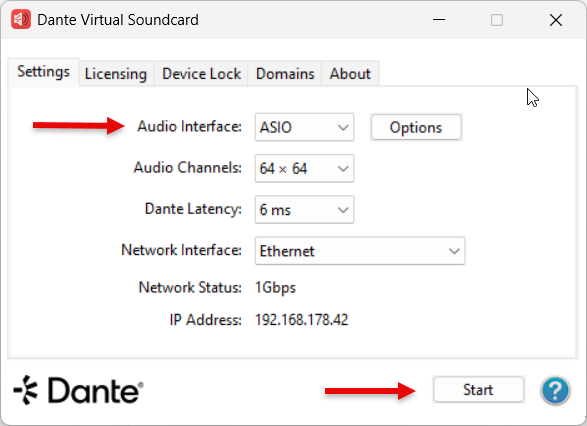
1. Start the DVS Engine: Open the Dante Virtual Soundcard control panel, set the interface to ASIO, and click Start.
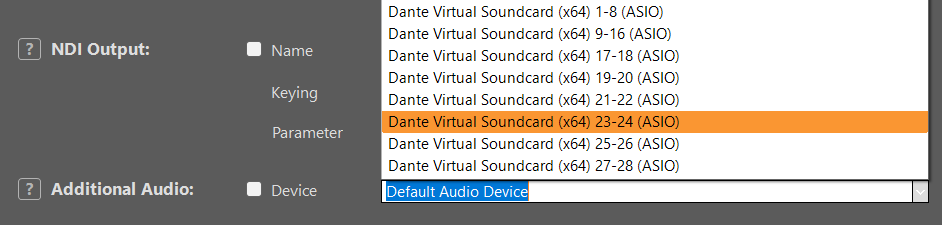
2. Select the Device in PLAYDECK: You can now select “Dante Virtual Soundcard” as your ASIO device within the PLAYDECK settings.
3. Channel Mapping: PLAYDECK will automatically begin routing the audio channels assigned to that specific output. A single output can support up to 32 audio channels.
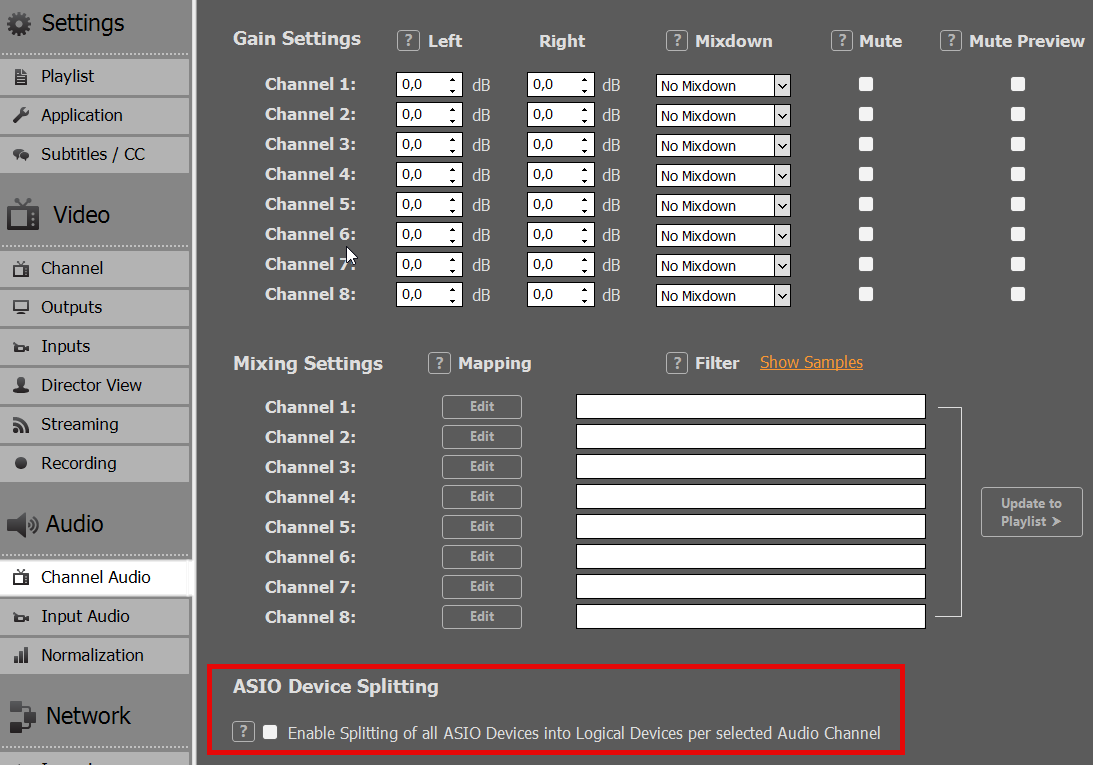
4. ASIO Device Splitting: To use the ASIO driver across multiple PLAYDECK output channels simultaneously, enable ASIO Device Splitting.
5. Assigning Multiple Outputs: Once splitting is active, DVS will appear as multiple sub-devices. This allows you to assign a dedicated ASIO device to each individual PLAYDECK output channel.
Note on Splitting Logic: The channel allocation is determined by the “Audio Channels” setting for each output. For example, if Output 1 and 2 are set to 8 channels each, and others are set to 2 channels, the ASIO driver will split the stream accordingly to accommodate those specific requirements.
Troubleshooting
Slow Playback (Frame by Frame)
This occurs if PLAYDECK cannot synchronize with the clock signal from the ASIO device. Because PLAYDECK is a real-time playout engine, it requires a stable clock to process frames.
Solution: Ensure a Clock Leader (formerly Master Clock) is active on your network. This can be provided by hardware (e.g., a Dante-enabled mixer), a software driver, or a dedicated clock generator.
If you are using Dante, you may need additional tools to verify your workflow. Follow these steps to set up a local test environment:
PC 1: Install PLAYDECK and Dante Virtual Soundcard (DVS). Start DVS in ASIO mode and select it within PLAYDECK.
PC 2: Install Dante Via and Dante Controller.
In both Dante Via and Controller, ensure the correct Ethernet Interface is selected.
In Dante Via, enable at least one output device.
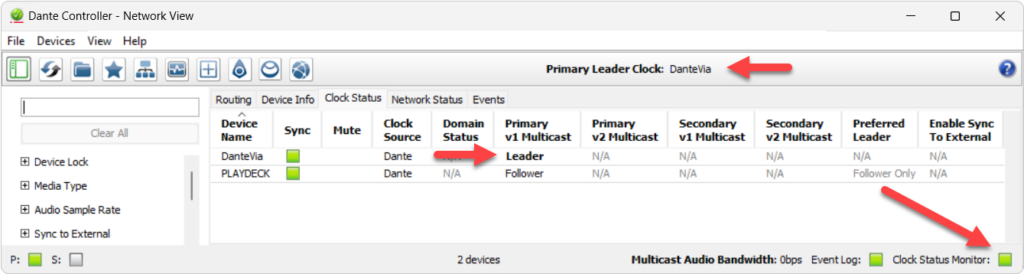
Once configured, open Dante Controller. You should see “Dante Via” acting as the Clock Leader with your PLAYDECK system successfully connected.
Note: In some cases, installing ASIO4ALL can help stabilize the “handshake” between PLAYDECK and specific audio interfaces. (https://asio4all.org/)
Poor Audio Quality
Distorted or “glitchy” audio is usually caused by a sample rate mismatch. Ensure the Sample Rate (e.g., 48 kHz) is identical across all of the following:
Windows Sound Settings (Advanced properties)
PLAYDECK settings
ASIO Device / DVS control panel
Audio Channel Mixing and Routing
When working with multichannel audio, you may need to downmix your channels for specific outputs. Please refer to this article for detailed instructions on managing multichannel routing.
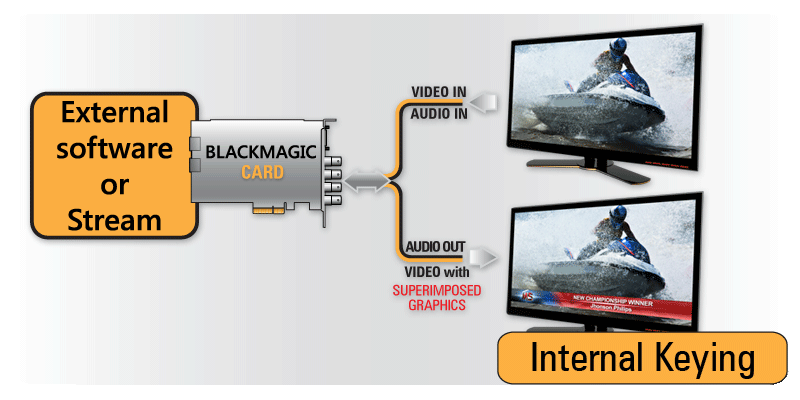
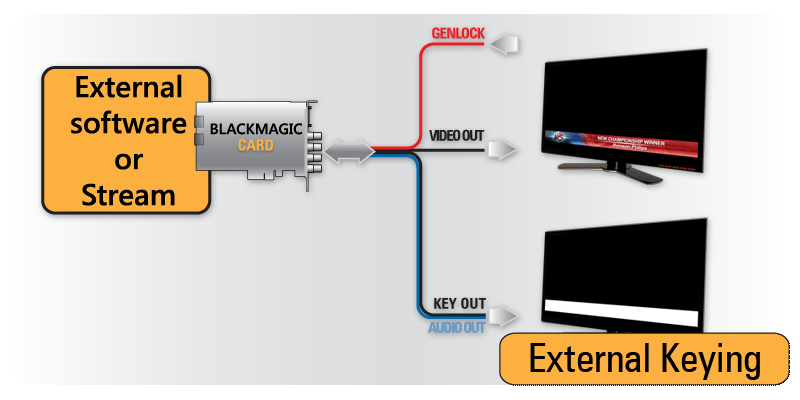
PLAYDECK supports both Internal (Superimposed Graphics over Incoming Signal) and External (Generating Video Fill and Key Signal) Keying, given that the Output card supports it too. You can also output the key or fill signal separately.
You can also use NDI to send your Key or Fill Signal with Alpha Channel Support.
Internal Keying
In Internal Keying mode, PLAYDECK will superimpose the video over an incoming signal on the same card:
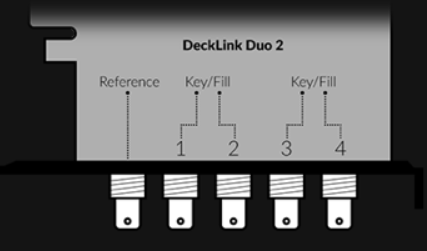
Lets take the Decklink Duo 2 for example: It has 4 SDI Ports. We need to tell the Card, which 2 Ports will be used for Internal Keying with the help of Desktop Video Setup (Blackmagic’s own Setup-App):
The Decklink will now operate like this:
If we start PLAYDECK now, the INTERNAL Option becomes selectable as Device Output:
Once you activate the Device for Keying, PLAYDECK will automatically change your Background to TRANSPARENT and your Color Space to ARGB32 (to support Alpha Channel):
The Image shows PLAYDECK Overlays Sample: Create Overlay > HTML > Screen-Title.html.
External Keying
In External Keying mode, PLAYDECK generates both Fill and Key signals and the keying is made by an external keyer:
Lets take the Decklink Duo 2 for example: It has 4 SDI Ports. We need to tell the Card, which 2 Ports will be used for External Keying with the help of Desktop Video Setup (Blackmagic’s own Setup-App):
The Decklink will now operate like this:
If we start PLAYDECK now, the EXTERNAL Option becomes selectable as Device Output:
Once you activate the Device for Keying, PLAYDECK will automatically change your Background to TRANSPARENT and your Color Space to ARGB32 (to support Alpha Channel):
The Image shows PLAYDECK Overlays Sample: Create Overlay > HTML > Screen-Title.html.
We basically support all cards of the following manufacturers, since we always include the latest drivers. But because of the vast amount of cards out there, we only tested the most common ones.
RustDesk is a free Remote Destop Software, which we use to login to remote systems. The main advantage of RustDesk over other Remote Desktop Connections is, that is does interfere with installed GPUs (eg. installing a Virtual GPU), therefore not interfering with PLAYDECK during Remote Access.
1. To get started, download our customized RustDesk from our website. This version will use our private RustDesk server (and not the public server) to protect your data and improve the connection speed. https://get.remote-joy-event-media.de/rustdesk.exe
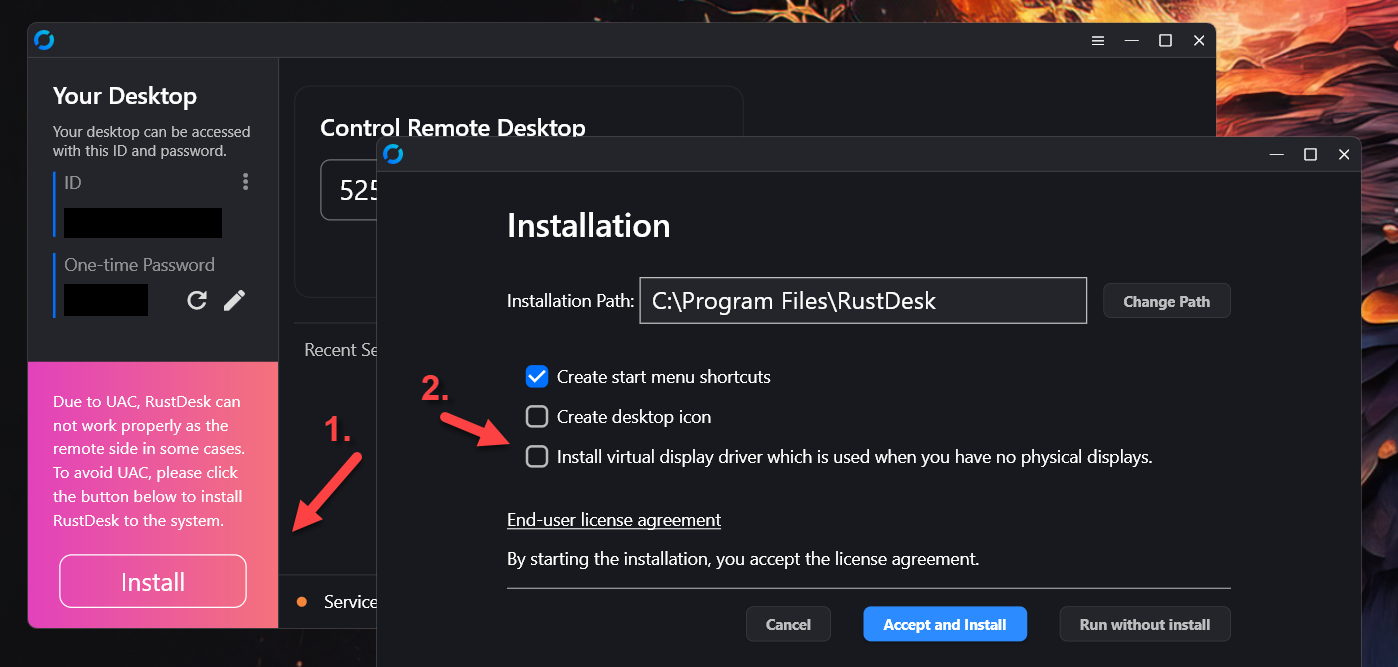
2. Once you start RustDesk for the first time, you will need to install it. Please deactivate “Install virtual display driver”, which might interfere with PLAYDECK.
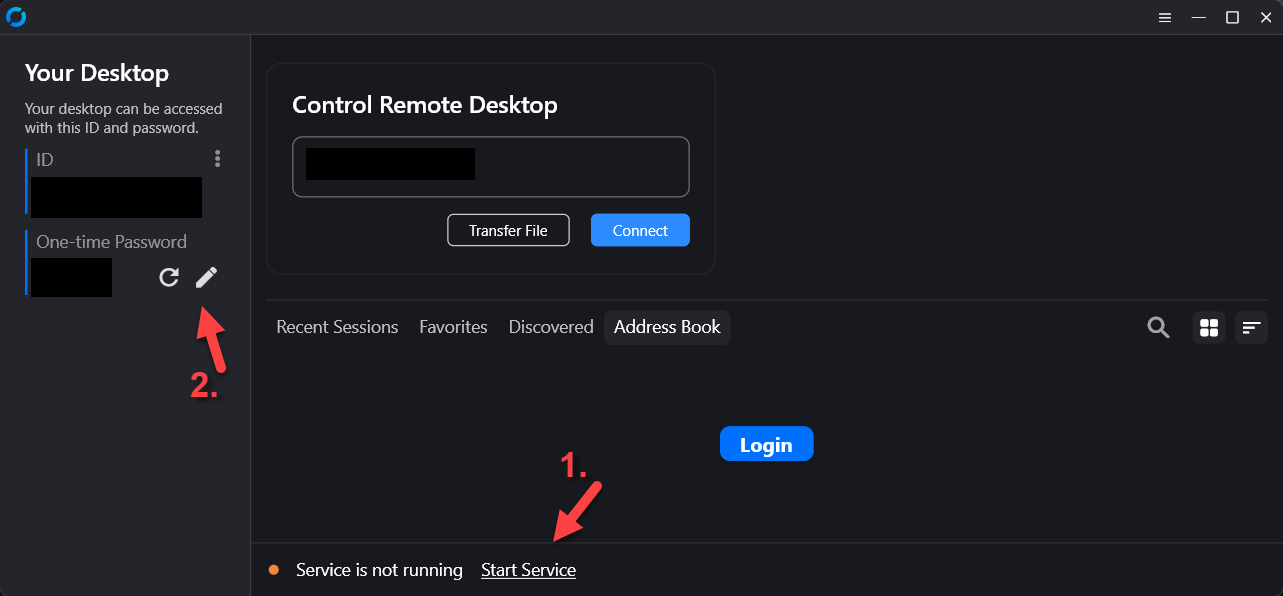
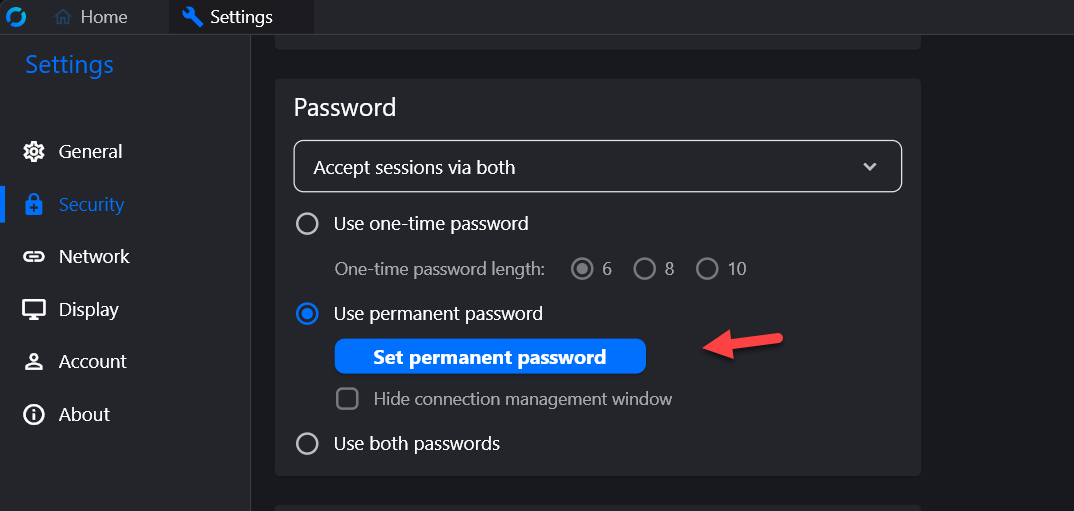
3. After re-starting RustDesk, you will not need to activate “Start Service”. This is important to elevate priviliges to e.g. open the device manager. After that you need to setup a permanent password: Click on the Edit Icon next to “One-time Password”.
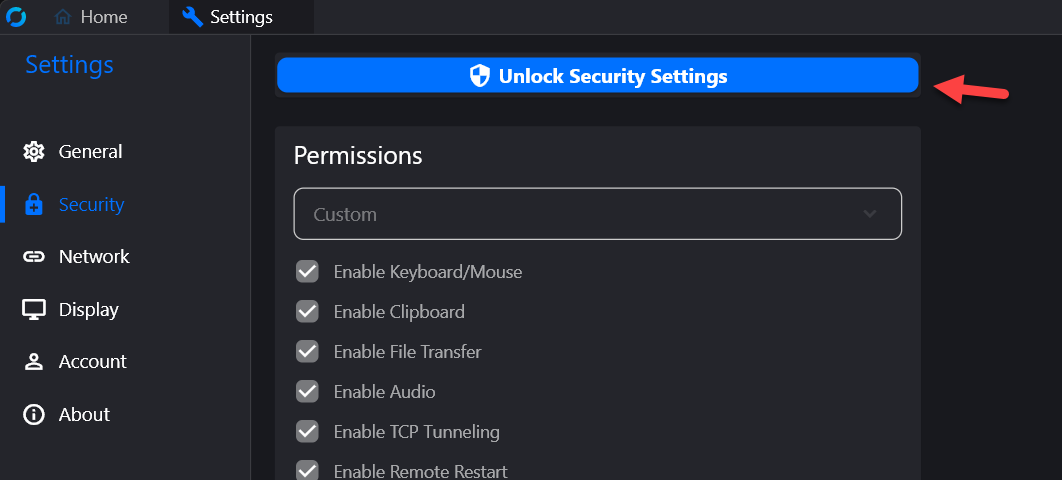
4. Then click on “Unlock Security Settings” and scroll down.
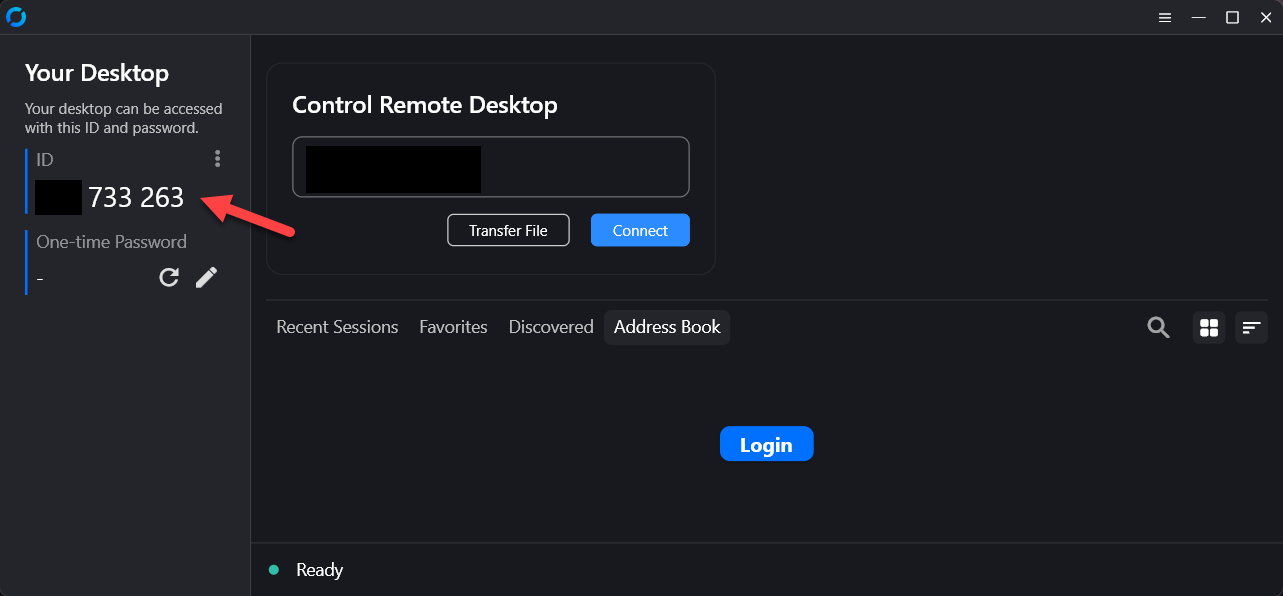
5. Please send us your ID together with your permanent password to [email protected]
6. (Optional) If possible, please start RustDesk on a secondary PC (No need to install) and test the connection to the System you have setup for remote support. Now thru this remote connection, on the secondary system, please try to:
– Open Device Manager – Open Task Manager – Open NVidia Panel – Copy any File to this Folder: c:\Program Files (x86)\JoyEventMedia\Playdeck\
These tests make sure, that all needed support actions can be done remotely. If is likely, that any Anti-Malware or other Protection software breaks the connection. In that case please de-activate those Tools temporarily for the remote support session.