
Video from/to vMix

The best way to connect vMix with PLAYDECK (both ways) is NDI. Multichannel Audio is also fully supported as well as Keying.


Send Video from vMix to PLAYDECK

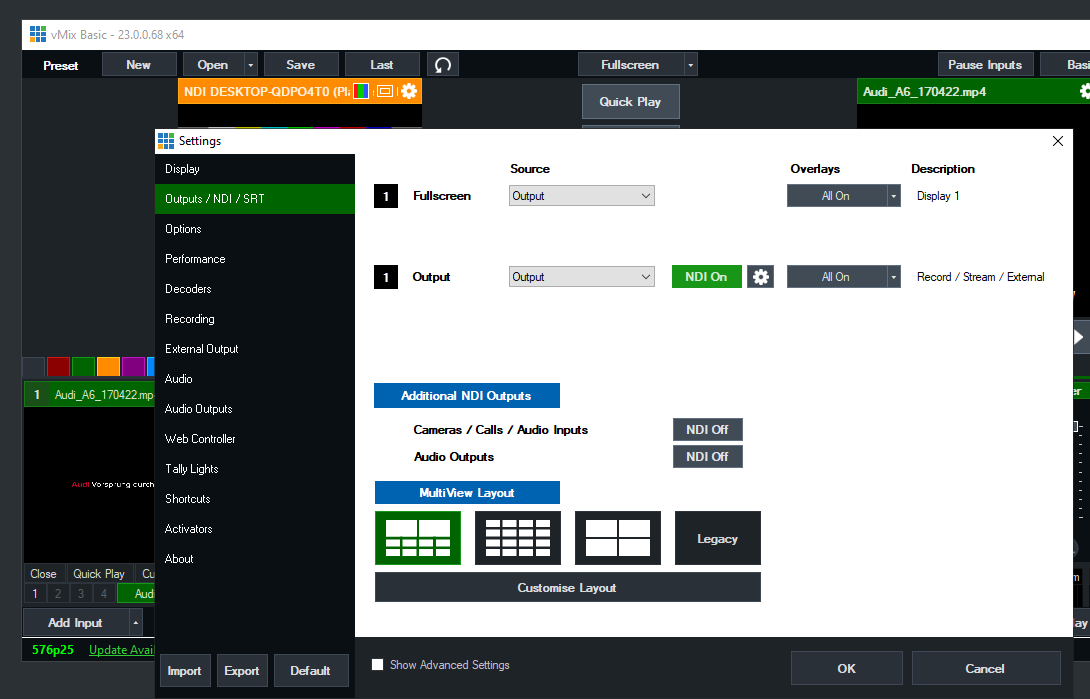
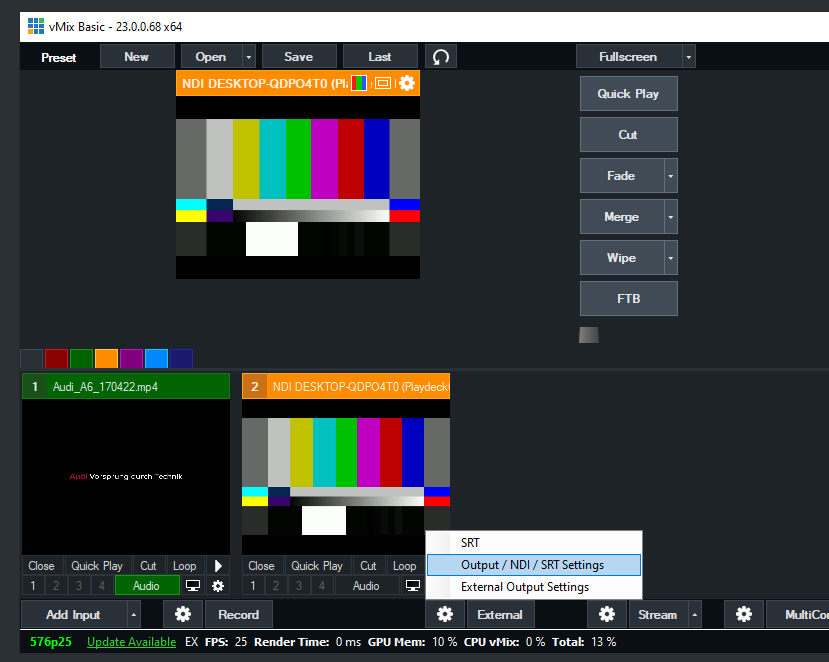
You only need to activate NDI as External Output like this:
PLAYDECK Professional Video Playback Playout Software for Windows * Send and Receive Video to and from vMix


Send Video from PLAYDECK to vMix

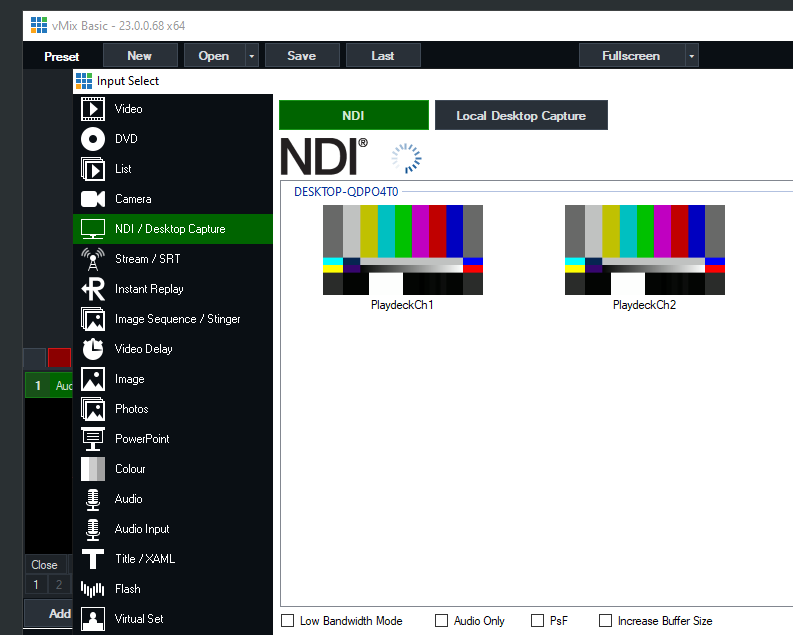
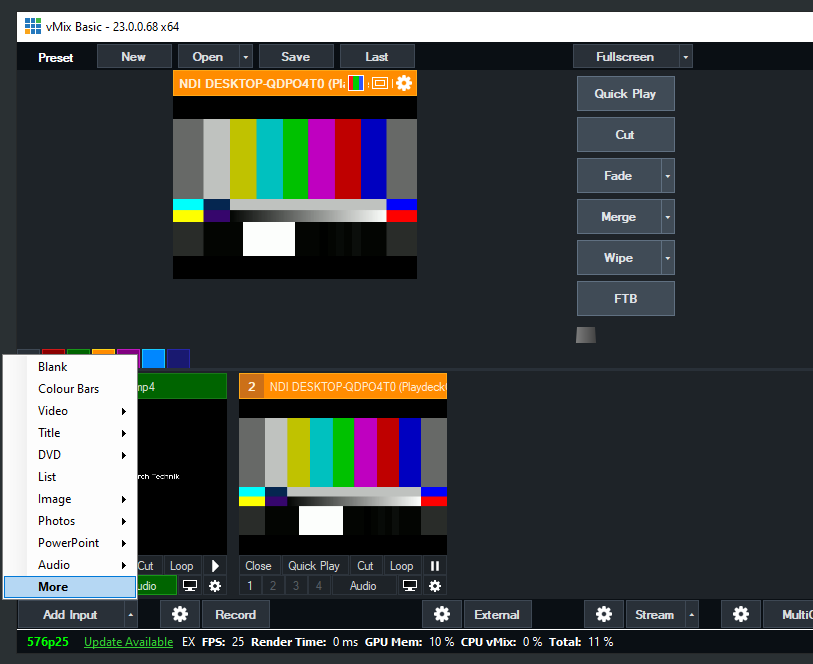
Activate NDI Output in PLAYDECK and add the NDI as new Source in vMix like this:
PLAYDECK Professional Video Playback Playout Software for Windows * Send and Receive Video to and from vMix


Send Fill Signal with Alpha Channel from PLAYDECK to vMix

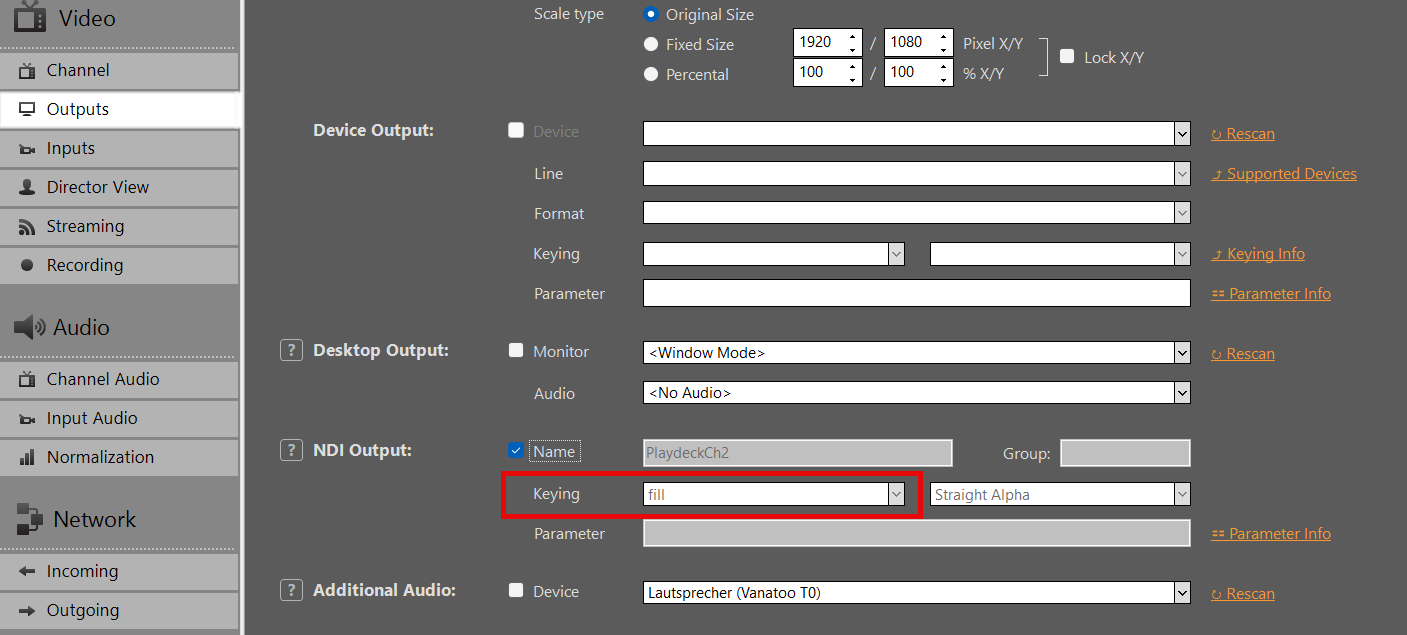
Activate NDI Output in PLAYDECK, but this time also activate Keying:
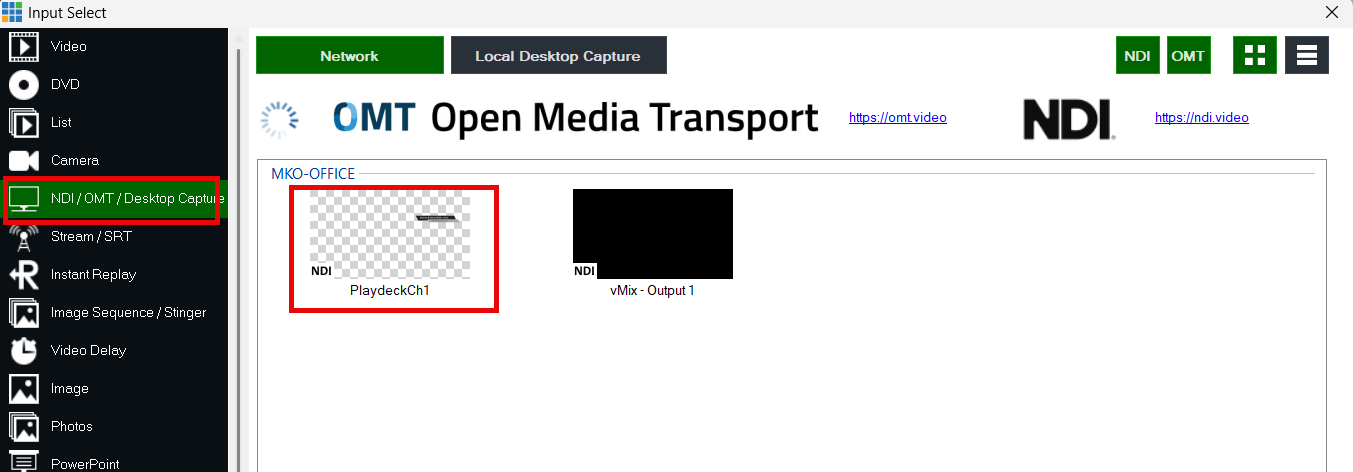
Add your NDI as Input in vMIX:
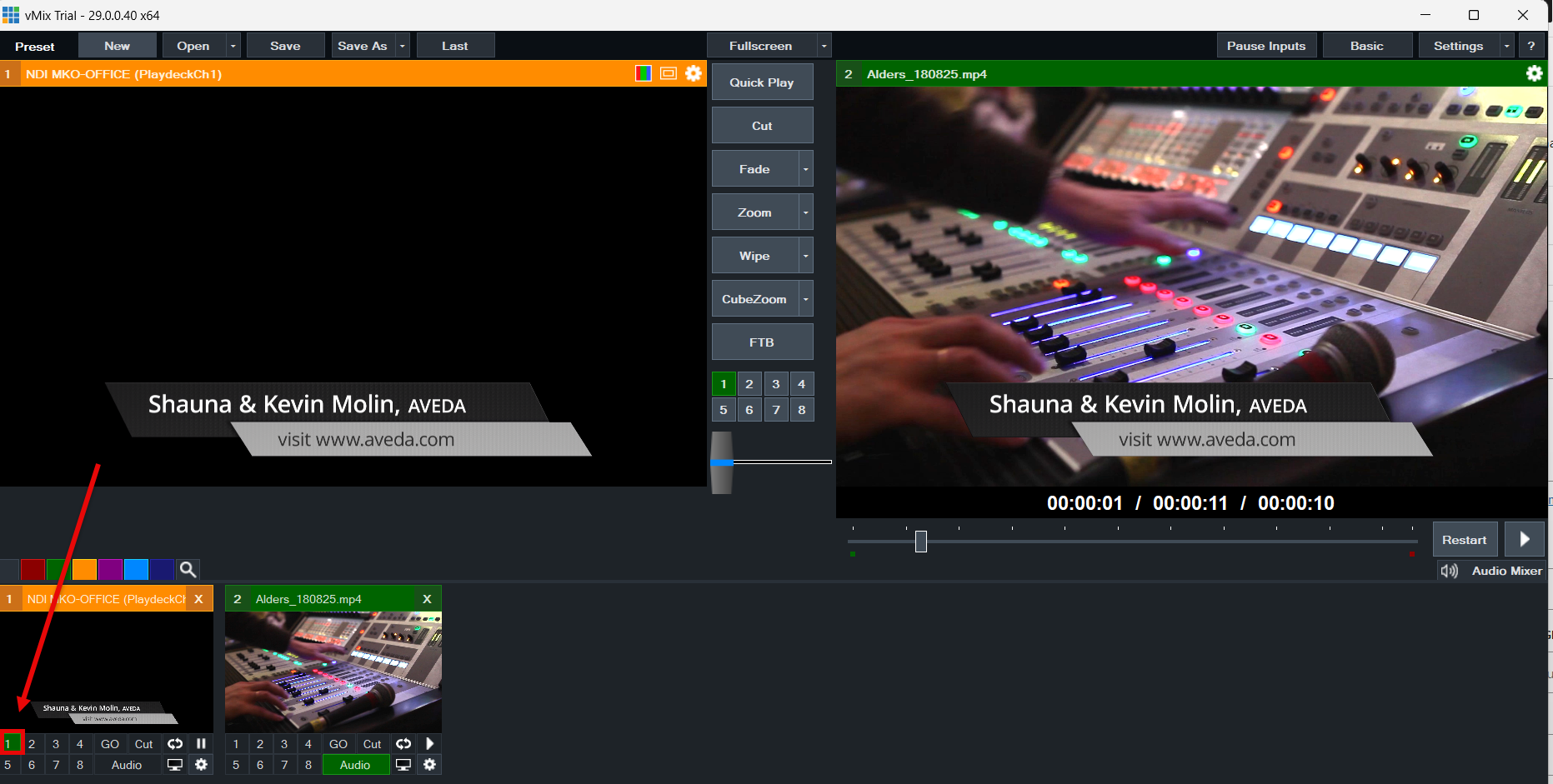
Use the Overlay Buttons to place the Video ontop of the current Video signal in vMIX:
Video from/to OBS Studio

The best way to connect OBS with PLAYDECK (both ways) is NDI. Multichannel Audio is also fully supported.

Since OBS does does not deliver NDI out of the box, you need to install an additional PlugIn, which is a quick and easy process. Download the PlugIn here (scroll down and click on “distroav-6.0.0-windows-x64-Installer.exe”). It is installed like any other Windows application via Installer.


Send Video from OBS to PLAYDECK

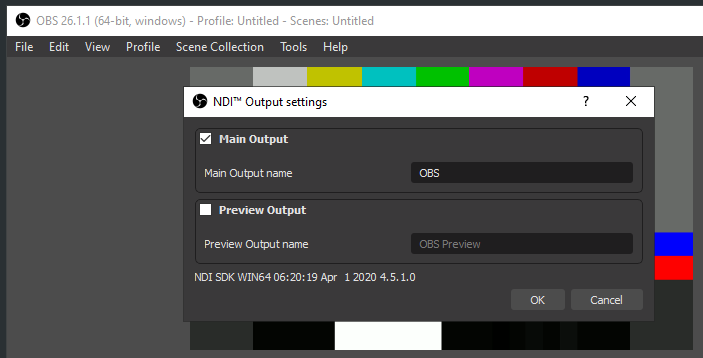
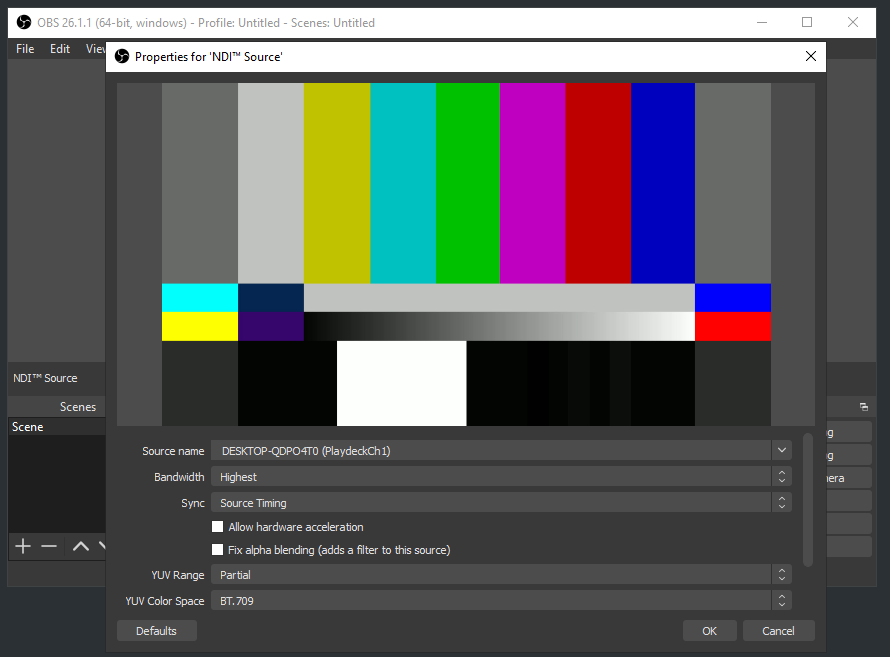
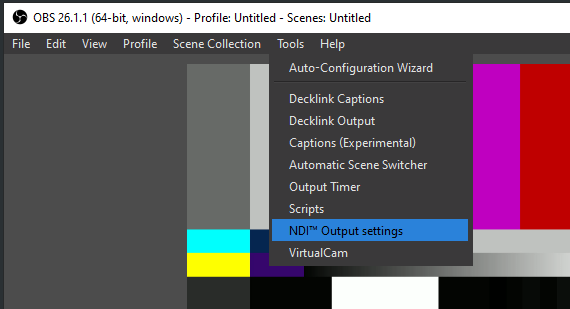
The NDI PlugIn inserts a new Option into the Tools Menu. Pick NDI Output and activate it:

PLAYDECK Professional Video Playback Playout Software for Windows * Send and Receive Video to and from OBS


Send Video from PLAYDECK to OBS

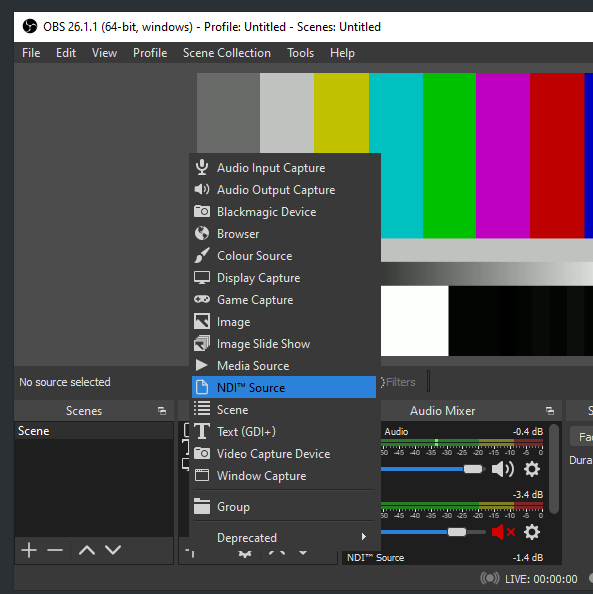
Activate NDI Output in PLAYDECK. The OBS NDI PlugIn inserts a new NDI Source, which you can add to your OBS Scene like this:

PLAYDECK Professional Video Playback Playout Software for Windows * Send and Receive Video to and from OBS

Amazon EC2 Installation

PLAYDECK supports most Amazon EC2 server instances and the NVidia GPU Power they provide. This allows you to setup a cloud based infrastructure for NDI transport or other purposes.

We assume, you have a Amazon AWS Account and basic knowledge of EC2.

First, you pick a new EC2 instance, which supports a PLAYDECK installation:
Windows Server with a virtual NVIDIA GPU and pre-installed NVIDIA driver:
https://docs.aws.amazon.com/AWSEC2/latest/UserGuide/install-nvidia-driver.html#preinstalled-nvidia-driver

A typical instance would be “Windows 2019 / g4dn.xlarge” – It has a Tesla virtual NVIDIA GPU and good enough Specs to run PLAYDECK: 16 vCPUs (Intel Xeon), 64GB RAM, 1 vGPU (NVidia T4) with 16GB GPU RAM.

Now install the Instance via those Links or your EC2 Management Console.

To connect to the instance via RDP you first have to open Port 3389 in the Instance Security Settings.

Once connected, you find yourself unable to download anything via the Browser. Therefore enable Downloads like this: START Menu > Server Manager > Local Server > IE Enhanced Security Configuration > Off

Now download and install PLAYDECK as usual:
https://playdeck.tv/download/

1 2 3 4 5