
HDR Output and Recording

PLAYDECK supports HDR playback, SDI output (via Blackmagic DeckLink) and HDR recording.

Prerequisites in Hardware
Enabling HDR Mode
Setting up SDI Output
Setting up Recording
Monitoring & Controlling


Prerequisites in Hardware

Graphics card
NVIDIA GPU with at least Turing architecture (GTX 16xx / RTX 20xx or newer).
Recommended: RTX 30xx / 40xx series (e.g. RTX 3080, 4070, 4080).
→ Required for 10-bit decoding/processing/encoding.

SDI output card
Blackmagic Design DeckLink with 10-bit and HDR metadata support:
– DeckLink 8K Pro
– DeckLink 12G Extreme
– DeckLink 6G / 12G models (Quad 2 / Duo 2 / Mini Recorder 4K etc.)
→ Older models (e.g. DeckLink 4K Extreme without 12G) may be limited to 4K 30p or no HDR metadata.

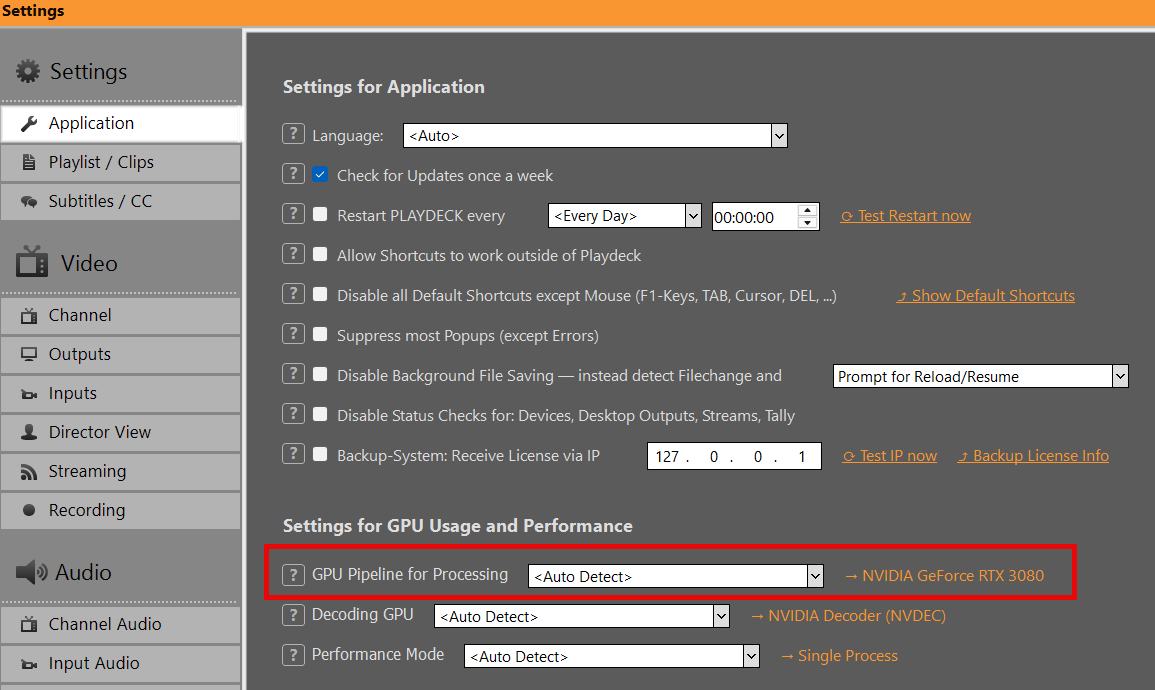
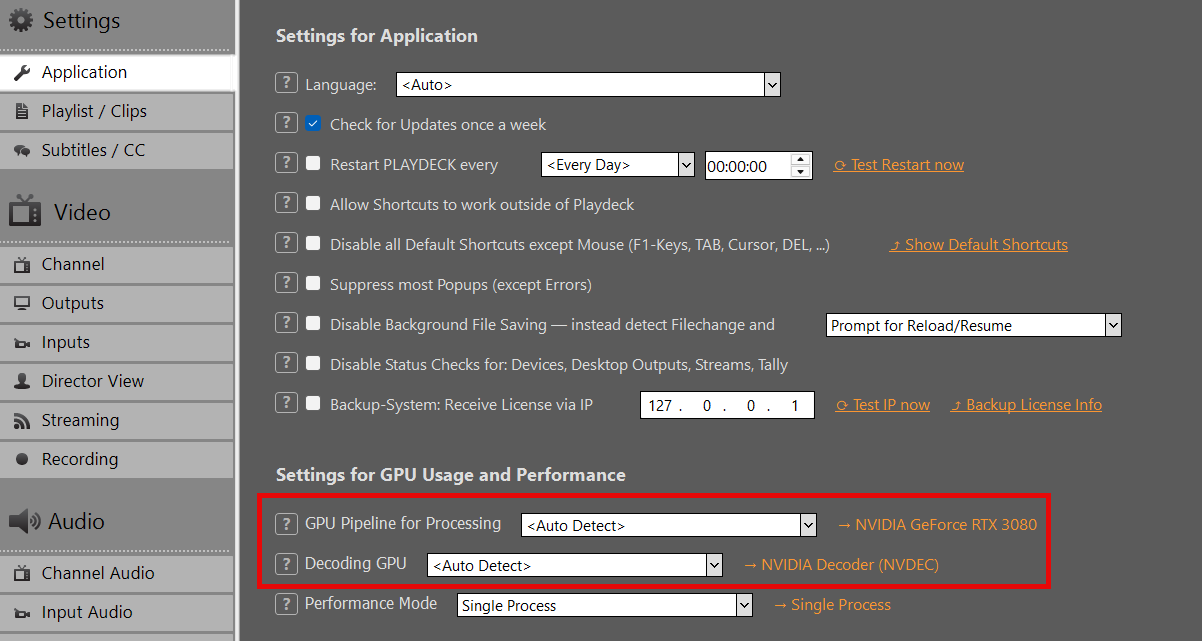
You can check your Graphics card in PLAYDECK:

Enabling HDR Mode

HDR Mode needs to be enabled in the Channel Settings. In HDR Settings, choose one of the following Output Pixel Format. Start with v210 unless you specifically need RGB processing.
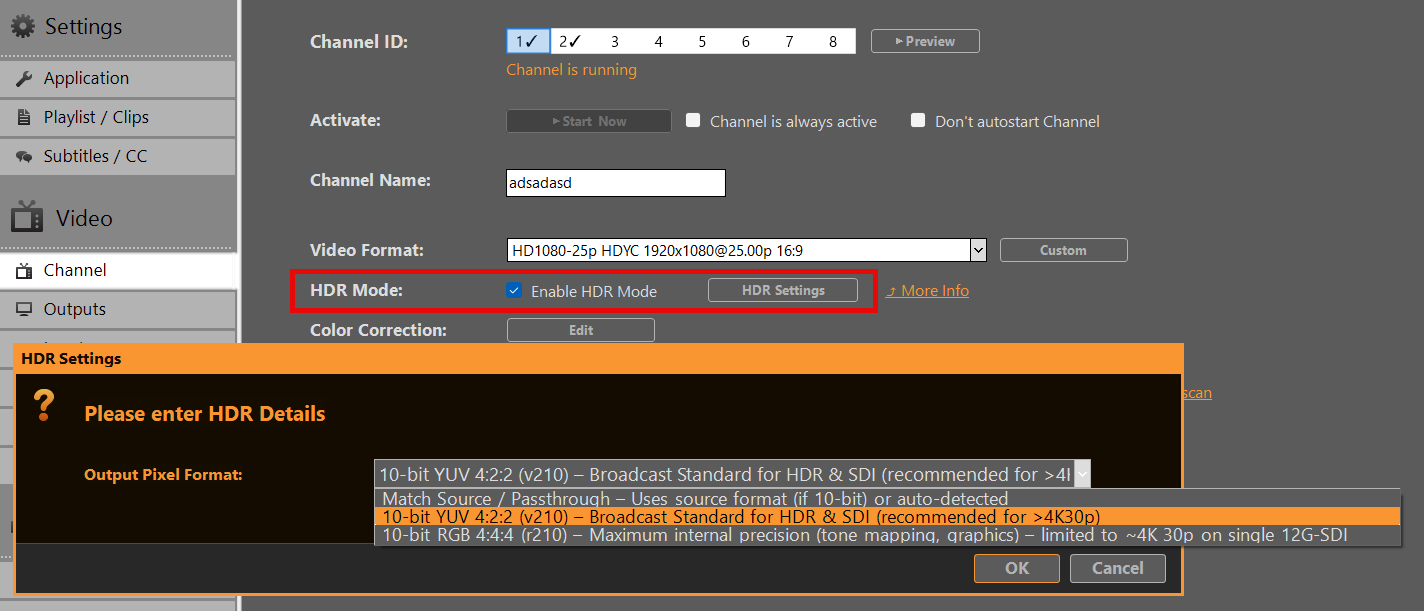
Match Source / Passthrough
Uses the source pixel format (if 10-bit) or auto-detected
→ May default to r210 on HLG/PQ content.

10-bit YUV 4:2:2 (v210) – Broadcast Standard for HDR & SDI (recommended)
→ Preferred choice for most SDI workflows.
→ Full compatibility up to 8K 60p on single-link 12G-SDI.
→ Recommended when frame rate > 4K 30p.

10-bit RGB 4:4:4 (r210) – Maximum internal precision
→ Best for tone mapping, keying or heavy internal processing.
Limitation: On many DeckLink cards limited to ~4K 30p (bandwidth constraint on single 12G-SDI link).
→ Use with caution at higher frame rates.


Setting up SDI Output
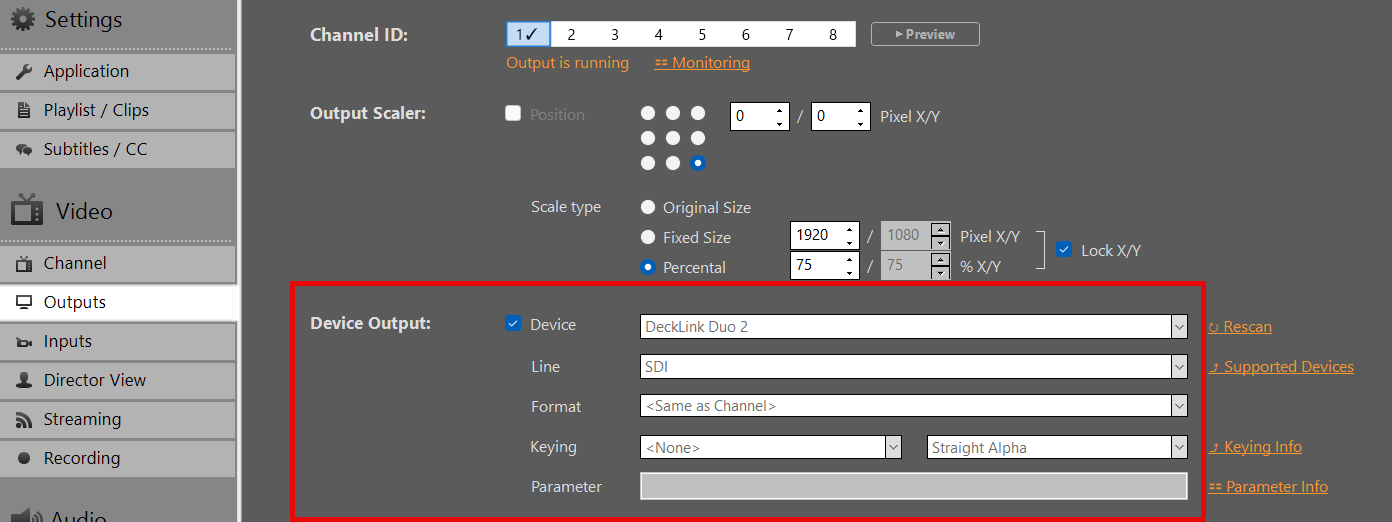
In Output Settings, select your DeckLink card as the output device. 10-bit Output will be activated automatically. If the Card doesn’t support it, it will fall back to SDR.

Important:
HDR metadata (PQ/HLG) is carried in VANC (Vertical Ancillary Data) on SDI.
Most modern DeckLink cards and downstream devices (monitors, switchers) detect this automatically when 10-bit signal is present.
You need to re-enable your Device, if you changed Output Pixel Format in HDR Settings.


Setting up Recording
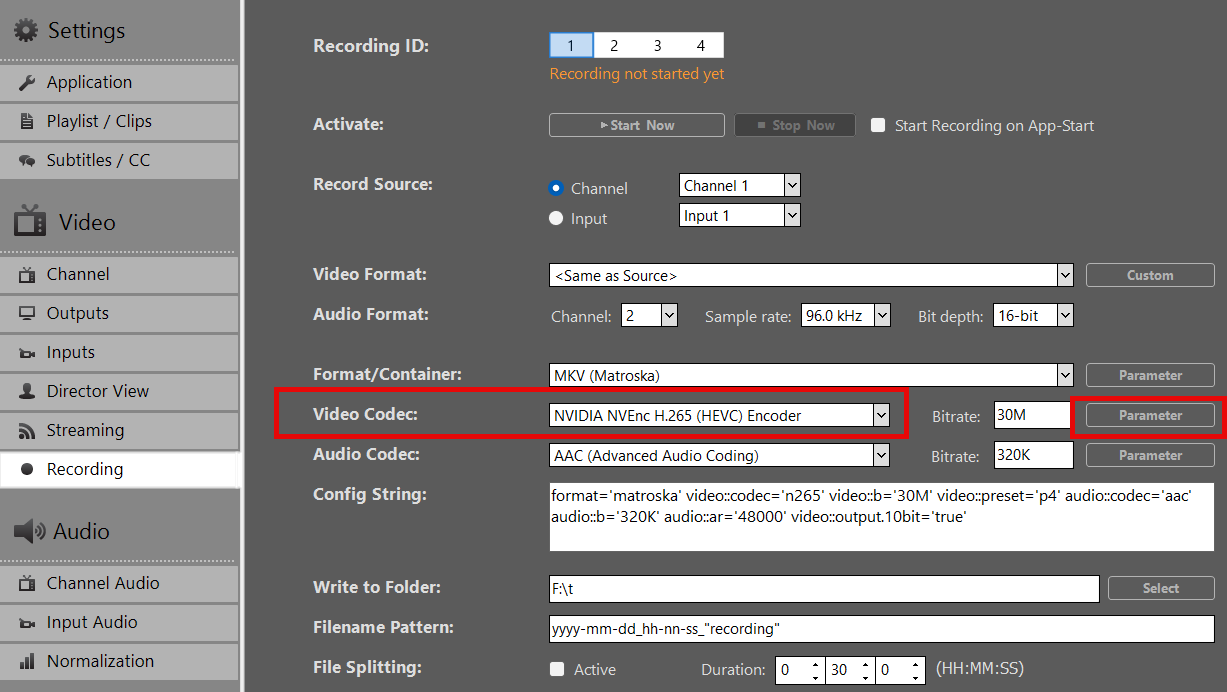
  1. Select a Format/Container (recommended: MOV or MKV).
  2. Pick NVIDIA H265 HEVC as Video Codec. Currently, no other Video Codecs are supported for HDR.
  3. Apply your preferred bitrate (50–100 Mbps recommended for 4K HDR)
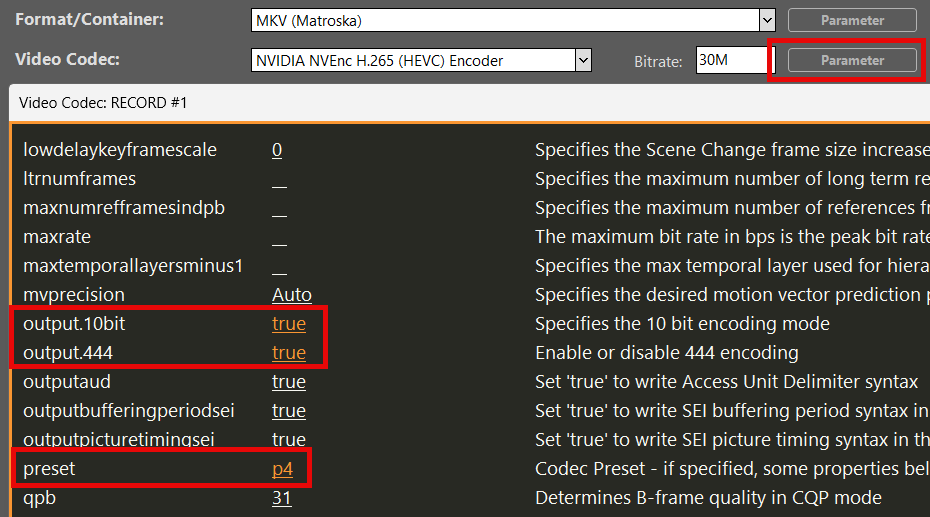
  4. Click on Parameter behind Video Codec and set these options:
    output.10bit = true
    output.444 = true (! Only is “10-bit RGB 4:4:4 (r210)” selected in HDR Settings)
    preset = p4

Result: Recorded file contains BT.2020 + HLG/PQ metadata when source was HDR.


Monitoring & Controlling

Play a HDR Clip in the Playlist. You can download this HDR HLG BT2020 Test Video.

Note: Preview on standard HDMI SDR monitors may appear washed-out or flat for HDR content — this is expected behavior.

You can check on the Clip’s HDR properties by right-clicking the Clip and selecting MediaInfo:
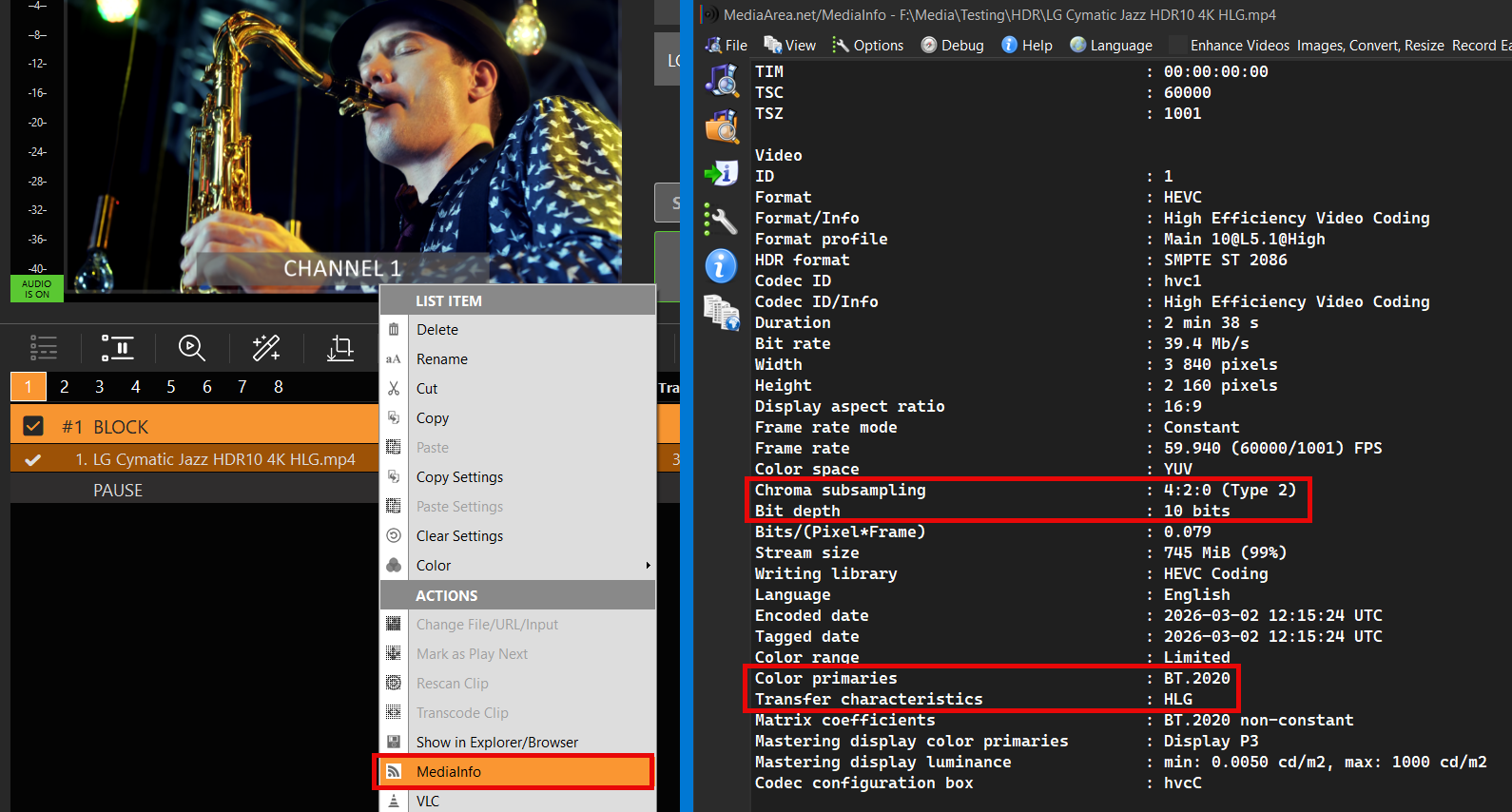
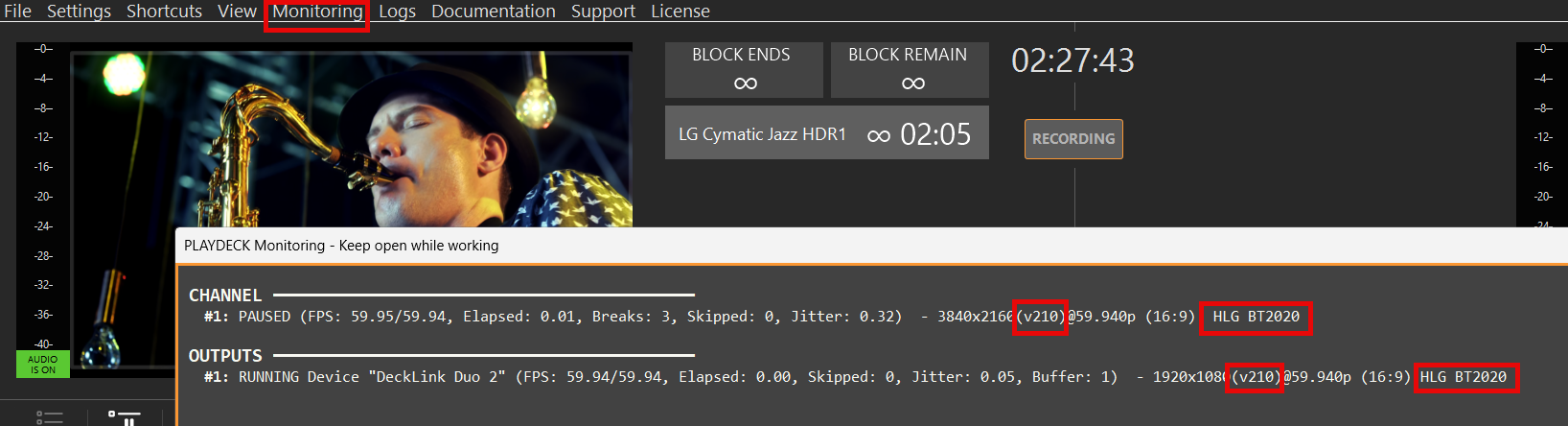
To verify, if PLAYDECK is correctly processing your HDR File, open Monitoring from the Main Menu and check these properties:
Pixel Format (v210 or r210)
Transfer characteristics (HLG or PQ)
Color primaries (BT2020)

This allows you to check, if your SDI Card is sending HDR without a SDI HDR Monitor.
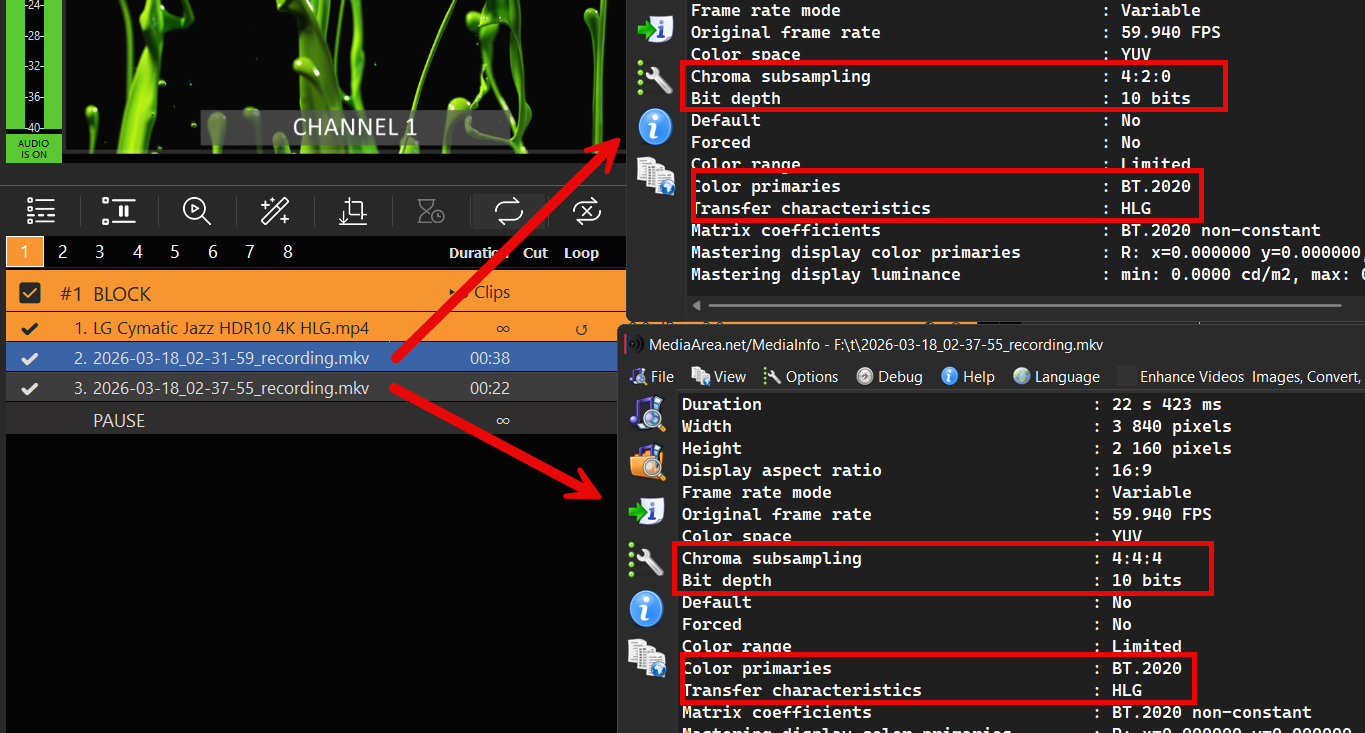
To verify your Recording, open the Recording Folder and Drag Drop your new File into the Playlist.

It should show the same HDR Meta Data as your Original (or your HDR Settings):
image_pdf

Color Correction for Inputs and Channel

This article will show how to use Color Correction Tools for your Broadcasts.

Video Range (16-235) vs. Full Range (0-255)
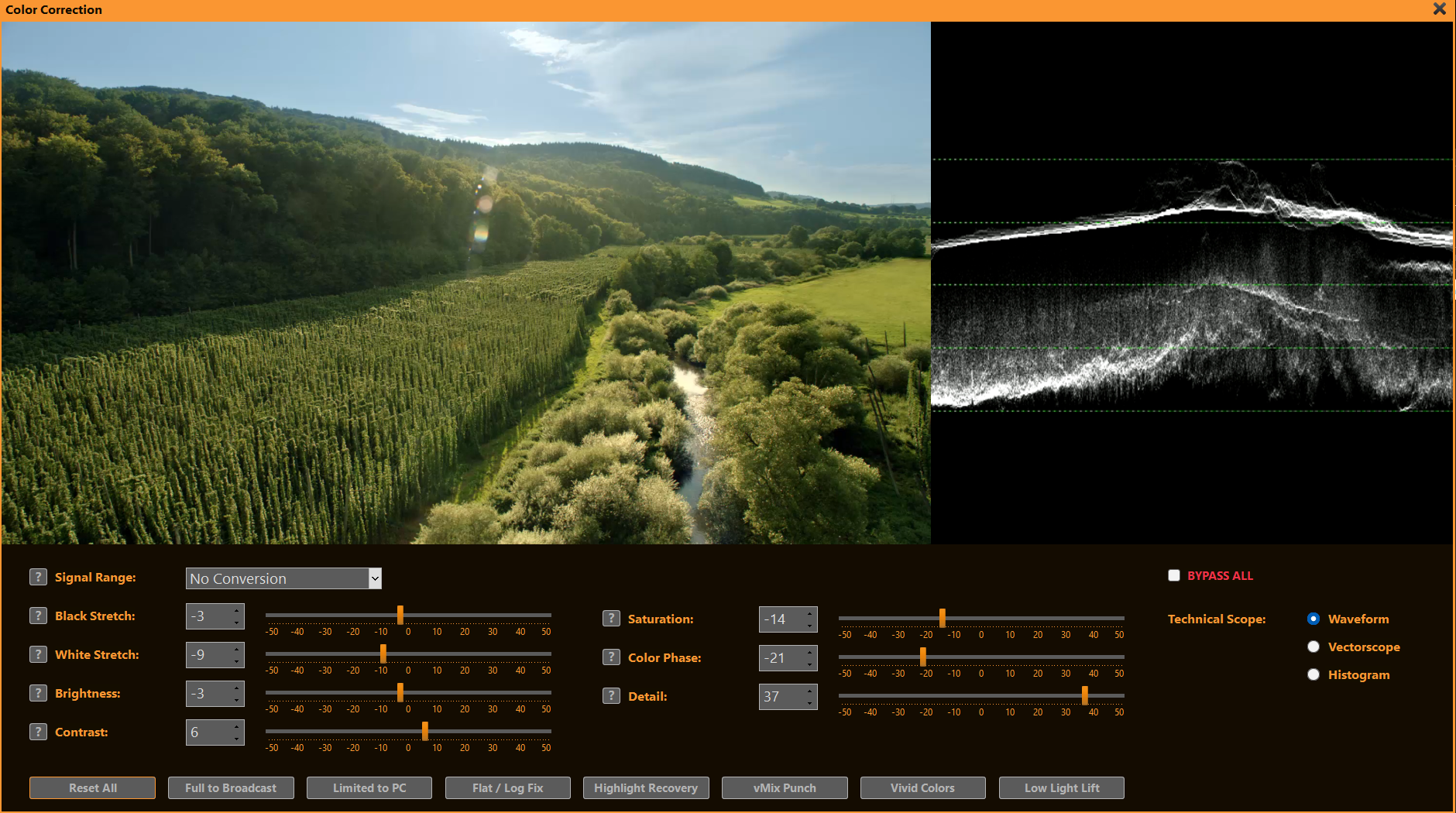
Color Adjustment Controls
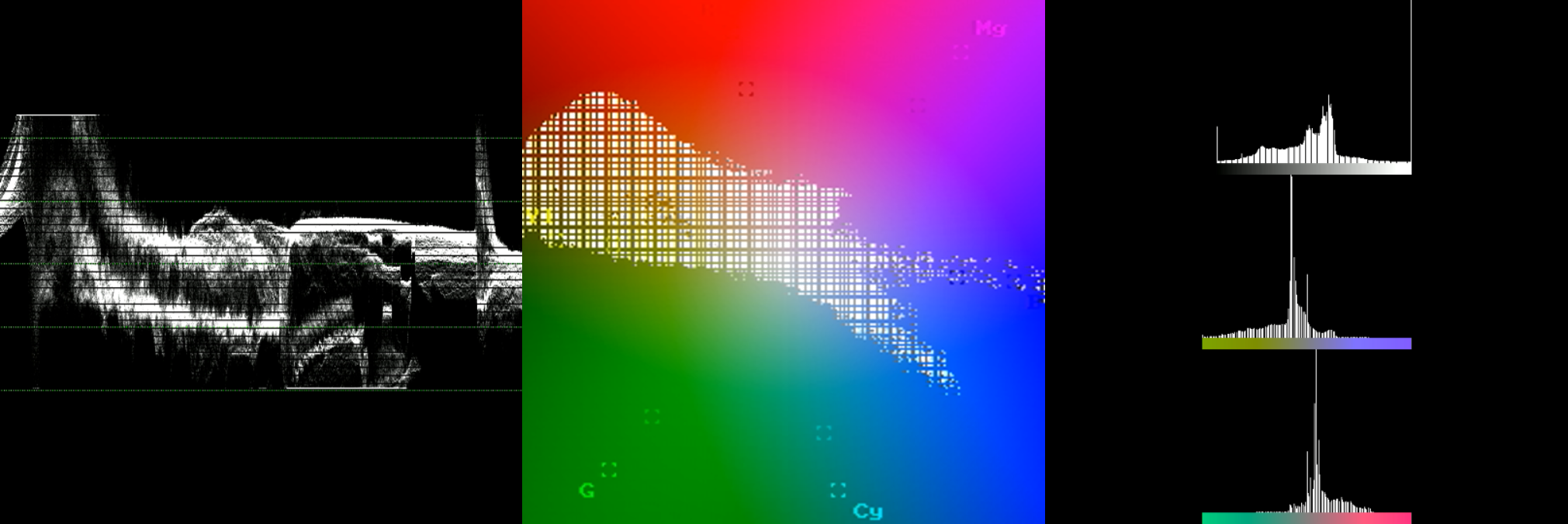
Tools: Waveform, Vectorscope & Histogram
Why is CPU Processing required?


Video Range (16-235) vs. Full Range (0-255)

Video Range (Limited / Broadcast): Uses 16–235 (8-bit). Black = 16, white = 235. Standard for TV, broadcast, streaming — preserves headroom.

Full Range (PC / Data): Uses full 0–255. Black = 0, white = 255. Native for computer monitors, graphics, photos.

Color Range Expansion converts Video → Full Range (lifting blacks, expanding whites) to avoid washed-out appearance on PC displays. Mismatches cause crushed blacks, blown whites, or grayish/milky picture.

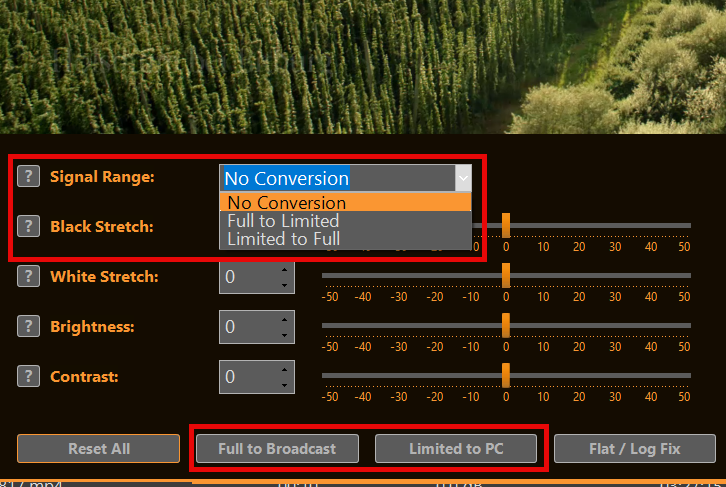
With PLAYDECK you can quickly convert between both modes by selecting the signal range or one of the preset buttons:


Color Adjustment Controls

PLAYDECK’s sliders help solve common broadcast and live-production challenges quickly:

  • Black Stretch Recover lost shadow detail in underexposed footage or create deeper, more cinematic blacks for dramatic looks.
  • White Stretch Bring back highlight detail in overexposed shots (e.g. skies, lights) or add punch to flat, washed-out highlights.
  • Brightness Correct overall too-dark or too-bright sources without changing contrast — ideal for matching multiple cameras.
  • Contrast Make flat, low-energy pictures pop for sports/news or reduce harsh contrast on harsh studio lighting.
  • Saturation Boost dull, desaturated camera feeds (e.g. ENG cameras) or tone down overly vivid graphics/logos for broadcast-safe output.
  • Color Phase Fix green/magenta casts from mismatched lighting, warm up cool skin tones, or match color temperature between sources.
  • Detail Sharpen soft, low-resolution streams or reduce noise in low-light footage without introducing artifacts.


Tools: Waveform, Vectorscope & Histogram

hese professional monitoring tools appear in a dedicated panel next to the video preview — perfect for precise color and exposure control during live production or playback.

  • Waveform: Check overall exposure and luminance levels quickly. Spot clipped highlights (flat at 100 IRE), crushed blacks (piled at 0 IRE), or mismatched camera levels so you can adjust brightness/black/white stretch before broadcast.
  • Vectorscope: Verify and correct color balance and saturation. Ensure skin tones stay in the correct flesh-tone line, detect unwanted color casts (e.g. green from LED lights), and confirm broadcast-legal saturation without over-the-top vividness.
  • Histogram: Analyze tonal distribution across the image. Identify if shadows/midtones/highlights are evenly spread or if detail is lost in dark/bright areas — ideal for fine-tuning contrast and stretch sliders to achieve a balanced, professional picture.


Why is CPU Processing required?

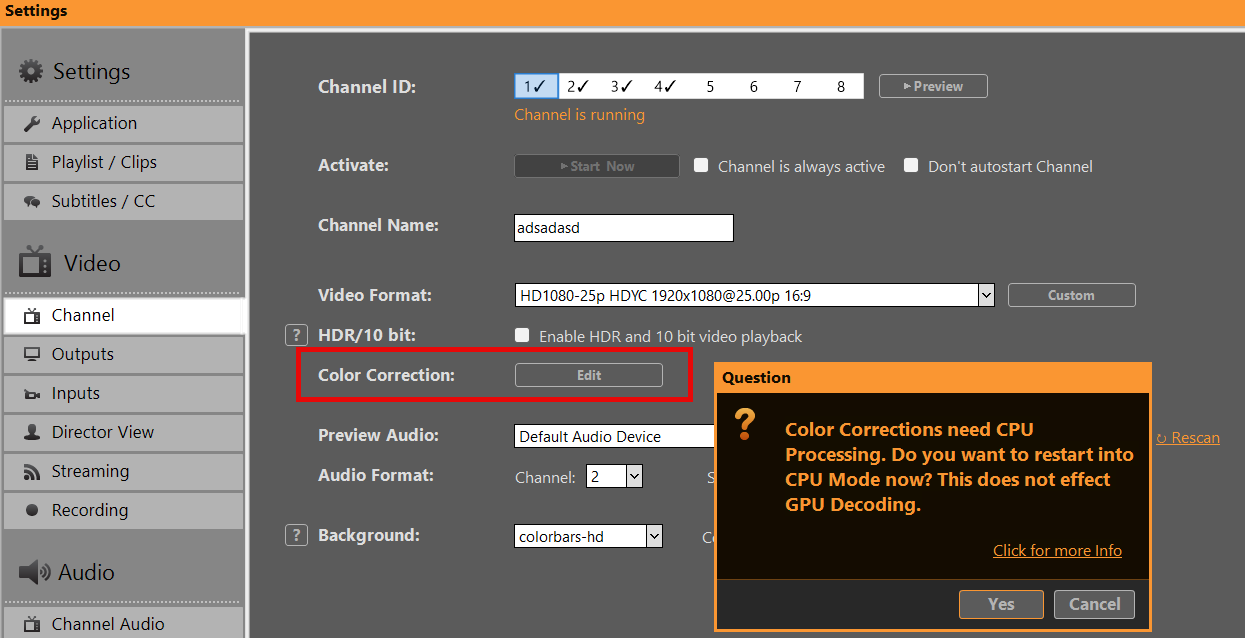
When using Color Correction (or certain other video filters) for the first time, PLAYDECK may prompt you to switch to CPU Processing:


Reason: Certain video filters (vfilters) on inputs and playlists rely on FFmpeg processing, which runs only on the CPU. The GPU pipeline does not support these standard filters, so CPU mode is required for them to work correctly — ensuring reliable playback and effects.

GPU Processing handles: Scaling, Mixing, Overlays, Format Conversion, and many Effects.

Switching to CPU mode keeps all features working normally — the only difference is higher CPU usage (and lower GPU load).

You can switch back to GPU Processing anytime in the application settings:

image_pdf

PLAYDECK License Options

Simple, Flexible & Transparent:
PLAYDECK is available in three editions and multiple license models to fit your needs. All prices exclude VAT. Choose the plan that matches your output channels and workflow.

PLAYDECK Editions
Choose Your License Model
Free Trial Edition (incl. Limitations)
License Activation
Support Options
License Portability & Backup
Special Conditions & Discounts
Upgrades, Downgrades & Cancellations
Dongle Details
Reseller Conditions


PLAYDECK Editions

We offer three editions that primarily differ in the number of parallel output channels you can use simultaneously:

LITE: 1 output channel – €190.80 per year (≈ €15.90/month, save €132 vs. monthly billing)
PLUS: 2 output channels – €430.80 per year (≈ €35.90/month, save €288 vs. monthly billing)
STUDIO: 8 output channels – €994.80 per year (≈ €82.90/month, save €684 vs. monthly billing)

All editions share the same powerful core: support for virtually every codec/format, low-latency GPU playback, SDI/NDI/HDMI/RTMP/SRT output, overlays, and more.

For a full feature comparison chart (audio channels, recording, scheduling, etc.), visit our Plans & Pricing page: https://playdeck.tv/plans/


Choose Your License Model

PLAYDECK offers flexible licensing to match different workflows:

Online Shop License (most popular): Tied to your email in a personal License Pool. Requires internet for transfers/check-in/out. Easy portability.

USB Dongle License: Hardware-based (USB stick). No internet needed for daily use/activation. Portable by moving the dongle.

Offline License (special cases): Permanently bound to one specific PC (System ID). No internet ever required. Not portable without re-issuance.


Free Trial Edition (incl. Limitations)

Download and test PLAYDECK completely free – no time limit, no credit card required. Switch editions instantly via Menu → Support → Trial Edition.

Limitations:
— Watermark on all outputs
— Occasional random short audio mutes (clearly shown on screen)

All other features are fully unlocked – ideal for real-world testing of your setup.


License Activation

Activation is quick and simple. Detailed guide: https://playdeck.tv/howto/activate-license/

Quick steps:
— Shop/Online: Use License Manager in PLAYDECK with your purchase email → transfer from pool.
— Dongle: Plug in the USB stick – auto-detected.
— Offline: Paste the code we provide into the License Manager.


Support Options

[email protected] – available nearly 24/7, even for trial users or pre-purchase questions.

No forced onboarding. PLAYDECK is built to run easily out-of-the-box. If needed (rare), we can remote-connect via RustDesk to fix issues fast.


License Portability & Backup

PLAYDECK licenses are highly flexible for moving between systems:

License TypeHow to TransferInternet Required for Move?Lost / Crash Handling
Shop License (Pool)Check-in/out via License Manager (tied to email)YesFree instant reset – email us
Dongle LicensePlug USB stick into new computerNoWe replace the dongle
Offline LicenseBound to one PC – email new System ID for re-issueNoRe-issue possible

Perfect for freelancers, rentals or multi-PC environments.

Detailed guide for transfering: https://playdeck.tv/howto/move-license/

Detailed guide for recovery: https://playdeck.tv/howto/recover-license/


Special Conditions & Discounts

  • NGO / Educational / Non-Profit: 25% discount on all licenses (any edition/duration). Email [email protected] with proof (e.g., official email/certificate) → we send discount code or invoice.
  • Multi-Year Pre-Pay: Up to 5 years with 25% discount on total. Contact support for quote.
  • No Lifetime License: We release regular updates for driver/OS/codec compatibility and third-party fees. Lifetime would mean missing critical improvements.


If you like to purchase a larger number of licenses, we can discuss special options – please contact us.


Upgrades, Downgrades & Cancellations

Upgrades / Downgrades: Possible anytime. We refund remaining license time pro-rata → you buy the new edition. No direct mid-term switch due to technical reasons.

Cancellations: Cancel anytime via your account at playdeck.tv or email [email protected]. Full access until end of paid period. No penalties.


Dongle Details

Dongle licenses match online pricing (min. 1-year duration), with remote renewals – no new hardware needed.

One-time cost: €15 for the USB dongle stick.

Key advantages:
— Completely offline activation and validation (no internet ever required)
— Portable: Move between computers by simply plugging in (not simultaneous use)

Example: PLUS dongle = €430.80/year + €15 one-time.


Reseller Conditions

Interested in reselling PLAYDECK in your country/region? We welcome partners and keep it straightforward!

— Full permission to promote/sell on your site/ads
— 25% commission per referred sale (via customer discount code or direct payout)
— Claim with simple proof of prior customer contact (e.g., email copy)
Download Brand Kit: logos, texts, banners

Email [email protected] to start – we make onboarding easy!

image_pdf

Create Pre-Show Waiting Loop

This article will show how to create a Audio Playlist and combine this with a looping video, perfect for pre-show waiting Loops.


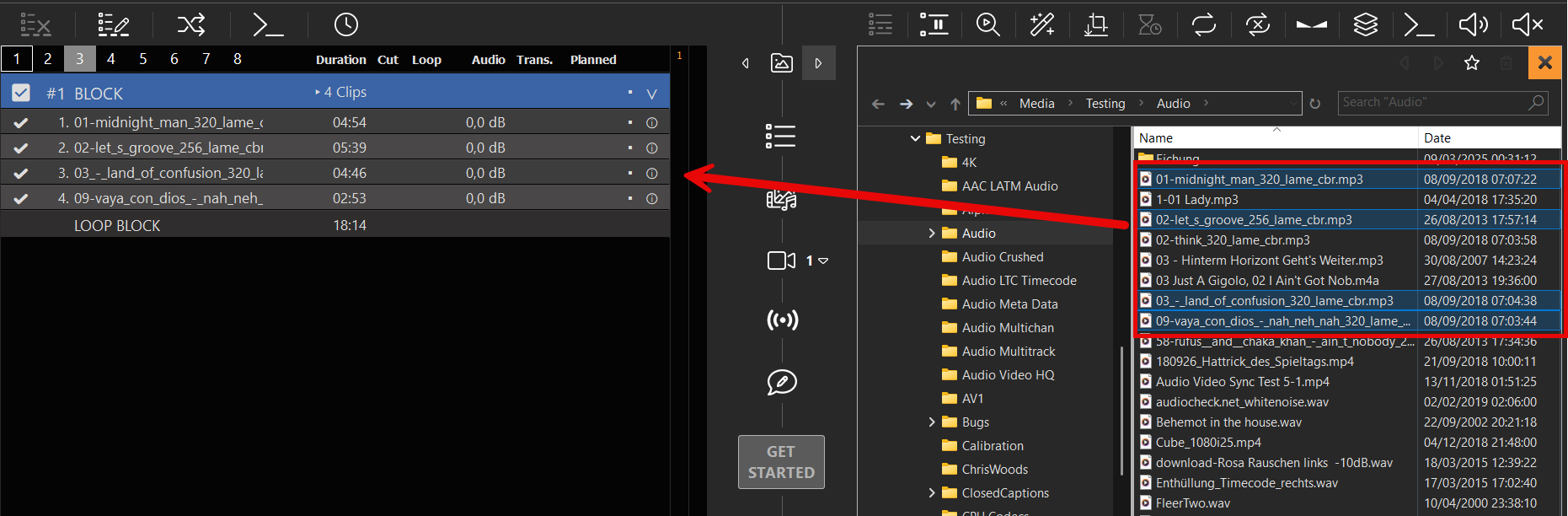
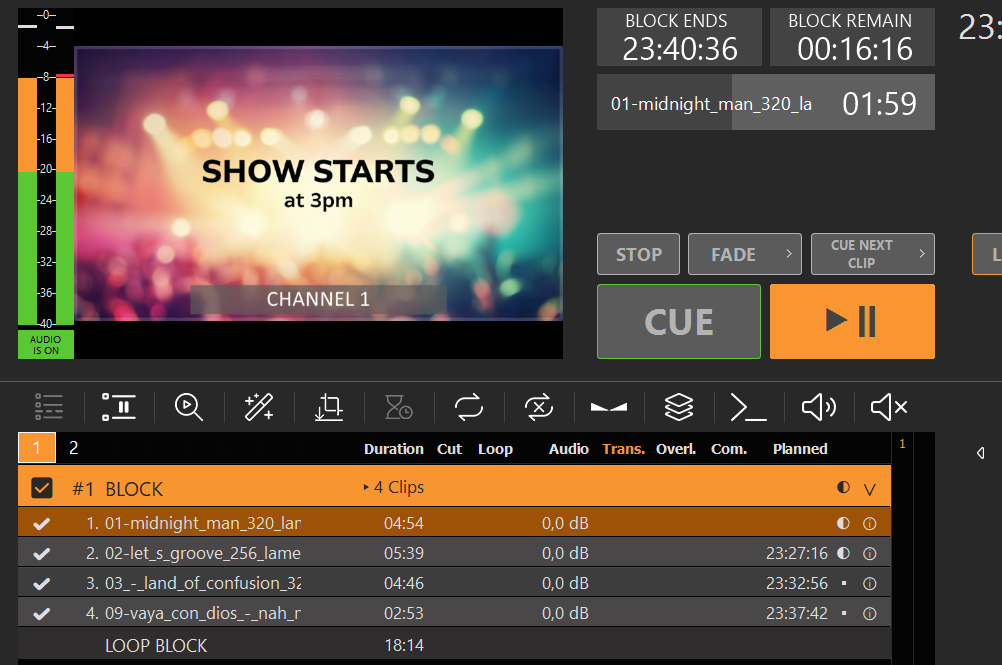
We start by creating a loop block and insert some mp3 audio file to the block:

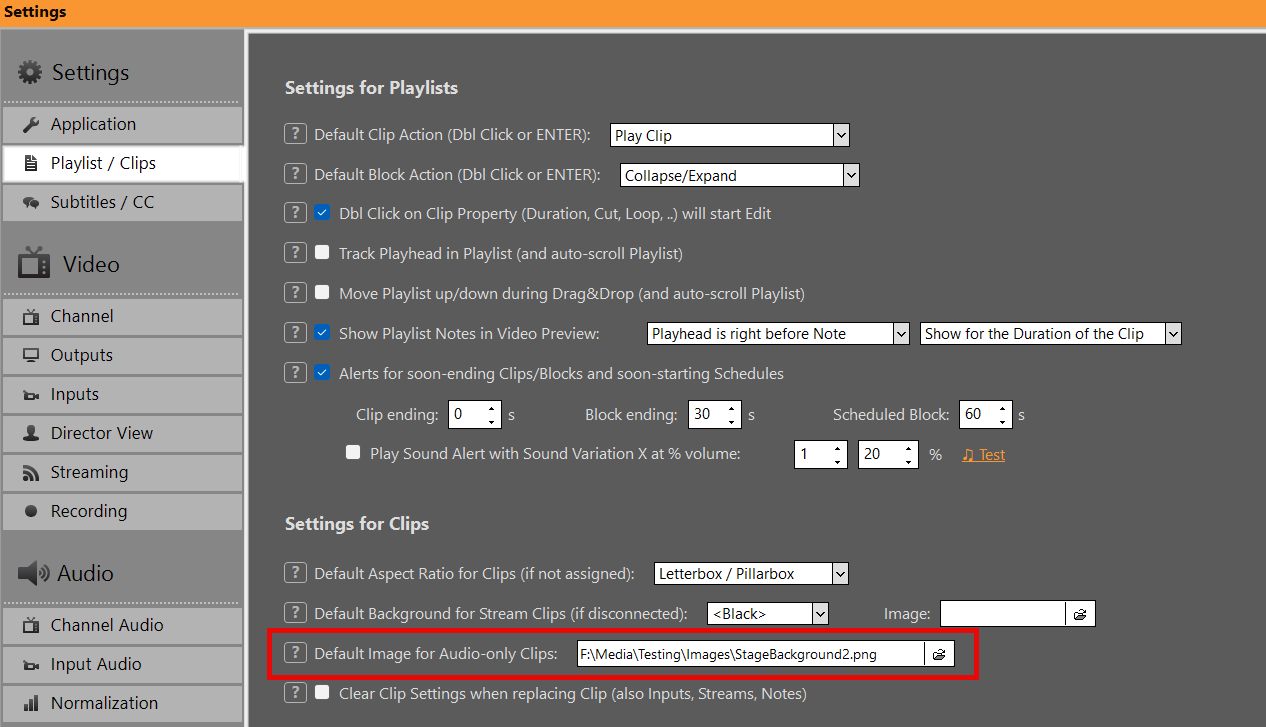
Now we add a default image, which is shown, whenever audio-only clips are playing:

And voila, we have a pre-show waiting loop:

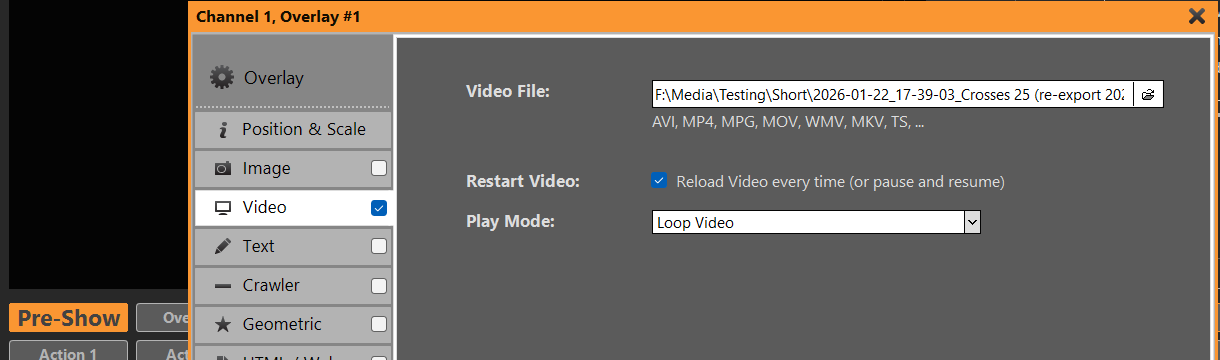
But that’s not all. We can also use a video loop instead of a still image. For this we add the video as overlay with a loop setting. The video will be shown in fullscreen, if it has the same size, otherwise we can scale it in the overlay settings:

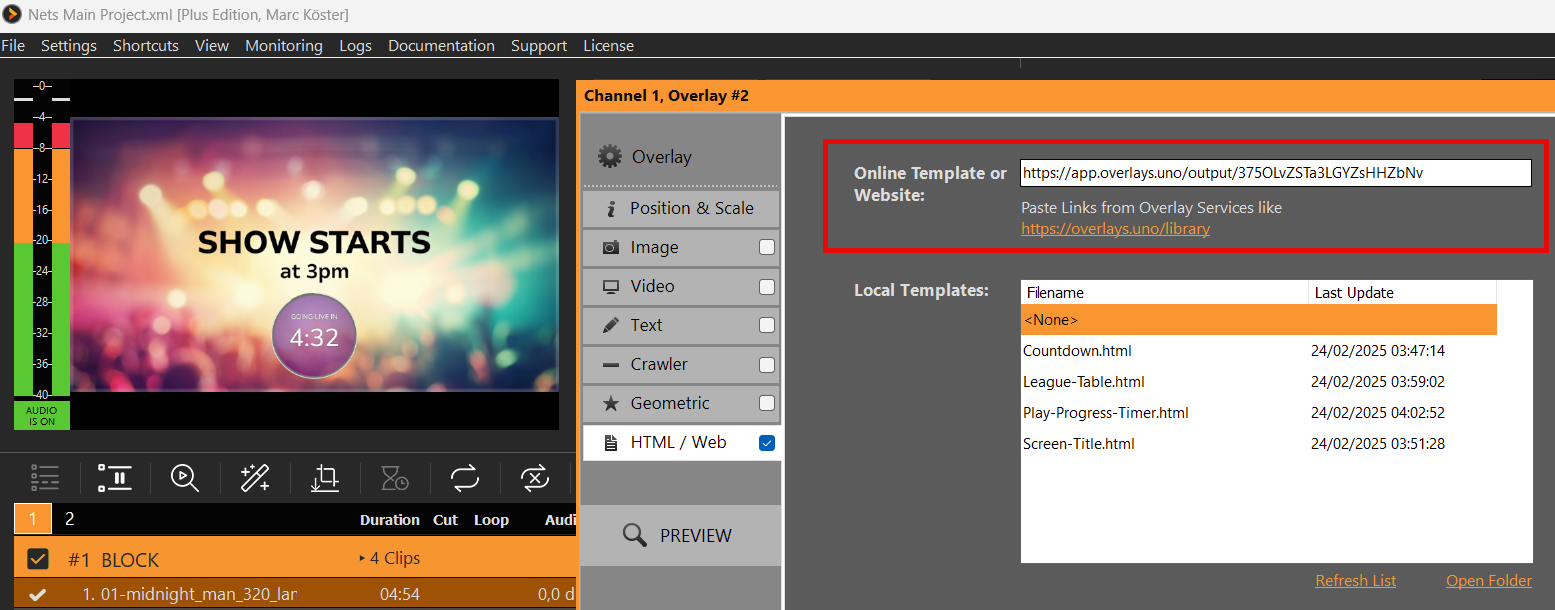
We could also add an Countdown via overlays.uno. Quick and easy:


image_pdf