
PLAYDECK API

The PLAYDECK API is a construct to allow anyone to interface with PLAYDECK. This article will show how to get started developing with the API:

In this article:
Introduction
Examples
Implement the API


Introduction

The PLAYDECK API is bi-directional: You receive the Playout Status, but you can also send Commands to PLAYDECK.

The API is based on WebSockets: They are a part of JavaScript, so you can develop in JavaScript, or NodeJS, or TypeScript. The WebSocket Port is fixed to 11411 and is always enabled in PLAYDECK.

We decided to go with WebSockets, because:

  • It supports both directions: From and To PLAYDECK
  • No Installation required: Use any Text-Editor
  • No specific Network Security required
  • Easy to build own User Interface or Animation with HTML


What can be send to PLAYDECK?

  • CUE or play Blocks or Clips, Overlays or Actions
  • Start/Stop video assets like Streams


What can be received from PLAYDECK?

  • Events (e.g. a Block or Clip has started)
  • Playout Status (e.g. What is playing and the remaining Block Time)
  • Content (e.g. complete Playlist with Blocks and Clips)


Examples

1) Companion

PLAYDECK API is being used by bitfocus Companion in the PLAYDECK module. This gives you a quick touch+feel about what the API is capable of:
https://playdeck.tv/howto/companion/


2) Director View

The API is also used by the Director View, which is part of PLAYDECK. You can find the HTML Templates here:
c:\Users\Public\Documents\JoyEventMedia\Playdeck\HTML-Templates\Director-View


3) HTML Overlays

The API is also used by some HTML Overview Examples, which you can find here:
c:\Users\Public\Documents\JoyEventMedia\Playdeck\HTML-Templates\Overlay-Templates


Implement the API

We prepared some examples for you to quickly review a working script. Please check them in order, as they build up on each other.

Tip 1: You can double click any HTML File to open in the Browser to start the Script/API

Tip 2: You can edit the File “WebSocketSDK\Version.js” to change the IP Address


1) Native Connection (Without the API)

Let’s start with something very minimalistic:
c:\Users\Public\Documents\JoyEventMedia\Playdeck\HTML-Templates\Automation-And-UI\SampleMinimalistic.html

This will open the WebSocket to PLAYDECK with native JavaScript Code and send a Command to PLAY the first Clip in the first Block.

Another Example is this, where you can click Buttons in HTML to start Playout in PLAYDECK:
c:\Users\Public\Documents\JoyEventMedia\Playdeck\HTML-Templates\Automation-And-UI\SampleUserInterface.html


2) Minimalistic Connection (WITH API)

This example will introduce the API:
c:\Users\Public\Documents\JoyEventMedia\Playdeck\HTML-Templates\Automation-And-UI\SampleMinimalisticSDK.html

It uses the Subfolder “WebSocketAPI” and includes its MAIN SCRIPT “AppInterface.js”, which is kind of the “Loader” for the whole API.

The API will now take care of your WebSocket Connection to PLAYDECK, so you don’t have to code this manually. The API also exposes a Template Framework to JavaScript. The Template name is derived from the Filename, so it needs to match. There are several pre-defined functions available. For this example we only use “Start”: This function will be called by the API, once the WebSocket Connection to PLAYDECK has been established successfully. In this example it will PLAY the first Clip of Channel 1.


3) More Framework Functions

Besides “Start” there are many more Framework Functions available:
c:\Users\Public\Documents\JoyEventMedia\Playdeck\HTML-Templates\Automation-And-UI\SamplePlayRandomClip.html

Please see the comments in the JS File for all available Functions.

If you open the Browser Console (typically with F12) you can see the Feedback of the “console.log” instructions.


4) Parse Project Data

To access all Clips the function “DataProject” is available and this example show how to enumerate the Project Data:
c:\Users\Public\Documents\JoyEventMedia\Playdeck\HTML-Templates\Automation-And-UI\SampleShowPlaylist.html


5) Custom Schedule Sample

The last example shows a full working and complete Script for a Custom Scheduling outside of PLAYDECK:
c:\Users\Public\Documents\JoyEventMedia\Playdeck\HTML-Templates\Automation-And-UI\SampleWeeklySchedule.html

image_pdf

Translation

This article will show how to work on translations for PLAYDECK.


Introduction

The existing Languages are pre-translated via Online Tools. We use DeepL for this. This works very well for longer sentences (e.g. Settings), but it works also very poorly for single words (e.g. “Input”).

In addition, some translations use more or less space (number of character). This could lead to certain words not “fitting” into a certain Button. If the translation can’t be shortend, we can also make the button wider.

For these reasons, every language needs fine-tuning.


Workflow

The translations are being edited via an external tool called “SIL Editor”, where you can load and edit our language. You can then preview your edits directly in PLAYDECK.

One your Editing is done, you send use the Language File and we import your changes into the App.


Downloads and Installation

You need PLAYDECK in Version 4.2b6, which you can download here:
https://downloads.playdeck.tv/4.2b6/PlaydeckSetup.exe

You need the SIL Editor, which you can find here (only download “SIL Editor”):
https://www.sicomponents.com/download/

And you need the Language File with the Translations:
https://downloads.playdeck.tv/4.2b6/PLAYDECK.sib

—————-

Install PLAYDECK and the SIL Editor, then save the SIB File here:
c:\Users\Public\Documents\JoyEventMedia\Playdeck\PLAYDECK.sib

If PLAYDECK detects a SIB File in this location, it will PREFER to use it over the internal translation.


Testrun

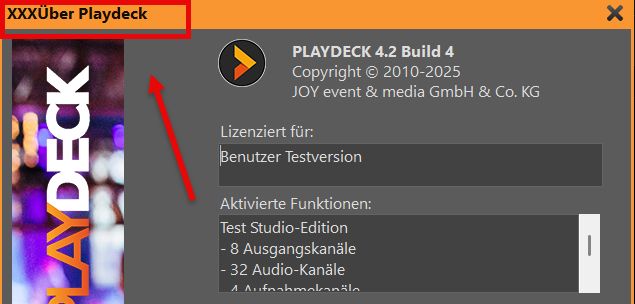
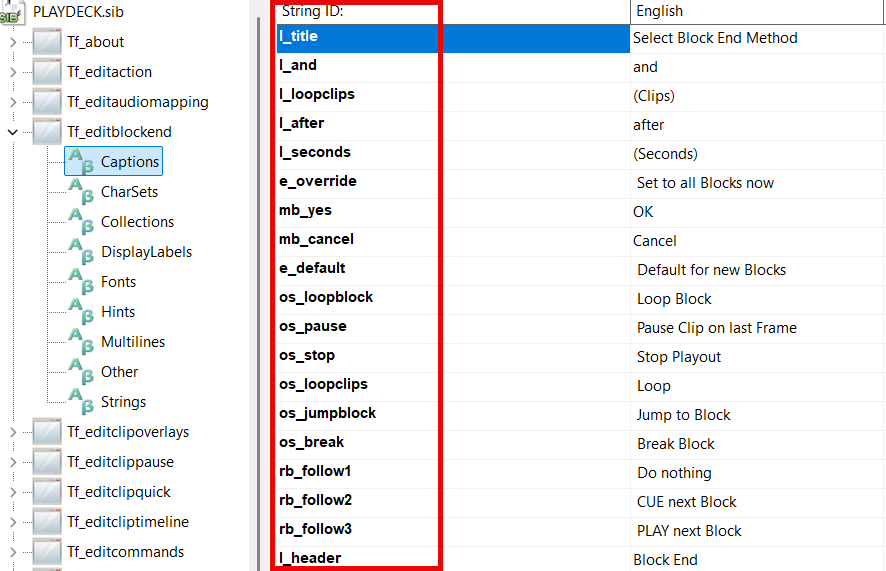
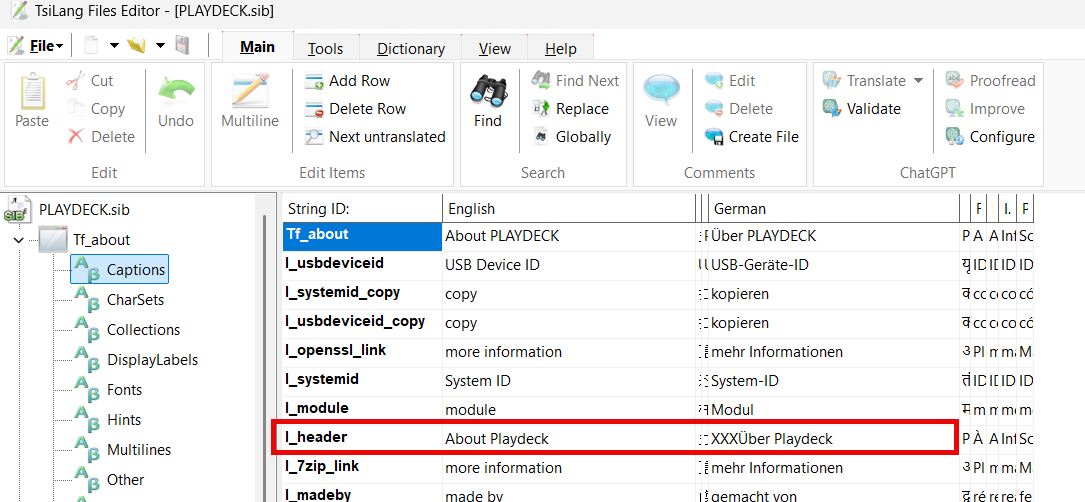
Let’s try to edit something and check, if PLAYDECK updates the translation. Double click the SIB File, which will open the SIL Editor. Open the first branch “Tf_about”, which represents the ABOUT Popup in PLAYDECK. Click on “Captions”, which represents all static text fields in the popup. You can minimize all language columns, that don’t concern you – in this example I focus on GERMAN (can be any other language). Now for “l_header” change the translation to something noticable – in this case I simply add “XXX” infront of the text for testing.

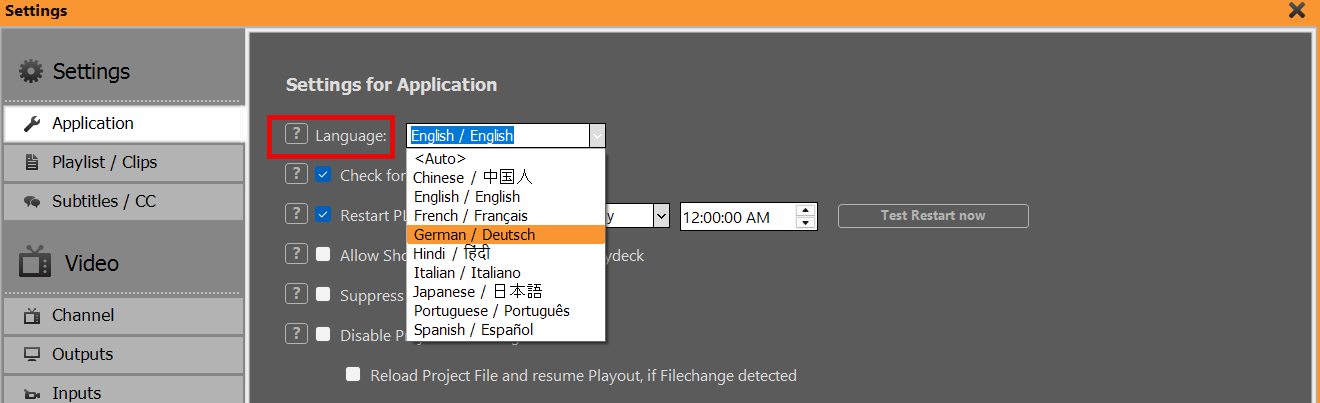
Save the SIB File (or press CTRL+S). In PLAYDECK switch to GERMAN in the App Settings:

After restarting PLAYDECK, open the About Popup via “License > PLAYDECK”. It now should reflect your text editing change. Don’t forget to change back after testing. Should this not work, please contact us.


Where to start

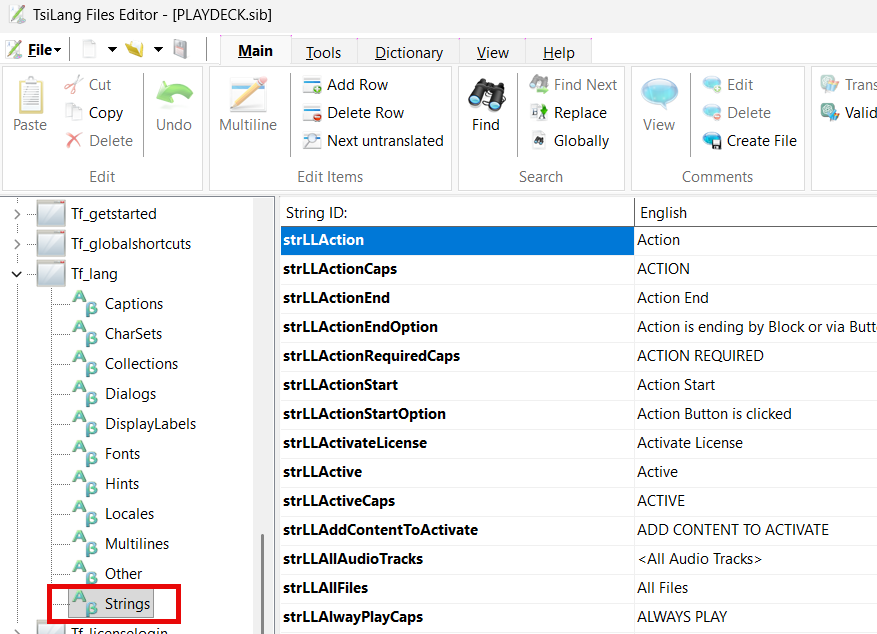
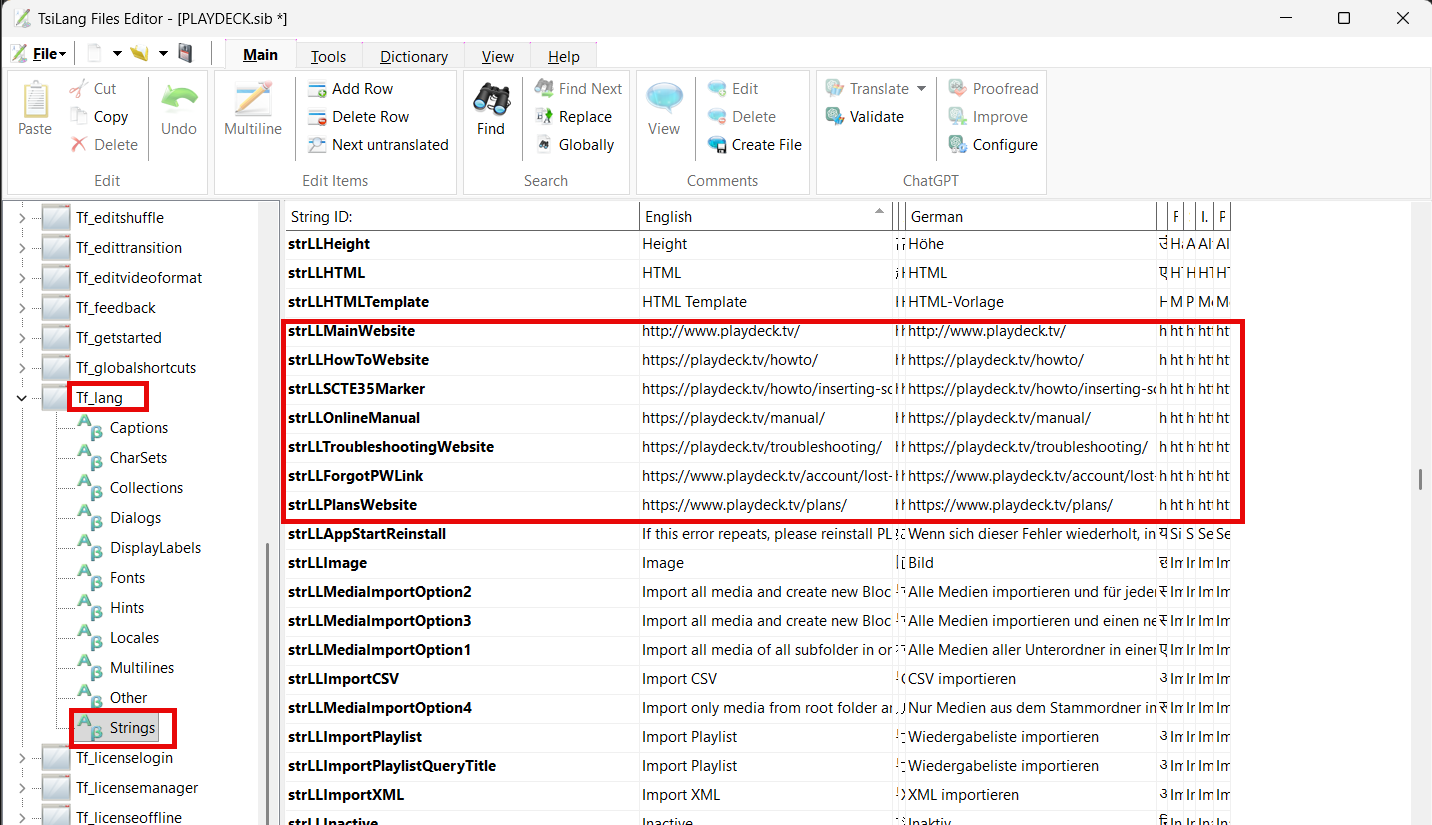
We recommend to edit all dynamic texts first, as they are used repeatedly in PLAYDECK and therefor form the “base translation”. You can find them under “Tf_lang > Strings”:

Once that’s done, you can decide for yourself: You can either search PLAYDECK for needed edits by walking through all Settings and Popups. Or you can walk through all Popups directly in the SIL Editor.


Orientation and Editing

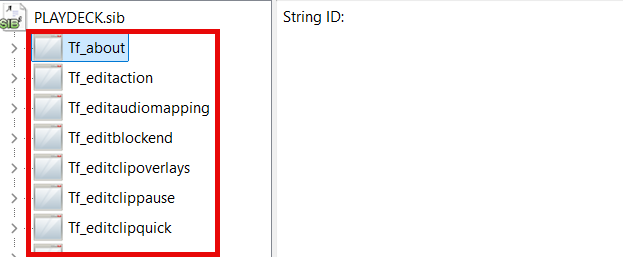
The left Side in the Editor represents all possible Popups in PLAYDECK.

Noticable are “main” (Main UI) and “settings” (all settings). These are further devided into groups:

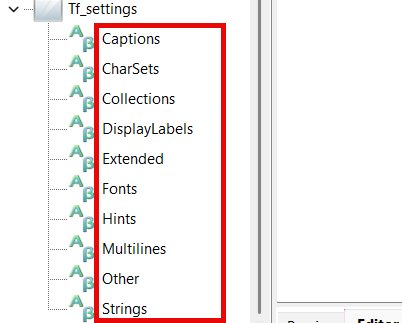
The Groups have the following meaning (only mentioning the onces you need):

Captions: All static texts visible in the Popup, mostly Labels, Buttons, Menus
Collections: Rarely used. Only some Dialog Options.
Extended: Also static texts, but mostly Headlines
Hints: Texts that appear under the Mouse, eg. the “?” Button or Toolbar Icons
Multilines: Table Headers and Drop-Down fields with multiple selection. Edited by Double-Clicking.
Other: Rarely used. Only some Dialog Options.
Strings: Dynamic Text Blocks. Only used in “Tf_lang”

In the huge middle table, where you edit your texts, there is also a column called “String ID”, which represents the internal name of the corresponding element in PLAYDECK. This “can” be of help in some cases you might be searching for something.

Here are some information on the choice of name:
l_: Static Text Labels
b_ or mb_: Buttons
cb_: Checkbox with Text
rb_: Radio Button with Text
pm_: Popup or Right-Click Menu
os_ or op_: Drop Down Boxes


Tips for Editing

1) Please note, that there are several redundancies (same text over and over), which can’t be avoided, if for example the same text appears several times in PLAYDECK (e.g. Settings).

2) Some Texts also can’t be translated at all, since they are deeply nested within the System or the Video Engine, which are also Settings typically (Drop Down Edits).

3) You can search for any Text in the Editor or click on the Column Header for sorting. This can help to locate the English Original to find your Text Fields for Editing.

4) Any translation not given (empty field) will automatically use the English Original. So you can DELETE the translation to force PLAYDECK to use the English Original

5) All Multiline Translations need to have the same amount of Lines, otherwise PLAYDECK may fail to start or function correctly. Multiline Edits are edited by Double-Clicking the Translation.

6) Some Text Fields have very specific characters, which help formatting and readability in PLAYDECK. These are “<br>” (Linebreak), or ” ” (Empty Space) or “:” or some UTF8-Icons. Just be aware of them and that removing them can cause loss of readability.

7) Most Languages have “lower” and “UPPER” case and some Translations (“Strings” in “Tf_lang”) provide both cases, if needed. For languages that don’t have “case”, use the same translation in both fields.


External Links

You are able to change most of the Links in PLAYDECK to a different location, e.g. the Support Email-Address as well as Links to Online Documentation and other Website.

You are 100% allowed to do so. We only ask to make sure, that emails are responded to and website links are working and updated regularly.


External Contents

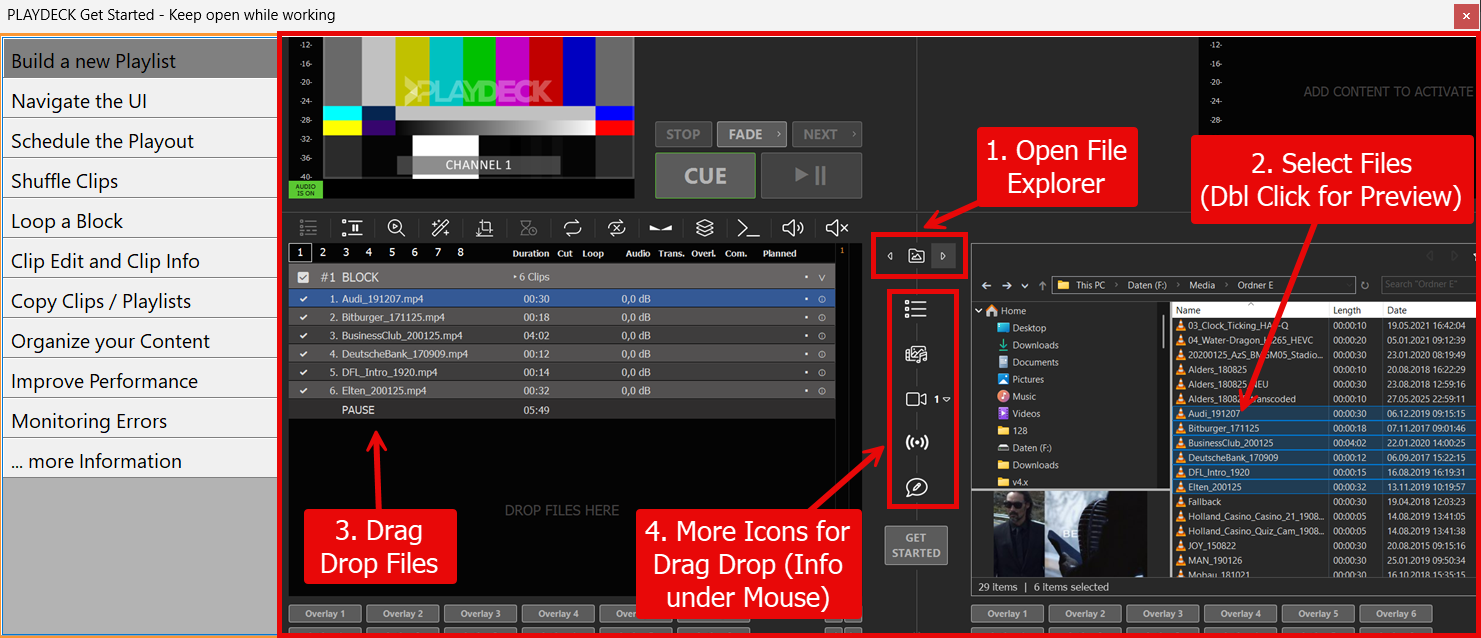
All images in “GET STARTED” and all Documentation Files have also been translated. You can find them here:
c:\Program Files (x86)\JoyEventMedia\Playdeck\lang

While there is no absolute urgency to replace or update those files, you can if you want to.

The “GetStarted” Folder contains all PNG images, that are shown in the Get-Started Dialogue:


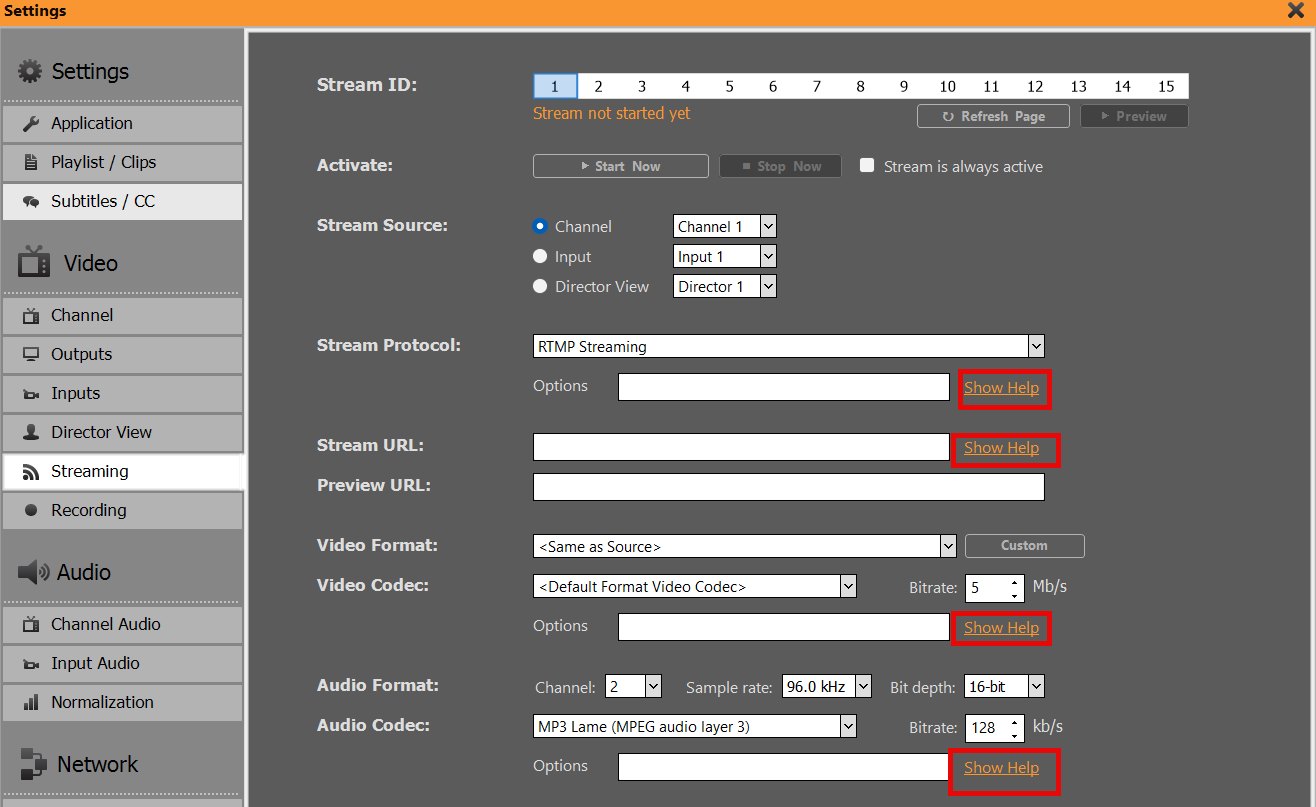
The “Documentation” Folder contain all TXT Files, that are being opened as expert help on several occasions in PLAYDECK:

Should you decide to update these Files, please don’t rename them and send them to use in the same format as the original (PNG with same dimensions and TXT with similar structure).

image_pdf