
This article will show how to use Color Correction Tools for your Broadcasts.
→ Video Range (16-235) vs. Full Range (0-255)
→ Color Adjustment Controls
→ Tools: Waveform, Vectorscope & Histogram
→ Why is CPU Processing required?
Video Range (16-235) vs. Full Range (0-255)
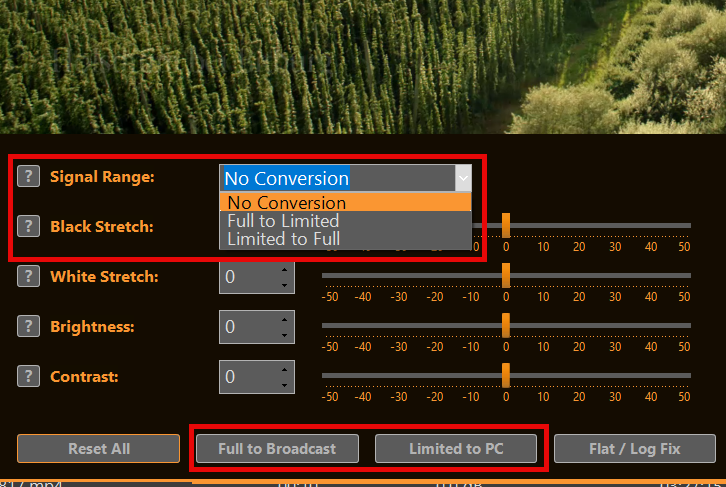
Video Range (Limited / Broadcast): Uses 16–235 (8-bit). Black = 16, white = 235. Standard for TV, broadcast, streaming — preserves headroom.
Full Range (PC / Data): Uses full 0–255. Black = 0, white = 255. Native for computer monitors, graphics, photos.
Color Range Expansion converts Video → Full Range (lifting blacks, expanding whites) to avoid washed-out appearance on PC displays. Mismatches cause crushed blacks, blown whites, or grayish/milky picture.
With PLAYDECK you can quickly convert between both modes by selecting the signal range or one of the preset buttons:
Color Adjustment Controls
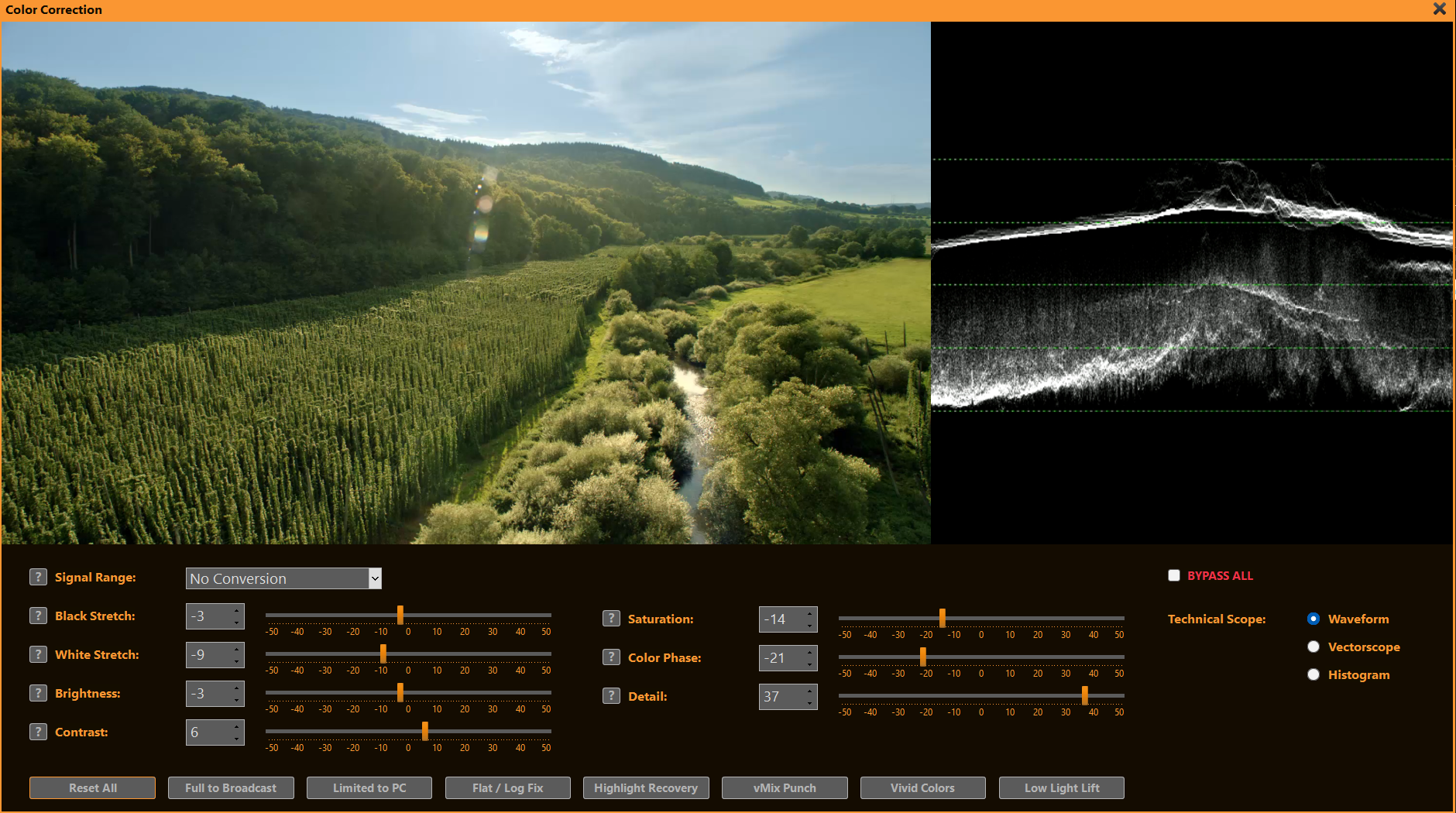
PLAYDECK’s sliders help solve common broadcast and live-production challenges quickly:
- Black Stretch Recover lost shadow detail in underexposed footage or create deeper, more cinematic blacks for dramatic looks.
- White Stretch Bring back highlight detail in overexposed shots (e.g. skies, lights) or add punch to flat, washed-out highlights.
- Brightness Correct overall too-dark or too-bright sources without changing contrast — ideal for matching multiple cameras.
- Contrast Make flat, low-energy pictures pop for sports/news or reduce harsh contrast on harsh studio lighting.
- Saturation Boost dull, desaturated camera feeds (e.g. ENG cameras) or tone down overly vivid graphics/logos for broadcast-safe output.
- Color Phase Fix green/magenta casts from mismatched lighting, warm up cool skin tones, or match color temperature between sources.
- Detail Sharpen soft, low-resolution streams or reduce noise in low-light footage without introducing artifacts.

Tools: Waveform, Vectorscope & Histogram
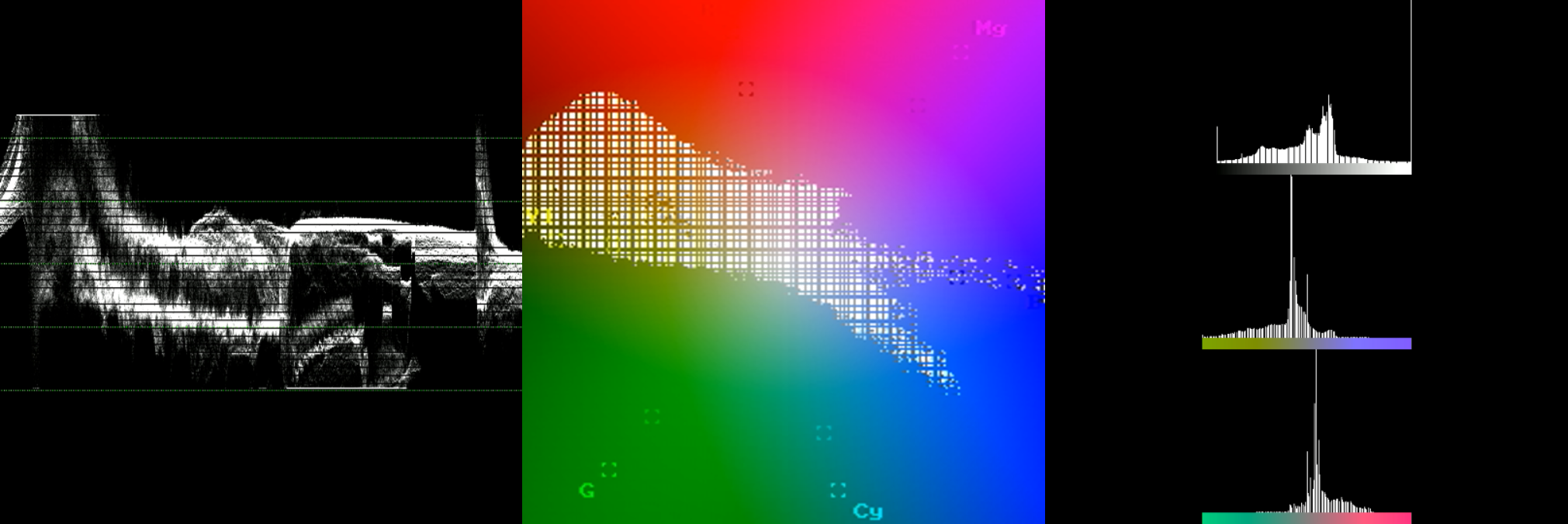
hese professional monitoring tools appear in a dedicated panel next to the video preview — perfect for precise color and exposure control during live production or playback.
- Waveform: Check overall exposure and luminance levels quickly. Spot clipped highlights (flat at 100 IRE), crushed blacks (piled at 0 IRE), or mismatched camera levels so you can adjust brightness/black/white stretch before broadcast.
- Vectorscope: Verify and correct color balance and saturation. Ensure skin tones stay in the correct flesh-tone line, detect unwanted color casts (e.g. green from LED lights), and confirm broadcast-legal saturation without over-the-top vividness.
- Histogram: Analyze tonal distribution across the image. Identify if shadows/midtones/highlights are evenly spread or if detail is lost in dark/bright areas — ideal for fine-tuning contrast and stretch sliders to achieve a balanced, professional picture.
Why is CPU Processing required?
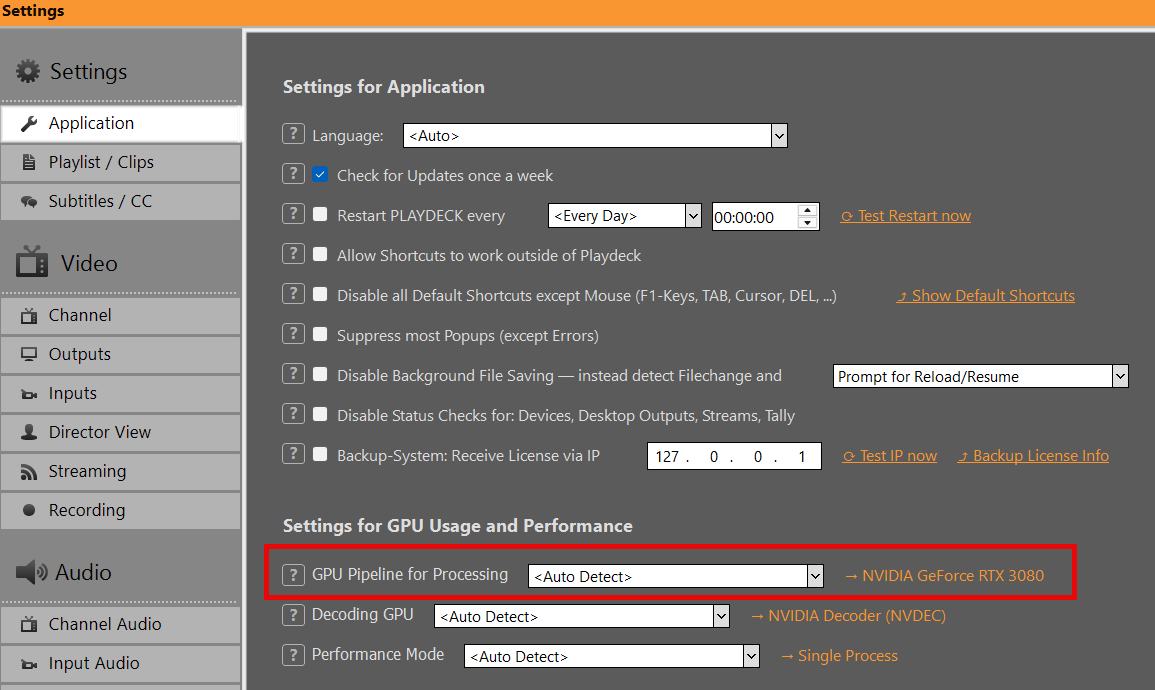
When using Color Correction (or certain other video filters) for the first time, PLAYDECK may prompt you to switch to CPU Processing:
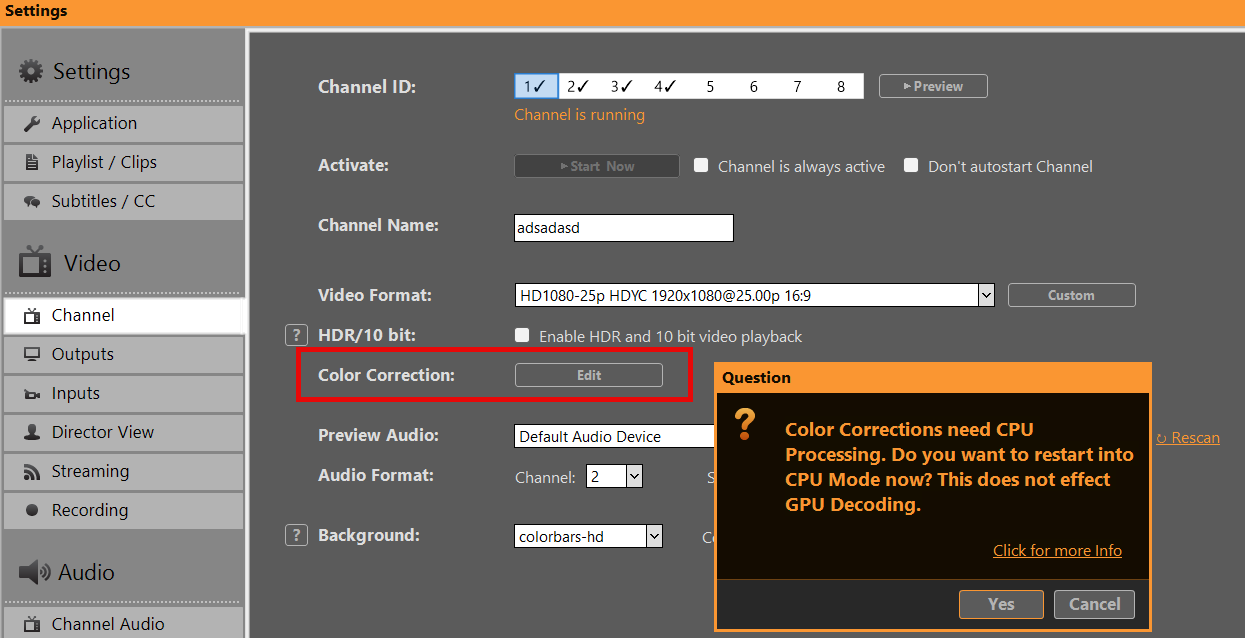
Reason: Certain video filters (vfilters) on inputs and playlists rely on FFmpeg processing, which runs only on the CPU. The GPU pipeline does not support these standard filters, so CPU mode is required for them to work correctly — ensuring reliable playback and effects.
GPU Processing handles: Scaling, Mixing, Overlays, Format Conversion, and many Effects.
Switching to CPU mode keeps all features working normally — the only difference is higher CPU usage (and lower GPU load).
You can switch back to GPU Processing anytime in the application settings: