ASIO / Dante Virtual Soundcard
This article explains how to setup ASIO audio interface and devices with PLAYDECK.
In this article:
→ Setup ASIO
→ Dante Virtual Soundcard (DVS)
→ Troubleshooting
Setup ASIO
Enable the “Additional Audio Output” setting to output audio via ASIO.
Important: As a real-time playout solution, PLAYDECK requires a stable synchronization clock from the ASIO device. Without this clock signal, frames cannot be processed correctly, resulting in severe stuttering.
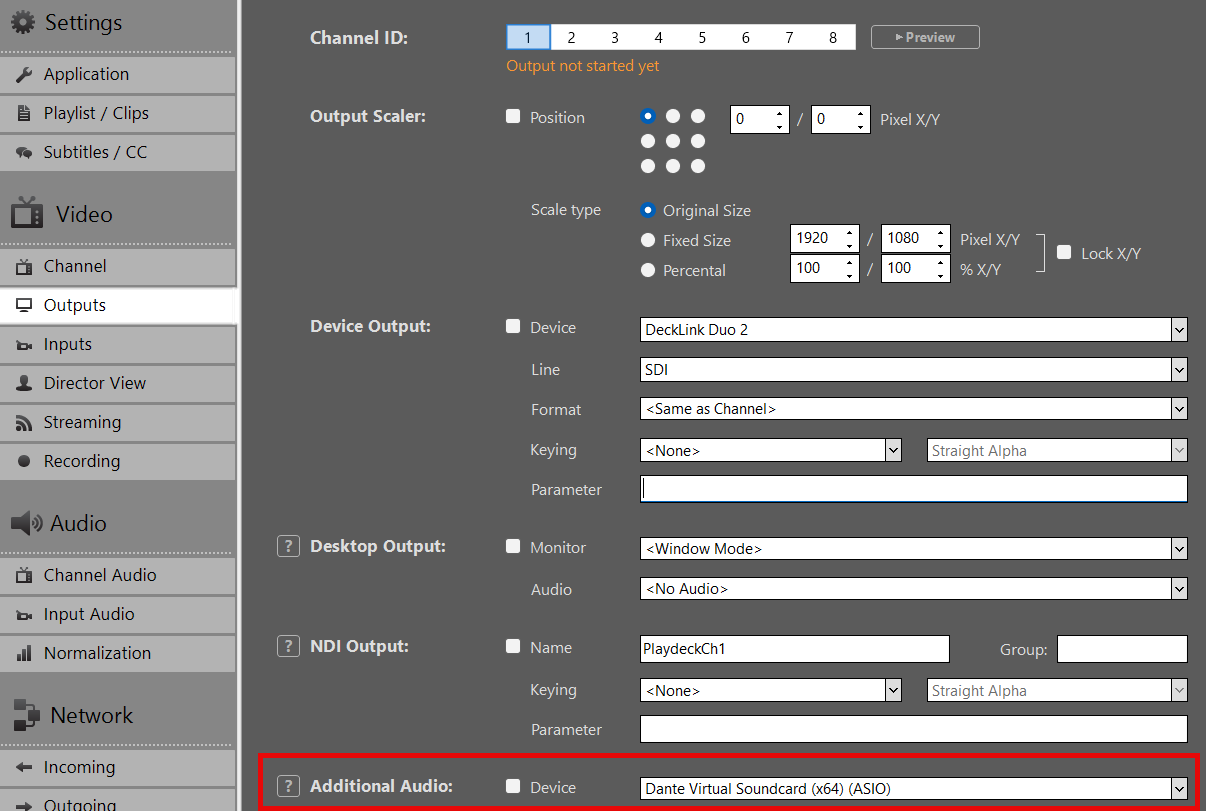
Dante Virtual Soundcard (DVS)
Dante Virtual Soundcard (DVS) is a software solution that turns your computer into a Dante-enabled workstation, allowing you to transmit and receive high-quality audio over a standard Ethernet (LAN) network.
https://www.getdante.com/products/software-essentials/dante-virtual-soundcard/
You can interface DVS with PLAYDECK using either ASIO or WDM mode:
- ASIO (Recommended): Transmit up to 64 audio channels across all PLAYDECK outputs. This provides the lowest latency and highest channel count for professional workflows.
- WDM: Limited to 16 audio channels, restricted to one stereo pair per PLAYDECK output channel.
Configuration Steps
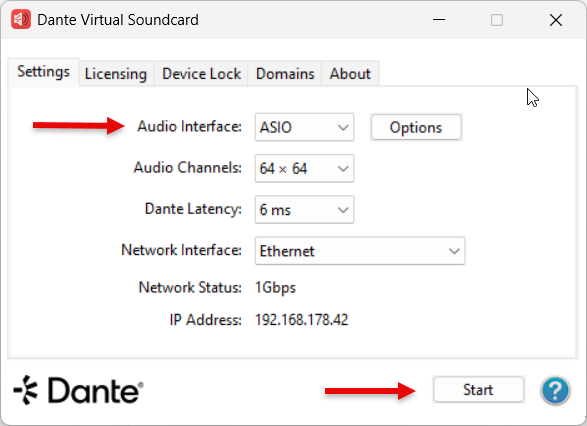
1. Start the DVS Engine:
Open the Dante Virtual Soundcard control panel, set the interface to ASIO, and click Start.
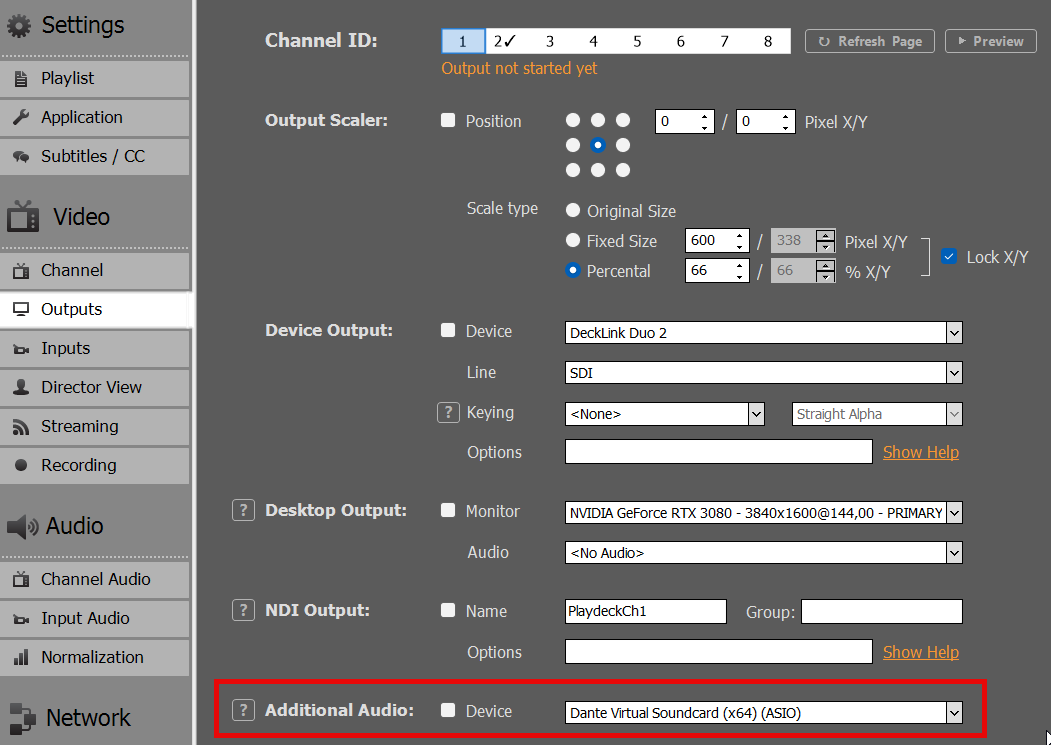
2. Select the Device in PLAYDECK:
You can now select “Dante Virtual Soundcard” as your ASIO device within the PLAYDECK settings.
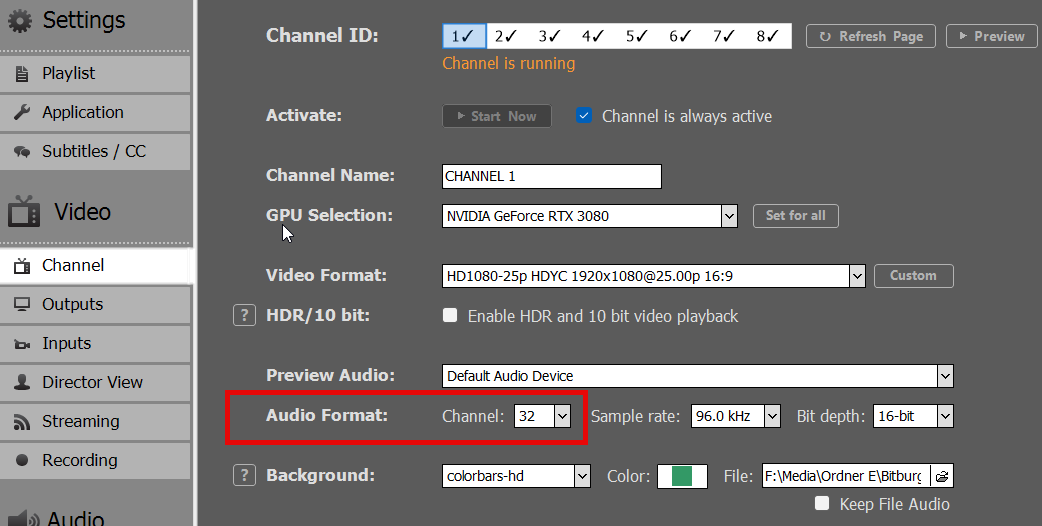
3. Channel Mapping:
PLAYDECK will automatically begin routing the audio channels assigned to that specific output. A single output can support up to 32 audio channels.
4. ASIO Device Splitting:
To use the ASIO driver across multiple PLAYDECK output channels simultaneously, enable ASIO Device Splitting.
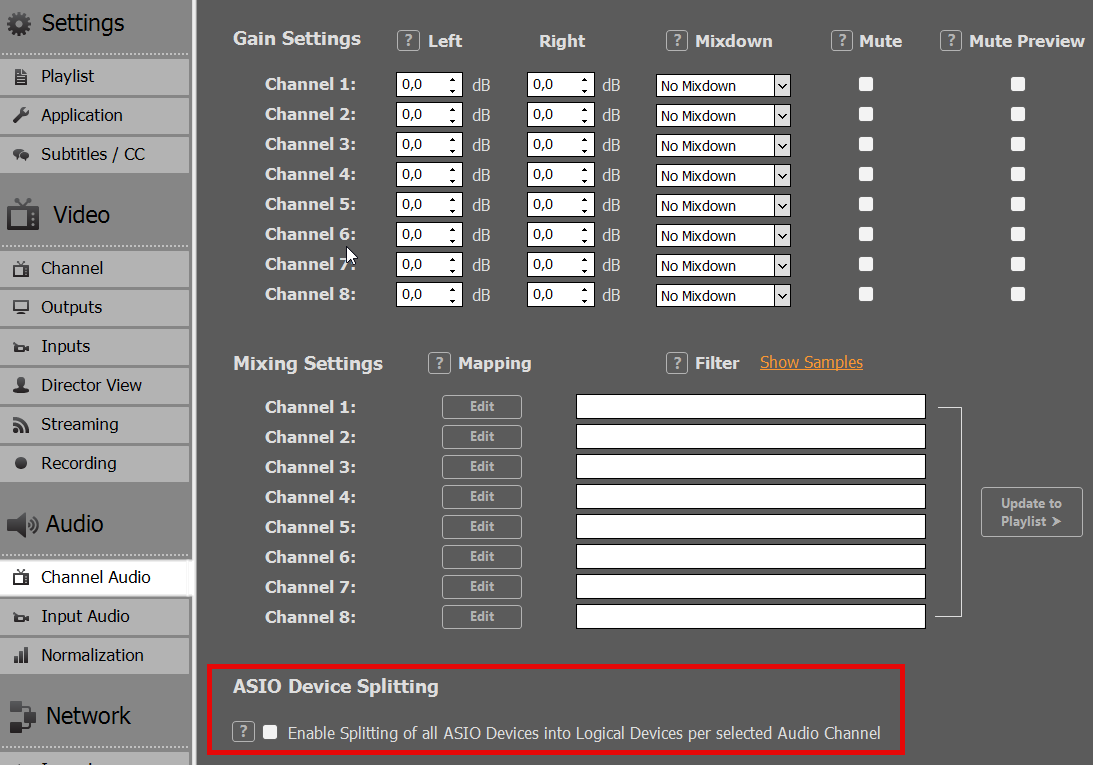
5. Assigning Multiple Outputs:
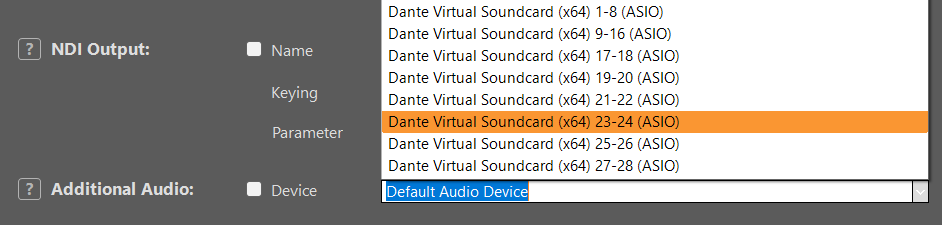
Once splitting is active, DVS will appear as multiple sub-devices. This allows you to assign a dedicated ASIO device to each individual PLAYDECK output channel.
Note on Splitting Logic: The channel allocation is determined by the “Audio Channels” setting for each output. For example, if Output 1 and 2 are set to 8 channels each, and others are set to 2 channels, the ASIO driver will split the stream accordingly to accommodate those specific requirements.
Troubleshooting
Slow Playback (Frame by Frame)
This occurs if PLAYDECK cannot synchronize with the clock signal from the ASIO device. Because PLAYDECK is a real-time playout engine, it requires a stable clock to process frames.
Solution: Ensure a Clock Leader (formerly Master Clock) is active on your network. This can be provided by hardware (e.g., a Dante-enabled mixer), a software driver, or a dedicated clock generator.
If you are using Dante, you may need additional tools to verify your workflow. Follow these steps to set up a local test environment:
- PC 1: Install PLAYDECK and Dante Virtual Soundcard (DVS). Start DVS in ASIO mode and select it within PLAYDECK.
- PC 2: Install Dante Via and Dante Controller.
- In both Dante Via and Controller, ensure the correct Ethernet Interface is selected.
- In Dante Via, enable at least one output device.
Once configured, open Dante Controller. You should see “Dante Via” acting as the Clock Leader with your PLAYDECK system successfully connected.
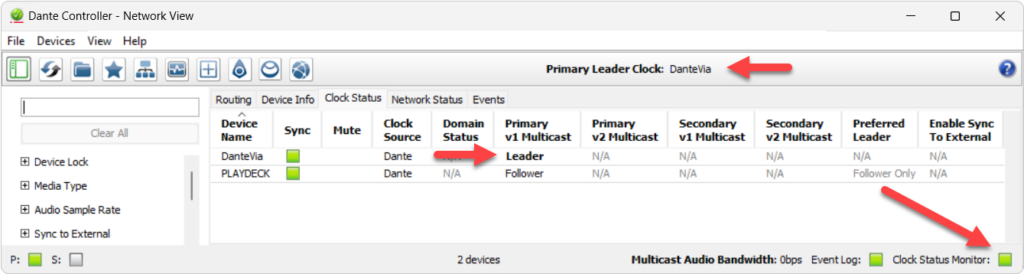
View this screen capture of the test setup:
https://downloads.playdeck.tv/assets/DanteClockTest.mkv
Note: In some cases, installing ASIO4ALL can help stabilize the “handshake” between PLAYDECK and specific audio interfaces. (https://asio4all.org/)
Poor Audio Quality
Distorted or “glitchy” audio is usually caused by a sample rate mismatch. Ensure the Sample Rate (e.g., 48 kHz) is identical across all of the following:
- Windows Sound Settings (Advanced properties)
- PLAYDECK settings
- ASIO Device / DVS control panel
Audio Channel Mixing and Routing
When working with multichannel audio, you may need to downmix your channels for specific outputs. Please refer to this article for detailed instructions on managing multichannel routing.